7 min read
Moving from VGA and DVI to HDMI and DisplayPort in a Government Organization
Migrating from VGA and DVI to HDMI and DisplayPort: how to inventory ports, choose adapters and verify compatibility with projectors.
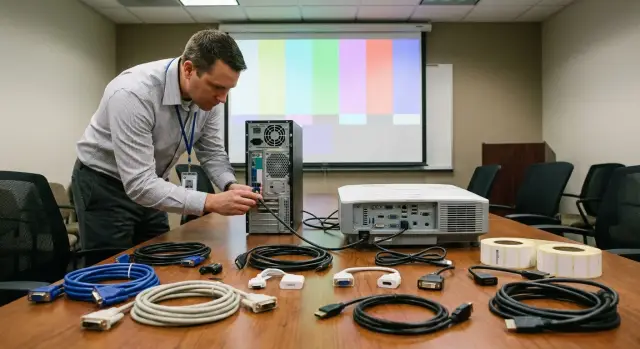
Where the migration starts and what usually fails
Migrating from VGA and DVI to HDMI and DisplayPort usually doesn’t start with buying cables, but with finding weak points. In older setups it’s often not the “hardware” that breaks, but expectations: in one room the picture works, in another you get "no signal", and in a meeting room you may suddenly see flicker or wrong colors.
Old ports have common sets of problems. VGA easily picks up interference and gives a soft image on long runs, especially through cheap extenders and wall panels. DVI also throws surprises: DVI-D and DVI-I look similar but behave differently, so a seemingly "correct" adapter sometimes fails. Add limits on resolution and refresh rate: a monitor may support Full HD, but the cable-adapter-splitter chain can’t maintain a stable image.
For a government organization predictability matters most. When there are several connection standards, incidents increase: an employee can’t start a meeting, security loses the video wall image, and IT spends time hunting for the “right” adapter. The goal is not only to replace connectors, but to create a single clear standard where compatibility is obvious in advance.
Migration almost always affects several zones: workstations (monitors and docking stations), meeting and conference rooms (projector, panel, sound), security and control posts (multiple screens), and sometimes server racks (KVM, consoles, remote management).
To keep the migration manageable, the outcome needs to be concrete: an inventory of ports and actual "connection chains" by zone, an agreed set of cables and adapters for common cases, a replacement plan with verification tests, and a simple purchasing rule (what we always buy vs. what we buy on request). Then upgrades stop being a series of urgent "fires" and become planned replacements with clear risks and timelines.
Ports and compatibility in brief, without extra theory
VGA, DVI, HDMI and DisplayPort all do the same job: they carry video from a computer to a monitor or projector. The difference is the signal type and what else travels over the cable.
VGA is an old analog connector. It behaves more like a "radio signal": quality depends on the cable, length and interference. That’s why you get blurring, flicker and colored shadows.
DVI comes in variants. DVI-D transmits a digital image. DVI-I can carry digital and analog depending on what’s connected. Because of that the same-labeled “DVI” can behave differently in different rooms.
HDMI and DisplayPort are digital interfaces. They usually give a stable image, support modern resolutions and often carry audio. So when upgrading, the bottlenecks are more often mode compatibility and signal conversion than “the cable fits”.
Why some adapters work while others don’t
It’s important to distinguish passive and active adapters.
A passive adapter only works when the source itself can output the required signal type. A classic example is DVI-I -> VGA, where some devices actually provide analog output.
HDMI/DP -> VGA almost always requires an active converter with electronics (and sometimes power). If you use a simple plug without conversion, you most likely won’t get a picture.
Plan ahead for typical constraints that appear in practice: required resolution and refresh rate (e.g. 4K at 60 Hz), actual cable run length, audio transmission (VGA and most DVI don’t carry audio), port/cable version and converter quality.
Why a "black screen" sometimes appears
A common cause is HDCP (content protection). It needs to be negotiated between the PC, the adapter and the projector. If any element of the chain doesn’t support HDCP or supports it partially, video playback can produce a black screen. This shows up most often in meeting rooms, so test the full chain in advance with the content you actually plan to show.
Preparing for an inventory: people, spreadsheet, tools
To avoid endless "won’t connect" cases during an upgrade, first define the scope. Count workstations separately from meeting rooms, auditoriums and security posts: these locations often have projectors and panels with older inputs.
Assign responsibilities and task boundaries. A common setup is one coordinator (usually IT) and several contributors who provide data and approve purchases: IT handles inventory and tests, facilities (or administrative services) help with access and schedules, procurement/warehouse check stock and issue items, any VCS contractor clarifies the middle-of-chain compatibility, and the site manager confirms priorities.
The inventory table should be simple so different people can fill it. Minimum fields: room/location, device (PC/laptop/dock), model, video outputs (VGA/DVI/HDMI/DP/USB-C), what’s actually connected (cable/adapter/through what), target device (monitor/projector/panel) and test result (image, audio, resolution).
Before the walkthrough prepare an "inspector kit": a flashlight and a short power extension, labels and a marker for tagging, a test laptop or mini-PC with HDMI and DisplayPort, 1–2 reference HDMI and DP cables, and 1–2 trusted active converters for old projectors.
Also agree on rules in advance: which ports are considered target (for example HDMI in meeting rooms, DisplayPort at workstations), whether adapters are allowed as a temporary measure, and which projectors are critical for compatibility. This is especially important if PCs are being renewed while projectors remain old.
Step-by-step plan for on-site port inventory
Do the inventory consistently across all rooms. The main goal is not to "count connectors" but to map the real connection chain and see where it will break after cable replacement.
Five steps at each workstation
Follow the route "PC (or dock) -> cable -> monitor (or panel/extender)" and record the same details.
-
Note the ports on the PC, monitor and dock: HDMI, DisplayPort, USB-C (if present), and any remaining VGA/DVI.
-
Record the current chain: which cable is installed and what it passes through (desk panel, extender, KVM switch).
-
Mark critical points: meeting rooms, old projectors, wall sockets, extenders, and "smart" table panels. These most often limit choices.
-
Take photos of connectors where there is doubt (miniDP, USB-C, nonstandard DVI and projector labels). Photos greatly reduce the risk of wrong purchases.
-
Assign a category to the location: works without an adapter, needs an adapter/cable, or requires device/node replacement (for example a faulty extender or panel).
For convenience keep one table per floor: room, inventory number of PC, monitor/dock model, ports, current cable, category, notes. A note like “HR sector, monitor only DVI, DVI-VGA cable through desk panel” immediately shows that a simple cable swap won’t solve it.
Projectors and meeting rooms: where surprises appear
Meeting rooms are almost always more complex than workstations. At a desk a user usually has one monitor and one cable. In a meeting room the signal passes through multiple points, and any of them can fail with a new interface.
The first surprise is projector or panel inputs. Even if there is an “HDMI” on the wall, there may also be an old VGA nearby and audio may go to an amplifier via a separate cable. Sometimes HDMI is occupied by the VCS system and guest laptops are left only with VGA.
The second surprise is who controls the signal. In one room the connection is direct; in another it goes through a matrix, a twisted-pair extender, a wireless receiver or an AV receiver. In upgrades the weak link is often the "middle" of the chain rather than the laptop.
The third surprise is image modes. A projector may happily show 1080p but be picky at 4K or 60 Hz. Wide-format panels sometimes scale 4:3 presentations incorrectly.
Before buying, run a short test in each room: connect “as it will be used” (with real cable length and type), test 1080p and, if needed, 4K at 60 Hz, check audio (via HDMI or separate line), try video playback to reveal HDCP, and record the whole device chain between PC and screen.
If you need help surveying meeting rooms and selecting compatible solutions under public procurement rules, system integrators such as GSE.kz often start with these rooms: they produce the most unexpected failures.
How to choose adapters and cables without extra purchases
Extra purchases usually come from buying "just in case". When you don’t know which connector pairs actually occur, the warehouse fills with dozens of SKUs and nothing works on site.
First build a small matrix “output on PC -> input on display/projector”. After 1–2 days of surveys and photos you’ll usually see 2–3 typical pairings for most rooms.
Differentiate cables from adapters. If both ends have the same digital connector (HDMI-HDMI or DisplayPort-DisplayPort), you most often just need a cable of the required length. An adapter is needed when connectors differ (for example DP on a PC and HDMI on a monitor) or when you must go to analog.
Active vs passive: common mistakes
Passive adapters are generally usable in "digital-to-digital" scenarios (for example DP -> HDMI if the port supports the required mode). "Digital-to-analog" almost always requires an active converter (HDMI -> VGA or DP -> VGA). This is a typical surprise in meeting rooms with old VGA-only projectors.
Check audio in advance. HDMI and DisplayPort usually carry audio with the video. VGA doesn’t carry audio, so a separate audio cable or another output method may be needed in the room.
To avoid an oversized warehouse, keep a small “minimum kit” for your common pairs and buy the rest after tests: HDMI cables in needed lengths, DisplayPort cables where DP is the standard, a few DP-HDMI adapters for mixed ports, and a limited number of active DP/HDMI -> VGA converters for old projectors.
A 10–20% buffer for adapters is usually justified: replacements, unaccounted models and urgent on-site visits. For a government body this is often cheaper than downtime and last-minute purchases.
Standardization, labeling and adapter storage
After the inventory the most useful work begins: bring order so that connections "just work" and searching for the right cable doesn’t become a daily task.
First agree on 1–2 standard cable types and a few lengths. For example: for workstations use one main type in 1.5 m and 3 m lengths; for meeting rooms use the same type but with extra length to reach the projector; for monitors with DisplayPort use a single solution (DP-DP or DP-HDMI by IT decision).
Then introduce simple labeling. Each cable and adapter should have a sticker with a short code: location or room number, type (HDMI, DP, DP-HDMI) and installation date. Record the same code in the inventory. If a cable disappears from a meeting room, you will immediately know what to replace.
Storage should be regulated: a separate locked box for meeting-room items (so they don’t wander between floors) and a separate on-the-go kit for events.
Document quality requirements and check them on receipt: snug fit without play, adequate jacket, proper connectors. Use reinforced connectors where cables are frequently handled (meeting rooms, racks).
For the on-call IT specialist a single kit covering most cases is enough: several short HDMI cables, one long HDMI, a couple of DP-HDMI adapters and one active HDMI/DP -> VGA for rare old projectors.
If the organization buys PCs and all-in-ones from a local manufacturer or integrator like GSE.kz, include these requirements in the procurement specifications to reduce port variety and simplify support.
Testing before mass rollout
Do a short pilot before mass rollout. It will uncover incompatibilities faster than any theory and save you from extra purchases.
Choose varied zones: 5–10 workstations (different monitor and PC models) and 1–2 meeting rooms. For meeting rooms pick rooms with different projectors or panels, especially if some equipment is old.
Test not only that an image appears, but real scenarios: PowerPoint or PDF presentations (including duplicate/extend modes), video with sound and audio-device selection, different laptops (corporate and guest with HDMI/USB-C/miniDP), docking station behavior, and connections through wall panels or extenders.
During the pilot record only what helps procurement and support: device models and inputs, which cable/adapter worked and which produced a black screen, whether audio and flicker occurred, time to lock the signal, run length and route, and the final decision (shorter cable, active converter, replace a node, change input).
Problems usually surface at boundaries: long runs, digital-to-analog conversion for old projectors and laptops with different output modes. After the pilot update the compatibility matrix and purchase list to buy only what really works in your meeting rooms and workstations.
Common mistakes during migration and how to avoid them
Failures during port upgrades are more often human than technical: buying things at random. A calm migration rests on three things: knowing signal direction, accounting for run length, and testing meeting rooms.
The first trap is confusing active and passive adapters. DisplayPort on a PC often can output HDMI via a passive adapter (if the port supports it), while the reverse (HDMI -> DisplayPort) almost always needs an active converter and power. If you miss this, some rooms will show nothing despite working hardware.
The second mistake is mixing standards and lengths without considering actual runs. Two meters may work fine on a desk, but through a wall or ceiling the same solution can flicker or drop the signal. Measure typical routes before buying and decide where higher quality is needed.
The third issue is HDCP and old projectors. Slides usually aren’t affected, but video may go black if an old splitter or converter is in the chain.
The fourth mistake is forgetting about audio. “Image is fine but no sound” happens due to the wrong OS output or because the adapter carries only video.
Finally, lack of inventory and labeling. Adapters quickly “migrate” between rooms and the same problem repeats.
A practical approach: describe core scenarios (PC to monitor, laptop to projector, meeting room via matrix), document direction and need for active conversion for each, check run lengths, separately test the oldest projectors for HDCP and modes, then introduce labeling and a minimal stocked set of labeled adapters.
Quick compatibility checklist before connecting
Small mismatches take the most time: everything seems present but no picture or no audio. This short checklist helps find the issue in minutes.
Check the source (PC/laptop/mini-PC) and the sink (monitor/projector/panel): which ports are actually available and which input is selected (HDMI1/HDMI2, VGA). Clarify which adapter is needed and its direction (DP -> HDMI or HDMI -> DP), and whether an active converter is required. Then assess the run: real length, any extender or desk panel, hidden in-wall cable. Separately check where audio should go (projector, speakers, VCS system) and that the correct audio output is chosen in the OS.
After connecting don’t stop at “the image appears”. Let the chain run 5–10 minutes: check for flicker, confirm sound on the intended device, test resolution switching (for example 1920x1080) and repeated unplug/replug without surprises. This quickly shows which items to add to the meeting-room on-call kit.
Example scenario: 30 workstations and 3 meeting rooms
Typical case: 30 workstations with HDMI-equipped monitors and 3 meeting rooms with projectors of different ages. Two projectors only have VGA, one has HDMI but is picky with some laptops.
At workstations you can gain the most by standardizing. If PCs output via HDMI or DisplayPort, it makes sense to standardize on one cable type and one or two lengths (for example HDMI 2 m). Keep adapters only where unavoidable (e.g. DP -> HDMI when ports don’t match).
In meeting rooms predictability matters more than a perfect single standard. Choose one proven adapter for the most common scenario and fix it in the room. Add a small spare kit in each room: adapters are often lost or damaged.
A weekly workflow is straightforward: inventory ports and record models, run a pilot on several workstations and one meeting room, finalize the purchase and reserve list, accept and label items, deploy by department and do a short follow-up check of meeting rooms.
Keep the final data in one table (location/room, ports, required cable, adapter needed) and a simple list for meeting rooms “what’s in the cabinet”. Also assemble an emergency kit for the administrator: several HDMI 2 m cables, 1–2 DP -> HDMI adapters, a couple of active HDMI/DP -> VGA converters for old projectors, a power extension and labeling supplies.
Next steps: lock the standard and simplify procurement
When problem points are identified (meeting rooms, projectors, old monitors), it’s important to lock decisions. Otherwise in six months the cable chaos and emergency purchases return.
Create a final statement: what to change now, what to buy ad hoc, and what to leave for planned modernization. Immediately list which cables and adapters become standard and which are allowed only as exceptions.
Then add the standard to procurement documents. In specs for new PCs and all-in-ones indicate required ports and minimal compatibility with your monitors and meeting rooms. This reduces reliance on adapters and cuts incidents of “can’t connect before a meeting.”
Finally, set support rules: who tracks adapters (warehouse or IT), where the meeting-room on-call kit is stored, and how issuance and returns are logged. This saves a lot of time during moves and rearrangements.
If you need equipment supply and system integration, you can work with GSE.kz: the company has local production, system integration and 24/7 support. In such projects it’s convenient to lock a single port standard in procurement specs and get predictable compatibility across sites.
Frequently asked questions
Where is the best place to start migrating from VGA/DVI to HDMI/DisplayPort without creating chaos?
Start with an inventory of real “connection chains” by zones: workstations, meeting rooms, security posts and projector locations. The goal is not to count ports, but to understand where the signal goes through panels, extenders, matrices or KVMs and where it will fail after cable changes.
What usually “breaks” in old VGA and DVI setups?
VGA often shows blurring, flicker and colored ghosts on long runs and under interference, especially through cheap extenders and wall panels. DVI issues usually come from confusion between DVI-D and DVI-I and from mode limits when the cable/adapter/splitter chain cannot sustain the required resolution or refresh rate.
Why does one adapter work while another with the same connector does not?
Because signal type and direction matter. A passive adapter only works when the source can already output the required mode; “digital → analog” almost always needs an active converter with electronics and sometimes power. Adapters can look similar but give different results.
What causes a black screen when connecting via HDMI/DisplayPort?
Most often it’s HDCP incompatibility somewhere in the chain or mismatched modes (resolution/refresh), especially through converters and splitters. Another common cause is the wrong input selected on the projector/panel or a middle device that doesn’t support the needed format. Test with the actual content shown in the meeting room.
Which fields are essential in a port inventory table?
At minimum record the location, source device, model, available video outputs, what is currently connected (cable, adapter, panel, extender), the target display and the test result (image, sound, mode). If a port type is doubtful, add photos of the connectors and projector or dock labels.
What should I take when surveying offices and meeting rooms?
Bring a reference source with HDMI and DisplayPort, a couple of tested short cables of each type and 1–2 active converters for old projectors. Add a flashlight, power extension and labeling materials to tag cables and adapters on the spot. This speeds up diagnosis and reduces wrong purchases.
Why do meeting rooms cause more problems than regular workstations?
Meeting rooms route the signal through more nodes, and any of them can fail to ‘negotiate’ with a new interface. HDMI can be occupied by the VCS system, audio may run separately, and guest input is sometimes left on VGA. Long runs, extenders and 4K/60Hz modes also cause issues.
How to choose cables and adapters without overspending and overstocking?
First, create a matrix “PC output → display/projector input” and identify 2–3 common pairings instead of buying everything. For identical digital connectors you usually just need a cable of the right length; keep adapters only where ports differ or analog conversion is required. Keep a small stock of rare active converters for old projectors.
How to standardize and track adapters so they don’t get lost?
Define 1–2 standard cable types and a few typical lengths for workstations and meeting rooms. Label each cable and adapter with a short code (room, type, installation date) and record it in the inventory so accessories don’t ‘migrate’ between rooms. Store a locked kit for meeting rooms and an emergency set with IT for quick dispatches.
Is a pilot necessary before mass deployment and when should an integrator be involved?
Yes: a pilot of 5–10 workstations and 1–2 meeting rooms quickly reveals incompatibilities in run lengths, HDCP, audio and docking behavior. Test real scenarios: presentations, video with sound, different laptops (service and guest), docking stations and wall-panel connections. If you need a contractor, GSE.kz can survey and implement as a system integrator; when procuring local equipment, define port standards in specifications up front.
