8 min read
Meeting Room Integration: Service, Scheduling and Responsibility
Meeting room integration brings order: a single schedule, equipment standards, support and clear SLAs for the team.
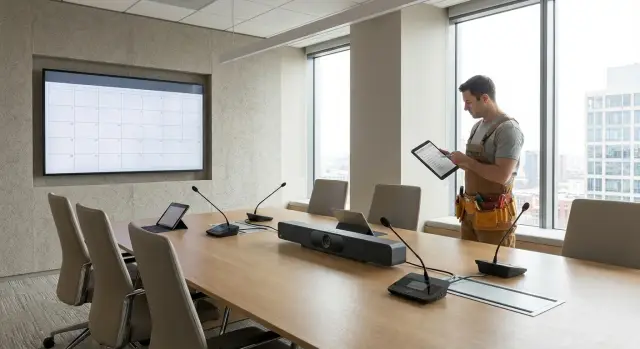
Why a typical meeting room quickly turns into chaos
A meeting room almost always starts as “a room with a screen.” But within a couple of months it turns into a source of small failures that break meetings. Today the sound doesn’t connect, tomorrow the adapter is “missing,” and the day after the room is occupied even though the calendar shows it free.
The problem is that a meeting room is rarely treated as a service. Equipment is bought once, responsibility is spread between IT, the office manager and “whoever was nearby,” and usage rules aren’t fixed anywhere. As a result every incident is solved manually, and the same mistakes repeat.
Chaos usually looks like this:
- A room is occupied without a booking, and the meeting is “pushed” to the corridor or moved online.
- Cables, remotes and adapters disappear or are kept “somewhere in a drawer.”
- The microphone or camera works intermittently and nobody knows where to look for the cause.
- Different rooms are set up differently, and each requires a separate “mental manual.”
- A failure drags on for weeks because it’s unclear who owns the problem.
Hidden losses are usually bigger than they seem. Five minutes of delay per meeting quickly becomes hours per week. Add participant frustration and idle managers who can’t start on time.
If you already have more than 2–3 meeting rooms, frequent “help me connect” requests, and meetings begin with device setup, it’s time to treat meeting rooms not as a one-off equipment install but as a managed service with rules and owners.
Meeting room as a managed service: what it means in practice
A managed service is when a meeting room works predictably, like corporate email or Wi‑Fi. There are clear rules, a single equipment standard, support and metrics that show everything is okay. That is real meeting-room integration: not “we put a TV,” but “we created a service.”
For the default user it should be simple: arrive, press a couple of buttons, and the meeting starts. Usually people expect roughly this:
- bookings are visible to everyone and prevent double-booking;
- screen, camera and microphones turn on without a quest;
- a guest can connect in a minute, not 15;
- a short 3–5 step instruction is in the room;
- if something doesn’t work, it’s clear where to report and when it will be fixed.
Boundaries of responsibility are defined in advance. IT is responsible for the network, accounts, integrations and access. Facilities (office management) are responsible for furniture, catering, climate and the physical state of the room. Security is responsible for access control and recording requirements if recordings are used. Departments are responsible for booking discipline and tidiness after meetings.
To make the service measurable, simple metrics are enough: share of meetings that started without problems, average recovery time, number of incidents per room, repeatability of failures.
Realistic effect in 1–2 months: fewer missed calls, recurring cable and sound problems disappear, you get statistics on the most problematic rooms and a clear list of improvements.
Responsibility without confusion: assigning roles
When a meeting room has no owner, any small issue becomes an argument: who should fix the cable, update the panel, or resolve schedule conflicts. For meeting-room integration the most important thing is one: every question has a specific owner and a clear escalation path.
Minimal set of roles
Usually four roles are enough:
- Service owner (from the business or IT) — sets rules, budget and quality metrics.
- Meeting-room administrator — manages rooms, monitors standards, settings and documentation.
- First-line support (Service Desk) — receives requests, resolves common problems, triggers escalation.
- Contractor or integrator — performs complex repairs, equipment replacement, updates and site visits under contract.
To avoid gray areas, fix ownership by area in a simple matrix (even one page):
| Area | Who owns it | What counts as a result |
|---|---|---|
| Booking and permissions | Administrator | no duplicates, clear rules, up-to-date access |
| AV equipment (camera, microphone, panel) | First-line support + contractor | issue resolved or escalated within SLA |
| Network and security (Wi‑Fi, VLAN, accounts) | IT network / InfoSec | stable connection, compliance with policies |
| Software (VC client, drivers, firmware) | IT endpoints / contractor | updates on schedule, no surprises for users |
Escalation and documenting agreements
Fix a short rule: “user contacts first-line support and does not look for ‘that one engineer.’” Example: 5 minutes before a meeting the screen output doesn’t work. First-line checks power, correct input, and restarts the panel. If that doesn’t help — they open a ticket to the contractor and notify the service owner if there’s a high risk of a missed meeting.
It’s better to document agreements not in chats but in two documents:
- the regulation (how to book, what to do in case of failure, timeframes);
- a room card (equipment list, connection diagram, where logins/PINs are needed, contacts and response times).
Standardize equipment: so all rooms work the same
When each meeting room has its own set of cables, remotes and “special” settings, meetings fail over small things. A standard makes rooms predictable: someone enters any room, connects the same way and doesn’t spend the first 10 minutes looking for an adapter.
Minimal standard
Even a small room should have a basic set that isn’t discussed from project to project: a display of appropriate size, a camera with a good field of view, microphones (preferably those that cover the whole room), acceptable acoustics and stable power with protection. Decide in advance where the control point will be (panel, mini‑PC or codec) so the power-on logic is the same everywhere.
Rooms are conveniently divided into tiers — it’s easier to procure and support them that way:
- Small (2–4 people): display, compact camera, one microphone, simple sharing.
- Medium (6–10): stronger acoustics, table or ceiling microphones, spare ports.
- Large (12+): several microphones, reliable sound, camera with auto-framing, clear control.
- Training room: second display or projector, input for an external laptop, more power outlets.
Labeling and small spares
Failures most often happen because of small details. Unified labeling helps: mark HDMI/USB‑C, “to laptop,” “to camera,” “to display,” and power outlets for equipment. Secure cables so they aren’t carried off or worn out, and leave a short “how to start a meeting” note in plain view.
Keep a mini-kit in each room: spare remote, 1–2 cables, a couple of adapters, batteries, fasteners. A simple example: in an office with six meeting rooms the same USB‑C adapter “travels” between rooms and disappears. When each room has its own spare, such support requests almost disappear.
About furniture and acoustics without theory: the table should not block microphones, and soft surfaces (curtains, panels, carpet) noticeably reduce echo.
Scheduling and booking: make it simple and transparent
Users need simplicity: quickly see where free time is, and be confident the booking is “real.” If this doesn’t work within 10–15 seconds, people return to chats, verbal agreements and room conflicts. Start not with pretty screens but with rules and a single source of truth.
Booking should be convenient where employees already work: in the calendar and at the room door. Often the best combination is calendar for planning and a panel at the door for quick on-the-spot meetings. You can also enable phone booking and, for large offices, put a shared kiosk at reception.
To keep the schedule honest, fix 3–4 rules and, if possible, automate them:
- auto-cancel booking if the meeting hasn’t started within the first 10 minutes;
- 5–10 minute buffer between meetings;
- limit on long bookings without confirmation (for example, more than 2 hours);
- quick extension at the door if the next booking is free.
A separate topic is external guests and security. If partners come to your office, ensure a guest invitation doesn’t turn the room into an “open door.” Good practice: invite via calendar, register at reception and tie the meeting to a specific room and time.
Create a single room directory: clear names, capacity, key equipment (display, camera, microphones) and 1–2 photos. Then an employee chooses not “Meeting Room 3” but “6 seats, video, whiteboard.”
Example: in an office with six meeting rooms two were constantly “missing” due to empty bookings. After enabling auto-cancel and buffers, utilization leveled out and complaints dropped: people saw actual occupancy and didn’t argue over whose meeting was more important.
Support and SLA: how to make problems get solved fast
A meeting room usually breaks not “sometime” but 3 minutes before an important call. Support must be part of the service, not a “help if you have time” request. Agree in advance what is supported, where to write and what counts as a resolved issue.
Meeting room support typically includes:
- on-the-spot help: connect to the screen, start the call, fix sound settings;
- quick replacement of consumables and small parts: cables, adapters, remotes, batteries;
- software updates and configuration: calling app, camera and panel firmware;
- scheduled maintenance: checking microphones, speakers, camera and network ports;
- diagnostics and repair with contractor or vendor involvement if needed.
SLA in simple terms is two numbers: response time (when you get an answer and help begins) and recovery time (when the room is back in working order). For example: 10‑minute response in working hours and 2‑hour recovery for “critical”; for “non-urgent” – by next day.
Channels for requests should be the same for everyone. Usually the Service Desk is the main entry, plus phone or messenger for urgent cases. In large offices a simple “need help” button on the room panel helps: it instantly submits a request with the room number.
To prevent problems from piling up, schedule maintenance: weekly quick sound and camera test, monthly cable and update checks.
Track metrics, otherwise the SLA stays “on paper”:
- percentage of rooms operational per month;
- average response and recovery times by incident type;
- top‑3 causes of failures (e.g., cables, updates, network);
- room load (where incidents happen most often);
- share of repeat requests for the same issue.
If support is 24/7, predefine on-call staff and fallback scenarios: where to move a meeting if a room is temporarily unavailable.
Network, security and inventory: so the service doesn’t break from the inside
Even perfect equipment will fail if the network and access are done “however it works.” Fix simple rules in advance: where AV connects, where office laptops connect, where guests connect, and who can change settings.
Start with unified network requirements. Each room needs a clear minimum: stable Wi‑Fi, a wired port for the main device (for example, a mini‑PC or codec) and traffic separation. Guest access should be kept separate from corporate network, and room devices should be in a separate segment so a random laptop can’t “see” control panels and cameras.
Security often breaks on small details. Lock admin settings with a password, disable unnecessary ports where possible, and consider physical measures: a cabinet or mount, seals on critical connectors, cables without free access. If confidential meetings are held, decide in advance what to do with USB (allowed, forbidden, or restricted).
To analyze incidents without guessing, agree on what data you collect and who reviews it:
- network state (losses, Wi‑Fi quality, VLAN availability);
- device events (restarts, camera/mic errors);
- attempts to access admin panels and configuration changes;
- update history (when, who, what was updated);
- user request history by room.
Firmware and app updates are better done on schedule, e.g., monthly during quiet hours, with an owner and a rollback plan.
Finally, inventory. Keep serial numbers, warranties, installation and replacement dates. Example: a microphone starts “crackling” in one room. If you have replacement history and warranty info, you’ll quickly tell whether it’s a batch defect, cable wear or a misconfiguration after the last update.
Step-by-step rollout plan: from audit to steady operation
To keep integration from turning into endless repairs and disputes, start with facts. Walk all rooms and record: what equipment is installed, what actually works, where sound often fails or a laptop won’t connect, and which meeting apps teams use. At the same time gather brief user feedback: what prevents meetings from starting on time and what annoys people most.
Then choose 1–2 “reference” configurations (for example, a small room for 4–6 people and a medium one for 8–12). Don’t chase uniqueness for every room; make things work the same: identical cables, identical startup logic, clear booking rules.
A practical plan:
- Audit: inventory, common problems, room map and priorities.
- Standards: approve 1–2 equipment sets and booking rules (including buffers between meetings).
- Pilot: launch in 1–3 rooms, configure, short training, collect feedback and adjust.
- Rollout: install according to schedule, accept by checklist, commission only after testing.
- Support: incident regulation, SLA, spare cables and remotes, designated owner.
After launch don’t let the topic go unattended. Review incidents weekly: what repeats, where meetings fail most often, which rooms generate requests. If 70% of problems are caused by adapters, it’s cheaper to standardize connectors and keep spare kits than to keep looking for culprits. Such a short improvement cycle over 4–6 weeks usually achieves stable operation and predictable ownership.
Common mistakes: where integration fails
The main reason for failure is simple: meeting rooms are implemented “as it comes.” Each room ends up with its own remote, cables and rules, and on the day of an important call nobody knows what to do or who to call.
One frequent mistake is too many different models and “unique” rooms without a standard. When in one room the camera is enabled from the panel, in another from the PC, and in a third you need a separate adapter, people stop trusting rooms and go back to using laptops and ad‑hoc calls.
A second problem is a gap between booking, equipment and support. If the booking system lives separately, equipment separately, and help arrives “through acquaintances,” responsibility blurs. Integration works only when it’s clear who owns the service, who manages the schedule, who fixes things and in what timeframes.
A third mistake is the absence of a short pre-meeting test. Checking sound and camera when clients are already connected is too late.
A minimum that usually helps:
- a standard equipment set and startup scenario (same in all rooms);
- a quick pre‑flight test: sound, camera, screen share;
- a single support channel and clear response times.
Acoustics are often underestimated. You can buy an excellent camera but if microphones are far away, an air conditioner is noisy and walls echo, audio will be worse than video. In a 10‑person room a microphone placed at the screen often “eats” voices from the sides and the call becomes a guessing game.
And finally — rules. Without transparent agreements (when to cancel a booking, how long a room can be held, what to do when late), people keep “occupying and sitting,” and conflicts between teams become the norm.
Quick checklist: what to check before launch and weekly
Good meeting-room integration starts not with buying equipment but with simple checks. This checklist catches most problems before an important call is ruined.
Before launch (one thorough check)
- Room is visible in calendar and booking system: clear name (e.g., “Meeting Room 3, 8th floor”), capacity, short description (camera/panel/HDMI/Teams).
- Passes the “2‑minute test”: screen turns on, two‑way audio works, camera provides picture, internet is stable, power is firm and not "sparking" in the outlet.
- A one‑page instruction is in the room: how to start a call, how to route audio, where the Mute button is, and where to write/call in case of problems.
- There’s a quick replacement kit: 1–2 HDMI/USB‑C cables, adapters, remote batteries, spare marker (if there’s a whiteboard).
- Support knows what counts as an incident, what SLA applies, and has access (accounts, PINs, panel rights) and contractor contacts.
It’s useful to test this with a real scenario: one person books the room, a second connects remotely, a third tries to “quickly start” without help.
Weekly (15 minutes per room)
- Quick run of basic tests: screen, sound, camera, network, power.
- Check bookings: are there double bookings, strange names, or broken calendar resources?
- Inspect the instruction: is it up to date (after a software update or remote change it often becomes incorrect)?
- Replenish the quick replacement kit and tidy redundant cables that confuse users.
- Short review of requests: what repeats, where SLA is missed, and what can be fixed permanently (for example, replace a problematic cable with a more reliable one).
Example scenario: 200 people office with 6 meeting rooms
An office of 200 employees, 6 meeting rooms on different floors. Almost every day there are online meetings with branches and partners: someone connects from a laptop, someone tries to “start” the camera, and two rooms have noticeably different sound. Bookings are done in calendar and in chat. Due to overlaps meetings are disrupted and there are no clear “guilty” parties.
The solution starts with a simple goal: treat meeting rooms as a service where rooms are clear, predictable and every problem has an owner.
What we change
Instead of six “unique” rooms, create two standard types: small (4–6 seats) and medium (8–12 seats). Each room has identical connection logic and one startup scenario: enter, press a button, meeting started.
Booking rules are unified too: meetings only via the system, each booking has an owner, buffers are clear for preparation and turnover.
To help employees remember, introduce short rules and fix them in the booking interface:
- 5 minutes to “connect” is included in the booking;
- if not arrived within 10 minutes the booking is canceled;
- online meetings run only from “standard” rooms;
- personal conversations without tech are allowed in any room.
How support is organized and what counts
Support is built in three levels: first-line receives and helps via a checklist, field technicians handle complex cases and carry a spare kit (cable, remote, camera), and monthly maintenance covers updates, sound tests and cable checks.
Results are measured not by feeling but by metrics: share of disrupted meetings, response time, recovery time and real room utilization.
After the first month rules are often adjusted: add more turnover buffer, toughen no‑show handling, swap room types and plan expansion (for example, add 1–2 rooms on the busiest floor).
Next steps: lock in order and scale
To prevent rooms from sliding back into chaos, treat them as a service: a clear owner, rules, inventory and understandable support. Then integration stops being a one‑off equipment install and becomes a managed part of office infrastructure.
Start with facts. Record a full list of rooms (capacity, address/floor, usage scenario) and collect the 10 most frequent problems from the last month: “no sound,” “HDMI missing,” “booking doesn’t match occupancy,” “lost cable,” “camera not detected.” This quickly shows where standards are needed.
Plan for the next 2–4 weeks
- Assign a meeting-room service owner and approve a one‑page ruleset: who books, what to do when late, how to cancel, how to file a support request.
- Define a simple SLA: response time during working hours, what is critical, what can be fixed on the spot and what goes to a contractor.
- Launch a pilot in 1–2 rooms and choose 1–2 standard configurations (for example, “small: screen + camera + speakerphone” and “large: two screens + microphones + control”).
- Start inventorying equipment: serial numbers, installation dates, warranty, where cables and spare adapters are stored.
- Schedule maintenance: short weekly checks (sound, camera, cables, updates) and a monthly inspection of mounts and consumables.
Scale in batches: identical equipment sets, identical settings and identical one‑page instructions. Support then solves problems faster and users get less confused.
If you need a partner to cover audit, implementation and support as a single process, it’s easier to work with a systems integrator. For example, GSE.kz (gse.kz) operates as a manufacturer and integrator and can help assemble infrastructure for booking and support services based on its own PCs and servers.
Frequently asked questions
How do I know it’s time to treat meeting rooms as a “service” rather than just rooms with equipment?
If cables keep disappearing, meetings start with “help me connect,” and the same issues repeat for weeks, this is no longer a one-off failure but a lack of service. It’s time to introduce rules, a standard and support; otherwise disruptions will grow with the number of rooms and users.
What does “meeting room as a managed service” mean in simple terms?
A user should be able to enter any meeting room and start a meeting the same way, without hunting for adapters or secret buttons. Ideally bookings are visible in the calendar, startup takes a couple of actions, there’s a short instruction in the room and a clear support channel if something goes wrong.
Which roles should be assigned to avoid confusion about responsibility?
Assign a service owner, a meeting-room administrator, first-line support and a contractor responsible for complex work. The key is that each type of issue has one clear owner and a predefined escalation path so incidents don’t turn into a “who fixes it?” debate.
Why standardize equipment if “it already works”?
Define 1–2 standard configurations and repeat them across rooms of the same class. When connection and control logic are identical everywhere, people make fewer mistakes, support diagnoses problems faster, and small failures like “wrong input” or “wrong cable” drop dramatically.
What should be kept in the meeting room to avoid dependence on lost cables and remotes?
Most meeting failures are caused by small things: a borrowed cable, dead remote batteries, a missing adapter. Keeping a mini-kit in each room reduces urgent support requests and saves time because issues can be fixed on the spot without waiting for delivery or searching the office.
How to set up booking so rooms aren’t taken without a record and without conflicts?
Use a single source of truth — bookings via a calendar or system visible to everyone, with a duplicate display at the room door. Auto-cancel empty bookings and a short buffer between meetings help keep the schedule honest and reduce conflicts.
What SLA is reasonable for meeting rooms and what should it include?
SLA for meeting rooms should answer two questions: when help will start and when the room will be back in operation. Distinguish urgent incidents that occur before a meeting from non-urgent tasks, and provide a single entry point to support so users don’t hunt for a “familiar engineer.”
What network and security requirements usually prevent meeting room failures?
Common network and access issues: unstable Wi‑Fi, mixing guest and corporate traffic, and open device settings. Put AV devices in a separate segment, restrict admin access, and schedule updates — these measures bring more stability than endless “restart and try again.”
Where to start implementation if there are many rooms with different problems?
Start with an audit of rooms and a list of recurring complaints, then pick 1–2 reference configurations and run a pilot in several rooms. After that, roll out by checklist, introduce an incident regulation and weekly maintenance — otherwise even a good setup will quickly fall into disorder.
Which mistakes most often break meeting room integration?
The most common failures are a zoo of different solutions in each room, no service owner, and a gap between scheduling, equipment and support. Add the lack of a short pre-meeting check and underestimating acoustics, and even an expensive camera won’t help: people will spend time setting up instead of working.
What minimum measures usually save the integration?
A minimum that usually saves the situation: - a standard equipment set and startup scenario (the same in all rooms); - a quick pre‑flight test: sound, camera, screen sharing; - a single support channel and clear response times.
