7 min read
MDM for Corporate Smartphones: BYOD, Containers and Policies
MDM for corporate smartphones: how to choose between BYOD and corporate devices, set up a work container and simple policies for email, chats and files.
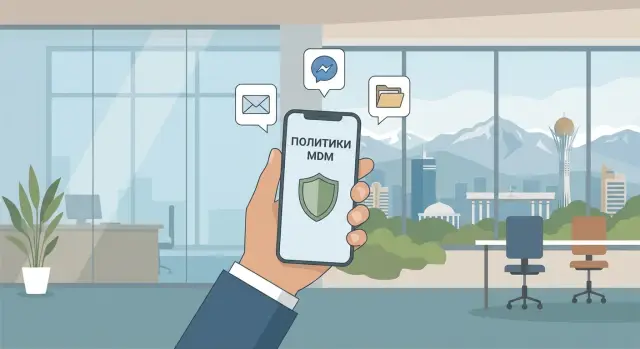
What problem does MDM solve and how to measure success
Smartphones bring speed, but without management they quickly become a source of risk. A lost phone, a shared family tablet, sending files to personal chats, an outdated OS, phishing links in messengers — and work data ends up where you can no longer control it.
MDM solves three tasks at once: who and from where gets access, how data is protected, and which apps may be used. It’s not about blanket bans, but about clear boundaries that reduce the chance of leaks and downtime.
In practice MDM covers basic things: access to mail and corporate services only when conditions are met (PIN/biometrics, up‑to‑date OS), encryption and protection of work data, app control (allowed, blocked, required), fast incident actions (block, remote wipe, revoke tokens) and device hygiene (updates, block rooted/jailbroken devices).
Bans without explanation don’t work. If a policy prevents getting the job done, an employee will find a workaround. For example, if they can’t send a file from the work chat, they will send it to their personal email.
A realistic goal looks like this: you know which devices have access to mail and chats, can quickly cut access when someone is fired or a phone is lost, and don’t have daily arguments with users. Success is when rules are simple, incidents are resolved in minutes instead of investigated for weeks, and people understand MDM protects work, not their private life.
BYOD or corporate devices: how to choose without fights
The choice between BYOD (personal phone for work) and corporate smartphones usually comes down to trust and risk, not hardware. MDM helps set rules so the company protects data and the employee understands the boundaries.
BYOD is often more convenient for employees: no second phone, familiar settings and apps. For the company it’s usually cheaper upfront. But later the cost appears: support is harder, models multiply, and the risk of leaks via personal clouds and chats is higher.
A corporate phone is better where tighter control is needed: access to finances, government data, medical records, infrastructure management, or when someone frequently works with files and mail outside the office. It simplifies support: identical models, predictable updates, unified settings.
A practical approach is to segment people by role and give each group its mode. For example:
- office staff — BYOD with a container and basic restrictions for mail and files;
- sales and field staff — corporate device or BYOD only with mandatory PIN and encryption;
- executives — corporate device with enhanced protection;
- contractors — separate policies, minimal access and a clear expiry.
To avoid disputes, agree simple rules in advance with HR and legal: what admins can see on BYOD (and what they can’t), when remote wipe is possible and what will be erased, what requirements are mandatory (PIN, biometrics, updates), how consent is recorded and what happens at termination or loss. If this is discussed before the pilot, policies are perceived as protecting work data, not spying.
Containerization: separating personal and work without spying
Containerization keeps work data on a smartphone in a separate protected zone. Typically this includes corporate email, calendar, contacts, work chats, files and access to internal services. The work part is protected — it can be encrypted, require a separate PIN and follow company rules.
For the employee it’s simple: personal apps, photos and messengers remain as they are, while work apps live in the container and are marked as corporate. Attachments are saved to corporate storage, not the personal gallery or Downloads folder. Restrictions can be precise: for example, allow copying text but block sending files to personal chats.
Most often the company manages only the work-related items: installs and updates work apps, sets screen lock and encryption requirements, and when necessary limits export of work data to personal apps.
A key point for trust is selective wipe. If an employee leaves or loses a phone, the admin deletes only the container: mail, access tokens, work files and settings. Personal photos, contacts, private chats and apps remain untouched. If this is stated in a simple BYOD policy (what the company sees and doesn’t see), containerization becomes an acceptable compromise.
Practical policies for corporate email
Corporate email is usually the first target when a phone is lost or phishing happens. Policies should protect access but not make reading mail a daily struggle.
Start with screen lock: a 6‑digit PIN or password is usually enough, auto‑lock after 1–3 minutes and a ban on easy combinations (000000, 123456). Overly strict requirements often lead people to write codes down on paper.
Two‑factor authentication is always needed when mail is accessible from outside, used on BYOD, or the role has access to finance, personal data or contracts. For others, you can start with 2FA on first sign‑in and when changing devices, then strengthen rules after the pilot.
A good practice is to configure mail automatically via an MDM profile: server, certificates, PIN and encryption requirements, block unsafe mail clients. This reduces errors and support requests.
Be measured about forwarding to personal addresses. A full ban is justified for confidential information but can get in the way of everyday tasks. Better to describe rules with examples: what’s allowed and what isn’t.
Check the minimum: mail app allows only corporate accounts, attachments open only in approved apps, on loss the work mail in the work profile is wiped remotely, 2FA is enabled by role and device type, and forwarding rules are written in plain language.
Policies for messengers: work chats without leaks
Work chats are often the fastest channel for sharing files, links and passwords. So agree not only which messenger to use but how to use it.
Start with a short list of approved options and uniform conditions: login with a corporate account, mandatory PIN/biometrics, and a ban on backups to personal clouds. Better one or two tools than five, with every department doing its own thing.
If a container is used, the work messenger lives inside it: the admin manages only work data, while personal chats and photos remain out of control.
A basic rule set is usually: login only with a corporate account, files saved to work storage/container, minimal local storage, and on termination or loss only the work area is removed. Restrict copy and forwarding from work chat to personal apps where the risk of leaks is real.
Blocking screenshots and exporting chats isn’t always necessary. It’s appropriate when discussing personal data, finances, commercial terms or internal incidents. In teams where speed matters more, forbidding file forwarding and exporting attachments to personal apps is often sufficient.
For external participants (clients, contractors) set separate rules: external contacts only in dedicated groups/channels, no forwarding from external chats into internal ones, files opened only after verification and only within the container, and each chat has an owner who cleans up participants after a project ends.
Policies for files and cloud storage: simple sharing rules
Files most often leak because of habits, not hackers: someone forwards a contract to a personal messenger, saves a presentation to a personal cloud, or opens an attachment on a home laptop. So agree in advance what counts as a work file and where it should live.
A simple guideline: a work file is any file created for work, received from a client, or containing internal data (contacts, invoices, plans, credentials). Such files need one clear home — corporate storage or the work container. Then employees don’t have to guess.
Minimal rules that are realistic
Fewer rules that can be followed daily are better:
- keep and open work files only in managed apps (inside the work profile/container);
- block “Open in…” to personal clouds and apps (including personal mail and notes);
- external sharing only via approved channels: corporate mail, corporate chat, or a secure link from work storage;
- offline access granted selectively, for a limited time, with auto cache removal afterward;
- basic protections always on: PIN/biometrics, encryption, block compromised devices.
Offline and backups: tricky spots
If a manager goes to a client without connectivity, they need offline access to a price list or offer, but not to the whole department folder. Grant offline access by list and ensure backups of work data go to corporate storage, not personal iCloud/Google Drive. That keeps things convenient for the employee and under control for the company.
Apps, updates, VPN: basic security settings
Even a good BYOD agreement won’t help if dubious apps are installed, updates aren’t applied for years, and mail is accessed without protection. Start with settings that give the most effect and hardly bother users.
Apps: what to allow and what to block
The approach is simple: allow work apps, limit risky ones. Don’t try to ban everything — that quickly destroys trust.
Allow corporate apps and official app stores (Google Play, App Store). Block installs from unknown sources and third‑party installers. Limit remote access and screen recording apps if they’re not needed for work. Block unsafe configuration profiles and messenger cloners. Keep work data in a container or managed apps so personal programs can’t see company files.
Updates, rooting and VPN without manual hassle
Update timelines should be clear. For example: critical OS patches within 7 days, regular updates within 30 days. If a device won’t update, MDM first sends reminders, then restricts access to mail and corporate chats until requirements are met.
For rooting and jailbreaking the rule must be strict: when detected the corporate profile is disabled and IT is notified. It’s important to state that personal photos and chats are not touched — only the work contour is disabled.
Distribute Wi‑Fi, VPN and certificates via MDM profiles to avoid manual setup. Include certificate checks and block risky networks. If possible, use per‑app VPN so VPN runs only for corporate apps.
Step by step: how to roll out MDM without disrupting work
To avoid a chaotic week, start small and move in steps.
First, map the situation: which phone models and OS versions are in use, what tasks are done on smartphones (mail, approvals in chat, file access, sign‑in to corporate services). Mark critical roles: executives, on‑call staff, employees with access to financial or medical data.
Then:
- choose the management format: corporate devices or BYOD with separation of personal and work;
- run a pilot with 10–20 people from different departments and with different phones;
- configure the basic minimum: container/work profile, mail, chats, file access and VPN, plus PIN and encryption;
- prepare a one‑page guide and a support channel for the first 2 weeks;
- record metrics: support requests, failures, access incidents and leaks.
For the pilot pick a calm group without 24/7 duties — e.g., sales and office staff. They’ll give fast feedback on convenience and you won’t risk stopping operations.
After rollout don’t leave rules forever. Review policies quarterly: what hinders work, what’s outdated, what new risks appeared (a new messenger or cloud).
How to explain rules to employees calmly and clearly
Lower tension in advance: MDM protects work information, not people’s private lives. Employees need to know the boundaries.
Say plainly what the company usually sees: device model, OS version, whether screen lock is on, whether required work apps are installed, and when the device was last updated. And say explicitly what it does not do: it does not read private messages, view photos, listen to calls, or track location unless that was separately enabled and agreed to.
Phrases that help (and phrases that hurt)
Helpful, calm phrases:
- “We protect corporate email and files; we don’t touch personal data.”
- “If a phone is lost, we remove only the work container.”
- “Rules are the same for everyone to avoid double standards.”
- “If something is blocked, we’ll help restore access quickly.”
Phrases like “it’s required by security” or “otherwise we’ll disable you” usually provoke resistance.
One‑page policy: what’s allowed and what’s not
Make a short document without legalese: which apps are allowed for work, how to transfer files, where to store documents, required password rules, what to do if a phone is lost, and what can trigger removal of the work profile.
Also define a single support channel: one chat or one address for access problems. If your company has 24/7 tech support, that noticeably reduces anxiety. Large integrators with 24/7 support, such as GSE.kz (gse.kz), typically arrange these scenarios together with policies.
Common mistakes and pitfalls when configuring MDM
Rollout usually fails because of policy imbalance rather than technology. Too strict or too vague policies cause workarounds and security becomes a formality.
A typical mistake is starting with ironclad passwords, short timeouts and frequent locks. People then write codes down, disable protections where they can, or move work communication to personal channels.
Another pitfall is identical rules for everyone. An accountant, a shift nurse and a field engineer have different conditions. If you ban copying, camera use, offline access and files for everyone, some tasks will stop being completed.
Offboarding and device change are another pain point. Without a simple “last day” scenario, work data can remain on personal phones and accounts can stay active for weeks. The same happens with contractors and temporary roles: they’re given broad access and later it’s unclear who saw what and how fast to revoke it.
Finally, the process must have an owner. Without a responsible person MDM quickly becomes a set of random bans.
Quick checklist:
- policies are role‑based (minimum: office, field, executives, contractors);
- there is clear offboarding: remove work container, revoke tokens, block mail;
- rules don’t block key scenarios (mail, chats, file access on the move);
- there is a process owner and a channel for exceptions with clear SLAs;
- policies are reviewed after complaints and incidents at least quarterly.
Short checklist: review policies in 10 minutes
To quickly assess whether settings are leak‑proof, go through the items below. This rapid audit is useful before a pilot and after changes.
Look from the employee’s perspective: what they can actually do in a minute, not just what the console shows.
- Work environment is separated from personal: there’s a container/work profile and only work data can be removed.
- Basic screen protection is on: PIN or biometrics required, reasonable lock timeout (a few minutes, not “never”).
- 2FA enabled for mail and key systems.
- Work data does not go to personal apps: forwarding work files to personal messengers, mail and unmanaged clouds is blocked.
- Actions in case of risk are defined: updates are controlled and there is a quick scenario for loss (block, remove container, revoke access).
If you have doubts on at least two points, log a task with a specific test. For example: “Can an employee send an attachment from work mail to a personal messenger?” If yes, the policy needs tightening.
Real example: BYOD for a sales manager and safe work
A sales manager uses a personal smartphone. They need work email, calendar, corporate messenger and access to a couple of files. They do not want IT to see personal photos, contacts or apps.
This is solved with a work container: a separate zone appears on the phone containing mail, messenger, work chats and files. The personal part stays personal. IT manages only the container: they can require a PIN, encryption and block exporting data from work to personal (e.g., sending an attachment from mail to a personal chat).
When the manager loses the phone, the scenario is calm:
- the employee notifies IT and their manager using a short template;
- IT blocks or wipes only the container, leaving personal data untouched;
- passwords and tokens for mail and messenger are revoked and sessions are closed;
- the employee receives clear instructions on how to sign in on a new device.
Word choice matters: don’t say “we monitor you,” say “we protect work data.” For example: “IT does not see your personal files. We manage only work apps. On loss we remove only the corporate part.”
Next steps: how to run a pilot and lock in results
To avoid MDM becoming an endless project, start with specifics: what you protect and who needs it. Gather role requirements (sales, finance, executives), data types (mail, files, customer databases), channels (messengers, mail, cloud) and risks (phone loss, chat leaks, phishing).
Then agree a short 1–2 page regulation with InfoSec, HR and managers. Define what counts as work data, which actions are mandatory (PIN, encryption, updates), and what you definitely won’t do on BYOD (for example, not reading private messages or viewing personal photos).
Pilot for 2–4 weeks
Select 10–30 users with varied scenarios and tie the pilot to real tasks: corporate mail, one messenger and file access.
Focus on three things: role‑based policies (not one‑size‑fits‑all), technical integrations (accounts, mail, Wi‑Fi, VPN, certificates) and support at launch (who responds in the first days and how fast access is revoked when a device is lost). Collect feedback and track metrics: percentage of connected devices, number of incidents, and time to onboard a new employee.
How to lock in the result
After the pilot keep only what actually reduces risk and doesn’t break habits. If managers need calls and a messenger, don’t add a dozen restrictions without reason. Strengthen controls by role and based on real incidents.
If you need help choosing BYOD vs corporate devices, setting up MDM for your infrastructure and providing support, a system integrator usually handles this. In Kazakhstan such projects are often paired with corporate infrastructure and 24/7 support, as done by providers like GSE.kz (gse.kz), which helps align phone policies with mail, networks and access within the organization.
Frequently asked questions
Why do we need MDM at all and how do we know it’s implemented successfully?
MDM is needed to control three things: **access**, **data protection**, and **allowed applications** on smartphones and tablets. A practical success criterion: you know exactly which devices have access to email/chats, and you can **revoke access within minutes** when a phone is lost or an employee leaves — without daily conflicts with users.
Which to choose: BYOD or corporate smartphones?
Start by splitting by roles. - **BYOD** works for office roles where a container and basic rules for mail/files are enough. - **Corporate devices** are better for executives, finance, work with sensitive data, and field employees who need predictable support. If unsure, run a pilot: some people on BYOD with a container, others on corporate devices, then compare support needs, incidents and convenience.
What can an admin see on an employee’s personal phone under BYOD?
Administrators typically see only what’s needed for security and support: **device model**, **OS version**, whether **PIN/biometrics** are enabled, whether **policies** are applied, which **required work apps** are installed, and compliance status. Personal photos, private chats and call contents are not read by MDM by default. It’s important to record this in a short BYOD policy and explain it to employees before rollout.
What is containerization and how does it help with BYOD?
A container (work profile) separates corporate email, chats and files into a protected zone on the device. The company manages **only the work part**: it can require PIN, encryption, updates and restrict exporting work data to personal apps. In case of an incident, **selective wipe** is used: the work container (email, tokens, files, settings) is removed while personal data stays intact.
Which policies for corporate email should be enabled first?
The minimum that usually protects without causing too much friction: - PIN (for example, 6 digits) and auto‑lock after 1–3 minutes; - 2FA for external access and sensitive roles; - mail configured via MDM profile (account, certificates, block unsafe clients); - attachments open only in approved apps; - on loss — remote wipe of **work** mail/container and session revocation. Strengthen rules later based on real risks and incidents, not just ‘in case’.
How to configure messengers so work chats don’t become a leak source?
A good baseline: - one or two approved messengers rather than every team using their own; - login with corporate account; - block backups of work data to personal clouds; - store files and attachments inside the container/work storage; - on termination or loss — remove only the work zone. Ban screenshots and strict copy restrictions only where finances, personal data or incidents are discussed.
Which rules for files and cloud storage actually work day-to-day?
Choose one home for work files: corporate storage or a container. Then follow simple rules: - create/open work files only in managed apps; - “Open in…” and uploading to personal clouds/mail are forbidden; - external sharing only via corporate mail, corporate chat or a secure link from work storage; - grant offline access selectively and for a limited time with auto cache removal. This way employees don’t have to guess where to put files.
What to do about OS updates and rooted/jailbroken devices?
Start with clear timelines: critical OS patches within 7 days, regular updates within 30 days. Technically: first a reminder, then restrict access to mail/chats until requirements are met. For rooted/jailbroken devices the rule should be strict — **disable the work profile/container** rather than argue with the user.
How to deploy MDM step by step without stopping work?
A practical rollout plan that rarely disrupts work: - inventory devices/OS versions and use cases (mail, chats, files, services); - identify high‑risk roles; - choose model: corporate devices or BYOD with a container; - pilot with 10–20 users on different phones; - enable the basic minimum (container/work profile, mail, chats, file access, VPN, PIN and encryption); - prepare a one‑page instruction and a support channel for the first 1–2 weeks; - measure: setup time, support requests, incidents, usability issues. If 24/7 support and policy alignment with mail/networks is needed, system integrators often provide this (in Kazakhstan such projects are commonly implemented with providers like GSE.kz).
What typical mistakes are made when configuring MDM and how to avoid them?
Common configuration mistakes are not technical but policy related: - overly strict passwords and timeouts → users bypass rules; - one policy for everyone → breaks real work scenarios; - no clear offboarding → access lingers after departure; - contractors and temporary roles treated the same → extra rights and forgotten accounts; - no process owner and no regular policy review. Mandatory offboarding minimum: remove the work container, revoke tokens/sessions, and close access to mail and chats.
