8 min read
Managing Corporate Office Templates: signing and controlling macros
We cover managing corporate Office templates: where to store files, how to sign macros, update versions and reduce the risk of homemade copies.
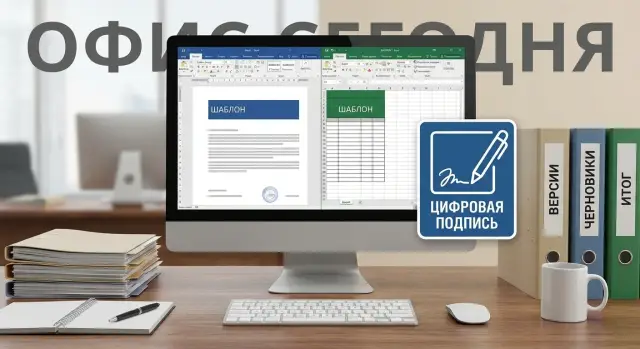
The problem in plain language: convenience without control
Corporate templates and macros in Office almost always start with good intentions: someone sped up drafting contracts, reports or letters, and the team began working faster. But without rules and responsibility, that convenience quickly turns into chaos.
Templates spread quietly. One employee emailed a file, another forwarded it in chat, a third saved it to their desktop and tweaked it for themselves. After a couple of weeks you already have several “correct” versions and nobody is sure which one is authoritative.
The danger of homemade copies isn’t that they look untidy. The real risk is that last-minute edits are made without review and the file starts being treated as official. As a result, incorrect details appear, calculations break, a macro may introduce a data leak, or the document looks “almost right” but fails internal checks.
At the same time, it’s important to keep the strengths of templates: speed, consistent style and repeatability. People don’t want to recreate documents every time and manually recheck the same things.
Usually the first thing to break is what you notice only after an error: versions get mixed up (same names, different content), fields and autofill misalign, formulas and links in Excel shift, macros either don’t run or are blocked by policies, and formatting differs between departments.
Without clear management of corporate Office templates, the organization pays in time and mistakes for every “quick edit.”
What exactly to control: templates, macros, add-ins
The problem almost always starts the same way: someone created a useful file, shared it with colleagues, and within a month everyone has their own version. To get order, first agree on terms and responsibilities: what exactly you control.
A template (Word .dotx/.dotm, Excel .xltx/.xltm) is a blueprint with formatting, styles, header, fields, sometimes with ready text blocks and formulas. A regular file (.docx/.xlsx) is a specific document containing data. For users the difference is simple: the template should be the source, and regular files are the results. If a template starts to “live” like a regular document, people edit it in place and the standard spreads.
An add-in (often .xlam, .ppam, COM Add-in) is a mini-application inside Office. It adds buttons, menus and functions and can work across all files. Add-ins are usually higher risk than templates: once installed they affect work continuously, not just in one document.
Macros: when they are really needed
Macros (VBA) are useful when you need to remove manual routine: gather a report from multiple sheets, populate a document from a directory, or check required fields before printing. But they are often added “just in case” when the task could be solved with built-in features: styles and autotext, protected areas, data validation, formulas, or Power Query in Excel.
If a macro doesn’t provide noticeable time savings and doesn’t reduce errors, it’s better not to include it. Support becomes easier and the risk of policy blocks is lower.
What is standardized and why an "initiative owner" is risky
Companies usually standardize letters, memos, contracts and annexes, invoices and acts, reports for management and presentations. Different departments view the same document differently: lawyers care about wording, finance about tables and calculations, HR about forms and approvals.
In practice, the template “owner” often becomes the most proactive person: a secretary, analyst, lawyer or accountant. The problem isn’t the person but the role: such an owner usually has no duties for testing, security review and releasing updates. When the person goes on leave or leaves the company, knowledge often leaves with them: where the source is, what’s in the macros, why a button broke, and which version is correct.
Storage and access: a single source of truth
If templates and macros live “in everyone’s folders,” they quickly become dozens of similar files: someone adjusted the header, someone added a button, someone removed a check. Managing corporate Office templates requires a single source of truth: a place where the correct version always resides and from which all users take it.
It’s practical to choose storage that already supports access rights and change history: a corporate file server, SharePoint/Teams, an EDM system or a dedicated IT repository. The platform is less important than the rule: updates must flow only through the repository, and users should work with the version issued from there.
Access rights should be strict. In most cases two levels are enough: most employees only use templates, while a few can change them. If “everyone edits a little,” control disappears in a week.
A minimal role model for access can look like this:
- Users: read and use templates.
- Authors: right to propose changes (via request or separate folder).
- Responsible owner: right to publish to the production folder.
- Administrator: rights over structure, access and audit.
To avoid distributing files by email and messengers, issue templates via a shared network folder or centralized deployment. Then Word and Excel see templates in one place, and when a file is replaced users receive the update without manual steps.
For branches and remote employees stable access is important. A local copy for a branch updated on a schedule often helps, with a clear rule: central version always wins in conflicts.
If divisions need different letterheads and macro sets, don’t create multiple private repositories. Make one structure inside the common source: shared templates for everyone and separate folders per department (finance, HR, sales). This makes it easier to keep order and faster to find what’s needed.
In large organizations where system integrators build and maintain infrastructure, a single repository with AD-group permissions is often used: one department manages contract templates, another handles reports, and users simply pick the needed template from a standard list without wondering where the correct file is stored.
Versions and updates: how not to lose currency
“Version 12 final final2” appears almost always for one reason: people need to keep working and there is no clear way to update the template. Everyone saves a copy, edits it for a task and forwards it. Convenient today, but in a month nobody knows which file is correct.
To prevent version control from becoming chaos, a few minimal rules that are easy to follow are enough.
Minimal naming and status rules
Agree that the file name or properties always include basic attributes:
- short template name (what it is and what it’s for),
- version number (v1.3, v2.0),
- owner (department or role),
- status (Draft, Approved, Deprecated),
- publication date.
This immediately shows whether a file is approved or someone’s ad-hoc edit.
How to record changes and handle urgent edits
Every version should have a short change log. Not “various fixes,” but what changed and why. This reduces disputes and simplifies rollback.
A practical log next to the file can be:
- what changed (1–2 lines),
- reason (law, process, error),
- who approved,
- who is affected (which departments),
- effective date.
Urgent edits are easier to release as a hot patch: e.g., v1.3.1 with a clear note of the fix. Plan a normal release (v1.4 or v2.0) for other changes after review.
Sometimes a template should be frozen until the next release. If frequent edits begin to break fields, macros or print forms, allow only critical fixes and queue the rest.
Signing and trust for macros: basic logic
Macros in Word and Excel save hours, but they are also a common entry point for infections and leaks. Digital signing of macros solves a simple problem: Office distinguishes “our, verified code” from an unknown file.
The logic is: a macro is signed with a publisher certificate. If the workstation trusts that publisher, the file opens without extra warnings and macros run. If there’s no signature or it doesn’t match (the file was changed after signing), Office will warn and may block execution.
It’s important to agree in advance what is allowed:
- Macros only in templates and workbooks from the corporate repository.
- Only with a valid signature from an approved publisher.
- Only with a clear purpose (description, author, date, version).
- No in-place edits: any change requires reissue and a new signature.
Give users one simple rule: if you see a macro banner in a file not from the repository or without a signature, do not enable content and pass the file to the responsible person. This keeps security decisions off the users’ shoulders.
To keep updates predictable, updates don’t happen “however someone managed”; they follow the cycle: change, review, sign, publish to the repository. Signed files cannot be "fixed" manually — the signature will break.
Roles are simple: author prepares the change, reviewer inspects code and impact, owner decides on release, administrator manages certificates (issue, renewal, revocation in case of compromise).
Roles and process: author, reviewer, owner, users
When templates and macros are created ad hoc, they quickly spread by email and chat. To keep convenience and reduce risk, you need simple roles and a short process: who is responsible, what counts as a change and how releases happen.
Responsibilities
Roles can be minimal but must be clear:
- Author: makes edits and briefly describes what and why.
- Reviewer: checks logic, formulas, details, language and compatibility.
- Owner (business): approves that the document meets departmental rules and requirements.
- IT/Security: controls macro settings and digital signing, issues certificates if needed.
- Users: provide feedback on real cases but do not edit templates locally.
Then agree which changes can be fast-tracked and which require full review. Small text tweaks usually move faster. Fields, calculations and any macros must pass acceptance: they affect data, reports and security.
Acceptance and feedback
To keep acceptance from turning into an argument, create a small test set: 3–5 typical documents (e.g., a contract, an amendment, an invoice, a report) that you open, fill and save.
Collect feedback in one place and decide on a schedule what goes into the next release. A useful rule: “urgent” only for items that break work or pose risk (wrong amounts, incorrect details, macro error). Everything else goes into the plan.
Set a release rhythm: planned releases once a month, emergency releases by owner request and after a short check. That prevents homemade versions from becoming the norm.
How to organize storage and updates: step by step
Start with a simple principle: one official source, clear rules, predictable updates.
First, build a real inventory. Not everything ever made, but what is actually used now: Word templates, Excel workbooks with macros, shared modules, add-ins, files with formulas and directories. Ask departments to show 3–5 most-used documents and where they get them from.
Then fix the order with short steps:
- Create a register: name, purpose, owner, where used, whether it contains macros.
- Choose one storage and assign owners by category (HR, finance, contracts).
- Introduce naming and version rules; remove duplicates or mark them archived.
- Set up release cadence: planned (e.g., monthly) and emergency (when a risk or error is found).
- Record checks and digital signing of macros: what is signed, who signs, what to do with unsigned files.
To avoid breaking habits, make version changes visible and gentle: short description of changes, date, approver and a clear rollback method.
A real example: accounting and procurement used the same request template but had different ad-hoc fields. The template owner collected requirements, released a unified version and archived old variants. Users adapted to two simple actions: where to get the current template and how to verify that a macro is trusted (signed and not prompting warnings).
Checks before release: don’t break users’ work
Before releasing a new template or macro, do short checks. It takes an hour but saves days when users suddenly report “printing stopped” or “calculations broke.”
Minimal test set
Test common scenarios, not a perfect example:
- Open the file without warnings and without broken layout.
- Fill all fields (including dropdowns and required fields).
- Print: headers/footers, pagination, breaks, correct output.
- Excel calculations: formulas, rounding, sheet references, totals.
- Save and reopen: data and formatting persist.
Then test compatibility. The same file can look different in different Office versions and macros may behave differently with a different UI language. Minimum: test on two Office versions actually used in the company and on RU/EN interface if present.
Macro checks and delivery control
For macros, understand three things: what runs, what should be blocked by policy, and what gets logged (at least via messages inside the macro or standard Office/Windows logs).
Then verify release and rollback:
- Update a test group and confirm the version number is visible in the template (e.g., in the footer or title page).
- Compare the file in the repository and on the workstation (at least size and date, ideally a checksum).
- Ensure the old version isn’t left beside the new one “for convenience” (archive or rename it).
- Prepare a rollback package: previous version and a short instruction.
- Check that rollback doesn’t break documents created on the new version (at least open and print).
If these steps are done each time, updates go smoothly and users make fewer homemade copies “just in case.”
Common mistakes and pitfalls that cost the most
Most problems come not from “complex security” but from small habits. At first it’s convenient: the template lives on one person’s drive, they send it on request, and the macro gets released “we’ll check later.” Over time this becomes chaos: departments work on different versions and people only look for a culprit after a failure.
Typical mistakes:
- The single template is stored on someone’s personal drive and distributed via email or messengers. You can’t tell which version is current or who changed it.
- Users are allowed to edit a shared template directly. One accidental shift in fields or style and documents break for everyone.
- The template is mixed with a filled example in one file. Someone copies the example with another person’s data, or saves the file as a new template with leftover data.
- Macros are released without review or an owner. At best a process breaks in Excel; at worst you create an easy channel for malicious actions.
- No change log. Later everyone argues “who broke it,” rolls back blindly and loses important edits.
The simplest way to keep convenience and remove risks is to separate roles and artifacts. A template should be a template, an example a separate sample, and any changes must go through the responsible owner and a clear release process.
Short checklist: do you have things under control?
Template management works when people have no reason to “copy it for themselves and forget.” Below are five quick checks that reveal real gaps.
5 quick checks
- There is one official place for Word and Excel templates. It’s not a personal folder or someone’s USB. Rights are clear: who reads, who proposes edits, who publishes.
- Each template has an owner (a role, not a named person) and a visible last update date. If the owner changes, the process continues.
- It’s clear how to request a change: one channel, one request format, a clear deadline. After edits there’s a short check so fields, formulas, printing and exports aren’t broken.
- Macros and add-ins run only from trusted sources. If you use digital macro signing, you know who signs and where the certificate is stored.
- There is a backup and a clear rollback. If an update goes wrong you restore a working version quickly without manual recovery through chats.
A practical sign of maturity: a new employee finds the needed template in 10 minutes, sees the current version and doesn’t ask “where is your correct contract?”.
Real example: one template, three departments, different versions
A company has a standard contract. Accounting keeps its own Word template with convenient fields for invoices and details. Procurement keeps another version with updated delivery terms. Legal uses a third, most up-to-date version, but it’s in their folder and differs from what others use.
After a couple of months chaos begins. Procurement’s contract has some details, accounting has others. Somewhere an Excel formula still calculates VAT under the old rule. And a macro that used to fill headers and annex numbers is suddenly blocked: on one machine it’s trusted, on another it isn’t, because the file came by email or was edited manually.
They restore order without complex schemes: one official template and one storage location, and the update process becomes a clear cycle. They appoint an author (makes edits), a reviewer (legal or methodologist), and an owner (approves release). Releases happen on schedule, e.g., monthly, and the version is recorded in the document.
To keep convenience, they keep quick forms, hints and shared fields (counterparty, ID number, terms, amounts) and move automation to a signed macro.
After 2–3 weeks the effect is visible: fewer manual edits and copy-paste, fewer requests to “fix details/clauses,” fewer calculation errors and annex issues, fewer macro blocks for users, and simpler dispute resolution because the used version is visible.
Next steps: how to implement and maintain without overload
To bring order without a “big project,” start with minimal rules and one common storage. The goal isn’t to forbid flexible work but to keep best practices and remove chaos.
What you can do tomorrow:
- Inventory which Word/Excel templates, macros and add-ins are actually used (at least the top 20).
- Assign an owner for each template family (contracts, invoices, HR forms).
- Choose a single template repository and stop sending files by email as the update method.
- Fix the rule: all changes go through one channel (request, email, form) and receive a version number.
- Agree on a simple release cycle: review, signing (if macros), publication, short user notification.
Then write a short 1–2 page document: how versions are numbered, who can change templates, mandatory checks before release, how macros are signed and what to do in an emergency fix. When rules are written simply, there are fewer disputes and fewer homemade copies.
If the issue isn’t the files but environment settings and Office security policies, engage a system integrator: for centralized trust of signed macros, deployment of test and production environments, careful delivery of updates and user support.
In such tasks GSE.kz (gse.kz) can help as a system integrator: configure the Microsoft environment, policies and the process for templates and macros, and organize support so order is maintained by clear rules rather than enthusiasm.
Frequently asked questions
Where to begin if Word/Excel templates have already spread by email and everyone has different versions?
Start with one “official” storage location and forbid sending templates by email as a way to update them. Then assign an owner (role/department) and introduce a simple process: change request → review → publish new version. If you work this way on the top 10 most-used templates, the effect is fast: fewer copies, fewer errors and fewer disputes about which version is correct.
How is a template different from a regular file and why does it matter for control?
A template is the source used to create new documents and shouldn’t be "edited in place" like a working file. If a template behaves like a regular document, people start saving their own variants and the standard falls apart. A practical rule: users create documents only from the template in the official repository, and the template itself is changed only through the owner and a formal version release.
What does "one source of truth" mean for templates and macros?
One source of truth is the place where the current approved version always resides and from which all users take it. It can be a file server, SharePoint/Teams, an EDM system or an IT repository — the platform name is less important than the single rule. If the file is updated in that location, the update becomes predictable: you don’t need to guess who has which copy or chase users by email.
What access rights are best for corporate templates?
Usually it’s enough to separate rights between use and publication. Most employees need read access and the ability to create documents from the template; only a few should be allowed to change and publish to the production folder. If everyone can edit, you won’t be able to prove who changed what and when, and any mistake turns into a blame game instead of a quick fix.
How to organize template versions so "final final2" doesn't appear?
Make the version and status visible in the file name or document properties so it’s obvious without extra instructions. Add a short change log next to the template so you can see what changed and why. Then there’s no need for "final2": people have a clear way to verify the current version and quickly roll back if needed.
How to handle urgent fixes without breaking control?
Release urgent fixes as a separate patch version and clearly note what it fixes. Plan a normal release afterward (e.g., v1.4 or v2.0) that includes other changes after review. This prevents chaotic frequent changes and reduces the incentive for users to keep personal copies "just in case."
When are macros really needed and when is it better to avoid them?
A macro is justified when it truly saves time and reduces errors for repetitive tasks. If the task can be solved with styles, autotext, protected fields, data validation, formulas or Power Query, it’s better to avoid VBA. Fewer macros means simpler support and a lower chance that security policies will suddenly block users’ work.
What does digital signing of macros do and how does it work in practice?
A digital signature lets Office distinguish trusted corporate code from unknown files. If the macro is signed and the workstation trusts the publisher, it runs without extra warnings; if the file was changed after signing, the signature becomes invalid. Practical rule: sign macros before publishing, keep the sources, and issue a new signature after any change. You can’t "fix" a signed file by hand — the signature will immediately show as invalid.
What should a user do if Office shows a macro warning when opening a document?
Do not enable content if the file did not come from the official repository or the signature is missing/doesn’t match. Forward the file to the responsible owner or IT so they can check the source and code and, if needed, release a correct signed version. This removes the security burden from the user and reduces the risk of infections and leaks from random files.
What checks should be done before releasing a new template or macro?
At minimum, check opening without broken layout, filling all fields, printing, saving and reopening; for Excel, also verify formulas and links. Test on the actual Office versions used in the company, otherwise issues will appear during work. For macros, additionally verify they run only in intended scenarios and do not require manual workarounds around security policies.
