6 min read
Maintenance regimen for servers without downtime: a checklist of checks
Maintenance regimen for servers without downtime: what to check monthly and quarterly, how to plan work windows and record results.
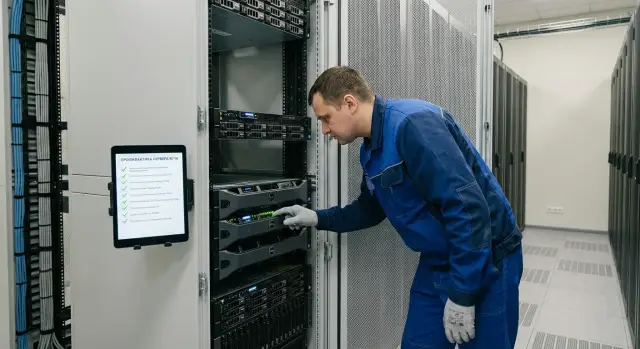
What is server maintenance without downtime and why it matters
Server maintenance without downtime is regular checks and small actions that don’t require stopping services or disturbing users. The idea is simple: find weak spots early via logs, sensors, disk health and firmware versions so you avoid an outage.
For the business it’s about predictability: fewer sudden incidents, fewer emergency purchases and late‑night interventions, and easier planning of changes. For IT it’s about control: you see degradation before failure and can schedule work in time.
This approach addresses common risks that build up quietly: overheating from dust or tired fans, disk degradation and rising RAID errors, power problems (PSU, UPS, batteries), and bugs or incompatibilities from outdated firmware. At first these show up as rare freezes or odd warnings — later they become downtime.
Maintenance differs from incident response in that you act by plan and with minimal risk. An incident is the consequence: the service is down, time is ticking, and decisions are made hastily.
Most often systems that suffer without regular checks are storage, cooling, power, firmware and drivers, and event logs (where early signals usually appear).
Even with good hardware, system health depends on regular checks and how you record results. This applies to infrastructure built by integrators like GSE.kz as well.
How to organize the process: roles, responsibilities, calendar
For maintenance to work it must be a process with owners and checkpoints, not just a checklist. That way the regimen doesn’t rest on one person and doesn’t turn into rare panic fixes.
In practice it’s convenient to split responsibilities as follows:
- Infrastructure owner (IT) keeps the calendar, plans work and collects results.
- Server administrator runs checks (RAID, firmware, fans) and writes recommendations.
- Application administrator confirms that changes are safe for services.
- Information security sets requirements for patches, logs and access.
- Support provider helps with diagnostics and updates (if support is external).
Next you need a unified calendar: a short monthly pass with no changes (monitor only) and a quarterly block where updates and planned replacements are allowed. Even if no downtime is planned, a work window is needed for coordination, observation and rollback.
Separate the criticality of services. Some systems can tolerate short performance degradation; others must not lose sessions at all. That directly affects what can be done "live" and what only with prepared redundancy.
One more basic point: agree on metric "norms" (temperatures, disk errors, fan speed, event frequency) and where to store results. This can be a ticket system, a spreadsheet or a report repository — the important thing is a single format.
What to prepare in advance: inventory, dependencies and basic documentation
Start not with checks, but with inventory. Otherwise every time you’ll again figure out what’s in the rack and why a change on one server affects half the services.
Gather inventory in one place and keep it current: server models, RAID controllers, disk types and counts, power supplies, NICs, and licenses for management utilities. Record serial numbers and warranty status — it makes it easier to decide what you can replace yourself and what needs service.
Create a simple dependency map: which services run where, what depends on what (for example DB, domain, file shares, monitoring), and who the business owner of each service is. This speeds up approvals.
Also keep a "current state passport": versions of BIOS/BMC/RAID, RAID parameters, network settings (VLANs, aggregation, addresses), backup scheme. Even if updates aren’t planned yet, this base speeds diagnostics.
Prepare escalation contacts: the infrastructure lead, critical service owners from the business, InfoSec contacts (if approvals are needed), vendor/integrator support and a manager who can approve work windows.
When these blocks are ready, monthly and quarterly checks become routine, not investigations.
Monthly checks: a short set without stopping services
Monthly maintenance usually takes 20–40 minutes per server and doesn’t require reboots. The goal is to catch early signs of problems and confirm data protection is working.
Start with monitoring: CPU and disk temperatures, power supply state (and presence of dual feeds if available), memory errors (ECC), and hardware alerts. Look not only at current values but at sharp changes over the last 7–30 days.
Then check logs. Search for repeating hardware and storage events: I/O errors, timeouts, overheating, array degradation, unstable network. To avoid drowning in noise, mark known "expected" messages and record how often they repeat.
A basic monthly set typically includes: a quick review of hardware alerts and temperatures, disk and RAID checks (including SMART and array status), fan and airflow checks, and backup verification (freshness of last successful backup and at least one selective file restore).
If SMART shows increasing read errors but the array is still "healthy", plan a disk replacement in the next agreed window rather than waiting for RAID degradation during a workday.
Record the monthly check as a single line per server: date, executor, what was wrong, what was done now and what is planned. On critical sites this is especially important regardless of hardware class.
Quarterly checks: deeper control and planning improvements
Quarterly maintenance helps reveal slow degradation and lets you plan changes ahead. This rhythm is good for tasks that require approvals and careful windows but don’t necessarily require stopping services.
Firmware and updates: make a plan, don’t act "on a whim"
Once a quarter compile a matrix of versions and risks: BIOS/UEFI, BMC, RAID/HBA firmware and NIC firmware. First check release notes for critical fixes (security, stability, compatibility), then decide the update order and a rollback plan. It’s safer to update one node at a time in a cluster with load shifted, not "all at once."
Hardware, resilience and capacity: watch trends
Compare metrics with the previous quarter: SMART and media errors, growth of reallocated sectors, fan and PSU statistics, peak temperatures.
Also check resilience: cluster and replication status, readiness of backup nodes and success of test failovers (at least on a non‑critical service).
Add capacity control: free space, log growth, CPU/RAM/IO trends. A common finding is quietly growing logs that in 2–3 months consume headroom and risk stopping writes.
For a quarterly pass, review firmware versions and produce an update plan, look at disk degradation and fan trends, check clusters and replication, estimate capacity for 3–6 months and inspect the "physical" aspects (cables, mounts, filter cleanliness and air inlets).
Logs and events: what matters and what can be skipped
To avoid reading everything, follow a chain: BMC/IPMI (hardware) -> OS logs -> RAID/storage subsystem -> hypervisor -> application logs. This makes it easier to find root causes.
Requiring action are usually repeating errors with the same code, unexpected resets/reboots or watchdogs, timeouts and I/O errors, RAID degradation events and cache/battery warnings, and temperature and fan issues (spikes or threshold breaches).
Record findings so that it’s clear a week later what happened: exact time, source (BMC/OS/RAID/hypervisor/app), frequency and user impact.
Separate symptom from cause. For example, an app logs timeouts to the DB while BMC shows temperature spikes and fan speed drops at the same time. Then the real task is cooling and load, not "fixing the DB."
If unsure, mark the event as an observation and schedule a recheck in the next work window. This helps see trends instead of isolated lines.
Disks and RAID: how to spot degradation before failure
Disks rarely die suddenly. Usually they signal via SMART and RAID controller logs for a while. Reading these trends makes replacement planned.
SMART and controller messages: what to treat as warning
In SMART the important part is not the overall status but specific counters and their growth. For SSDs also watch wear and write errors.
Common warning signs are growing Reallocated Sectors, Pending Sectors or Uncorrectable Errors, repeated I/O errors on the same disk, controller messages about media error or predictive failure, disk flapping (drop and return), and noticeable health drops on SSDs.
If counters grow month to month, plan replacement even if the array remains green.
When to replace early and how to document it
Record a replacement decision as a managed risk: the disk still works but failure probability is rising. In the log note slot, serial number, RAID type, current SMART/error values and the planned replacement date.
If you use a hot spare, verify in advance that the spare is visible to the controller and matches capacity and speed. For RAID5/6 consider rebuild load and allocate time in the window for rebuild completion and verification.
Fans and cooling: simple checks that prevent outages
Cooling issues often start quietly and end abruptly: the server throttles, reboots or accelerates disk degradation.
Not only red alerts are worrying. Frequent fan RPM spikes, unusual noise, temperature rise in one rack area and repeated freezes at the same time of day often precede critical log alerts.
Check sensor readings and alarm thresholds. On identical servers thresholds should be set the same, otherwise one overheats visibly while another does not.
Without downtime you can usually do basic things: compare temperatures and RPM to a "healthy" baseline, inspect the rack (cables, blanking panels, spacing, hot‑air pockets), ensure fans aren’t constantly hunting in RPM, and schedule filter cleaning on a clear timetable. If a fan is degrading, prefer replacing it under SLA as a hot swap instead of waiting for failure.
Work windows without downtime: how to document and agree them
A work window is an agreed time slot when you make changes so users don’t notice interruption. Describing the window helps not only to perform the task but to roll back safely if needed.
A good window records the goal, risk assessment, check plan and rollback plan. It should name who performs the work, who monitors services and who accepts the result.
Pick timing based on load, not IT convenience: check monitoring for peaks and schedule the window where resource headroom is largest. If an operation takes 10 minutes, allow 30–40 minutes for pre/post checks and safe rollback.
Notifications should be simple: notify business owners and support 3–5 days before, send exact time and contacts 24 hours before, remind 15 minutes before start, and send status and results after completion.
A change request template usually includes: systems and dependencies, step‑by‑step plan and success criteria, risks and constraints, rollback plan, responsible persons and contacts.
How to record results and keep a maintenance log
If checks are done but not recorded, you’ll be discussing the same issue again in a month. The log isn’t bureaucracy, it’s how you quickly see what changed, where deviations appeared and what they may lead to.
Collect a minimal set of artifacts right away: firmware and driver versions (before and after if updated), key warnings from logs for the period, RAID/disk/temperature status, list of active monitoring alerts before and after work, and notes on power and fans.
Keep the log in one place and one format. For each entry record: date and server (inventory ID, role), what was checked and which tool was used, result (normal or deviation), risk and deadline, and a remediation task with deadline.
Record deviations as facts, not debates: "Disk 3 — SMART warning, replacement planned within 10 days." This creates an audit trail (useful for ISO requirements) and a clear base for budgeting.
Common mistakes and pitfalls in maintenance
Most often "maintenance without downtime" turns into an incident due to haste and lack of rules.
Typical mistakes: updating firmware and drivers without compatibility checks and rollback plans; relying only on monitoring dashboards and missing repeating log errors; not comparing metrics to the previous period and losing trends; mixing maintenance with "let’s improve this" and making unnecessary changes; assuming backups alone are enough and not verifying restores.
Keep short discipline: record versions and changes, check compatibility from a list, keep a metrics history and run a test restore for one or two systems or file sets each quarter. This takes less time than investigating "why everything worked yesterday."
Short checklists: what to check quickly and in what order
To avoid postponing maintenance, keep two levels: a monthly short pass and a quarterly deeper check.
Monthly (15–30 minutes per server)
Quickly review hardware warnings (power, temps, fans, RAID), check disks and array, scan for repeating log errors during the period, and check free space and basic CPU/RAM metrics. Compare against familiar values for this particular server.
Quarterly (deep check + priorities)
Compare firmware and driver versions with target versions, assess hardware risks (wear, error history, temps, power), check failover readiness (what happens if disk/PSU/fan/port fails and who reacts), forecast capacity and load growth, then create a quarterly plan of 3–5 tasks with owners and deadlines.
Use a traffic‑light scale: green‑yellow‑red. Green — stable metrics and occasional noncritical events. Yellow — repeating warnings, growing disk errors, higher than usual temps. Red — RAID degradation, critical power events, overheating, fan failures.
If short on time, prioritize: RAID and disks, power and temperatures, critical logs, free space. Move other checks to the next window.
Example scenario: a regimen for a small server room with no downtime
Imagine a small room with 10 physical servers hosting domain, mail, 1С, file shares, a portal database and several internal services. Even a 10‑minute outage is unacceptable, so maintenance focuses on "live" checks and pre‑agreed safe actions.
In a normal month you don’t "fix" but keep a health picture and catch early signs: collect metrics (temps, RPM, load, power), check RAID and SMART, review key hardware and system logs, compare firmware and driver versions with targets (without updating), record deviations and assign owners and deadlines.
Quarterly you move to disciplined changes: targeted updates and replacements while keeping services available (cluster, replication, spare node, role migration). Between quarterly cycles prepare rollback plans and ensure spare parts are available.
After each cycle you should have simple artifacts: maintenance log with date and status, a prioritized deviations list, a protocol of the agreed work window (even if no downtime), and a short "what changed" summary.
Next steps: implement the regimen and assign support
To avoid the regimen remaining on paper, start with a minimal version and expand it as the team gets used to the rhythm.
For the next 2–4 weeks a simple plan is enough: first inventory and escalation contacts, then monthly checks and a change window template with a trial run on one server, then quarterly checks and risk criteria (when to rollback and when to escalate), and finally refine checklists and assign the log owner.
Agree boundaries of responsibility up front: who watches logs, who handles firmware and drivers, who decides on disk or fan replacement.
Involve the integrator and vendor support when you have clusters, critical databases, many server models, or plan batch firmware updates. If your infrastructure runs on GSE servers (for example, S200 Series), it’s convenient to tie maintenance to an agreed schedule and escalations via 24/7 technical support and the GSE.kz service network — this way checks, replacements and updates follow one clear process.
Frequently asked questions
Where to start server maintenance without downtime if it wasn't done before?
If services are critical, start with a monthly "control" pass without changes: hardware alerts, temperatures, RAID/SMART, key logs and freshness of backups. This gives early signals and a clear risk picture without reboots or interventions.
How much time does monthly maintenance really take per server?
Usually 20–40 minutes per server is enough if you look only at what actually changes over time: temperature trends, repeating log events and SMART/RAID error dynamics. The most common cause of time overruns is lack of inventory and metric "norms", which forces you to investigate from scratch each time.
What to do if logs contain warnings but services are running normally?
First check the event source and frequency, then the impact on users. If the event repeats and is related to hardware, storage, power or overheating, record it as a risk and plan actions in the next agreed window; single noisy messages are better marked as observations and rechecked in the next cycle.
Which SMART and RAID signs indicate a disk should be replaced in advance?
Look not at the "overall status" but at growing specific counters and repeated errors on the same disk or slot. If error counters rise month to month or the disk "drops out and returns", plan a replacement in advance—even when the array is still shown as healthy.
How to tell if the issue is cooling rather than load or an application?
Include mandatory checks of power, temperatures and fans in the regimen and compare current values with the usual baseline for that server. Frequent RPM spikes, temperature increases in one rack area and recurring cooling alerts are reasons to schedule cleaning, airflow checks or a fan replacement before throttling or reboots occur.
How often should firmware (BIOS/BMC/RAID) be updated to minimize risk?
Use a monthly control cycle without changes and a quarterly cycle for planned updates and replacements with a prepared rollback. If there are clear security risks or critical bugs, move the update to the nearest agreed window earlier than the quarter — but only after compatibility checks and a rollback plan.
Why document a "work window" if we plan to do everything without downtime?
A work window is needed even if you promise no downtime, because during that time you observe metrics, confirm stability and stay ready to roll back. The request should state the goal, steps, success criteria, rollback plan, responsible persons and how availability will be checked during the work.
What is the minimum to record in the maintenance log for it to be useful?
At minimum — a single entry per server: date, what was checked, what was found, current risk and the planned action with a deadline. Such a log shows trends, avoids repeated discussions and makes it easier to justify purchases and replacements because there's a history of changes and deviations.
Why test restores instead of only checking backup status?
Check not just the existence of a backup but the freshness of the last successful copy and perform at least a selective restore. If restores aren't tested, backups often turn out to be formal: they may complete without errors but be unusable due to permissions, storage, corruption or wrong configuration.
Is it useful to link maintenance to vendor support for GSE.kz servers?
Yes — it's usually more convenient because the vendor and integrator have recommended firmware versions, replacement procedures and diagnostic tools for specific models. For GSE servers, for example S200 Series, you can tie maintenance to an agreed schedule and 24/7 escalation through GSE.kz support so replacements and updates follow a single process.
