8 min read
Local or Remote Workstation: How to Choose
Local or remote workstation: compare maintenance, data protection, noise, and branch access to choose the best option without extra costs.
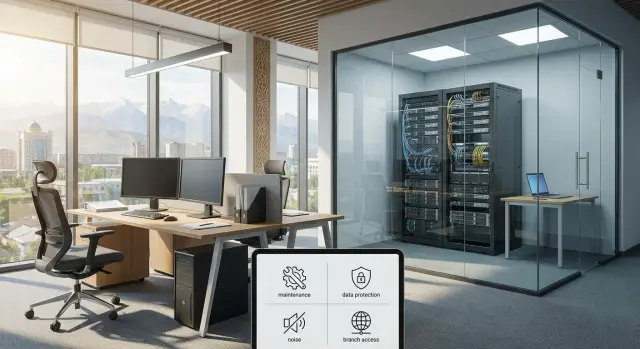
What the difference looks like in practice
A local workstation sits next to the employee: a tower, desktop, or all-in-one at their desk. A remote workstation runs in a server room, and the user connects to it over the network from a laptop, thin client, or regular office PC.
On paper both options can deliver the required performance. In practice the difference goes beyond application speed. It affects maintenance, file storage, office noise, branch access, and how the company copes with network outages.
When the computer is at the user’s desk, the setup is straightforward: sit down and work. This is often convenient in a small office where people share one space and the IT specialist can quickly reach any desk. But with that simplicity comes a lot of small routine tasks: updates, disk replacements, checking backups, and making sure important files don’t remain only on a single PC.
Putting workstations in a server room changes the logic. Hardware is under IT control in a secured space where it’s easier to manage access, power, cooling, and redundancy. For employees this usually means less noise and heat at their desks; for the company it makes access from other offices and branches more convenient.
After purchase the same questions almost always come up: who will fix breakdowns, what happens during a network outage, where are work files and backups stored, how to safely connect branches, and whether noise and heat disturb daily office work.
So the choice is especially important for multi-site companies and for teams with heavy workloads: a CAD team, analytics groups working with large datasets, or medical, educational, and financial organizations where both convenience and control matter.
A simple example: an engineer at headquarters and a specialist in a branch need the same heavy software. If powerful stations are local, every site must be serviced separately. If they’re moved to a server room, management is easier but network quality becomes critical. So the issue isn’t just raw performance, but how the company will operate day to day.
When a local workstation is better
A local workstation is preferable when the employee needs immediate, constant access to their computer without extra steps. They sit down, power on the PC, and start working. That matters for tasks where you can’t afford the time to connect to a remote environment or wait for a channel to the server room to recover.
This option is especially good for small offices where an IT specialist is nearby. If something goes wrong, the issue can often be checked and fixed on site in minutes: replace a cable, update a driver, connect peripherals, or transfer data from an external drive. In these conditions a local setup is often simpler and clearer than a remote one.
Another advantage is independence from the network. If the internet or the link to the server room is temporarily unavailable, the employee can continue working with documents, spreadsheets, local applications, and attached devices. For offices where downtime is costly, this is a major benefit.
The local format is usually justified when a person works at one desk, uses the same set of applications, and connects scanners, printers, USB keys, measurement devices, or other equipment to the PC. It also makes sense where there is no strict rule to store all data only on servers and where work must continue even when connectivity fails.
There’s also a human factor. Not every team needs remote access from other branches or from various devices. If an employee rarely changes workplaces and seldom connects from outside, a local workstation is often the calmest and most straightforward solution.
But there is a crucial boundary: if files are stored only on the user’s PC, data protection becomes critical. Backups, encryption, access control, and clear storage rules are needed. Otherwise convenience quickly turns into risk.
A good example is the accounting team in a small office where two specialists work in the same room, print many documents, and use local databases. For them, local stations are often more convenient than moving power to a server room: everything is nearby and familiar, and work doesn’t stop because of a network issue.
In short, the local option wins where fast startup, offline work, and easy on-site support matter most.
When it’s better to put workstations in a server room
A remote workstation doesn’t suit everyone, but in many cases it’s noticeably more convenient than a powerful PC under the desk—especially where silence, tidiness, and centralized control are priorities.
The first obvious signal is noise and heat. If an employee runs heavy software, a regular workstation can be loud and generate noticeable heat. In a server room this doesn’t bother people, and the equipment runs in more predictable conditions with proper cooling, backup power, and controlled access.
Security is at least as important. When data stay in a controlled area, the risk that files end up on a random USB stick, a personal laptop, or an unprotected local disk drops. For government agencies, banks, clinics, and large firms this is often not just desirable but mandatory.
This format is particularly suitable when employees work from branches, business trips, or home, when space on-site is limited, and when equipment must be serviced centrally. It’s also useful where only IT staff should access hardware and where minimizing workstation downtime is critical.
With this setup the IT team can maintain equipment more easily. There’s no need to go from office to office to swap parts, check individual machines, or update systems one by one. When workstations are gathered in one place, scheduled maintenance takes less time and is more consistent.
This is especially helpful for companies with branches. An engineer can be in one city, an accountant in another, while the powerful machine they need sits in the head office server room. Employees connect remotely to their environments and access the same programs and files as if they were next to the hardware.
The site itself also matters. If a company already has a server room, racks, cooling, and clear access rules, moving workstations there is a logical step. In Kazakhstan these projects are often built on centralized infrastructure with locally produced hardware and a unified support model. For example, solutions from companies like GSE.kz, which manufacture computers and servers domestically and handle system integration, fit this approach.
In short, put workstations in the server room when control, quiet, data protection, and convenient branch access are top priorities.
A simple decision matrix
In practice, local and remote setups differ along five dimensions: how and by whom they’re maintained, where data are stored, whether the office hears noise, how branches connect, and what happens when the network fails.
| Criterion | Local workstation at the employee | Workstation in the server room |
|---|---|---|
| Maintenance | Easier to replace a mouse, cable, or monitor quickly. But updating dozens of devices across offices is harder. | Easier to replace parts centrally, monitor hardware status, and perform planned updates. |
| Data protection | Higher risk of data loss due to theft, failure, or copying to external drives. | Easier to keep data in a protected zone, control access, and manage backups. |
| Noise | A quiet office is not guaranteed, especially if the workstation is powerful and under load. | Noise is removed from workrooms, making it easier to concentrate. |
| Branch access | Better suited to work from a single office. Remote access needs separate setup. | More convenient for branches: employees connect to a centralized resource under uniform rules. |
| Network dependence | If the network fails, the employee can often continue local work. | With a poor link, access to the workplace degrades or is lost completely. |
The quick takeaway: the local option is chosen where independence from the network matters and centralization isn’t required. The server-room option suits companies that prioritize data protection, unified maintenance, and branch access.
A helpful example is an organization with a head office and several regional points in Kazakhstan. If engineers, accountants, or designers handle important files, moving stations to a server room reduces leakage risk and simplifies support. If employees frequently face unstable connectivity or must keep working through outages, local setups can be more practical.
Before deciding, ask three simple questions:
- Which is worse: downtime due to the network or data loss?
- Who will maintain the device: a local IT specialist or a single central team?
- Do branches have a stable channel for daily work?
If the answers point to control and security, the server room often wins. If weak connections are the main risk, a local setup looks safer.
How to choose step by step
When deciding which scheme you need, don’t start with the CPU model or amount of RAM. First analyze the work itself: what the person does all day, where files live, and how employees connect from other offices.
Step one: list tasks and applications by role. Accountants, engineers, designers, and operators have different needs even if they all “just need a computer.” Note not only program names but actual load: how many apps run together, whether large files are used, and whether scanners, printers, USB keys, or measurement devices connect.
Step two: decide where data should be stored. If it’s personal data, financial documents, medical records, or project files, it’s often preferable to keep them centralized rather than on every workstation. In that case a remote workstation usually makes access control, backups, and equipment replacement easier.
But some tasks suit a local format better—for example, when someone often works with very large files offline, uses special desk-side equipment, or must continue working despite interoffice channel issues.
Step three: check connectivity between sites. For a remote scheme you need more than the advertised provider speed: check stability, latency, and packet loss during normal working hours. It’s useful to observe mornings, after lunch, and month-end peaks when load is higher.
If branches experience outages or noticeable slowdowns, keep some employees on local stations. If connections are stable and daily branch access is required, remote becomes more practical.
Step four: honestly assess support. Who installs updates, replaces faulty parts, monitors backups, and helps users? The more offices and the fewer local IT staff, the stronger the case for centralized placement.
If equipment is bought through a manufacturer or integrator, clarify support boundaries in advance: what’s done remotely, what’s replaced on site, and how fast replacements arrive. For multi-branch companies this affects downtime as much as the hardware specs.
Step five: compare total cost over 3–5 years, not just purchase price. Consider field visits, backups, data protection, network channels, client devices, licenses, employee downtime, electricity, cooling, and rack space. At this stage it often becomes clear that a cheap upfront option isn’t economical overall.
After this analysis the right choice usually stands out. If strict data control, unified administration, and branch access matter, remote often wins. If work depends on local equipment, offline access, and unstable links, local or hybrid solutions are safer.
Common mistakes when choosing
The most common mistake is choosing by the computer’s purchase price rather than its total cost of ownership. Buying a device for the desk doesn’t always save money. If you then need frequent site visits, repairs, disk replacements, and on-site troubleshooting, costs quickly rise.
A second mistake isn’t technical but practical: a powerful workstation under a desk can be noisy, heat the room, and take up space. With two or three machines that’s manageable, but with many such setups staff fatigue increases and the office becomes less comfortable.
A third mistake is underestimating network outages. If workstations are in a server room and employees connect remotely, you need a fallback plan. Without it even a short network break can stop an entire department. This is especially important for branches.
Another common issue is lumping routine office tasks with heavy graphics work. Email, documents, browser use, accounting systems, and video calls don’t require the same approach as 3D modeling, CAD, large-model processing, or complex analytics. If you don’t separate these workloads, the company either overpays for excess power or ends up with weak machines where high performance is needed.
A related error is buying identical setups for everyone. It’s convenient for procurement, but rarely right for daily work. Accountants, call-center operators, engineers, and designers usually need different configurations.
Before ordering, check where the employee actually works, how critical noise and heat are, whether work can continue during a network outage, which applications are truly used, and who needs a standard machine versus a dedicated workstation class.
A good rule is to group people by role, not by department. In multi-branch companies office teams can run on simpler setups, while engineers or graphics specialists can be moved to centralized resources if security, unified maintenance, and remote access are priorities.
When this is done, the decision stops being formal and starts solving real problems. Major integrators and manufacturers, including GSE, typically design projects around workflows, data requirements, and office conditions rather than a single device model.
Example for a company with branches
Imagine a company with a head office and three branches. In the central office staff work with heavy files, reports, and internal databases. Branch employees need the same data access but without constantly transferring files to laptops and back.
If you place powerful PCs at every desk, familiar problems appear quickly: document copies scatter across devices, updates are applied inconsistently, and access control weakens. This is especially visible in multi-site companies because errors multiply across locations.
Rarely is one option the right answer for everyone. In practice a hybrid approach often works best.
In the head office some specialists can keep local workstations. This suits people who spend their day on graphics, large spreadsheets, project documentation, or other heavy files where immediate responsiveness is crucial.
For branches it’s often better to host workstations in the server room or build access to centralized resources. Data stays within the company and employees connect to their remote environments. This reduces the risk that important information ends up on a personal laptop or USB stick or is lost when a device fails.
There’s also a practical benefit: employees who sit near clients or in small rooms don’t need the noise of a powerful tower under their desk. You can leave a quiet device on site—such as a compact PC or all-in-one—and run heavy workloads in the server room.
For a single IT specialist centralized management is easier: updates are applied in one place, backups and access rights are simpler to control, and trips to branches for every issue become rarer.
A typical solution: put main workstations and servers in the server room for branch employees and some office teams, and keep local powerful machines only where local responsiveness is truly necessary. This often balances convenience, data protection, and support costs.
For multi-branch companies the decision is usually not either-or but a sensible division of roles. Where quiet, security, and multi-city access matter, put resources in the server room; where instant local work with heavy tasks is essential, keep local stations.
Short checklist before buying
Don’t start with models and price. First check working conditions: where people will sit, how they connect, and who will support the setup.
Answer five questions before purchase: Where will work and service files actually be stored? How reliable is the link between office, branches, and the server room? Is a quiet office important? Who will support the devices if there are multiple offices? Is access needed from home, business trips, or branches?
Then evaluate the impact of each option during a normal workday. A local station gives maximum independence: sit down and work even if the central connection is unstable. But it’s harder to track data, updates, and failures across many devices.
A remote station solves some of these problems: data stays in a controlled environment, equipment doesn’t make noise in the office, and the IT team manages hardware in one place. But this only works where the network is predictable and employees won’t frequently lose time because of the connection.
If the company has branches, add a practical point: who will travel to sites when something fails. In Kazakhstan this matters because distances between cities affect both connectivity and service times. It helps if the supplier or integrator has a nationwide service network.
If you’re unsure on two or more points, don’t rush into a mass purchase. Pilot one scenario with a real team first, then scale the solution.
What to do next
After choosing an approach don’t rush to buy. First gather requirements in a simple table by role: who works with only documents and email, who uses heavy programs, who needs a quiet office, and who needs remote access from home or branches.
Compare at least five parameters: task type, required power, data requirements, noise tolerance at the user’s desk, and acceptable downtime. This summary quickly shows where a local station is genuinely better and where moving to a server room removes extra problems.
Split people into two groups from the start. Group one: regular office staff—accounting, sales, and admin. Group two: specialists with heavy tasks—designers, analysts, engineers, and teams working with large files and high loads. Giving both groups the same solution is often wrong and costly.
Before a full rollout run a pilot with a small user group. For example, give one team local workstations and another remote access for 2–4 weeks. You’ll see where delays occur, how users adapt, and how many support requests appear.
At the same time plan operations: who will service hardware, what spare parts to keep, how to act if a critical node fails, acceptable recovery times, and what fallback remains if connection to the server room is lost.
A fallback plan is especially important for branches. If a remote employee in another city can’t wait until the next day, the solution must account for realistic support, not just raw performance.
If the project includes servers, data protection, and ongoing support, discuss the whole scheme at once. In Kazakhstan these tasks are often built with integrators like GSE.kz, especially where local manufacturing, server infrastructure, and nationwide service matter.
A good final test is simple: the chosen scheme should be convenient for employees today and not create extra problems for the IT team a year from now.
Frequently asked questions
How does a local workstation differ from a remote one?
A local workstation is located with the employee, so they can keep working on it even if the connection to the server room fails. A remote workstation is in the server room, and the user connects to it over the network from an office PC, thin client, or laptop.
When is it better to choose a local workstation?
A local setup is usually more convenient for a small office where employees work in one location, especially with an unstable connection or specialized peripherals. It provides fast access to applications without a remote connection.
When should a workstation be placed in the server room?
Place workstations in the server room if you need to maintain equipment centrally, protect data, and give employees in branch offices access. This option works well when the network between locations is stable.
How important is the network for a remote workstation?
Yes, connection quality directly affects performance. Check not only bandwidth, but also latency, packet loss, and slowdowns during peak hours. With frequent outages, an employee can lose access to the remote environment completely.
How can you protect data on local workstations?
With a local setup, the risk is higher if employees store important files only on their own PCs. Set up backups, disk encryption, access rights, and rules for working with external storage devices.
Why are remote workstations more convenient for data protection?
Remote workstations are easier to control because the equipment and data are kept in a restricted area. The IT team can centrally manage access, backups, updates, and the physical security of the equipment.
Can local and remote workstations be combined?
A hybrid approach is often suitable. Keep powerful local PCs for employees who need fast response times and equipment connected nearby, while branch offices and office teams access workstations in the server room.
What should you consider when calculating the cost of a solution?
Compare costs over 3-5 years, not just the price of computers. Include IT specialist visits, connectivity, licenses, backups, server room cooling, electricity, downtime, and equipment replacement.
How should a company start choosing a setup?
Start with a list of roles and applications: an engineer, accountant, and operator need different resources. Then decide where data will be stored, check connectivity, assess support, and test the setup with a small group for 2-4 weeks.
Which option should you choose for branch offices?
For branch offices, a server-room setup is convenient with a stable connection: employees access work environments and files without copying data to personal devices. If connectivity at a specific branch is unreliable, it is better to provide a local workstation or backup option for critical tasks.
