8 min read
Licensing dev/test and training environments without gray installs
Licensing dev/test and training environments: how to separate environments, choose license types for UAT and classes, and pass audits without risk.
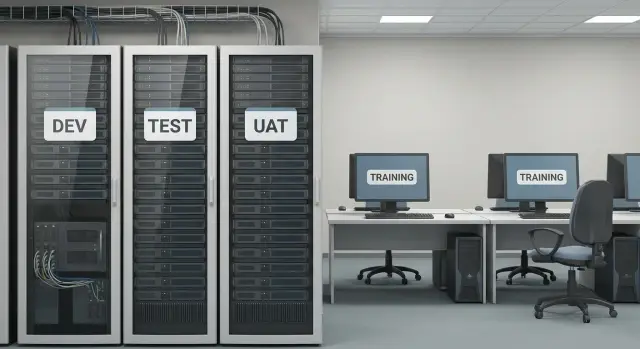
Why dev/test and training environments often slip into the “gray” zone
“Gray” installs usually appear where speed matters more than order. In a dev/test environment you need to spin up a stand quickly, verify a hypothesis, roll back and rebuild. In a training class the instructor wants everything to work by the start of the lesson. At that moment licenses easily get pushed to “we’ll sort it out later”, and a temporary solution silently becomes permanent.
There are also common everyday causes: one installation image used “for everyone”, copying keys between virtual machines, extending a trial beyond its term, moving a license from a work PC to a test machine. Add role confusion: who is responsible for licenses in the training environment — IT, procurement or the training center.
The risks are real. During an audit or internal check the stands that “no one remembers” usually surface: test VMs, forgotten UAT servers, laptops from the training room. That can lead to additional charges and fines, rushed purchases at unfavorable prices, a stopped pilot or acceptance, and sometimes reputational damage if the project is critical for the business or government.
A test environment is not production, but that doesn’t mean “no rules apply”. Many vendors allow dev/test only for development and verification: no real operation, no external users, no commercial load. Training licenses are often limited by the audience, duration and usage format. UAT is typically closer to production because business users participate and acceptance occurs.
Below is a clear plan: how to categorize environments, how to read license terms without legalese, what exactly counts (servers, VMs, images, accesses) and which checks to run before starting a stand or course so you don’t return to the “gray” zone.
What environments exist and how they differ
To avoid licensing becoming a lottery, first agree on terms. Different environments serve different people and follow different rules, even if technically they are the same servers or VMs. Mistakes begin where “test stand” is used as a generic label for everything.
DEV (development)
DEV is where developers write and build code, link libraries, bring up databases and validate ideas. There are many changes every day, often test data and simplified settings are used. Access is usually limited to the development team.
TEST (testing)
TEST is where testers verify that changes work and catch bugs before the business sees them. Repeatability and version control matter: the same scenario should produce the same result. Access is wider than DEV, but it’s still not an “open” environment.
UAT (user acceptance testing)
UAT is where business users confirm the product is ready: processes align, reports look correct, roles are configured as expected. UAT is often made as production-like as possible to avoid surprises. This is where a test environment most easily becomes “almost production”.
TRAINING
TRAINING is the learning environment for courses and workshops. Users here perform learning tasks, not real work. It’s important to define the format in advance: a classroom of 10–20 learners, remote training or a hybrid setup.
Differences that directly affect rules and risks:
- Users: developers and testers (DEV/TEST), business (UAT), learners and instructors (TRAINING).
- Data: use synthetic or anonymized dumps for DEV/TEST/TRAINING. Real personal or financial data significantly raises requirements.
- Similarity to production: if a stand runs 24/7, has integrations, real users and real data, it will often be treated as production even if it’s called UAT. This is key for licensing: risks and appropriate usage rights change.
Common licensing models you’ll encounter
When organizing dev/test and training environments, understand what the license is tied to: person, device, server or time. That determines whether you can quickly spin up a temporary stand, give a group access and then shut everything down without violating terms.
Per-user and per-device
The per-user model is convenient when one person signs in from multiple devices (laptop, home PC, thin client). It often fits UAT where named access for business users matters.
Per-device is usually better for training rooms and meeting rooms where different people work in turn at the same PC. But it’s easy to misjudge if students connect remotely from their laptops: then the “class” stops being a class and licenses may be required per user.
Per-server/cores and client access
Server products are often licensed per server (or per core), while user access is covered by separate client rights (CALs or similar). A typical issue: the server is licensed but accesses are “forgotten” because the stand is seen as temporary. The violation is then not the installation but the access.
To quickly check the calculation logic, keep a few questions handy:
- How many people actually connect (including integrations and service accounts)?
- Is access interactive or via API/queues/bots?
- Are there separate roles (admin, tester, student) that are licensed differently?
- Where does code run: server, containers or workstations?
Subscriptions are often convenient for short stands and training bursts: enable for 2–3 months and turn off. Perpetual licenses may be cheaper for a long-lived UAT but require discipline in tracking.
Training and non-commercial terms are a separate topic. They often prohibit commercial operation, working with live data, or using the environment to provide customer services.
Rights for virtualization and migration (to another host, cluster or DR site) are key. If you run test VMs on your server pool or new racks (for example, on S200 Series), check in advance whether the license allows such movements and how many virtual instances one license covers.
How to read terms: what is usually allowed and what is forbidden
In licenses, the important documents are not marketing pages but the contract, terms of use, the metric (what counts) and environment restrictions. Start with a simple description: who and how will use the software, where it will be deployed and whether it will resemble production.
Questions to clarify before purchase
Ask the product owner or vendor in writing before money is spent and a stand is deployed:
- Is the same license as production allowed for dev/test, UAT and training?
- How is access licensed: per user, device, cores, VMs, instances or concurrent sessions?
- Can multiple copies be run (e.g. dev + test + preprod) and how many?
- Are images and templates (golden image), cloning and snapshots allowed, and are fast-recreate stands permitted?
- Are external participants in UAT (contractors, pilot customers) treated as a separate user category?
“Access” vs “use”: common traps
In many terms “use” means not only an admin running the program but any access to functionality. If a tester signs into the system through a web UI, that may count as use and require a license even if the server is a single, non-production instance. Sometimes installation is allowed but user access to the test environment is restricted by the license type.
UAT and training often require separate rights. Vendors may view UAT as business operation because decisions are made and real processes run. Training may be allowed only with training licenses, only for the course duration, only for non-commercial education, or only without live data.
To separate marketing claims from legal conditions, look for specifics: definitions of environments (dev/test/UAT/training), accounting metrics, term and explicit prohibitions. If wording is vague, treat it as a risk and demand clarification in the contract or an official letter.
Inventory: what exactly needs licensing
To keep dev/test and training environments out of the gray zone, start with precise inventory rather than purchases. Auditors ask for facts, not intentions.
First document each environment and its components. For each contour (DEV, TEST, UAT, TRAINING) list all software and versions: OS, office apps, dev tools, test tools, middleware, drivers, plugins. Specify where it runs: physical PCs, VMs, containers or terminal servers.
Count people and devices by role. The same employee might be a “user” in UAT and an “admin” in training, and licensing often depends on role.
Don’t forget infrastructure hidden behind the application:
- server components and services (directories, mail, web servers)
- databases and their editions
- management and monitoring tools
- backup systems
- remote access and virtualization tools
Then document the lifecycle of stands. If UAT is up for two weeks before a release and then recreated from an image, that affects installation counts, image rights and where the golden template is stored.
Assign owners: who is responsible for inventory, renewals and decommissioning. A practical option is one owner per environment and one person responsible for the license registry.
Example: a training classroom runs on virtual desktops while UAT lives on a separate server. If you don’t separately account for the hypervisor, management tools and DBMS, you can end up with untracked components even though the test applications are licensed.
Step-by-step plan: how to legally organize dev/test, UAT and training
Simple rule: each environment must have a clear purpose, its own people and its own rules. When dev, UAT and training live “in one pile”, extra access usually appears, and with it — the risk of violations.
Below is a plan that usually helps pass an audit without unpleasant surprises.
1) Separate environments by purpose and access
Document who and why accesses each environment. Dev/test — developers and testers, UAT — business users for acceptance, training — learners. Implement basic controls: separate access groups, separate accounts for training, no shared admin accounts, restrict copying production data.
2) Choose the license model for each environment
Check how each product is licensed: per user, per device, per server, per core, by subscription. A common mistake is buying "per-user" for training then seating dozens under one account.
A convenient approach is to summarize each environment in one line: “who uses it”, “how many concurrently”, “where it runs”, “how long it lives”. This quickly shows whether a device, user or server license is needed.
3) Account for short-lived stands and peaks
Plan peak weeks: release, acceptance, training waves. For example, UAT normally has 10 users, but before release it may spike to 40. Solve this by reserve licenses or temporary subscriptions (if the vendor allows).
4) Prepare procurement and audit-ready documents
Keep in one place:
- contract and specification
- vendor letters/usage permissions (if any)
- keys/certificates/subscription data
- environment descriptions and access lists
- rules for creating temporary stands
5) Set up installation tracking and regular reconciliation
Assign an owner (IT or InfoSec) and a simple cadence: monthly installation reconciliation, quarterly access review. If infrastructure is on dedicated servers and workstations, tracking is easier: it’s clear which environment and what’s installed.
Special cases: virtualization, images, remote classes
Virtualization makes it easy to break licensing even when licenses were bought honestly. A common story: a VM moved to another host or cluster while the license is tied to specific processors, nodes or sites. For many products migration equals a new installation, sometimes requiring rights redistribution or a dedicated host pool for dev/test.
With golden images the risk is different: you replicate not only OS and software but the fact of usage. If a template is deployed dozens of times you may exceed the instances, users or devices covered by the license. A helpful practice is to keep the image minimal and install licensed software via managed deployment at first run, recording who used it and where.
Remote classes, VDI and shared terminals complicate counting. Some rules count devices, others named users, others concurrent sessions. If one learner signs in today from a personal laptop and tomorrow from a corporate PC, per-user and per-device models yield different results. For SI projects (for example when deploying training classes on server infrastructure including local servers and VDI) it’s better to align with the vendor before purchase.
Short-lived sandboxes (hours or days) can be made legal if you agree in advance how usage will be proven. Record:
- who launched the environment and why
- how long it will exist and when it will be deleted
- where it ran (cluster, host pool)
- which products and versions were inside
- number of users or active sessions
Contractors are a separate risk. If they get access to UAT or dev/test, check whether the license allows external users and how they must be accounted for (as users, a separate organization, or through temporary named accounts).
When these scenarios are ordered, licensing dev/test and training environments becomes a set of clear rules for infrastructure, images and access rather than a one-time action.
Common mistakes that make dev/test illegal
Licensing problems usually start like this: a stand was built quickly “for a couple of weeks” and then became permanent. The organization thinks “this isn’t prod”, but legally and per terms it may be different.
What commonly breaks legality even with good intentions:
- Installing a production license on dev/test or a training class even though test/training rights weren’t included. It often seems harmless (“let the team verify the patch”), but legally it’s different.
- Calling UAT a test while business already works normally: real data entry, decisions and reporting. Vendors may treat that as operation, not testing.
- No separation of accesses: one account for everyone in a training class or a shared login for a team. Even if software is installed legitimately, access violations (named users, number of users) become an overuse.
- No supporting documents: contracts, invoices, vendor letters about test rights. On an audit “we bought it” without paperwork usually means “no rights”.
- A stand lives for years and changes: new users added, integrations connected, virtual farm expanded while license terms remain as in the pilot.
Simple example: an organization bought workstations and a server for internal UAT and then used the same stand to train new employees. If training rights weren’t granted and learners used a shared login, the terms were violated even if the software was originally installed “for testing”.
A good habit: for each stand record purpose (dev/test, UAT, training), lifetime, user groups and the licenses that cover it. Then “temporary” rarely becomes illegal.
Quick checklist before an audit and before starting courses
Before a check or course start, don’t “hunt for licenses in corners”; show a clear picture: what is installed, where, why and on what basis. That makes audits calmer and prevents training classes from becoming a risk source.
Five quick checks that usually reveal problems early:
- List software per environment (DEV, TEST, UAT, TRAINING) and appoint a single inventory owner (responsible for the list, documents and answers).
- Verify access and role separation: developers, testers and learners should not all use one account.
- Document how licenses are counted: per person, per device, per server, per core, or concurrent usage. The same product may have different rules by edition.
- Review virtualization and image terms: can you clone VMs, how many copies are allowed, are golden images permitted, what counts as an installation and what as use.
- Plan regular cleanup: test machines often “live” for years and bring extra installations with them.
Good practice — run a short check the day before the course: open the class, test logins and ensure nobody uses a temporary key or someone else’s account.
What to prepare for a compliance conversation (usually takes an hour but saves weeks):
- folder with contracts, invoices and vendor letters
- current export of installation and user inventory
- a simple diagram of environments with labels where DEV, UAT and training live
Example: an org runs UAT in a separate segment and trains new hires in parallel. If access isn’t separated, testers will enter the training environment and learners will use production accounts. On paper licenses exist, but real use exceeds terms. This must be checked, especially when stands are on a shared server pool or identical standard PCs.
Practical example: UAT and a training classroom in one organization
An organization implements a new internal system. They need a UAT stand for business acceptance and to train 60 employees who will use the system on day one. Historically, teams solved this “quickly”: deployed a couple of temporary copies and gave everyone one shared login. Both UAT and training then formally become violations.
First step — separate purposes. UAT validates real scenarios and integrations; the training classroom must be a safe sandbox where mistakes won’t touch real data. Separate not only environments but also access: different AD groups, different accounts, distinct roles, and separate anonymized datasets for training. Infrastructure-wise it’s convenient to run UAT on dedicated virtual resources with pinned snapshots, and training on a separate pool that is started on schedule. Usually UAT runs on the org’s servers and training workstations are standard PCs or all-in-ones.
Then count licenses for two streams. For UAT, count actual participants in acceptance and the servers/components deployed. For training, count the peak number of simultaneous learners and instructors, plus separate licenses for any training VMs running in parallel. Don’t forget auxiliary items: DBMS, remote access, test tools, reporting components.
Documents that close common gaps:
- environment diagram (what is deployed where, lifetimes for UAT and the class)
- access matrix (who can log in and with what roles)
- license calculation with assumptions (peak users, number of VMs, cores/processors)
- proof of training rights (if available)
- regulation: who creates images, who extends a stand, who removes temporary installations
To avoid chaos in the next release, set a simple rule: any new stand (UAT or training) starts only with an application, a license calculation and a shutdown date. That prevents gray installs from appearing.
Next steps: lock the process so gray installs don’t return
To prevent licensing from sliding back into gray installs after a few months, assign responsibility and set rules. Otherwise new stands appear “for a minute”, access expands and proof of legitimate use vanishes.
Start with basics: appoint a license owner (IT admin or manager) and environment owners (dev/test, UAT, training). Then ratify a short regulation: who requests software, who approves the license type, who creates the stand, who closes access and removes software after the work is done.
For internal checks keep a minimal package you can maintain:
- list of environments with purpose and lifetimes
- list of installed software per environment and the licensing basis (contract, subscription, test rights)
- access scheme: who may log in, from where and by what request
- change log (when users were added, subscriptions renewed, images deployed)
Also plan infrastructure so tests and training don’t mix with production. If the same VM is sometimes used for UAT and sometimes for production tasks, it’s hard to prove intended use: who used the software and for what. When a reliable stand is needed, allocate separate resources: workstations for testers, PCs for classes, servers for UAT and builds. This reduces the temptation to put production licenses on test machines and simplifies inventory.
If projects and purchases run in Kazakhstan, discuss local supply with GSE.kz (gse.kz) in advance for locally produced PCs, workstations and servers to separate dev/test and UAT zones, and involve a system integrator to help design environments and ongoing support. When environments are separated by hardware, access and responsibility, keeping licenses in order becomes much easier.
Frequently asked questions
Where should I start so dev/test and training environments don’t slip into the “gray” area?
Start by fixing the purpose: DEV — development, TEST — change verification, UAT — business acceptance, TRAINING — learning. Then assign for each environment who uses it, what kind of data is used and how long the environment lives. Once these three things are documented, it becomes clear which rights are needed and where a test environment already resembles production.
When does UAT stop being a test and become almost production?
This usually happens when real business users, real data and regular work “as in production” appear in UAT. If the environment is available 24/7, has integrations, generates reports for decisions and processes run “for real”, many vendors will treat it as production rather than testing — even if you call it UAT.
How can I quickly understand what a license allows for dev/test and training?
Look at two blocks: the accounting metric and environment restrictions. First find what the license is tied to (user, device, server, cores, virtual instances, term or subscription), then check whether dev/test, UAT and training are allowed at all and under what conditions. If the documents don’t explicitly allow it, treat it as a risk and request written clarification.
What is usually considered “use” and why is it a trap during audits?
In many rules “use” is not only installation or an admin starting software, but any access to functionality. A tester, student or integration calling the system via web UI or API can be considered a user and require a license. That’s why you should count not only installations but also real access.
What exactly should be inventoried in dev/test, UAT and training environments?
Count what is actually deployed and accessible: physical PCs, virtual machines, containers, server roles, as well as user and service accounts. Forgotten components around the application often appear — databases, remote access tools, monitoring, or backup systems. Inventory should answer “what is where and who uses it”, not just “what we planned”.
How to use golden images, clones and snapshots safely?
Decide in advance whether templates, cloning and snapshots are allowed and how the vendor counts instances in such scenarios. A practical approach is to keep the base image as neutral as possible and install licensed software through a managed deployment at first boot, recording the installation and the users. This reduces the risk that one template becomes dozens of “extra” copies on paper.
What licensing risks arise from virtualization and migrating VMs between hosts?
Check whether the license is tied to a specific host, site or pool and whether migration is allowed without recalculation. In many models, moving a VM to another node can be treated as a new installation or require a dedicated host pool for dev/test. The best way is to fix movement rules in advance and keep environments within clear infrastructure boundaries.
How to license remote classes, VDI and terminal access for training?
Remote training breaks the logic “one PC in class = one device license” because learners access from personal laptops and change devices. In such setups a named-user model or session-based counting is often more appropriate, depending on the product. Before the course, fix the access format, the maximum number of simultaneous participants and who the vendor will consider a user.
What to do if contractors access dev/test or UAT?
First clarify whether the license allows external contractors to use the environment and how they must be accounted for: as separate users, a separate category or via temporary named accesses. Don’t give contractors a shared login for convenience — that quickly becomes an overuse and is hard to justify in an audit. It’s better to issue them separate accounts and restrict access to a specific environment and time period.
How to prepare for an audit so you don’t have to make urgent purchases?
Keep three things up to date: environment descriptions and their purpose, proof of rights (contracts, specs, subscription data) and the actual list of installations and accesses. Before an audit, reconcile “who has access” with “what is actually deployed” — most issues are found in forgotten VMs and expanded access groups. If you can quickly show the purpose, lifetime and licensing basis for a stand, the audit conversation is usually easier.
