8 min read
Workstation kit for a legal department: PC, 2 monitors, scanner
How to assemble a legal department workstation kit — PC, two monitors and a scanner — to process contracts faster and reduce errors.
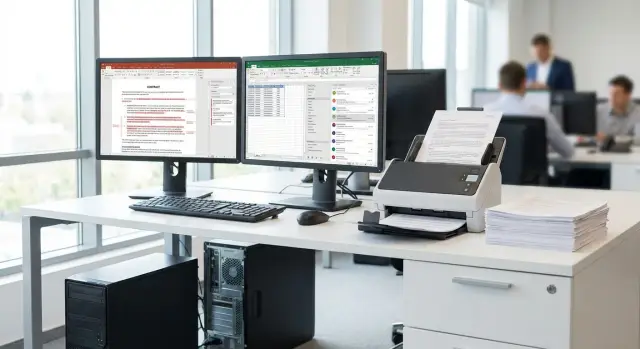
What legal departments struggle with and why equipment matters
In a legal department, speed often isn’t limited by knowledge or procedures but by simple mechanics: how quickly you can find the right version, compare edits, scan a packet and send it for approval. When hardware can’t keep up, people compensate with manual steps. Those manual steps are where mistakes appear.
Typically it looks like this: versions get mixed up and the wrong file is sent; an edit is missed when comparing two documents; a file is named carelessly or saved in the wrong place; a page is lost while scanning (or the scan is cropped); details are entered into a record with a typo because of manual input.
The link to equipment is direct. If a PC takes long to open large PDFs, lags when searching network folders, or starts “thinking” when mail, a word processor, a browser and scans are all open, employees adapt: they close windows, copy in pieces, resave files, and keep temporary versions on the desktop. One monitor amplifies the chaos: you constantly switch between the contract, apps, an email with comments and the internal register. And a weak scanner without an automatic feeder turns any set of documents into a manual assembly: place a sheet, press a button, check alignment, repeat. At every step there’s a chance to err.
The combo “PC + 2 monitors + scanner” solves many of these problems without changing procedures or increasing headcount. A capable office PC provides steady speed when working with large files and multiple applications. Two monitors let you keep source and edits or contract and correspondence side-by-side without losing context. A scanner with an ADF feeds batches quickly, reduces the risk of missed pages and lessens fatigue.
A simple example: a lawyer prepares a contract for approval. The left screen shows the document with edits, the right shows the email with comments and previous versions for comparison. Attachments are scanned in one run and go straight into the shared archive. Approval speeds up not because “everyone works faster” but because there are fewer pauses, switches and reasons to ask for clarifications.
When choosing a workstation kit for a legal department, think not of “power for power’s sake” but of the points where staff most often lose time and make mistakes. In Kazakhstan it’s convenient to do this with locally produced equipment and support, for example from GSE.kz. The principle is universal: remove unnecessary switches and manual operations.
Document flow in a legal department: where minutes leak and errors accumulate
A legal department handles many document types in a constant flow. Today it’s a contract with attachments, tomorrow a power of attorney, the day after a claim and a response to it. At the same time there are acts, invoices, letters and internal approvals. If the workstation doesn’t help maintain order and speed, small delays quickly add up to hours.
Most time is spent not on legal analysis but on “mechanics.” A typical chain: a lawyer edits a contract, an assistant collects signatures and scans, a records clerk creates a file card and sends it to a counterparty. When every step is done manually on a single screen, losses are inevitable.
Minutes most often slip away in the same places: finding the current version among similar files; comparing edits and transferring changes; manually entering details (BIN, address, banking data) from a scan; scanning sheets one by one and assembling a multi-page PDF; the final check that nothing is missing — signatures, stamps, attachments, dates.
Roles differ in the process, and this matters for equipment. A lawyer needs to compare texts quickly and see edits. An assistant needs fast data entry and packet preparation for signature. A records clerk needs files to be named consistently, stored in the right folders and easy to find in a week or a year.
Errors accumulate in the same places: a missed field in a template, the wrong version, an incorrect contract number, the wrong file sent to a counterparty, a scan with cropped pages. The result is almost always the same: the document is returned for revision and the approval cycle lengthens.
To understand what to improve first, track simple metrics for the legal workstation kit:
- cycle time from draft to signed PDF;
- number of returns for revision (internal and from counterparties);
- count of missing mandatory fields and details;
- share of cases where “the latest version wasn’t found on the first try.”
When you see where minutes are lost, it’s easier to choose equipment and settings that actually make an impact rather than just look impressive on a spec sheet.
How to choose a PC for legal tasks without overspending
A lawyer rarely needs the “most powerful” computer. What’s usually needed is predictable speed for office tasks and stability when dozens of PDFs, Word documents, mail, a browser with registers and an EDM system are open simultaneously. If a PC freezes, staff start circumventing rules: they store versions on the desktop, email files to each other, and create parallel copies. That speeds up the chaos and increases errors.
Specs that actually give a performance gain
For legal routine, memory and a fast drive usually matter more. The CPU is important too, but overpaying for top-tier models often doesn’t pay off.
- Processor: a solid mid-range CPU (e.g., Intel Core i5 or AMD Ryzen 5 of the current generation). This is usually enough for OCR, large PDFs and multiple apps running at once.
- RAM: 16 GB as a baseline comfort; 32 GB if many tabs, heavy scans and several systems are constantly open.
- SSD: only SSD, preferably 512 GB or larger. It noticeably speeds up search, file opening and archive work.
- Reliability: business-class models designed for daily load suit offices better than “home” builds.
Security is a separate topic. TPM, disk encryption support and properly configured access policies are often more important than an extra 10% of performance.
Connections: so nothing becomes a bottleneck
The PC should drive two monitors and work reliably with a scanner without adapters.
Check in advance:
- two video outputs (e.g., DisplayPort + HDMI) for two screens;
- enough USB-A ports for scanner, mouse, keyboard and a digital signature token;
- gigabit network (RJ-45) for stable access to file resources;
- Wi‑Fi and Bluetooth if needed, but not instead of wired networking.
Reliability and service
Look at warranty, service network and spare parts availability. For an office it’s important to be able to quickly replace a power supply, drive or fan without long downtime. In Kazakhstan it’s convenient when the manufacturer and integrator are local: it’s easier to resolve repairs, compatibility and maintain a consistent configuration standard.
All-in-one or classic desktop?
An all-in-one fits reception desks and offices where compactness and fewer cables matter. A classic desktop usually wins where a second monitor, more ports and easier component replacement over time are required. For legal departments, the classic desktop is practical in most cases.
Two monitors: settings and ergonomics for text work
Two screens deliver a noticeable gain for legal tasks. When the contract and edits are on the left and the template, correspondence, counterparty details or a register are on the right, you switch windows less and lose context less often. This is especially helpful when checking versions: it’s easier to compare two documents visually than to flip through tabs and hope nothing is missed.
For reading small text, the combination of size and resolution matters more than diagonal alone. It’s comfortable in an office when a full A4 page fits on the screen at a readable scale and the UI doesn’t become tiny. A practical guideline: 24–27 inches, resolution not lower than Full HD (for 27" QHD is often more pleasant). If staff frequently work with tables and multi-window modes, 27" gives more breathing room.
Placement to reduce eye and neck strain
Setup takes 10–15 minutes but the effect is felt every day.
- Top edge of the main monitor at or slightly below eye level.
- Distance to the screen roughly an outstretched arm.
- Monitors set at a slight inward angle so you don’t turn your head 30–40 degrees.
- Primary screen directly in front of you, the second to the side; if load is equal, place them symmetrically.
- Match brightness and color temperature on both so there’s no jump when you shift your gaze.
Also check system scaling: for text 100–125% is often more convenient than constantly zooming in each application.
Connection and compatibility
Small details matter in a legal workstation kit. One wrong cable or missing video output can turn installation into a week-long email thread.
- Ensure the PC has two independent video outputs (or support for two displays via a dock for laptops).
- Choose one connection type present on both PC and monitors (commonly HDMI or DisplayPort).
- Prefer identical monitor models where possible: easier to match height, brightness and scaling.
- If using a dock, verify it supports the required resolution on both screens.
If procurement goes through a systems integrator, it’s useful to assemble a demo setup and test it with your typical files: contract, scan, spreadsheet, version comparison. It’s cheaper than fixing discomfort after mass deployment.
Document scanner: features that truly affect results
In a legal workstation kit, a scanner often delivers the fastest improvement: less manual entry, easier search, fewer transcription errors.
Start by asking: do you scan batches or single sheets? For daily contracts, powers of attorney, acts and incoming mail, a sheet-fed scanner with an automatic document feeder (ADF) is usually better. A flatbed is handy for occasional digitization of bound documents, stitched files or low-quality pages.
What to check on the spec sheet to avoid mistakes
For a legal team focus on what affects throughput and stability, not just marketing numbers:
- duplex (two-sided scanning) in one pass — saves time on contracts and forms;
- ADF capacity and speed — look at real pages per minute at 300 dpi in duplex mode;
- duty cycle and roller kit — wear on consumables causes double feeds and missed pages;
- multi-feed detection — reduces the risk of losing a page with a signature or attachment;
- ease of cleaning the paper path — dust and paper scraps degrade quality and increase jams.
OCR quality and scan profiles
Scanning as an image isn’t enough. It’s important the document is searchable and archives correctly into internal systems.
A working standard for most legal tasks is 300 dpi. It usually balances readability of small fonts and file size. Useful are enhancement modes for faint text, stamps and signatures: they increase the chance that OCR correctly recognizes names, IIN/BIN, contract numbers and dates.
Check whether you can save profiles for common scenarios. For example: “Contract: PDF/A, duplex, 300 dpi, auto-crop”, “Stamps: color, 300 dpi”, “Drafts: b/w, 200 dpi”. PDF/A is convenient for archival storage when you need files to open the same way years from now.
A practical example: a lawyer scans a 40-page contract with attachments. Without duplex and multi-feed detection one page can be missed, and the error will appear at the worst moment. With duplex and feed control the scanner will stop on an issue, and a profile like “PDF/A 300 dpi + OCR” makes the document searchable by number and name without manual transcription.
Step-by-step: assemble and configure the “PC + 2 monitors + scanner” setup
For the kit to actually speed up work, it’s important not only to buy devices but to configure them as a single understandable system. Then there are fewer clicks, less manual entry and fewer chances to “lose” a document.
Start with the desk and power. For a lawyer it’s critical that cables don’t tangle and equipment doesn’t shut off during scanning or file saving. If the office has voltage drops, plan for a UPS and enough outlets.
Then follow these standard steps (fix them once and repeat for new workstations):
-
Prepare the desk and cabling: where the PC will sit, cable routes for monitors and scanner, best USB and power locations. Leave some length in cable runs so nothing is taut.
-
Connect two monitors and set them to extend the desktop (not duplicate). Check screen order in settings, set the same scaling and a comfortable font size.
-
Install the scanner driver and application. Create 2–3 profiles for typical cases: “Contract (b/w, 300 dpi)”, “Stamps and signatures (color, 300 dpi)”, “Document batch (ADF, duplex)”. This avoids changing parameters manually each time.
-
Configure folders and naming rules. A simple standard reduces errors more than you’d think. Example: Date_Counterparty_Type_Number_Version. Also set access rights: who can edit, who can read, who can delete.
-
Do a test run: scan 20–30 real documents of different types. Check that text is readable, pages are in order, double-sided pages aren’t missed, files go to the right folder and are named consistently.
A small practical tip: run a “counterparty packet” (contract, attachment, power of attorney, acts) through the ADF and save as one PDF, while key pages with stamps are scanned in color as separate profiles. This reduces the risk of sending a version without signatures or with an unreadable stamp.
If you standardize these settings on identical PCs and monitors, it becomes easier to maintain a single order: identical scanner profiles, the same scaling, the same folder structure. That saves time on training and reduces variance among employees.
How to reduce manual errors: storage, versions and file discipline
Document errors usually stem not from “carelessness” but from chaos: files named inconsistently, edits scattered across five places, a scan rotated, or the source file left on one PC. Even the best workstation kit won’t help if simple rules aren’t in place.
Unified file names that are readable at a glance
Create one rule for everyone and lock it into a short memo. The main point is that the filename should show when, with whom, what it is and which version.
- 2026-01-17_TOO-Alma_Supply-Agreement_v03_Ivanova
- 2026-01-17_AO-Bank_Protocol-of-disagreements_v01_Petrov
- 2026-01-17_IP-Sadykov_Power-of-attorney_Signed_Sidorov
- 2026-01-17_TOO-Alma_Scan_Attachment-1_v01_Ivanova
This makes it easier to find the right document, compare versions and avoid sending “final_final2”.
Folders by project and status so nothing gets lost
Folder structure should support work. It’s convenient when each project has the same structure and document status is visible immediately:
- 01_Draft
- 02_For-approval
- 03_Signed
- 04_Scan_originals
- 05_Correspondence_and_attachments
Key rule: a document moves by status rather than being copied into ten places.
Version control can be simplified into two habits. First: a new edit means a new version number in the filename (v02, v03). Second: one person is responsible for the file during approval so edits don’t diverge. For example, the lawyer collects comments from colleagues and applies them to one working version rather than merging three different files.
Scanning also affects errors. Minimum standards to fix: readability, correct orientation, even margins. For a 20-page document, auto-rotation and order checks save time and reduce the risk of a missed page.
And one more thing: originals and scans shouldn’t live on a single computer. Store them in a shared protected folder with backups, and keep only working copies on the PC. This is crucial when someone goes on leave or changes workstation.
Common mistakes in procurement and rollout
Errors in equipping lawyers usually look like small things: “we’ll buy an adapter later”, “it’ll do”, “a scanner is a scanner”. But those small items eat time in routine tasks and add manual slip-ups in contracts, acts and letters.
Mistakes that break the kit
What usually goes wrong when assembling a legal workstation kit:
- Buying a PC without proper support for two monitors: a single video output, incompatible ports or security policy limitations. On launch day you find the second screen can’t be connected without compromises.
- Putting together two different monitors “from what was available”: differing sizes, panels, brightness and scaling. Eyes tire faster and speed drops because the brain constantly “reconciles” the image.
- Purchasing an office scanner without an ADF and without duplex scanning. For a document flow this means manual feeding and page flipping. Staff start “saving time” and scanning sloppily, increasing the risk of missed pages.
- Setting too low quality or saving only images without text recognition. Later you can’t search documents properly and reconciling details becomes slow.
- Not introducing clear rules: how to name files, where to store them, who approves the final version. Duplicates appear, “final_2_really”, extra copies in email and messengers, and the risk of leakage grows.
What to do before purchase and on day one of deployment
One scenario: a lawyer must simultaneously compare a contract and a protocol of disagreements, keep a register and scan attachments. Without two identical monitors and decent OCR this becomes constant Alt‑Tabbing and blind editing.
Before buying and launching, fix three things:
- verify connection of two monitors on the actual PC and with the cables that will be used in the office;
- agree on screen parameters (diagonal, resolution, scaling, brightness) and set them identically;
- approve the standard: searchable PDF, clear file names and access rights.
If procurement is centralized, agree in advance on a uniform configuration of workstations and clear support across all offices.
Short checklist before purchase and launch
Before ordering the legal department workstation kit, check a few things. It takes 10–15 minutes but often saves weeks of quarrels with IT and suppliers.
Hardware: what must match
Verify these basic parameters in advance:
- PC: SSD for OS and documents, RAM with headroom (so mail, browser and PDFs don’t lag), at least 2 video outputs for two screens, several free USB ports, wired network (Ethernet), clear warranty and service;
- Monitors: identical models, comfortable diagonal and resolution for reading small text, height and tilt adjustment;
- Scanner: ADF for stacks, duplex scanning, OCR, quick profile selection, clear consumable lifecycle;
- Compatibility: scanner drivers for your OS, cables long enough, desk space and tidy cable routing;
- Support: who fixes it, where is service, how fast can a workstation be restored.
Software and order: what reduces errors
Even perfect hardware won’t help if files are named randomly and scans land in different folders.
- Naming and folders: one template (date, counterparty, document type, number), a unified folder structure for everyone.
- Access rights: who edits, who reads, where the final version resides.
- Scan profiles: preset 2–3 modes with fixed parameters and format.
- Test run: scan 20–30 real documents, check OCR quality, text search, file size and speed.
- Training: 30 minutes per employee and a short memo on profiles and naming rules.
If there are 2–3 doubts from the checklist, stop and clarify requirements. A small mistake (no duplex or mismatched monitors) becomes daily time loss.
Practical example and next steps
A common case: a contract with 20 pages must be urgently approved, there are 6 attachments and commentary from accounting and procurement. The deadline is today and the final version must match exactly: details, amounts, dates and attachment references.
On a single monitor the lawyer constantly switches between the contract, the email with comments and the scanned attachment. Any check becomes a chain of Alt‑Tab, and edits are made almost blindly because you can’t see the original paragraph and the comment at the same time. If the scanner lacks an ADF or profiles, attachments are scanned one sheet at a time, pages easily get out of order, and the final PDF can miss a rotated page or have incorrect sequencing.
With two monitors the process is calmer: left — the contract in the editor, right — the email with comments or the previous version. While editing you see the formulation and the source of the comment, making it easier to notice when a clause changed but a reference to an attachment wasn’t updated. An ADF scanner with profiles helps: one profile for “contract + attachments” (single PDF), another for “correspondence” (separate folder), a third for “ID copies” (b/w, smaller file). When scanning is consistent every time, there are fewer manual steps and fewer small errors.
To move to this mode without overspending, start with a short plan:
- assess current workstations: enough memory and speed, is there a second video output, how convenient is batch scanning;
- pilot 1–2 stations with the people who most often compile final versions and attachments;
- fix rules: where to save, how to name files, how to store versions;
- after 2 weeks compare results: time to approval, number of returns due to errors, print workload;
- if the pilot is effective, scale to the whole department.
If you need help selecting and deploying equipment in Kazakhstan, GSE.kz as a manufacturer and systems integrator can help build a unified standard of workstations based on GSE desktop PCs of the L200 series or M200 all‑in‑ones and provide support through a service network.
Frequently asked questions
What’s included in the optimal workstation kit for a legal department?
The basic option for a document flow — a combo of **desktop PC + two identically configured monitors + a sheet-fed scanner with an automatic document feeder (ADF)**. It reduces unnecessary window switching and manual sheet feeding, which are the most common sources of mistakes.
Why are legal department problems often solved by equipment rather than procedures?
Because the main time losses are not legal analysis but mechanics: opening a heavy PDF, finding the right version, comparing edits, assembling scans, and sending the package. If the PC lags, one monitor doesn’t show enough context, or the scanner requires manual feeding, people start working around rules and errors increase.
What signs show a PC in the legal department is no longer coping?
A PC is struggling if staff constantly have to close windows, keep temporary versions on the desktop, or resend files to each other. A properly performing PC opens large PDFs and multiple apps reliably, which reduces version chaos and the risk of sending the wrong document.
Which PC specs really matter for a lawyer?
For most legal tasks choose **a mid-range CPU (Intel Core i5 / AMD Ryzen 5 of current generation), at least 16 GB RAM and an SSD from 512 GB**. If heavy scans, many tabs and several systems are open simultaneously, consider 32 GB of RAM.
Why do lawyers need two monitors if they can switch between windows?
Two monitors are useful not for comfort but for accuracy: you can keep the contract and comments side by side, two versions of a text, or the contract and a register. This reduces switching and helps you avoid missing lines during comparison, so there are fewer revisions and returns.
What monitor size and resolution are best for working with contracts?
A practical guideline is **24–27 inches**: on such screens an A4 page typically fits at a readable scale. For 24" Full HD is usually enough; for 27" QHD is often more comfortable so text doesn’t become too large while remaining readable.
How to know if you need an ADF scanner?
If the department scans batches of contracts, attachments and incoming mail daily, get a scanner with **ADF and duplex** — it saves time and reduces the risk of missing pages. A flatbed scanner is useful as a supplement when you need to digitize bound items or documents of unusual size or quality.
Which scanner parameters prevent lost pages?
The minimal useful set — **single-pass duplex, multi-feed detection, a clear roller replacement schedule and easy-to-clean paper path**. These affect whether pages are skipped or double-fed, which usually shows up only at final approval.
Which scanning settings work best for legal documents?
The standard working mode is **300 dpi**: it’s a balance between readability of small text and file size. Save PDFs in a searchable format so you can find contracts by text; otherwise you’ll be rechecking details manually and archive searches become slow.
How is it best to roll out these workstations and where to do it in Kazakhstan?
Start with a pilot on 1–2 workstations and test the kit on your typical scenarios: version comparison, scanning attachments, and archive search. In Kazakhstan it helps when the manufacturer and integrator are local: **GSE.kz** can build a unified standard of workstations based on locally produced PCs and provide service through a regional network to avoid long downtimes.
