6 min read
Labeling PC and Server Components: How to Speed Up Replacements
Labeling components in PCs and servers speeds up diagnostics and ordering replacements. Fields to record, step‑by‑step process, examples and a checklist.
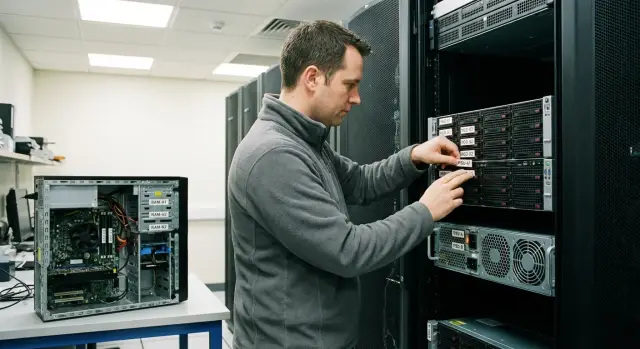
Why label components at all
When something fails in a PC or server, most time is lost not on the physical replacement but on clarifying details. Without the exact model, revision or sometimes the lot, diagnostics drag on: you open the case, hunt for stickers, compare photos, ask colleagues what was installed before.
The same problem appears in procurement. A request like “1 TB drive” almost guarantees mistakes: the supplier might deliver a different interface (SATA instead of SAS), a different form factor (2.5 instead of 3.5), the wrong type (HDD instead of SSD) or an unsuitable speed. The result is returns, repeated correspondence, lost days and downtime.
Proper labeling solves this with a simple rule: next to the hardware there’s always a clear tag, and the same data is in the inventory record. Then any engineer can quickly see what’s inside, check compatibility and pick a replacement without guesswork.
Four things typically consume the most time: incompatible purchases and reorders, waiting for approvals (because no one can confirm the exact model), service downtime while searching for the “right” spare, and unnecessary site visits when the phone call can’t clarify what to bring.
Labeling is especially important when equipment is serviced by shifts, contractors or remote branches. You can’t rely on one person’s memory. It should be: open the lid — you immediately see what drive it is, which RAM, which PSU, and what to order as a replacement.
What to record: the minimum for drives, RAM and power supplies
To make labeling actually speed up diagnostics and procurement, record not everything, but what helps: distinguish a part from similar ones and quickly find a replacement from a supplier.
Basic set for any part:
- installation location (server/PC, chassis, slot or tray)
- exact model or part number
- key parameters affecting compatibility
- serial number
- installation or replacement date (and who performed it)
Drives: what to note to avoid mistakes
Drive items are most often confused by capacity. So in addition to model and capacity, record the interface (SATA, SAS, NVMe) and form factor (2.5 or 3.5). It’s best to visually verify the serial number even if it’s already in the system.
Practical scenario: an array degradation alert arrives. If the tray has a label like SRV-03 BAY-07 and the component card lists model and serial number, the engineer pulls the exact drive and orders an identical spare without clarifying emails.
RAM: how not to buy an incompatible module
For memory, important fields are type (DDR4 or DDR5), frequency, capacity and part number. If the server is sensitive to configurations, add ECC (if used) and ranks. These fields significantly reduce the risk that a replacement won’t initialize or will run at a lower frequency.
Power supplies: what matters for replacement
Minimum for PSUs: wattage, exact model and serial number. For modular and server PSUs, it’s useful to indicate compatible chassis or module type so you don’t bring a similar-looking but physically different unit.
Keeping track of RAID controllers, network cards, HBAs and fans is often helpful: they fail too, and without model and revision it’s hard to replace them quickly.
Don’t stick labels on hot areas or places where airflow matters. Prefer flat, cool surfaces of the chassis, drive tray handles, module frames and manufacturer‑provided sticker zones.
Unified naming scheme and component record
If names and entries are inconsistent, people waste time decoding them. A unified scheme fixes this: from one string it’s clear where the hardware is installed and what to buy.
A naming scheme that’s easy to read
A convenient device format: SITE-RACK-SRV-01. It’s readable without OS access and without historical knowledge: site, rack, role and sequence number. Add installation location codes that match labels on the chassis and documentation:
BAY01,BAY02for drive traysDIMM_A1,DIMM_B2for memory modulesPSU1,PSU2for power suppliesPCIe_1,PCIe_2for expansion cardsM2_1,M2_2for M.2 slots (if present)
Example of a short label: ALA-R03-SRV-01 | BAY03 | SSD 1.92TB. Even a new engineer will know what to look for and where it’s located.
Component record: what to store in inventory
Minimum fields that usually prevent confusion:
- device and location:
SITE-RACK-SRV-01+BAY/DIMM/PSU - type and model: HDD/SSD, RAM, PSU + exact model/PN
- key parameters: for drives (capacity, interface), for RAM (capacity, type/frequency), for PSUs (power)
- serial number and installation date
- status: in use, in stock, retired
In practice it’s useful to add three more items: compatibility (which models it fits), where the spare is stored (warehouse, cabinet, shelf, bin) and a short reason for replacement.
A simple quality test: give the component card to someone without context. If within a minute they understand the slot, what to buy and acceptable replacements, the scheme works.
Materials and tools that survive a server room
Ordinary office labels don’t last in a server room: heat softens the adhesive, text wears off from wipes. Use materials that survive dust, cleaning and regular replacements.
Labels
Thermal or polyester (PET) labels work well for long life. Lamination protects text from alcohol wipes and mild chemicals. Adhesive should be rated for plastic and painted metal, otherwise labels will peel on drive trays and PSU covers.
Mind the size: the label should fit on a drive tray handle or visible part of a module without covering ventilation or latches.
Marker or print
Print labels when possible: consistent font and fewer character errors. Handwriting is acceptable as a temporary measure (e.g., during a night outage), but replace those with printed labels once operations are restored.
QR codes are useful when many identical units exist and you need to open the record quickly. Usually encode a short identifier (e.g., COMP-023914) rather than all details so the database can be updated without relabeling.
Photographic records help when records diverge from reality. Take two shots: a close-up of the component nameplate (model, serial) and a wider shot showing the installation location (slot/tray/server).
Store label templates in one place and limit edit access. Allow 1–2 responsible people to edit templates and on‑duty engineers to print. This prevents a format "zoo."
Step-by-step process: how to implement in 1–2 days
You can tidy up in 1–2 days if you don’t try to cover the whole fleet at once. Start with critical servers (or 1–2 racks), then the most problematic office PCs. Decide upfront the level of detail: device only, or also drive trays, RAM slots and PSUs.
Day 1: collect data and prepare
Gather information from two sources: nameplates and the system (BIOS, BMC/IPMI, management utilities). The nameplate usually has the exact model and serial number, while the system is convenient for checking capacities, frequencies and current slot mappings.
Then set a simple device ID rule. For example: SRV-03, then DISK-01..08 (by trays) and RAM-A1, RAM-A2 (by motherboard slots). Prepare a single label template for that scheme.
Day 2: labeling, photos and verification
Place labels so they are visible without disassembly: on the drive tray handle, on a visible part of the PSU, near the memory slot where it won’t obstruct clips. Ensure the text is readable under normal lighting and take photos of each area (wide shot and close-up).
Enter records into the inventory (spreadsheet or CMDB) and perform a quality check: sample 10–20% of devices and compare the label with the record.
To keep results, enforce the rule: any replacement of drive, RAM or PSU must end with an updated record and photo.
Where to store data: spreadsheet to CMDB
Labeling only works when the physical tags are linked to a clear database. Otherwise a label exists but there’s no answer to “what is this and where to get the same one.”
You can start with a spreadsheet if there is discipline: one file owner, clear access rights and tracked changes. It helps to assign zone owners (sites, racks) and clarify who updates records after replacements.
If you already have an inventory system, keep a single chain of links: device -> position -> component -> purchase document (or ticket number). Then on failure you immediately see the model, where it was installed and where it came from.
A field for “where the spare is stored” down to shelf/bin saves hours when a drive is needed urgently.
Server specifics: racks, trays and RAID
In a server, a one-letter typo easily turns into downtime. That’s why precise model and exact installation location matter the most: rack, unit, chassis, tray and slot.
Drives and RAID
For hot-swap drives it’s often better to label the tray rather than the drive itself. Drives go to service, while trays usually stay and help return the replacement to the correct bay.
To avoid swapping the wrong disk in RAID, document the mapping between the physical location and how the controller sees the drive. Front panel numbering (Bay 1, Bay 2) often doesn’t match the RAID interface (Disk 0, Disk 1) or the OS (sda, sdb).
Minimum for each tray: location (rack/unit/chassis), bay number, RAID group/virtual disk, model and serial number.
If batches and firmware matter in your environment, add revision and firmware version. Mixing batches can generate warnings and complicate array recovery in some systems.
RAM and PSUs
With memory, putting modules in the wrong slots can not only reduce capacity but also lower performance by breaking multi-channel operation. Specify the exact slot and channel: CPU1-A1, CPU1-B1, etc.
For PSUs the rule is simple: PSU1 and PSU2 should be the same model and power rating, ideally the same revision. Record which unit is in which slot and check interchangeability in N+1 or redundant configurations.
Example: replacement without extra correspondence
A server in a branch is hours away. An on‑call engineer sees an alert: a RAID drive failed or logs show ECC memory errors. Normally that sparks a chain of messages: what model, which slot, are you sure it’s that drive, what is an acceptable equivalent?
With labeling the scenario is shorter. The drive tray label says: “SRV-KST-03 | BAY02 | SSD 1.92TB | P/N ... | S/N ... | RAID1-A”. For RAM: “SRV-KST-03 | DIMM_B2 | 32GB DDR4-3200 | P/N ...”. A photo or the inventory record immediately shows the exact spec and location.
The replacement request becomes predictable: server and position, failed component, exact specification (capacity, type, speed, PN and SN), and the compatibility rule (for example, “only identical P/N or an approved replacement list”).
After replacement, don’t stop at “server powers on.” Check power and indicators, RAID status and rebuild start, controller logs, SMART and disk errors; for memory, verify no new ECC events. And update the inventory: what was removed, what was installed, date and who performed it.
Common mistakes and how to avoid them
Labeling usually fails because of small things rather than complexity.
-
Labels are placed on hot zones. Adhesive softens, labels peel and soils. Place labels where it’s cooler and visible without disassembly.
-
No unified naming scheme. When one site writes “SSD-1”, another “Disk 01” and a third “BAY1”, searching becomes guesswork.
-
Only capacity and frequency are recorded. Entries like “16 GB 3200” or “SSD 1 TB” are nearly useless. You need the P/N and, if possible, revision.
-
Records aren’t updated after replacements. After an outage it’s easy to leave a “tail.” Make replacement completion conditional on updating the card and the old part’s status.
-
Slots and bays are mixed up. DIMM_A1 and DIMM_B1, BAY01 and BAY10 are easy to confuse. Use unambiguous labels (leading zeros like BAY01), match chassis markings, and keep one source of truth for verification.
Checklist and next steps
Before starting, decide two things: the ID format (single style for PCs and servers) and who is responsible for updating records. If one person keeps records and another does replacements, discrepancies will repeat.
Quick check on one device:
- ID format and roles agreed: who labels, who updates records, who verifies after work
- component shows readable model, P/N, serial number and slot/position
- inventory has a photo of the nameplate and installation date (and warranty mark if tracked)
- for servers the link “tray -> disk -> RAID” is clear
- after replacement the record is updated immediately: removed, installed, date, technician
When the basic scheme is working, move to spares. Don’t stock “a little bit of everything.” Select 5–10 most likely replacement parts based on failure stats and lead times: typical drives of the right interface, common RAM modules, PSUs for specific models.
If you use contractors or integrators, agree on card formats and labeling rules in advance so records don’t splinter into different templates. For example, GSE.kz as a manufacturer and integrator often helps organizations standardize infrastructure and maintenance, including 24/7 support and unified component tracking requirements.
How to lock in the result: rules, spares and support
The effect appears only if labeling doesn’t become a one‑off effort. You need a short procedure: what to label, who is responsible, where to record and what to do on replacement.
The most practical rule for new deliveries and repairs: a component is not installed in a production machine until it’s labeled and recorded.
A compact procedure that people actually follow:
- on receipt: verify model and serial number, apply label, enter in inventory
- on installation: record where it was placed (device, slot/tray/position)
- on replacement: copy old component data, change its status, link the new one
- on move: update the installation location the same day
- quarterly: spot-check 10–20% of the fleet
Inventory clean‑up and standardization make sense when you have a model zoo, increased failures or a major refresh planned. A couple of typical profiles by role reduce the risk of incompatible drives, mismatched RAM modules and rare PSUs.
Spares become simpler when standards exist: keep a small set of “quick replacements” for the most common parts. The goal is not a big warehouse but correct stock positions.
Frequently asked questions
Why label parts if everything is visible in the system?
Labeling saves time clarifying details: you don't need to open the case, hunt for nameplates, or double-check what was installed before. When the device label and inventory record match by model, P/N and S/N, an engineer can quickly find the faulty part and pick the correct replacement without back-and-forth messages or guesses.
What is the minimum data to record for any part?
Record what distinguishes the part from similar ones and affects compatibility: installation location, exact model or P/N, key parameters, serial number, installation date and who installed it. This is enough to order the right replacement and confirm the swapped part.
What must be specified on drives to avoid getting the wrong one?
Besides capacity, record the interface and form factor, because those are commonly confused. Always note the model/P/N and serial number, plus the exact installation location (server and bay number) so you replace the specific drive, not just a "similar" one.
How to label RAM to avoid buying incompatible modules?
For RAM, the most important are type (DDR4/DDR5), capacity, frequency and part number, as they make it easiest to find a compatible module. If the server is sensitive to configuration, also record ECC and ranks so you don't end up with lower frequency operation or boot failures.
What is critical to note for power supplies when replacing?
Record the wattage, exact model (or P/N) and serial number, and the position (PSU1/PSU2). For server and modular PSUs, link them to the specific chassis or module type to avoid bringing a physically different but similar-looking unit.
How to create a naming scheme a new engineer will understand?
Choose one readable device format and consistent codes for installation locations so they match what is printed on the chassis. A good label is short and clear: server ID, position (BAY/DIMM/PSU) and a brief spec, while full details remain in the component record.
How to avoid mixing up drives when replacing in a RAID?
Document the mapping between the physical bay and how the controller or OS sees the drive, because these numberings often differ. Keep RAID group and exact installation location in the component record so the person replacing a failed disk pulls the exact one marked as faulty.
Which labels and materials actually hold up in a server room?
Use thermal or polyester (PET) labels for server rooms since they survive heat and cleaning; lamination protects text from alcohol wipes. Choose adhesive suitable for plastic and painted metal so labels don't peel on trays and PSU covers, and place labels on cool, visible areas without blocking vents or latches.
How to roll out labeling in 1–2 days without getting overwhelmed?
Start with one rack or a few critical servers and set rules for IDs, installation positions and a label template. Apply labels so they are visible without disassembly, take photos of the nameplate and location, enter records into the inventory and verify quality by spot-checking labels against records.
How to make labeling stick and not slip back into chaos?
Labeling falls apart without a single standard and immediate updates after replacements, so enforce a simple completion rule: update the component record and statuses. If you work with contractors or integrators, agree on label and record formats in advance to avoid a "zoo" of notations; vendors like GSE.kz often help standardize inventory and provide ongoing support and procedures.
