7 min read
KVM-over-IP for Server Consoles: When to Choose IPMI vs KVM and How to Use a Bastion
KVM-over-IP for server consoles: when it’s more useful than IPMI, how to grant access through a bastion, and which roles and logs to set up for secure support.
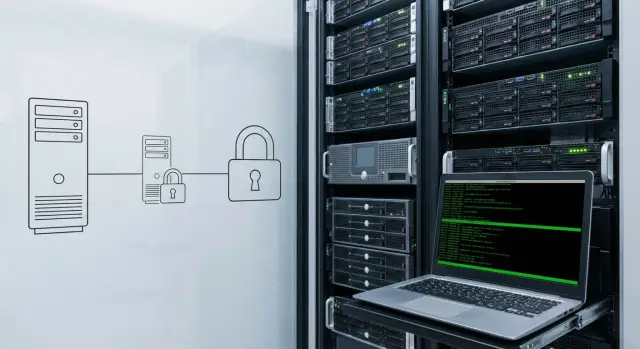
Why you need a remote server console
A remote server console provides screen, keyboard and mouse access as if you were standing at the rack. Unlike normal remote OS access, the console works even when the system hasn’t booted, is hung, or the server’s network is misconfigured.
It helps when “SSH won’t let you in” and you don’t know what’s happening. For example: after an update the server enters a reboot loop, a NIC driver fails to load, a RAID controller waits for confirmation, or BIOS settings were accidentally reset. Through the console you see the real state: POST, bootloader, disk errors, hypervisor messages.
Without console access downtime and physical visits increase. A typical scenario: an incident at night, the on-call person can’t log in, and you have to wait for an engineer with physical access. In branches and remote racks this becomes hours or even days, especially if no one on site is comfortable with hardware.
This is most critical for:
- Data centers and server rooms where recovery time and access discipline matter.
- Branches and remote sites that are hard to reach quickly.
- Organizations using third-party support where controlled access is needed instead of “shared passwords”.
- Environments with audit requirements (government, finance, healthcare).
Below — a practical comparison of IPMI and KVM-over-IP, a baseline diagram with a management network and a bastion host for admin access, and the minimal set of logs that help in investigations and audits.
Where KVM-over-IP is better than IPMI, and where it’s not
IPMI is handy because it’s often built into the server. It covers basic tasks: power on/off, check sensors (temperature, fans, power), sometimes open a simple console and configure the management network. For many routine operations that's enough.
IPMI’s limitations show up where you need the actual “screen” and reliable keyboard input, the way you would at the rack. In some implementations the remote graphical console can be awkward, finicky when video modes change, or questionable from a security perspective.
KVM-over-IP solves that class of problems: you see the screen at the BIOS/UEFI level, you can enter settings, choose boot device, work in an OS installer and intervene when the OS won’t start.
When IPMI is usually sufficient
IPMI is usually enough if tasks are rare and simple: rebooting, sensor monitoring, checking power status, and isolated actions on servers that are already configured.
When KVM is necessary
KVM is especially useful when you need to work remotely but as if local:
- OS installation and initial setup without physical access;
- bootloader failure, UEFI problems, or changing boot order;
- disk encryption where a password must be entered before the OS starts;
- investigating black screens, hangs, driver or kernel errors;
- servicing servers in an isolated management network under strict procedures.
Remember: KVM provides a very high level of access. Treat it as a privileged channel and protect it at least as strongly as admin access to the bastion.
Lantronix, Raritan and similar: selection criteria without marketing
Brand matters, but in practice you choose KVM-over-IP by how it behaves in bad conditions: when a server hangs, video mode is non-standard, and you need access immediately. Lantronix KVM, Raritan KVM and similar devices solve similar tasks but differ in details that become decisive during incidents.
First check console quality. Important is not the “maximum resolution on the datasheet” but readability of BIOS/UEFI, stability when modes change and latency. For emergency work virtual media is often more critical than it seems: the ability to mount an ISO and reboot without a site visit saves hours.
What to check before buying
A good approach is to ask for a demo on your hardware and run several scenarios.
-
Video and latency: is working in BIOS, RAID utilities and the OS installer comfortable?
-
Virtual media: speed and stability, limits on image size and file types.
-
Scaling: how many ports you need with headroom, and how the device behaves under load.
-
Authentication and roles: AD/LDAP support, separation of “view” and “control”, and a clear access model.
-
Central management: inventory, updates and a single access policy.
Security and hardware details
Look for support of modern ciphers, certificate handling and a clear firmware update process (and frequency of updates). For audited organizations it’s important that logs can be exported centrally, not just viewed in a web interface.
From the physical side don’t forget redundant power, rack mounting, port access and cable management. A KVM tucked at the back of a rack with messy cabling turns any server replacement into a risk of accidentally pulling a neighbor port. Integrators usually solve this in advance: rack diagram, labeling and clear service points.
Baseline topology: management network, KVM and bastion
A reliable topology starts with a simple rule: everything related to hardware management lives in a separate management network and does not intersect with the user network. This reduces the chance that compromising the user network gives console access.
KVM-over-IP is typically deployed in two ways. First — a standalone KVM appliance that aggregates consoles from multiple servers and provides a single entry. Second — per-port solutions in a rack where each port is tied to a specific server. Appliances are convenient for larger fleets; port solutions are often simpler for a small rack or remote site.
How to separate networks and entry points
Make the management network isolated (VLAN or physically separate) and accessible only from the admin zone. Place the bastion either in a DMZ or in a dedicated admin zone inside the perimeter. In practice the latter often wins: fewer external entry points, easier to control access and keep logs.
To avoid turning the design into “everyone knows the shared password”, you need at least:
- a bastion with strong authentication (MFA preferred) and source restrictions;
- personal accounts and roles, no shared logins;
- logging of bastion logins and KVM actions (who, when, which server);
- a fallback access path for emergencies (a second bastion or out-of-band channel);
- request-based access with time limits.
This is equally important for large data centers and remote sites: even if your fleet is built on a single server line, management and access controls should be equally strict.
How to provide access via a bastion: step by step
The bastion idea is simple: nobody connects to KVM and other management interfaces directly. All connections go through one controlled point. That makes it easier to restrict access and later understand who did what.
Start with an inventory. Record not only the server list but also physical details: rack locations, access points and owners. Often KVMs are not colocated with servers or some equipment is hosted at a provider, which affects routes, SLA and responsibilities.
Then build an access scheme in five steps:
-
Segment the management network: separate VLANs/subnets for IPMI, KVM, switches and PDUs. Plan addressing and DNS names in advance.
-
Block direct external access: no port forwards to KVM or IPMI. Access only from the corporate network or via VPN.
-
Configure the bastion: SSH/RDP access only for admins, source restrictions (IPs/subnets), and personal accounts.
-
Harden cryptography: enable TLS on KVM web interfaces, disable insecure protocols and old versions.
-
Test emergency scenarios: how will you reach the console if the bastion is unavailable and who is authorized to use the bypass.
A practical example: a server in a branch hangs at the bootloader screen at night. The admin connects to the VPN, logs into the bastion, and from there opens the required KVM console over the management network. No direct internet access to the KVM is needed.
Plan for bastion failure separately. Minimum — a second bastion in a different zone or emergency access from a dedicated admin network, but strictly governed and always logged. This prevents the “single entry point” from becoming a single point of failure.
Accounts and permissions: keep access manageable
A remote console provides near-physical access to a server, so requirements should be stricter than ordinary admin access. A simple goal: every session is understood, pre-authorized, limited by time and tied to a specific device.
Start with roles. Usually groups like these are enough:
- Infrastructure admin: full access including KVM settings and device addition.
- On-call engineer: access to specific ports for recovery without changing global settings.
- Contractor: access only to assigned equipment and only for the work period.
- Auditor: view logs and configuration without console control.
Then apply the rule: one person — one account. Shared logins ruin investigations and discipline and are usually known by too many people. Enable MFA where possible (bastion, SSO, VPN) and don’t rely on the “secret network”.
The principle of least privilege works best when it’s specific: access not “to KVM in general” but to certain ports, and not “forever” but for a defined task window. Tie permission grants to a request: who asked, what will be done, on which server, which time window, and who approved. Temporary rights that revoke automatically after the job is closed are a good option.
A separate topic is local accounts on the KVM itself. These are often left “just in case” and become a backdoor. Keep one emergency account with a strong password in a safe (with issuance control), rotate it regularly and forbid routine work through it.
What to log: the minimum for investigations and audit
When console access bypasses normal admin tools, any incident comes down to “who did what”. For KVM-over-IP this is important because the console can manipulate boot, BIOS, password prompts and virtual media.
Minimum events to collect:
- Logins and logouts: who logged in, method, source address, and which device or port was accessed.
- Failed login attempts and lockouts: frequency, account, source.
- Configuration changes: user rights, network settings, certificates, security settings.
- Virtual media operations: ISO/USB mount, start and end times.
- Device updates and reboots: firmware version, who triggered it, and the result.
Bastion logs are critical too. Not only the fact of login but session context: where the connection came from (VPN, office), which resources were accessed, session duration, and attempts to reach forbidden targets.
For storage, centralize logs in a protected repository where the KVM admin cannot quietly delete records, and separate roles for who can read, modify settings, and manage storage. Retention should match real requirements — often 90–180 days of operational logs plus selective archiving for critical systems.
Monitoring and alerts without over-control
A remote console is for emergencies and rare operations, so monitoring should help investigate incidents, not become total surveillance. Collect only what’s useful and protect it as strictly as the servers themselves.
Session recording of KVM sessions can be crucial for understanding what happened during a failure. But it has a cost: consoles can show personal data, keys, tokens, serial numbers and sometimes passwords. If you enable recording, set short retention and clear access rules for archives (for example, only InfoSec and the operations manager on request).
To avoid accumulating secrets in plain view practice discipline and limitations: don’t paste passwords into commands, don’t keep them in the clipboard, and don’t display sensitive files in the console. Where possible use one-time passwords and separate break-glass accounts for emergencies.
Alerts should focus on events that are almost always suspicious rather than everything:
- KVM access not via the bastion or from outside the management network;
- access outside an authorized maintenance window (night/weekend);
- a burst of failed logins or sudden change of source IP;
- enabling insecure options (old ciphers, disabling TLS, weak passwords);
- connection to an uncommon server that is rarely accessed.
Decide who can disable logging and how to detect it. Role separation, sending events to a separate logging server and alerting on changes to audit settings help.
Common mistakes that turn the console into a hole
A remote console saves the day when an OS won’t boot or the network is down. That’s why KVM-over-IP often becomes the most dangerous entry if it’s installed and forgotten.
The most frequent mistake is placing a KVM in the general office network “to make it easier for everyone” and then forwarding its port to the internet “for work from home”. As a result the device is visible not only to admins but to anyone inside the network. The correct approach is to keep such interfaces in a separate management network and only allow access through a bastion.
A second problem is firmware. KVMs and BMCs are separate computers with web interfaces. They go unpatched for months, and then a critical vulnerability from the vendor is discovered. At minimum have a firmware update calendar and assigned owners.
The third group of issues is accounts: shared logins, identical passwords across sites, contractor access “just in case” and no MFA. With a single shared account you can’t tell who actually logged in and what they did.
Another quiet risk is temporarily enabling old protocols and ciphers for compatibility with an ancient client and not reverting the change.
Quick red flags:
- console accessible from the general network or the internet without a bastion;
- no regular firmware updates and no version tracking;
- shared accounts or no MFA for admins;
- legacy protocols enabled for “compatibility”;
- no safe plan if the bastion is unavailable.
The plan for bastion failure should exist in advance. For example: emergency access only from a dedicated admin laptop in the server room, via a separate port to the management network, using a one-time password and mandatory logging of the work. Without such a plan, stressed people start opening KVMs directly and that usually ends badly.
Short checklist before production rollout
Before granting KVM-over-IP access in production, run a short set of checks. It saves time during incidents and reduces the risk that the console becomes a bypass for other security measures.
Network and access:
- KVM is reachable only from the management network and only via the bastion.
- No direct external access (no port forwards to IPMI/KVM).
- MFA enabled, personal accounts, minimal role-based privileges.
Audit and procedures:
- Logs are collected centrally and protected from deletion.
- Emergency access is documented: who opens it, for how long, and how it’s recorded.
Tests:
- BIOS/UEFI, boot order changes, virtual media and recovery after failure have been verified.
Also: don’t use a shared “admin” account for the team. If you have a corporate account system, integrate access through it and separate roles by tasks (view, console control, media mounting). Enable MFA everywhere possible, especially on the bastion.
And run tests before go-live. Ask a colleague to perform an “unpleasant” scenario: enter BIOS/UEFI, change boot order, mount an ISO and start OS install, then simulate a failed boot and recovery. If it doesn’t work in calm conditions, it will be worse during a real incident.
Example: remote recovery without a site visit
A branch in another city, a small server room with no on-site engineer. After a scheduled update a server doesn’t reach the OS: it hangs at the boot screen and its network is down, so ordinary remote access fails. This is exactly when KVM-over-IP gives what IPMI often can’t: a full screen, keyboard and the ability to intervene during boot.
The on-call admin follows a simple flow. First they open the VPN and connect to the bastion (MFA and limited rights). From the bastion they open the required KVM console and see the server screen. Then they can enter BIOS/UEFI, fix the boot order, disable a problematic controller or choose boot from virtual media to run recovery.
A usual sequence:
- Open an incident ticket and receive a short access window (for example, 60 minutes).
- Log in to the bastion with a personal account.
- Connect to the KVM, capture the current screen and errors.
- Make changes and reboot.
- Close access and update the ticket with the result.
To avoid guessing later, save at least: who logged into the bastion and KVM, when, from where, which port was used, session duration, what was changed (boot, virtual media) and how the incident ended.
What to do next: pilot, policies and rollout
Start with an inventory: how many servers need console coverage, which sites they are at, who will actually connect and in which cases (incidents, updates, commissioning). Gather InfoSec and audit requirements separately: log retention, access issuance process and approvers for maintenance windows.
Then choose the approach. Sometimes IPMI is enough if access is already isolated and logging processes are in place. But if you regularly see pre-OS problems, have mixed OSes and need a uniform experience across the fleet, KVM-over-IP for the server console usually produces fewer surprises. The main thing is to plan a bastion host for admin access, MFA and clear roles from the start.
Run a pilot not on a single server but on a small realistic segment:
- pick one rack or one site and connect 5–20 servers;
- test access via the bastion, log quality and recovery speed;
- measure times for common operations (reboot, change boot device, OS install);
- exercise scenarios: network loss, hang, wrong configuration.
At the same time document short procedures: who issues access and for how long (especially contractors), what counts as emergency access and who approves it, and what to do if the bastion or KVM is unavailable.
If you need help designing and deploying this topology (management network, KVM, bastion, audit), you can discuss it with the GSE.kz team. As a system integrator and server vendor they often join projects during pilots and help align console access with security and operational processes.
Frequently asked questions
How is a server remote console different from ordinary remote OS access?
A remote console provides access to the screen and input at the hardware level, so it helps when the OS hasn’t booted, has frozen, or the network is down. It reduces downtime and removes the need to travel to the server room just to see where the boot process stopped.
When is IPMI enough and when do you need KVM-over-IP?
IPMI is usually enough for power control, basic sensor monitoring and occasional routine actions on an already configured server. If you regularly need to work in BIOS/UEFI, an OS installer, or troubleshoot a black screen, KVM-over-IP usually gives a more reliable console and easier input.
Do I need KVM-over-IP if servers use disk encryption?
If you use disk encryption that requires entering a password before the OS starts, a console is almost mandatory because network services will not be up yet. In such cases KVM-over-IP lets you see the password prompt and enter it remotely without sending someone to the rack.
By what signs should I choose KVM-over-IP (Lantronix, Raritan and similar) without marketing?
Choose by how the device behaves in bad conditions: readability of BIOS/UEFI screens, stability when video modes change, and acceptable latency. Another practical criterion is virtual media: how reliably images mount and how the device behaves during reboots and long sessions.
Why is virtual media useful and when does it save the day?
Virtual media allows mounting an ISO or other image remotely and booting from it as if you had inserted media into the server. It saves hours when restoring a bootloader, reinstalling an OS or running recovery tools, especially at remote sites.
Why shouldn’t KVM and IPMI be left in the general office network?
Keep KVM, IPMI and other management interfaces in a separate management network that does not overlap with the user network. This reduces the risk that compromising the office network will automatically give access to the console, which is essentially close to physical access to the server.
What does a bastion provide and why not connect directly to KVM?
A bastion is a single controlled entry point to the management network through which all connections to KVM and IPMI pass. This makes it easier to enforce MFA, restrict source addresses, assign personal rights and then quickly see in the logs who connected to which server.
Which roles and permissions are best for KVM access?
Typically split access into administration of the KVM itself and use of console ports. Contractors should get access only to the equipment they need and only for the time of their work. The key rule is personal accounts instead of shared logins so investigations and audits are meaningful.
Which logs for KVM and bastion should be collected first?
At minimum log: logins and logouts, failed attempts, configuration changes, virtual media operations, and firmware updates. Collect these centrally so someone with KVM privileges cannot quietly erase traces on the device itself.
What mistakes make KVM-over-IP the most dangerous entry into infrastructure?
Common mistakes are direct access to KVM from the general network or the internet, shared passwords, no MFA and neglected firmware updates. Close direct access, use personal accounts, enable strong authentication on the bastion and define a controlled emergency “break-glass” process.
