8 min read
Keycloak for internal systems: SSO with OIDC and SAML without commercial licenses
Keycloak for internal systems enables SSO with OIDC and SAML without paid licenses: MFA, roles and logs for security and investigations.
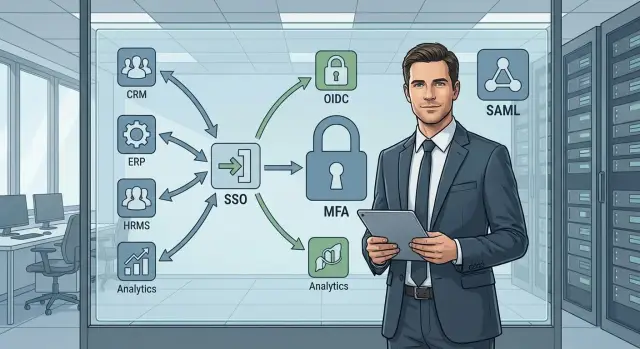
Typical login problems for internal systems
When employees have a dozen internal services, logins and passwords quickly become chaotic. Passwords get reused, written into notes, and accounts get mixed between test and production. Support receives constant reset requests, and new hires spend weeks gathering access via emails and chats.
Add remote work and contractors. Access must be granted quickly, revoked just as fast, and you shouldn’t have to guess who accessed what. A failure in one service shouldn’t force everyone to change passwords across all services.
Security teams usually bring clear requirements: multi-factor authentication for sensitive systems, unified control of permissions (who is in which group, what role they have) and audit. It’s important not only to protect systems but also to be able to investigate incidents: who logged in, from where and when, to which application, what an admin did, and why a user was granted or removed access.
There’s also a practical reality: budget and licenses. For internal systems organizations often look for a solution without commercial licenses, so they don’t pay per user, don’t depend on a closed vendor, and aren’t limited by product restrictions.
You will usually need to connect a heterogeneous set of systems: HR portals, ticketing and document workflows, CRM/ERP, video conferencing and mail, internal admin panels, and sometimes custom applications. A good SSO scheme should cover modern protocols (OIDC) and older integrations (SAML) so you don’t have to rewrite everything at once.
Where Keycloak fits
Keycloak solves the basic pain of internal systems: one login instead of dozens of passwords and scattered login screens. It takes on authentication, stores and verifies accounts, and can connect to an external directory (for example LDAP or Active Directory). It issues tokens or assertions to applications to confirm logins. This centralizes login, access rules and part of security controls without spreading settings across every service.
OIDC and SAML mainly differ in data exchange format and typical environment. OIDC is generally easier for modern web and mobile apps: it’s token-based (JWT) and works well with APIs. SAML is more common in corporate and legacy web systems: it uses signed XML assertions and is appropriate where SAML is already the standard.
Keycloak is suitable when you have several internal services, need to quickly tidy up access and MFA, and value audit transparency. It’s especially useful if you want to stay in an open model without commercial licenses and keep control over data.
The opposite can also be true: if you need a strictly managed cloud service without self-operation, have strict certification requirements for a specific product, or your infrastructure is so simple that a single app’s built-in auth is enough, a separate IAM may be unnecessary.
Before starting, clarify responsibilities. Otherwise SSO quickly becomes a critical "nobody's" service. In practice three roles are usually needed: an IAM owner (access policies and account lifecycle), a Keycloak administrator (configuration, integrations, updates) and security (MFA, passwords, audit and investigations).
A simple example: if HR needs access to two systems and VPN, it’s easier to grant a role in Keycloak and enable MFA once than to add the user in each system manually and later hunt down where access wasn’t removed after someone moved teams.
Preparation: environment, domain, users and basic hygiene
Before connecting applications tidy up the foundation. SSO usually fails not because of OIDC or SAML, but because of the domain, time, certificates and environment confusion. This becomes especially noticeable when several teams start using Keycloak simultaneously.
Environments: dev, test, prod
Separate at least three environments. Otherwise test clients, roles and settings will inevitably "leak" into production.
- dev: rapid experiments, you can reset the database and realm
- test: as close to prod as possible, for testing updates and migrations
- prod: changes by procedure, with backups and rollback plans
Next decide on the domain name. For SSO it’s important that the Keycloak address is stable: users get used to it and applications tightly bind redirect/callback addresses.
TLS certificates must be trusted by all work devices. Self-signed certificates often cause unexpected login errors and browser warnings.
Time synchronization (NTP) is mandatory. A difference of even a couple of minutes breaks tokens and signatures and results in "random" login failures.
Where to store users
If you already have LDAP/Active Directory, it’s usually simpler to connect it as the primary user source: unified passwords, offboarding and groups. Local users in Keycloak are convenient for pilots, service accounts and emergency access, but they are harder to maintain at scale.
Before any changes set up backups (database and configuration) and agree on a rollback plan: who rolls back, how much downtime is acceptable and how you verify that logins work again.
Before configuring each application collect a minimum dataset: base URL, exact redirect/callback URIs, the responsible admin on the app side, a list of roles/groups and session requirements (timeouts, sign-out, "remember device" for MFA).
How to connect an application via OIDC
Keycloak is often connected via OIDC when the app is web-based and supports OpenID Connect (modern stacks and many out-of-the-box corporate portals).
Start by creating the basics in Keycloak: create a separate realm per organization or environment (for example, "intranet-dev" and "intranet-prod"). Immediately check session and token lifetimes (access/refresh), password policy and basic security requirements. These settings are hard to change later without impacting users.
The connection usually follows a few steps:
- Create a Client with type OpenID Connect and set a Client ID (usually the app name).
- Configure Valid Redirect URIs, Web Origins and logout parameters (if post logout redirect is needed).
- Choose access type: confidential (has client secret) or public (no secret, often for SPAs), and enable Authorization Code Flow.
- Decide which data the app needs in tokens: minimally
sub, oftenemail, and for access control — roles or groups. - Test login and verify the app reads the required claims.
Example: an internal HR portal wants to show full names and open sections based on role. It usually needs email to bind the account and roles (e.g., "hr" or "manager") in the ID token or via the UserInfo endpoint.
If you see redirect errors after login, the cause is almost always one of the usual suspects: redirect URI doesn’t match exactly (extra slash, different protocol), domain not added to Web Origins, client type incorrect (confidential/public), wrong realm or Client ID, or the app expects a claim (email/groups) that isn’t added via mappers.
How to connect an application via SAML
SAML is often preferable when you have legacy corporate portals, custom apps or "boxed" solutions that only support SAML and aren’t planned to be migrated to OIDC. For internal systems this is common: you need a single sign-on and rewriting the app is expensive.
Configuration steps
Start with a minimally working login, then add signing, encryption and Single Logout.
-
In Keycloak create a new client and select the SAML protocol.
-
Export metadata for the client (the app owner will need it). Also request the app’s metadata if it acts as a Service Provider.
-
Configure key fields: ACS URL (where Keycloak sends the response after login) and Entity ID (the application’s unique identifier). A single character error here most often breaks the integration.
-
If the app needs logout, agree on the Single Logout approach in advance. In practice SLO often works unreliably, so teams frequently choose a simpler option: logout only from the app without trying to end the entire SSO session.
-
Check time synchronization and time zones on servers. Because of time drift SAML responses can be considered expired.
Attribute mapping
Decide which data Keycloak should pass to the application. Common fields are first and last name, email, username, employee number and department. The app owner should confirm which fields it actually reads and which are mandatory on first login.
Then agree on signing and encryption: what exactly to sign (response or assertion), whether a separate certificate is needed, allowed algorithms and whether the assertion must be encrypted. Document this so certificate rotations or policy changes don’t become a nighttime incident.
Roles, groups and a clear access model
To avoid access chaos it’s important to agree on terminology.
- Realm — an administrative domain with its own users, login rules and applications.
- Client — a specific application that trusts Keycloak and accepts SSO.
- User — an account for a person or a service.
- Role — a permission (what can be done).
- Group — a way to grant permissions to multiple users at once.
Realm-roles and client-roles
Realm-roles are convenient for global permissions that have the same meaning across applications (for example, "employee" or "security-auditor"). Client-roles suit permissions specific to a particular service where meaning is tied to that service’s functions.
For simple logic follow these rules: place global statuses and cross-cutting restrictions in realm-roles, put app-specific permissions in client-roles, and assign rights en masse through groups. Don’t multiply roles "just in case"; keep only those roles the application actually checks.
Groups are especially useful when permissions repeat. For example, create a "Finance" group, assign it roles for ticketing and reports, and then simply add new employees to that group.
How rights reach the application (OIDC and SAML)
For OIDC roles are usually included in the token as claims (often roles or blocks like realm_access/client_access). For SAML the same information is passed as attributes. In both cases decide in advance what the application reads and relies on, otherwise you’ll get the classic situation: "the role exists but there’s no access."
Example: a ticket portal, an admin console and reports. It’s convenient to keep permissions at the client level and grant them via groups:
portal-user— create and view own ticketsportal-operator— process ticketsadmin-console— manage directories and settingsreports-read— read reports
MFA in Keycloak: configuration, exceptions and account recovery
A second factor usually pays off after the first incident with a stolen password. Introduce it so it doesn’t stop work: start with a small group, test typical scenarios and then broaden coverage.
Which factors to choose
In practice most start with TOTP in an authenticator app. If employees have modern browsers and corporate devices, WebAuthn (security keys or built-in biometrics) typically reduces support load. One-time codes are useful as a fallback when the primary factor is unavailable.
Where and how to enable MFA
In Keycloak MFA is usually configured via authentication flows rather than a single "toggle for everyone." A convenient approach: basic login for all and a separate second-factor requirement for selected users — by groups (e.g., "Admins", "Finance") or per-application.
A working sequence looks like this: enable the factor and verify enrollment, run a pilot group and require MFA for it, test scenarios (new device, different browser, expired session), then expand coverage starting with privileged roles.
Don’t forget exceptions. Service accounts and token-based integrations typically should not be forced into interactive MFA.
Recovery without panic
Most rollouts fail on a simple case: lost phone or key and no recovery process. Define a minimum beforehand: a backup login method (for example, recovery codes), a device change procedure (who verifies identity and how fast) and a clear support window on launch day.
Example: start with security and administrators. If someone loses TOTP on pilot day and they have backup codes and a clear reissue process, recovery takes minutes instead of stopping the project.
Logs and audit for security: what to enable
SSO is convenient until the first incident. Then you find that an application only logs "successful login" and you can’t reconstruct who, from where and via which client logged in. In Keycloak enable audit so it answers the simple question: what happened and who did it.
Usually capture authentication and security events as well as admin events. Security teams most often need:
- logins and login failures, logouts, token and session issues
- MFA events (prompt, success, failure, locks, resets and rebindings)
- access changes (role assignments and removals, group changes, role mapping updates)
- admin actions (create user, password reset, disable account, realm and client setting changes)
Choose a level of detail that’s sufficient to see the fact and context but not to collect excessive personal data. Practice is simple: keep Keycloak events as audit, and enable noisy debug logs only temporarily for diagnostics.
For investigations the following fields are essential: user (username/userId), time, outcome (success/failure), IP, client (which app), realm, event type. For admin actions add actor (who changed) and target (whose settings changed). If there’s a proxy or load balancer, ensure the real IP is preserved in events, not the intermediate node’s address.
Also plan retention and access. Audit is usually kept longer than application logs: for example 90–180 days online and an archive per policy. Restrict access to logs so Keycloak administrators cannot quietly delete or tamper with the audit.
To speed investigations normalize events and correlate them with application logs. The chain "failed logins -> successful login -> token issuance -> API calls" quickly shows whether there was a password-guessing attack, MFA bypass, or a role misconfiguration.
Common mistakes and pitfalls during rollout
Keycloak issues often surface not on setup day but after a couple of weeks when a second and third app are connected, groups grow, and support gets woken up at night.
The most frequent cause of login failures is redirect URI. An app may be served on multiple domains (internal and external, test and prod, different subdomains) while the client lists only one address. Some users then hit errors after login or get stuck in redirect loops. A canonical domain and a precise list of allowed callbacks (not overly permissive) helps.
Second trap — access rights. If everyone is added to a broad group like "Employees," permissions quickly spread and someone unexpectedly gets admin access. Separate roles (what can be done) from groups (who needs it) and don’t mix service accounts with human accounts.
A third source of strange failures is time drift. If clocks differ on Keycloak, the load balancer and the app, tokens may be "not yet valid" or "already expired." This looks like random crashes, especially after updates.
MFA is often mishandled: enabled for everyone without thinking through recovery. You need loss-of-phone scenarios, a clear identity check, reset rules and logging of these actions.
For security it’s critical not to forget admin audit. Otherwise you won’t be able to answer who changed a role mapping, disabled MFA or added a new redirect URI during an investigation.
Before connecting the next service quickly check five things: redirect URIs cover real domains and environments without permissive patterns, roles are minimal and groups are clear, time is synchronized across nodes, MFA has a recovery process and owners, and admin/authentication events are enabled and accessible.
Checklist before production launch
Before making Keycloak the single entry point run a short verification. It catches issues that usually appear after mass login.
First, document things so they’re not "in someone’s head." Record which apps are connected, who owns them and which data each app actually needs (email, employee number, department). If attributes aren’t agreed in advance, services may create duplicate accounts or grant access to the wrong people.
Minimum checks:
- For each app record protocol (OIDC or SAML), addresses, owner, required claims/attributes and groups that grant access.
- In test environment verify login, logout, session timeouts, token refresh and the scenario "terminated employee loses access."
- Describe roles and groups in plain terms and verify by the principle of least privilege.
- MFA is enabled by clear policy: where it’s mandatory, where exceptions apply (e.g., service accounts), and how access is recovered.
- Audit and security events are enabled, logs are sent to a centralized store, retention meets security requirements and access to logs is restricted.
Finally run a brief investigation drill. Take a test user and try to answer from the logs: when they logged in, which IP and user-agent they used, which clients they accessed, and who changed their roles. If you can’t do this in 10–15 minutes, real investigations will be harder.
Example: SSO for an organization with multiple internal services
Imagine an organization with three internal services: an employee portal (vacations, orders, requests), a Service Desk (incidents and requests) and an analytics system (departmental reports). Users can be divided into two groups: "Employees" and "Operators" (operators work in Service Desk and usually have elevated access).
Adoption typically proceeds by increasing complexity. First connect the portal via OIDC: it’s quick for modern web apps and shows immediate benefits. Then add the Service Desk via SAML (this often happens with older or boxed systems). Only after logins are stable everywhere enable MFA so you’re not troubleshooting three things at once.
Name roles so they make sense to process owners:
- Employee: base access to the portal and own data
- Manager: approve requests, access department reports
- Operator: work with tickets in Service Desk
- Administrator: manage settings, without blanket "access to everything"
In disputed cases security usually asks two questions: "who and why saw the data" and "was a password guessed." To answer these, enable and store login and admin events in Keycloak: successful and failed logins, brute-force blocks, token issuance, password changes, MFA binding/reset, and role/group changes. Ensure events contain time, user, client (which app), IP and user-agent.
For the user the result is simple: one login screen for all services and MFA prompted at understandable moments (for example, first login of the day or login from a new device).
Next steps: pilot, launch and support
Start with a pilot that delivers quick results and reveals real integration complexity. Choose 2–4 internal apps: one OIDC, one SAML and, if possible, one with higher requirements (e.g., personal data access). For the start a simple model is enough: 3–5 roles for clear scenarios (user, manager, admin, support, auditor).
To keep the pilot from becoming a permanent "sandbox," define success criteria in advance: single sign-on without repeated passwords, correct role issuance, MFA for selected groups and reproducible logs for security.
For infrastructure reliability and recovery are more important than raw capacity. Prepare separate test and production environments, backup database and configuration with regular restore checks, monitor availability and login errors. If Keycloak becomes critical, consider at least two nodes and load balancing for fault tolerance.
Support should be governed by a clear policy: who can change OIDC/SAML client settings and roles, when change windows occur, and who approves MFA exceptions. Also define reactions to MFA locks: how a user recovers, how long it takes and what identity checks are required. An emergency scenario (temporary access or backup method) is useful but must be logged and reviewed afterward.
If you have many heterogeneous applications, complex SAML setups and strict security requirements for audits and investigations, it’s easier to hire an integrator. The important part is discipline: certificate lifecycle, attribute mapping, permission policies and stable operations.
If you need help with infrastructure and operations (servers, 24/7 integration and support), this can be provided by GSE.kz as a systems integrator and hardware vendor.
Frequently asked questions
When does it make sense to deploy Keycloak for internal systems?
Typically you start when a company has many internal services and users constantly get confused by passwords while support is overwhelmed with reset requests. Keycloak is especially useful if you need centralized login, roles and MFA, plus clear audit trails. If you have a single service and its built-in authorization is enough, a separate IAM may be unnecessary.
Which to choose for integration: OIDC or SAML?
OIDC is usually simpler for modern web apps and APIs because it works with tokens and is easier to integrate into new stacks. SAML is common in "boxed" and legacy corporate web systems where it’s already supported and switching protocols is costly. In practice, pick what the application supports and gradually move toward a more uniform scheme.
Why do I get a redirect error or infinite redirect after login?
The most common cause is a mismatch between the redirect/callback URI configured in the client and the application — sometimes a single extra slash or a different protocol. People also forget about Web Origins, mix up client type (public/confidential), or don’t add required claims (e.g., `email` or roles). Start by checking addresses and client parameters, then dig deeper if needed.
What basic things should be prepared before connecting the first applications?
Keep at least dev, test and prod so test clients, roles and settings don’t leak into production. For SSO you need a stable Keycloak domain, a trusted TLS certificate and time synchronization on all nodes; otherwise you’ll see odd "random" login failures. The earlier you lock these down, the fewer surprises when connecting new apps.
Where is it better to store users: in Keycloak or in AD/LDAP?
If you already have LDAP or Active Directory, it’s usually easiest to connect them as the primary user source: terminations, groups and passwords stay in one place. Local users in Keycloak are convenient for a pilot, service accounts and emergency access but are harder to maintain at scale. Often teams use a hybrid approach: primary directory plus a small number of local accounts for special cases.
How to avoid confusion with roles and groups as the number of services grows?
Treat roles as "what can be done" and groups as "who needs it", and avoid creating permissions that the application never checks. Put cross-cutting statuses and global constraints into realm-roles, app-specific rights into client-roles, and use groups to assign rights at scale. If you agree in advance which roles the app actually reads from tokens or attributes, the classic problem "role exists but no access" disappears.
How to roll out MFA correctly without stopping work?
Start with a clear pilot: enable MFA for administrators and sensitive teams first, not everyone at once. TOTP in an authenticator app is a common initial choice; with corporate devices and modern browsers, WebAuthn (security keys or built-in biometrics) often reduces support load. Always plan exceptions for service accounts and integrations so they don’t get blocked by interactive second factors.
What to do if an employee loses their phone or key for MFA?
Define a simple process in advance: how to verify identity, who can reset the factor, and how quickly it’s done. Keep a backup login method so recovery takes minutes instead of becoming a blocking incident. Also ensure all resets and rebindings of MFA are recorded in the audit, otherwise disputed cases are hard to investigate later.
Which Keycloak logs are needed by security for audit and investigations?
Enable authentication and security events plus admin events so you see not only successful logins but also failures, blocks, MFA resets and permission changes. For investigations it’s critical that records include user, time, outcome, IP, client (which application) and who performed admin actions. Logs should be retained long enough and stored so they can’t be quietly altered by the administrators who change settings.
What must be checked before launching Keycloak in production?
Record which applications are connected, their protocol (OIDC/SAML), exact addresses, owners and required attributes. In test environment verify login, logout, session timeouts, token refresh and the scenario "terminated employee loses access." Also run a short investigation drill on logs to confirm you can answer "who logged in, from where, and who changed roles."
