6 min read
Keyboards and mice for mass procurement: spec and selection
Keyboards and mice for mass procurement: how to choose models and describe them in the spec — durability, layouts, cleaning resistance, compatibility and spare planning.
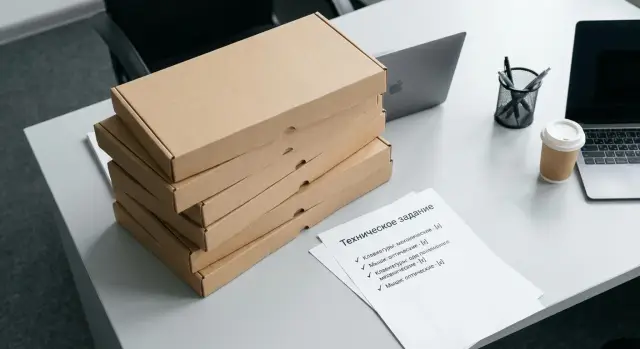
Why choose keyboards and mice in detail for a batch
In mass procurement small issues quickly turn into costs. If an uncomfortable mouse or an odd layout is tolerable in a single office, in a batch for 200–2000 workstations any mistake multiplies by the number of users, support requests and replacements.
The main difference in such a purchase is that peripherals become part of the infrastructure. They will be issued by lists, installed in standard workplaces, tracked in the warehouse and serviced for years. So keyboards and mice for mass procurement should be chosen as carefully as the main PCs.
Problems often surface after delivery, when reversing the decision is expensive and slow: early failures (buttons, wheel, cable, sticky keys), conflicts with security policies and bans on driver installation, inconvenient or incorrect layouts and legends (RU/KZ/EN), incompatibility with a specific OS or image, USB-port and hub issues, and the inability to routinely clean and disinfect without damaging the case and markings.
When choices are made “by photo,” you usually can’t see the important details: switch lifespan, key coating type, legend durability, cable length, plastic quality, real weight and stability on the desk. All models look similar in pictures, but differences become apparent after 2–3 months of use.
Requirements depend heavily on the sector. In schools durability, easy replacement and a clear layout for students matter. In clinics and labs resistance to frequent cleaning and minimal dirt traps are critical. Government agencies and banks often have strict rules on OS compatibility, supply standards, marking and equipment accounting.
If you procure complete workstations, agree peripheral parameters in advance with the supplier and integrator so they match the chosen PCs, OS images and operating rules. For example, in Kazakhstan it’s important to decide beforehand whether RU/KZ/EN marking is required and how it will be applied, to avoid reworking a batch manually.
What to clarify before choosing a model: a short spec from the buyer
Before comparing models, record basic usage conditions. The same keyboard may be perfect for an office desk but fail quickly in a classroom or reception area where dozens of people touch it daily. For keyboards and mice price and appearance matter less than where, how and by whom they will be used.
Start with the place of use. Employee desks, public counters, classrooms, call centers, reception desks — each scenario has different risks for dirt, wear and missing parts. Reception desks in clinics usually require cleaning several times a day; in classrooms plan for frequent moves and rougher handling.
Next, specify actual load: how many hours per day the device will be used and how many people use one set. If a computer sits at a shared station, key and wheel durability becomes more critical than with a personally assigned device.
To quickly gather input from the buyer, answer a few questions:
- Where will the sets be used (offices, counters, classrooms) and how often will they be moved
- How many hours per day and how many users per station
- Which input languages are required and what marking is mandatory (for example RU/KZ/EN)
- Are special features needed: quiet typing, extra keys, spill protection
- Purchase constraints: local content, single SKU for the whole batch, delivery timeframe
Also agree on “organizational” requirements. These are often forgotten and later part of the batch must be changed for formality reasons. In the public sector and large organizations there can be rules on local origin, unified nomenclature and the ability to quickly buy identical replacements. In such cases clarify whether a single "keyboard + mouse" set from one manufacturer is acceptable and which documents are needed.
Durability and reliability: what to write about service life
When you buy keyboards and mice in batches, what fails is not the “device” generally but specific parts: keys, cable, connector, feet, scroll wheel. So in the spec describe service life through verifiable metrics, not vague terms like “reliable.”
Measurable items: key lifespan and click lifespan. Phrase requirements so they can be confirmed by documents and spot-checked. Example: “main key lifespan at least X actuations, LMB lifespan at least Y clicks; confirmed by manufacturer’s datasheet; on delivery perform visual inspection and functional test of the batch plus selective sample testing by the buyer’s methodology.”
For offices membrane or scissor-switch keyboards are common. Membrane ones are cheaper and more tolerant of rough handling but may be noisier and feel less uniform. Scissor-switch keys are usually quieter with shorter travel and better for typing but can be more sensitive to dirt and impact. Don’t fix the switch type “for the sake of type”; tie the choice to the scenario: open office, call center, classrooms, reception desks.
Cable and USB connector are frequent reasons for write-offs, especially where devices are moved often. Specify anti-break protection and minimum cable length so the cable isn’t always pulled taut.
For resource and reliability the spec usually needs a few concrete points: key/click lifespans (with document confirmation), cable and sheath requirements, snug USB fit without play, non-slip inserts and reliable feet, plus noise and key travel requirements if people sit nearby or calls are recorded.
Describe noise and travel with observable signs rather than the word “quiet”: “no rattling, no metallic ringing, even travel across all keys.” Ask for a sample to approve before mass delivery.
Layouts and legends: so users don’t complain
In mass deliveries complaints more often concern wrong or worn legends or unfamiliar key placement, not a “bad keyboard.” This is easy to prevent if you unambiguously describe layout and marking in the spec.
How to specify layout so you are understood
Saying “need Russian layout” is insufficient. In the spec record both the languages on the keys and the physical keyboard standard (Enter shape, Shift length) so the batch arrives uniform.
Usually specify:
- Languages on keys: RU/KZ/EN, with Kazakh letters Ә, Ғ, Қ, Ң, Ө, Ұ, Ү, Һ, І
- Physical layout: ISO or ANSI (important because of Enter shape and left Shift)
- Form factor: full-size with NumPad or compact (if workspaces are tight)
- Unified legend style: size, placement, priority of the main language
For mice decide in advance whether side buttons are needed. If some staff are used to them, a simplified model almost guarantees dissatisfaction and support requests.
ISO vs ANSI is immediately noticeable in practice. If accounting staff have worked on ISO with a large Enter for years, switching to ANSI will annoy them even if compatibility is perfect.
Marking: how not to end up with faded letters after six months
Durability depends not only on switches but on how legends are applied. For mass procurement choose a method that survives daily use and regular cleaning.
Common options: pad printing (cheap but wears faster), laser engraving (usually lasts longer, depends on plastic and depth), double-shot molding where the legend is part of the plastic.
Also check contrast. Light-gray legends on silver keys may look stylish but are hard to read in an office.
If some staff work only in EN, you have three clear paths: order a separate subgroup of devices, choose three-language legends for all, or issue quality stickers to a limited number of users as a temporary measure. Don’t mix different options within one team without notice.
Resistance to cleaning and operating conditions
In mass procurement small things like plastic finish and cleaning method become major issues. What looks fine in a 20-person office may wear out or stick in a call center after a month. In the spec describe real conditions, not “normal use.”
Periodic cleaning and disinfection
If workstations are wiped with alcohol wipes or disinfectants regularly (medicine, reception areas, classrooms), state this explicitly. Important: type of agent (alcohol, chlorine-based), frequency and contact with key legends.
Keep spec phrases simple:
- Regular cleaning permitted without plastic cracking or sticky keys
- Legends don’t wear off under standard wet cleaning
- No soft-touch coating if cleaning is frequent
- Keys retain travel after repeated cleaning
Matte finishes generally stay neat longer and show fewer fingerprints; gloss picks up scratches and wear faster. The difference matters in shared workspaces.
Dust, spills and heavy use
Spill protection isn’t needed everywhere. Require it where drinks are nearby or at public counters, otherwise you overpay for rare cases. Typical phrasing: “protection against accidental spills” or “drainage.”
Mice often fail due to mechanics rather than the sensor: feet wear out, buttons loosen, wheel develops play. If mice are used on rough desks without pads, add requirements for durable feet and button lifespan.
High-load locations to specify: reception, call centers, classrooms, open hot-desking areas.
Compatibility with OS and organization infrastructure
For IT the key is predictability: devices must work the same on workstations, in OS images, in service centers and during initial setup. Any minor incompatibility in a mass batch becomes dozens of tickets.
Describe compatibility through operating conditions rather than vague claims. Example: “works in Windows 10/11 (x64) and main Linux distributions without driver installation; input functions available immediately after connection.”
The basic option for mass supplies is wired USB. Wired reduces loss and battery issues and simplifies inventory. If wireless sets are allowed, specify receiver type (USB), encryption and compatibility in environments with Bluetooth bans.
Specify operation in BIOS/UEFI and during OS installation — critical for deployment: choosing boot device, entering encryption keys, running installers.
A minimal requirement set usually looks like:
- Device class: USB HID (keyboard and mouse) without driver installation
- Compatibility: Windows 10/11 and Linux; input works out of the box in standard images
- Support before OS boot: works in BIOS/UEFI and installers
- Connection: USB-A (or USB-C via standard adapter), cable length not less than specified
- Infrastructure constraints: ban on vendor software, autorun and background utilities
There are nuances with multimedia keys and language switching. In different OSes multimedia keys, Fn combos and layout shortcuts can behave differently, especially with RU/KZ/EN. If important, state what must work and what can be adjusted by OS settings rather than vendor utilities.
A practical acceptance test: connect devices to a typical workstation, enter BIOS/UEFI, then boot into Windows and Linux and check input, layout switching and basic hotkeys.
Calculating spare stock and organizing maintenance
Even with a good model, replacements are inevitable: some devices break, some are lost, cables wear out during moves. Plan spares in advance and include rules for exchange in the spec, not just a percentage.
Reserve size depends on conditions: shift patterns, shared stations, dust, frequent cleaning, moves and inventory discipline. Use past replacement statistics if available.
Count spares for keyboards and mice separately. Mice usually fail more: receivers get lost, feet wear, wheel breaks, cables fray. Keyboards suffer spills, fallen keys and cable damage. If you lack historic failure data, start with a base reserve and adjust after 2–3 months based on actual replacements.
Define the replacement process: quick exchanges from reserve, simple defect logging (serial number and reason), tracking of consumables (cables, USB receivers), warranty diagnosis and resolution times, and responsibilities: who stores reserves, who accepts returns, who liaises with service.
To simplify stock accounting, buy identical sets. One SKU per keyboard and one per mouse (or one combined kit) reduces confusion and speeds issuance. If variants are unavoidable, limit to 2–3 standards and assign them to specific departments.
How to compose a spec for keyboards and mice: step by step
To avoid endless replacements and complaints, write the spec so the batch can be checked on acceptance.
-
Describe usage scenarios: where the workstations are (office, call center, classroom, reception), operating mode (8/12/24 hours), connection constraints (USB, wireless with receiver), minimum cable length, presence of hubs/thin clients, OS compatibility requirements. Fix layout and marking RU/KZ/EN here.
-
Set durability and resistance parameters in numbers. Instead of “reliable” ask for measurable traits: key actuations, mouse click lifespan. If cleaning is important, specify frequency and agent (e.g., alcohol wipes) and require that legends do not fade.
-
Mandate batch uniformity. For mass installation devices must be the same color, without surprises in shape and marking. Add requirements for legend readability, contrast, indicators (Caps/Num), and marking method.
-
Describe kit contents and acceptance rules. Specify packaging (individual, cable/connector protection) and defect criteria: non-working key/button, double clicks, foreign noises, unstable connection, layout mismatch.
-
Before mass delivery agree a sample and exchange conditions. Request a reference set for testing in your infrastructure and approve it with an acceptance act. Fix warranty response times and exchange rules in advance.
Common mistakes in specs and procurement
Biggest problems start with wording. Small omissions become hundreds of tickets and downtime.
First mistake — vague words instead of acceptance criteria. “Quality,” “comfortable,” “reliable” cannot be tested. Suppliers bring something that fits the vague description, and the buyer can’t reasonably reject the batch.
Second mistake — not specifying layout or marking method. You may get mixed variants: RU, EN, stickers, fast-wearing print. State required languages (RU/KZ/EN), how legends are applied and what counts as defect (e.g., noticeable legend wear after X months under normal cleaning).
Third mistake — only checking “connects to PC” but not real scenarios. Incompatibility with BIOS/UEFI, thin clients, KVMs, PXE booting or restricted user rights often appears later. Test several samples on typical workstations before bulk ordering.
Fourth mistake — mixing different models in one delivery without need. Support and stock get complicated: different behaviors, user impressions and lifespans. Prefer one model per role (office, reception, classroom) and clear mapping by batches.
Fifth mistake — not planning spares and exchange procedure. Without reserves and clear replacement times any failure becomes operational downtime.
Short checklist and next steps before ordering
Those who fix the small details in the spec early win: fewer returns, fewer user complaints and less downtime from incompatibility.
Mini-checklist for the spec
- Layout and marking: RU/KZ/EN, marking method (print, engraving), readability.
- Durability and reliability: key and button lifespan (in actuations/clicks), cable and connector requirements, warranty conditions.
- Operating conditions and cleaning: resistance of case and legends to regular disinfection, dust, accidental splashes (if relevant).
- Compatibility: OS, security requirements (e.g., Bluetooth ban), work without vendor software, operation through USB hubs and docking stations.
- Kit and uniformity: same color and form factor, USB receiver (if 2.4 GHz), batteries/chargers (if needed).
Before launching the batch it’s useful to agree on one peripheral standard for several years: the same layout across offices, unified connection type, one mouse model per typical workstation. This simplifies procurement, training and spare management.
Quick 10-minute sample check at an IT workstation
Take 1–2 samples and check on a typical PC and OS:
- Connection and start: does it work immediately without installing software and without admin rights?
- Input and languages: do layouts switch correctly, any confusion with RU/KZ/EN?
- Real ergonomics: noise, key travel, stability on the desk, mouse behavior on a normal pad.
- Infrastructure behavior: does it drop when connected via a hub/dock, how does a wireless receiver behave near Wi‑Fi and other devices?
- Cleaning: wipe a small area with an approved agent and check for plastic dulling or legend wear.
Then prepare the batch specification (how many of each workstation type, where wired or wireless kits are appropriate) and a spare plan for replacements.
If you procure full workstations, it’s convenient to work with a single manufacturer and integrator. For example, GSE.kz (gse.kz) supplies PCs and system integration for organizations in Kazakhstan, and in such projects peripheral requirements can be locked into a single standard for the whole fleet and support.
Frequently asked questions
Why treat keyboards and mice seriously in mass procurement?
In a large batch a small issue multiplies by the number of users. A poorly chosen model creates a wave of support requests, downtime and replacement costs, and reversing the decision after delivery is usually slow and expensive.
What questions should the buyer answer before choosing a specific model?
First, record usage conditions: where the workstations will be located, how many hours per day they operate and how many people share a set. Then clarify requirements for layout and marking, connection and OS compatibility, and cleaning/disinfection if it will be regular.
How to describe reliability and service life in the spec so it can be verified?
Specify measurable parameters: number of actuations for main keys and number of clicks for the mouse, and require these to be supported by a manufacturer’s datasheet or passport. Also include requirements for cable and connector, since those parts often cause write-offs when devices are moved frequently.
What exactly to write about RU/KZ/EN layouts and ISO/ANSI so there are no surprises?
Specify the languages on the keys (e.g., RU/KZ/EN) and explicitly fix the physical standard ISO or ANSI, because the Enter shape and Shift size significantly affect typing habits. This avoids a situation where the batch is technically "with Russian" but practically inconvenient for users.
Which key marking lasts longer and how to account for it when buying?
The safest choices for frequent use and cleaning are markings that don’t wear off with wiping: laser engraving on suitable plastic or double-shot molding. If you use pad printing to save money, expect complaints about worn legends within a few months.
How to choose peripherals for places with frequent cleaning and disinfection (schools, clinics)?
Specify what cleaners are used and how often devices will be wiped, and forbid coatings that quickly become sticky or cloudy under disinfection, for example soft-touch in heavily cleaned areas. In the spec, require that the case and legends do not degrade under standard wet cleaning and regular disinfection.
What’s better for a batch: wired or wireless keyboards and mice?
For mass workstations, wired USB is usually simpler: fewer losses, no batteries, easier inventory and fewer security surprises. Wireless makes sense if truly needed, but then fix the receiver type, security requirements and replacement rules for lost receivers.
Which compatibility requirements with Windows/Linux and BIOS/UEFI matter most?
Require operation as standard USB HID devices without installing drivers or vendor utilities. Make sure input works before OS boot — in BIOS/UEFI and the installer — otherwise deployment and recovery will be slowed down.
What quick test to run on a sample before a mass delivery?
A simple scenario on a typical PC is enough: check input, layout switching, operation in BIOS/UEFI and connection stability through your hubs or docking stations. Such a test quickly reveals problems that later turn into dozens of tickets, especially in environments with restricted user rights.
How to calculate spares and organize maintenance for the batch?
Set aside a reserve in advance and separately for mice and keyboards, since failure causes and replacement rates differ. Besides the reserve percentage, define the process: who stores the backup, how defects are logged by serial number, and how fast exchanges occur so a failure doesn’t become workstation downtime.
