7 min read
Juniper EX4400 for Offices and Branches: Selection and Standards
Practical guide to choosing Juniper EX4400 for offices and branches: models and ports, PoE planning, power redundancy, configuration templates and long‑term support checklists.
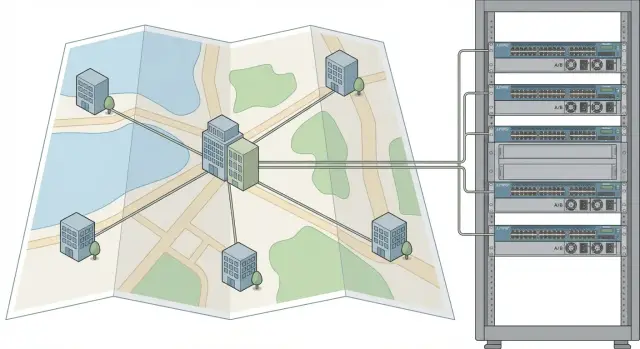
What offices and branches actually need
An access switch in an office or branch performs simple but critical tasks: it connects workstations, Wi‑Fi APs, phones, cameras, printers and sometimes terminals. It’s important not only to have enough ports, but also for the network to handle daily load and not require manual fixes after every change.
Start with an honest growth estimate for 3–5 years. People often count only staff and forget devices. One person easily equals 2–4 connections: a PC or laptop, an IP phone, a separate port for a dock. Add Wi‑Fi APs, cameras, meeting‑room panels. Include margin for new hires, temporary workplaces and moves inside the office.
To keep branch support from turning into a stream of exceptions, it’s useful to standardize on the same models and unified configuration rules from the start. When VLANs, PoE, phone and AP port assignments follow one approach everywhere, diagnostics and replacements are faster and errors are fewer.
There are constraints that often appear only during installation: power (outlets, UPS, available wattage), PoE (total budget vs real device needs), rack or cabinet (depth, ventilation, cable space), room conditions (temperature, dust, service access) and uplinks (fiber or copper, need for aggregation).
Example: a main office with 60 employees and three branches of 15 each. If each branch has 2 APs and 6 cameras, PoE and cooling often matter more than extra ports. Conversely, in the main office uplinks and spare bandwidth may be key. Choose Juniper EX4400 models for offices and branches based on real conditions, not just a catalog.
EX4400 in plain terms: where it fits in the network
Juniper EX4400 is typically deployed where people and devices connect: workstations, Wi‑Fi APs, telephony, cameras, printers. It’s an access switch for offices and branches, convenient as a standard model for floor racks and small server rooms.
It’s especially suitable for:
- floor access in offices (workstations + Wi‑Fi + IP phones)
- branches with 1–2 racks where uniform settings and quick replacement matter
- small sites where access and aggregation are combined and a separate core switch isn’t needed
- areas with high PoE load (APs, phones, cameras) where extra power reserve is required
When procuring, don’t confuse marketing names with real capabilities. Practically, focus on four things: how many ports you need now and in 2–3 years, whether PoE is required, planned uplink speeds (1/10/25G and optics/copper types), and how much PoE power you actually need. For example, a branch with 24 workstations and 6 APs often fits a 48‑port PoE model. But without PoE headroom you’ll hit limits as cameras or new APs are added.
To keep support simple long term, choose the same product family across sites. Often two variants suffice: a basic option for small offices (24 ports, no or minimal PoE) and a universal option for a typical floor or branch (48 ports with PoE and clear uplinks). Then spares, configs and staff training are consistent.
Before installation check on‑site conditions. A switch in a rack or wall cabinet must be able to “live” by four requirements: noise (avoid noisy fans in open offices), rack depth and cable routing, power (separate circuit and clear UPS/ breakers), cooling (rack not stuffed, fans working, no overheating in summer). Small details like these often decide whether the network stays stable or you get random failures and complaints.
How to choose a model by ports and speed without overpaying
Start model selection with an honest port count and understanding where you truly need speeds above 1G. This prevents overpaying for unneeded features and hitting bottlenecks a year later.
Port counting: what do we actually plug in
Make a list of devices per rack (office floor, branch) and count ports with a small margin. Printers, cameras, standalone APs and terminals are often forgotten during procurement.
For one switch consider: workstations and meeting rooms (PCs and docks), Wi‑Fi APs, IP phones, cameras and access control controllers (usually PoE), plus rare but necessary items like printers, mini‑servers and POS devices.
Practical rule: if planned port utilization is 70–80%, allow growth. If it’s 90%+, choose either a model with more ports or add a second switch.
How much 1G is needed and where to plan 10G
For most endpoints (PCs, phones, cameras) 1G is enough. 10G usually makes sense on uplinks: between a floor switch and core, between racks, to the server room or provider node.
Extra ports are justified to keep support simple and minimize rack equipment. A second switch is often better if rapid growth is expected (a new department, video surveillance expansion, a second provider) or if you want to separate zones: one switch for users, another for cameras and phones.
To make EX4400 easy to support, set a standard for a typical site: one chosen model, one port layout and identical uplink speeds. Example: top ports for uplinks, first 24 ports for users, remaining ports for APs and cameras. Any engineer can then quickly see what is connected and the chance of mistakes during replacement is lower.
PoE: calculating power budget for real devices
PoE is convenient because power and network run over one cable. But a switch has a total PoE budget (total watts it can supply) and per‑port limits. “48 PoE ports” doesn’t mean you can power 48 power‑hungry devices simultaneously.
First list what will actually be powered by the switch: APs, IP phones, cameras, access controllers, sensors. For each category use the maximum listed consumption from the device datasheet. Sum those maxima — that’s the upper bound to plan against.
Why peaks and headroom matter
Peaks occur at reboot, during updates, when camera IR turns on, when Wi‑Fi load spikes, and in cold rooms. If the budget is tight you get intermittent failures: an AP drops, a camera loses power.
Practical rule for offices and branches: sum device maximums and add 20–30% margin. If you expect growth (2–3 more cameras or 1–2 APs), include that from the start.
Simple power table by site
Use the same template for HQ and each branch. Four columns are enough:
Площадка: Филиал 1
Устройство          Кол-во  Макс, Вт  Итого, Вт
Wi-Fi точка         6       20        120
IP-телефон          12      7         84
IP-камера           8       12        96
СКУД контроллер     2       15        30
Сумма                               330
Запас 25%                           83
Нужный PoE бюджет                    413
After calculation check three things: the total PoE budget of the chosen model and power supply, whether heavy ports (for APs) get enough wattage, and what happens if power fails — is redundancy needed on the site?
Power and uplink redundancy: what to choose
Redundancy makes sense where downtime costs more than a second PSU or cable. For EX4400 the logic is simple: if the switch supports critical workstations, telephony, APs or a small server rack, design for resilience from the start.
When power redundancy is needed
Two PSUs are useful only with real independence: two power circuits (different breakers and preferably different feeds) and a proper UPS. If both PSUs plug into a single strip you only protect against PSU failure, not a circuit outage.
Guidelines by site:
- HQ, comms node, floor rack with PoE: 2 PSUs + 2 power lines + UPS
- branch with 10–20 users and no critical services: 1 PSU is often enough, but keep a spare in stock
- if PoE is close to the limit, redundancy becomes more important: an outage could leave some devices unpowered
Uplink redundancy: avoid a single point of failure
Minimum — two uplinks from EX4400 to the upper level. It’s better when they connect to different devices and take different routes. Two cables in the same tray reduce risk only partially: a damaged tray or a fire curtain could cut both.
A compromise for a small branch: two uplinks to one aggregation switch but on different ports and patch cords, plus spare SFPs and a ready config for fast replacement.
Configuration standardization: what to unify immediately
When deploying EX4400 across offices and branches, long‑term savings often come not from port price but from every engineer opening a config and immediately understanding the layout. Lock standards before the first installation, while the network still has few exceptions.
Start with basic rules to be identical on all sites:
- device and interface names by a clear scheme (city, site, role, rack)
- a single VLAN set with the same names (Users, Voice, CCTV) and same IDs
- typical port usages: which ports are access, which are trunks, which VLANs are allowed
- baseline ACLs on border VLANs (guests, cameras, IoT) and consistent exceptions
- common monitoring settings: SNMP, syslog, NTP and identical tags (location, contact)
Create 3–4 role templates and stick to them: HQ, small branch, warehouse/factory, meeting rooms/class. Decide in each template which ports are for users, phones and APs, and what happens when an “unknown” device is plugged in.
To prevent change chaos, keep a short list of allowed deviations: what can be changed locally (e.g., add one VLAN on a trunk) and what requires approval (ACLs, QoS, management addresses). Assign an approver and log date, reason and site for any deviation.
Documentation should be short: one page per site (diagram, VLANs, uplink, management addresses), one page per role template and one change log. A new engineer should be able to replace a switch safely in 15 minutes without breaking the branch.
Step‑by‑step deployment and replacement plan
Most switch replacements fail due to lack of preparation: nobody knows which ports are actually used, where PoE is required, or which VLANs have been “temporary for 5 years”. Start with a short, repeatable plan for each office and branch.
Collect facts per site: list of connections (phones, APs, cameras, PCs, printers), current uplink speeds, critical services and who can verify on site. Also record requirements: ports with 2–3 years headroom, PoE needs and whether power redundancy is mandatory.
A recommended sequence:
- Inventory and a simple diagram: which devices plug where, which VLANs and subnets are used, where uplinks go.
- Standard for typical sites ("small branch", "medium", "office/floor") and 1–2 models and port layouts per type.
- Base configuration template: names, management (addresses, accounts, NTP/DNS), VLANs, PoE rules, logging and management access limits.
- Pilot on one site: bring the new switch up in parallel, then move port groups in a scheduled window, noting deviations from the template.
- Rollout to other branches: work log and a clear rollback plan (how to revert to the old switch and which cables go where).
Practical tip: update the template and checklist right after the pilot rather than relying on memory. By the third or fourth site the replacement will become a repeatable routine.
Common mistakes that are expensive to fix later
Even after selecting Juniper EX4400 for offices and branches, total cost of ownership is often driven by small mistakes. These surface in 6–12 months as the network grows and support is ad‑hoc.
Procurement mistakes
Teams often buy “what colleagues have” without verifying actual load. Uplinks then become bottlenecks: locally everything looks fine, but backups or heavy use of corporate services cause complaints.
Another typical issue is counting PoE by number of ports, not by device consumption. Cameras, APs and phones often exceed average values, especially if heaters, dual radios or USB power on phones are used.
Mixing many hardware variants and firmware branches is also costly. With three or four models and multiple OS versions, any replacement or troubleshooting takes much longer.
Typical causes of extra cost: ignoring uplink and future speed needs, PoE without peak calculations and headroom, mixed models and PSUs, skimping on power/UPS, and buying just enough ports with no margin.
Operational mistakes
Without a unified template and naming rules, any incident becomes a scavenger hunt: which cable goes where and which port does the cashier use? A common scenario: two APs were added, the last PoE ports were used, and a month later a new camera needs power — a rushed temporary fix becomes permanent.
Plan port and power headroom up front, standardize on 1–2 models for typical sites and lock templates and naming conventions.
Short checklist: procurement, installation, commissioning
To keep EX4400 from becoming a set of different boxes with different settings, follow a short checklist to avoid typical failures: short on ports, PoE mismatch, missing uplinks or redundancy.
Before procurement
Define what must work in each rack: workstations, APs, telephony, cameras, printers, terminals. Then:
- make a port list per node and allow 2–3 years growth
- calculate PoE by real devices and add margin
- decide uplink types (10G or 25G), number of lines, need for LAG
- decide where redundancy is required: power, uplinks, stacking
- lock a unified set of models for typical sites
Before installation and commissioning
On install failures usually stem from “housekeeping”: power, space, labeling and access. Check these in advance.
- verify A/B power (if needed), UPS, PDUs, grounding, outlet availability
- ensure rack has enough U space, proper ventilation and patch cords of correct lengths
- label ports and cables clearly
- prepare a configuration template: VLANs, trunk/access, PoE profiles, LLDP, basic management hardening
- set up accounts, monitoring and automatic config backup before commissioning
After go‑live compare “as built” to the plan: port numbers, uplink speeds, PoE, management addresses. Then produce a short change record and update diagrams.
Example: HQ and 3 branches without complications
Imagine a company: HQ with 120 employees and three branches with 25–40 each. All sites have similar needs: workstations, printers, APs, IP phones and some cameras. The goal is one long‑term approach so any field visit is not a dive into someone else’s logic.
For EX4400 it’s useful to pick one standard model family and define rules; differences should be only where needed.
Model standard: what’s the same and what differs
Same everywhere: one access switch type (e.g., 24 or 48 ports), one VLAN scheme, identical port profiles and consistent interface names. This makes replacement and scaling template‑driven.
Differences usually boil down to port count and PoE budget. In HQ you often need 48 ports and more PoE (many phones, APs, cameras). Branches often manage with 24 ports and PoE only for 1–2 APs and some phones.
Redundancy: where it’s mandatory and where a sensible minimum suffices
In HQ it’s logical to provide A/B power (two independent circuits or two UPS inputs) and dual uplinks to distribution so a single PSU or cable failure doesn’t stop a floor. In branches an hour of downtime may be acceptable, so one PSU + UPS and one uplink is often enough. If a branch serves customers or runs POS, add a second uplink even if the provider is the same.
A unified VLAN and port template could be:
- VLAN 10: users
- VLAN 20: voice
- VLAN 30: CCTV
- VLAN 40: printers and MFPs
- VLAN 99: management
Ports assigned simply: workstations — access (VLAN 10), phones — voice+data, APs — trunk, cameras — access (VLAN 30). With this template support becomes predictable: you know in advance where to look for issues.
Next steps: support, spares and change management
When models and schemes are chosen, the main task is to keep the network stable for 3–5 years and not tied to one person. This is achieved more by discipline than complexity: one standard, regular backups and clear spares.
Start with a final specification: short and unambiguous — exact models, required SFPs for uplinks, PSUs and PoE budget, what to keep as spares. This saves time at procurement and helps build branches consistently.
Then lock the configuration standard and change process: simple rules for naming devices and ports, consistent VLANs and assignments, trunk/access templates, baseline security settings, and unified management. Make changes via a request process or at least log them: what changed, where and why.
Operational minimum: regular config backups with versioning, a simple site card (model, serial, software version, PoE load, uplinks), an upgrade plan and a spare parts kit (PSU, several identical SFPs, patch cords, a replacement switch matching a typical site).
If your team is short, consider a system integrator to handle design, deployment and support. In Kazakhstan such tasks are performed by GSE.kz: besides integration, the company assembles PCs and servers locally and provides nationwide support.
Frequently asked questions
Where to begin choosing an EX4400: with the model or with requirements?
Start with an actual inventory of connections for each rack: PCs/laptops, IP phones, Wi‑Fi access points, cameras, printers, access control and “rare” devices. Then add growth margin for 3–5 years, because not only headcount grows but also devices per person. If your port planning exceeds 80% occupancy, it's better to choose the next model with more ports or plan a second switch right away; otherwise expansion will quickly turn into permanent “temporary” solutions.
How to know if 24 ports are enough or if I should get 48 right away?
Rely on planned utilization. For a small branch or rack with up to 15–18 actual connections plus a couple of Wi‑Fi points and some utility devices, a 24‑port switch is often sufficient with margin. If your plan shows 20+ connections or you expect rapid growth (cameras, new workstations, extra APs), it’s safer to choose 48 ports to avoid running out within a year.
Where in the office do we really need 10G, and where is 1G enough?
1G is almost always enough for endpoints: PCs, phones, cameras and most printers do not need more. Higher speeds are typically required not on user ports but on uplinks between the floor switch and distribution/core. Plan 10G (or higher) on uplinks when there are many users, heavy use of corporate services, backups, network recording for surveillance, or multiple racks/segments that constantly exchange large volumes of data.
How to correctly calculate PoE budget to avoid random outages?
Don’t think in terms of “48 PoE ports” alone — calculate the total power budget. Take the maximum consumption from the datasheet for each device type (Wi‑Fi APs, cameras, phones, access controllers), sum them and then add 20–30% margin for peaks and growth. If the budget is tight, you’ll see intermittent failures: an AP or camera reboots or loses power. A bit more PoE budget is usually cheaper than repeated field visits and troubleshooting.
Should we account for PoE consumption peaks for Wi‑Fi and cameras?
Yes. APs and cameras can have peak modes: cameras may enable IR or heaters, APs may draw more power during heavy load or at boot/update. Consider devices’ peak values and include margin so the network behaves predictably even in “uncomfortable” scenarios like reboots after power outages.
When is a second power supply for EX4400 necessary?
Dual power supplies make sense where downtime is more expensive than a second PSU: floor racks with telephony and Wi‑Fi, critical workstations, or a small server area. Two PSUs only provide meaningful redundancy if they are fed from independent power circuits and a proper UPS. If both PSUs plug into the same outlet or extension, you only protect against PSU failure, not power loss on the line.
How to organize uplink redundancy without unnecessary complexity?
The minimum sensible approach is two uplinks to the higher level so that a single cable or port is not a single point of failure. It’s better if uplinks go to different devices and follow different routes. For a small branch you can compromise: two uplinks to the same aggregation switch but using different ports and patch cords, plus spare modules and a ready replacement procedure.
What should be standardized in configurations first?
Standardize what most often complicates support: identical VLANs and IDs, clear device and interface names, typical port roles (users, phones, APs, cameras), and consistent trunk/access rules and basic management settings. When configurations look the same across sites, troubleshooting and replacement take minutes rather than hours, and the chance of mistakes under pressure is much lower.
What to verify on site before installing a switch?
Check power and cooling: separate circuit, correct UPS, power margin, and adequate ventilation in the rack. Then check physical constraints: rack depth, cable routing, labeling and service access. Also confirm uplink type (copper/fiber), that required modules and patch cords are on site, and that equipment noise won’t be an issue in an open office.
How to safely deploy and replace switches in offices and branches?
First make an inventory of actual ports and VLANs, not the ideal plan, and prepare a base configuration template. Then run a pilot on one site: bring up the new switch in parallel, move groups of ports during an agreed maintenance window, and record deviations from the template. After the pilot, update the template and checklist, then roll out to other branches. If you lack in‑house team capacity, a system integrator can handle design, deployment and support; in Kazakhstan, GSE.kz performs such tasks.
