7 min read
Jitsi on‑prem video conferencing for branch offices: network, TURN, recording
Jitsi on‑prem video conferencing: what to check for network and NAT, when TURN is needed, how to keep audio quality, and how to set up recording and meeting rooms in branch offices.
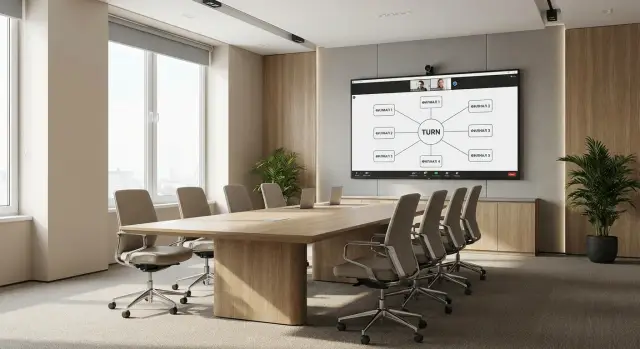
Where video problems in branches usually start
Complaints rarely start with the platform—they almost always come from the network and local conditions: one office has overloaded Wi‑Fi, another is behind strict NAT, a third has a noisy meeting room. The result is usually: “audio drops out”, “everything lags”, “it crashes every 10 minutes”.
With on‑prem Jitsi this becomes more visible because responsibilities that cloud providers hide “in the box” fall on you: where the servers are located, how they reach the internet, which ports are open, who monitors updates and logs. The perimeter—firewall, proxy, NAT and cross‑branch security rules—is a separate risk area.
Typical symptoms in a distributed company:
- speech gaps and a “robotic” voice due to packet loss and jitter
- audio/video delay when the channel or Wi‑Fi is overloaded
- “black screen” caused by incompatible NAT/firewall rules
- instability when external guests connect
- sudden quality drop when recording is enabled
Expectations to agree on in advance
Before the pilot agree on basic scenarios: how many people are in a typical call (and the maximum), whether external participants are needed, if recording will be used, and whether there are meeting rooms with dedicated equipment. A 40‑person meeting with recording and “6–8 person calls” require different channels, servers and support approaches.
Success criteria
Document simple readiness indicators for scaling: stable connection in every branch, clear audio without echo, predictable guest connection, and clear support responsibilities (who responds, where to check metrics and logs).
Typical Jitsi on‑prem architecture for an organization with branches
On a diagram everything looks simple, but in branch networks details matter: where media traffic will flow, how it traverses the WAN, and what happens under channel overload. Signaling usually tolerates latency; media (audio and video) does not.
Core components and roles
For a pilot roles are often colocated on one server, but in branch scenarios they are usually separated:
- Jitsi Meet (web UI and static files)
- Prosody (XMPP): rooms, authentication, meeting events
- Jicofo: conference management
- JVB (Jitsi Videobridge): the media bridge that receives and distributes audio/video
JVB is most often the busiest component and its placement has the greatest impact on call quality.
Where to place components and how many nodes to run
Common options: everything in the HQ data center, a neutral DC, or a hybrid where some services are centralized and JVBs are placed closer to branches. One central cluster is easier to maintain, but if branches are far away latency increases.
For example, if the head office is in Алматы and branches are in Атырау and Усть‑Каменогорск, a single central node may give users very different experiences.
What usually matters is not distance in kilometers but real routing and network condition: WAN congestion at peak times, asymmetric channels (upload often weaker than download), packet loss and jitter (which especially impact speech).
Often teams start with a single node for the pilot, then add regional JVBs where measurements show problems.
Network and bandwidth: what to consider and measure
Most branch complaints come down to two things: insufficient bandwidth or an unstable network. For video it’s not only “Mbps by tariff” but how steady the channel is.
Estimate per stream. Audio (Opus) usually uses tens of kbps; video uses megabits: 720p commonly fits roughly 1.5–2.5 Mbps per sender, 1080p may need 3–4+ Mbps. Screen sharing has variable load: slides are light, video inside a screen can spike bitrate.
The difference between 1:1 and a 10–30 person meeting is that in a group each user’s incoming traffic grows: you send one stream but receive several. In branches problems are more often the user’s Wi‑Fi or local link, while at a central site the outgoing bandwidth of the node distributing streams can be the bottleneck.
On the WAN measure not only speed but quality: packet loss (even 1–2% is audible), jitter, latency (RTT), upload/download asymmetry, time‑of‑day drops, and wired vs Wi‑Fi differences in the same room.
QoS makes sense where you control queues: at border routers in the branch and central site, and in corporate Wi‑Fi. QoS won’t “speed up” the internet, but it will protect voice and video from large background transfers like backups and updates.
How to tell if the provider or the server is at fault: the same server works well from some branches and poorly from others, and metrics show increased loss and jitter on the problematic path. Example: a branch with a 50/10 Mbps link handles ten participants until two start screen sharing—weak upload and latency spikes then produce robotic audio and dropped words.
NAT, firewall and access rules: what to prepare in advance
WebRTC usually breaks due to network issues rather than server problems. Media attempts to flow over UDP between client and media bridge, and NAT and strict firewalls can drop UDP, rewrite addresses or only allow “standard” web ports. Users then see “connecting”, hear dropouts, or have no audio.
Agree in advance where JVB will be located and how branches will reach it. The ideal is a public IP for JVB and clear perimeter rules. If the server is in a data center and branches are behind NAT, typically allowing outgoing connections from branches and configuring incoming rules at the data center is sufficient.
Typical port needs: TCP 443 for web interface and signaling components, UDP 10000 for JVB (critical for quality), and TCP 4443 to JVB as a fallback when UDP is blocked (but latency and quality are usually worse). If you expect strict NAT, plan ports for TURN separately.
If branches only allow outgoing connections, verify that at least TCP 443 is allowed outbound and that outgoing UDP is possible. When UDP is fully blocked, connections often fall back to TCP and quality degrades noticeably.
Minimal checks with network admins:
- is TCP 443 reachable from each branch?
- is UDP 10000 allowed to the public JVB address?
- does NAT break outgoing UDP sessions (short timeouts, aggressive inspection)?
- are there MTU/VPN limits that corrupt media?
- has a test call been made from the “hardest” branch during working hours?
TURN: when it’s needed and how to plan for it
WebRTC’s ICE process tries multiple paths to reach the media bridge. STUN helps discover the external address behind NAT and often suffices while the network behaves.
TURN is needed when direct paths fail and media must be relayed through a relay. It’s not a performance booster but a fallback route. Without planning TURN, some branches will “see video without audio”, fail to connect from phones, or only connect from certain networks.
TURN is typically required with symmetric NAT, strict firewalls (only limited outbound ports allowed), mobile networks, guest Wi‑Fi, and partner networks where you cannot adjust client rules.
Place TURN where routes most often fail. If branches use different providers and inter‑region quality varies, TURN closer to users usually yields steadier results. If control and security are more important, host TURN near Jitsi, but remember that relaying sends all media through it so provision adequate bandwidth.
In practice coturn is often used: enable long‑term credentials (login and password), set a realm, open 3478 (UDP and TCP) and optionally enable TLS on 5349. Define relay port ranges in advance and agree them with the firewall team.
Do not leave TURN open—otherwise it will be used as an open proxy. At minimum: require authentication, restrict allowed IPs (if networks are static), set session and bandwidth limits, keep proper logs, and separate public from admin access.
Audio quality: echo, noise and dropped speech
Users judge a meeting mostly by audio. Video can degrade, but if speech is clean and delay is acceptable, the meeting can continue. Conversely, great video with poor audio quickly turns a meeting into guesswork, especially across branches with different rooms and networks.
Echo and constant noise are usually caused by the room rather than the server. Typical scenario: a laptop sits in the middle of the table, speakers are loud, and the built‑in mic picks up reflections from walls and glass. Add an HVAC, projector and phone on speaker—and WebRTC’s echo cancellation can’t always compensate.
Before replacing hardware check basics: is the correct input/output device selected, is sound routed to speakers instead of a speakerphone or headset, is microphone gain not set too high in the OS, are driver “enhancements” disabled, and is the browser up to date with microphone permissions granted.
Acoustic rule: the closer the mic to the speaker, the less echo. In meeting rooms a dedicated speakerphone or a directional mic usually works better than a laptop’s mic. Soft surfaces (curtains, carpet, acoustic panels) reduce reflections noticeably. Rooms with lots of glass and bare walls will have poor sound even with a perfect network.
A quick diagnosis takes 10 minutes. Make a short test recording and listen for echo. Then swap devices (built‑in mic → headset), try another room, and if possible another network (Ethernet instead of Wi‑Fi). If the issue disappears when changing the network, investigate packet loss, jitter, Wi‑Fi, VPN and routing.
Recording meetings: load, storage and access rules
Recordings are usually done by a separate component. Typical setups use Jibri: it joins the meeting as a hidden participant and records what it sees and hears. If recordings are infrequent and only in one room, one machine might suffice. If recordings are required across many branches in parallel, plan a pool of recorders.
Recording load usually hits CPU and disk. Even if the conference is stable, recording can stutter due to insufficient compute or slow storage. Agree on scenarios in advance (how many concurrent recordings and which formats) and size resources accordingly.
Consider peak concurrent recordings, CPU headroom for encoding, disk throughput and storage quotas, network to storage (if remote), and monitoring so you know quickly if a recording didn’t start.
Decide where to store files: locally in a data center, on a file store or in a document system. Define roles: who can view, download and delete. A common mistake is shared “link access” that leaks files externally.
Also align retention policy with security and legal teams: retention period (30/90/365 days), reasons for extension, and automatic deletion. Always notify participants before recording: an indicator, a moderator’s verbal notice, and a rule that recording starts only after the host explicitly confirms.
Meeting rooms: equipment and ease of use
Even with a perfect server stack, room setups often fail for trivial reasons. In branches this is particularly noticeable: equipment varies, users’ habits differ, and support is remote.
For a small 4–6 person room a good USB camera and a table speakerphone are usually enough. For a large 12–20 person room audio is critical: a single central “tablet” may be insufficient—people at the edges will be quiet and echo will increase. Plan for a more capable speakerphone, additional microphones or a microphone array, and a wide‑angle or PTZ camera for larger rooms.
Meetings are often broken by non‑obvious things: a disconnected USB, bad HDMI, a dead remote, mixed inputs on the TV, PC going to sleep, a sudden OS update, or the browser losing microphone access.
Make it obvious: a person should understand what to do within 10 seconds of entering the room. A short 3–4 step instruction on the table and a one‑button flow (for example, a browser already open on the meeting page or calendar launch on a dedicated PC) help.
Before the first week of operation check a basic kit:
- a dedicated PC/mini‑PC for the room with minimal software and sleep disabled
- quality USB/HDMI cables and a spare set
- camera at eye level and ports labeled
- mic test from the far side of the room
- a moderator role: who starts meetings and admits external guests
Support works when there is a clear answer to “who helps right now”. Usually this is an IT on‑call and one responsible person in each branch. Give them a short recovery script: reload the tab, check the selected microphone, reconnect USB, reboot the PC and only then escalate.
If rooms and infrastructure are delivered turnkey, it’s convenient when one vendor covers both equipment standards and network service. In Kazakhstan such projects are often handled by system integrators like GSE.kz.
Step‑by‑step rollout: from pilot to launch
To prevent on‑prem Jitsi from becoming a constant “we can’t be heard” issue, test in real branch conditions: different ISPs, NAT, VPN, congested channels and echoing rooms.
Start by collecting exact inputs: how many concurrent meetings per branch, typical meeting size, whether there are meeting rooms, if recording is required, and which networks are used (direct internet, VPN, mobile backup). These determine bandwidth and access rule requirements.
Then follow these steps:
- map branches: subnets, NAT, firewall restrictions, available ports and who can change them
- run a pilot in 1–2 branches and measure quality: latency, packet loss, speech stuttering, reconnection frequency
- test the worst networks and preconfigure TURN and security policy
- enable recording in the pilot and assess load: CPU, disk, network and storage
- prepare meeting rooms: microphones, acoustics, layout, short user guide
After the pilot document results and quality thresholds (for example, acceptable percentage of dropouts and user complaints), then scale branches in batches. On launch assign someone for regular checks: weekly quality reports and quick fixes for network, TURN and room settings.
Common mistakes when deploying on‑prem Jitsi
A common mistake is deploying “as is” in the data center or HQ and then being surprised by complaints from branches. A test on an ideal channel proves nothing if branches have different ISPs, NAT or Wi‑Fi.
Typical oversights:
- pilot only on a good channel, later discovering an evening uplink drop in a branch
- opening extra ports “just in case”, complicating security and diagnostics
- deploying TURN without limits or authentication
- underestimating JVB and recording load (recording suddenly exhausts CPU/disk)
- assembling meeting rooms from leftover gear without checking echo cancellation and recovery scenarios
Good practice: run one short test scenario in every branch during business hours. Example: 3 participants from the branch, 3 from HQ, 10 minutes with screen sharing, 10 minutes with recording, and 5 minutes casual talk. This usually reveals the bottleneck: Wi‑Fi, provider upload, NAT or the server.
Another often forgotten item is responsibility. If you don’t assign who owns the network (branches and firewall), who owns servers and updates, and who handles user support, any small issue can turn into a week of emails.
Short checklist before scaling to all branches
Before rolling out to all branches make sure quality is predictable not only in the office with good internet but in the worst locations.
Look beyond tariff speed and check packet loss and jitter on real routes during peak hours. If metrics fluctuate, even a strong server stack won’t help: WebRTC will drop quality and audio will break up.
Minimal checks before scaling:
- measurements of loss and jitter on key links between branches (including morning and after‑lunch checks)
- NAT and firewall tested in practice: UDP rules agreed and a fallback plan if UDP is blocked
- TURN tested from “hard” networks: guest Wi‑Fi, symmetric NAT, mobile operators
- test recordings of several meetings: assessed load and estimated disk usage
- meeting rooms equipped with short instructions and a fallback procedure (for example, “room restart in 2 minutes”)
- assigned support contacts and response times: who accepts incidents, who reads logs, who answers users
When this list is closed, scaling becomes manageable: add branches in batches, compare metrics before and after, and quickly catch deviations.
Example for a company with 6 branches and next steps
Imagine a company with HQ and 6 branches, each on a different ISP. Some have direct internet, some only through corporate VPN. Some offices have public IPs, others are behind strict NAT and closed firewalls. Users want a simple flow: create a room, join from a laptop or room system, and not lose audio.
Choose Jitsi and TURN placement based on the weakest links. If 1–2 branches are often behind strict NAT or on mobile internet, budget for TURN from the start—otherwise intermittent connectivity becomes the norm. A central Jitsi cluster (in your DC or HQ) with TURN nearby often provides the most stable user route.
Load usually surprises teams because of recording and large meetings. A practical approach is to separate roles: nodes for live traffic and separate hosts for recording. For Jitsi this typically means multiple JVBs for conferences and dedicated Jibri servers so recording doesn’t consume resources when audio stability matters.
To avoid long email threads about “it doesn’t work”, prepare minimal documentation: network requirements for each branch, firewall/NAT rules, recording policy (who starts, where files are stored, who can access), meeting room guide, support process and the data to report for incidents.
Next steps that yield quick wins: a short network audit in 2–3 problematic branches, then a pilot under real load (for example, a weekly planning meeting and one dedicated room), and only afterwards scale to all sites.
If you need a turnkey responsibility model (servers, integration, configuration and on‑call support), engage a system integrator experienced in the country and with 24/7 service. In Kazakhstan this format is available from GSE.kz: they produce servers and perform system integration, which is convenient when a project needs both hardware and support.
Frequently asked questions
Why are connectivity problems in branches usually caused by the network rather than Jitsi?
Most often the issue is the network and on‑site conditions: overloaded Wi‑Fi, packet loss, jitter, poor room acoustics, or strict NAT/firewall rules. The platform exposes the symptom, but the root cause is usually "on the ground" at a particular branch.
Where is it better to place JVB: at HQ or closer to branches?
Start with one node to quickly validate real conditions, then add regional JVBs where measurements show packet loss, jitter or increased latency. Putting JVB closer to users often has the biggest impact because media traffic flows through it.
How to estimate if a branch has enough bandwidth for video calls?
Estimate by number of simultaneous senders and by channel quality, not just the advertised tariff speed. One 720p sender typically needs ~1.5–2.5 Mbps; 1080p may require 3–4+ Mbps. In group calls incoming traffic increases for each participant because they receive multiple streams.
Which network metrics matter most for WebRTC/Jitsi?
Measure packet loss, jitter and round‑trip time (RTT) during business hours, and compare wired vs Wi‑Fi in the same room. Even 1–2% packet loss is audible as choppy or robotic speech, and unstable Wi‑Fi often causes issues despite seemingly normal speeds.
Which ports and firewall/NAT rules are needed for Jitsi on‑prem?
At minimum allow TCP 443 for the web interface and signaling, and UDP 10000 to the public JVB address for media. If UDP is blocked, TCP 4443 can be a fallback, but it usually performs worse, so agreeing on UDP rules in advance is better.
When is TURN truly mandatory and when can you do without it?
TURN is required when direct paths fail because of symmetric NAT, strict firewalls, mobile networks, guest Wi‑Fi, or partner networks where you cannot change rules. Without TURN planned, some users will connect intermittently or see video without usable audio.
How to configure TURN to avoid security and overload issues?
TURN relays all media through itself, so it needs spare bandwidth and clear limits. Always enable authentication, restrict access where possible, keep logs, set session and bandwidth limits, and agree relay port ranges with security—otherwise TURN can be misused as an open proxy.
Why does echo appear and how to quickly improve audio in a meeting room?
Echo and noise are usually caused by the room and devices: a laptop in the middle of the table, loud speakers, glass walls, HVAC or projectors. Quick fixes: use a headset or a dedicated speakerphone, ensure the correct microphone is selected, disable driver “enhancements”, and check browser microphone permissions.
Why can recording meetings ‘kill’ quality and how to prevent it?
Recording is usually handled by a separate component (for example, Jibri) that joins the meeting and encodes the stream, so the load falls on CPU and disk. Plan the number of simultaneous recordings, CPU and storage needs, and where files will be stored; otherwise recordings may stutter or run out of space.
How to start implementing Jitsi on‑prem across branches and who should own support?
Run a pilot in the difficult branches during business hours and assign responsibilities up front: who manages networks and firewall rules, who runs servers and updates, and who handles incidents. If you need a turnkey model covering hardware, integration and support across Kazakhstan, a system integrator like GSE.kz with 24/7 service can be a good choice.
