7 min read
Java inventory on workstations: versions, cleanup, procurement
Java inventory on workstations helps identify JRE versions, remove unnecessary installs, account for offline networks and prepare license procurement.
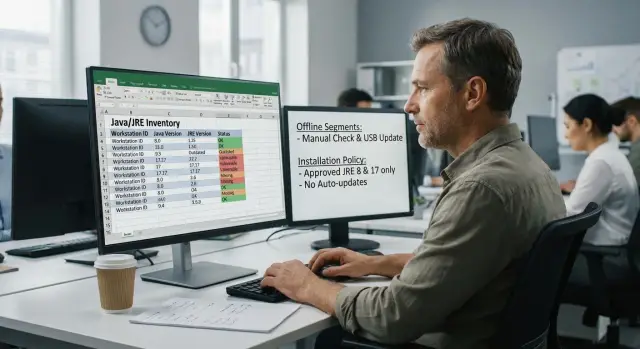
Why Java/JRE on workstations becomes a problem
Java inventory usually starts not by plan but after an incident or audit. Java appears “along the way”: an accounting module requested a JRE, an old banking client brought its own distribution, someone installed it “so it works” and forgot.
The main issue isn’t Java itself but the mismatch. When different JRE versions live across one organization, the risk of vulnerabilities, failures and unexpected dependencies grows. The same application may run for one user and crash for another because “that exact” version is not installed everywhere.
For security and audit teams, the important questions are simple: which version is installed, where it came from (official source or “from a USB stick”) and why it’s needed. If there’s no purpose, any discovered Java looks like an unnecessary risk.
“Forgotten” installations often hide where they aren’t expected: old browser plugins, legacy thick clients, signing tools, MFP/printer utilities, sometimes alongside engineering software. After migrations and PC replacements these leftovers are easy to miss.
Another story is when users can install software themselves. Then parallel JREs, “portable” builds and multiple Java copies in different folders appear, which the update system doesn’t see.
Before starting, it’s useful to define the objective. Usually it’s a combination of four tasks: remove vulnerable versions, keep compatibility with required applications, understand licensing and support needs, and reduce the number of variants so operations don’t turn into a manual “zoo.”
In system integration projects one scenario repeats often: some PCs are domain-joined with managed deployments, some are in isolated segments, and Java differs everywhere. For example, GSE.kz teams regularly encounter this in mixed infrastructures where it’s hard to safely “clean” the fleet and honestly plan budget for support and procurement without a full picture.
What to prepare before the inventory
First define the scope. A Java check is rarely “all PCs at once”: it’s more important to know where Java is truly critical. Make a list of departments and device types (office PCs, thin clients, laptops, kiosks) and mark special workstations: accounting, cash desks, medical workstations, training labs, branch terminals.
Next, collect the list of applications that actually need Java. Don’t rely only on users’ words: ask system owners for a list (1C, EDI, banking clients, government portals, internal utilities). For each application record three things: whether Java is needed at all, which version is required and whether replacement is allowed (for example, switching to a web version or another module).
Agree on terms: what counts as an “installation.” Inventory often mixes three different cases: separate JRE, installed JDK and an embedded runtime inside an application (when a Java folder sits next to the exe). If you don’t separate them, counts will be inflated and cleanup will miss the mark.
Assign process owners and approval rules. Minimal team: IT (data collection and removal), security (policies and risks), procurement (licenses and contracts), business units (confirm criticality). This is especially important if some workstations are in isolated segments and any change goes through a separate procedure.
Set the fields you will capture up front. Then the data will serve both audit and procurement: product (JRE/JDK/embedded Java) and vendor, version and update (e.g., 8uXXX), architecture and OS, installation path (mark embedded), installation or last-modified date.
A simple example: accounting says “Java is needed for reporting,” but after verification it turns out only one signing module requires Java while other PCs have two versions “just in case.” Preparation helps separate what’s necessary from what’s extra and avoid disrupting work.
Step by step: how to detect Java and JRE versions
Decide how you will search: by the standard software inventory (if available), scripts across the network and manual checks on a small sample for quality control. Start with automated discovery but check several “signals” at once. Java often remains after updates, banking client installs, digital signature tools, legacy accounting modules or developer utilities.
Where to look for Java
It’s more reliable to check multiple sources, not just one indicator. Typical sources: installed programs list, installation folders (including nonstandard locations), JAVA_HOME and PATH environment variables, Windows registry (Uninstall branches, JavaSoft, MSI entries), services, scheduled tasks and startup items.
Record 32-bit and 64-bit installations separately. A PC may have both and different applications will need different architectures. Also separate the production channel: MSI from corporate deployment, EXE from manual install, embedded runtime provided with an application, and portable folders without system records.
Then determine whether Java is actually used. Look for runtime signs: java.exe/javaw.exe processes, application logs, recent events, configs that explicitly reference a Java path. If a POS system or signing module runs Java once a week, that is still “usage.”
Consolidate results into a single format so you can compare and filter. A table or CSV usually suffices with rows per device: PC (name, department), user, version and vendor, architecture, installation path and detection source, usage indicators (which application launches Java and when last run).
Offline networks and isolated segments: how to collect data
In isolated segments inventory often bumps against reality: no domain, no connection to central systems, access only on schedule. Start by mapping segments: where you have AD and usual tools, and where machines live autonomously (labs, medical equipment, production workstations, protected enclaves).
A workable approach for offline is a portable data-collection package. It’s a folder or archive with a script that checks for Java/JRE and a report template. Run the script locally and save the result (CSV or JSON) to a flash drive or a prepared folder.
Define how reports will be handed in within the segment. Typical options: a shared folder or local server inside the segment, removable media with an issuance/return log, or an operator who walks the workstations and collects files.
If results will be used for procurement or audit, consider data trustworthiness. Simple controls help: hash of each report, signature of the responsible person (if applicable) and a handover log (who, when, from which PC). This reduces the risk of tampering and makes disputed cases easier to resolve.
Plan access windows. In isolated segments you rarely can just connect and “quickly pull data”: there are schedules, shifts and maintenance windows. Coordinate times in advance so collection won’t cause downtime.
If building a process across multiple segments, a system integrator like GSE.kz can help formalize the procedure, prepare the collection package and set change control so the offline part isn’t left out of the overall picture.
How to decide what to keep and what to remove
The main mistake is to assume any Java is unnecessary. In practice some installs are needed as dependencies for a business application; others were installed “just in case” and never used.
A helpful initial split is three cases:
-
Java embedded in an application (embedded runtime, jre/runtime folder in the program directory). You often must not touch this environment: updating can break compatibility and removal stops the app.
-
System Java in Windows, used by one or more applications.
-
User-installed Java that isn’t tied to anything and is usually unnecessary.
To avoid guesswork, create a simple “application — Java” matrix: where the application is installed (local, terminal server, VDI), required version (exact or range), owner, criticality, Java source (embedded or system) and launch method (shortcut, service, scheduled task).
Then define allowed versions and retirement schedules for old ones. For example: one supported LTS branch for general workstations, with old versions allowed only by exception and with a retirement date. This simplifies support and reduces the risk of a single app dragging a vulnerable JRE.
Mark exceptions immediately: legacy systems that can’t be upgraded without a project; lab stands; terminals and kiosks with fixed software; isolated segments with separate update schedules.
Small example: accounting uses a client that only works with a specific JRE, and several users also have an extra Java “for signing” from an old instruction. The matrix shows which install is mandatory and which isn’t tied to any run. Keep the required one as an exception (with controls) and remove the redundant one, replacing it with the approved variant or with the embedded runtime if provided by the application.
Safe removal and replacement: a workstation cleanup plan
Start with a pilot: 10–20 PCs from different departments and roles and several known problematic machines that often run old apps. The pilot quickly shows where Java is really needed and where it’s just leftover.
Prepare rollback in advance. At minimum: keep installers for required versions (x86 and x64), list applications that depend on Java, and identify who on the support team can quickly restore JRE on a workstation. For offline segments, keep a local package repository and a short instruction for field engineers.
Remove Java according to clear rules, not ad hoc. Practical rules can be based on version, architecture, vendor and installation path. Typical logic: keep only the approved version for a given scenario, remove duplicates (if both architectures aren’t required), delete old updates, and handle embedded runtimes only after confirming they aren’t used.
After removal, verify typical user operations: logins to key systems, report generation, printing, signing, file exchange. A short 5–7 minute test is almost always cheaper than troubleshooting a problem a week later.
To ensure a smooth replacement, agree the “correct” Java version for each scenario and prepare an offline package. Support teams benefit from a short checklist “what we install and why” and a template reply to users when an application asks to “download Java from the Internet.” In organizations where an integrator manages operations (including GSE.kz), such packages are often made standard in the change procedure.
Controlling user installations and preventing unauthorized changes
The Java “zoo” almost always appears where users install Java themselves: for a specific website, an old client, a crypto plugin or a training program. A couple months later nobody remembers why it was needed and the network contains different versions, JDKs and portable builds in user profiles.
First, enforce a simple rule: who may install and update Java. In most cases users shouldn’t install software with admin rights; IT should deploy updates in packages. If certain roles need elevated rights (developers, for example), register exceptions and add controls: separate groups, dedicated machines and fixed versions.
Next, define approved installation sources. Usually one or two options are enough: an internal app catalog, package deployment or a set of approved installers stored by IT. For isolated segments this may be a signed offline media or a “golden” image with Java included.
To prevent unauthorized installers from reappearing, use a combination of measures: block execution of unknown installers (whitelisting by publisher and hash), disable Java auto-updates if that matches policy, block installation into user folders (where portable versions hide), prohibit JDK installation where only JRE is required, and log installation events on critical PC groups.
Require a simple request process: why Java is needed, for which application, on which PC, and for how long. A useful practice is to set a review date (e.g., 90 days). If the business need is not confirmed, remove Java during the next cycle.
Regular monitoring is better than infrequent audits. Check weekly or monthly for changes: new installs, version rollbacks, a second runtime appearing next to the first, traces of JDK. Typical alert: multiple java.exe instances from different folders on one PC, or a version change without a request.
Reporting for audit and management decisions
A good report should do more than “count installations.” It must answer audit questions (what is installed, where and why), help IT plan work, and help procurement understand what to buy. If this is your first inventory, agree on a single format up front or you’ll spend time reassembling data.
A minimal card per PC usually includes: device (name/inventory number), department and responsible user, product and version (JRE/JDK), architecture, vendor, discovery date and data source (script, agent, manual), decision status (keep, update, remove, needs approval) and justification.
Auditors rarely accept statements without proof, so add evidence: installation path, system package identifier, java -version output, and for offline segments a signature from the responsible person and an inspection act number. Evidence should be repeatable during a check.
Track a change history: what was removed or updated, when, by which request and who approved it. This protects against “it worked yesterday, now it doesn’t” disputes and makes rollbacks possible if a critical application suddenly requires an older version.
Make multiple views for different audiences: for security — outdated versions and policy violations; for IT operations — the work plan by PC groups; for procurement — the number of confirmed required installs by timeline; for executives — risks and progress.
If needed, prepare the reporting format and change procedure with a system integrator like GSE.kz so documents are audit-ready and fit internal regulations.
Example scenario: a company with a mixed network and varied requirements
Imagine a company with 800 workstations. About 500 PCs are domain-joined with access to corporate services. Another 300 are in an isolated segment (production or lab) with no direct connection to the main network. Some accounting and industry applications require Java 8, one old equipment management module runs only on Java 7, and new web clients target Java 11.
Data collection used two approaches. In the office network a centralized export captured product, JRE/JDK versions, installation paths and usage indicators. For the isolated segment a portable check package and field collection were used: a specialist ran a script on site, saved the report to media and later uploaded data to a common register.
After consolidation the typical picture emerged: some PCs had 2–3 Java versions simultaneously, and some installs were leftovers from old programs.
To remove conflicts they adopted a simple rule: keep a version only where dependency is confirmed. Confirmation came from application run evidence, system owner information and test runs on a control PC.
The operational procedure was short: list applications and owners, mark each PC as “Java needed” or “can be removed,” keep one supported version and remove others, and create a separate group for rare exceptions with restrictions.
They also stopped user-driven installs: Java only by request, remove local admin rights where possible, and monitor new Java appearances by regular comparisons with a baseline list.
For procurement they counted active installations by unique PCs, removed duplicates (multiple versions on one device) and excluded dead machines (offline or decommissioned). This model made budget justification and support planning straightforward.
Common mistakes and traps in Java inventory
Mistake number one is treating the task as trivial: “we looked at installed programs and that’s it.” Java often hides in multiple places and mistakes lead either to downtime or to wrong risk and budget assessments.
One common problem is relying only on “Programs and Features.” Many business apps bring an embedded runtime in the app folder; sometimes a JRE sits next to a browser, token driver or old client. So it may look like Java is rare when it actually runs every day.
Another trap is not distinguishing 32-bit and 64-bit. A single PC may have both and they’re not always duplicates. If you collapse them into one report line you can remove the wrong one and break a plugin or legacy module.
The most costly mistake is removing Java without checking dependencies. Typical scenario: an accounting module or signing client runs via javaw.exe. After cleanup it won’t start and troubleshooting takes hours.
What typically ruins data quality
Problems often stem from a one-off collection “for the report” without regular checks, mixing offline segment data with the main network without timestamps and data sources, lack of rules on what counts as an installation (system, embedded, portable), and confusion between technical inventory and license counting without a consistent methodology.
About licenses: JRE presence on disk does not automatically mean equal obligations everywhere. For procurement, agree in advance on counting rules (by device, user, server components) and separate “presence” from “usage.”
In environments with isolated segments (e.g., government or critical workstations), remember that a user can bring an installer on a USB stick and “fix it themselves.” Without controls such changes will quickly invalidate any inventory results.
Short checklist and next steps
To quickly bring Java under control, keep one clear plan and apply it equally to online and offline segments. Then data will be usable for decisions and the process won’t become endless rechecking.
Short checklist:
- Define scope: which devices to check, which applications depend on Java, and who owns each application. Mark isolated segments and the data collection method.
- Approve an allowed-matrix: which JRE versions are permitted, which are banned and where exceptions apply (legacy medical or banking clients).
- Before removal get a quick confirmation: application owner confirms Java isn’t needed or can be replaced; rollback plan exists; maintenance window agreed.
- After changes verify results: 2–3 key operations (login, signing, report export), re-collect data and record what was removed and what was kept. For offline networks keep and sign the report.
- For procurement count only confirmed needed installs and plan controls for user installations (limit rights, whitelists, IT-only installs).
Next, assign an IT process owner and a budget owner in procurement, approve a report template and a review schedule. If you need to roll the process out across the organization including isolated segments and tie inventory to changes and support, such tasks are usually handled together with a system integrator like GSE.kz.
Frequently asked questions
Where should I start inventorying Java if there are many workstations?
Start with the critical areas where Java is most commonly used: accounting, POS systems, workstations with digital signature modules, banking clients, legacy thick clients, classrooms and kiosks. Then expand by device types and network segments, especially isolated networks. The goal should be measurable: remove vulnerable versions, reduce the number of JRE variants and keep only what is confirmed as a real application dependency.
What is the difference between JRE and JDK and why record it in the report?
JRE is the runtime environment for running Java applications; JDK is the development kit, which is usually unnecessary on regular workstations. In an inventory it's important to distinguish them because JDK presence often brings extra components and increased risk. Record the product separately (JRE or JDK), the version and the installation path so you don’t accidentally remove something needed or leave unnecessary software.
How do I find Java that is embedded in an application and not visible in installed programs?
Embedded Java lives inside the application's folder and may not appear in the list of installed programs. It’s often in directories named jre, runtime or a folder next to the executable. Check installation paths, startup configs and which java.exe actually runs when the application starts. Embedded Java shouldn’t be treated like a system Java installation without confirmation from the application owner and a test run.
Where exactly should I look on Windows to avoid missing Java?
Look at several sources at once: installed programs list, the registry, typical Program Files folders, JAVA_HOME and PATH environment variables, and the presence of java.exe in nonstandard folders. Also look for runtime signs like java.exe/javaw.exe processes and entries in application logs. Relying only on "Programs and Features" will almost certainly miss embedded runtimes and portable folders.
Why is it important to separate 32-bit and 64-bit Java during inventory?
A single machine may have both 32-bit and 64-bit Java installed, and they are not always duplicates. Some old plugins and clients require x86 even on a 64-bit OS. Record architecture separately and link it to the application. Remove the other architecture only after verifying it’s not used anywhere.
How do I collect Java data in offline networks and isolated segments?
A practical option is a portable data-collection package: a folder or archive with a script that checks for Java/JRE and a report template. Run the script locally and save the results to a file (CSV or JSON) to a USB stick or a predefined folder. Agree on how reports are handed over inside the segment—common folder, removable media with logging, or an operator who collects files. This produces a consistent data format even without a domain or central systems.
How do I decide which Java installations to keep and which can be removed safely?
First, prove the need: which application uses Java, which version is required, and how it’s launched. If there’s no link and no launch evidence, the installation is almost always unnecessary. It’s useful to separate system Java, embedded Java and user-installed Java. Decide by a matrix “application — required Java version” and by a test run on a control machine.
How to perform a safe Java cleanup without disrupting users?
Start with a pilot of 10–20 PCs from different departments and roles (accounting, front office, engineers) and a few known problem machines that often run old applications. The pilot shows where Java is really needed and where it’s just sitting “just in case.” Prepare rollback: keep installers for required versions (x86 and x64), list dependent applications, and identify who can quickly reinstall Java on a workstation. For offline segments, have a local package repository and short instructions for field engineers. After changes, run a short functional test of key user operations; this is usually far cheaper than troubleshooting a failure later.
How to prevent users from installing Java on their own?
Basic rule: users shouldn’t install or update Java themselves; IT should deploy approved packages. If certain roles need exceptions, formalize them and limit them to specific machines and versions. To prevent portable builds from proliferating, control installers’ execution (whitelisting by publisher and hash), disable automatic Java updates if that’s the policy, block installation into user folders, and block JDK installs where only JRE is required. Log installation events on critical groups of PCs. Also require a simple request record: why Java is needed, for which application, on which machine and for how long. A practical approach is to set a review date (e.g., 90 days). If the necessity is not confirmed, remove Java at the next cycle.
Which fields should I include in reports and how to count installations for procurement and audit?
At minimum, record per PC: device (name/inventory number), department and responsible user, product and version (JRE/JDK), architecture, vendor, detection date and data source (script, agent, manual check), recommended action (keep, update, remove, requires approval) and a short justification. For audit, add reproducible evidence: installation path, package ID, output of java -version, and for offline segments a signature of the responsible person and an inspection act number. For procurement, count only confirmed needed installations by unique device, remove duplicates on the same PC and exclude decommissioned machines. Distinguish “present on disk” from “actually used.” This provides a reliable basis for budget and support planning.
