8 min read
IT Equipment Maintenance Plan: A No-Downtime Procedure
An IT equipment maintenance plan keeps PCs and servers in order: cleaning, diagnostics, firmware updates and change control to avoid unexpected downtime.
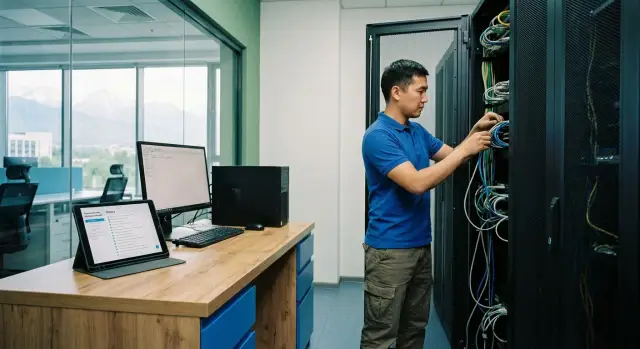
Why you need a maintenance procedure and what it prevents
IT equipment maintenance is not a box to tick — it's how you stop problems from becoming surprises. With a clear procedure you know what to check, how often, who does it and where results are recorded. This reduces the risk of unexpected downtime and keeps services in a predictable state.
Most often maintenance prevents simple but costly issues: overheating from dust and dried thermal paste, disk degradation, memory errors, power drops, and gradual performance decline. Without a procedure these look like random incidents, while the causes build up over weeks.
A separate risk area is updates and firmware. They break services not because they are "bad", but because they are applied without compatibility checks, without a maintenance window and without a rollback plan. A typical scenario: firmware for a RAID controller or network device is updated, driver behavior changes, and some applications start losing connections.
"Detect degradation before failure" means noticing signs early enough to replace or reconfigure components. For example: a server shows growing corrected memory errors, a disk's SMART reports increasing reallocated sectors, fans run at full speed more often, and the UPS holds load for fewer minutes.
People often forget to include UPSs and batteries (their aging is almost invisible until they fail), network switches and access points (overheating and port errors), key user workstations (cash registers, reception, engineers), and spare power supplies and fans in storage.
The success of a procedure is measured simply: fewer incidents, faster recovery, and a clear history of changes — who did what, when and with what result. This matters especially where there are many servers and workstations, for example in government, healthcare and education.
Define scope: which equipment and services are covered
For a maintenance plan to work, first answer honestly: what do you support and which services do you protect. Otherwise the procedure becomes a set of scattered tasks where important things are missed and trivial things take time.
Start with equipment classes. Typically this includes desktops and laptops, servers, storage systems, network gear, UPSs, peripherals, printers, terminals and specialized workstations. Don't try to treat everything the same. The goal isn't to "check everything", but to protect key services: accounting, email, database access, cash registers, medical systems, classrooms, video surveillance.
Next, define criticality. If a device affects a service used by many people or impacts money, maintenance should be planned and careful: a maintenance window, a rollback plan and post-checks. Things that don't affect services directly can be serviced less often and more simply.
Clarify responsibilities: what IT does (inventory, diagnostics, work planning, acceptance), what contractors do (e.g., UPS battery replacement, HVAC servicing), and what users must do (report symptoms, not move equipment, not try to "fix" it themselves).
For each device record a minimal set of data: class and purpose (which service it impacts), model and serial number, location (room, rack, branch), owner or responsible department, and a contact for scheduling maintenance windows.
A strict rule: not in the inventory — not in maintenance. For example, a "temporary" switch in a server room without an owner will cause an outage exactly because no one maintains or updates it per the rules.
Roles and responsibilities: avoid single-person dependence
If the procedure relies on one administrator, it fails during vacations, at night or during an urgent outage. You need clear roles and a simple rule: who decides, who performs, who grants the maintenance window and who confirms the service is up.
In small teams roles may be combined, but they should still be named. A typical set is:
- service owner (defines criticality and accepts downtime risk)
- administrator (plans and performs work, prepares rollback)
- engineer or contractor (physical tasks: cleaning, power, part replacement)
- information security (assesses security impact and compliance)
- on-call shift (monitors, accepts escalations, logs incidents)
The decision flow should be transparent: the service owner approves and picks the time, the administrator is responsible for technical work and rollback, information security sets conditions (for firmware and access), and the on-call team confirms stability afterwards.
Communication works best when it's grounded: what are we changing, where is the risk, how long it will take, and what happens if things go wrong. For example, for a firmware update on a server (including racks with GSE S200) announce a window in advance, describe possible reboot behavior and provide a contact to stop the work if needed.
A one-page responsibility matrix (who does, who approves, who is informed) and a short report after each job are useful. At minimum record:
- what was done (versions, settings, replaced parts) and why
- start and end times, affected services
- what was checked after the work
- deviations from the plan and decisions made
- next steps: what to monitor and who is responsible
Frequency: building a maintenance calendar without overload
The maintenance calendar should be predictable and easy to perform. If the plan is too detailed people will skip it. If it's too rare, degradation will accumulate and surface at the worst time.
Follow a simple rule: the closer a task is to causing downtime, the more often it should be done — but each check should take less time. Make daily checks short, and move heavier tasks to agreed windows.
A practical rhythm typically looks like:
- daily: alerts, free disk space, backup success/failure, availability of key services
- weekly: trends (temperatures, growth of disk errors, packet loss), event logs and recurring warnings
- monthly: selective power checks (for example, a UPS battery test by a predefined scenario), fan and filter condition where dust and overheating are present
- quarterly: extended diagnostics and staged firmware reviews, avoiding updating all nodes at once
- yearly: inventory audit, support contract validity and updating the procedure (what to check, who does it, where to record)
To avoid overloading the team, divide equipment by criticality. For a rack with key services checks will be more frequent; office PCs and secondary systems less so.
A useful rule is a limit on weekly changes and "one major task per window." For example, don't schedule firmware updates and a UPS check on the same evening.
If you have a local production fleet of servers and workstations (as many organizations do), it's convenient to build the calendar by device type: identical operations, identical schedules, and a unified results log. This reduces chaos and makes it easier to spot deviations before a failure.
Physical maintenance: cleaning, cooling, power
Physical maintenance may seem straightforward, but this is where many outages start: clogged heatsinks, loose connectors, tired UPS batteries. When included in the procedure, problems are usually found before a server overheats or begins to reboot spontaneously.
Start with safety. Before any action, power down according to procedure (shut down properly, then remove power), use anti-static protection and do not use wet cleaning inside cases. Only dry cleaning and compressed air are allowed inside to avoid introducing moisture to components.
Practical work order:
- inspect the case and airflow channels: dust, clogged filters, buildup on heatsinks, signs of overheating
- carefully clean filters, grilles, fans and heatsinks; check that blades don't hit cables
- check cables and connections: power, network, SAS or NVMe, making sure nothing is taut or pinched
- assess power: connectors without discoloration, power supplies without burning smell, UPS without alarm signals
- quickly check rack airflow: blanking panels for empty units, no hanging cables, front and rear not blocked
In server rooms people often get airflow wrong. In a rack with multiple 2U servers, one open gap can pull hot air back to the front and temperatures will rise "for no reason."
Record results in an act so you can spot trends next time: what was cleaned (filters, heatsinks, rack), what was replaced (fan, filter, UPS battery), signs of overheating or burnt connectors, grounding and cable entry condition, and the outcome (improved or further action needed, e.g., repositioning in the rack).
Diagnostics and early signs of degradation
Diagnostics in maintenance is not for show — it's to see deterioration before it becomes an outage. A good procedure relies on measurable signs and compares them to yesterday, a week and a month ago.
Start with basic metrics available almost everywhere that give a quick signal:
- temperatures and fan speeds (PCs, servers, racks)
- SMART for disks and rising read/write errors
- RAID controller events and array health
- network errors: packet loss, throughput drops, increased retransmissions
- disk usage and rising memory or CPU usage by services
On PCs heat shows first (noise, throttling), slower performance due to a failing disk, OS errors in logs and sudden lack of space on the system partition. Check drivers after updates: instability often looks like random freezes and reboots.
On servers add hardware-level checks: memory (growing corrected ECC errors), disks and RAID (slow degradation of a single disk), fans and PSUs, and BMC events. If you have rack servers like S200 Series, it's useful to correlate BMC hardware events with what the OS sees. That helps quickly separate "hardware failure" from "software failure."
The key idea is to watch trends. A single "yellow" signal isn't a failure, but growth over weeks almost always means the margin is shrinking.
To make team actions consistent, set thresholds and response rules:
- open a task: temperature steadily 10–15°C above normal, disk free space below 15–20%
- planned replacement: rising SMART indicators and recurring corrected ECC errors
- urgent escalation: RAID degradation, frequent service restarts, critical BMC events
- immediate stop of works: suspected overheating or unstable power
Example: SMART shows an increasing number of reallocated sectors while BMC reports more fan errors. Even if the service is still running, plan to replace the disk and check cooling before the weekend, not wait for a nighttime failure.
Firmware and updates: how not to break services
Updates most often break services due to lack of order. In the procedure separate what you update: OS and packages, drivers, BIOS and BMC (or iDRAC/IPMI), disk and RAID firmware, and network device firmware. Each category has different risk and rollback method.
Before any update ask three questions:
- why update: security fix, bug, compatibility, support for new hardware
- what's the risk: downtime, loss of network access, performance degradation, driver incompatibility
- what's the rollback plan: snapshot, backup, old package, spare controller, version rollback procedure
Testing is required, even for small teams. If a full test stand is not available, use a pilot group: one non-critical server or one cluster node where you can stop and roll back. For example, update BMC and BIOS on one server first, monitor logs and temperatures for a day, check remote management, and only then proceed to others.
Choose change windows based on service usage, not just what is convenient for admins. At minimum: notify users in advance, state expected risk and duration, assign a responsible person for the window and a business contact.
Keep a firmware and updates registry. It prevents guessing "what's installed here" and quickly shows fleet status, including for servers and workstations supplied to the organization (important in government and finance for traceability).
A simple registry should include: current and target version, reason for update and risk source, date and window, responsible person, result of post-check and a rollback note if used.
Change control: a simple process from request to post-check
Change control ensures updates, replacements and configuration changes are predictable. In maintenance this is the safety guard that prevents a minor tweak from turning into a service outage.
Start with a single change request form. It doesn't matter if submitted by email, a service desk or a document template — what's important is that everyone fills the same fields. The request should state: what changes (firmware, driver, config, module), where (server, rack, switch, VM), when and what dependencies exist (e.g., a specific database, integration, external provider).
Then do a short impact assessment: which users and processes may be affected, acceptable downtime, whether a night or weekend window is needed. A simple question helps: if this goes wrong, who notices first and what will stop working?
Before starting, verify there is a way back. Minimum requirements:
- a rollback plan with a clear stop criterion (e.g., response time increased or authentication fails)
- up-to-date backups and verification they can be restored
- VM snapshot or configuration snapshot (if applicable)
- list of responsibles: who performs, who watches, who accepts the result
After the change a post-check is needed. Not a vague "it seems to work", but a short test list and confirmation from the service owner. Example: after a network firmware update check reachability of key subnets, VPN function, file transfer speed on a control file and error logs for 30–60 minutes. If tests fail, rollback immediately per the agreed scenario without debate.
This process feels bureaucratic only in the first month. Later it saves time: fewer urgent night jobs, easier incident analysis, and changes stop breaking services unexpectedly.
Example procedure in practice: one month without surprises
Imagine a typical scenario: an office for 60–80 people and a small server room. There is one critical service (for example, 1С or a ticket database), file storage, AD, and a fleet of workstations. The goal for the first month is not to do everything at once, but to launch a repeatable maintenance plan and produce a clear report.
Make a short monthly work list and spread tasks across weeks so you never change everything affecting one service at the same time. Apply updates and interventions sequentially, with a clear rollback.
Example 4-week calendar:
- week 1: server room inspection (dust, cables, UPS), check temperatures and power events
- week 2: pilot updates (firmware, OS, drivers) on 1–2 non-critical nodes or a test group of 5–10 PCs
- week 3: storage diagnostics (SMART, controller errors), check fans and power supplies, test backups
- week 4: roll out updates to critical servers only after a successful pilot, then check services and performance
Choose a pilot where failure won't stop work: a secondary server, a backup domain controller, monitoring server or a small group of workstations, but not during reporting days.
The monthly report should be short and specific: what was done (dates, nodes, firmware or package versions), what was found (overheating, rising disk errors, power issues), what was fixed immediately (cleaning, cable replacement, cooling adjustments), and what was planned (buy disk, schedule fan replacement, role migration).
If you detect degradation, act early: replace a disk with rising errors in the next window, swap a noisy fan before overheating, prepare a suspicious PSU as a spare. For critical services plan failover: temporarily move load to another server or host and perform repairs without downtime. If needed, such work is closed together with the manufacturer's service team and integrator, possibly in 24/7 mode.
Common mistakes that lead to outages
Most frustrating outages happen not because of complex attacks or rare failures, but because of habits. Without discipline even a good procedure becomes a list of disconnected tasks.
One frequent mistake is "updating everything at once." An admin installs a new package or firmware across the fleet and incompatibility appears during business hours. Safer is to test on one node or a stand first and pick a window when services can be briefly unavailable.
Another issue is lack of version and change history. If you don't record firmware, drivers and configuration versions, root cause analysis becomes guesswork. This is obvious in mixed infrastructure where some equipment was updated manually and some "as it happened."
Physical maintenance is often done only when a fan starts making noise or temperatures rise. Dust, worn fans and weak power usually give early signs, but they are easy to miss without a schedule and simple measurements.
Ignoring disk warnings and memory errors until failure is another common mistake. SMART statuses, a rising error counter, and short service outages often appear weeks before a failure.
People usually forget to provide:
- a pilot and a clear change window before mass updates
- a firmware version registry and change log
- regular cleaning and cooling checks per schedule
- threshold values for disks and memory and clear reactions to them
- a rollback plan and post-check after updates
A simple example: after a firmware update some servers cause accounting to "freeze." With a rollback plan and short post-checks (load test, log review, temperature control) the issue is found the same day. Without that, it can take weeks and erode user trust. Manufacturers and integrators at the GSE level typically include these post-checks in standard service — make it a rule, not a one-off lucky event.
Quick checklist: a 10-minute readiness check
Before rolling out the procedure it's useful to spend 10 minutes to see if you are ready on basic points. If you can't answer 2–3 of the questions below, the maintenance plan will rely on people's memory and chance.
Check five pillars:
- inventory is alive: you know what servers, PCs, network devices and UPSs are in racks, their BIOS and firmware versions, and the owner of each service
- there is a maintenance calendar: checks, tests and replacements are spread across weeks and change windows are agreed with the business (and recorded, not "in chat")
- diagnostics are not "for show": monitoring is configured, thresholds set (temperatures, disk errors, RAID degradation, power drops), and it's clear what to do at yellow and red levels
- updates are safe: pilot on a non-critical system first, then planned rollout, record versions and mandatory rollback if failures appear
- monthly results are visible: a short report on completed work, incidents and deviations, plus tasks for the next month
A quick test: can you today, in 15 minutes, say what firmware and configuration changes happened in the last 30 days and how they affected services?
If you use equipment and support from GSE.kz, add the responsible contacts and escalation procedure to the checklist so firmware and diagnostic questions are resolved quickly and consistently.
Next steps: how to start and keep the procedure alive
Start small, otherwise the procedure will remain a "document for later." Pick 5–10 most critical nodes: one or two key servers, a network switch, storage, admin workstations, UPS. For them create a short 1–2 page plan: what to do, how often, who is responsible, and what result is considered normal.
To prevent updates and interventions from becoming a gamble, keep a basic record of versions and changes. Even a simple table works: model, serial number, BIOS or firmware version, driver version, work date, reason, performer, request number (if any), and post-check outcome.
Add error insurance:
- assign a pilot group (e.g., one server and 10% of PCs) and update it first
- make rollback mandatory: what exactly to revert and how fast if failures appear
- enforce post-checks: a short test set (service availability, load, logs, key metrics)
Regular cleaning and diagnostics are easier to maintain with a calendar. Schedule fixed windows: a monthly quick inspection (temperatures, fans, SMART, logs), a quarterly deeper diagnostic, and cleaning or power checks as needed. Record results immediately so you see trends instead of isolated "looks OK" notes.
If your fleet is large and heterogeneous, agree on a unified approach to PCs and servers with the manufacturer and integrator. For example, GSE.kz as a local maker of PCs, servers and a systems integrator can help establish a single maintenance, firmware tracking and support standard across service sites so the procedure lasts years, not until the next team change.
Frequently asked questions
Why is an IT equipment maintenance policy needed?
The policy sets out a clear process: what to check, how often, who does the work, and where to record the result. It helps identify overheating, disk errors, memory issues, and power problems before they cause a service outage.
What equipment should be included in a maintenance plan?
Include servers, workstations, storage systems, switches, access points, UPS units, printers, terminals, and specialized workstations. Start with the devices that support accounting, databases, point-of-sale systems, medical systems, or educational systems.
How often should preventive maintenance be performed?
Check alerts, free space, backup results, and the availability of critical services every day. Review trends and logs weekly, inspect power and cooling monthly, and carry out major diagnostics and firmware audits quarterly.
Who is responsible for equipment maintenance?
The IT team maintains the inventory, plans the work, and verifies the results. The service owner approves the maintenance window and acceptable downtime, contractors perform physical work when needed, and users report symptoms without repairing equipment themselves.
How can servers and PCs be cleaned safely?
First, shut down the system properly and disconnect power according to the approved procedure. Use antistatic protection, clean the chassis only with dry methods, and check filters, heat sinks, fans, cables, and power connectors.
What signs indicate an impending failure?
Monitor temperatures, fan speeds, disk SMART data, RAID status, ECC memory errors, BMC events, and network errors. What matters is not a single signal but its upward trend, such as recurring memory errors or a growing number of reallocated sectors on a disk.
How should firmware be updated without risking services?
Do not update the entire fleet at once. Check compatibility, prepare a backup and a rollback plan, then update one non-critical node or pilot group. After reviewing logs and confirming that services work, proceed with the remaining devices.
What should be included in a change request?
Specify the device, version, purpose of the work, dependencies, change window, risk, and rollback method. After the work, run predefined tests: service availability, authentication, network connectivity, logs, and key load metrics.
Which mistakes most often lead to downtime?
The most common causes are large-scale updates without a pilot, lack of version tracking, infrequent cleaning, and ignored disk or memory warnings. UPS units and temporary network devices that are missing from the inventory create a separate risk.
How should you begin implementing a preventive maintenance policy?
Start with 5-10 critical nodes and create a simple table for them: model, serial number, purpose, versions, work date, person responsible, and test result. Then set regular maintenance windows, monitoring thresholds, and people responsible for escalation.
