8 min read
IT Team Checklist for an Office Move: Network and Servers
IT relocation checklist: how to plan the network, servers and workstations, reduce schedule risks and avoid a “non‑working morning”.
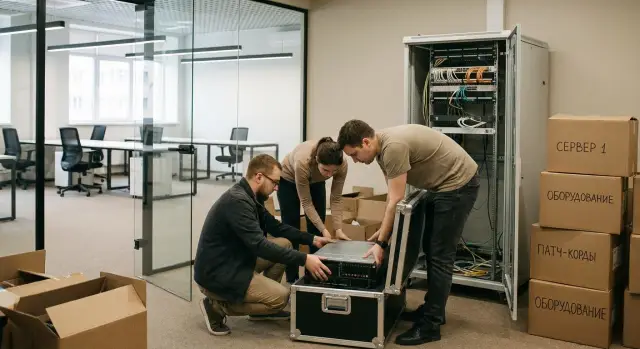
What breaks during a move and why it matters to IT
A “non-working morning” looks the same every time: people arrive but the internet won’t come up, Wi‑Fi doesn’t reach the meeting rooms, printers have “disappeared”, phones are silent, and 1C or email hang while loading. Even if some workstations boot, you still can’t work because everything depends on shared services.
Critical systems are almost always the same: connectivity (internet, telephony, video calls), access (domain accounts, VPN, folder permissions), accounting and POS, email and messengers, shared files and network printers. A separate risk area is the server side: DHCP/DNS, domain controller, file server, terminal services, storage (SAN) and backups. If one basic element fails, the whole chain breaks.
Problems usually surface on the morning of day one for two reasons. First — a sudden spike in load: dozens of computers power on at once, request addresses, connect to shares, and pull updates. Second — errors only appear in a real scenario: patch cords swapped, a switch port left closed, a new power scheme not taken into account, or the provider “handed over the line on paper” while the signal is unstable.
A successful IT relocation is not “everything perfect”, it’s when by the start of the workday at minimum:
- stable internet and Wi‑Fi in key zones;
- domain logins and basic access to shared resources;
- email and main services (1C, CRM, etc.);
- printing available on at least one or two shared printers;
- telephony for reception and managers.
Simple example: if DHCP wasn’t moved to the main VLAN in the new office, some employees will be “without network” even though cables are plugged in. That’s why it’s important to define in advance what counts as the “minimum viable functionality” and test exactly that, not just whether the hardware powers on.
Timing and roles: who is responsible for what
Moves rarely fail because of “complex tech”. More often the problem is that no one is appointed lead, and everyone has different timelines: the landlord has their rules, the provider has their dates, and the moving contractor has their schedule. Start with agreements.
Identify stakeholders and areas of responsibility. If there are many participants, appoint a single coordinator: they collect statuses, record decisions and prevent tasks from hanging.
Who is usually needed:
- IT team — work plan, risks, outage window, acceptance of connectivity and services;
- office manager — access to premises, passes and keys, furniture, contact with landlord;
- moving contractor — packing, labeling, transportation, responsibility for item safety;
- landlord/property manager — rules for works, access, elevators, times for noisy work;
- providers (internet, telephony, circuits) — connection dates, entry points, testing.
Next, separate “who decides” from “who does it”. The decision about when to shut down services is made by an authorized person (usually the IT lead together with the business owner), and confirmed by whoever is responsible for the company being operational on Monday morning. This is where two pillars of the plan appear: the agreed outage window and the criteria for “we are up”.
Record key dates and build in a buffer. A single shift by the provider can easily break the whole schedule.
Minimum set of dates:
- preparation of the new office (power, racks, cross-connects, access points);
- moving day (when we shut down, when we load out, when we bring equipment in);
- startup and verification (what must work in the first 60 minutes);
- a backup day for fine-tuning and temporary schemes.
Also agree access separately: who opens the server room, who meets contractors, how to work at night/weekends, whether approved personnel lists are required, and how security is notified.
Document agreements briefly: one page with dates, contacts, responsible persons and the outage window, plus confirmation by email or messenger. Example: “Sat 22:00–06:00 shutdown, 06:00–10:00 transport, 10:00–14:00 startup; responsible: Ivanov (IT), Petrova (office)”. If you involve an external integrator (for moving racks and servers), define in advance who signs acceptance and who decides to change dates.
Inventory and documentation before start
Moves don’t break during transport, they break on “we thought this wasn’t needed”. Before any work, collect a clear package: what we move, who owns it, where settings are stored, and what must not be turned off without an outage window. This is the base for a proper checklist.
Start inventorying by groups and immediately mark the status of each item: move, retire, leave, keep as spare.
- Network: racks, switches, routers, Wi‑Fi access points, patch panels, fiber.
- Server room: servers, storage (SAN), UPS, KVM, spare drives and power supplies.
- Workstations: PCs and monitors, docking stations, printers, MFPs, scanners.
- Telephony and video conferencing: PBX, gateways, IP phones, cameras, microphones.
- Facilities: server room cooling, sensors, access control controllers.
Then highlight the “critical” items — those that must not be turned off without a plan. Usually that’s the domain and DNS/DHCP, internet gateway and VPN, telephony, accounting and file resources, video surveillance and access control. For each service note allowable downtime and the contact to call if startup fails.
Separate block — access and licenses. Gather a list of keys, tokens, subscriptions, cloud accounts and admin panels. Check where MFA codes are stored, who has ownership rights, and whether there’s a fallback way to log in if the primary phone is unavailable.
Documentation must be “in hand”, not in someone’s head. Update the IP plan, port and VLAN diagrams, list of static addresses, equipment passwords, and backup storage locations. And most importantly — verify backups are restorable. It’s useful to print the rack diagram and label cables before shutdown.
Finally, the small items. Their absence most often turns the morning into a shopping run:
- patch cords of required lengths, labels and cable ties;
- SFP modules, fiber patch cords and adapters;
- power extension cords, multi‑plugs, spare power leads;
- console cables, USB‑to‑Ethernet adapters;
- spare cartridges, paper, rack mounting hardware.
New office readiness: power, cabling, security
Most “non-working mornings” after a move don’t start with servers but with the premises: insufficient power, unfinished cabling, or lack of authorized access to the server room. Confirm office readiness in advance and in writing, not “per the contractor”.
First, check the electrical supply. It’s important not only to have outlets but also correct load distribution across circuits. The server room or rack needs a clear input: a dedicated line, proper breakers, and reliable grounding. If you plan a rack, UPS and air conditioning but the line is sized “like for printers”, breakers will trip at the first load spike.
The UPS often becomes the weak point. Calculate runtime against actual load (servers, storage, switches) and test batteries before the move. A good test is a short simulated power cut to confirm equipment doesn’t reboot and the UPS doesn’t go into fault.
Cabling routes decide whether there will be order. Determine in advance where the backbone will run, the locations for workstation points and Wi‑Fi, and whether cameras and access control need a separate channel. Assign responsibilities: who routes cables, who labels ports, who signs off the work. Otherwise on startup day you may find “the cable exists, but no one knows where it terminates”.
Minimum checks to confirm before moving in
Check these on site with the contractor:
- power and breakers by zones, grounding, and capacity margin;
- UPS functionality and battery condition;
- cabling routes readiness and port labeling;
- access to the server room (keys, approved personnel lists, logbook);
- ventilation and cooling (where racks and equipment cannot be placed).
Physical security matters too. If the server room can be opened “by anyone”, the problem may not happen on moving day but later.
Internet and local network: what to check in advance
If the network isn’t ready, the move becomes a “non-working morning”: telephony silent, POS can’t reach the server, employees can’t access email. So schedule internet and LAN readiness before furniture and even before final desk placement.
With providers agree not only on a connection date but on details: cable entry point to the building, space for provider equipment, who will do drilling and routing, and who is responsible if access to a technical room is unavailable at the required time. Ask for a duty contact and record the outage window in writing.
A backup link for the first days often saves deadlines. If a second wired provider can’t meet the schedule, prepare a temporary option: 4G/5G router, external modem or portable gateway for key services (email, VPN, telephony). Test in advance whether mobile coverage is available in the server room and meeting rooms.
For the LAN prepare a clear port plan: which wall jacks map to which workstations, printers, APs and cameras. Patch panels and cables should be labeled, otherwise day‑of diagnostics will stall.
Short pre-move checks:
- continuity test lines and mark problem points;
- ensure the rack has enough patch cords of the right lengths;
- verify switches are configured and there are spare ports;
- decide in advance where the guest Wi‑Fi will be and ensure it cannot see internal resources;
- test remote access to corporate systems from outside.
Don’t “sketch” Wi‑Fi coverage. Meeting rooms and dense seating areas must be confidently covered, and power/outlets for access points should be planned in advance.
Test VPN and remote access before the move, not on the day. Simple test: connect from a home network, open a couple of internal services and confirm logins work. If you move over a weekend, do a trial login on Friday afternoon while colleagues and providers are still available.
Servers, storage and services: shutdown, transport, startup
Moving servers and storage isn’t just “moving hardware”. You can easily lose data, miss deadlines and end up with a live network but no services. A simple principle helps: move some things, leave some in place temporarily or replicate them.
If you have critical services (email, accounting, telephony, access to 1C/ERP, domain), decide in advance what can be left: keep part of the infrastructure at the old site until stabilization, spin up a temporary duplicate, or move specific systems to a backup node. This is especially important if the transfer cannot fit into a single night window.
Before shutdown take verified backups and confirm they truly restore. Not just “backup completed” but “a file/database was restored in a test”. Minimum: snapshots of critical VMs, export of network device configs, a copy of hypervisor and domain controller settings.
The shutdown plan must be short and unambiguous:
- appoint an outage window and the person who issues the “stop” command and who confirms “everything is off”;
- fix the shutdown order: apps, then databases, then virtualization, then storage;
- stop background jobs (backups, updates, syncs) so you don’t catch “dirty” data;
- record readings (RAID status, disk errors, temperature, free space);
- take photos of connections and label cables.
Transportation is a separate risk. Servers and drives don’t like shocks, static and temperature swings. Use anti‑static bags, rigid packing, and secure mounting in racks or transport cases. If storage arrays have removable trays, check with the vendor whether to lock sleds and how to transport. In winter and summer allow time for equipment to acclimatize in the new space: condensation can really damage gear.
Do startup in order, not “power everything and wait”:
- power and UPS, then racks and cooling;
- storage/RAID: check array and disk status before load;
- hypervisors, then network services (DNS/DHCP/AD), then application systems;
- verify monitoring and alerts;
- control test: user login, printing, file access and key applications.
Workstations and employee services
The worst scenario is network and servers being “live” but people still can’t work: wrong PC, no access to shares, printing not working, or no sound in the meeting room. Treat workstations as a small separate project.
Start with the physical items. Label towers, monitors, docking stations and power supplies not “by boxes” but by user and by desk. Otherwise the morning will be spent swapping cables and hunting for the right adapter. Practical rule: put two stickers on each kit — the user and the target desk.
Next, check logins and access. It’s not enough to “join the domain”; ensure group policies apply, network drives are mapped, shared drives open and required apps start without extra prompts.
Quick build-and-test plan (10–15 minutes per workstation):
- connect to the network and check access to shared resources;
- log in as the user and verify network folders;
- start email, messenger and corporate apps;
- test headset, camera and microphone (if present);
- record problems in a single task list, not “by word of mouth”.
Many printing issues are solved by placement and permissions. Decide where printers are located, who has access to which queues, and do a test print from 2–3 different PCs. A common small issue: the printer is reachable but prints go “nowhere” due to an incorrect driver.
Telephony and meeting rooms require a separate run-through: numbers, call forwarding, softphones, room setups. A typical risk is “the control panel doesn’t work”. Spare batteries, labeled HDMI cables and a clear input diagram for the screen save hours.
If you are refreshing part of the fleet during the move, it’s better to standardize models in advance. Support is easier and the number of surprises on launch day is reduced.
Step-by-step work plan by phases (how to avoid chaos)
Moves go more smoothly if you fix dates and a “freeze point” for changes. After that point don’t add new workstations, VLANs, firewall rules or “one more printer”. Such additions almost always return as problems on day X.
Below is a scheme convenient to put into a work plan. It’s important that each action has an owner and an estimated time.
Timeline by stages
2–4 weeks before: confirm the room layout and seating, order internet circuits (and a fallback option), agree on AP locations, check power and space for the rack/server room. It’s useful to get photos from builders of the actual cable routing, not just the project.
7 days before: final inventory (what exactly goes), take backups and verify they read. Arrange test access to the new office: security, passes, elevator, keys, space to bring in racks, and an acceptance area for equipment.
1–2 days before: prepare boxes, anti‑static bags, cable ties and port-device-place labeling. Assemble a “quick start kit” so you don’t search through boxes at night:
- extension cords, patch cords 1–3 m, spare SFP/modules;
- admin console cable, admin laptop, drive with configs;
- labels, tape, ties, tools, flashlight;
- contact list: provider, electrician, security, mover;
- printed startup order and port map.
Moving day: shut down services strictly by the list, record statuses (what was on and what was off), properly shut servers and storage, pack and seal boxes. At the new site bring up the “skeleton” first: power, internet, switches. Then servers, then workstations.
Night/weekend: power up in order and don’t skip steps. Start with network and internet access, then DHCP/DNS/AD, then files, email and business systems. Run short tests: domain login, file access, printing, and key apps.
First morning: do a 10‑minute control run at several typical workstations and open a single channel for user requests (one chat or one hotline). This quickly reveals recurring issues like swapped outlets or wrong VLANs.
Example relocation scenario: a medium-sized office
A 60‑person office moves to a new space. There is one server rack (servers, storage, UPS, switches), two providers (primary and backup) and three meeting rooms with video conferencing. The goal is simple: avoid a “non-working morning” on Monday.
First agree with the business on the minimum that must work by 9:00: internet, telephony, access to files/shared services, printing and at least one meeting room for urgent calls.
Daily timing
If the move happens over a weekend the schedule might be:
- 7–10 days before: confirm dates and windows with providers, order cross-connects/fiber, agree access to building and server room, prepare network diagram and list of critical services.
- 3–5 days before: label cables and ports, prepare spare patch cords/SFPs, verify switch and firewall configs, take backups and prepare rollback plan.
- 1–2 days before: in the new office check power (including grounding), UPS, rack, cooling, server room lockability, outlet and patch panel readiness.
- Moving day: stop services per plan, pack and transport correctly, assemble the rack, power up in sequence (power → network → storage → servers), then application services.
The evening before the first workday run “quiet” checks while no people are present: speed and stability of both internet channels, routing in office subnets, DHCP lease issuance, test printing, calls to an external number, file access and a short video call test in the chosen meeting room.
The first 2–3 hours after opening are best organized as a duty shift: one person handles providers and network, another closes user tickets (email, access, printers), and a third remains in the server room. Agree in advance where to write and call, and keep a “what to turn off/on” plan ready if loops appear or telephony “flows”.
Common mistakes and timeline risks
Most schedule failures happen not because of “complex IT” but due to small unchecked items that later turn into hours of downtime and frantic blame-seeking.
First risk — internet. The provider may promise to connect “by morning” but the technician can be late, not get access, or you may discover the cross‑connect lacks the required port. Without a backup channel (or at least a prepped SIM backup for critical services like email, POS and VPN) the office can easily start the day offline.
Second time sink — lack of labeling. When cables, patch cords, power supplies and boxes are labeled “as it came” the team spends hours guessing: which monitor belongs to whom, which cable goes to which printer, in which box is the switch.
A separate group of risks — servers, storage and data. Shutting down “just in case” without a tested backup and a recovery plan ends with services not coming up and no rollback option. Even if a copy exists, without a restore test timelines almost always slip.
Another hard blocker — power. In the new office breakers might trip when everything starts at once, and UPS may not hold real load because batteries are worn or it’s wired incorrectly. Then a chain of restarts and potential configuration corruption begins.
Don’t forget administrative items: server room keys, weekend access passes, admin passwords, tokens, provider account access. Formally these aren’t always IT tasks, but they are exactly what stalls startup.
Five simple safeguards that save real time:
- confirm provider date and window in writing and prepare a backup internet option;
- adopt a single labeling format (rack‑port‑desk) and label boxes before shutdown;
- make a backup and definitely test recovery on a separate machine;
- test power under load: breakers, grounding, UPS, and line distribution;
- assemble an “access folder”: keys, passes, passwords, tokens, and contact list.
Morning startup checklist and what to do next
The morning after the move decides everything. Keep a short checklist and follow it in order without skipping steps.
Quick start (first 30–60 minutes)
Start with what everything else depends on: power, internet link, addressing and basic networks. Check not “in general” but by performing simple actions on 1–2 test desktops and one laptop on Wi‑Fi.
- Internet: is there external access from a wired port and via Wi‑Fi, and are there packet losses?
- DHCP and DNS: are addresses issued and internal resources resolvable by name?
- Wi‑Fi: are SSIDs visible, are passwords/certificates correct, do corporate devices connect?
- VPN and remote access: does remote connection work from inside and outside, and is there access to key subnets?
- Printing and telephony: test print on 1–2 printers, incoming and outgoing calls on several numbers.
If something fails, immediately record what was checked, where and the result. This speeds provider and contractor troubleshooting.
Check critical services and the first wave of incidents
Next move to services that “generate revenue”: files, email, accounting, CRM, access to databases and terminal servers. Tests must be practical: an accountant opens the database, posts a document and prints an invoice; a manager logs into the CRM and makes a call.
To quickly close tickets, use a single feedback channel (chat or phone), appoint an on‑duty person and ask employees to report using a template: location (desk), device, what doesn’t work, time. The first wave usually reveals small issues: wrong VLAN on a jack, a forgotten proxy, a printer in another subnet.
After stabilization update documentation: network diagrams, port lists, IPs, serial numbers, contacts, and changes to access rules. If the move showed some PCs or servers are already at the limit, plan replacements or upgrades ahead of time considering procurement and lead times.
If you need a turnkey partner (hardware plus deployment and support), it makes sense to look at local manufacturers and integrators with a service network. For example, GSE.kz as a manufacturer of computers and servers in Kazakhstan and a systems integrator often participates in infrastructure projects where predictable supply, unified configurations and subsequent support are important.
Frequently asked questions
What should the IT team check in the first hours after the move?
Start with power, internet, DHCP/DNS, and Wi-Fi. Then check domain sign-in, file access, email, 1C or CRM, printing, and telephony at several actual workstations.
Who is responsible for an office IT move?
Appoint one coordinator and assign owners for IT, the office, moving, the landlord, and providers. The plan should include the work window, contacts, startup sequence, and who makes decisions if deadlines slip.
How should power be prepared for the server room in the new office?
Check dedicated circuits, breakers, grounding, cooling, and UPS operation under real load. The rack with servers, storage, and switches must not share a circuit with standard office outlets.
What should you check with the internet provider before the move?
Agree with the provider on the entry point, access to the technical room, installation date, and the on-call shift’s contact. Prepare a backup for the first few days: a second provider, a 4G/5G router, or a mobile gateway for connectivity and VPN.
What backups are needed before transporting servers?
Create backup copies of critical systems and test recovery on a test machine. Save the configurations of switches, the firewall, hypervisors, DNS/DHCP, and domain controllers.
In what order should servers and storage be shut down?
First shut down applications and databases properly, then virtualization, storage, and hardware. Before disconnecting, record the status of RAID, drives, temperature, and connections, and label cables and ports.
How can employee workstations be brought online quickly?
Label each set by employee and installation location, not just by box. After setup, check sign-in with the user account, folders, email, required programs, camera, and headset.
Why might the network not work even though all cables are connected?
Check DHCP address assignment, DNS name resolution, VLANs on ports, routing, and access to internal services. A VLAN or DHCP issue often leaves people without network access even when every cable is connected.
What needs to be prepared for the local network and Wi-Fi?
Test the lines, label outlets and ports, prepare patch cords of the required lengths, and leave spare switch ports. Check guest Wi-Fi separately: it must not have access to internal resources.
How should employee support be organized on the first working day?
Set up one chat or phone line for requests and ask employees to include the room, device, issue, and time. The on-call team should immediately route requests: network and providers, services and the server room, workstations and printing.
