8 min read
IT Asset Inventory: Order in Hardware and Licenses
An IT asset inventory shows what you have — devices, components and licenses — who uses them and where the risk of overspending is.
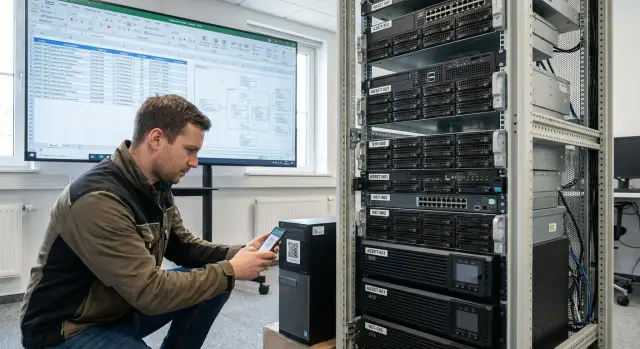
Why you need an IT asset inventory and what “order” means
An IT asset inventory isn't just for a report — it's so every laptop, server and license is visible and manageable. Without tracking, common problems appear quickly: equipment “disappears” during moves and repairs, the same asset shows up twice under different names, and licenses become “ownerless” — paid for but no one knows where they are or who is using them.
Excel and scattered spreadsheets break down fast for a simple reason: there are no shared rules. One person writes “HP 440”, another — “ProBook 440 G7”, a third — only the serial number without the model. In a month it's already unclear whether that's one laptop or three different ones. When a disk is replaced, handed to a new employee or written off, the tables start to contradict each other.
“Order” in inventory means that for any asset you can, within a minute, answer: what it is and how to identify it uniquely (inventory tag and serial number), where it is and what its status is (in use, in stock, under repair, written off), who is responsible and who uses it, and until when the information is valid (warranty, lease, license, next check date).
To avoid redoing everything in six months, decide basic rules up front: which statuses you'll use and who can change them; what counts as a single unit (for example, the whole PC or its components too); how to record movements; how to link an asset to a person and to a task (issue, project, office). For example, if in a clinic some all-in-ones move between rooms regularly, without these rules “order” will be gone after the first rotation.
Define the scope: hardware, licenses, components
Before you start, agree on boundaries: what exactly you consider an asset and why. Otherwise some items will be “not ours” and others will be “forgotten”.
First, define the purpose of the inventory. Finance cares about cost and depreciation, security — where devices are and who uses them, support — configurations and repair history, procurement — matching reality to documentation.
Usually the scope includes everything that is easy to lose, mix up or fail to service on time: end-user devices (PCs, laptops, monitors, printers and MFPs), servers and storage, key network equipment, licenses and subscriptions (OS, office suites, antivirus, specialized software), stock and reserve (replacement devices, spare workstations, items awaiting write-off), remote employees and branches — anything not physically visible every day.
Licenses follow a separate rule: count not only installations but also rights. Keep purchase confirmations and terms (contracts, invoices, keys, emails, acceptance reports) in one place so you can quickly prove you have the right to use a product. In the inventory record at minimum capture: product, license type, quantity, expiry, and which team or system it belongs to.
It's useful to split components and spare parts into two levels. Expensive and scarce items (SSDs, memory modules, server PSUs, network modules) are better tracked individually with serial numbers. Consumables and small items (cables, mice, patch cords) are often easier to manage by lot in stock.
A useful boundary check: do you include the warehouse, equipment under repair, reserve stock, home workstations and meeting-room gear? If the answer isn't recorded, there will be disputes later.
Common data rules: what to record exactly
Inventory usually fails not because of scanners but because of data. The same laptop recorded as “Lenovo”, “LEN”, “employee laptop” — and in a month you no longer understand what you actually have. So start with simple rules people will actually follow.
For each piece of equipment create a record card with a minimal set of fields. Don’t try to describe everything at once: when the form is overloaded, people start skipping fields.
A typical minimum is:
- Unique identifier: serial number plus your inventory tag (and, if needed, an internal code)
- Type and model: PC, server, all-in-one, monitor; the precise model name, not “something like this”
- Lifecycle status: in stock, issued, under repair, written off
- Location and responsibility: room or site, and who is responsible (owner, materially responsible person, or IT curator)
- Dates and basis: intake date, issue date and a reference to the document or ticket (acceptance act, request, ticket number)
Key point: statuses and locations should come from a controlled list, not “how someone named it”. Then “repair” won’t turn into “service”, “getting fixed” and “with the engineer”.
Separately, fix naming rules so you don't create duplicates. For example: type first, then brand and model, then role or purpose. “Server S200 for accounting” and “S200 (acct)” look similar, but in searches and reports they behave differently. The simpler the rule, the more likely it will be followed even when people are in a hurry.
Labeling: how to make people not ignore it
Labeling works only if it's easy to read, lasts for years and links quickly to the inventory record. If a sticker falls off, fades or is hidden under cables, people stop using it and the inventory becomes guesswork again.
For office equipment a simple barcode is usually enough: it's quick to scan and fits on a small label. QR codes are convenient when you need to store a long identifier or encode both number and type, but don't make them too small. For materials choose polyester or vinyl with lamination; for server rooms use heat- and wear-resistant labels. If there's a risk someone will remove labels “quietly”, use tamper-evident (destructive) stickers.
Place labels where they won't be rubbed by hands or heated. On laptops — on the bottom near the factory plate (not on rubber feet). On desktop cases — on the front or side panel, but not on a removable cover that's opened often. On monitors — on the back near the connectors, but positioned so cables don't catch the edge. On rack servers — on the ears or front panel so the label is visible in the rack.
Numbering is easier if there's a clear logic: ranges by branch or by type (for example, NB- for notebooks, PC- for desktops, SRV- for servers). One rule: the number doesn't change when the asset moves; only the status changes (issued, in stock, under repair).
If a device already has old labels, don't stick over them. Cover the old tag with an invalidation sticker “void” or remove it completely and record in the inventory that the number was replaced. Otherwise you'll get double labeling.
A short working checklist for those who apply and check labels:
- Clean the surface and let it dry.
- Apply the label in the agreed spot and press for 10–15 seconds.
- Scan and immediately verify that the correct asset record opens.
- Record the responsible person and location on the spot (room or rack).
- For problematic devices (heat, dust, uneven surfaces) use reinforced material or tamper-evident labels.
CMDB in simple terms: relations, configurations, responsibility
A simple register (a table) is fine if you have tens of devices, one office and changes are rare. A CMDB is needed when surprises begin: multiple sites, many services, frequent equipment moves, and downtime starts costing money. Then you need not just lists but relationships between objects.
Think of a CMDB as a map: what you have, where it is, who it's issued to and what it affects. For IT asset inventory that means quick answers without calls and searches.
The most useful relationships are usually: device (PC, server, printer, network), user or owner (to whom it's issued and who is responsible), location (room, rack, branch), role or service (cash register, lab, accounting), contract and support (who services it and until when).
Record configurations only to the level that affects operations and procurement: model and serial number, CPU/RAM/SSD, OS, warranty, delivery date, contract number. This matters equally for standard workstations and for servers. For example, if you use lines like L200, M200 or S200, it's useful to record the exact modification so you can pick compatible components later without errors.
To prevent the CMDB from becoming “CMDB for the sake of CMDB”, set rules for changes. A simple approach often suffices:
- one data owner (for example, the IT admin for a site)
- changes only by request or after work is done
- history: who changed what and when
- periodic reconciliation for critical nodes
Start with a minimal set of fields and add only when they actually help: reduce downtime or speed up procurement.
Step-by-step inventory plan
Work goes easier if you first gather as many facts as possible from existing sources, then go into the field. Start with exports from procurement and accounting (nomenclature, quantities, dates), service-desk requests (issues, repairs), and data from AD or HR if maintained. This gives a primary list and shows gaps.
Next organize a physical walkthrough. It's important not to “just walk around” but to assign roles in advance: one person checks the device and serial number, another records it in the form, a third monitors quality and does spot checks. Plan the route by zones (floor, room, warehouse) to avoid jumping back and forth.
After the walkthrough comes the most useful part: reconciliation and data cleanup. Duplicates, empty serial numbers, “unknown models” and assets listed but not found usually surface. Have clear rules for resolving these: verify serials and model from labels, BIOS/UEFI and delivery documents; merge duplicates (one asset — one record); mark “not found” and assign someone to search; separately list “extra” equipment (physically present but not in the inventory).
Linking assets to users should be recorded as an event: issue, return, temporary use. For example, a laptop sent on a two-week business trip should be visible as such, otherwise at an audit it looks “missing”.
Plan by weeks
- 1 week: up to 200–300 devices — preparation, walkthrough, initial reconciliation
- 2 weeks: up to 800–1000 — add rechecks and a day for “leftovers” (not found)
- 4 weeks: multiple sites — split into waves and appoint local owners
At the end, record who approves discrepancies and how write-offs or transfers are formalized. Without this the results remain a “draft” and will soon diverge from reality.
Tracking components and repairs without chaos
Components are usually the first to “vanish”: today a disk is in a server, tomorrow it's in a drawer, the day after it's in another PC. To keep honest tracking, control at least disks, RAM, power supplies, GPUs, network modules and any removable storage.
The main rule: any replacement is not just “swapped and it works” but an event with serial numbers. Otherwise in a month you won't know which module is under warranty and which is written off.
For each replacement record a short set of data:
- where it was removed from and where it was installed (device ID and location)
- serial number of the old part and the new part
- reason (failure, upgrade, maintenance)
- who performed and who accepted it
- date and basis (act, request, ticket)
Keep the warehouse and reserve under the same rules. It's useful to set minimum stock levels for common items (for example, disks and RAM for typical PCs or servers) and issue parts only by request so it's clear which task a part served.
For repairs and RMA, create clear statuses (under repair, awaiting part, sent to vendor, returned, written off), the next control date and one responsible person. Then even temporary stands and pilots won't become a “grey area”: equipment is marked as project-related with a return date and an owner.
Licenses: how to reconcile rights and actual use
Order in licenses starts with a simple question: what you are entitled to use by documents, and what is actually installed and used. Without that, inventory quickly turns into disputes with accounting, security and users.
First, sort licenses by type because the verification method depends on it: per-user (by accounts), per-device (specific PCs), server-based (instances, cores, access), and subscriptions with end dates and auto-renewal. A common mistake is treating a subscription as a perpetual license or vice versa.
Take “proof” from sources you can show at an audit: contracts and amendments, invoices and acceptance reports, keys and certificates, vendor portals, delivery notes, emails about transferred rights. If there's no source, it's a risk.
Then reconcile: license — product — edition and version — where and by whom it's used. For example, you bought 50 user licenses for an office suite, but it's installed on 70 computers, and 10 accounts of ex-employees are still active.
To avoid drowning in details, create risk flags:
- subscription expiry (date and responsible)
- overuse (how many and where)
- unknown source (no documents)
- mismatch of edition or version
- unused licenses (candidates for redistribution)
Don't fight “grey” software piecemeal. Make a legalization plan: what to remove immediately, what to replace with a free alternative, what to buy, and by when each item will be closed. Assign an owner and agree deadlines, otherwise the problem returns at the next audit.
Linking equipment to people and tasks
Inventory helps little if you don't know who currently has a device and what work it's for. When an asset is linked to a person and tasks, support resolves issues faster and IT sees the real picture: what's used, what's idle, what needs replacement.
Distinguish between “owner” and “user”. The owner decides where and why the asset is used; the user works on it daily. Practically, the owner can be an employee (personal issue), a department (shared pool), IT (reserve or loan stock), or a project (temporary procurement).
Linking to tasks is usually done via requests. An asset card should show related tickets: repair, workspace move, device replacement, software install. Then recurring overheating on one laptop doesn't get lost in chat but becomes a service history with dates and fixes.
To avoid turning inventory into “paperwork for the sake of paperwork”, set simple issue and return rules. A short act and confirmation that the person received the exact device is enough: record serial and inventory numbers, list accessories (charger, dock, mouse), take 2–3 photos (label, case condition), get a signature or electronic confirmation, state the period and reason (new position, replacement, project).
A special case is remote employees. Decide in advance who receives the delivery, how completeness is checked on the day of receipt, and what to do in case of loss. A simple scenario: the employee gets an all-in-one, confirms the serial by photo and closes the request only after a quick check (power on, network, camera).
Example: in the office an employee was issued a GSE L200 PC while their workstation was repaired. If the asset is linked to a ticket, support immediately sees it's a temporary replacement, when it must be returned and who to contact if the PC is needed elsewhere.
Common mistakes and traps
The most common problem is starting the inventory as an “ideal project” and trying to collect all fields at once. The team gets tired, deadlines slip, and the database never becomes alive.
The second trap is lack of owners. If you don't assign owners by zones (warehouse, offices, branches, server room) and by asset types (PCs, networking, licenses), in a month “nobody updates” even if the start was successful.
Another frequent mistake is choosing only one source of truth: either physical walkthroughs or documents. Walkthroughs show what's actually on site but don't explain where it came from. Documents help with purchases and write-offs but may not reflect moves and swaps.
Five mistakes that almost always cause discrepancies:
- trying to fill in “everything at once” instead of a minimal set of fields
- not assigning owners and update deadlines
- trusting only the walkthrough or only the paperwork
- confusing storage location and place of use (for example, “warehouse” vs “room 312”)
- not keeping a change history (who and why changed status, components, or user)
A simple example: a laptop is listed as in stock but has been with an employee on business trips for six months. Without history you see an “inventory error”; with history you see the chain: issued, power supply replaced, temporarily assigned, should be returned or reissued.
Quick checks: what should match after inventory
After consolidating data into one table or system, do several quick checks. They show whether the inventory reflects real life or just produces pretty reports.
Start with the basics: every device should have one clear identifier. If some asset numbers are “as they came”, people stop using them and you again search for “that laptop from accounting”.
Check at least five things:
- Inventory tags and labels follow one rule (same length, prefixes, device type).
- Every asset has a status (in use, in stock, under repair, written off) and a responsible owner.
- Location matches reality at least in spot checks (10–20 items across departments).
- Licenses are tied to a specific product and there is purchase evidence (invoice, contract, procurement documentation, acceptance report).
- It's clear who updates data after changes and within what timeframe (moves, disk replacement, issuing to staff).
To check locations, pick one floor or department and walk through it with a short list. Often “wandering” monitors, desktop cases in meeting rooms and devices loaned “temporarily” show up.
A final marker of order: the next mini-inventory is already in the calendar, e.g., quarterly. Without that even a good database quickly becomes outdated, especially if you often swap components or send gear for repair.
A practical example: how to bring order without overload
A company of 200 employees: a main office, one branch and some remote workers. Before inventory everything relied on the memories of a few admins and messages in chat. When laptop replacements and workspace moves increased, it became clear: “order” means you can answer in 2 minutes where a device is, who has it, what condition it's in and for what task it was issued.
They started with a short “quick inventory” over 10 working days: walked through offices, checked the warehouse, exported the license list from procurement and compared with what's installed on PCs. Findings surfaced immediately: several “orphan” monitors without owners, unaccounted SSD stock in an engineer's drawer, duplicate software purchases by different departments “just in case”.
To avoid drowning in approvals, roles were split simply: IT is responsible for device records and repairs, accounting — for documents and payments, HR — for employee statuses (hire, transfer, dismissal), department heads confirm who actually needs equipment.
Rules introduced were minimal but mandatory:
- issue only by request and with a named user
- return on the day of dismissal or transfer
- repairs only through a single channel, with reason and result recorded
- write-off only after verifying serial number and physical stock
Within 1–2 months downtime dropped: spare devices were found faster, “I never received this” disputes almost disappeared, and procurement became more accurate because stock and actual availability began to match.
Next steps: how to keep order every month
Inventory is not a once-a-year task. Order holds when data has an owner and a simple update rhythm. Assign owners (not necessarily one person for everything — clear roles matter more) and set one control point: who and when confirms changes have been made.
A good rule: frequent changes should be updated almost immediately, rare events can be closed manually. For example, moving a laptop between employees is easiest to record at issuance; OS version or free disk space can be collected by management tools.
To prevent the inventory from falling apart, introduce a short monthly cycle: reconcile new receipts (all delivery notes become asset records on the day of acceptance), check ownerless items (no owner, location or status), control licenses (expiries, duplicates, missing evidence), update repair and component replacement lists, and keep a mini plan for park updates for the next 1–3 months.
At the same time think about predictability of the fleet. The fewer models and configurations, the easier support, spare parts procurement and tracking. Start with 2–3 standard configurations for typical roles (office, engineer, manager) and keep this matrix in procurement.
Tie purchasing to inventory: not “we'll buy first and somehow add later”, but “record on receipt”. Then any new PC or server appears in the system before it's issued to a user.
If you need a stable fleet and predictable support, consider supply and maintenance from GSE.kz (gse.kz) as a local manufacturer and system integrator. Standardizing models, unified configurations and a nationwide service network usually make monthly control noticeably easier.
Frequently asked questions
Where should I start with IT asset inventory?
Start by defining which devices, licenses, and spare parts are included in the inventory. For each asset, record the asset tag and serial number, status, location, responsible person, and date of the last check.
When is Excel no longer enough for tracking equipment?
A spreadsheet works for a small fleet in one office where changes are infrequent. If you have branches, servers, frequent moves, and repairs, a CMDB helps you keep track of relationships between equipment, people, locations, and services.
What is the difference between an asset tag and a serial number?
An asset tag is assigned by the organization and used for internal tracking. A serial number is applied by the manufacturer, and it helps identify the device precisely and check its warranty.
What type of labels should I use for computers and servers?
For office equipment, a barcode that is easy to scan is usually enough. Use durable polyester or vinyl labels and place them where they are visible but will not get hot or wear off.
Who should update equipment data?
Assign a data owner for each site or asset group. They should update the asset record after issuance, return, repair, relocation, or disposal, preferably through a ticket or record.
How can I audit software license records?
Record the product, license type, number of entitlements, expiration date, department or system, and purchase documents. Then compare those entitlements with the software installed and in use.
How should I track replacement SSDs, memory, and other components?
Record the replacement as a separate event: where the part was removed from, where it was installed, the serial numbers of the old and new parts, the reason, date, and person who performed the work. This makes it easier to track warranties and warehouse stock.
What should I record when issuing a laptop to an employee?
Record the owner and user separately, along with the location, supplied accessories, issue date, and reason. For temporary issuance, add the return date and related ticket.
What should I do if a device is listed in the inventory but cannot be found?
Do not delete the record right away. Set its status to "not found", assign someone to search for it, and check documents, repairs, storage, temporary loans, and possible relocations.
How can I keep inventory records up to date after the inventory count?
Run a short monthly review of new arrivals, devices without an owner or status, repairs, and licenses nearing expiration. A physical spot check by department is convenient once a quarter.
