7 min read
Info-kiosks for Public Services: How to Choose Hardware and Support
How to choose info-kiosks for public services to run all day: PC hardware, touch and enclosure, protection against failures, maintenance and spare parts.
Purpose of an info-kiosk and why 24/7 operation matters
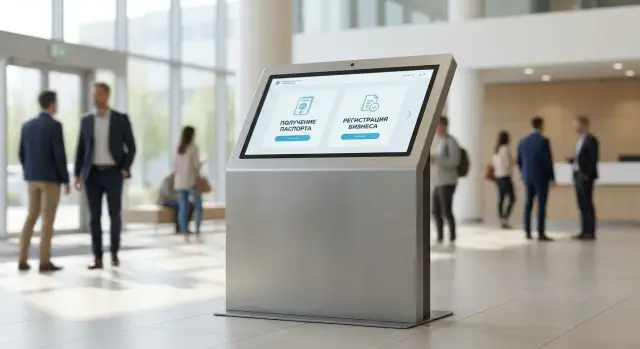
An info-kiosk in a government facility is not just a “computer with a screen” but a stable self-service point that relieves counters and reduces queues. It handles routine operations: finding information and services, filling out forms, payments, scheduling appointments, printing tickets and confirmations, and sometimes visitor identification.
When a device runs 10–12 hours a day (and in lobbies and public service centers often with almost no breaks), the demands on hardware and peripherals become stricter. What matters is not “peak specs” but resistance to continuous load: heat, dust, power fluctuations, frequent touchscreen use and thousands of print cycles. Even short freezes are perceived as “the kiosk is broken,” and people return to staff counters.
Self-service terminals differ from office PCs because they are placed in public areas, operate in kiosk mode with restricted system access, must respond quickly to simple actions (touches, scanning, printing) and be serviced through a service hatch without disassembling the whole enclosure on site.
Most downtime is caused by overheating (clogged filters, poor ventilation), power issues (low-quality PSU, mains spikes), peripheral wear (printer, scanner, reader), and damage to cables and connectors during frequent maintenance. Therefore, choose info-kiosks for public services as equipment for continuous operation: with clear service terms, fast repair and available spare parts. If local support is important, it’s easier to work with a manufacturer or integrator that has a service network and response procedures, for example GSE.kz.
First define the scenario and load
Before choosing an enclosure and hardware, describe the real scenario: who approaches the screen, what they do, how long one session lasts and where queues form most often. This quickly shows what matters most for you: fast form handling, reliable printing, scanner performance, or the simplest possible navigation.
Start with traffic. 30–50 users a day and 300–500 users a day are different tasks. Look not only at the number of screen touches but also at the number of prints (certificates, tickets), scans and payments. If the device prints about 200 receipts a day, that is already a load on the print head, consumables and requirements for quick paper replacement access.
Next, define the set of services:
- Appointment scheduling and obtaining certificates usually require fast response and stable data entry;
- Payments add requirements for peripherals and security;
- An electronic queue depends on printer reliability and a clear interface.
Check installation conditions. A kiosk by the entrance often operates in dusty drafty conditions and temperature swings. In a corridor it suffers more from crowds and accidental knocks. These factors determine cooling, screen protection and enclosure design.
A short list of questions for the specification:
- How many users and prints per day, and are there hourly peaks?
- What services will be available at launch and what will be added in 6–12 months?
- Where will the kiosk be placed and what are temperature, dust and vibration levels there?
- Who and how has access to ports, buttons and locks?
- Is offline operation necessary in case of network or power failures?
If the network occasionally drops, plan local caching and block USB access in advance. It’s better to fix these requirements before purchasing so you don’t overpay for unnecessary features and don’t face downtime due to underestimated load.
PC hardware: what matters for quick responsiveness
Users at a kiosk expect instant feedback: the screen must react without pauses, pages should not “think,” and ticket printing must not freeze. For public services this is critical: queues and irritation build up fast.
Choose the CPU according to the scenario. For informational pages, simple forms and ticket printing a basic modern CPU is often enough. But if there is video conferencing, heavy web pages, encryption, several concurrent services (browser, antivirus, monitoring agents), pick a configuration with headroom. That headroom is not for testing but for stable performance during peak hours.
RAM strongly affects interface smoothness. For a kiosk running a browser in a locked environment, 8 GB is a reasonable minimum. If multiple applications run simultaneously, large PDFs are opened, remote support is used or there are two displays, 16 GB usually eliminates most freezes.
Storage — only SSD. It’s important not just how many gigabytes but the write endurance: a kiosk constantly writes logs, cache and updates. Cheap SSDs often slow down or produce errors after a year. Prefer models rated for continuous load.
Graphics can usually be integrated. A discrete GPU is needed less often, for example for multiple screens, 4K or specialized visualization. Don’t forget networking: a fast PC won’t save you if the connection is unstable.
Before finalizing a configuration check:
- Wired network as primary, Wi‑Fi as backup (and LTE only for challenging sites);
- Auto-start of the kiosk application and fast recovery after reboot;
- Easy access to replace the SSD and clean components without disassembling the enclosure;
- Unified drivers and a system image for the entire batch of devices.
Extra 2–3 seconds per operation at peak times quickly become a queue. Extra CPU and RAM are often cheaper than downtime and regular engineer visits.
Reliability for continuous operation: heat and power
Two common reasons for random freezes in info-kiosks are overheating and power. It is easier to address them at the selection stage than to chase rare reboots that are hard to reproduce in the service center.
Choose cooling based on installation location. In a clean room at normal temperature passive cooling may be enough. But in a compact enclosure and with heavy traffic active cooling is safer. What matters is not the most powerful fan but a clear airflow path inside the enclosure and the absence of hot spots near the SSD and power supply.
Power is the other half of reliability. Use a quality PSU with headroom to handle peak loads (for example, when the printer feeds paper while an image from the scanner is processed). A weak or cheap PSU often supplies unstable voltages, causing failures without obvious reasons.
Plan the power protection chain in advance: correct grounding, surge protectors, an UPS for voltage drops, proper OS shutdown on UPS discharge, and auto-start of the application after power-up. A scheduled reboot (for example at night) often helps.
Also minimize moving parts inside the enclosure: sturdy connectors, secured and routed cables so they are not chafed or pulled during maintenance.
Touch sensor and display: readability and durability
The screen and touch sensor determine whether a person completes a task on the first try. In public services this is especially important: users vary, queues don’t wait, and the screen is touched constantly.
How to choose the type of touch sensor
Capacitive touch is most commonly selected: it is precise, responsive and familiar from smartphones. It’s a good option for indoor locations where users touch with bare fingers.
An IR sensor is useful where people often wear gloves (e.g., winter entrances) or when any object should work. However, IR frames collect dust and dirt, which can cause false touches. For high throughput sites plan regular cleaning.
For the display, readability is more important than record resolution. Check size, contrast, brightness and anti-glare coating. If there are windows or bright lights nearby, you need brightness headroom so text and buttons don’t “disappear” in reflections.
Also check protection: tempered glass, scratch resistance and clean edges. For scenarios with wet fingers (rain, sanitizers) or gloves, verify touch modes and sensitivity settings.
What to verify during acceptance
Before signing acceptance documents, request on-site tests:
- Readability under real lighting: no glare, colors don’t wash out;
- Edge accuracy: touches in corners register correctly;
- Operation with gloves and wet fingers: does the sensor respond in your scenario;
- Behavior when dirty: what happens after several fingerprints and how quickly it cleans;
- Conditions for replacing the glass and repair timelines.
Enclosure: security, convenience and serviceability
The enclosure protects internal components from people and the environment and makes maintenance fast. For a kiosk in a high-traffic area this matters as much as PC specs.
Steel with powder coating is the most common choice: it withstands impacts better, resists scratching and is easier to clean. Pay attention to edges and the front panel around the display: thin metal and weak mounts start to loosen over time, which increases the risk of sensor issues.
Security requires closed service compartments (key lock), hidden ports and power, and the ability to seal areas that must be monitored for tampering. Cables should not be accessible to visitors: route power and network through internal channels and secure them.
Ergonomics affects queues as much as speed. Check the display height and angle so it’s comfortable for standing users and people in wheelchairs. Card readers, ticket dispensers and the print slot should be in logical, reachable positions.
To prevent the enclosure from becoming a “thermos,” design ventilation: filters, clear ducts, access to fans for replacement, inspection points and a temperature sensor. Before purchase, ask to see how maintenance is performed: can a technician reach power, the PC and the printer within 10 minutes through the service hatch without full disassembly?
Peripherals: printing, scanning, identification
Peripherals solve half the kiosk problems. A fast terminal PC won’t help if the printer jams paper or the scanner gets dirty.
For printing tickets and receipts thermal printers are usually suitable: fast, quiet and inkless. An auto-cutter is essential; without it people will pull paper and break the mechanism. Check that the roll is replaced via the service door, without disassembling the enclosure.
Scanning typically falls into two scenarios: barcodes (from tickets, phones or documents) and full document scanning. For barcodes a 2D scanner with good omnivorous reading and dust protection is practical. For documents speed and a simple paper path matter: jams quickly turn into daily downtime.
Choose identification based on the real process. If the user only needs to find a service and take a ticket, a card reader and NFC are often unnecessary. If entry by ID or card is required, provide one clear and convenient method.
For a typical kiosk in a public service center a thermal printer with auto-cutter, a 2D scanner and an ID reader (only if truly needed) are usually enough. A camera and microphone are justified for video consultations; otherwise they are unnecessary risk points (configuration, privacy, failures).
During selection ask to demonstrate paper change and scanner cleaning in 2–3 minutes. If you deploy many kiosks, agree in advance on a spare module pool and replacement rules so modules are swapped as blocks without long on-site diagnostics.
Step-by-step plan for selection and deployment
To prevent a kiosk from becoming a “nice cabinet” that causes queues and freezes, start from the user actions at the screen rather than the hardware.
A practical plan:
- List services and actions (service search, authorization, payment, ticket printing, scanning) and immediately note required peripherals;
- Fix performance and downtime requirements: how many seconds a form must open, acceptable downtime and who monitors this;
- Select PC configuration and display for the hall conditions: lighting, dust, heat by the entrance, risk of impacts. In busy locations a stable response and a fast SSD matter more than the most powerful CPU;
- Plan power and placement: dedicated circuit, UPS, protection against accidental shutdowns, and convenient access for a service engineer;
- Run a pilot for 2–4 weeks and collect metrics: session time, number of freezes, number of receipts, peak hours and reasons users contacted an administrator.
Often the pilot reveals that issues aren’t the “weak PC” but a specific component: printer model, settings, consumables or inconvenient maintenance access.
If you deploy a network, fix repair and replacement procedures in advance. Where 24/7 service and uniform standards are critical, it’s easier to work with a manufacturer or systems integrator that can support a typical configuration across the network, such as GSE.kz.
Common mistakes in procurement and installation
The most expensive mistakes usually look like small omissions at procurement. The kiosk is launched, everything is fine for a week, then freezes, printer failures and screen complaints begin. For public services this is particularly painful: people queue and service windows stop.
Problems often arise because the kiosk was chosen like an ordinary office PC in a nice enclosure, without accounting for continuous operation and environmental conditions.
Typical mistakes:
- Using an office PC without accounting for heat and dust protection. Fans clog quickly, temperatures rise, throttling and reboots follow;
- Skimping on SSD and power. A cheap drive and weak PSU cause intermittent failures;
- Choosing a display without anti-glare. In a bright hall users see reflections and miss buttons;
- Not planning consumable servicing. If paper and modules are hard to access, the kiosk stands idle and staff waste time;
- Buying without a service plan and spare parts. Even reliable equipment can fail, and without spares downtime stretches out.
Before procurement decide who will service the network, where spare parts are stored and the response time for critical downtime.
Quick acceptance checklist before commissioning a kiosk
Acceptance is best done not on a bench but in conditions close to real use: bright light, foot traffic and continuous operation.
Request a test scenario that repeats typical actions: choose a service, enter data, scan a document and print a ticket or application. Then check key points and record results in the acceptance report:
- Display and touch: readability under maximum lighting, no flicker, corner accuracy;
- Printing and scanning: run a print series (at least 20 jobs), no jams, fast access to the roll and service area;
- Power and recovery: simulate a power outage and check how the kiosk returns to work (boot, auto-start, settings preservation);
- Temperature and stability: 1–2 hours of active operation with no gradual slowdown;
- Security: hidden ports, enclosure doesn’t open without a key, service doors don’t wobble.
If at least one item is unstable, fix it immediately rather than chasing rare faults at the working site.
Maintenance and support: avoiding downtime
Kiosk downtime in public services usually results from small things: paper runs out, a filter clogs, an app freezes, a connector loosens. Support should be a clear regimen, not just reacting to complaints.
A basic scheme: short inspections on a schedule (daily at high-traffic points and weekly at quieter locations) and an extended check monthly. Record not only “works/doesn’t work” but metrics: internal temperature, fan noise, touch sensor and glass condition, print quality, application errors and consumable levels.
Remote monitoring saves time: an operator sees kiosk network status and can act before a queue forms. Track device availability, restarts, disk fill level, application errors, network health and paper remaining (if the printer can report it).
Divide spare parts into two levels. Keep on-site what most often stops operation: paper, power and network cables, scanner consumables, fasteners. In the warehouse keep a full printer module, PSUs, fans, storage drives and one or two standard PC modules matching your configuration.
Agree in advance what counts as critical downtime (for example “cannot print a ticket” or “kiosk unavailable for more than 30 minutes during working hours”). Reduce downtime with remote restarts, quick module swaps, clear instructions for the site administrator and 24/7 support for key locations.
For large networks standardize models and modules: it’s easier to keep spares and train technicians. When fast on-site replacement is needed across Kazakhstan, consider suppliers with their own service network, such as GSE.kz.
Next steps: from pilot to a stable kiosk network
Once you understand scenarios and load, don’t buy a different device for every site. Usually 1–2 standard configurations are enough: a basic one for small branches and a reinforced one for busy locations.
Then run a pilot. Deploy 2–5 kiosks in different conditions (for example a busy public service center, a clinic, and a local administration office) and collect data for 2–4 weeks: response times, frequent causes of downtime, user complaints, paper consumption and network quality.
To prevent the pilot from becoming a lottery, fix the organization of work in advance: delivery and installation, connecting to networks and services, local responsible persons, maintenance procedures and reaction times, short staff training and a spare list.
Simultaneously plan scaling: identical settings, identical system images, identical mounts and consumables. When the pilot proves stable, finalize the specification and roll out in batches, checking quality at each wave of installation.
Frequently asked questions
What is the minimum PC configuration for a public-service info-kiosk?
Focus on stable responsiveness for your scenario, not raw power. For simple forms and printing a modern basic CPU, 8 GB of RAM and an SSD are usually enough. If there are heavy web pages, encryption, multiple services or monitoring agents, choose extra CPU and memory to avoid freezes at peak times.
Why is 24/7 operation so critical for an info-kiosk?
24/7 matters not only because of hours of operation but because components must endure continuous load. Constant use exposes weak points in cooling, power, SSDs and peripherals faster than occasional use, so equipment and service should be designed for long-term operation, not office schedules.
What causes kiosks to freeze and reboot most often?
Most random freezes come from overheating and unstable power. At the selection stage check for proper airflow in the enclosure, filters and ease of cleaning, and for power — a quality PSU with headroom, correct grounding and surge protection, and an UPS if needed.
Which SSD is best for a self-service terminal?
Choose an SSD built for continuous writes, because the kiosk constantly writes logs, cache and updates. Cheap drives tend to slow down and produce errors over time. Pick a more durable model from the start and make sure it can be replaced without fully disassembling the enclosure.
Which is better: capacitive touch or an IR frame?
An integrated capacitive touch is the usual choice indoors: it is accurate and familiar to users. If many users wear gloves or the kiosk is outdoors in winter, an IR frame may be more convenient, but it requires regular cleaning since the sensor frame accumulates dust and can cause false touches.
What screen characteristics are important in a bright hall?
Prioritize readability rather than maximum resolution: brightness, contrast and an anti-glare coating matter most. In a hall with windows or strong light, a display without anti-glare will reflect and make users miss buttons, which immediately slows down the line.
Which printer is best for electronic queue tickets?
Thermal printers with an auto-cutter are usually best for queue tickets and receipts. Make sure paper replacement is possible through the service door in a couple of minutes—otherwise an empty roll becomes a cause of downtime and queues.
What is important in a kiosk enclosure for security and serviceability?
Closed service compartments and hidden ports prevent visitors from cutting power or inserting USB devices. The enclosure should let a technician quickly access the printer, power and PC module through a service hatch without lengthy on-site disassembly.
How to write a specification and avoid procurement mistakes?
Start from numbers: users per day, prints and scans, peak hours and installation conditions. Then run a 2–4 week pilot and collect facts about downtime and responsiveness—often the issue is not the PC but a specific printer model, consumables or settings.
How to organize kiosk maintenance to avoid downtime?
Maintain a clear regimen: regular inspections, filter cleaning, temperature checks, print quality verification and peripheral condition monitoring, plus remote monitoring of availability, disk space and restarts. For critical sites agree in advance what counts as an emergency, response times and a pool of spare modules; when needed, work with a manufacturer or integrator with a service network across Kazakhstan, such as GSE.kz.
