8 min read
Incoming Inspection Checklist for PCs and Servers During Batch Acceptance
Incoming inspection checklist for PCs and servers: what to check when receiving a batch so you catch defects before shipping to branches and avoid launch delays.
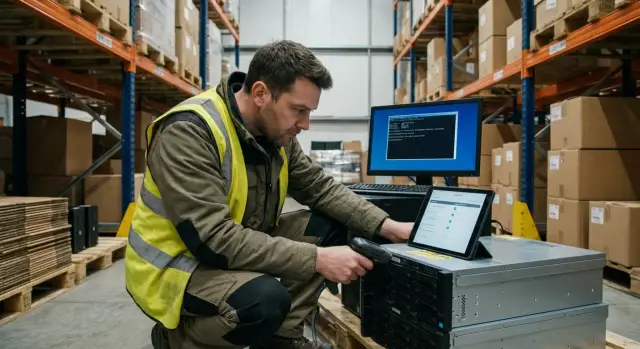
What are acceptance tests and why they matter
Acceptance tests (incoming inspection) are quick checks performed when receiving a batch of PCs and servers, before the equipment reaches users or is shipped to branches. It's not about mistrusting the supplier. In mass deliveries there is always a risk of mistakes or damage, and the cost of missing a problem is usually much higher than spending 10–20 minutes on a check.
Even from a reliable manufacturer or integrator you can find mis-sorted configurations, transit damage, missing items or hidden defects (for example, intermittent memory or overheating). The worst problems appear after devices have been distributed: two PCs lack the required video output, a server doesn't see its second drive, or three power supplies are noisy and go into protection. Instead of a smooth rollout, you end up with reports, returns and downtime.
A good incoming inspection has two goals: quickly filter out obvious defects and record facts (serial numbers, kit contents, condition) for warranty claims. This is especially important for public sector and large organizations where traceability and specification compliance are critical.
You usually get the best result with four quick steps: verify model and key specs against documents, visually inspect the case and completeness, power on briefly to check basic devices (disk, network, video), then run a short load and monitor temperatures to catch instability before shipping to branches.
Preparation: people, documents, tools
Acceptance doesn’t start with tests but with agreements. Assign a responsible person and decide in advance who signs the results. Typically involved are warehouse (receiving and storage), IT (checks and initial setup), procurement (contract verification) and security (seals, inventory, access to storage). If the batch will be shipped onward, add someone responsible for packing and labeling.
On the paperwork side the goal is simple: for each unit it must be clear what arrived and what was checked. Prepare delivery notes, the contract specification, warranty documents and a template for a nonconformance report. This is especially helpful for mixed shipments or multiple configurations in one batch.
Set up the test bench before starting. Usually you need tools for opening and a basic inspection (screwdriver set, flashlight), materials for marking (inspection stickers or seals), and simple instruments for consistent measurements: a thermometer (preferably with IR mode) and, if available, a sound level meter. If you don’t have a sound meter, agree on a single measurement point (same distance and location).
To avoid improvisation, prepare tested utilities: one USB stick with tools, separate test accounts and short report templates. If you accept PCs and servers for a government body, agree in advance on practical details: required OS language, how serials are recorded, where photos of damage are stored, so problematic devices don’t leave "by inertia."
A “receiving folder” helps: the defect report form, a table for serial numbers, the test checklist and a final decision form (accepted, to be completed, quarantine/warranty).
Inspecting packaging and transit damage
Inspect before opening. The goal is to determine whether equipment may have been damaged in transit and to document it so there are no later disputes. This step takes 2–3 minutes but can save days of investigation.
Start with pallets and boxes: check pallet stability, intact strapping, signs of drops (crushed corners, punctures, torn cardboard), moisture (waviness, stains, musty smell), and tampering (broken seals, signs of re-taping). Then match the labeling on each package to the delivery note and specification: model, number of packages, batch numbers, recipient address.
Take photos before unpacking, not after. Usually 3–5 shots per suspicious package are enough: the pallet overall, a close-up of damage, the label and transport sticker, the seal, and a photo of the contents immediately after opening (before moving anything).
Stop acceptance or place the shipment into quarantine if you find any clear sign: ruptured packaging or severe deformation, water/condensation/mildew, torn seals or evidence of opening, mismatch in the number of packages, or mis-sorting by labeling (wrong model or recipient).
If you find damage, don’t automatically open the other boxes. Mark problem packages separately, create a report with a short description, attach photos and coordinate next steps with the supplier and carrier: replacement, additional inspection or return. That way defects won’t be shipped to branches under the pretext "we accepted it because we were in a hurry."
Visual inspection of devices and completeness
Do the visual inspection right after opening the box, before powering the device. This is the fastest way to notice transit damage and signs of tampering.
Start with the chassis. Run your hand over edges and corners: chips and dents often hide on seams. Check lid fit, crooked feet, uneven gaps between panels. For servers, check handles, rails, rack ears and the front panel—small bends can prevent rack installation later.
Inspect ports. Connectors should not wobble, be recessed irregularly or have bent pins. Network and front USB ports and workstation video outputs are frequent trouble spots. The power connector should sit squarely and firmly.
Seals and warranty stickers should be intact. Signs of opening are visible as shifted stickers, torn tape, stripped screws or scratches near fasteners. If in doubt, quarantine the unit and document with photos.
Do a brief completeness check. Usually check the power cable (and external PSU if provided), any advertised video cables or adapters, rack mounting hardware (rails, ears for servers), documentation and warranty papers, and accessories from the spec (e.g., Wi‑Fi antennas).
A practical tip: when shipping devices to branches, mark boxes "complete/incomplete" and don’t mix accessories between units. One missing cable often shows up only at the branch when there’s no time to sort it out.
Serial numbers and spec compliance
Serial numbers protect against mis-sorting and disputes. A typo can send the wrong device to a branch and break the warranty history. A triple check is standard: box, chassis and BIOS/UEFI (or OS).
Start simple: compare the serial on the box label and on the chassis (sticker on the back, badge, or chassis tray). Then power on and check the serial in BIOS/UEFI. If the serial appears differently or is missing, record a nonconformance even if the device boots.
Next, verify the spec. Cross-check the parts that most often vary in builds and deliveries: CPU model, total RAM and number of modules, disk type and capacity. For servers, confirm RAID presence and mode (if claimed) and the number of network ports. For strict procurement specs this is critical—regardless of whether the batch is from an international brand or a local maker.
If you find a discrepancy, don’t try to fix it on site. Isolate the unit (separate area, “quarantine” label), create a report with photos of the labels and screenshots from BIOS/OS, and stop shipment of that unit.
Maintain a registry—scanning barcodes helps. Minimum fields: receiving date and delivery note number, model and serial (box/chassis/BIOS), main specs (CPU, RAM, disks, RAID if present), status (ok/quarantine) and destination (warehouse/branch/project).
Example: if you’re shipping to two branches and a server’s box serial doesn’t match the chassis, catching it immediately prevents a failed rollout at the branch and searching for a “lost” server along the delivery route.
Initial power-on and basic settings check
This step takes a few minutes but often catches hidden faults before devices are shipped. The idea is simple: verify the device boots reliably and shows no hardware errors.
Use a consistent sequence for every device to reduce missed checks.
- Power on and confirm POST completes without errors (messages on screen, indicator codes, no boot loops).
- Listen for clicks, grinding, or loud coil whine. Fans should spin up and settle into normal speeds.
- Enter BIOS/UEFI: check date/time, boot mode (as required by your standard image), boot order, virtualization settings (if needed), and TPM status (if required by security policies).
- Ensure all drives are visible. Quickly check SMART (errors, reallocated sectors). Surface testing is best done on a sample, especially for large batches.
If you accept office PCs and servers in one delivery, ensure base settings match your standard. Otherwise you’ll end up with different images, policies and extra support calls.
Typical quarantine triggers: hangs during boot or in BIOS/UEFI, spontaneous reboots, memory errors, repeated SMART failures or missing drives, and persistent hardware warnings unexplained by settings. Record all results: serial, test date, observed issue and at which step it occurred.
Interface checks: network, USB, video
Good external condition doesn’t guarantee ports work. Spend 5–10 minutes on interfaces rather than chasing intermittent faults at branches.
Network (Ethernet)
Verify the link comes up quickly and stays stable. Plug into a working switch and confirm the system sees the connection and gets an address (DHCP) or applies a static IP correctly.
If multiple ports exist, test at least two. A common mistake is checking only one port while another is dead or unstable. For speed, confirm the connection reports the claimed speed (1 Gbit/s or as specified). Then run a short stability check: 2–3 minutes of active traffic (copy a large file over the network or continuous ping) with no packet loss.
USB, video and audio
For USB, test read and write with a simple flash drive. Also check power delivery so a mouse or flash drive doesn’t disconnect when the connector is wiggled.
Test video with a known-good monitor and cable. If the model has HDMI and DP, test both (VGA only if it’s actually required). Watch for artifacts, flicker or signal loss when moving the cable.
If audio matters, plug in headphones and check for crackle and that the microphone is detected.
Minimum per device: network (link, speed, 2–3 minutes stability), USB (read/write and power), video (each required output), audio (if needed) and a quick recheck after reboot.
A practical tip: keep one “reference” monitor and cable at the bench. Disputed cases are easy to reproduce and document while the unit is still in storage.
Stress tests: what to run and for how long
A stress test reveals hidden defects before shipping: flaky RAM, overheating, disk failures or power issues. Split checks into quick tests (for 100% of units) and extended tests (for samples).
Typically you use two modes. For full acceptance a short run that finds obvious faults is enough. For sampling run longer tests to catch rarer failures.
Guidelines:
- CPU and memory: 10–15 minutes per device for 100% checks, 45–90 minutes for sampling (especially for new models or long shipments).
- Disk: 5–10 minutes of quick read/write plus SMART. Be cautious if you see errors, sudden speed drops or high disk temperatures.
- Servers: confirm all fans spin, sensors report reasonable values, RAID/controller sees each drive. For dual-PSU systems, unplug one PSU at a time and confirm the system holds the load.
To avoid overheating the test area, test in small batches of 2–4 devices, leave air gaps, limit power on a single circuit and label outlets. If room temperature rises, pause 5–10 minutes between batches.
Noise and temperatures: quick checks without a lab
Noise and overheating often don’t show up visually but later trigger complaints from branches: “it hums,” “it squeals,” “it reboots.” A quick check of a few minutes helps catch bad fans, PSUs and assembly issues.
Measure noise consistently: quiet room, closed doors, same listening distance (50–70 cm). Having a reference unit of the same model is useful so you compare to a norm rather than expectations.
Check temperatures via BIOS/UEFI sensors or vendor utilities. Be suspicious if temperatures climb quickly under mild load, if one sensor is an outlier, or if fans constantly ramp up and down.
Short test routine:
- 5–10 minutes idle: record noise and temperatures.
- 10–15 minutes under load: watch for spikes, throttling and odd fan behavior.
- Listen for whine, crackle or vibrations.
- After stopping the load, ensure temperatures drop steadily.
If you see anomalies, repeat the test in a different location and with a different power cable (sometimes a filter or contact is at fault). Then decide: tighten mountings, replace a fan or PSU, or file a return/replacement claim. Mark such units immediately so they don’t go out with the good ones.
Sampling strategy: how not to test everything deeply
Testing every unit deeply in a large shipment is time-consuming and costly. Sampling helps catch systemic defects without a marathon of tests. Define in the procedure what everyone gets checked and what is only sampled.
How to choose the percent for deeper testing (AQL, simply put)
Higher risk and higher cost of failure means larger samples. For typical office PCs, 5–10% deep testing is often enough if basic checks cover 100% of units. For servers and critical workstations, 10–20% is more reasonable since downtime is costly.
If sampling shows repeated defects (e.g., unstable network on the same port or identical fan noise), double the sample size. If the defect is confirmed, stop shipments and move to 100% inspection.
When to test 100%
Full inspection is justified for a new model, the first delivery from a new supplier, signs of transport problems, or when devices are going to critical units (medical, finance, government). Also do 100% when return from branches would take longer and cost more than one extra day of acceptance.
Keep a “golden sample”: a unit that passed all tests and is considered the standard for noise, temperatures, ports and settings.
Mark tested units immediately: an “OK” sticker with date and inspector name, sealing if necessary, and a record in the registry with the serial and test level (basic or deep).
Common mistakes during acceptance and how to avoid them
The costliest mistake is accepting a batch “on paper” without inspecting the boxes. A dented package often means impact to the chassis, board or drive mounts. Simple rule: document packaging and seals first, then sign.
Second trap: serial numbers. The number on the label may not match what BIOS or the OS reports (after a board swap or mis-sorting). If you don’t check immediately, inventory, warranty and branch assignment get confused. Minimum: record chassis sticker, box and BIOS/OS serials and log them.
Another frequent issue is only testing power-on. A device may boot but fail under load (memory, power, cooling). Run a short stress test and check network and video so defects don’t travel to a branch and halt operations.
A clear workflow helps: separate warehouse zones into “not inspected,” “in testing,” and “inspected” and don’t mix them; take photos of defects and screens, save logs; use one report template for all models; in disputes rely on timestamps, serials and evidence rather than memory.
Example: if you only checked power-on and later machines drop network under load, catching serials and running a short port test during acceptance would have found the issue at the warehouse, not in another city.
Short checklist: 15 minutes per device
This short checklist helps quickly filter out obvious defects so they don’t leave for installation.
Minimum run per unit (about 15 minutes):
- 0–3 min: inspect chassis and ports, seals (if any), verify all cables and accessories per delivery note.
- 3–6 min: power on, enter BIOS/UEFI, check date/time, RAM and drive capacity, and absence of startup errors.
- 6–9 min: network check (link, IP assignment, quick data exchange on the LAN).
- 9–12 min: video check (correct resolution, no artifacts), test major ports.
- 12–15 min: USB test (read/write on a flash drive), audio (if required), quick reboot check.
Then add sampling: for some units run CPU/RAM stress, a quick disk test, and record temperatures and noise. This catches hidden defects without running long tests on the entire batch.
Send a device to quarantine if you find any of these:
- serial, model or configuration mismatch with the spec
- errors on boot, random reboots, hangs
- unstable network, nonworking USB/video ports
- loud foreign noises, strong vibration, smell of burning
- temperatures noticeably above normal during a short load
Keep the report template short: status (fit, quarantine, return), reason (one line), inspector, date and serial number.
Example: accepting a batch before shipping to branches
Batch: 50 PCs and 10 servers for 5 branches. The goal is to catch defects in 2 days and not send problematic devices into the field. Create a simple table in advance: model, serial, destination branch, test status, comment.
Day 1 is usually for the warehouse. Their role is to stop anything that looks suspicious from leaving: dented packaging, signs of impact, missing cables, mismatched seals. After that devices move to IT as “conditionally acceptable.”
Day 2 is IT testing with a single short scenario so every inspector follows the same flow. A practical setup is two lines: one team checks PCs (power-on, network, USB, video), the other checks servers (controllers, network, disks, basic stress). Anything with errors goes immediately to quarantine, not back into the “ready to ship” pile.
Before repackaging, label boxes per branch: a sticker with branch and inventory number, an “inspected” mark with date and signature, an included packing list, and a separate mark “quarantine/replacement” for problematic units.
Give management a short report: how many tested, defect rate, 3–5 most common causes and photos of damage/nonconformance as evidence for the supplier or support team.
Next steps: institutionalize the process and reduce downtime
After acceptance it’s important not to simply release the batch but to lock in the result so defects don’t reach branches and replacements aren’t delayed. The clearest approach is to split flow into “fit,” “under question” and “quarantine.”
Quarantine and returns: document to avoid disputes
For any device with doubts, allocate a separate storage area and forbid issuance until a decision is made. For each case collect a short evidence package to speed replacements and protect you during any internal review.
Usually enough: photos of packaging and device (dents, seals, ports), serial number and model tied to the delivery note, a plain description of the symptom (when it appears and how to reproduce), test results (e.g., "network doesn’t come up", "USB doesn’t see the flash drive"), and the nonconformance report with date and signature.
Example: if a server fails a stress test by overheating in 10 minutes, record temperature and conditions (rack/table, closed door, fan speeds) so the problem can’t later be blamed on "incorrect installation."
Making acceptance routine
To prevent the process depending on a single experienced engineer, formalize it: roles (who checks, who decides, who talks to the supplier), report templates and short training on common defects.
Agree acceptance criteria and handling of defects with the supplier in advance: how a defect is confirmed, which documents are needed, what is critical, and how exchanges are handled.
If you buy equipment and infrastructure as a package, it can be easier when the manufacturer and integrator handle not only delivery but also commissioning and support. For example, GSE.kz (gse.kz) as a manufacturer and system integrator in Kazakhstan works with PCs, servers and system integration and provides 24/7 support, which reduces downtime risk when a batch is distributed across branches.
Frequently asked questions
Is it necessary to do incoming inspection if the supplier is trusted?
Incoming inspection is worth doing almost always, even with a trusted supplier. Ten to twenty minutes per device is usually cheaper than downtime and returns once equipment is already distributed to branches.
What should I check first on boxes and pallets when receiving a batch?
At minimum, document the condition of packaging before opening: crushed corners, punctures, signs of water, resealing, intact seals and correspondence of labels to the delivery note. Mark suspicious items and do not forward them without a separate decision.
How to properly document damage so there are no disputes later?
Take several photos before unpacking and right after opening, before moving anything. In the report briefly state what is wrong, include package numbers, labels and serial numbers so it’s clear when and where the defect appeared.
Why is it important to check serial numbers in three places?
Compare the serial number on the box, on the chassis and in BIOS/UEFI (or the OS). If the number differs or is missing in any place, register it as a discrepancy and don’t ship the device even if it powers on and seems to work.
Which characteristics most often differ from the spec and should be checked first?
Check the items that most often vary: CPU model, total RAM and number of modules, disk type and capacity, number of network ports and required video outputs. For servers also confirm that the controller sees all disks and the declared RAID is actually configured.
What startup and BIOS/UEFI signs are grounds for quarantine?
Follow the same sequence: power on, ensure POST completes without errors, enter BIOS/UEFI and verify memory and disks are visible. Warning signs include boot loops, memory errors, disappearing drives and recurring hardware alerts.
How to quickly test network, USB and video so floating defects aren’t missed?
Check the network not only for link presence but for stability: a couple of minutes of active traffic without losses, and test at least two ports if available. For USB, test file read/write and power; for video, test each required output with a known-good monitor and cable.
How much time is realistically enough for stress tests during batch acceptance?
For 100% of devices a short CPU/memory load of 10–15 minutes plus quick disk checks and SMART is usually sufficient. Longer runs of 45–90 minutes are better for sampling; for servers, also test power redundancy if dual PSUs are present.
How to assess overheating or excessive noise without a lab?
Compare noise and temperatures under the same conditions: same location, same distance, quiet room, and ideally a reference unit of the same model. Signs of trouble include temperatures rising quickly under modest load, chaotic fan behavior, and audible whine, crackle or vibration.
How to organize sampling inspection and when to move to 100% testing?
Do a basic check for all units and deeper tests on a sample: 5–10% for typical office PCs, 10–20% for servers and critical workstations. If the sample reveals a repeated defect, increase testing and pause shipments until the issue is resolved; for complex deliveries, agree acceptance criteria with the integrator or manufacturer (for example, GSE.kz).
