8 min read
HPE ProLiant ML350 Gen11 for Branch Offices: Choosing the Right Configuration
HPE ProLiant ML350 Gen11 for branch offices: how to choose a configuration for operation without an admin, with remote management, fast service and minimal on-site spares.
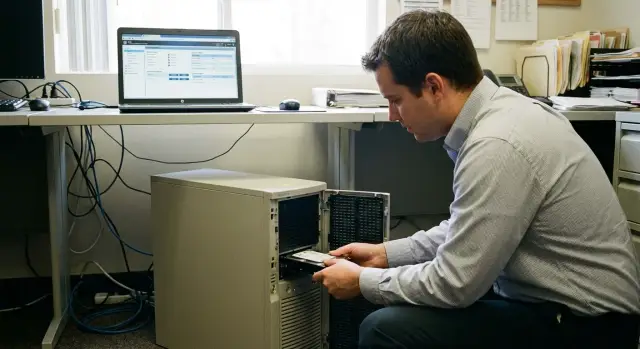
What a branch without a full-time admin actually needs
Organizations choose the HPE ProLiant ML350 Gen11 for a branch not for peak performance but for predictability. If there’s no admin on site, the server must operate so that most problems are solved by following instructions and without complex local tuning.
The principle is simple: anything that can fail should either be fixed remotely or replaced by one person in 10–15 minutes. The fewer unique parts and manual actions required, the less downtime.
In small offices it’s rarely the CPUs or RAM that fail first — it’s consumables and power. Typical problem sources: drives (errors, RAID degradation, wrong drive pulled), power supplies (outages, aging, bad sockets), fans (dust, noise, overheating), cables and connectors, and human error.
Success for a branch is simple to measure: service is restored quickly and the on-site person only swapped a module. The ideal flow: you see a problem in the remote console, prepare a clear instruction, and the staff on site replace the correct drive or PSU without risk of mixing things up.
There are always limits: the internet connection can be unstable, there may be no rack (server sits in a closet or under a desk), and UPSs are often consumer-grade and misconfigured. Therefore, configuration and support should emphasize clear front-panel indicators, hot-swap for key components, uniform parts, and as few "special cases" as possible that require a field visit.
First gather basic inputs so you don’t overpay
Buying an HPE ProLiant ML350 Gen11 for a branch begins not with CPU and disks but with answers to basic questions. Skip these and you’ll usually overpay for unused capacity or under-provision essential elements that later stop operations.
Start by defining the server roles. The same branch might only need a file server, or it might require 1C with a database, a domain controller and a couple of VMs. This affects not only CPU and RAM but also how you will do backups and updates remotely.
Estimate users and growth for 2–3 years. You don’t need exact calculations — just the order of magnitude: how many users are active concurrently and what workloads will be added. A common mistake is to pick a configuration that’s "tight" for today and run out of RAM within a year.
Also decide what downtime is acceptable. If the branch can tolerate 4–6 hours, one approach fits. If even an hour is critical (cash desks, patient intake, classes), prioritize fault tolerance and fast replacements.
Collect inputs in a single email or form:
- Which services will run now and in a year (files, 1C/DB, AD, virtualization)
- Number of users and how many are "heavy" users
- Acceptable downtime and who on site can press the power button
- Backup retention and where backups are stored
- Office conditions: power quality, UPS, temperature, cabinet and access
Example: a branch of 25 people running 1C and a shared drive. The office manager can replace a disk but not handle RAID. In this case, it’s more important to document rules up front (what counts as failure, who to call, which module to remove) than to chase maximum performance.
Load scenario: single server or multiple roles
For a branch without an admin the main choice is simple: run one OS on bare metal or use virtualization and split services into VMs.
If the branch has one key service (for example, file sharing and printing) and downtime tolerance is lenient, a single OS is often easier and faster to recover.
If you need 2–4 distinct roles (domain controller, file server, small 1C DB, RDS for a few users, local cache, CCTV), virtualization is usually safer. If one VM fails, others often keep running, and updates and migrations become simpler. For the HPE ProLiant ML350 Gen11 in a branch this is often the most practical option, provided remote management is available.
Think about how many VMs will be active, not how many you can technically host. A typical branch ends up with 2–3 VMs plus one small service VM (monitoring, backup, jump-host). Each extra VM usually means more memory.
Memory runs out most often. Disks can be replaced, CPUs usually cope, but lack of RAM causes slowdowns and odd behavior. Allow headroom for growth, updates and caching.
When to simplify: keep one primary service and one fallback role.
- Primary: domain controller + DNS/DHCP (or reversed if policy demands)
- Primary: file server
- Backup: a second DC or a small emergency-access service
- Everything else: move to the head office or cloud if possible
- Any heavy workload: only if you have a clear recovery plan
Example: a branch with 15 staff uses 1C remotely via terminal services from the head office. Locally you only need a DC + file server; don’t bring extra services to a site where an office manager will replace hardware.
Remote management: what must be set from day one
If the branch has no dedicated admin, remote management is not optional — it’s essential. For the HPE ProLiant ML350 Gen11 this primarily means iLO: remote console, power control, hardware monitoring and access to logs when the OS won’t boot.
iLO access and management network
A common reason "we can’t connect" is iLO placed in the same network as user PCs without clear access rules. Agree in advance where admins will connect from (VPN, dedicated gateway, office service desk) and who manages access.
Practical minimum at startup:
- Dedicate a port or separate management network and restrict access
- Enable secure settings (strong passwords, firmware updates, disable unnecessary accounts)
- Create 2–3 roles: viewer, operator (reboot), admin (used rarely)
- Enable audit logging so it’s clear who did what
Alerts and operations without a visit
iLO pays off when events come to you rather than waiting for the branch to complain. Configure alerts by email or into the service desk for critical events: RAID degradation, disk failure, overheating, fan error, PSU failure.
Then define which tasks should be done remotely: reboot, enter BIOS, check hardware errors, run diagnostics, schedule firmware updates.
Example: the office manager reports "server is unresponsive." You check power via iLO, see a disk error, put the system into safe mode and prepare the replacement without an urgent trip.
If an integrator supports the project, make iLO access, roles and alerts a mandatory part of acceptance, not a "do later" item. In Kazakhstan such work and 24/7 support, including a service network, is provided by GSE.kz (gse.kz).
Drives and RAID: aim for easy replacement and clear rules
For a branch without a full-time admin it’s important that drives can be swapped in minutes and without guessing. In the HPE ProLiant ML350 Gen11 configuration for a branch, choose hot-swap drive bays and a controller that supports the chosen RAID and reports drive status remotely.
Pick RAID based on downtime risk, not habit. RAID 1 is suitable for small volumes and simplest logic. RAID 5 gives more usable space, but rebuilds take longer and risk is higher on large volumes. RAID 6 tolerates two disk failures and is often calmer for remote offices. RAID 10 is fast and reliable but needs more disks.
Separate system and data so a single failure isn’t catastrophic. At minimum: separate array or volume for the OS and another for working data. Don’t keep backups on the same array as the live data — a logical error or ransomware can destroy both.
To make replacement straightforward, set rules and labeling in advance:
- Number slots on a sticker inside the front door and in a short instruction
- Use identical model and capacity disks in the same RAID, avoid mixing
- Define the threshold at which a disk is considered failed and must be changed
- Define who confirms the replacement and who monitors rebuild remotely
- Define what to do with the removed disk (packaging, labeling, storage)
Example: iLO sends an alert about a disk in bay 3. The office manager finds the sticker "3", pulls only that drive and inserts a prepared spare of the same model. They don’t press any buttons; the engineer checks remotely that the RAID rebuild started and is progressing without errors.
Power, PSUs and UPS: make replacements safe and simple
For a branch without an admin, power is often more important than extra CPU cores. A well-chosen HPE ProLiant ML350 Gen11 won’t help if the server suddenly loses power due to supply dips or if replacing a PSU involves tangled cables.
One or two PSUs
Two PSUs (N+1) are almost always justified: if one fails the server keeps running and you can replace it during business hours. One PSU makes sense only when downtime is acceptable and services are non-critical.
Typically:
- 2 PSUs: runs files, accounting, telephony, domain controllers, VMs
- 1 PSU: test bench or secondary role with a planned downtime window
Hot-swap PSUs and clear instructions
Hot-swap PSUs let on-site personnel replace a unit without powering down. In a branch this should be a simple set of steps: which PSU to remove, which cable to reinsert, and how to confirm the remaining PSU is handling the load.
Label PSUs in advance (for example, PSU1 left, PSU2 right) and number power cables. The fewer "where did this plug go" questions, the faster the recovery.
UPS and wiring
UPS is needed not only to avoid shutdowns but to ride out short dips and let the server shut down properly on long outages. Avoid extension cords and adapters. Ideally the UPS has the correct outlets for your cables and the cables are standard and identical.
Practical setup: each PSU on its own circuit. If there is one UPS in the branch, at minimum connect one PSU and the network equipment (router, switch) so remote access does not drop first.
Noise and placement
If the server is in a workspace, check noise under load and ensure ventilation. A common mistake is placing a tower in a closed cabinet with no airflow. Fans ramp up, noise becomes an issue, and overheating raises failure risk.
Example: an office manager sees PSU2 indicator off. Following a printed instruction, they remove PSU2 only, insert the spare and reattach the cable labeled PSU2. The server keeps running while you investigate the PSU failure remotely.
Minimal on-site spare parts: what to keep and what not to
For a remote office the goal is not a warehouse of parts but exactly what helps survive common failures until an engineer arrives. For the HPE ProLiant ML350 Gen11 in branches, failures are usually not motherboards but quickly replaceable parts: drives, PSUs, sometimes fans.
A practical minimum that truly reduces downtime:
- 1–2 compatible drives of the same model and capacity used in the array
- 1 power supply if the server is redundant and same-day on-site service is not guaranteed
- 1 fan spare for distant branches or harsh conditions (dust, heat)
- drive rails and a couple of spare screws
- 2–3 patch cords and labeled cable markers
Standardize compatibility. The best rule for a network of branches is one disk model and one type of drive bay everywhere. Then a spare from any office fits any other, and remote support can give identical instructions.
Store spares properly. Don’t keep discs in a desk drawer. Keep them in factory anti-static packaging, in a closed cabinet away from heaters and windows. Keep a simple log: what’s stored, where, when placed, serial numbers.
Simple example: a disk degrades and support sees it via iLO. The office manager opens the front bay, pulls the disk labeled "Bay 3", inserts the spare of the same model and the server starts RAID rebuild automatically.
Sometimes it’s better not to keep spares on-site except drives. If you have a service with a clear SLA and fast on-site response, spare PSUs and fans may be unnecessary. In Kazakhstan this is often solved by a centralized warehouse and service network from an integrator, so branches don’t store expensive parts or lose them in inventory.
Step-by-step configuration selection for a branch
When there’s no on-site admin, build the configuration not for maximum specs but by rules: it should be serviceable remotely and any responsible person should be able to replace hardware by a short instruction. The order below works well for HPE ProLiant ML350 Gen11 in branch scenarios.
First, lock in roles and acceptable downtime. A server that is DC, file server and virtualization host requires higher availability. Simple rule: the more costly the downtime, the more sense in redundant power and disks.
Next, choose compute with a small margin. One CPU is often enough if workloads are light and there’s no heavy analytics. Be more conservative with memory: it’s easier to add RAM now with a little headroom than to chase performance and organize on-site upgrades later.
Follow these steps:
- Describe services and target downtime (e.g., mail can wait, cash register cannot)
- Choose CPU and RAM with headroom for growth and updates
- Design disks: separate OS and data volumes and a clear RAID plan
- Decide on power and remote management: two PSUs, UPS, configured iLO and alerts
- Fix a standard and repeat it across branches to avoid special cases
For branch disks prefer hot-swap and identical models. A common pattern: RAID1 SSDs for the OS and a separate array for data on identical HDDs or SSDs.
Example: the accountant sees a red disk LED. They check the slot number, photograph it, pull the drive by the handle and insert the spare. You verify via iLO that rebuild started and close the incident without a field visit.
Write one-page procedures for drive and PSU replacement in simple language: what to press, which indicator means failure, who to call, and what not to do (for example, don’t pull the second drive in a RAID1 pair).
Common mistakes that cause branch downtime
The main reason branches without admins experience downtime is not the failure itself but decisions at the start that make maintenance long and stressful.
Mistake 1: "We’ll save on RAM and add later"
Buying a server with minimal RAM often leads to performance problems within months. Expansion can require matching modules or free slots that aren’t available, forcing on-site work and downtime.
Mistake 2: Drives "as available", no rules or labeling
Mixing different drive models, capacities and batches without rules increases the risk of array degradation and replacement errors. Without simple "Disk 1–8" stickers and a record of which drive sits in which bay, an on-site person can easily pull the wrong disk.
Mistake 3: backups exist but nobody tested recovery
Backups can be taken for years but upon actual failure you may find recovery doesn’t work, takes days or misses needed data. Minimum — run one test restore after initial setup and after major changes.
Mistake 4: alerts and remote access are not configured
When alerts about RAID degradation, overheating, PSU errors or disk fullness don’t reach the right people, the problem is noticed only after downtime. For a branch it’s vital that iLO is configured immediately: access, events, alert recipients and a clear on-call scheme.
Mistake 5: no short instruction for the on-site person
If replacements are done by an office manager or a technician who isn’t a server specialist, they need a one-page checklist: what to press, what not to touch, which indicators to photograph and report.
Useful minimum for the instruction:
- photo of the front panel with labeled drive bays and PSUs
- support message template (serial number, indicator photos, event time)
- rule "one action at a time" (replace a drive and wait for rebuild; don’t remove others)
- where spares are stored and how to verify compatibility
Quick checklist before shipping to a branch
Before sending an HPE ProLiant ML350 Gen11 to a remote office, run a quick check. It takes under an hour but often prevents long downtime when there’s no admin on site.
Verify basics that must work immediately after power-up:
- Remote management: iLO access tested exactly as the on-call will connect, with a backup login or an escalation plan
- Alerts: configured and actually delivered to recipients (disks, RAID, temperature, fans, PSUs, loss of one power feed). Ideally at least two people receive alerts.
- Labeling: bays and disks labeled clearly and a simple slot map inside or on the lid
- On-site instruction: one page with photos showing how to safely remove and insert a drive or PSU and what to report to support (serial, bay number, indicator)
- Backups: automatic schedules are running and at least one recovery check performed on a test folder or VM
If you leave minimal spares, make sure they’re accounted for (who’s responsible, where stored, how checked). Disks and PSUs should be stored dry, in anti-static packaging, labeled for which server they fit.
A good final test: ask the person who will do the physical work (e.g., office manager) to show via video where the server is, how power is connected and how they will find the slot on your diagram. If that takes 2–3 minutes, the handover will go smoothly.
Example scenario: branch where the office manager performs replacements
Branch of 25–40 employees with no sysadmin on site. Two main services (accounting and domain roles) plus file shares. Choose a single server to avoid complicated support and large spares inventory.
In this case the HPE ProLiant ML350 Gen11 is set up so most incidents are solved remotely: console and power access via iLO, alerts to the service desk or on-call group, and clear front-panel indicators. Disk logic is simple: RAID with redundancy and agreed rules about which disk can be pulled and when.
How an incident is handled without a visit
Roles are predefined so there’s no confusion at incident time:
- Monitoring and alerts go to the remote IT specialist (or contractor) who confirms it’s a disk or PSU failure
- The office manager receives a short instruction: which slot to replace and which indicator to check
- The office manager hot-swaps the failed module (drive or PSU) and takes a photo of the result (indicators, bay number)
- The remote specialist verifies RAID rebuild and absence of new errors
How to reduce these incidents
Uniform configurations and one-page instructions help — even a new employee acts confidently.
Practical minimum on site:
- 1 spare drive of the same type and capacity
- 1 spare PSU (if redundancy is used)
- labeled power and network cables
Next, standardize one configuration and replicate it across branches. It simplifies spare management, training and incident recovery.
Next steps: lock the result and lower risks
After choosing a configuration, the main task is to make it repeatable. For branches without an admin this matters more than the last 10% of performance. Standardize one build for the HPE ProLiant ML350 Gen11: identical drive cages, RAID type, PSUs and firmware versions at start. It makes fleet support and incident resolution much easier.
Put the regimen into a calendar, not just people’s heads. A minimal maintenance plan usually looks like:
- monthly: check successful backups and free space
- quarterly: firmware and OS updates in a planned window
- semi-annually: test backup restore
- annually: review access rights and remote management accounts
Provide short materials for the branch: where to look at indications, how to safely remove a drive, how to distinguish a drive failure from a power issue.
Usually 3–4 documents suffice: a one-page quick sheet "what to press and what to photograph", a support request template (serial, logs, photos), a replacement checklist for drives/PSUs, and escalation contacts.
If local support and supply transparency are important, compare service and support options in advance. These projects often benefit from a systems integrator with field teams and 24/7 support, for example GSE.kz (gse.kz), especially when many branches exist and downtime costs more than hardware.
Frequently asked questions
What should I start with when choosing an ML350 Gen11 configuration for a branch without an admin?
Start with the server's roles and acceptable downtime. If it's only files and printing, a simple configuration and a single OS is usually enough. If you plan to run 1C, AD and several services at once, include extra RAM from the start, separate volumes for system and data, and remote management so you don't depend on the person on site.
Which is better for a branch: a single OS or virtualization on one server?
A single OS on bare metal is simpler to understand and sometimes faster to recover if services are few. Virtualization is better when you need 2–4 roles: it isolates services, lets you update them separately, and often keeps other VMs running if one fails. The key for a branch is to have the remote console and diagnostics set up in advance; otherwise virtualization won't improve support.
Why is extra RAM more important for a branch than extra CPU?
Memory (RAM) is more often the bottleneck than CPU. Lack of RAM shows as slowdowns, freezes and unstable service behavior, which is harder to fix remotely than adding CPU cycles. A practical rule — provision RAM with headroom for user growth, updates and caching so you don't need emergency on-site upgrades a year later.
What must be configured in iLO from day one to avoid site visits?
At a minimum — a separate management network or port, strong passwords, disabled unused accounts and clear access roles. Verify you can power cycle the server remotely, access the console, and see hardware errors and logs even if the OS doesn't boot. If remote management is "added later," you will lose hours reconnecting instead of solving the problem in the first incident.
Which RAID is usually more reasonable for a remote branch and why?
Choose what reduces downtime and replacement errors. For small volumes and simple needs RAID 1 is common. RAID 5 gives more usable space but rebuilds take longer and risk is higher on big drives. RAID 6 tolerates two disk failures and is often safer for remote offices. RAID 10 is fast and reliable but requires more disks. Most important — make the array status visible remotely and ensure disk replacement doesn't require guessing which drive to pull.
Are hot-swap drive bays necessary for a small branch?
Without hot-swap, any disk replacement requires downtime and carries risk. Hot-swap lets a non-technical person replace a drive in minutes without shutting down, which is critical when the person on site is an office manager. To reduce human error, pre-label slots and keep a spare disk of the same model and capacity on hand.
When should I choose two power supplies versus one?
Two power supplies (redundant) are almost always justified: if one fails the server keeps running and you can replace the failed unit during business hours. A single PSU is acceptable only when downtime is tolerated and services are non-critical. Always label PSUs and organize power cables so the on-site person can’t mix them up.
How should a UPS be connected to avoid losing remote access during a power outage?
A UPS is needed not just to avoid a shutdown but to ride through short outages and allow a graceful shutdown on long outages. If the router or switch dies first when power fails, you lose remote access and can’t help the branch. Good practice — have the UPS power at least one server PSU and networking equipment, so remote management remains available during a power event.
What minimal spare parts should be kept in the branch?
Keep only what shortens downtime and can be changed quickly: usually 1–2 compatible spare disks of the same model and capacity; if the branch is remote and same-day on-site service is not guaranteed, add one spare PSU; a spare fan for dusty or hot locations; spare drive rails and a few screws; 2–3 labeled patch cords. Store spares in anti-static packaging, record serial numbers, and keep a simple inventory so spares can actually be found in an incident.
How do I make sure backups will actually help in a failure and are not just "check-the-box"?
A backup is only reliable after a recovery test. Restore a test folder or a VM once to confirm the process and measure the time it takes. Plan these checks after initial setup and after major changes; otherwise you may discover in a real incident that backups are unusable or take days to restore.
