8 min read
Hot PC swap in 30 minutes: a plan to avoid front‑office downtime
Hot PC swap in 30 minutes: how to prepare a spare computer in advance, set up accounts, transfer data and quickly get an employee back to work.
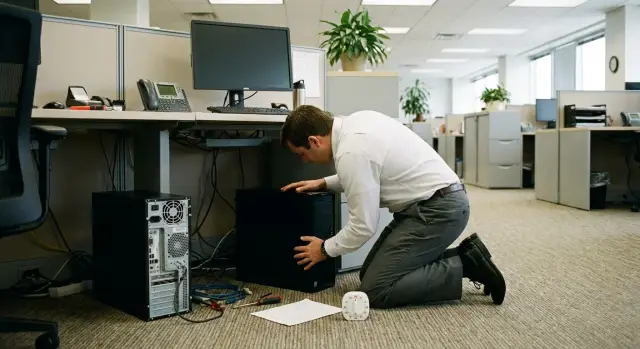
Why you need a hot-swap scenario
Front-office stops more often not because of rare disasters but because of small, recurring failures. A client is at the desk, the queue grows, the employee waits for equipment, and IT ends up firefighting instead of doing planned work.
Usually the broken part is something that can’t be quickly fixed on site:
- SSD or OS won’t boot after updates
- power supply failure or overheating, PC shuts down suddenly
- user profile corruption or broken critical settings
- network or driver issues that break the cash register, scanner, or digital signature
- slow hardware failure: freezes, errors, unexpected reboots
Without a plan, people improvise: “let’s swap the disk,” “let’s quickly install Windows,” “we’ll copy everything to a flash drive now.” In practice this often ends with wrong drivers for the hardware, BitLocker and unknown passwords, lost desktop files and broken licenses. The employee returns to work after half a day, or sometimes the next day.
The “hot PC swap in 30 minutes” scenario has one goal: the employee is serving customers again within thirty minutes, even if the main PC died just now. This isn’t about perfect setup, it’s about a fast return to the minimally required work.
In 30 minutes you can realistically:
- replace the PC and connect power, network, monitor and peripherals
- log into the domain account and open key front-office apps
- regain access to files via network shares or corporate cloud
- check printing, scanning and mail/CRM access
- record the incident and mark the original PC as “under repair”
Full restoration to the previous state should be a separate task: installing rare programs, transferring large archives, configuring unusual devices, analyzing local databases and “personal” folders.
Simple example: in a clinic reception the PC failed to boot at 9:05. With a prepared spare computer, the employee is taking patients again by 9:35 while IT investigates the fault. If the spare fleet is standardized (for example, like equipment from GSE.kz), this scenario is easier to maintain for years rather than rebuilding it from scratch each time.
What you need to know about a workstation before it fails
To make a 30-minute swap realistic, decide in advance which workstation you are protecting and what is critical for it. Front-office roles differ and the cost of downtime varies: a cash desk or registration halts customer flow immediately, an operations clerk in a bank delays transactions, the reception creates queues and dissatisfaction.
Create a short workstation passport. Not “office-wide,” but specific: what this employee must do and which programs and devices must work first. In practice time is often spent not on hardware exchange but on trying to remember “how it was set up here.”
Minimal workstation passport
Keep the following in a document (and in IT’s folder):
- role and priority (critical, important, can wait until end of day)
- mandatory applications (e.g., 1C/CRM, browser with required plugins, bank client, digital signature/token, softphone)
- access: domain account, email, VPN, rights to network shares, accounts in specialty systems
- peripherals: printer/MFP, scanner, cash equipment, headset and which drivers are needed
- contacts: who to call if login fails (responsible admin or 24/7 support)
Where data should live
Agree in advance what is normal to store locally and what is not. Files on the Desktop almost always turn a swap into a quest.
A good rule: documents and databases should be in network shares, corporate cloud, or in the user profile that is pulled in at login. Keep only readily restorable items locally (temp files, cache).
Example: an operations clerk’s PC breaks, but templates, signatures and working files are in the profile and on the server. They log into a spare computer (either a standard office PC or a prepped GSE L200) and are working within 10 minutes instead of searching for “that folder.”
How to choose and maintain a spare PC so it won’t fail you
A spare computer helps only when it’s as similar as possible to the “live” PC. If it is a different form factor, has different ports, or is on Wi‑Fi instead of wired Ethernet, you lose time on adapters, drivers and settings while the front office waits.
How many spares to keep depends on the number of critical seats and shifts. Simple calculation: take the number of front-office seats per shift and multiply by the downtime risk (typically 5–10%). Add one more PC if you have two shifts or branches where delivery takes over an hour. For example, with 20 workstations: 20 x 10% = 2 spares. If there’s an evening shift and cash desks, keep 3.
When choosing a spare PC, choose “compatible” over “faster.” It’s easiest when the fleet uses identical models or at least the same line. This can be a procurement standard: identical desktops or all‑in‑ones from the same vendor (in Kazakhstan many organisations prefer local models to simplify supply and support).
What actually saves minutes:
- same ports and peripherals: enough USB, the right video output, network port, headset jack
- same network: wired Ethernet, same authentication type, and pre-verified domain and shared resource access
- predictable drivers: similar platform so you don’t hunt for a printer or scanner driver during a failure
- performance headroom: so the PC doesn’t “choke” on updates and antivirus scans
- support and warranty: clear service and repair timelines for the main PC
Choose form factor by place and risk. Mini‑PCs are handy where space is tight but often need specific power supplies and mounts. Classic towers are easier to repair and replace but take space and are easier to move without approval. All‑in‑ones look neat at the reception, but a screen failure takes out the entire device.
Storage is as important as choice. The spare PC must be “alive” but inaccessible to random hands:
- keep it in a locked cabinet or room, issued by logbook or sealed
- label the device and kit: power cable, mouse, keyboard, spare headset
- once a month power it on for 10 minutes: check boot, network, updates and disk health
- protect from dust and temperature swings, especially near a warehouse or entrance
This way a spare doesn’t become a “museum piece” and stays ready for the day the equipment lets you down.
Standardization: one image and the same settings
When you have different PC models, Windows versions and app sets, a 30‑minute swap becomes a lottery. Standardization makes replacement predictable: boot the spare, log in, and the employee continues working almost immediately.
Start with a simple rule: choose one standard configuration for the front office. Same model or at least same line, identical memory and disk configuration, one Windows version, and the same security policies. This removes surprises from drivers, encryption, updates and app compatibility. If you buy hardware in batches, it’s convenient to keep spares from the same series as the production fleet.
What to include in the “golden” image
The system image should speed startup, not add unnecessary items. A practical approach is to keep a basic image and update it on schedule.
- Windows with the latest tested updates
- office apps and the browser that everyone actually needs
- corporate certificates, VPN client, endpoint protection agent (per your policy)
- network settings, timezone, keyboard layout, template shortcuts
- remote support and inventory tools
Do not preinstall rare or personal programs used by individual employees. Otherwise the image ages quickly and breaks across departments.
Drivers, printers and accounts: avoid confusion
A frequent cause of delays is printers and peripherals. Ensure the image contains universal drivers, and for critical devices (fiscal register, scanner, front-desk MFP) provide a clear one‑ or two‑step installation. If the office has multiple printers, assign which printer is the default for each desk.
Keep hardware order: labeling, inventory number, status “working” or “spare,” and date of last check. At a failure you won’t search for “that” PC or confuse a prepared spare with a device already in repair.
How to minimize data transfer in advance
The common reason 30 minutes fails is simple: important files and settings live only on the broken PC. Decide in advance where working data should be and make the new PC see it immediately after login.
First rule: don’t keep working files on the Desktop, in the Downloads folder, or places like C:\Temp. These locations often aren’t backed up and are easy to lose if a disk fails.
Files and folders so the move is “zero"
It’s safest to keep data in network shares or corporate cloud and leave only temporary copies on the PC. Windows often uses folder redirection: the employee sees a familiar structure but the data is stored centrally.
What to configure in advance:
- redirect “Documents,” “Desktop,” “Favorites,” “Templates” to a server or cloud
- unified paths for shared folders and templates so they’re available on a new PC
- autosave in office apps where possible
- policy or signed rule forbidding local storage of critical files
- a clear folder structure: client, date, document type
Email and messengers should also be set so migration doesn’t require manual copying. If mail is on a server (Exchange/IMAP), choose a mode where the mailbox is pulled after login and a local archive isn’t the only source. For messengers verify if cloud sync exists, how history is restored and where attachments are stored.
Passwords and access: make login take minutes
Even perfectly placed files won’t help if the employee can’t log into necessary systems.
- use a password manager rather than “memory” or a notepad
- enable 2FA and decide in advance the second factor (phone, token, backup codes)
- store backup codes in the IT safe or with the responsible person, not with one employee
- keep a role‑based list of critical accesses (cash register, CRM, telephony) so nothing is forgotten
Example: the clinic receptionist’s PC fails. They sit at a spare, log in with their account, “Documents” with templates is already there, email syncs automatically, and CRM access opens via 2FA using a backup code.
Step‑by‑step 30‑minute swap plan
To make the scenario work every time, appoint a duty person who decides on the swap. Usually the shift lead or front-office administrator: they order the swap and know where the spare PC, power supply, network cable and inventory label are kept.
Start by noting the time. The goal is not to “fix on site” but to quickly return the employee to customer service.
30 minutes: sequence of actions
-
Power off the faulty PC and briefly record symptoms. Photograph the error message on the screen, note whether power lights come on, any unusual smell/noise, and whether the monitor works. This saves service time and reduces the risk of repeating the fault.
-
Connect the spare PC at the employee’s spot. Plug in power, network, monitor and main devices (keyboard, mouse, scanner, card reader). If the network is wired, don’t waste time switching to Wi‑Fi.
-
Log into the employee’s account and check the must‑have items. Open 2–3 key apps (e.g., CRM, POS, portal browser), ensure login succeeds and the PC time is correct.
-
Connect the printer and do a test print. If the printer is networked, ensure the correct default printer is selected and printing goes to the right device.
-
Quickly verify data: open a couple of working files, check email and access to the database/shared folder. After that the employee returns to work and the faulty PC goes for diagnostics.
Time guideline
- 0–5 minutes: decision to swap, record symptoms
- 5–15 minutes: physically connect the spare PC
- 15–25 minutes: login, verify apps and network
- 25–30 minutes: printer, data checks, resume work
Example: an operator’s PC freezes during login. The shift lead photographs the error, installs the spare PC, checks CRM login and ticket printing. Customers keep being served while IT troubleshoots the cause separately.
What to do after launch so you don’t lose control
The spare is running and the employee is back serving customers. Now record facts, otherwise in a week no one will remember what failed and why.
Record the incident immediately
This takes 3–5 minutes and saves hours later. Log who worked, when the downtime started and ended, which PC was swapped and what exactly failed (wouldn’t power on, network dropped, POS froze).
A short incident card is useful:
- date and downtime (start, end) and workstation
- user and department (front office, desk N)
- serial and inventory numbers of old and spare PC
- symptoms and what was already tried
- who performed the swap and where the faulty PC was sent
Remove the faulty PC from circulation
A common mistake is leaving the broken PC nearby so someone powers it on again. Immediately label it with a bright “DO NOT USE” sticker, disconnect power, and pack the unit and accessories together (PSU, cables, peripherals if they might have affected the issue). Then follow one route: service area, quarantine storage or service provider.
When the PC returns from repair, don’t put it back “as is.” Run a short check (boot, network, printing, account), then wipe and redeploy the standard image to restore uniform settings.
Return the spare to reserve and keep it fresh
After stability is confirmed, schedule the spare’s return to reserve. When the main unit is repaired and verified, bring the spare back to its baseline state and store it.
To keep the 30‑minute swap realistic, update the image and software on a schedule: for example, monthly Windows and antivirus updates, quarterly updates for key apps. If the fleet is standardized (identical workstation models), maintaining the reserve is easier: fewer driver and setting surprises.
Common mistakes that turn 30 minutes into half a day
The issue usually isn’t a missing spare PC — it’s that the spare isn’t ready. It sits unused for months and a cascade of small problems follows.
The most frequent failure: a spare PC is not maintained. It may not be joined to the domain, lacks current policies, has outdated drivers and updates. As a result login fails, VPN won’t start, certificates aren’t applied and antivirus asks for a long initial scan.
Second trap: data and working files live locally. When everything’s on C:, migration becomes copying folders, searching for “where I saved it,” and trying to recover mail/bookmarks/templates. Often the latest document versions are lost.
Third mistake: no short list of critical programs and settings. People remember on the fly: “Where is the bank client?”, “What about the printing plugin?”, “Where’s the token?” Each discovery adds 10–20 minutes.
Finally, many lose control of the incident itself. The broken PC goes “for diagnostics” without tracking, then is searched for weeks — along with its drive, licenses and evidence of the failure. Meanwhile access rights are issued ad hoc during the outage and chaos ensues: temporary accounts, shared passwords, unclear additions.
Check for these weak points:
- spare PC is rarely powered on and doesn’t match current policies
- important files and app profiles are not moved off the local disk
- no approved mini‑software set for the role (cash desk, manager, reception)
- no inventory and repair status tracking after failure
- accesses are granted manually “on request” without a clear process
If you buy identical models (for example, PC and all‑in‑one lines from GSE.kz) and keep them in a single standard, these mistakes are easier to eliminate: one image, one inventory scheme, one clear procedure.
Quick readiness checklist for a workstation
Print this checklist and keep it near the spare PC. That way you won’t have to ask “what else is needed?” during a failure.
Before a shift starts or at least weekly, check:
- the spare PC boots first time, doesn’t demand urgent updates and doesn’t hang on setup screens (schedule updates for quiet times)
- login is verified: account works, password is current, domain connects, email opens, VPN starts without surprises
- key programs launch and authenticate: POS or CRM, messenger, browser with required extensions, office apps
- data is available without copying: profile and working folders open immediately (via network shares or corporate storage)
- printing works: correct default printer is selected, test page prints, scanner (if needed) is seen by the system
Also verify the human side: contacts for responsible persons (IT, floor admin, service) and a half‑page instruction: what to turn on, where to log in, which printer to choose and who to call if login fails.
A good habit: a sticker on the spare’s case with the date of last check. If the fleet is homogeneous (e.g., identical office models), this checklist runs faster and without surprises.
Example scenario: the front office freezes but service continues
Morning at a clinic. There’s a queue at reception and tickets need printing. One of the main PCs won’t boot: black screen, reboots don’t help. A 30‑minute swap saves the queue.
The administrator doesn’t try to repair it on site and doesn’t waste time guessing. They move clients to the next window for 2–3 minutes and call IT on the short support number.
- 0–3 minutes: administrator records the problem (won’t boot), puts a “window temporarily occupied” sign, and opens the queue at the neighboring desk. IT asks not to disconnect cables or open the case.
- 3–10 minutes: IT brings the spare PC (or a ready mini‑PC/all‑in‑one), connects power, network and printer. If the fleet is uniform, this goes faster.
- 10–18 minutes: login under the reception account. Quick check of database access: open the medical system, find the patient, create the record.
- 18–24 minutes: check printing: ticket, referral, agreement. If printing goes to the wrong printer, IT selects the correct one from preconfigured options.
- 24–30 minutes: final checks of mail and scanner (if used), short check of digital signature/certificate (if present), and the workstation is back in service.
In reality the critical checks are not “everything works” but three things: the database opens without delay, documents print to the correct device, and the employee can quickly find the patient and complete the service.
After the window serves customers again, IT cleans up the remaining tasks without disturbing the front office:
- tag the faulty PC and take it for repair so it isn’t powered on again
- record the incident (downtime, what was swapped) to track recurrence
- if data was local, schedule restore from backup or cloud per the regulations
- return the spare PC to “duty” status so it’s ready for the next case
Result: the queue barely stops and the receptionist is back to work in half an hour without panic or improvised workarounds.
Next steps: how to implement the scenario in your organization
Start simple: assign one owner for the process. It doesn’t have to be the IT director. What matters is that the person can approve the workstation standard and hold the team accountable for readiness.
Then document the standard: PC model, Windows version, software set, printers, access, and file storage rules. The fewer variants in the office, the easier it is to make a 30‑minute swap a norm rather than a one‑time success.
2–4 week implementation plan
Assemble a minimal kit and test it before an actual failure:
- approve a reference workstation (hardware, OS, software, peripherals, accounts)
- prepare 1–2 spare PCs and one shared Windows image with the right settings
- configure data storage so minimal important data stays on the PC (network profiles, mail, shared folders)
- write a short instruction: who calls, who brings the spare PC, who enters the login, who records the incident
- run a test swap and measure the time to when the employee is serving customers again
Example: a bank’s front‑office PC fails. Per the instruction the administrator brings the spare, connects cables and printer, the operator logs in and files are available from a network folder. If the test took 42 minutes, set a goal for the next quarter to remove extra steps (for example, prebind printers or add drivers to the image).
How to lock in the result
Do a short quarterly drill at one workstation and record the actual time and problems. It’s cheaper to find weak spots in a test than during peak hours.
If you plan a fleet upgrade, it’s easier to operate with identical office PCs and predictable service. In Kazakhstan this often means standardizing on local equipment and integration: for example, GSE.kz provides office PC and all‑in‑one lines, systems integration and 24/7 support, which helps keep spare machines and images in one standard.
Frequently asked questions
When should you really do a hot swap instead of trying to repair the PC on site?
If an employee cannot perform the minimum tasks (cash register, registration desk, CRM, printing), and it’s clear that a quick local fix won’t work, it’s better to replace the PC right away. The scenario’s goal is to get the person back to serving customers within 30 minutes and push the repair to a separate task.
Why does “30 minutes” often turn into half a day?
Time is usually lost on access, printers and data. A swap drags on when the spare PC isn’t joined to the domain, required certificates or VPN aren’t present, the printer needs manual setup, or the files are only on the failed computer’s local disk.
What should be in a “workstation passport” for the front office?
A short card for that specific workstation: role and priority, mandatory applications, required accesses, critical peripherals and contacts to call if login fails. The more precise the passport, the fewer things you have to "remember on the fly" during downtime.
Where is the best place to store working files so a swap needs almost no data transfer?
Files should open immediately after logging into any prepared PC: network shares, corporate cloud, or a profile that is pulled in automatically. That way a swap doesn’t depend on copying the Desktop or finding "that folder."
What should a spare PC be like so it won’t let you down?
Keep the spare PC as similar as possible to the production one: same ports, wired Ethernet, a predictable driver platform and enough performance to avoid slowdowns from updates or security checks. A reserve that differs significantly in hardware usually adds 15–40 extra minutes.
How many spare PCs should an organization keep?
A practical rule of thumb is 5–10% of critical workstations per shift, plus an extra unit if you have a second shift or remote points where delivery takes over an hour. It’s better to have a little more reserve than to explain a queue caused by a single failure.
What should be in the “golden image” for quick spare PC start?
A basic “golden” image: an up‑to‑date Windows, mandatory common applications, corporate certificates and agents per your policy, network settings and remote support tools. Do not include rare or “personal” applications, otherwise the image ages fast and breaks across departments.
How to avoid problems with printers and cash peripherals during a swap?
Pre-assign printers to specific desks and agree which printer is the default at each location. Add universal drivers to the image and provide a one- or two‑step install for critical devices so you don’t have to hunt for drivers while there’s a queue.
What must be done immediately after the employee starts working on the spare PC?
Record symptoms and times, note which PC was removed and which was installed, and where the failed unit was sent. Immediately tag the broken computer “DO NOT USE” and remove it from the work area so it can’t be powered on by mistake.
How does fleet standardization and the supplier approach affect swap speed?
Standardization makes swaps predictable over years: one image, fewer driver and configuration surprises, clearer inventory and service. If the fleet is composed of compatible series and supported by a systems integrator, it’s much easier to keep the reserve in order — for example, GSE.kz offers office PC and all‑in‑one series and integration services that help maintain a unified reserve standard.
