7 min read
Hardware Compatibility with Enterprise Software: Pilot
Hardware compatibility check with enterprise software: a pilot procedure with a test bench, application list, drivers, peripherals and acceptance criteria.
Why check compatibility before mass procurement
Mass buying of PCs often looks simple: pick a model, install Windows, deploy an image and you're done. But a single OS installation guarantees nothing. Problems appear later when corporate apps, security policies, printing, digital signatures (ЭЦП), VPN and dozens of utilities meet on one workstation.
A pilot compatibility check before procurement catches failures that are not visible in a demo or a quick warehouse test. Most often it is not one obvious error but annoying process issues: a banking client freezes, the browser loses the digital signature, a PC does not wake from sleep, printing goes nowhere, or video calls have distorted audio.
The worst part is these issues hit the budget in several places: employee time is lost, support load increases, and returns or retrofitting a batch becomes a long story with accounting and procurement. In a pilot, for example, you may find that a barcode scanner works only with a specific driver version, and the next OS update breaks the chain again.
Agree in advance who will participate in the pilot and what exactly they will test. Usually these are:
- IT (installation, images, updates, management, recovery)
- InfoSec (encryption, EDR/antivirus, policies, tokens and digital signatures)
- business units (real scenarios and peak loads)
- support (typical incidents and resolution times)
Measure pilot success not by impressions but by simple criteria: stability (no critical failures), speed (login and app startup are within norms) and maintainability (issues are reproducible and solved with clear steps). That makes the procurement decision calm and uncontroversial.
What to agree on before the pilot starts
Before starting, agree on the rules. Otherwise the pilot quickly becomes a set of unrelated complaints and the result is hard to defend to procurement.
First define the goal. Sometimes a pilot is needed to confirm a new fleet of PCs. Sometimes it is to switch OS or update key software (for example accounting, client-bank, document management). The goal determines the tests and acceptance criteria.
Next choose people and scenarios that realistically reflect the company. Don’t choose only the most advanced users or only office staff. Usually 2–3 typical roles are enough: an accountant, a call center operator, an engineer using CAD, a medical registrar. For each role record a short list of daily tasks the person must perform on the new workstation.
To keep the pilot from dragging on, fix organizational parameters in advance: scope (how many PCs and where), schedule (start, checkpoint, decision date), responsibilities (IT, InfoSec, business owner, support), feedback channel and change rules (what can be updated during the pilot and what is frozen).
Separately collect InfoSec and infrastructure constraints: domain and policies, disk encryption, EDR/antivirus, VPN, prohibition of local admins, logging requirements. A common mistake is testing on a clean PC and then being surprised by performance drops after all protective agents are installed.
A simple example: if you pilot workstations (including from GSE.kz) for the finance department, agree up front on access to the bank test environment, digital signature tokens and browser policies. Without that, half of the compatibility errors turn out to be missing rights or settings.
Applications list: how to collect without missing the important ones
To avoid a pilot that is only superficially successful, start with an exact list of what people use every day. Record not only program names but specific scenarios: login, printing, signing, file handling, and resource access.
A reliable approach is to build an inventory from three sources: surveys of key roles (accounting, HR, engineers, call center), support data (which applications generate the most tickets) and the standard image contents (if one exists). Then categorize by priority:
- critical (work stops without it)
- important (affects speed and quality)
- secondary (needed by some people)
- rare (rarely run but high risk)
Next clarify what most often breaks pilots: exact versions, license type (local or network key), plugins, macros, add-ins, templates and custom modules. The same program is often configured differently in different departments.
Keep browser services and access as a separate line: specific browsers and policies, VPN client, digital signatures, crypto providers and tokens. For example, accounting may open a reporting portal only in one browser, sign documents by token and print to a network MFP. If that’s not on the list, the pilot will be successful only on paper.
Test bench: the minimum setup for an honest check
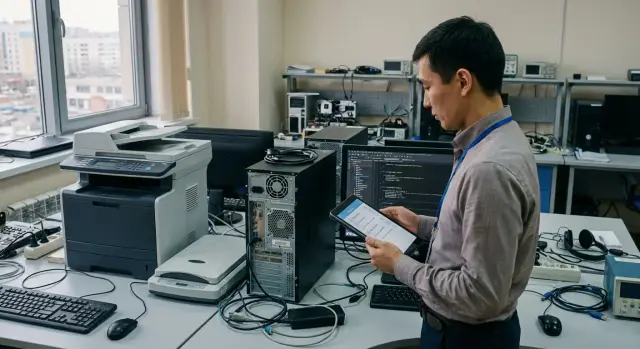
Do not run the pilot on production machines used for critical work. Allocate a separate test area: a couple of desks, stable power, corporate network access and the ability to move devices quickly. This avoids impacting production and allows repeatable tests.
Build the bench as a small copy of a real workstation, not a dream lab. The minimum setup usually is:
- 2–3 PCs or all-in-ones from the planned batch (1–2 configurations)
- a typical monitor (if not an all-in-one), keyboard, mouse, USB hub
- access to domain, file resources, mail, printing
- one or two key user roles (e.g., accountant and operator)
- a place for images and logs
Prepare a reference image as close as possible to the future fleet: OS version, updates, group policies, encryption, antivirus, basic agents (monitoring, remote support) and the mandatory application set. If you compare several PC models (including local production like GSE.kz), a single image helps compare them by the same rules.
Include logging: OS events, app errors, driver crashes and a simple list of what was done before a problem. This saves hours during investigations.
Agree on rollback in advance: where the clean image is stored, who has restore rights and how long it takes to revert a PC. Then one bad driver will not stop the whole pilot.
Drivers and updates: how to avoid surprises
Often the culprit is not corporate software itself but the surrounding layer: drivers, OS updates and component substitutions. In the pilot it is important to make drivers predictable and repeatable.
Install drivers only from trusted sources and lock their versions. Any engineer should be able to assemble the same PC at another desk and get the same result. Save the list of installed packages and installation dates — otherwise after a week it will be hard to know what changed.
Check key driver classes by function: chipset, video, network (wired and Wi‑Fi), audio, USB, Bluetooth. In practice the symptom often looks like this: office apps work, but Wi‑Fi drops after sleep, or a USB scanner stops being recognized after an update.
Run OS updates in the pilot but in a controlled way. Verify that Windows does not replace drivers with its own and break settings. A useful approach: take a restore point before updates, update, compare driver versions and repeat critical scenarios.
If you procure workstations or PCs from a local manufacturer, request the recommended driver set and update order in advance. For pilots on GSE batches this helps reproduce configurations across models faster and avoid days of manual tuning.
Peripherals: what most often breaks the pilot
Hardware and applications can work fine, yet the pilot still fails on small things: printing doesn’t work, the scanner is not visible, or a headset hisses during a call. Test peripherals as strictly as software.
Inventory not only typical devices but everything tied to processes and regulation: printers and MFPs (including network and secure printing), scanners (flatbed, production, barcode), headsets and cameras, smart cards and tokens, and nonstandard devices like POS terminals, displays, badge readers or medical instruments.
Test by scenarios, not just connect/disconnect. For example: print a 20‑page contract (duplex, tray selection), send to follow‑me printing, scan to PDF with OCR, sign via token. For a contact center include a 30‑minute video call: microphone, noise cancellation, device switching and headset buttons.
Record exactly what each workstation needs: driver (which version), vendor utility (required or not), security policies and user rights. This helps at scale when identical PCs go to departments with different peripherals.
Test plan step by step: what to run on each PC
To get an honest answer, run the same test set on every computer and record results in a single form. This makes it faster to see whether the issue lies with the PC model, the Windows image, drivers or a particular application.
Start with a short 60–90 minute scenario per workstation, then add a longer stability test.
-
Everyday performance: boot time, domain login, launching mail, browser and 2–3 key apps. Check multitasking: a video call, 10–15 tabs, a document and a corporate system running simultaneously.
-
Network and security: VPN, proxy, access to file shares and corporate portals. Ensure EDR/antivirus and encryption do not break apps (printing and scanning often suffer).
-
Documents and printing: typical templates, files with macros, complex spreadsheets, export to PDF. Test printing on a real printer, including duplex and tray selection.
-
Peripherals: camera, headset, docking station, second monitor, smart card or token. Use the exact device models that are actually deployed in your company.
-
Stability: sleep and wake 3–5 times, then a full 8–10 hour working day (with updates and restarts). Many faults appear only after sleep or after cumulative updates.
If piloting office PC batches, use 2–3 user profiles (for example accountant, call‑center operator, manager) and run the same scenario for each profile. That reduces disputes: results are comparable and repeatable.
Acceptance criteria: how to decide without arguments
Pilots often end in disputes not because the hardware is bad but because no one agreed in advance what success looks like. Define acceptance criteria before testing and agree them with IT, InfoSec and owners of key applications.
Make criteria measurable
Express criteria in numbers and observable signs. For a typical workstation you can lock:
- OS boot and profile login time (for example under 90 seconds)
- startup time for 3–5 main programs (mail, ERP/1C, browser with portal)
- stability: no freezes or spontaneous reboots during a workday
- repeat errors count (for example no more than 1 critical error per 20 hours)
- peripheral readiness: printing, scanning, headset, smart card work without manual workarounds
Thresholds: what blocks a rollout and what is tolerable
A simple scale is useful:
- blocker: a key app or peripheral does not work — rollout cannot start
- critical: works but with frequent failures or data risk — fix required before procurement
- medium: an inconvenience exists but an acceptable workaround is available
- low: cosmetic, does not affect outcomes
Also define support requirements: who receives reports, how driver and update versions are recorded, required response time and resolution time. If the vendor provides 24/7 technical support and a service network, that reduces rollout risk (GSE.kz, for example, declares round‑the‑clock support and a nationwide service network).
The final step is an acceptance report: what was tested, which criteria were met, a defect list with owners and deadlines. If fixes remain, add a simple condition: rollout begins only after a short retest on 1–2 PCs.
Common mistakes and pitfalls in piloting
The most frequent problem is a pilot that goes too smoothly because it did not test what real life will be. As a result, surprises appear in production.
One PC and one advanced user is a bad model. Accounting runs heavy reports, a call center holds dozens of tabs and a softphone, engineers connect specific devices. Use several instances of each model and at least 3–5 users from different roles.
Peripherals and departmental differences are often forgotten. Later it turns out that a barcode scanner, MFP, smart card, token, headset or second monitor only works after lengthy setup. The pilot must include the exact devices used in the departments, not similar ones.
Another trap is not recording versions. Without BIOS/UEFI, driver, OS build and app versions you cannot reproduce results or know what changed.
Minimum data to record for each test machine:
- model and configuration, BIOS/UEFI version
- OS version and update policy
- driver versions (chipset, network, video, printing)
- installed software list and versions
Finally, do not mix the pilot and production without rules. If a pilot PC is connected to production services, you may affect live processes: policy conflicts, updates, printing drivers or accounts. If you cannot fully isolate, define a sandbox and a change window in advance.
Quick checklist before scaling
Before mass procurement and rollout, ensure the pilot gave a predictable result. The outcome should not be fuzzy but a set of ready artifacts: what to install, how to configure and how to support.
Short checklist before rollout:
- Critical applications passed key scenarios: login, data handling, printing, signing, server exchange, reports.
- A rollout package is assembled: list of drivers and versions, BIOS/UEFI and OS settings, security settings, antivirus exclusions, update rules.
- Peripherals tested in real tasks: MFP (trays, duplex), scanning to required formats, tokens/smart cards, headsets and cameras, specialized devices.
- Acceptance criteria met: no blockers, and remaining limitations have clear workarounds and deadlines for fixes.
- Short instructions prepared: for users (getting started and where to report) and for support (how to diagnose and restore a workstation).
Also check repeatability: take 2–3 new PCs and deploy them with the prepared package as if they were part of the batch. If install time and manual steps vary widely, scaling will be painful.
If piloting on domestic PCs, for example GSE lines (L200/M200), or on servers for VDI and apps, lock specific configurations and firmware versions. This reduces the risk that the next delivery behaves differently under the same tests.
Example: a pilot in a company of 50–200 employees
A company of 120 employees with three profiles: accounting (1С and digital signatures), call center (headset, multiple monitors, softphone), executive office (video calls, presentations, dock). The goal is to verify typical workstations rather than stress testing hardware.
Build the bench from 2–3 configurations and allocate 5–10 pilot seats. Usually a basic office configuration, a variant with extra headroom for heavier tasks and a version with a different port/graphics set cover the needs when many external devices are used.
A distribution example:
- 3 seats for accounting: one PC type plus one alternative (in case drivers or chipset differ)
- 4 seats in the call center: emphasis on USB, headsets, two monitors
- 1–2 seats for executives: camera, microphone, video calls, sleep/wake
Common small issues that later affect everyone are driver problems for printing (especially on network MFPs with universal drivers), digital signatures (tokens, crypto provider, browser plugins), video calls (camera detected but noise suppression breaks audio), and sleep/wake (network lost or second monitor not waking).
To avoid disputes, record results uniformly: a single defect table (location and profile, reproduction steps, frequency, workaround, owner, resolution). After that the rollout decision becomes simple: which configurations to buy, what to add to the standard image, which peripherals to replace.
If buying hardware from a local vendor and integrator like GSE.kz, request recommendations for image contents, drivers and compatible peripherals in advance. This reduces repeated test runs.
Next steps after the pilot
After the pilot, capture results so they turn into a clear procurement and rollout plan, not impressions.
Collect workplace requirements for the next 1–3 years. Include not only PC specs but support conditions: response times, spare parts availability, who manages drivers, and how common incidents are handled. If accounting needs two monitors and signature tokens, make that mandatory, not optional.
Then prepare a standard image (golden image) and update rules. Decide what updates automatically and what only after bench verification, and who signs them off. A short procedure is enough: image composition, driver installation and verification order, update schedule and rollback rules.
Next move to a scaling plan: procurement, deployment, and first‑line training. Use a simple flow: who receives the equipment, who applies the image, who issues it to the employee, where to report failures and what data to include (model, driver versions, peripherals).
To reduce supply and support risks consider a local vendor and integrator in advance. GSE.kz, for example, is logical to involve when you need delivery of PCs and servers and assistance transitioning from pilot to rollout.
Finalize the decision with a protocol: configuration, acceptance criteria, list of exceptions and a recheck date (for example six months after major software updates).
Frequently asked questions
Why run a pilot before a large PC purchase?
A pilot uncovers issues before you purchase the entire batch. It is easier to check applications, security policies, printing, electronic signatures, VPN, and peripherals on a few PCs than to fix problems after employees receive their equipment.
Who should be included in the pilot?
Include 2-3 typical roles that reflect real work, such as an accountant, a call center operator, and an engineer. For each role, list daily tasks and test them on the new workstation.
Which applications should be tested first?
Check everything that would stop work: business systems, online banking clients, document management systems, email, VPN, browser-based portals, electronic signatures, and printing. Document software versions, plugins, macros, licenses, and custom modules.
What should the test environment look like?
Build a test environment that resembles a normal workstation: a PC from the future batch, a standard monitor and peripherals, the corporate network, domain, email, file resources, and printing. Install the image you plan to deploy at scale.
How should drivers and updates be tested?
Record the versions of BIOS or UEFI, the OS, drivers, security agents, and software. Install drivers from trusted sources and save the package list so IT can reproduce the configuration on another PC.
Why should peripherals not be overlooked?
Use the actual devices from each department, not similar models. Test printing with tray selection, scanning, tokens and smart cards, headsets, cameras, a second monitor, and docking stations in real work scenarios.
Which tests should be run on every computer?
On every PC, test domain sign-in, launching key applications, VPN, file resources, printing, and documents. Then test sleep and wake several times, and let the device run for a full day under normal load.
How do you know the pilot has passed?
Set measurable thresholds in advance: sign-in time, launch time for key applications, no freezes, and peripheral operation without manual workarounds. Treat a failure of a critical application or device that an employee needs to work as a blocker.
What should you do if an issue is found during the pilot?
For each issue, record the PC model, user profile, reproduction steps, frequency, software and driver versions, temporary workaround, and person responsible for the fix. After the fix, repeat the scenario on 1-2 clean PCs.
What should be prepared before scaling up?
Prepare a rollout package: the OS image, drivers and their versions, BIOS or UEFI settings, update rules, security settings, and support instructions. Then deploy the package to 2-3 new PCs and confirm that the installation time and outcome are consistent.
