8 min read
GPU Workstations or a GPU Server for a University: Comparison
Comparing GPU workstations vs a shared GPU server for a university: student access, queues, room requirements and support.
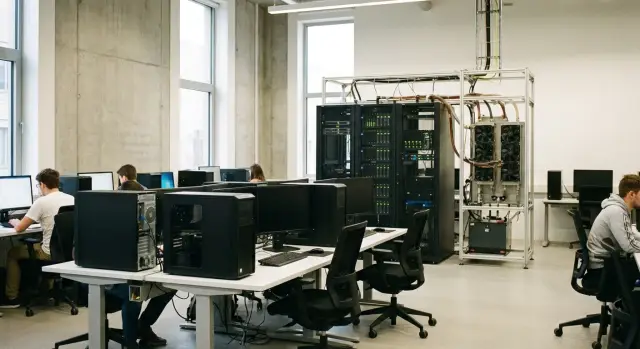
What problem usually appears in universities
Almost every university reaches a point where regular computer labs are not enough for graphics and compute tasks. Courses in machine learning, computer vision, simulation, rendering and big data appear. At the same time, departmental research and student projects run in parallel. Everyone needs GPU access, but needs vary: some only need capacity for a couple of hours a week, others require steady daily work.
There are many users, and each has a different view of what the service should be.
Students want a quick start and a clear way to “get a GPU” without long setup. Instructors need predictable access during class time and a uniform environment for everyone. Lab managers need updates to not break things. The IT team needs a solution that won’t turn into endless manual fixes, outages and night shifts.
Success is usually measured not by peak specs, but by simple things: fewer downtimes, fewer queue conflicts, a clear access schedule, and the ability to repeat a lab at home or from another building. When these are missing, complaints appear quickly: “everyone waits during class”, “GPUs are taken by other people’s jobs”, “it worked yesterday, not today”.
Most often a university faces the decision: install GPU workstations in classrooms or build a shared GPU server and distribute compute over the network. Choices are often made under procurement deadlines, reporting requirements and budget limits.
Typical constraints: the budget is fixed while demand grows during the term; procurement must be fast and transparent; equipment must fit existing rooms without renovations; and someone must be identified who will support the system.
A simple example: one week you have labs for 60 students in neural networks, while a PhD student runs a long experiment. Without access rules and suitable infrastructure, the bottleneck appears in the first month.
Two approaches: workstations and a shared GPU server
Universities usually choose one of two paths: place several GPU workstations in classrooms or build a shared GPU server and serve jobs over the network. Both options give students and researchers access to accelerated compute but affect classes, scheduling and IT load differently.
A GPU workstation for teaching is a desktop PC with a powerful GPU. Computation runs on a specific machine in class or the lab. This format suits practical sessions where the instructor leads the group step by step: everyone uses the same setup, runs the same tasks and sees results immediately.
A GPU server is a shared resource: several (or many) GPUs are in one system, and students connect remotely and submit jobs. Jobs can be started from any building and, with remote access allowed, from home. For research this is often decisive: computations can run overnight or on weekends without occupying the classroom.
Where each option is usually convenient
For in-class activities workstations win with simplicity: arrive in the lab, sit down, do the lab and leave. For course projects and theses, where load differs between people, a shared GPU server usually offers more flexibility: resources are allocated by queue, and work isn’t tied to a specific classroom.
In practice it looks like this:
- ML lab for 2 hours: workstations in class are more convenient.
- Long model training for 12–24 hours: a server running 24/7 is better.
- Multiple departments sharing resources: a shared server often wins.
Impact on schedules and access outside class
With workstations, access is almost always tied to scheduled class time and room keys. If the group is large, some students will wait for a free seat.
With a server the problem shifts: instead of a line at the computers you get a job queue. It’s easier to manage with rules about who gets how many GPUs and at what times. Where out-of-class access matters, a shared server often becomes the backbone, while a few workstations remain for in-person lessons.
Availability and queues: how students will really use it
The key question is not peak throughput, but how many people can work without time conflicts.
If GPUs are in classroom workstations, access depends on the timetable and the specific room. For a class this is convenient: the environment and results are the same for everyone. But when a student needs to finish a project in the evening or on weekends, workarounds appear: moving data to a personal laptop, waiting for a free seat, or asking to open the classroom.
A shared GPU server offers a different kind of availability: the student submits a job and doesn’t wait for a specific PC to free up. The queue becomes a “job queue” rather than a “queue at the door.” This is especially noticeable in peak weeks.
Typically load looks like: steady use in mid-term, a sharp spike before deadlines, another spike before exams, short peaks at project defense days, and near-zero load in gaps between assignments.
Scaling also differs. Workstations are easier to add as the class grows: buy a few more PCs and place them in the room. But the number of points to manage grows, and evening access problems remain.
A server is harder to expand in procurement, but it’s more flexible in resource allocation: you can assign quotas to courses, groups or labs and smooth peaks with a scheduler and queue rules.
A practical scenario that often works best: during class students use the workstations, and overnight heavy jobs are sent to the shared GPU server so results are ready in the morning without a fight for machines.
Room, power and cooling: what’s needed on site
The choice often comes down not to compute power, but to basics: where to put equipment, how to power it and how to remove heat. If you don’t assess the room upfront, you get complaints about a hot classroom, tripped breakers and unexpected downtime.
If you place workstations in the classroom
The upside is convenience: the student sits down and works. But the classroom gradually becomes a mini server room.
Noise and heat are noticeable with 2–3 powerful PCs: fans spin up under load, the room becomes stuffy, and without air conditioning summer classes can be uncomfortable. Dust matters too: classrooms with open windows and frequent foot traffic clog filters faster.
Physical security is also a concern. In a classroom there’s higher risk of unplugged cables, dropped monitors or someone accessing other people’s data from a left-open session.
Power usually fits standard outlets, but discipline is needed: separate circuits for rows of desks and at least a UPS for the instructor PC and network gear to ensure clean shutdowns and data protection during short outages.
If you choose a shared GPU server
A server prefers a dedicated server room: a rack, limited access, stable temperature and tidy cabling. Plan for extra cooling capacity because GPUs generate significant heat continuously, not just sporadically.
Power often requires dedicated lines and UPS capacity sized for realistic load. This reduces the risk of outages during runs and extends equipment life.
Before buying, check: is there an existing server room (or will the unit be in an office), how much heat the space can handle, is there enough electrical capacity with safety margin, is access control needed (keys, entry logs), and who will handle filter cleaning and dust removal.
A practical guideline: if you plan 10–15 powerful GPU seats in a classroom, it is often cheaper and more comfortable to put one GPU server in the server room and keep quieter client PCs in the classroom.
Support and the load on the IT department
For university IT the question is not only what to buy, but what must be supported every day. GPUs often become a bottleneck not by compute, but by maintenance.
If you choose a fleet of GPU workstations, the workload is many small tasks. You must keep drivers, CUDA environments and libraries in sync on dozens of machines, update images, fix intermittent issues after updates and quickly replace failed parts. Plus everyday problems: someone unplugged a cable, installed unauthorized software, or filled a disk with projects.
A GPU server shifts the focus from “many small incidents” to “fewer incidents but costlier downtime.” Administration, monitoring, backups and remote access setup are required. Updates to drivers, containers or images are centralized and more controlled.
User accounts and permissions
To avoid conflicts like “who reserved the GPU overnight,” define an access model in advance. Usually personal accounts, roles and data permissions, time or parallel job limits, and job logging are enough.
How to plan maintenance without cancelling classes
Maintenance must be predictable. Server updates are convenient in a fixed window (for example, biweekly in the evening), while a frozen teaching image is kept for classes. For workstations keep 1–2 spare machines per room so a failure doesn’t stop a class.
If the university has no on-call team, include contracted support. Manufacturers and integrators with service networks and 24/7 support (in Kazakhstan, for example, GSE.kz) reduce the risk of a problem lasting the whole semester.
Data and security: access control without complexity
Security is often an afterthought. Later it becomes clear that students need to submit projects, instructors need to grade, and IT needs to know where data lives and who accessed it.
On separate PCs data quickly spreads to local drives, flash drives and personal clouds. This is convenient initially but increases the risk of loss (disk failure, accidental deletion) and leaks (stolen flash drives, shared accounts, datasets left on the desktop).
With a GPU server it’s easier to keep order: projects and datasets can be stored centrally (network shares or dedicated storage), and access granted by account. This reduces copies and simplifies backups. In a course that often solves the eternal question “where is the latest project version?”.
A uniform environment matters too. A practical approach is a base image per course plus user profiles. Students get a predictable configuration each time, and the instructor doesn’t spend class time troubleshooting "it won’t start."
Minimal rules that yield the most effect:
- store projects in network folders and treat local disks as temporary;
- do not use shared logins; issue personal accounts;
- separate access for course groups, instructors and research projects;
- schedule regular backups of shared storage;
- fix a semester-long reference image for the environment.
From logging and auditing perspectives, a centralized server wins: it’s easier to see who ran jobs, when they connected and which data was accessed. On scattered workstations control is possible but often turns into manual checks and inconsistent discipline across rooms.
A practical example: in a computer vision lab a student brings a dataset on a flash drive and accidentally leaves a copy on a lab PC. With centralized storage the dataset is uploaded once to a course folder, access is granted to the group, and actions are visible in logs. Risks and paperwork are reduced.
Software and teaching environment: licenses, images and remote access
The unpleasant surprises usually come not from hardware but from how software is distributed to students and instructors. If this layer is not thought through, you hear “it won’t run”, “wrong version” and “works for me but not for them.”
Licenses work differently: some are tied to a device, others to a user, others to a server or number of concurrent starts. Before procurement list how key software (CAD/CAE, 3D, simulators, commercial AI libraries) is licensed and where it will run: on local class PCs or on a shared server.
Questions that save weeks:
- is the license per-device or per-user, and can it be moved between rooms;
- are remote sessions allowed and how many concurrent connections are permitted;
- is a license server needed and who will maintain it;
- are there restrictions on virtualization or container use;
- do instructors and students need separate licenses.
Next decide on a unified teaching environment. It’s convenient to keep several images for different courses: one for CUDA and PyTorch, another for 3D and rendering, a third for engineering simulations. On workstations this often means installing and checking each seat. On a GPU server it’s easier to fix library and driver versions and grant students access to a ready environment.
Remote access is almost always needed: evening groups, homework, labs in dorms. Agree on clear rules: how to log in, what counts as a session, how many minutes of idle time before termination, if a task can run overnight, how time is booked or how the queue works.
Example: an AI course needs CUDA and large datasets, while a 3D course requires compatibility with engines and plugins. Splitting these into two images and clearly describing remote work rules reduces IT requests regardless of whether you choose workstations or a shared server.
How to choose: step-by-step algorithm for the university
To decide what suits you, start with teaching scenarios and how students will actually use compute, not with hardware. This approach quickly narrows options and reduces infrastructure mistakes.
5 steps that bring clarity
-
Describe 3–5 typical tasks and their durations. For example: short labs (10–30 minutes), model training for a course project (2–6 hours), research runs with parameter sweeps (1–3 days). This clarifies what matters: quick access or long continuous runs.
-
Estimate concurrent users and peaks. In normal weeks 5–10 people may work, while before deadlines 30+ can appear in one day. This directly affects queues and access rules.
-
Decide where tasks should run: only in class or also remotely. If students must run jobs from dorms or home, a shared GPU server with remote access is usually easier to control and scale than dozens of separate machines.
-
Check room constraints: is there a server room, enough power, cooling, noise limits and access control. If no server room exists or it’s overloaded, workstations may be more realistic at the start.
-
Choose a model and plan support immediately. There are three common options: GPU stations for classrooms, a GPU server for a shared job queue, or a hybrid. At this stage decide who will update drivers, maintain images, manage access rights and fix failures, and how much IT time is available.
Quick guideline: if you have one classroom of 20 seats and tasks take 20 minutes, workstations will cause less waiting. If you have a research group that needs overnight runs, a shared server with a job queue is more efficient. In practice a hybrid is common: workstations for classes and a separate rack GPU server for long computations.
Example scenario: a teaching class and a research lab
Imagine a typical university: undergrads have daytime computer classes, while master’s students and staff run long computations in the evenings and weekends. A conflict appears fast: everyone needs GPUs, but task types and deadlines differ.
Option A: 20 GPU stations in a classroom
Daytime access is simple: students use PCs and do labs. It’s harder after class. If masters students also need these stations, rules must be introduced: when the room is open, who holds keys, how to book time, what happens if a run takes 6 hours and a class starts in 30 minutes.
Schedules help: daytime the room is for classes, evenings have 2–3 slots of 2–3 hours for project teams. Long tasks should be limited, otherwise one station can be “stuck” all night and cause disputes.
Option B: 1 GPU server for everyone
A server removes the “who took the seat” problem, but adds job queues. Clear priority policies help: teaching tasks get quick daytime access, research jobs wait and run at night. Grant quotas of GPU-hours to master’s teams so heavy groups don’t push others out.
A hybrid is usually the calmest: basic work and tool familiarization happen on workstations, while long model training and heavy simulations run on the shared server.
To reduce conflicts, state rules in advance and publish them in class and group chats: which tasks are allowed during the day, which only at night, maximum run duration, resource limits, priorities for courses and projects, and where to report problems.
Common mistakes when choosing and launching
The most expensive mistakes are seldom about hardware and more about usage and maintenance.
Mistakes in selection
A frequent case is buying for the worst-case peak, so equipment sits idle most of the semester. It’s more useful to split loads into teaching (many short runs) and research (long runs) and match access modes or separate nodes accordingly.
Another underestimated point is site requirements. A GPU server may be powerful but without proper room prep (power, cooling, noise, access) you’ll get usage limits or instability. Workstations are easier to start with, but then you risk a “zoo” of different configurations across rooms.
Mistakes in rollout and operation
Problems usually appear in the first 2–4 weeks when many users start. Typical issues: no clear priority rules (deadlines are resolved manually in chats), mixed personal and course accounts, undocumented permissions, no time planned for driver and image updates, no quotas or GPU memory/time limits, and the server room being an afterthought discovered after delivery when power or cooling is insufficient.
Simple example: a department starts a computer vision course. In week one 60 students train models simultaneously. Without schedule and quotas, many jobs go into long queues and the instructor spends class time resolving conflicts instead of teaching.
Short checklist and next steps
Before buying hardware, do a quick practical check. Most surprises come not from GPU power but from access, placement and who will support the system daily.
Check:
- how many concurrent users at peak and where they will work (classroom, dorm, home, another lab);
- where equipment will be placed and conditions: for a server — room, rack, power, cooling, noise; for a classroom — can the electrical system handle it and is there safe space for placement;
- who is responsible for support and incident handling: on-site instructor, IT department or external contractor;
- how data is stored and backed up: where are datasets, where results are saved, and how student projects are separated;
- how queues are managed: even with a powerful server you need clear policy (limits, class slots, night windows for research).
Next step: put requirements on one page (courses, software, user counts, access format, installation site, security needs) and prepare 2–3 configurations with different approaches: “workstation classroom”, “shared GPU server”, “hybrid”.
If you need a partner for assessment and deployment, GSE.kz as a manufacturer and system integrator can help select, implement and support infrastructure, including solutions based on S200 servers and workstations for university tasks.
Frequently asked questions
What should a university choose first: GPU workstations or a shared GPU server?
If the main load is short in-class labs, GPU workstations in the classroom are usually more convenient: a student sits down and starts immediately. If there are many long computations (hours or days), projects from different departments, and access is needed in the evening or at night, a shared GPU server with remote access is more practical. In practice, a hybrid often works best: workstations for classes and a server for heavy runs.
How to reduce queues and conflicts for GPU between students and researchers?
Workstations are almost always tied to the classroom and schedule, so the "queue" looks like waiting for a free seat or access to the room. A GPU server turns this into a job queue: the student submits a job and can do other tasks while the system waits for resources. To avoid conflicts, set rules in advance: time limits, priorities for teaching tasks, and reserved windows for long research runs.
Does it make sense to do a hybrid: workstations in class and a shared GPU server?
A hybrid is usually the calmest option when both classes and research loads exist. Workstations are convenient for in-person lessons with the same environment for the group, while heavy model training and simulations are sent to the server so they run overnight and don’t occupy the classroom. This reduces waiting during classes and disputes over long runs.
What room requirements are most often forgotten when buying GPUs?
For workstations in classrooms the main risks are heat, noise and dust when machines run continuously, especially in summer and with open windows. For a GPU server you often forget to plan a dedicated space, cooling and enough power, while heat dissipation and consumption are steady and high. It’s better to measure the room’s capabilities once than to limit usage later due to overheating or blown fuses.
What is easier for the IT department to support: many GPU workstations or one GPU server?
A fleet of workstations is harder: you must keep the same drivers, CUDA and libraries on dozens of PCs — after updates it’s easy to get "it works on mine but not on theirs." A GPU server has fewer points of maintenance and updates are centralized, but a single outage is more visible, so monitoring and a clear maintenance window are important. If there is no in-house on-call team, plan for contracted support so incidents don’t stretch for weeks.
How to organize data and access to avoid leaks and project loss?
The practical minimum is personal accounts, group-based permissions and storing projects in centralized storage rather than on local disks. That makes backups easier and helps find the "latest version" of a project. On a server this is usually simpler: access, logs and permissions are managed in one place instead of across many classrooms.
Which licensing and software questions should be clarified before purchasing?
First list the key software and how it’s licensed: per-device, per-user, or by concurrent runs. This determines whether work can be moved to a server and whether remote sessions are allowed. Resolve licensing before buying hardware, otherwise you may end up with equipment that can’t legally or conveniently run your courses.
How to safely give students remote GPU access from home or dorms?
By default, provide remote access only via personal accounts and with clear rules for session termination so resources aren’t kept "forever busy." For coursework, give daytime priority and move long experiments to evenings and nights. Agree in advance what counts as a normal overnight run and when a job may be stopped to avoid conflicts.
How to quickly estimate how many GPUs and what resources the university needs?
Start with 3–5 typical scenarios and task durations, then estimate peak users before deadlines. Check room limitations and decide if access outside class is needed — this often affects architecture more than "the most powerful GPU." After that it’s easier to choose workstations, a server, or a hybrid, and to set queue rules and support.
Should external support and deployment be planned from the start rather than doing everything in-house?
Yes — if the university cannot maintain the system reliably in-house, involving the manufacturer or integrator usually reduces the risk of downtime during the semester. Fix in advance who is responsible for updates, monitoring, recovery and incident response times. In Kazakhstan, local service networks and 24/7 support from providers like GSE.kz can be convenient.
