6 min read
GPU Driver Update Policy for CAD/3D
GPU driver update policy: how to update without breaking CAD/3D, close vulnerabilities, set up a test contour, roll back and track versions.
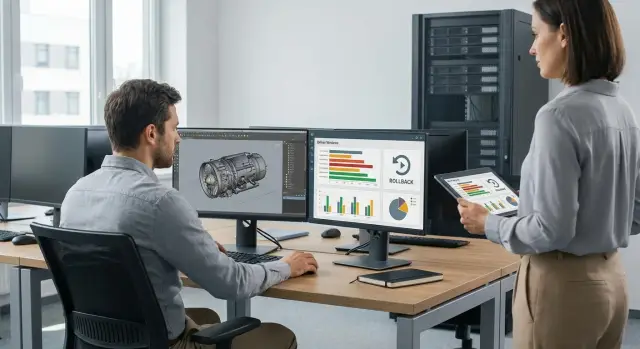
Why you need a GPU driver update policy
A GPU driver is the layer through which CAD/3D talks to the hardware. For office tasks a rare glitch is barely noticed. On workstations it can become viewport freezes, artifacts, render crashes or strange errors that are hard to reproduce and even harder to explain.
Most often the failure is not a single component but a chain. A new driver version changes OpenGL/DirectX behavior, acceleration works differently, and then quirks of a specific CAD version or plugins surface. One engineer sees a problem on a project while a colleague has no issues.
Viewport and scene navigation usually fail first (stutters, jumps, black screens), then rendering (crashes, different image, performance drops), GPU-accelerated plugins, and long-term stability (memory leaks, error accumulation). Sometimes licensing or protection components can also break if driver parts conflict with them.
Ignoring updates completely is also dangerous. Drivers close vulnerabilities, fix bugs and update compatibility with OS changes and CAD itself. If you avoid updates for years, a Windows update or a new CAD module may one day refuse to run on an old driver, causing downtime at the worst moment.
A proper policy serves several parties: IT for manageability and consistent configurations, engineers for stable work, and security for timely fixes. Success isn’t "always install the newest" but predictability: clear update windows, identical versions in similar workstation groups, minimal unplanned failures, and quick rollback if needed.
How drivers are built and why CAD/3D is sensitive
A GPU driver sits between Windows, your CAD/3D and the GPU. It translates program commands into hardware instructions, manages memory, acceleration, multi-monitor output and how shaders, shadows and effects are calculated. A small change in a driver may go unnoticed in a game but in CAD/3D appear as artifacts, crashes or incorrect geometry rendering.
A CAD/3D workstation values stability and repeatability more than peak FPS. Multiple heavy applications, plugins, complex scenes and network profiles often run together and must behave the same for different employees.
Certifications and driver branches
Many CAD/3D vendors test specific driver versions and publish "supported" lists. That’s not a guarantee, but a useful filter: surprises after updates are usually fewer.
NVIDIA and AMD typically offer different branches. “Gaming” branches get optimizations and features faster but carry higher compatibility risk. “Studio” or professional branches are released less often and favor predictability.
Why driver version depends on OS, BIOS and model
A driver doesn’t operate in a vacuum. Windows version, security updates, GPU model, chipset and sometimes BIOS/UEFI matter. If some workstations get a BIOS update, the same driver version can behave differently: acceleration may fail in a module on one machine and cause render hangs on another.
A typical scenario: two similar 3D stations (different production batches) are updated to the same Windows and driver versions. One starts showing broken textures in the viewport while the other is fine. The cause can be a different BIOS or microcode, and without version control it looks random.
Therefore, the update policy should consider the combination “station model + GPU + OS + BIOS”, not only the driver number.
Update channels: separating security and stability
Updating all drivers at once either risks breaking CAD/3D or missing important fixes. A workable approach is to split changes into channels with different speeds and rules.
Three channels that usually work
Security channel: for rare but critical updates — vulnerability fixes, critical patches, OS compatibility issues. Speed matters here, but after a short check on typical tasks: open large assemblies, run a render, perform an export.
Stability channel: slower. Versions that passed the test contour and performed well with your apps and plugins go here. This is the main channel for most workstations, where downtime costs more than new features.
Emergency channel: for rapid action when there are widespread failures or a critical bug in a specific version. This can be an urgent update or an urgent rollback.
To prevent channels from becoming chaotic, agree on basic rules in advance: fixed update windows (e.g. 1–2 days a month), freeze periods before delivery, one person responsible for promoting to the stable channel and a separate emergency owner. Define what counts as critical (CAD crashes, reproducible artifacts, render errors) and how versions are recorded (a single approved-driver list by GPU model and workstation type).
Test contour: what and how to check before rollout
A test contour prevents a driver from being pushed to all workstations at once. In CAD/3D this is crucial: a driver may be fine on one GPU and problematic on another.
Assemble 3–5 reference configurations that reflect your fleet: different GPU models (at least a common and a high-end), OS versions and key applications (CAD, 3D, renderer, viewer).
For testing, repeatable real-work actions matter more than synthetic benchmarks. A practical set usually includes:
- 2–3 typical projects (heavy, medium, "problematic") and identical navigation steps
- required plugins and add-ons
- one render template and one export scenario
- a short action script in the application (what to click and in what order)
Record simple metrics: viewport smoothness, render time on the same scene, number of crashes during testing, presence of artifacts (flicker, "black" materials, broken textures). Make the stop criterion strict: one repeatable crash or a reproducible graphical defect on a reference project — and the release does not proceed.
Summarize results in a short one-page protocol: driver version, configuration (GPU, OS, app versions), what was tested, what happened, final decision and who tested. This saves time when you need to recall why a version was approved a month later.
Step-by-step: how to implement the policy in a company
The guiding principle is simple: drivers are updated on schedule and only after testing, not at the user’s whim.
-
Build a compatibility matrix. In one table record GPU models, OS versions, CAD/3D versions, key plugins and typical tasks (rendering, calculations, large-assembly work). Add currently installed drivers. The matrix quickly shows how many real combinations you have and where the risk is higher.
-
Assign process owners and rules for disputes. Usually three roles work: IT packages and deploys, the engineering lead confirms CAD/3D stability on typical projects, and InfoSec sets deadlines for closing critical vulnerabilities.
-
Define channels and frequency. It’s convenient to separate planned windows (e.g. quarterly) and ad-hoc updates triggered by events (critical vulnerability, blocking bug).
-
Set up the test contour and a pilot group. The pilot should mirror reality: several workstations with different GPUs and app versions plus users ready to validate results on real files.
-
Prepare rollback in advance. Store validated driver installers, note a restore point or image and agree on a threshold: how many failures are acceptable before rolling back.
-
Keep a change log and notify users. A short entry is enough: driver version, date, apps checked, approver, what changed and what to do if artifacts or crashes appear.
Version control and standardization on workstations
If every engineer runs their own driver version, problems will repeat: one person’s render crashes, another’s viewport breaks, a third can’t open a scene after an update. So the policy starts with a simple rule: a single standard version applies to like-for-like workstations.
It’s better to define standards by groups, not globally: CAD, 3D visualization, BIM, analysis teams. Each team has its own sensitive workflows and software set, so the approved version may differ.
What a standard looks like in practice
Usually fix three things: which version is allowed, how it’s installed and how it’s controlled.
- Disable automatic driver updates (including OS-driven updates) so changes don’t happen without IT’s awareness.
- Maintain a registry: GPU model, driver version, install date, department and owner.
- Keep installers in an internal storage and record checksums (hashes) to avoid "almost the same file" downloaded at different times.
- Use simple statuses: "approved for CAD", "approved for 3D", "test only", "blocked".
- Tie the standard to workstation images so new or restored machines receive the approved version immediately.
Out-of-schedule update requests
Sometimes an update is urgent: a driver patch for a new CAD version or an important vulnerability fix. Keep a short procedure: who can request (team lead, responsible engineer, InfoSec), what to attach (app version, symptoms, desired driver version, screenshot or log), who approves (IT plus department rep), where to test (1–2 test stations of the same type) and what counts as success (list of checks and a short observation window, e.g. 1 business day).
Rollback without panic: recovery plan for failures
Rollback shouldn’t be a firefight. If you know in advance how to return to a working state, an update failure won’t stop a team for half a day.
Before updates record the "golden" state: driver version, GPU model, CAD/3D version and settings profile. A few minutes of preparation often save hours.
What to prepare in advance
- OS restore point or a system snapshot (if you use images)
- Export CAD/3D settings (profiles, templates, plugins, library paths)
- Offline copy of the verified previous driver installer
- Short rollback instructions for user and engineer
- Contact of the responsible person and a time window when work can be paused for recovery
If artifacts, render crashes or a black screen appear after an update, follow one scenario: first perform the standard rollback via OS tools, then reboot and verify problematic operations (open a heavy assembly, rotate the 3D scene, export).
If rollback doesn’t help, do a clean reinstall: remove the driver completely, reboot, install the verified version again. It’s important to eliminate leftover components and conflicting modules.
Have a simple fallback plan for downtime. If a designer’s render blocks a deadline and recovery takes 40 minutes, provide a temporary workstation with the same "golden" state or move the job to a free station.
To prevent recurrence, record the incident: which driver version and which GPUs failed, which apps and operations broke, what helped, and the decision taken (block version, move it to test, update the playbook).
Common mistakes that break CAD/3D
Most post-update failures stem not from the vendor but from the process: updates rolled out in the wrong place, the wrong way, and without a quick recovery path.
Frequent causes:
- Rolling out to everyone at once. One bug may affect only certain GPUs or a particular CAD combination. Without a pilot you learn about it simultaneously across all workstations.
- A "zoo" of versions within a single team. Comparing results, reproducing artifacts and filing support requests becomes hard.
- Updating driver and CAD/plugins on the same day. If something breaks you won’t know whether the driver, CAD or plugin is to blame.
- Ignoring OS and firmware updates that affect the GPU. Sometimes the root cause is Windows, microcode, BIOS/UEFI or power settings.
- No recorded "last stable" version and manual installs. Different builds, missing components and endless "it works for me" situations appear.
The cure is simple: stagger updates (pilot then main wave), keep one version per team and always record which build was stable and why.
Quick pre-update checklist: five-minute run
A short run prevents blind updates.
- Record the current driver version and save its installer so you can quickly revert.
- Check CAD/3D and key plugin versions actually used in projects.
- Judge urgency: is this about closing a critical vulnerability or just a new release?
- Find a maintenance window: at least 30–60 minutes outside deadlines for restart and a quick check.
- Ensure rollback is quick: restore point/snapshot, installation rights, access to the previous driver and a clear plan "what to do if CAD won’t start".
Always do a pilot install on a control machine and log the result. Often 10 minutes suffice: open a heavy assembly, spin the scene, run a typical render, check print/export.
Real scenario: updating without stopping the department
A design department has 20 workstations. Some machines have different GPU models, some share models but run different driver versions due to prior replacements or urgent purchases. CAD, visualization and some 3D sculpting run in parallel. The rule is known: if a render is running, don’t touch the machine. A security patch for the driver appears and InfoSec asks to close the vulnerability within a month.
The compromise is simple: don’t update everyone at once.
How the update went without downtime
They chose a pilot of three machines: the most powerful (used for rendering), a mid-range one and a workstation that often opens very large assemblies. The pilot received the new driver and ran typical tasks on real projects: open large scenes, navigate, export, render, print to PDF and use plugins.
Then they followed the plan:
- recorded the current driver and created a restore point
- gave the pilot 1–2 working days under real load
- collected short user feedback (freezes, crashes, render time changes)
- rolled the update to a first wave of 7–8 workstations, then to the rest
- left a rollback window and a responsible person on call
What went wrong and why that’s OK
On day two a user saw artifacts in the viewport on a specific scene. Instead of chasing a corrupted file under deadline pressure, they rolled back to the previous driver, recorded the symptom and opened a case for analysis.
Week outcome: they fixed the approved driver version as the department standard, put it into base images and scheduled the next update window. The vulnerability was closed, the department didn’t stop, and the risk stayed manageable.
Next steps: lock the process and assign responsibility
Start with an inventory: GPU models, driver versions, CAD/3D apps and plugins, and typical scenarios (which projects and templates are opened most often). Without this map you won’t know where risk is higher and which updates can be applied faster.
Then document rules, not one-off decisions: which update channels you use and how often. For project teams, only tested versions on a schedule usually apply; test groups can run newer drivers with rapid rollback.
Assign and record roles in writing:
- Process owner (IT): manages versions, stores installers, runs deployments.
- Technical owner (CAD/3D lead): approves test templates and "fit" criteria.
- Information security: sets deadlines for fixing vulnerabilities and exceptions.
- Service/helpdesk: accepts incidents and performs rollback per procedure.
If you want to simplify standardization of "hardware + images + support", it’s convenient to work with a single partner. For example, GSE.kz as a workstation manufacturer and systems integrator can cover organizational tasks: unified configurations, supply and support, plus 24/7 assistance so driver updates conflict less with CAD/3D security and stability requirements.
Frequently asked questions
Why is a GPU driver update policy needed for CAD/3D?
A policy makes updates predictable and consistent across similar workstations. That reduces random viewport freezes, artifacts and crashes, and lets IT reproduce configurations and roll back problems quickly. Without a policy you'll end up with different driver versions among employees and the same scene may behave differently for different people, which turns troubleshooting into guesswork.
Which drivers to install on workstations: "gaming" or "studio"?
For workstations, choose the driver branch focused on stability and predictability rather than rapid new features. These drivers are released less often and are usually better tested with professional applications. Switching to a faster branch makes sense only if you know it solves a specific issue and you are ready to validate it in a test environment.
How often should GPU drivers be updated to avoid breaking work?
The optimal approach is scheduled updates after testing; unscheduled updates only for events (critical vulnerability, a bug that blocks work, new OS/CAD requirement). A common practice for CAD/3D is a planned window monthly or quarterly, but the discipline around pilots, checks on typical tasks and a quick rollback is more important than raw frequency.
How to organize update channels (security, stability, emergency)?
Split updates into speeds: a fast channel for security fixes, a main channel for most workstations, and an emergency mode for urgent updates or rapid rollback. Crucial: agree in advance who approves moving a driver version into the main channel and which checks are mandatory before that.
What must be tested after a GPU driver update in CAD/3D?
Test what people actually do, not synthetic benchmarks: navigation in heavy models, viewport behavior, typical render, export and key plugins. If there is at least one repeatable crash or reproducible graphical defect on a reference project, that driver version should not be promoted beyond the pilot.
How to assemble a pilot group and reference configurations for the test environment?
Collect 3–5 reference configurations that represent your fleet: a common GPU, a more powerful GPU, different OS versions and the set of key applications. The pilot needs people willing to test with real projects, not empty scenes. Keep the pilot small but diverse so you catch issues tied to GPU model, BIOS or a specific CAD module.
How to prevent Windows from updating drivers "by itself" and breaking CAD?
Disable automatic driver updates through the OS so versions don't change without IT's knowledge. Maintain a simple registry listing each workstation's GPU model and the approved driver version. This reduces chaos: if Windows installs a different driver, you can quickly spot the mismatch and restore the standard.
What to do if artifacts, freezes or a "black screen" appear after an update?
First try a standard rollback to the previous driver version and check problematic operations: opening a heavy assembly, rotating the 3D scene, rendering, exporting. If that fails, perform a clean reinstall of the verified driver to remove leftover components. Rollback must be prepared in advance: keep the installer of the "golden" version and a clear playbook stating who performs recovery and in what timeframe.
Should one driver version be kept for everyone or different ones per department?
A single standard for an entire company should be applied by groups of similar tasks: CAD, visualization, BIM, analysis. That way an update useful for one group won't unexpectedly harm another. The key rule: within a group of like workstations, use the same approved driver version so comparisons and support remain practical.
If the CAD vendor publishes "supported" drivers, can we just install them and forget about it?
Start from the version recommended or supported by the CAD vendor for your OS and GPU combination, and validate it in your test environment. It’s not a guarantee, but usually reduces the chance of surprises. If you need help unifying hardware, images and support, it’s convenient to have one responsible partner. For example, GSE.kz can help standardize configurations and set up an update process where security and stability are balanced.
