8 min read
GPO autoenrollment: automatic certificate issuance and checklist
Step‑by‑step setup for GPO autoenrollment: CA choice, templates, permissions, auto‑renewal and revocation. Common errors, checks and a practical checklist.
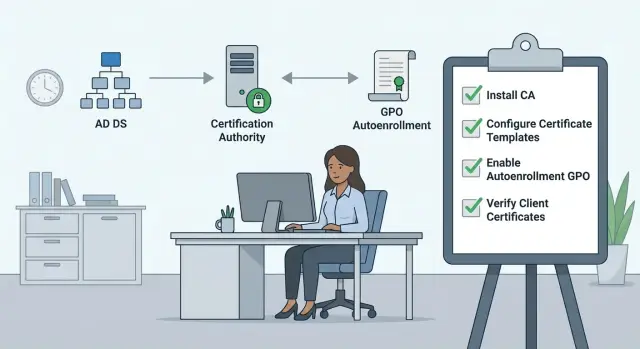
Why autoenrollment matters and where it breaks
Autoenrollment is when the domain automatically requests and installs a certificate for a user or computer according to defined rules. With manual issuance an admin or user creates a request, sends it to the CA and then installs the certificate. Autoenrollment removes the "human factor": certificates appear for everyone who needs them and are renewed on time.
User certificates are not just a checkbox. They are often the key to access and encryption: corporate Wi‑Fi (802.1X), certificate‑based VPNs, S/MIME for signing and encrypting mail, and applications that require strong user identification.
For GPO autoenrollment to work several components take part, and each can become a failure point: Active Directory (accounts and groups), AD CS (the certification authority), group policies (enabling autoenrollment and auto‑renewal) and Windows clients (which must apply the policy and contact the CA).
Most failures are not in the GPO itself but earlier — in templates and permissions. Common causes: the template is not published on the CA, the required users lack Enroll/Autoenroll rights, an inappropriate template type or key usage was chosen, the client cannot see the CA/does not trust the chain, or auto‑renewal was expected but disabled or the certificate no longer matches reissue rules.
If you know these checkpoints in advance, diagnosis becomes simple: check the CA and publication first, then the template and permissions, and only then the GPO and client‑side checks.
Prerequisites: domain, CA and basic dependencies
To make GPO autoenrollment predictable, first verify the foundations: the domain, the certification authority and infrastructure services. Most "not issued" or "not renewed" problems start here.
The first decision is which CA you need. For autoenrollment you almost always require an Enterprise CA, because it integrates with Active Directory, templates and automatic assignment. A Standalone CA is more suitable for manual issuance or niche scenarios, and for autoenrollment it usually ends up requiring constant manual work.
Next, check template and client version compatibility. Template versions (v1, v2, v3, v4) depend on AD CS capabilities and the OS. In a mixed environment (some legacy workstations) decide in advance which templates to use without surprises and whether you need separate templates for different device types.
Auto‑renewal often breaks because of domain "hygiene." DNS and time synchronization are especially important: certificates and Kerberos are sensitive to skew.
Minimum items to verify: DNS (clients and CA can find DCs and CA services by name), time synchronization across the domain hierarchy, AD availability when policies are applied and when certificates are requested, and no network blocks to CA services and revocation distribution points (more on that later).
Plan timing in advance. Certificate lifetime and the auto‑renewal window should be realistic: too short increases load and the risk of mass expirations; too long complicates policy changes. Agree on initial lifetimes, when renewal should start, and what counts as an incident (for example, if 5–10% of users do not renew on time).
Certificate templates: key settings without extra theory
A certificate template in AD CS is a set of rules: who can get it, which fields are filled, what the key can be used for and how long the certificate lives. If a template is misconfigured, GPO autoenrollment may run but produce certificates that are "wrong" and break VPN, Wi‑Fi or signing.
Start with basics: open the template properties and ensure the correct type for the task. For user autoenrollment you usually need a User class template. Enrollment Agent is a special scenario for issuing on behalf of others and is not needed in a typical setup.
Usage and EKU: what the certificate is allowed to do
The most common surprise comes from Extended Key Usage (EKU) and key usage. For logon and authentication you usually need an EKU like Client Authentication. For document signing you need Digital Signature, for encryption — Key Encipherment/Key Agreement. Extra usages can also be harmful: some systems may accept a certificate for the wrong purpose. If you omit a required usage, the certificate will be valid but useless.
Subject Name: where the user name comes from
For user certificates it is almost always sensible to source the Subject from Active Directory. This reduces input errors and prevents users from entering arbitrary data. Manual input makes sense only in rare cases (test environment or tightly controlled processes).
Decide in advance about the private key. Make keys exportable only when absolutely necessary (for example, profile migration); otherwise it adds risk. Choose key length according to corporate policy (commonly 2048 or 3072 for RSA) and check compatibility with older clients. Algorithm and provider (CSP/KSP) must match what workstations and applications support.
Lifetime and reissuance are also important. Very short lifetimes generate constant request traffic and support load; very long lifetimes complicate revocation and control. A practical starting point is 1–2 years for user certificates, and plan reissuance processes for role changes, termination and key compromise.
Permissions and template publication: common mistakes
If GPO autoenrollment is configured correctly but certificates do not appear, the issue is usually permissions on the template or that the template isn’t published on the CA. These things are easy to confuse: permissions are set on the template itself, while publication is performed on the CA.
Template permissions: who gets Read, Enroll and Autoenroll
For autoenrollment a user needs at least Read on the template and the right to request a certificate. Autoenroll is required specifically for automatic request and renewal.
A practical approach is not to give rights to Domain Users broadly, but to target via security groups. For example, create separate groups VPN‑Users and WiFi‑Users and grant rights only on the templates they need. This makes coverage easier to control and speeds up troubleshooting when a specific person did not receive a certificate.
A frequent error: the admin grants Enroll but forgets Autoenroll. Manual requests via MMC work, but automatic issuance does not.
Publishing a template on the CA: how to check
Even with correct permissions the CA will not issue certificates from a template until it is published. Check in the Certification Authority console under Certificate Templates to ensure the template appears in the list. If it’s missing, autoenrollment can fail silently; CA logs often show that the CA does not support that template.
Before publishing run a quick checklist: the right group has Read, Enroll and Autoenroll on the template; the template is published on the intended CA; and there are no extra groups that should not receive certificates.
Also remember process issues: changes often fail because of coordination. One person edits the template, another publishes it, a third changes groups. Without a clear owner you can get "permissions granted but template not published" or the reverse.
Configuring GPO for autoenrollment and auto‑renewal (step by step)
Choose the policy branch depending on the certificate target. For user certificates use User Configuration, for computer certificates (e.g., 802.1X on workstations or TLS on servers) use Computer Configuration. You may need both in a domain, but enable only what you actually use.
Configuration steps
-
Create a new GPO and link it to the OU that contains the users or computers that should autoenroll.
-
Open the appropriate branch:
- User Configuration -> Policies -> Windows Settings -> Security Settings -> Public Key Policies
- Computer Configuration -> Policies -> Windows Settings -> Security Settings -> Public Key Policies
-
Find the setting Certificate Services Client - Auto‑Enrollment and enable it. Typically enable automatic enrollment for eligible templates and auto‑renewal before expiration, and enable certificate updates on template changes. Enable removal of revoked or replaced certificates thoughtfully: it prevents duplicates but can complicate diagnostics.
-
Scope the policy. A common mistake is enabling the policy but applying it to the wrong objects. Verify the GPO link is on the correct OU, Security Filtering (for example, only the "VPN Users" group) and the application order (if multiple policies exist, ensure none override the desired one).
-
Give time for replication. After publishing a template or changing permissions AD replication and policy refresh on clients may be required.
How to verify the GPO actually applied
First ensure the policy reached the client: update Group Policy and check that the user or computer sees the correct GPO.
gpupdate /force
certutil -pulse
Then verify results: for a user check the new certificate in Current User (certmgr.msc), for a computer check Local Computer (certlm.msc). In Event Viewer the AutoEnrollment log is helpful: events show what was requested and why it may have been denied.
If a certificate doesn’t appear but the GPO applied, the problem is usually the template or permissions (missing Enroll/Autoenroll or template not published on the CA).
Auto‑renewal: how it should work and how to confirm it does
Auto‑renewal does not occur on the expiration day. On Windows clients it usually triggers when roughly 20% of the certificate lifetime remains (around 80% elapsed). The exact timing depends on template settings (renewal period and validity).
When configured correctly the user does nothing: the client forms a new request using the same template, receives the certificate from the CA and starts using it. The old certificate often remains in the store until it expires.
Problems arise when you change a template. If critical parameters changed (usage, algorithms, subject name, or key requirements), the client may try to renew with old data or stop renewing. Sometimes waiting for the next renewal window is enough, but manual cleanup may be required: remove the problematic certificate from the user store and allow the client to request a fresh one.
Remove old certificates cautiously. If a service or app still references the old certificate (or its thumbprint is pinned), you may cause login failures. It’s safer to ensure the new certificate is in use before deleting the old one.
A common case is a changed UPN or username. If the subject is built from AD attributes, a new certificate will contain the new name and external systems that match users by Subject or SAN may no longer map correctly.
Client checks usually take a few minutes:
- In Current User verify a new certificate from the expected template appears and the validity period is updated.
- Check the trust chain: root and intermediate certificates must be in trusted stores.
- Review AutoEnrollment events for refusal reasons and error codes.
- Ensure the application is not selecting the old certificate by habit (common in VPN or Wi‑Fi profiles).
If the trust chain is incomplete (missing root or intermediate), auto‑renewal may appear successful but service logins will fail due to validation errors.
Revocation and status checking: CRL, OCSP and real cases
Autoenrollment is useful only if you can revoke certificates quickly and predictably. Otherwise a stolen key or a retained certificate of a former employee will remain valid until expiry and you may find out only after an incident.
Revocation in AD CS is based on Certificate Revocation Lists (CRLs). It’s important not only to publish CRLs but to ensure clients can find and download them and that publications occur on schedule. If a CRL is expired, applications may behave unpredictably: from "accept all" to "block all." Delta CRLs speed distribution when the full CRL is large: clients download small updates between full publications.
If many status checks happen (Wi‑Fi, VPN, proxy, internal portals) consider enabling OCSP. OCSP allows faster status checks without downloading CRLs but requires trusting the OCSP responder and network accessibility. A common mistake is configuring OCSP while some clients still go to CRL distribution points and others can’t reach any status service.
When to revoke immediately
Two typical cases: key compromise and termination.
For compromise (lost laptop, leaked profile, suspected malware) the logic is simple: revoke the user’s certificate and issue a new one, preferably with a new key. Don’t delay revocation "until we investigate" — block the risk first and sort details later.
For termination follow access discipline: disable the account, revoke the certificate(s), and verify critical services (VPN, Wi‑Fi, RDP gateway) no longer accept the old certificate.
Minimum controls: frequency of Base and Delta CRL publication and responsible owners; availability of CRL and OCSP endpoints for clients; a revocation test on a single user (revoke, update status, confirm access is blocked); documented "time to block" SLAs for security and admins; and a clear reissuance workflow.
Symptoms that revocation is not working
Typical symptoms: a service accepts a revoked certificate; status checking takes tens of seconds and delays logon; behavior differs across networks (different access paths to CRL/OCSP); nothing changes until a reboot or cache clear; problems affect only some clients (different policies or trust).
Good practice: stabilize CRL publication first, then add OCSP as an acceleration, not as a band‑aid.
Pre‑production checklist: CA, permissions, renewal, revocation
Before production verify not only policies but the entire chain: from template on the CA to revocation checks on workstations. Most GPO autoenrollment failures relate to template permissions, untrusted chains or unavailable CRLs.
Walk through these items and mark results (OK or what's wrong):
- CA and templates: the required template is published on the CA, the template version suits your environment, and the template grants Enroll and Autoenroll to the correct groups.
- GPO and scope: the policy is enabled and applied to the correct users/computers, and no other policy disables auto‑renewal or sets unexpected parameters.
- Client trust and basics: root and intermediate certificates are deployed to trusted stores, time is synchronized, DNS resolves CA and CRL resource names.
- Client issuance check: AutoEnrollment events show no errors and the certificate appears in Current User with expected EKU and validity.
- Revocation and rotation: CRL is available and current, revocation checks run quickly, lifetimes and renewal windows are defined, and basic monitoring of CA errors exists.
Quick test on a single user
Pick a pilot account and check the full flow: the policy applied, the certificate appeared, and the application (VPN, Wi‑Fi, mail) sees it and validates chain and revocation. If this is stable, scaling to a larger group usually goes smoothly.
Also document governance: who issues and changes templates, who manages CRL/OCSP and distribution points, who handles incidents (mass issuance errors, CRL expiry, CA load).
Common errors and quick diagnostics
When autoenrollment is enabled but certificates don’t appear (or appear but don’t work), the issue is almost always one of: permissions, template, trust, or revocation.
Permission and template availability errors
Most common: the template has Enroll but not Autoenroll, or the template isn’t published on the CA. Manual MMC issuance works, but automatic issuance does not.
Quick checks:
- The template Security grants Enroll and Autoenroll to the required group.
- The template is published on the CA (Certificate Templates list on the CA server).
- The user is actually a member of the group (remember token refresh after logon).
- The client received the correct GPO and it’s linked to the right OU.
- The AutoEnrollment log contains an event with an error code and explanation.
Fast symptoms and where to look
If a certificate is issued but the application does not recognize the user, check Subject Name or SAN. For example, a service might expect UPN but only CN is present, or the name is not drawn from AD.
If duplicate templates or different versions exist, the client may request the wrong template — visible in unexpected EKU or other policy fields in the issued certificate.
If some clients report trust chain errors, verify root and intermediate deployment to Trusted Root and Intermediate stores via GPO. Without this the certificate may be issued but signature validation fails.
Intermittent authentication or long hangs are often caused by an unreachable CRL. Even with a valid chain applications can wait on revocation checks and time out.
One practical note: very short lifetimes and mass reissues create request spikes, CA load, network congestion and more client errors.
For client‑side troubleshooting do three actions: refresh policies, force autoenrollment, and check the CertificateServicesClient‑AutoEnrollment log for codes and messages.
Example scenario: certificates for company VPN and Wi‑Fi
A 300‑person company wants to move away from manual issuance: certificates are needed for VPN (on laptops) and Wi‑Fi (on all workstations). Goal: when a user logs into the domain the required certificate appears automatically without IT tickets or PFX export.
OU and group layout
Start by limiting issuance scope. A common mistake is enabling autoenrollment for the whole domain and then spending weeks cleaning up who got which certificates.
Practical layout:
- Create two groups: VPN‑Users and WiFi‑Users.
- Organize computers into OUs: Laptops (for VPN) and Workstations (for Wi‑Fi), if policies differ.
- For user certificates link issuance to user groups (not computer OUs) when certificates are user‑based.
- Apply the autoenrollment GPO only to the necessary OU and restrict template access to the appropriate groups.
This provides two layers of control: the policy is not everywhere, and the template is inaccessible to unnecessary users.
Usually two user templates suffice for VPN and Wi‑Fi: both with Client Authentication EKU, key stored in the user profile, export of the private key prohibited, Subject sourced from AD (preferably UPN). Start with one‑year validity and auto‑renewal 4–6 weeks before expiration.
Verification and revocation
Start verification with one test VPN user. After applying GPO confirm the certificate appears in the user's Personal store, contains the correct UPN and builds a valid chain.
For revocation on termination document the minimum process: upon account disablement revoke certificate(s) on the CA, ensure CRL is published on schedule and reachable by clients, and verify that VPN/Wi‑Fi servers respect revocation status rather than accepting any certificate presence.
Next steps: pilot, procedures and infrastructure support
Before enabling autoenrollment across the domain collect requirements. Decide which services need certificates (VPN, Wi‑Fi, mail, signing, web portals) and which fields are mandatory: UPN, e‑mail, device or user name, EKU, key length, and exportability. If expectations are not recorded, you will later find templates "almost suitable" but failing a particular service check.
Run a pilot on a single OU and group rather than half the company. This quickly reveals template permission issues, unsuitable renewal settings and unexpected application requirements.
Mini pilot plan:
- Choose a test OU and user group of 5–20 people.
- Record CA version and settings: selected templates, GPO parameters, lifetimes.
- Test the full cycle: initial issuance, auto‑renewal, revocation and status verification.
- Simulate an employee termination: revoke, update CRL, confirm access is blocked.
- Save results as the template for broader rollout.
After the pilot implement a simple procedure. Assign owners: who changes and publishes templates on the CA, who maintains CRL/OCSP and distribution points, and who handles incidents (mass issuance failures, CRL expiry, CA load).
For ongoing monitoring track a few metrics: issuance and renewal errors, CRL lifetimes and publication frequency, revocation check time on clients, and the percentage of devices/users missing required certificates.
If you design PKI for multiple branches or critical services, evaluate whether the infrastructure can handle the load (CA, logs, CRL publication and network paths). In such projects it can help to rely on an experienced integrator: for example, GSE.kz (gse.kz) provides system integration and infrastructure solutions and supplies servers and workstations that are often used for AD CS roles and related services.
Frequently asked questions
Why enable GPO autoenrollment if certificates can be issued manually?
Autoenrollment ensures certificates appear for the right users or machines automatically and are renewed without IT requests. It reduces the risk of expiration and installation errors, especially for VPN, Wi‑Fi (802.1X) and S/MIME.
Which certification authority is required for autoenrollment: Enterprise CA or Standalone CA?
In most domain scenarios you need an **Enterprise CA** because it integrates with Active Directory templates and supports automatic issuance by policy. A **Standalone CA** is more suited to manual issuance and often turns autoenrollment into a set of manual workarounds.
The policy is applied, but the user has no certificate. Why?
First check the template and permissions: is the template published on the CA and does the required group have **Enroll** and **Autoenroll**? If not, a client can receive the policy but still fail to request a certificate.
What does it mean that a template is "published on the CA" and how can I verify it?
Publication is done on the CA side: the template must be added to the list of issued templates (Certificate Templates) on the CA server. Even with correct permissions and GPO, the CA will not issue certificates from a template until it is published.
What is the difference between Enroll and Autoenroll permissions on a template?
Enroll allows manual certificate requests, while Autoenroll is required for automatic requests and automatic renewal. A common mistake is granting Enroll but forgetting Autoenroll — manual MMC requests succeed, but autoenrollment does nothing.
A certificate was issued but VPN/Wi‑Fi rejects it. What should I check first?
Usually the issue is EKU or key usage: a certificate can be valid but not suitable for authentication or signing. For VPN and Wi‑Fi you normally need an EKU like Client Authentication and a correctly populated user identifier that your service expects.
When does Windows start auto‑renewing a certificate and why might renewal fail?
Autoenrollment typically triggers well before expiration — often when about 20% of the certificate lifetime remains — but the exact timing depends on the template settings. Renewal can fail if autoenrollment is disabled in GPO or if the certificate no longer meets the reissue rules after template changes.
How to configure Subject Name and UPN correctly to avoid identification issues?
The safest approach is to source Subject/SAN attributes from Active Directory to avoid manual entry and impersonation. If your service matches users by UPN, ensure the UPN is present in the certificate; otherwise authentication can break after name or UPN changes.
Which basic things (DNS, time, trust) most often break autoenrollment?
Start with trust and network access: deploy root and intermediate certificates to trusted stores, ensure the client can resolve the CA by DNS and that system time is synchronized. Often issuance works but application validation fails due to an untrusted chain or time skew.
Why is access sometimes not blocked immediately after revocation and how are CRL/OCSP involved?
If the CRL is unavailable or expired, some services may hang on status checking or block access entirely. Minimum requirements are stable CRL publication, reachable distribution points for clients, and verification that your VPN/Wi‑Fi servers actually enforce revocation rather than relying solely on certificate presence.
