8 min read
Front‑Office Workstation: Reliability for High Traffic and Spare Parts
Front-office workstation: what fails most under heavy visitor flow, how to provide spares, service and procedures so you don’t inflate the budget.
Why front-office workstations fail more often than a regular office
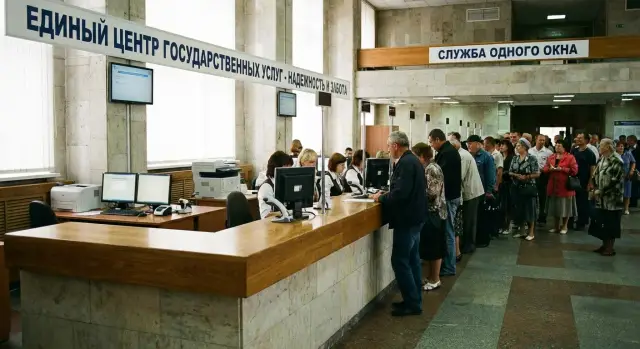
A front-office workstation in a government body is not just a PC on a desk. It's a citizen reception point where the employee handles queues, works with documents, several systems and peripherals at once. The pace is different: more people nearby, more actions per minute, fewer pauses and less room for error.
In a regular office a computer may "freeze" for 10 minutes and often a reboot solves it. In a front office the same 10 minutes becomes a queue, complaints, broken procedures and extra load on adjacent windows. So it’s not only the "hardware" that fails here — the whole service process suffers.
Problems typically come from four areas.
The first is people and the environment. The front office is a public space: cables get kicked, devices are moved, tokens and USB drives are constantly plugged in. Workstations wear out faster from contact and hustle.
The second is peripherals. Printers, scanners, card readers, keyboards and mice work more intensively here than in the back office. Often the peripherals create the impression of a PC failure, while the system unit is fine.
The third is power and minor faults. Short voltage dips, poor extension cords, loose plugs and unstable network outlets lead to reboots, disk errors and sudden device dropouts.
The fourth is dust and updates. In high-traffic places ventilation fills with dust faster, temperatures rise, throttling and freezes appear. At the same time OS and application updates sometimes arrive at the wrong moment and change driver or peripheral behaviour.
To manage reliability, it helps to rely not on "feelings" but on simple metrics. Four are usually enough: downtime (how many minutes the window is not serving), recovery time (how long to bring the workstation back), failure frequency (how many incidents per workstation in a period) and the share of repeated incidents (when a problem returns due to incorrect repair or an unresolved cause).
With these figures you can see what’s more economical: keep a stock of consumables and modules nearby, agree on fast service response, or replace the weak link (for example power or peripherals) without inflating the budget for the whole fleet.
What stresses break a workstation under heavy traffic
A front-office workstation lives in continuous user handover mode. The PC, monitor, printer and scanner work almost without pauses, and the employee often cannot "restart and wait" — the queue will not disappear. In this mode small issues quickly turn into downtime.
One of the heaviest loads is repetitive operations. Printing tickets, forms and certificates runs the printer continuously and keeps the system active. Scanning stacks of documents stresses interfaces and drivers and wears the mechanics: trays, rollers, lids, buttons. Working with digital signatures adds regular operations with tokens and flash drives: constant insertions and removals damage ports, and "bad" media can hang a session and cause errors.
There is also a human factor rarely accounted for in estimates. In the front office people stand close to the desk, hurry and get nervous. Items easily brushed by hands or bags suffer: power and video cables, USB extenders, front-panel connectors. Typical situations are mundane: someone pulled a cord with a foot, moved a desk and yanked out a plug, dropped a folder on the keyboard, hit the desk — and a contact came loose.
Another category is liquid and dirt. Tea or water more often damage not the whole computer but peripherals and contact points: keyboard, mouse, plugs, the power button, filter sockets. Dust and paper crumbs clog printers and scanners, and inside the system unit accelerate overheating, especially when it’s under the desk near feet and bags.
Finally, power. Voltage spikes, worn sockets, cheap extension cords and overloaded power filters produce the worst symptoms: sudden reboots, freezes, disk errors, burnt power supplies. A UPS helps, but only if it’s working, sized for the load and with a healthy battery.
Usually you can tell the load is wearing a workstation by several signs: the printer starts jamming paper or prints slowly at peak hours; USB ports become loose and a token disappears with a light touch; the PC reboots when a kettle or air conditioner in the next room turns on; the operator "fixes" it by unplugging and re-plugging a cable or moving the plug to a different outlet.
If you anticipate these loads, it’s easier to choose the right configuration, protect weak points and build a minimal yet effective stock of power and peripheral spares without inflating the budget.
Components that fail most often
Equipment in the front office does not fail because it’s "bad», but because conditions are tougher: frequent power cycles, jostling and tugged cables, dust, heat from people and dense layout. Weak points at a workstation are usually the same.
Power supply and power in general
The power supply is the leader in sudden failures. Reasons are simple: mains spikes, overloaded extensions, poor contact in the socket, and sometimes aging wiring. Often ignored signs: the PC starts only on the second try, reboots by itself, or occasionally hangs at startup. Another warning sign is a burning smell or new noise.
Storage
Drives (especially the system drive) suffer from sudden power loss. When the power blinks and the PC loses power, the risk of data errors and disk degradation increases. Aging also shows: programs open more slowly, rare freezes appear, and then the system may fail to boot at the worst moment.
Cooling
Cooling is a quiet cause of instability. Fans lose speed, make noise, and dust clogs heatsinks. The workstation becomes hot — slowdowns, spontaneous restarts and accelerated wear of other parts follow.
Cables and connectors
Cables and connectors fail more often than you think. HDMI/DisplayPort, USB, power, network cable — all are handled constantly: monitors are moved, flash drives plugged in, cords get kicked. As a result image disappears, keyboard or mouse disconnects, or the network drops.
Peripherals
Peripherals cause the most downtime, although formally the PC may be fine. Scanner, printer, card reader — any small device can halt reception if there’s no replacement or a clear bypass procedure.
Keep a short note of early signs: the PC no longer powers on the first time or reboots by itself; programs take noticeably longer and freezes appear; the fan is noisier and the case feels hot; video or network flickers when a cable is moved; peripherals work intermittently and need reconnecting.
If such workstations are purchased and serviced through a single supplier, it’s easier to agree standard replaceable modules and keep a small on-site exchange fund. For an integrator like GSE.kz this usually means a set of standard items matched to your fleet and clear replacement procedures so downtime is solved by quick swap, not half-day diagnostics.
Rare but painful failures: be prepared for the worst
Most front-office problems sound the same: "it won’t turn on" or "everything froze". But the most time‑costly downtime is caused by rare failures when replacing a small part doesn’t help and diagnostics drag on for hours. If a workstation receives citizens, better know in advance where failures will hurt the most.
Motherboard and memory: rare but long
Motherboards and RAM don’t fail every day, but when they do the recovery often drags on. Symptoms are variable: it boots sometimes, sometimes it doesn’t; it may freeze after 15 minutes; or produce errors while working with documents.
A practical rule: if the problem repeats after reinstalling software and swapping cables, and failures remain random, suspect memory or the motherboard. Here the quick-swap approach wins: keep a prepared spare workstation or at least a system unit to avoid long on-site troubleshooting during peak hours.
Screen, mount and mechanics
A monitor can fail not only in the picture. Problems may be with the power module, connector, cable, or mechanical damage (especially if the stand is loose and cables are taut). Dead pixels rarely stop work, but complaints may force an out-of-plan replacement.
Keyboards and mice are almost always cheaper to replace than to spend time diagnosing "why it won’t type". In a front office they are consumables: spilled tea, worn keys, broken USB connectors.
Network: a small part, big downtime
Half of "the system doesn’t work" cases turn out to be the network. Start with basic checks: the patch cord (bends, looseness in the connector — replace with a known-good one), the PC and wall port (tightness, LEDs), try another port or cable, and, if available, a backup channel.
A common misdiagnosis is blaming the CPU or GPU. In a typical front-office without heavy graphics they rarely fail and almost never cause sudden freezes.
Good practice is to agree on clear service terms in advance: who brings replacements and in what time, who keeps spare stock, who is responsible for diagnostics. GSE.kz, for example, advertises 24/7 support and a nationwide service network — this is about reducing recovery time, not about the most expensive hardware.
How to design reliability without overpaying
Front-office reliability often depends not on the most expensive parts but on predictability and speed of recovery. If you have dozens of identical reception windows, it’s important that a failure at one station doesn’t become many hours of downtime.
Standardisation matters more than "maximum specs"
Start simple: fewer configuration variants. When the same building has five different PC types, you pay twice — for support complexity and for a larger spare parts stock.
A practical guideline is 1–2 standard configurations for all scenarios and a single system image. That reduces total cost of ownership: repairs follow a template and spares are focused.
The approach "one product line — one set of consumables" works well: identical power supplies, drives, fans, cables. Then a duty technician swaps a module in minutes instead of checking compatibility by serial numbers.
Repairability and update control
Pay for what speeds up replacement. Even reliable parts fail sometimes, and under heavy traffic what matters more than failure frequency is time to recovery.
At purchase and assembly check: access to the drive, PSU and fans without full disassembly; a chassis and cooling designed for dust and tight placement under desks; cooling margin without constant noise; peripherals as a unified kit (same keyboards, mice, headsets, webcams) and a common cable set; an update plan where drivers and OS roll out to a pilot group first, not to all windows at once.
A simple example: in a reception the fan fails, the PC overheats and hangs. If the chassis uses a nonstandard fan, the station is down for a long time. If configurations are standard and access is easy, the technician changes the fan in 10–15 minutes and the window is back in service.
If possible to buy equipment from a manufacturer with local assembly and a service network, that is part of reliability — but only with standardisation and clear update rules.
Step-by-step: how to set spares and service for a target downtime
A visitor flow won’t forgive long outages. Therefore plan spares and service not "by feel" but to meet a concrete goal: how many minutes a workstation may be unavailable before the queue breaks procedures.
First tie reliability to the real schedule. A 10-minute stop at one window may be tolerable in mid-day, while during peak even 5 minutes causes conflicts.
The working scheme looks like this:
-
Describe service scenarios by windows: peak hours, normal hours, closing time when replacements can be made without stress.
-
Categorise workstations by criticality: where work halts completely without a computer (reception, cash desk) and where you can temporarily move to a neighbouring place.
-
Set a target recovery time (RTO). For reception zones they often choose 30–60 minutes; otherwise queues spread out.
-
Calculate spare parts and consumables to meet this goal. A practical approach is to keep 1–2 units of the most common items per department and cover rare items with fast service.
-
Assign responsibilities and a simple procedure: who diagnoses, who replaces, where spares are stored, how replacements are logged.
For RTO to be real, spares must be "replaceable in 10 minutes". Usually these are items removable without complex setup: keyboards and mice, headsets, cables and power supplies, drives, sometimes a monitor. If the process depends on a peripheral (scanner, printer, reader), keep one spare device for that bottleneck rather than one per workstation.
Service completes the picture. It’s convenient when the supplier provides clear response times and 24/7 support and you keep a single incident log: what failed, when, where and what replaced it. After 2–3 months these records show what really needs to sit on the shelf and what’s not worth buying in advance.
A small example: if a drive fails at peak, a spare SSD and a prepared system image allow recovery within an hour. Without that you’ll be fixing on site for half a day and paying not only with money but with reputation.
Common mistakes that increase budget but don’t reduce downtime
The worst situation is money spent on "reliability" while the reception still fails at the busiest hour. Usually the cause is not a single failed component but a set of small managerial and technical choices that together cause constant outages.
The first mistake is a model zoo. When one hall has five different PCs, three keyboard types and two printer models, repair becomes a quest: different drivers, different PSUs, different odd parts. Spare stock grows and the right part is still missing today. For front-office workstations, unification is more profitable: fewer device types and more interchangeability.
Other mistakes that quietly inflate the budget:
- a spare exists but cannot be quickly used: no inventory, no access, no responsible person and no clear storage location
- saving on power: cheap extension cords, overloaded sockets, lack of UPS where a 2-minute outage is critical
- maintenance "by mood": dust, clogged filters, loose connectors and cables accumulate risk until the first peak
- firefighting service: they fix the loudest complaints and don’t record the root cause
Short example: a reception PC hangs, the operator reboots, the queue grows. It turns out they skimped on a UPS and power dips when the air conditioner turns on. At the same time a spare PSU exists but sits in another building and no one has the key.
Another mistake is not measuring service. Without simple numbers (incidents per month, mean recovery time, recurring causes) you can’t tell whether it’s cheaper to add a UPS, replace many cheap extensions, or keep 1–2 spare system units. Suppliers with local production and a nationwide service network, like GSE.kz, often help standardise and build procedures, but basic discipline in logging and statistics must be yours.
Quick checklist for a duty technician: what to check in 10 minutes
When there’s a queue, perfect diagnostics don’t matter — fast return to service does. This checklist helps quickly decide whether it’s a small issue (cable, port, hang) or time to replace the module.
10 minutes for initial checks
Check power: outlet and plug, is the cable firmly seated in the PSU and in the PC/monitor, are indicators lit on the system unit, monitor and UPS (if present). If the UPS beeps or shows battery discharge, switch to another outlet or temporarily plug in directly if the procedure allows.
Look for "signs of life": if fans spin but there’s no image, check the monitor cable and selected input (HDMI/DP), try another cable or a monitor from a neighbouring station.
Check network: are the LEDs on the PC port and the wall/switch lit? Quickly exclude the patch cord by using a known-good one. If there’s a second network port, try it.
Check peripherals: if mouse/keyboard/scanner don’t work, move the device to another USB port, preferably a rear one. For external devices try another USB cable and do a short device power cycle (off and on).
Do a quick restart: if everything is connected but the system is hung, reboot normally. If it doesn’t respond — force power off, wait 10 seconds and power on again. After startup check for system warnings.
When to replace the unit immediately
Some symptoms are faster to handle by swapping the unit (per your spare scheme) and sending the faulty one to service.
If you hear clicks or grinding from a drive, the system boots extremely slowly, read errors appear, there are sudden shutdowns from overheating, or instability persists — record the symptom and replace the unit rather than try to limp through the shift.
To speed up service, include three things in the ticket: what exactly isn’t working, what you’ve already checked (cable, port, reboot), and what the UPS or network indicators show.
What to keep in the duty kit on site
The kit should match what actually fails in the flow and be the same for all windows. Usually a few patch cords, one spare power cable, one HDMI/DP cable, a basic spare mouse and keyboard, a USB cable for typical peripherals (scanner, printer, signature reader) are enough. Plus a prepared swap — a PSU or a spare PC/all-in-one depending on the support model.
If equipment is supplied centrally, it’s handy when the manufacturer and integrator agree the swap list and order of replacement in advance. This reduces downtime without buying "just in case" items.
Real case: reception at peak and one failure
Monday, 10:30. A document reception window works without pauses: the employee prints forms, scans passports, issues tickets and answers questions. Dozens of people pass through the desk in an hour, equipment is on all day, cables are often tugged and buttons pressed faster than in a regular office. In this environment even a small failure becomes a queue and complaints.
A failure happened "out of the blue": the scanner stopped being detected. The cause was banal but typical for heavy flow: a USB cable had loosened and contact broke with each movement. While looking for the cause the operator rebooted the PC, reinstalled the driver and called the admin. About 35 minutes were lost, the queue grew, and some applicants had to be rescheduled.
Later, in another incident, the PC suddenly powered off during printing. Diagnostics showed a power supply fault. Another common case: the printer reports an error because rollers are worn or it overheated after a long print run. Rarer but more painful is a dying drive — then time is lost rebuilding the workstation.
In that unit the issue was fixed not by buying more expensive gear but by a preset scheme: a backup PC configured the same as the main one (so you only need to swap cables and continue), an on-site kit of consumables (USB and network cables, a spare compatible power supply), a set of standard drivers for printer and scanner tested on that configuration, and a simple memo: what to check first (cable, port, power, print queue) and what not to touch during peak hours.
Savings are simple: fewer minutes of downtime per reception day, fewer emergency purchases "yesterday for today", fewer specialist visits for small issues. Even a single backup computer and a small cable kit often pay off over a season because the window keeps working.
A realistic spare for a small front office (2–4 windows) is usually: one backup PC for the site, one spare PSU for the standard model, 2–3 cables of each type and a preselected typical combo "PC + printer + scanner". If equipment is centrally purchased, it’s easier to use identical models (for example, workstations and PCs of the same series) so parts and drivers match without surprises.
Next steps: standardisation, service and choosing a supplier
When you know where failures most often occur, the next step is to formalise rules for how each front-office workstation is managed. This reduces chaos, speeds repairs and makes costs predictable.
Minimum standards that actually help
Standardisation doesn’t mean "the most expensive for everyone". It means "equally serviceable". A minimal set usually includes 1–2 common models of PC and monitor, a single system image and software set (including a clear update and permission scheme), as uniform as possible cables and power supplies, unified placement and connection rules (power, network, peripherals), as well as labelling and records: serial number, installation date, replacement history.
This lets you swap a module quickly instead of searching for a unique spare for each place.
How to contract service so it actually works
Describe service by parameters: support windows, response time, recovery time, who does what on site, and what spares are kept nearby. Agree on reporting: number of incidents, causes, recurrence, and measures taken. If flow is large, also set a minimum pool of exchange units: how many ready-to-deploy PCs and peripheral kits must be on site.
When choosing a supplier, predictability of deliveries and transparency of the chain often decide. A local manufacturer can be advantageous for replacement times, identical models and meeting public procurement requirements that prioritise local content. In Kazakhstan, for example, GSE.kz has domestic production status since 2015 and ISO 9001, ISO 14001, ISO 45001 certifications — this often simplifies formal requirements and reduces supply risks. As an integrator, GSE also covers system integration, AI solutions and data‑centre infrastructure, plus round‑the‑clock support with a nationwide service network, which directly affects recovery time.
To reduce procurement risk, a clear scheme usually suffices: pilot 5–10 workstations under real conditions (including peak hours), record metrics (downtime, typical failures, maintenance convenience, consumable usage) and scale only after adjusting standards and service.
If you consider GSE.kz, it’s logical to evaluate their domestic L200 desktops for typical workstations, M200 all‑in‑ones for limited spaces and neat setups, and S200 servers for infrastructure. For front offices these factors — identical models, quick replacements and predictable support — often matter more than maximum specs because they reduce downtime at the same budget.
Frequently asked questions
Why does equipment fail more often in the front office than in a regular office?
In a front office, any 5–10 minutes of downtime immediately becomes a queue and complaints, so "small" failures are more noticeable and painful. Additionally, the workstation is handled more often: cables get tugged, tokens and USB drives are plugged in constantly, printers and scanners are used intensively, and dust and heat from the crowd accelerate overheating and wear.
What actually fails more often — the PC or the peripherals?
Most often the failure is caused by peripherals or a contact issue: a USB cable, port, scanner/printer power, or a network patch cord. The practical approach is to first rule out the cable and the port, and only then suspect the computer itself—replacing a cable takes minutes and often immediately restores service.
What should I check first if everything freezes and there is a queue?
Start with power and cables: is the plug seated properly, are the UPS/filter indicators lit, then check the video cable and selected monitor input. Next, check the network by indicators and by swapping in a known-good patch cord. If the issue is a USB device, move it to another port and briefly restart the device; if the queue is growing — it’s better to swap in a replacement than dig into drivers.
Which components inside the PC fail most often?
Most often it’s the power supply, storage, cooling (dust and fans), and also cables and connectors. In a front office these parts suffer from voltage dips, sudden outages, overheating and constant reconnections. A video card or CPU rarely causes sudden freezes in a typical reception window unless there’s heavy graphics work.
What signs indicate power supply problems?
If the PC only starts on the second try, reboots by itself, shows instability under load, or you notice a burning smell or new noises — power is suspect. In that case it’s better not to wait for peak hours: replace the filter/extension, check the outlet, and if needed replace the power supply, because sudden failure usually occurs at the worst possible moment.
How do I recognise a failing drive and what to do in advance?
If programs take noticeably longer to open, rare freezes appear, and then the system occasionally fails to boot — that’s typical disk degradation. The risk is higher after a power flicker, especially without a working UPS or with an aged battery. For the front office, a prepared system image and a quick SSD replacement scenario prevent long downtime.
Which metrics really help manage front-office reliability?
Four simple metrics are usually enough: how many minutes a window is not serving people (downtime), how long recovery takes (RTO), how often incidents happen per workstation, and how often incidents repeat due to unresolved root causes. These figures quickly show what’s more cost‑effective: keep spares nearby, improve power, replace problematic peripherals, or swap the whole unit.
What spare parts and replacements are realistic for a small front office (2–4 windows)?
The goal is that replacement takes minutes and doesn’t require complex setup. Typically keep one backup PC (or all-in-one) for the site, several standard cables (power, HDMI/DP, patch cord, USB), and consumables like a spare mouse and keyboard. More expensive or rare items are better handled by fast service rather than stocked on site.
When is it better to replace a unit immediately rather than try to fix it on site?
When you have already checked cables/ports and performed a quick restart but symptoms persist: clicks or grinding from the drive, very long boot, repeated read errors, sudden shutdowns from overheating, or intermittent behaviour — in peak hours it’s faster to swap in a replacement node and log the problem for service.
Why choose a single manufacturer/integrator and how can GSE.kz help?
A unified park makes it easier to keep an exchange fund and identical consumables, and to use a single system image and predictable drivers. A local manufacturer and integrator often simplify agreements on replaceable units, reaction times and 24/7 support. For organisations in Kazakhstan, GSE.kz can help because of local production and lines like L200, M200 and S200 that support standardisation.
