7 min read
Folder redirection and user profiles during PC replacement
How to set up folder redirection and user profiles when replacing PCs: less manual copying, faster workstation readiness and fewer losses.
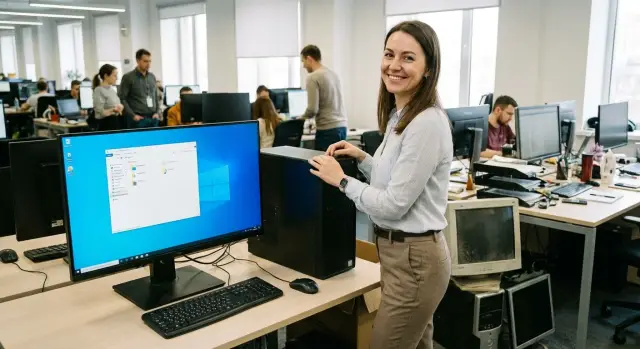
The problem when replacing PCs: time, stress and missing files
Replacing a work PC looks simple — until it’s time to move data. The worst part is that problems often surface later: a new PC is issued, the person starts working, and a week later it turns out that contracts, spreadsheets, templates or important emails with attachments were “left somewhere.”
The main cause of loss is manual transfer. In practice it looks like this: the employee or IT tries to remember where files were, copies them to a USB stick or external drive, moves them to the new PC and rebuilds the familiar structure. Then it turns out some documents were on the Desktop, some in Downloads, some in a folder like “Projects_2023” on drive C, and there are also data inside applications that “live” in the profile.
Even an orderly user can spend 1–2 hours on such a move. If someone stores files “however happened,” the transfer stretches to half a day, and IT keeps getting requests to “restore one file.”
Usually time and nerves are spent on three tasks: finding all possible file locations; copying large folders and ensuring nothing was lost; and fixing consequences when data wasn’t transferred, was overwritten or “ended up in the wrong place.”
A large part of this can be solved without a big project. Folder redirection ensures that “Documents,” “Desktop” and other important folders are stored in a managed location, not on a specific PC. Then when a PC is replaced, the user simply signs in and sees their files where they were yesterday.
A real example: a 20-person department has PCs replaced in batches. With manual transfers this takes weeks of small tasks and inevitable mistakes. With organized storage and clear access rules, replacement becomes a repeatable procedure rather than an emergency rescue.
What usually needs to be preserved when moving to a new computer
Users don’t think in terms of a “Windows profile” — they think of familiar locations: “Documents,” “Desktop,” “Downloads,” “Pictures.” That’s where reports, drafts, scans, presentations and “temporary” files that suddenly become important usually live.
To avoid missing typical data, agree on a baseline set in advance. Almost always it includes:
Documentsand the working folders inside itDesktop(often everything “current” is there)Downloads(if people save invoices, emails or installers there)Picturesand scans (especially in accounting and procurement)
Things often forgotten include: browser bookmarks and saved passwords (if not synced), email signatures, autofill data, custom dictionaries, Word/Excel templates, macros. A special risk category is files in nonstandard places: directly on C:, in the root of D: or in folders like Project_2025 on the desktop.
The most unpleasant surprises are local databases and application data. An accountant may keep a small database file, a designer a library in the profile, an engineer project files inside an application folder. These often live in AppData or program-specific folders and users don’t know about them. A short interview before migration helps: “Which program do you use daily and where does it store files?”
You usually don’t need to move temporary files, browser cache, Recycle Bin contents, Temp folders or old installers. They bloat the volume and bring old problems to the new PC.
If folder redirection is configured, most user files are already in centralized storage. When replacing a PC, the user returns to work faster: they sign in and the needed folders are already in place.
User profile: what it is and why you can’t just copy it
A Windows user profile is not just a folder with documents. It’s the user’s “home” on the PC: where files live, where applications store settings and where Windows keeps personal parameters.
Physically a profile usually sits at C:\\Users\\UserName. Inside are common folders (Documents, Desktop, Downloads), but important things are hidden deeper. For example, AppData stores program settings, caches, templates and application databases. Some system settings are stored in the NTUSER.DAT file (a part of the registry tied to that user).
Profiles often contain Desktop and Documents files, browser data, email signatures and settings, office application parameters and specialized software data, caches and local application databases.
It’s important to distinguish local data from data that lives in network storage or corporate services. Local data is tied to a particular machine and can be lost during replacement. Network data survives migration more easily: sign in on the new PC and files are there. That’s why folder redirection is often used as a basic insurance: Documents and Desktop don’t start life on drive C.
Why not just copy the whole profile to a new PC? Inside there are hidden files, permissions, bindings to the user’s SID, active caches and components expecting the old environment. After a rough copy you can get “weird” behavior: programs lose settings, browsers ask to sign in again, mail opens with errors, and some data becomes unreadable due to permissions.
It’s safer to separate tasks: move documents in a controlled way (preferably over the network), and transfer settings only where it’s necessary and proven.
Folder redirection: purpose and basic idea
Folder redirection is a Windows setting that stores common user folders not on the PC’s C drive but in a centralized location. For the user nothing much changes: they save to Documents or put shortcuts on the Desktop, but the data physically lives in a network folder or corporate storage.
The main idea is simple: the PC becomes replaceable. If a PC fails or a new one is issued, the user signs in and sees the same documents without copying from USB sticks or external drives.
Typically Desktop and Documents are redirected first. Pictures is often added, and Downloads is considered case-by-case (useful if people often save attachments and invoices there).
Centralized storage provides clear benefits: lower risk of data loss during workstation replacement, easier backups, simpler access control, and faster incident investigation when history matters. In regulated organizations this often becomes a required practice rather than a convenience.
This approach is especially useful where there are many similar workstations and frequent fleet updates: offices, government bodies, schools, clinics and banks.
Before enabling redirection check basic conditions, otherwise users will feel slowdowns rather than convenience:
- stable network and sufficient speed to the storage
- clear access permissions
- enough space and quota rules
- backups and defined retention periods
A simple example: an accountant saves payment orders on the Desktop. With redirection they immediately appear in corporate storage and when the PC is replaced the accountant continues working from the same place even if the old PC is turned off and decommissioned.
Preparation: storage, access and backups
To keep folder redirection from turning into chaos, first decide exactly where user documents will live. Typical choices: an on-premises file server, a NAS in the server room or a corporate cloud. It’s critical that storage is stable and that responsibility for maintenance and backups is assigned.
Next, define a simple, consistent structure. Without rules you’ll quickly see folders like Ivanov_new, Ivanov(2), do not touch old and finding files becomes harder than manual copying.
A useful minimum to document:
- where user folders are stored (by department, employee number or login)
- how folders are named and what counts as “work documents”
- quota rules and behavior on quota exceedance
- retention periods and archive rules
- who approves exceptions (e.g., designers or accounting)
Check access rights separately. A user should only see their own data. Administrators need access for recovery and investigation, but not blanket access “just in case.” Assign responsibilities: who creates accounts, who grants access, who changes quotas and who handles incidents.
Last but mandatory: a backup before migration. Even if it seems “everything is already on the server,” local files almost always remain: Desktop, Downloads, templates, mail archives. Make a control backup and test restoration on a sample folder. It’s cheaper than explaining missing contracts after issuing a new PC.
Step-by-step: how to set up folder redirection without pain
Good setup starts with a simple decision: which data you must preserve and which can stay on the old PC. Too wide a scope complicates support. Too narrow leads to losses.
1) Decide what to redirect
A minimal set usually covers main work and reduces surprises. In most cases Desktop and Documents are enough. Pictures is commonly added. Only redirect other folders if a department truly needs them.
Decide where redirection points: a network share or corporate storage. Ensure users have access only to their own data and IT has support and recovery access.
2) Set application rules and choose a mode
In a domain environment it’s convenient to apply settings via Group Policy and assign them to user groups (e.g., office, accounting, call center). This allows targeted enablement.
Choose a mode:
- Move existing files. Easier for users, but IT needs control, space and post-move verification.
- Start fresh. Easier for IT, but users must be told where to find old data.
Pilot on a small group (3–5 users) with different scenarios: many files, nonstandard paths, profile-based applications. Collect feedback: do documents open without delay, did templates survive, did save paths change?
After the pilot, document the standard: which folders are redirected, where, which groups are included, chosen mode and what the engineer checks when handing over a new PC. Then workstation replacement stops being a manual drama.
How to organize PC replacement so work doesn’t stop
The goal is simple: the person should log in and continue working as if nothing changed. This is achieved by process and consistent settings, not heroic file copying.
Start with a pilot: one department or a small team with clear tasks and a contact person who gives quick feedback. On the pilot you check not only documents but the little things that break work: access, network resources, printing, email signatures and required applications.
Then replace PCs in scheduled batches. Prepare machines in the evening and hand them out in the morning so a specialist can help if needed. For large offices a typical pace is 5–15 workstations at a time.
On first login the user should have three things without delays or calls:
- files in familiar folders (including
DesktopandDocuments) - working printers
- access to required resources and applications (portals, shared folders, 1C/CRM, email)
Verify the account exists, policies are applied, storage access is available and printer drivers aren’t blocked by security policies.
Always have a rollback plan. It’s not for panic but to avoid losing a workday if a rare dependency appears: a specific application, old driver or hardware key.
A practical minimum:
- don’t remove the old PC immediately; keep it for 3–5 working days
- save an image or at least a restore point of the new PC before handing it over
- keep a list of critical applications and responsible contacts
- agree in advance who decides to fix now or temporarily revert to the old PC
Example: accountants’ PCs are replaced over a weekend. New machines are prepared Friday night; on Monday staff log in and see their files, printers work, and old PCs remain nearby as insurance.
Common mistakes and pitfalls when moving profiles and data
The most common migration failure is “we set it up, but the user is slow.” This usually comes from large data volumes and a weak network. If you redirect Desktop, Documents and Pictures with gigabytes of photos and archives inside, login can drag and Explorer may open slowly.
Rule of thumb: estimate volumes before rollout and move heavy folders (personal archives, videos, installers) to a separate location not used in daily work.
Second pitfall: permissions. Symptoms: folders are visible but won’t open; files save then “disappear”; “Access denied” errors. Before handing over a new PC check the folder owner, read/write permissions, inheritance and effects of security policies.
Third: applications still look for files locally. Even with correct redirection some programs store databases, templates or caches in nonstandard paths. The user ends up with an “empty” application despite documents being in place. A list of key department applications and a quick check of their storage settings helps.
Fourth: mixing personal and shared folders. When Documents contains both personal files and department templates, duplicates, version conflicts and “who deleted this?” disputes easily arise. Separate personal (user profile) and shared (department structure with clear permissions) from the start.
Finally, migrating without a backup or exceptions list. A backup isn’t “just in case” — it allows quick recovery if an important file from a nonstandard folder appears. Typical scenario: an accountant stores 1C exports on C:\ in a folder called Temporary. After migration that “temporary” data can be permanently lost.
Short checklist before handing a new PC to a user
Before giving a new computer, spend 10–15 minutes on quick checks. It’s cheaper than chasing problems on the first workday when deadlines are tight and needed files or printers “can’t be found.”
If folder redirection is configured, the task is simple: user logs in and sees the familiar environment.
Minimum checks:
- login under the correct account and
Desktop/Documentscontain old files - create and save a test file (then reopen it)
- permissions work both ways: create, edit and delete the test file (common issue: read but no write)
- acceptable performance: folders open without long hangs, large files open/save without errors
- access to work resources: printing, network shares and corporate apps start correctly
- user knows how to contact support (where to write, what to attach)
A useful trick: ask the user to open 2–3 “real” files they use daily (a contract template, a shared report, a project folder). Many issues are invisible on a test document.
Example scenario: replacing PCs in a department without manual copying
A 60-seat department: accounting, HR, analysts. Management asks to replace PCs in 2 weeks with no downtime and no “files lost because they were on the Desktop.”
A practical solution: enable folder redirection for the folders most commonly lost. First: Desktop, Documents, Pictures; sometimes Favorites or a shared templates folder if everyone uses the same location. Other items are moved selectively: large archives, rare personal folders and specific files from the root of C:.
Start with a pilot of 5 users with different habits: one stores everything on the Desktop, another organizes by project folders, a third uses 1C and scans. The pilot quickly reveals two things: it’s important to clean up hoarded files in advance and to explain to users where their files will now live.
After the pilot standardize: a single set of redirected folders, naming rules and department structure, a short user guide, permission checks and a test login before handing over the new PC, plus a migration window (e.g., 6–8 PCs per day).
Leave manual migration for what’s not worth moving “as is”: old local databases, heavy personal photo collections, nonstandard programs for a few users.
The typical result: time per PC drops because the main document mass already lives in the correct place and appears immediately after login. Fewer losses occur because there’s less manual copying and less reliance on “that USB stick.”
Next steps: lock the process and scale across the organization
To make migration routine, start with concrete steps: list the data users really need daily (documents, desktop, favorites, templates, signatures, application profile files). Then pick 10–20 pilot users from different departments and verify they continue working after receiving a new PC without searching for files.
Next choose storage and access rules. Many organizations work best with centralized storage and only applications and settings on PCs. This yields the main benefits: less copying, fewer losses and easier control.
To avoid disputes during scaling, assign roles in advance:
- IT: configuration standard, image/policies, support
- InfoSec: access rules and storage requirements
- Department owners: confirm critical data and allowed exceptions
- Procurement/supply: lock standards into purchases and configurations
Enforce the standard as a process: a new PC is issued only after applying the unified policies, checking access and performing a test login.
If you’re updating hardware and want batches to be as identical as possible, coordinate with your supplier and integrator. For example, GSE.kz, as a manufacturer and system integrator in Kazakhstan, can supply standard workstations and help build a unified deployment and support approach so replacements happen without excessive manual work.
Frequently asked questions
Which folders should be redirected first when replacing a PC?
Start with `Documents` and `Desktop`: those are the places where items that later become “urgently needed” most often live. Add `Pictures` (scans) and `Downloads` only if people really keep work attachments there; otherwise `Downloads` quickly becomes clutter.
Why can’t you just copy the entire Windows profile to a new computer?
Because a profile is not just files — it includes permissions, hidden system components and bindings to a specific Windows environment. After a straight copy, settings often break, access errors appear, and some application data behaves unpredictably.
What will change for the user after folder redirection is enabled?
If folders are already redirected to centralized storage, logging into a new PC will show your files in the same places without manual copying. Verify in advance that the necessary folders open and check a couple of the everyday documents you use.
What if everything becomes slow after enabling folder redirection?
Slowdowns usually come from a weak network, slow storage or moving very large folders to the network (photo archives, videos, installers). The best approach is to keep heavy personal archives out of daily work folders and test performance on a pilot group before broad rollout.
Why do I get “Access denied” errors after migrating to a new PC?
Most often it's a permissions issue: the folder is visible but writing is blocked, or inheritance is wrong. A practical test is to create a file, save it, reopen it and delete it; if any step fails, fix the folder owner and permissions rather than reinstalling software.
How do you avoid losing application data stored outside `Documents`?
Ask the user to name key programs and where they store data, and have IT check typical locations like `AppData` and program-specific folders. Often these cases require a separate migration scenario: manually move the database/project and verify it runs once on the new PC.
Do we need a backup if folders are already redirected?
Make a control backup before migration, even if it seems like everything is already on the server. Local leftovers often include `Downloads`, files on disk C, templates and mail archives — it's easier to save them in advance than to hunt for missing contracts later.
How to organize mass PC replacement without stopping the department?
Start with a pilot of 3–5 users with different habits and software, then migrate PCs in scheduled batches. Keep old computers nearby for 3–5 working days as insurance so rare dependencies (drivers, hardware keys, special software) don’t halt work.
How to avoid a mess when personal and shared files are mixed in `Documents`?
Separate personal and shared files from the start: personal documents stay in the user’s profile, shared templates and department files live in a separate structure with clear permissions. This reduces confusion, duplicates and version disputes, and simplifies support and incident investigation.
What is the minimal checklist before handing over a new PC?
Ask the user to log in with their account, open `Documents` and `Desktop` and find their old files. Create a test document, save it, reopen it and delete it; then check printing and launch key work applications to avoid surprises in the first working hour.
