8 min read
First‑line training for PC and all‑in‑one repairs: what to fix
First‑line training for PC and all‑in‑one repairs: how to divide faults between on‑site fixes and service, and how to prepare instructions and spare parts without extra cost.
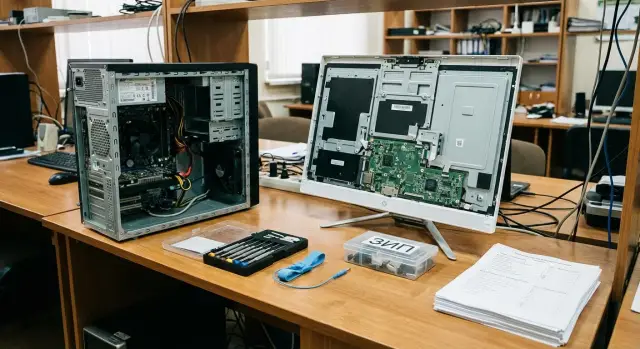
First‑line task: where help ends and repair begins
The first line is the team that removes downtime fastest. It receives the call, asks the right questions, runs a short check and returns a working workstation to the user. A strong first line does not have to “fix everything.” Its job is to quickly identify the cause and choose the right route.
It helps to split work into three levels in advance:
- Diagnosis — checks with no risk: power, cables, indicators, peripherals, settings, testing with another monitor or power supply.
- Minor on‑site repair — clear, repeatable actions without complex disassembly.
- Service case — when deep disassembly, soldering, panel replacement, complex tests are needed or there is a risk of voiding the warranty.
Without clear boundaries, time and money are lost. You get visits “just to look,” users wait longer, and devices can be damaged further by trial‑and‑error disassembly. A special risk area is warranty: opening or replacing parts outside authorized procedures can lead to denial of warranty repair.
For the first line, a minimal set of knowledge is enough:
- Safety: power, static electricity, careful handling of cables and fasteners.
- Basic diagnostics: distinguish power, display, disk, OS and peripheral problems.
- Understanding limits: what can be done on site and what must go to service.
- Documentation: what was checked, what was replaced, serial numbers, symptoms, and results.
If you have many PCs and all‑in‑ones, agree these boundaries with your supplier or integrator. Then the first line acts with confidence: quickly restores on site or promptly hands the device to service without ‘‘tweaking and watching.’’
How to decide: fix on site or send to service
The main goal of the first line is not to repair at any cost but to return the workstation to the user quickly. A good basic principle: first restore function (even temporarily), then investigate the cause and plan the repair.
To keep decisions consistent across staff, a short triage of three questions helps:
-
How long will the recovery take?
-
What is the risk of damaging the device or voiding the warranty?
-
Are the needed spare parts and tools available?
Simple time rule
Agree on clear thresholds:
- Up to 15 minutes: do it on site if no case opening is required.
- Up to 30 minutes: only do on site by instruction and with low risk.
- Up to 60 minutes: only for a critical workstation and when confident of the outcome.
- More than 60 minutes: open a service request and provide a replacement or temporary solution.
Count time honestly: diagnosis, reboot, cable checks, testing other peripherals, and filing the ticket. If it’s clearly going to take longer, stop earlier.
Constraints: warranty, seals, security and inventory
If there is a warranty, seals, asset accounting requirements or a ban on opening, any disassembly and internal part replacement usually move the case to service immediately. The same applies with safety risks: unknown devices, suspicious media or signs of tampering.
A successful visit is not just “fixed.” It’s also correctly documented: symptoms, serial number, steps and test results, what didn’t help and what to check next. Then the service center or integrator won’t start from zero.
Quick 10‑minute diagnostics without opening the case
A quick check helps determine whether the issue is a simple on‑site problem or should go straight to service. If your team is trained for first‑line PC and all‑in‑one repairs, reinforce a short algorithm so everyone acts the same.
Start with power and external causes. Often the problem is not inside the PC.
10‑minute algorithm
-
Power: unplug and replug the outlet, surge protector, power supply or cable to the device. Check for loose connectors.
-
Power button and indicators: is a lamp on or blinking, does the device respond to a 10‑second press?
-
External inspection: burning smell, signs of overheating, cracking, unusual fan noise.
-
Exclude external causes: try another HDMI/DP cable, another monitor (or vice versa), disconnect all peripherals except the keyboard.
-
Basic system checks: is the BIOS/logo visible, is the network working, is the account locked, or is there a simple error message?
If the image appears only on another monitor or with another cable, the cause is found without risk. If there are no signs of life and you smell burning or see overheating, stop, document and send to service.
To speed the next step, record symptoms immediately:
- when it started and what was done just before (update, move, cleaning, power surge);
- what the user sees (error text, black screen, reboot loop);
- photos of the screen and indicators;
- what was already checked (cables, monitor, surge protector, peripherals).
This saves second‑line time and reduces repeat visits.
Step‑by‑step process for the first line (one scenario for all cases)
One scenario should work the same for desktops and all‑in‑ones: remove uncertainty, try quick solutions, then decide whether to fix on site or send to service. This is especially useful when training the first line, where uniform actions matter.
One route from call to result
-
Collect initial data: what doesn’t work, when it started, was there an update or move, any smell or noise. Note model and serial number, location and contact person.
-
Perform quick checks without opening: power and cables, another monitor or cable, another outlet, reboot, disconnect external devices (USB, printer), network check (cable, Wi‑Fi), BIOS access or safe boot if appropriate.
-
If basics didn’t help: move to typical causes and replace a module only if your policy allows it. Common items are power supply, power cable, SSD/HDD, RAM stick, CMOS battery. For all‑in‑ones, often you limit to external checks and send to service if disassembly is required.
-
Document the result in the ticket: what you saw, what you checked, what was replaced, serial number of replaced part, the effect, and what the user needs (for example, to save data or leave the device on for testing).
-
If service is needed: photograph the condition, pack with screen protection (for all‑in‑ones), attach a defect description and diagnostic steps, add logs or a short video of the issue if helpful.
This reduces chaos: even if the problem isn’t solved on site, the service team gets a clear case and returns the device faster.
Typical faults usually fixed on site
Most first‑line calls are resolved without opening the case or replacing expensive parts. People need confidence to do safe checks and know where to stop.
Won’t power on
Start with simple items: power, indicators and smell. Check the outlet with another device, power cable, connector seating and the power button (is it stuck?). On all‑in‑ones, a full power reset often helps: unplug the cable, wait 20–30 seconds, plug back in.
If there are signs of a short (clicking, sparking, strong smell, overheating of the plug) — stop and send to service.
No display
Most often the cause is external: wrong monitor input, loose cable, brightness down, or screen turned off. Quick test: another cable, different port or another monitor. Opening the case to reseat RAM only makes sense if explicitly allowed and the first line follows anti‑static discipline.
Slowness
Check free disk space, startup programs, background updates and antivirus scans. A common scenario is a full disk and the system working through updates.
Watch for overheating: if the case is hot and the fan is loud, ensure ventilation and clean external grilles.
No network
Quickly separate device and network issues: another port, another patch cable, test Wi‑Fi instead of cable (or vice versa), check DHCP address assignment. If the organization uses a proxy, make sure settings weren’t changed.
Noise and overheating
On site, only external actions are safe: move the device out of an enclosed space, ensure grilles aren’t blocked by paper, gently clean externally. Internal cleaning and thermal paste replacement should be done by service.
Quick on‑site checklist:
- power and cables: replace with known‑good ones;
- video cable and input: try another port or screen;
- disk and startup: free space, disable unnecessary startup items;
- network: another port or cable, check DHCP;
- overheating: ventilation and external grille cleaning.
Faults that should go straight to service
The first line saves time by quickly separating simple cases from those where on‑site actions may damage the device, create safety risks, or waste hours. If there are signs of hardware damage or complex disassembly, stop on site.
Stop attempts to power on and open a service ticket if you see swollen capacitors, burning smell, liquid traces, sparking or unstable power (sometimes starts, sometimes not).
For all‑in‑ones, the screen and touch are a special risk. Cracks, pressure marks, delamination of the touch layer, spidering on the panel, or lines that change when pressing the bezel nearly always mean mechanical damage. Trying to disassemble on site often leads to more cracks and broken clips.
If recurring BSODs and reboots persist after basic checks, the fault likely lies with the motherboard, power or compatibility. It’s better to record symptoms and hand over than to replace parts one‑by‑one.
Short signs that mean “send to service”:
- burning smell, liquid traces, sparking, unstable power;
- cracked or damaged screen/touch, delamination or severe pressure artifacts;
- problem persists after basic diagnostics and resembles motherboard failure;
- requires soldering, microscope work or complex disassembly;
- device is under warranty or sealed, or strict data preservation is required.
If your fleet is covered by a manufacturer’s service network, this stop‑list saves visits and reduces disputes.
Tools and spare parts: what to buy first without overdoing it
The first‑line kit is not for “repairing everything” but to quickly restore workstations in common scenarios. It’s important that tools and consumables are consistent across the team.
Minimum that almost always pays off
- screwdriver set (Phillips, flat, Torx, magnetic bit holder);
- plastic prying tools for bezels and frames to avoid scratches;
- flashlight and small mirror (useful for ports and labels);
- cable ties, electrical tape, marker for labeling cables;
- ESD protection: wrist strap, mat or at least anti‑static bags for modules.
If allowed by policy, add thermal paste and lint‑free wipes (plus alcohol wipes). Use only by instruction and record any opening.
Consumables and spare parts that prevent delays
Keep 1–2 pieces of the most used items for technicians:
- power, HDMI and DP cables, patch cords;
- CMOS battery (CR2032), a few common screws;
- 1–2 RAM sticks of common sizes, 1–2 SSDs of common form factors;
- power supply units only for the most common models or a single platform;
- Wi‑Fi module — only if it actually fails often in your fleet.
Use the 80/20 rule: look at which models dominate and which failures repeat. If the fleet is standardized (for example on models like GSE L200 and M200), limit the assortment: fewer memory, storage and fastener variants means fewer replacement mistakes.
How to make clear instructions without drowning in documents
First‑line instructions should not be encyclopedic. They must help make quick decisions and perform safe actions without unnecessary disassembly.
“One page per problem” template
A single format for common cases avoids confusion:
- symptoms: how the user describes it and how it looks on site;
- quick checks: 3–5 steps in 10 minutes without opening;
- on‑site fixes: what can be done safely;
- red flags: when to stop;
- escalation: who to send it to and what to include (photo, serial number, test results).
Use uniform forms. The same set of fields in the diagnostic report and replacement report speeds work and helps find root causes. Also useful are a parts checklist (what went and what was returned) and a service label (“symptom — checks done — what didn’t help”).
Photo references and version rule
Photos save more time than text. Make 10–15 references: where the serial number and labels are on the case, how a normal power connector looks, what a loose USB connector looks like, how port damage appears. For a mixed fleet keep one example per model line.
Assign a document owner (person or role) and a simple rule: changes only through them, review quarterly. Each page should show version, date and change log.
Spare part storage should be clear: labeling, compatibility and issue tracking. A practical minimum is boxes labeled “cables”, “power supplies”, “keyboards/mice”, “adapters”, “consumables”, plus an issue/return log.
Common first‑line mistakes and how to prevent them
Problems often arise not from lack of skill but from automatic actions. Warranty is lost, repeat visits increase and users sit without work.
Mistake 1: opening the case or breaking a seal without approval. Even a small fix can become non‑warranty. If a device is under warranty or subject to asset rules (common in government and healthcare), check the rules and record permission to open.
Mistake 2: replacing a module without confirming the symptom. For example, seeing a blue screen and replacing the SSD when the cause was power contact or overheating. Do minimum checks first, then replace.
Mistake 3: not recording serial numbers and configuration. After a few visits, parts get mixed up. Photograph labels and note device S/N and replaced part S/N in the ticket before installation.
A simple routine helps:
- start with the simple: power cable, video cable, port, monitor, button and indicators;
- verify the symptom with the user: what happens and when it started;
- rule out software: safe boot, updates check, test another account;
- replace only one element at a time and return the old part if there’s no effect;
- record the result and the next step: on site or to service.
Also set a swap‑plan: who gets a spare PC, for how long, and who is responsible for return.
Short checklist before a field visit and before sending to service
This mini‑checklist is useful for training the first line: it helps avoid forgetting key steps and wasting time on unnecessary actions.
Before going to the user
Decide what you will do: a quick check and simple swap or only gather facts and take the device. If the risk is clear (burning smell, liquid), prepare to hand over to service.
- clarify symptoms: what the user sees, when it started, any drops, power cuts or updates;
- agree data handling: how critical is the device, can you reboot or reset without special permission;
- check safety: signs of overheating, burning or liquid; agree to disconnect power before inspection;
- bring at least 30 minutes of tools: screwdriver, ESD strap, bootable USB, known‑good power and video cables;
- predefine communication: what you will do on site and when you’ll decide to send to service.
After the visit leave a clear record: what was checked, what was ruled out and what’s next.
Before sending to service
If you didn’t finish in 30 minutes or disassembly is needed with warranty risk, document and prepare logistics.
- record results: diagnostic steps, error codes, which cables and ports were tested;
- note completeness: power supply, keyboard/mouse, mounts, serial number;
- prepare packaging: protect an all‑in‑one screen, soft padding, seal or date sticker;
- mark label: owner, room, contacts, short symptom, priority;
- record transfer: who handed it over, who received it, next steps and expected status updates.
Practical example: all‑in‑one shows no image
Monday, accounting. The user says: “It worked on Friday, today the all‑in‑one powers on and fans spin but the screen is black.” In such cases separate simple causes from service ones quickly and avoid ‘‘repairing by guesswork.’’
First rule — don’t open an all‑in‑one without a clear procedure. On site do only safe checks that fit in 10 minutes.
What the first line does on site
- check power: indicator, power adapter, outlet, button, brightness (if buttons or sensors exist);
- reconnect the video cable (if external) and try another port;
- replace the cable with a known‑good one;
- if possible, connect an external monitor or, conversely, connect this display to another PC;
- listen for POST beeps and note if Windows sounds indicate a boot.
After these steps you can see: an external monitor also shows no image, cable and port are excluded, and the device ‘‘lives’’ (cooler runs, you may hear login sounds). This points to an internal issue (panel, backlight, cable, or video subsystem). It’s a service case.
What to do next to avoid downtime
The first line files a non‑opening service request and solves the employee’s work continuity: issue a replacement workstation or temporary PC from reserve and move accounts per instruction.
To service provide a short clear history:
- symptoms and when they began;
- what was checked (cables, ports, external monitor);
- result of each check;
- serial or inventory number and the device location.
Result: accounting hardly stops, and the service gets a clean case without risks from on‑site disassembly or repeating diagnostics from scratch.
Next steps: how to implement this in your department and fleet
Start with facts. In 4–8 weeks collect simple stats on tickets: device type (desktop, all‑in‑one), symptom, time to recovery, and outcome (fixed on site or sent to service). The top‑10 downtime causes usually appear quickly — build rules, instructions and spare stock around them.
Then fix responsibility boundaries so the first line doesn’t try to be ‘‘heroic’’ and risk making things worse. It’s convenient to formalize short triage rules: what to do immediately, what only with skill and checklist, and what to never touch but send to service.
Two‑week rollout plan
-
Agree the first‑line actions list and criteria for sending to service (burning smell, cracked panel, swollen batteries, liquid ingress).
-
Gather basic spare parts for your fleet and set up issue tracking.
-
Run a short training using real cases from your statistics and test with the checklists.
-
Assign a documents owner: they update the most important cards monthly.
-
Review spare stock and rules twice a year for new failures and fleet changes.
If your fleet includes domestic PCs, all‑in‑ones and servers, check manufacturer service capabilities and support conditions in advance. For equipment from GSE.kz (gse.kz) this is especially important when setting rules: the company manufactures in Kazakhstan and provides system integration and 24/7 support, so some work makes sense to route to service to avoid warranty risk.
A simple guideline: if a case repeats often and is resolved in 10–20 minutes without warranty or safety risk, keep it with the first line. Everything else should go to service by an agreed route, avoiding disputes and wasted time.
Frequently asked questions
Is the main task of the first line to repair or to quickly restore work?
The first line’s main job is to get the user back to work as fast as possible, not to repair at any cost. Reasonable limits are all checks and actions without risk: power, cables, settings, testing with other peripherals, and safe replacements allowed by your policy. If deeper disassembly is required, or there is warranty or safety risk, it becomes a service case.
How to decide by time whether to fix on site or send to service?
Count the real time needed on site including diagnosis and paperwork. Up to 15 minutes is usually done on site without opening the case; up to 30 minutes only by instruction and with low risk; up to 60 minutes only for critical workstations and when you are confident it will work. If it will take more than an hour, stop earlier, provide a replacement and open a service request.
What to do if the device is under warranty or sealed — can you open it?
If the device is under warranty, sealed, or there’s a ban on opening, any disassembly or internal part replacement should go straight to service. Even a careful opening “just to check” can lead to warranty refusal if it’s outside allowed procedures. First line should record symptoms and hand the case over.
What quick 10‑minute diagnostics actually help without opening the case?
Start by ruling out external causes: power, cables, another monitor or port, disconnect all unnecessary peripherals, reboot and check for BIOS/logo. If there’s a burning smell, overheating signs, sparking or unstable power, stop attempts and send to service. The goal of a 10‑minute check is to decide whether the issue is safely resolvable on site or clearly a service case.
What must be recorded in the ticket so the service doesn’t repeat your work?
At minimum: the user’s description and your observations, when it started and what happened before, model and serial number, exactly what you checked and the results. If you replaced anything, record the serial number of the part and the effect. A good ticket lets the service team avoid repeating your steps and reduces repeat visits.
What minimal set of tools and spare parts should you buy first?
Buy consumables that speed checks: known‑good power and video cables, patch cords, a basic screwdriver set, ESD protection and small labeling supplies. Stock spare parts only for the models you actually standardize on and only those you are allowed to replace. If the fleet is standardized, keep the spare stock small.
Why are all‑in‑ones often better sent to service even for ‘small’ problems?
All‑in‑ones are often better sent to service because opening them and working on the screen easily causes extra damage. A black screen while the device appears to run, pressure marks, cracks or image changes when pressing the bezel — these usually mean mechanical or display damage and should go to service. On site, focus on power, cables, ports and an external monitor test where possible.
What to do about noise and overheating without worsening the situation?
On site only perform external measures: improve ventilation, remove the device from a closed niche, gently clean external grilles. Internal cleaning and replacing thermal paste require skill and are usually done by service, especially under warranty. If overheating recurs quickly, deeper diagnostics are needed.
How to quickly tell if ‘no network’ is the PC or infrastructure?
Separate device and network issues quickly: try another port or patch cord, verify DHCP address, test Wi‑Fi instead of cable (or vice versa). If multiple users are affected, it’s likely a network‑side problem and should be escalated to the network team rather than treated as a PC repair.
How to implement unified first‑line rules and coordinate with suppliers/integrators?
Agree clear work boundaries, one short action scenario and a stop‑list for service, then put them into one‑page cards and checklists. Collect 4–8 weeks of ticket statistics to see the top causes of downtime and update instructions based on real cases. If you work with a manufacturer or integrator like GSE.kz, agree in advance what can be done on site without voiding warranty and the route for handing over service cases so users get replacements and downtime is minimized.
