7 min read
Exchange Server On‑Prem vs Subscription Email: 3‑Year TCO
A practical look at Exchange Server on‑prem vs subscription email: licenses and CALs, redundancy, infrastructure and a 3‑year TCO calculation for your company.
Where to start the comparison to avoid wrong conclusions
The debate “Exchange Server on‑prem vs subscription email” often starts with the sticker price: how much the server license costs and how much a user subscription costs. That approach almost always skews results. With on‑prem some costs are hidden in infrastructure and staff time. With subscription a lot is included, but you get limitations around control, contractual terms and requirements.
First, define exactly which options you are comparing. “Local Exchange” can mean a single server in the office, a virtual farm in your own data center, or hosting with a provider. “Subscription” also varies: just email or a bundle where email is one of many services.
Before you do the math, answer questions that set the scope and prevent counting irrelevant items:
- How many users and how fast will that number change (growth, seasonality, branches)?
- What are the requirements for message retention, archives and legal holds?
- Are there specific rules about data location and admin access?
- What downtime is acceptable (an hour, a day, near‑zero)?
- Do you have internal resources for support: an admin, on‑call shifts, procedures?
Next, determine what you will include. TCO (total cost of ownership) is the cost of owning the service, not just the purchase. It includes licenses, hardware, redundancy, backups, support, updates, electricity, staff time and the cost of outages.
A 3‑year horizon is convenient because real expenses typically show up in that time. Subscription fees illustrate how payments grow with headcount. On‑prem reminds you of support renewals, server refreshes, buying disks for databases or investments in fault tolerance.
Example: a company with 250 employees and two branches. If you only count licenses, on‑prem may look cheaper. But once you add a second server for redundancy, storage, backups and admin time, the picture often changes. Start from requirements and risks, not the price list.
Exchange on‑prem licenses: server, CALs and related licenses
A common mistake with on‑prem is not the Exchange license price itself, but forgetting how many different licenses are involved.
The Exchange Server license is purchased for the server and allows you to install and run Exchange in the chosen edition. It does not grant users the right to connect. For access you need CALs.
CALs (Client Access Licenses) are purchased for the right to connect to the service. There are two main types: User CAL and Device CAL. User CALs are better if one person uses several devices (laptop, phone). Device CALs are convenient if multiple employees share the same PC in shifts (reception, security). In practice, choose what is easier to control in your records: users or devices.
Editions affect features and budget. Standard usually covers basic mail and calendar needs. Enterprise is needed when advanced features are required (for example, more mailbox databases or specific corporate requirements). Choosing an edition that barely fits is costly: upgrades and changes later are more expensive than calculating accurately up front.
Another typical issue is related licenses that significantly impact TCO. These often include Windows Server for each machine running Exchange, Windows Server CALs (separate from Exchange CALs), remote admin access licenses (if RDS/terminal services are used), and backup product licenses that may be charged per socket, per agent or per data volume.
Simple example: 120 employees, each with two devices. User CALs are usually logical here, but you still add Windows Server CALs, and for high availability you might need a second server and therefore another set of server licenses.
Subscription email: what you pay for monthly
Many see only the “per‑user” price in a subscription. In reality the monthly payment usually covers not only the mailbox but a bundle of services you would otherwise assemble and maintain on‑prem.
A typical plan includes mail, calendar and contacts, web and mobile access, basic anti‑spam/phishing protection, updates and provider support. You don’t buy a server license or CALs, nor plan patching and vulnerability response — that’s part of the service.
Billing is usually by active users, plan level and term (monthly or annual). This is convenient when headcount changes: hire 20 people — add 20 licenses; reduce staff — lower costs next billing period. But check terms carefully: minimum terms, auto‑renewal and restrictions on reducing licenses mid‑term.
Before choosing a plan, check the parameters that affect price and risk: mailbox size and retention rules, whether an archive is included and its size, retention and hold policies, eDiscovery and investigation capabilities, and what counts as “extra” (for example, DLP, advanced protection, additional domains, journaling).
Example: a company with 150 users planning to grow to 200. With subscription you pay for 150 now and add 50 as you hire. On‑prem growth often requires buying spare capacity and licenses ahead of need.
On‑prem infrastructure and operating costs that aren’t obvious
On‑prem doesn’t live in a vacuum: mail becomes part of your infrastructure and new costs appear after deployment.
Hardware and facility: more than just a server
Mail typically needs a combination of compute + storage + network + facility. Even if you place a single powerful server in a local data room, demands quickly grow: database disks, redundant power and network resilience.
Common cost items: storage for databases and growth (plus fast disks for logs), network equipment and backup links (sometimes public IPs), rack space, power, UPS, cooling and monitoring. Factor in spare capacity for 2–3 years and time for procurement, delivery, component replacement and warranty cases.
People, security and maintenance
On‑prem requires regular work from specialists. It’s not always a separate hire, but it always consumes hours: Exchange administration, access management, updates, audits and incident response.
Email security rarely ends with default settings. You’ll likely need anti‑spam and antivirus at the gateway or on servers, anti‑phishing, encryption policies, and MFA (if regulators or internal security require it). Plus certificates, DMARC/DKIM/SPF setup and ongoing tuning because attacks evolve.
Don’t underestimate updates and maintenance windows. Exchange and OS patches require planning, testing and sometimes downtime. For TCO consider: how much does 2–3 hours of mail outage during work hours cost, and who will be on call if an update goes wrong?
Redundancy and high availability: where real costs are
When comparing on‑prem and subscription, people often count licenses and fees but skip the cost of downtime. High availability costs money because you’re buying specific recovery guarantees: how fast mail will be restored and how much data you can afford to lose.
What counts as redundancy (and what is often forgotten)
Redundancy is not just “a second server.” Count all single points of failure: server, disks and storage controllers, power, network in the server room, connectivity to users, and ideally the whole site (fire, power outage, provider failure).
Typical on‑prem levels:
- Two servers without full HA (can replace quickly, but there will be downtime).
- DAG/cluster of 2–3 nodes in one site (survives a single server failure).
- A DR site with replication (survives loss of an entire site).
Each level adds not only hardware but also Windows/licenses, rack space, power, network equipment, configuration and regular testing.
RPO and RTO in plain terms
RPO — how much data (emails) you can lose. RTO — how long the business can wait for recovery. The lower these values, the more expensive the solution: replication, more disks, more frequent backups, automation and more admin time are required.
In subscriptions service resilience is usually built in, but a new critical point emerges — the internet. Real costs here are a secondary internet channel, a spare router/modem and a clear outage playbook.
A practical approach: agree RPO/RTO with the business first, then choose architecture and budget. On the server side it’s often wise to provision reliable servers and support up front to avoid paying for downtime later.
Backups and recovery: responsibility and practice
Many assume backups will “just work.” In reality backups and recovery are where you either save time and nerves or spend days untangling problems.
For on‑prem decide early not only “how to make copies” but “how fast to recover.” A good goal is to be able to restore mail after a server failure and after human error (deleted mailbox, broken rules, ransomware).
Backup plans usually include mailbox databases and transaction logs, Exchange configuration (certificates, connectors, send rules), Active Directory and DNS, virtual machines and the hypervisor (if Exchange runs on VMs), plus recovery documentation (who does what and in which order).
Then there’s storage. Backups kept next to the server don’t protect against fire, theft or ransomware. A minimally sensible approach is a separate storage target and at least one copy on another site or on an isolated medium.
A backup without a restore test doesn’t count. Real verification is not a “completed successfully” report but a test restore of mail or a sample mailbox with measured recovery time.
In subscription services the provider usually guarantees platform availability and redundancy. Still, your company often keeps responsibilities for retention policies, regulatory holds, restoring data older than the provider’s standard window, data export and audit readiness, and protecting accounts (passwords, MFA).
If you build on‑prem, budget for storage, a secondary site and a recovery procedure. This is where a system integrator and server vendor can help size infrastructure and support for target recovery times.
How to calculate 3‑year cost of ownership: a clear plan
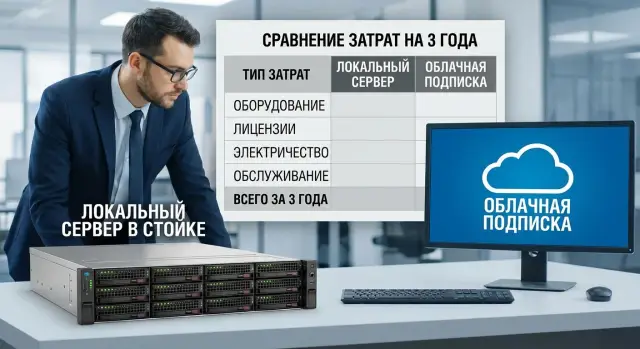
To compare Exchange Server on‑prem and subscription fairly, account for everything over 36 months: one‑off (CAPEX) and recurring (OPEX) costs. Use a table where rows are cost items and columns are years 1, 2 and 3.
Start with inputs: current users and growth forecast, average mailbox size, archive requirements, and availability expectations (allowable downtime per year).
Then follow these steps:
- Separate expenses into CAPEX (servers, licenses, deployment) and OPEX (subscription, support, power, connectivity).
- Calculate licenses and access separately, infrastructure (servers, virtualization, storage), operations (admin, monitoring), and security (MFA, anti‑spam, logging).
- Create three scenarios: minimal, baseline and high availability (N+1, second node, second site or cloud backup).
- Translate risks into money: how much does 1 hour of mail downtime cost and how often might it occur?
- Summarize totals over 3 years and list assumptions so figures can be reviewed.
Also add commonly forgotten items: migration (team time, contractors, tests, pilot), user and IT training, productivity loss during incidents, component replacements and warranty risks, and growth in storage and backup volumes.
Small example: for 200 users a basic on‑prem scenario may look cheaper initially, but a high‑availability configuration sharply increases CAPEX (second server, storage, site, support). Subscriptions start easier but final cost depends on user growth and required features. The decision should weigh not only the sum but what happens if something goes wrong.
Example scenario: comparison with real inputs
Company: 150 employees. Two offices in different cities, some remote workers. Mail is required for everyone plus shared departmental mailboxes. Retention policy: 3 years for messages and attachments. Management wants 3‑year TCO.
Option A: Exchange on‑prem with redundancy and backups
On‑prem logic is simple: buy the platform once and then pay to keep it running. One‑off costs usually include Exchange server(s), disks for databases and logs, a standby node for HA, network gear and rack equipment, plus Exchange and CAL licenses, Windows Server and sometimes backup product licenses.
Ongoing costs occur monthly or annually: power and cooling, support renewals, admin time, disk replacements, recovery tests, updates and downtime. If you have two offices, budget for a link between them or at least a reliable VPN, otherwise cross‑site redundancy is theoretical.
Option B: subscription + redundant internet and access policies
With subscription most costs become a per‑user monthly fee. To keep it reliable, additional expenses often appear: a second internet channel (at least at the main office), backup power for networking gear, conditional access setup, MFA and device policies.
For clarity split costs into two buckets: one‑off (hardware and licenses for on‑prem or migration and policy setup for subscription) and recurring (subscription, support, connectivity, backups, admin time).
If the 3‑year totals are close, choice usually depends on requirements and responsibilities: where it’s easier to meet 3‑year retention and fast search, which model is more resilient to an office or provider outage, who is responsible for recovery and how fast it really is, and whether there are data residency or supply‑chain control needs.
If the company plans a server room refresh anyway, evaluate infrastructure (servers, SAN, redundancy) together with procurement and deployment so downtime risks are clear ahead of time.
Common mistakes when comparing on‑prem and subscription
The most common mistake is looking only at the license price or monthly subscription. You end up comparing different things: on‑prem is buying the platform and building the system, while subscription is paying for a service but some risks still remain with you.
On‑prem estimates often miscalculate Exchange licenses and CALs: mixing up CAL types, missing users who connect via terminal servers, and forgetting external users (contractors with corporate mail). This makes the estimate look better than reality and causes adjustments after purchase.
Another bias is underestimating infrastructure and labor. Even if servers already exist, they need updates, monitoring, patching, spare capacity, rack space and admin work.
In subscription projects people often forget a redundant internet channel. Mail may be perfect, but if the office loses connectivity, users lose access. For some companies the cost of a backup channel is much higher than expected.
Migration is a separate cost item: even a simple mailbox move needs a pilot, prep, training and user support time.
Before you run TCO, check basics: are CALs and external users counted correctly, are servers and storage (plus OS and protection licenses) included, is a backup channel and outage plan budgeted, is there budget and time for a pilot and migration, and do both options meet security and regulatory needs.
Example: a company plans subscription but is in a region with unstable connectivity. After adding a second channel and LTE backup the savings may vanish and resilience requirements become the deciding factor.
Quick checklist before deciding
Before comparing numbers, answer a few questions — they quickly reveal main costs and risks.
Put this in a table:
- Users: current mailbox count and 3‑year growth forecast (include contractors and temps).
- Availability: acceptable hours of downtime per year and what counts as downtime (no sign‑in, no send, no mobile access).
- Archive and retention: need for archive mailboxes, legal holds and retention periods (1, 3, 5, 7 years).
- Data and security: where must data reside, who can access admin consoles, need for separate environments, MFA, audit logs and strict roles.
- Connectivity and support: how reliable is the internet, is there a backup channel, and who supports mail (24/7 or business hours only).
If you have regional branches with flaky links, subscription can become a single point of failure because of your own internet. In on‑prem the risk is different: local connectivity may be stable, but you must ensure people and infrastructure to recover the service at night and that servers, disks and power survive failures.
Another practical check: are you ready to buy and support infrastructure for mail (servers, storage, redundancy)? In Kazakhstan this often hinges not only on price but on delivery times, local service and support.
If you can’t answer 2–3 of these items clearly, it’s too early to argue about “which is cheaper.” Define requirements first, then compare licenses, redundancy and total cost of ownership.
Next steps: how to document the decision and prepare deployment
To prevent the debate from ending in opinions, frame the decision as a short project: requirements, numbers, risks and a transition plan.
First, record what you need from mail: not only mailboxes but retention, mobile access, collaboration, integrations, security and regulatory needs. Then describe 2–3 options with differing reliability: basic (minimum), working (meets needs) and maximum (downtime unacceptable).
A short pilot helps. Choose 10–20 users from different roles (finance, leadership, support), connect typical devices and test access policies. Catch the small issues that later cause complaints: auto‑configuration, calendars, shared mailboxes, permissions and archiving.
Before the final decision, put proposals into a table: on‑prem (servers, storage, redundancy, licenses, deployment work), subscription (plans, extra features, migration cost), support (who is responsible 24/7), network and security (channels, proxies, MFA, logs), and growth plan (e.g. +20% users and archive growth).
Also produce a migration and training plan: change windows, rollback rules, transfer order (by department or branch), and quick user guides. Assess downtime risks: who decides, how you notify staff, and which services depend on email (portals, alerts, ticketing).
If you lean toward on‑prem, resolve two practical questions early: where will mail run and who will support it daily. These projects often benefit from a single vendor handling server supply and integration. For example, GSE.kz as a hardware maker and integrator in Kazakhstan can help select servers, infrastructure and a support model that meets your availability and recovery time requirements.
Frequently asked questions
Where should you start when comparing Exchange on‑prem and subscription email?
Start with requirements: how many users and how they will grow, required retention and archive, any restrictions on data location, acceptable downtime, and who will support the system. Then calculate TCO for 36 months, not just the license or subscription price.
What is included in the 3‑year TCO for email?
TCO includes not only licenses or the monthly fee, but also servers, storage, redundancy, backups, updates, security, connectivity, support and the cost of downtime. Numbers may look attractive short‑term, while real expenses appear over three years.
Why is a single Exchange Server license not enough?
The Exchange Server license covers installing and running Exchange on the server, but it does not grant users the right to connect. Access requires CALs, and the type (User or Device) affects the total. Often Windows Server and Windows Server CALs are also needed and are missed in estimates.
How to choose between User CAL and Device CAL?
User CALs are usually better when one person uses multiple devices (laptop, phone). Device CALs are suitable when multiple people share one workstation (reception, security post). Choose what is easier to track in your accounting to avoid overpayment and audit issues.
Which on‑prem costs are most often “invisible” at the start?
Commonly overlooked items are a second server for redundancy, disks for databases and logs, a backup solution, certificates, anti‑spam, and the administrator’s time. Also don’t forget maintenance windows and the business cost of downtime — this can exceed the price of licenses.
What are you actually paying for with subscription email?
The provider usually includes updates, basic protection, platform support and built‑in resilience in the plan. You still need to configure access, MFA and retention policies, and you must ensure stable internet — otherwise users can’t reach the service.
What are RPO and RTO and why do they matter for email?
RPO is how much data (emails) you can afford to lose; RTO is how long the business can wait for recovery. Lower RPO/RTO requires replication, more disks, more frequent backups, automation and more admin time — which increases on‑prem costs. In subscriptions, the focus often shifts to internet reliability and an action plan for outages.
Who is responsible for backups and recovery in on‑prem and subscription?
In on‑prem you are responsible for copies and actual recovery, including user mistakes and infrastructure failures. In subscription services the provider is responsible for platform availability, but retention beyond the provider’s standard window, regulatory requirements, and some audit or eDiscovery tasks often remain your responsibility. In any case, decide in advance how you will restore data — not just create backups.
How to quickly and honestly calculate a 36‑month comparison?
Put all costs into a single table by year: one‑off CAPEX and recurring OPEX, split into infrastructure, licenses, operations, security and connectivity. Create at least three availability scenarios and include the monetary cost of downtime. Finally, list assumptions so the numbers can be validated with leadership.
What are the most common errors when choosing between on‑prem and subscription?
A frequent mistake is comparing only the Exchange license with a per‑user subscription while ignoring redundancy, internet, migration and support. People also mix up CAL types, forget Windows Server CALs and underestimate time needed for updates and incident response. Run a short pilot and test key scenarios: mobile access, shared mailboxes, archive and search.
