7 min read
Exam Computer Lab: Speed, Reset and Control
Exam computer lab: how to equalize performance, quickly reset PCs between sessions, and block unauthorized programs without unnecessary complexity.
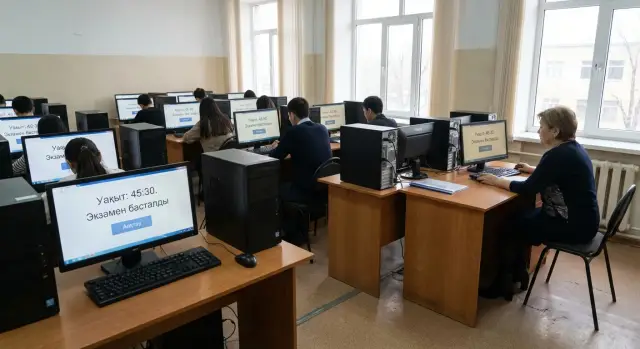
What's the problem with an exam computer lab
Computer-based exams check knowledge, but people and systems evaluate the results on a strict timetable. What matters is not "maximum power" but equal conditions for everyone: the same speed, the same programs and the same settings. If one student’s computer pauses for 5–10 seconds while another’s opens everything instantly, that’s fairness, not convenience.
Failures in an exam lab rarely look like a complete outage; they are small differences that add up and break the schedule. Typical issues are hangs when opening assignments or files, slow logins and profile loading, different software versions (or plugins), extra background programs, and traces from the previous session: others’ files, cache and saved logins.
Some tasks can only be solved in advance: preparing the same environment (system image, software set, updates, drivers), setting permissions and policies, load testing and checking peripherals. On exam day there’s no time for deep fixes. You need simple actions: a fast workstation reset, readiness checks, control over autostart, and a clear plan for what to do if one PC has a problem.
The success criterion for such a lab is simple: predictability and repeatability. Any seat should behave the same, and after the exam return to a clean state in minutes. Then instructors aren’t distracted by “why is mine different,” and IT doesn’t fight fires but calmly controls the process.
Requirements for the lab: speed, stability, security
An exam lab is judged not by "average power" but by how all seats behave at once. Failures usually happen at peak moments: the group sits down, everyone logs in, opens the required application or browser, and at the end they all save their work.
Speed depends not only on CPU and "gigahertz." In practice, labs slow down because of low RAM, slow disks and weak network. A baseline rule: SSD on every PC, enough RAM for your exam software, and the same CPU configuration. If the exam requires 3D, video editing or simulators, confirm whether discrete graphics are needed and lock the driver version.
Stability starts with uniformity: identical OS versions, drivers and updates, the same local policies and the same set of components. One "special" machine with a different driver often becomes the one where software won’t start or printing, sound or camera don’t work.
Security is not "antivirus for show," but clear restrictions. Block launching unnecessary programs, restrict access to system settings, disable unneeded external drives and plan accounts (separate exam accounts without admin rights).
Manageability is needed so you don’t fix 25 PCs one by one: central settings, a single image or configuration template and fast rollback after each session save hours and reduce errors.
Accept the lab by short criteria: identical SSD/CPU/RAM without network bottlenecks, unified updates and policies, restricted accounts with app and media control, plus centralized management and quick return to a clean state.
How to ensure equal performance across seats
For the exam, you don’t need the "fastest" machine but the same conditions for everyone. When the room has different models and CPU generations, some students get faster program launches, quicker file opens and fewer delays. In a stressful situation that affects results.
Start with the minimum that most often removes slowdowns: SSDs (not old HDDs) and enough RAM so the system doesn’t swap constantly. If the budget is limited, it’s better to standardize drives and memory than to keep a mixed "zoo" of PCs.
Next is a unified software environment. Same OS version, same updates and one system image give predictable boot time and consistent app behavior.
Don’t forget the network. Even if the exam is offline, there’s often account login, task download or submission. Check bandwidth and latency. If you use Wi‑Fi, evaluate coverage and the number of simultaneous connections in advance.
Practical leveling plan:
- Reduce the fleet to 1–2 standard configurations and lock them.
- Install SSDs on all seats and bring RAM to a common level.
- Deploy a single OS image and disable unsolicited updates on the exam day.
- Run a load test: simultaneous login, launch required software, save a file.
- Keep 1–2 spare PCs powered on and ready to replace a failed seat.
Unified environment: system image and baseline configuration
It’s easier to keep an exam lab in order if all computers share one reference build. Configure a "golden" PC once, verify that everything works as needed, then clone the image to other seats. This removes surprises like a different program version or extra driver on one machine that makes tasks behave differently.
Keep the app list minimal: only what’s needed for the exam and grading. Fewer programs mean fewer updates, notifications and conflicts. Lock versions in advance so the lab doesn’t drift because of automatic updates.
To keep PCs equally fast, remove unnecessary autostart items. Even a couple of background processes can cause noticeable delays on weaker machines.
In the reference build check autorun and updaters, stop unneeded services, notifications, power settings (no sudden sleep), and lock drivers and device parameters.
Think about roles. Each PC needs at least two accounts: an administrator (for IT) and an examinee (restricted). Examinees don’t need rights to install software, change time, access system settings or connect new devices.
Document settings in a short "image passport": date, Windows version, list of programs and versions, key parameters (power, updates, policies) and a quick verification test—for example: start the exam environment, open a file, test print.
Fast reset of PC state between exams
A common request for an exam lab is simple: after each group you need a clean, identical desktop, and it should take minutes, not half a day.
The most reliable approach is restore from a system image. It works if exams are infrequent and there’s a maintenance window. Time depends on network and disks: deploying over LAN to SSDs typically fits in tens of minutes for a room, but allow buffer for surprises.
When sessions follow one another, use "freeze" states or snapshots. Prepare the reference environment once, and after the exam each PC returns to it with a single action and reboot. This saves time but requires discipline: any changes must be made in the reference first or they will be lost after rollback.
Cleaning the user profile at logout helps remove history, cache, temporary files and saved passwords. But it won’t remove system changes, installed programs or leftovers in shared folders, so treat it as an additional layer.
Automation removes human error. At the end of the exam run a script: log out accounts, delete temporary data, check free space, restart and perform a short self-check (open required app, verify access to resources). The duty admin sees statuses and doesn’t guess which PC is "clean."
Before running in the real room, do a quick test on 2–3 machines: log in as the exam user, launch the required app, save a file to the allowed location, test printing (or print to PDF), and confirm return to a clean state after reboot.
Controlling unauthorized programs: practical options
Predictability is the top priority: the student should see only what’s needed for the task. It’s simpler to implement an allow model than "block everything."
The most practical approach is an application allow-list. Predefine which programs may run (testing environment, office suite, calculator), and block everything else by policy.
Common implementations include AppLocker or WDAC allow-lists on Windows, simpler SRP rules that block by path, Kiosk/Assigned Access mode for a single app, blocking execution from user folders (Downloads, Temp, AppData), firewall rules and disabling remote access unless required by the rules.
To prevent bypassing restrictions via settings, remove admin rights. Regular users generally don’t need to install software, use Control Panel, edit the registry or run PowerShell if it’s not required for the exam. Also check the browser: block extension installs, disable sync and define a clear internet access policy if internet is allowed at all.
After an exam keep logs for dispute resolution. Record logins (user, PC, time), attempts to run blocked apps (AppLocker/WDAC events), process creation, protection triggers and, if internet is restricted, key network events.
Accounts, rights and devices: what to lock in advance
Even with identical hardware, failures usually come from permissions and extra devices. Decide in advance where accounts will be stored and what rights each participant gets.
With a domain (Active Directory) it’s easier to apply uniform policies and change them quickly before the exam. Local accounts work when the lab is isolated from the network and you don’t want to rely on a server, but then you must carefully replicate settings on every machine and check them regularly.
Divide rights into three roles: examinee, instructor (observer) and technical staff. Examinees only get the right to run required apps and access a single working folder. Instructors can view statuses and print if needed. Technical staff get admin rights via a separate account so they are not logged in as admin all day.
A set of restrictions that prevents most problems:
- USB: block flash drives and external disks by default; allow keyboards, mice and, if needed, one service drive by exception.
- Disable autorun from external devices.
- Use a single working folder that’s easy to clean during reset.
- Minimize saving to Desktop and Downloads so files don’t scatter across profiles.
- Restrict access to Task Manager and Control Panel per the rules (if unnecessary, block them).
Don’t leave printing and scanning to chance. Choose one printer per room, preinstall the driver, set it as default and decide who controls the print queue. Otherwise you’ll get lost assignments and driver conflicts on exam day.
Organizing IT work on exam day
Exam day success comes from a clear workflow, not super-configurations. Agree in advance who makes decisions for failures, who talks to organizers and who touches machines. That keeps small problems from stopping the room.
Do a short 10–15 minute check before the group starts. It’s not enough that the PCs power on—you must ensure they won’t start updating or hit disk limits.
Pre-exam checks:
- Ensure OS and app updates are disabled or deferred.
- Check free space on the system disk and that the exam profile works.
- Test logins on 2–3 seats: login, launch required software, print if needed.
- Assess the network: access to needed resources without Wi‑Fi drops.
- Check PC clocks and synchronization so timing doesn’t drift.
During the exam monitoring should be "quiet": watch the network, service status (if used), login errors and spikes in reboots. Don’t interfere with a workstation without cause: even opening an admin window can distract a participant or cause a complaint.
Keep the failure plan simple. If one PC freezes it’s usually faster to move the student to a spare than to repair it on the spot. Keep 1–2 spare seats with the same image and access, and explain the transfer rules and timekeeping to organizers beforehand.
After the exam collect a minimal dataset for the next time: login logs, app errors and system events about launches and restrictions, and free space. That is usually enough to identify the cause: an update, a full profile, a network drop or driver conflict.
Common mistakes and traps
The main reason for failures is small things that are unnoticed on a regular day. Exam rooms often end up with mixed hardware and "whatever worked" settings, and this breaks exactly when there’s no time to fix it.
The most common trap is mixing different PCs (or drives and RAM sizes) and hoping they’re "close enough." Some seats then load in a minute, others in five; tests freeze in some places and not others. If you can’t replace the fleet, level critical items: same SSDs, same RAM, unified driver versions and one system image.
Another frequent failure is auto-updates on exam day. Windows, antivirus, office suites and drivers may start updating and rebooting at the worst moment. Schedule updates in advance, test compatibility and lock the state on the exam day.
Other frequent errors:
- Users are given local admin rights "to avoid trouble."
- State rollback is configured but not tested for time on all PCs in sequence.
- No stress test under real load (simultaneous login of 20–30 people).
- No spare PC or spare peripherals (mouse, keyboard, cables).
- No backup credentials and no plan for account lockouts.
Practical example: a 25-seat lab where rollback "seems to work." After the first session it turns out restoration takes 12 minutes on some PCs due to slow disks, and two machines updated a driver and lost sound. This would be caught if you run two full consecutive flows, measure reset and boot time and record actual results.
Short readiness checklist for the room
Exams go smoother when the room has a clear preparation rhythm.
Before the exam
7 days out: finalize the system image and the allowed software list. Verify execution policies and set a maintenance window for updates outside exam times.
1 day out: run a full test on at least 3–5 different seats. Check network (cable and Wi‑Fi if used), access to required services, printing (if needed) and login speed.
1 hour out: reboot all PCs, log in as a test user and run exactly the programs that will be used. Make sure desktops are clean and no unwanted autostart is present.
During the exam
Keep a control plan at hand: who monitors time, who responds to failures and where observers’ instructions are. Verify service availability (authentication, profiles, folders with assignments if used) and keep 1–2 spare PCs switched on and ready for relocation.
After the exam
Immediately reset PCs to the reference state so the next group starts from the same environment. Collect logs (if you keep a run and error log), note any oddities by seat and update the image and rules accordingly.
Example scenario: a college exam with 25 PCs
A college runs exams in a 25-seat room with two sessions per day. Only the exam platform, an office suite and a browser (locked against extensions and running downloaded files) are allowed. Any other program is a violation.
3–5 days before the exam designate one PC as the reference. Install required program versions, drivers and updates, set language, keyboard layouts, printer and timezone, and disable extra autostart. Create an image and deploy it to the other 24 seats. Also align BIOS/UEFI and power modes so a machine won’t slow down due to power saving.
On exam day the IT specialist follows a short schedule:
- 60 minutes before: check network, PC clocks and access to the exam resource.
- 30 minutes before: test login with the "Exam" account and launch required apps.
- 10 minutes before: spot-check rollback mechanism is enabled.
Between sessions perform a quick rollback: reboot with automatic return to the clean state and verify it worked. A simple check: create a test file on the desktop on 2–3 PCs before reboot and confirm it’s gone after restart. Also randomly verify browser history and downloads are empty.
If a student attempts to run forbidden software, use two protection levels: restricted rights (no installation or access to system folders) and an allow-list. When blocking occurs the admin logs time and seat, terminates the process and, if needed, moves the student to a spare PC.
If a PC freezes, the rule is: don’t spend more than 2–3 minutes trying to fix it on site. Reboot, and if that fails move the user to a spare and investigate after the session.
Next steps: moving from scattered PCs to a system
Start not with buying hardware but with precise requirements. The clearer the requirements, the fewer surprises on exam day.
Collect basic parameters: how many simultaneous seats are needed, exam type (browser, office, specialized software), allowed software list, required network and peripherals (printer, scanner, headsets, tokens). Note restrictions separately: no internet, access only to one resource, no flash drives, require auditing.
Then choose a standardization strategy. The most reliable option is identical PCs and configurations. If the fleet is mixed, set minimum requirements and verify all machines meet them without weak points.
A good rollout plan:
- Approve the standard workstation (model, CPU, RAM, SSD, monitors).
- Prepare a single system image and a golden set of settings.
- Apply uniform policies: user rights, installation bans, execution control.
- Set up fast rollback between sessions.
- Run a mock exam and measure login and app launch times.
Support and maintenance matter as much as settings. Assign responsibilities and response rules: who is on duty on exam day, how quickly they must respond, and where spare mice, keyboards and a backup PC are stored.
If you engage an integrator, ask for a clear work plan: room and network survey, risk list, implementation and configuration, staff training and short instructions.
When you need a quick start, rely on delivery of identical workstations and help with deployment. For example, GSE.kz (gse.kz) as a local manufacturer and system integrator in Kazakhstan can supply standardized PCs, servers and workstations and help with integration and ongoing support so the lab works predictably from session to session.
Frequently asked questions
Why are identical PCs more important than the "most powerful" ones for an exam?
The main goal is equal conditions for all participants. If some computers run slower, use different program versions, or take longer to load a profile, it affects results and disrupts the schedule.
What should be improved first if the lab is "lagging" during the exam?
You will almost always get the most noticeable improvement from installing SSDs and adding enough RAM so the system doesn’t constantly swap. Then check that all machines have the same OS, drivers and app versions—one "special" machine often causes slowdowns or different behavior.
How to correctly set up a unified system image for the whole lab?
Make a reference installation on a single verified PC and deploy that image to the rest so OS versions, updates and programs match. After deployment, lock the settings to prevent drift from automatic updates or manual changes.
How to quickly "clean" computers between exam sessions?
The most predictable option is rollback to the reference state via reboot or restore from a prepared snapshot. For infrequent exams, full restore from an image works but takes longer and needs a maintenance window.
How to reliably block unauthorized programs during an exam?
Have a pre-approved list of allowed applications and enforce a policy of "only this is allowed." Practically, implement an allow-list and block execution from user folders so downloaded files and random utilities cannot run.
What rights should students have and what should be restricted?
Give candidates standard user accounts without administrative rights and no access to system settings. Use a separate admin account for IT staff and only use it when necessary; this prevents accidental configuration changes during the exam.
What to do with USB devices and flash drives in the exam lab?
By default it’s better to block flash drives and external disks, allowing keyboards and mice as exceptions so normal work isn’t impaired. If a service drive is needed, approve it in advance rather than deciding on the exam day.
How to test the lab under real load before the exam?
Run a scenario that reproduces peak load: simultaneous login of the whole group, launch of the exam application or browser, and mass save operations. This quickly reveals weaknesses in the network, profiles, disks and policies that single-machine tests won’t show.
What to do if one computer freezes during the exam?
The practical rule is not to spend more than a couple of minutes fixing a frozen PC on the spot. Reboot it, and if that doesn’t help, move the candidate to a prepared spare machine. This keeps the session running and avoids turning one problem into a group-wide delay.
What logs and data should be collected after the exam to avoid repeating mistakes?
Keep a short log: who logged in, on which PC and at what time, plus application errors and system events related to launches and restrictions. That’s usually enough to determine whether an update, a full profile, network issue or driver conflict was to blame and to fix it in the reference image.
