7 min read
Modernizing an ERP Server: Migration with Minimal Downtime
Step‑by‑step plan: preparation, rehearsal, tests and rollback. Suitable when you need to modernize a server for ERP with hours — not days — of downtime.
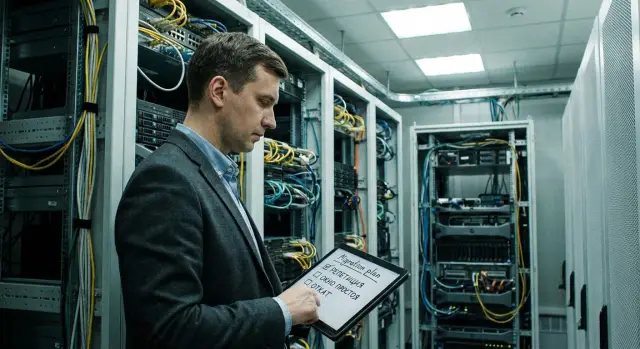
Goal: upgrade the server without stopping ERP
When a server is 5–7 years old, problems usually build up silently: ERP opens slower, reports render with pauses, night jobs don’t finish by morning. The worst issue is growing failure risk: disks, controllers, power supplies, overheating. The upgrade at that point is needed not only for speed but for predictability and lowering the chance of a failure on your busiest day.
“Minimal downtime” in practice is an agreed time when the business can tolerate limited unavailability of some functions. For some it’s 30–60 minutes at night, for others a short window on Sunday. Important: honestly define what you consider downtime — a full ERP outage, or already an inability to print waybills or process payments.
ERP almost never works alone. An update touches the database and storage, backups, printing, terminals and workstations, access services (AD, certificates, permissions, VPN), and integrations: bank-client, EDI, CRM, warehouse systems, and the site exchange.
A typical scenario: ERP is up on the new server, but the warehouse can’t ship because label printing stalled or scales and mobile terminals didn’t reconnect. Formally the system “works”, but business is stopped.
So before writing a migration plan, involve people responsible for critical areas: IT (infrastructure and apps), information security, finance (day‑end closing, payments), and key users (warehouse, accounting, sales). The earlier they confirm what “normal operation” means for them, the fewer surprises on cutover night.
If you’re updating servers at a company in Kazakhstan, clarify delivery and support requirements and compatibility with your chosen platform. For example, GSE.kz as a vendor and integrator offers S200 Series rack servers and 24/7 support, but the key point remains: migration must follow business processes, not administrator convenience.
Inventory and requirements before writing the plan
Migration plans usually fail not during the transfer but earlier, when the team doesn’t fully understand what runs on the server and what constraints must not be broken. So the first step is to collect an accurate description of the current state and agree on requirements.
Create a system “passport.” It’s important not just to name the ERP but everything attached to it: databases, drivers, services, backup agents, antivirus, monitoring. Check versions and licenses, especially if licensing is tied to hardware or core counts.
It’s convenient to record everything in one document or table:
- OS, DBMS, ERP and key component versions;
- list of integrations and exchange schedules (what, where, when);
- accounts and permissions (service users, domain policies);
- storage layout: disks, RAID, volumes, growth points;
- backups: where they are stored, frequency and how recovery is verified.
Next, capture baseline metrics so you have something to compare after the move. Minimum: CPU load, memory use, disk subsystem speed, network latency, and the time for 2–3 key operations (for example, posting a document, closing the day, generating a report). If metrics fluctuate, record them during peak and quiet hours.
Then state requirements for 1–3 years: how many users will be added, data growth, any planned new modules. Separately discuss availability needs: is fast restore from backup sufficient or is a standby node required?
Don’t forget constraints. Accounting may have a freeze period before reporting, integrations may have night windows that can’t be disturbed.
Agree at least on these items in advance:
- date and length of the downtime window (and who approves it);
- bans on changes before migration (patches, updates, customizations);
- compliance and audit requirements (log retention, access, encryption);
- success criteria after launch (what must work in the first 2 hours);
- on‑call contacts for the migration night (ERP, network, security, business).
If you involve an integrator and hardware vendor, do this stage together. It’s easier to match real loads to the future configuration and avoid wrong expectations.
Target architecture: what changes and why
The target architecture answers a simple question: what will be “after” so the upgrade brings not only speed but stable operation for years. If the migration plan lists steps, the architecture fixes decisions that determine downtime, risks, and cost.
The first decision is the upgrade approach. Common options are: replace the physical server with a more powerful one, move ERP to virtual machines, or migrate to a new node/small cluster. If ERP often bottlenecks on a single server and downtime is unacceptable, virtualization or two nodes usually provide more flexibility: hardware can be serviced and updates applied more easily.
Second block — data storage. Local disks are simpler and cheaper but harder to service without downtime. A separate or distributed storage gives more freedom: you can move VMs between nodes and swap disks without affecting the application. ERP needs not only capacity but low latency, so set IOPS and response time requirements in advance.
Third — redundancy. A minimal set that truly reduces the risk of “that night”:
- dual power supplies and two independent power inputs (or UPS + generator where possible);
- network redundancy (2 interfaces, separate switches);
- RAID and hot‑swap disks;
- a second node or cluster for quick service recovery if needed;
- spare capacity (CPU, RAM, disk) for growth and ERP updates.
Plan support and repair without downtime from the start, not after an incident. That means agreed replacement times, availability of identical spare parts, and a firmware update schedule. For example, if you deploy ERP on new rack servers (including S200 series), agree upfront on 24/7 servicing and where spare parts are located — on site or regionally.
A practical example: a company moves ERP to two virtualized nodes with shared storage. Routine maintenance (disk or PSU replacement) can be done during the day, and the cutover night is reduced to role switching and final data sync.
Migration strategy: how to fit the required window
To make the downtime window predictable, agree on two numbers: RTO and RPO. RTO is how long the business can tolerate ERP unavailability (e.g., 2 hours at night). RPO is how much data loss in time is acceptable (e.g., no more than 5 minutes, or zero).
These numbers quickly eliminate unsuitable approaches. If RPO is near zero, backup-and-restore often won’t work: while you restore, new data accumulates on the old server. If RTO is very short, do most work beforehand and leave only the switch for the downtime window.
How to choose a transfer method
Common methods:
- Backup and restore. The simplest, but usually the longest downtime.
- Replication. Data is copied in advance; during the window you do final sync and switch.
- Snapshots. Useful as part of the plan (fast rollback point) but rarely solve the migration alone.
Choice depends on your ERP, database and RTO/RPO requirements. In organizations with 2–3 quiet hours at night it’s common to combine replication with a control snapshot before the switch.
What to do in advance without stopping ERP
The more you prepare before the migration night, the shorter the downtime. Usually you can do in advance:
- prepare the new server and network, verify access and permissions;
- deploy OS, updates, monitoring and backup agents;
- move some data or set up replication and run it for several days;
- check driver, storage and hypervisor versions for ERP compatibility;
- collect contacts and on‑call schedules, including a business acceptance representative.
Agree success criteria in advance. Minimum: ERP starts, users can log in, critical reports and scheduled jobs run, and integrations (accounting, warehouse, mail, EDI) perform a test transaction. For new hardware, predefine which metrics (response time, CPU/disk load, exchange speed) must be no worse than before.
Migration plan by steps: dates and roles
A plan is not for formality but so no one guesses what to do during the night. Break the project into stages and attach dates, owners and checkpoints.
Create a work calendar: preparation (procurement, assembly, configuration), rehearsal (run the scenario on a test stand or copy), final migration in the agreed window, and post‑checks (reports, exchanges, print forms, access rights). For each task indicate duration, dependencies and a ready flag.
Define roles. During the downtime window you need admins and people who can confirm business functionality:
- window lead (makes decisions and records status);
- infrastructure (servers, network, storage, backups);
- ERP/DBA (services, databases, licenses, background jobs);
- integrations (accounting, warehouse, bank, mail exchanges);
- business acceptance (3–5 operations to validate after start).
1–2 weeks before the date impose a change freeze: no ERP updates, new modules, integration changes or permission changes. If a change is needed, treat it as an exception with a risk assessment and separate test. Otherwise you’ll migrate a moving target.
Prepare a communications plan: who to inform and when, who handles requests, what to tell users if there’s a delay. A common scheme: notify 24 hours ahead, remind 1 hour before, send short updates every 30–60 minutes during the window, and after launch provide availability notice and a checklist of checks.
If you work with an integrator, exchange on‑call contacts and agree ownership for hardware, ERP and support. With 24/7 support and a service network like GSE.kz, a quick contact loop often saves more time than any script “magic.”
Rehearsal: how to validate the plan before the live night
A rehearsal verifies real durations and risks. To meet a short window, you must know how long export, transfer, verification and switch take. Otherwise the project becomes a night marathon without a clear finish.
Build a test environment that resembles production: same hypervisor type, similar network, same OS/DBMS/ERP and driver versions, and comparable disk performance. If the live plan uses new servers (e.g., S200 Series), run the rehearsal on similar class hardware so timings are realistic.
Run the migration “as will be done,” including scripts and step order. Measure each phase: export, transfer, import, indexing, cache warmup, service start and checks. Often post‑operations like statistics rebuild or index updates consume more time than data transfer.
Test key business scenarios, not everything: user login and roles, creating and posting typical documents, heavy reports, exchanges with external systems (bank, EDI, warehouse, website), printing and templates.
Example: in rehearsal accounting does day‑end close on the copy, and warehouse verifies exchange with mobile terminals. If a report takes 40 minutes longer than usual, you find it before the live night and can investigate.
Document all findings: what failed, symptoms, who fixes it, and deadlines. Update the plan and checklists accordingly: add missing steps, refine roles, and set checkpoints (e.g., “DB available in 90 minutes, exchanges live in 120 minutes”). After fixes, repeat the rehearsal at least once.
Data and integrations: avoid surprises after go‑live
Many teams focus on “moving the database” but forget small items that stop work more effectively than the migration itself. The goal here is to ensure data integrity, access works, and external links come up immediately after launch.
Data integrity: don’t check by sight
Combine machine checks and business reconciliations. “No errors” messages aren’t enough, and manual sampling alone won’t give confidence.
Useful checklist:
- compare checksums and sizes of key files if moved at the file system level;
- compare ERP totals before and after: stock balances, account turnovers, receivables/payables, VAT — anything critical to you;
- sample documents across periods: recent “live” ones and historical ones from last year;
- run typical reports used by leadership and compare numbers to the benchmark;
- record results in a short protocol to avoid arguing by memory on the night.
Access and integrations: bring up everything that depends on the server
After migration permissions often surface: accounts lose roles, groups change, domain logon fails, service users for integrations stop working. Check technical service accounts separately: they usually have long permission lists and high cost of failure.
Test integrations end‑to‑end as in real life. For example: a manager issues an invoice, sends it via EDI, receives bank payment, warehouse ships, and BI refreshes the dashboard. Weak points are usually external contours and schedules: mail (notifications), EDI, client‑bank, warehouse exchange, BI, and APIs to the website or internal services.
Don’t forget background jobs. Before migration agree which jobs to stop (scheduler, exchanges, day‑end routines), who stops them and what signals it safe to restart. A good rule: first manual verify key operations, then run scheduled jobs in batches so any failure can be traced to a specific batch.
Rollback scenario: what to do if things go wrong
A rollback plan exists not for panic but so the team doesn’t argue at 03:00 about next steps. For ERP projects this is crucial: business often prefers a short outage to long attempts to “force” a fix without a clear plan.
Find the point of no return
Decide beforehand when rollback becomes more expensive and risky than finishing the migration. This usually happens after irreversible changes: DB schema updates, data migrations, changed integrations or new endpoints.
Common practice: set a repair time limit (e.g., 30–60 minutes); if unresolved, move to rollback. This reduces pressure on the on‑call team and helps meet the promised window.
A backup that actually saves you
Backups must be reliable: taken right before the window and verified by restoring on a test stand or isolated environment. Verification matters more than the mere presence of a backup file.
Before the window ensure you have:
- full DB backup and logs (if point‑in‑time recovery is used);
- export of key ERP settings, service configs and certificates;
- VM snapshots or system images (if applicable);
- a list of versions: OS, DBMS, drivers, firmware;
- contacts for people who can quickly grant access or replace hardware.
Rollback options (choose in advance)
Plan 2–3 scenarios and select the primary one. Most common: revert to the old server by switching addresses (DNS or VIP), or restore DB on the old platform and run ERP in the previous configuration.
Example: after migrating users see authorization errors. If you’re before the point of no return, you return the VIP to the old node, start the old services and restore user access, and postpone root cause analysis to working hours.
For a fast rollback prepare a short 1–2 page playbook for the on‑call team: when to decide, who confirms, step sequence (stop services, switch addresses, verify), where keys/passwords are stored, who to notify, and rollback completion criteria.
If you change hardware, keep the old server ready to start quickly (power, access, current images). For high‑support projects it helps to prearrange standby parts and on‑call engineers, especially with new servers and 24/7 support.
Common mistakes that increase downtime
Longest outages usually arise not from “bad servers” but from small gaps in preparation. When a project proceeds “by feel,” any surprise turns into hours of downtime.
Preparation and verification mistakes
A common issue is missing baseline measurements and clear success criteria. Without numbers it’s easy to miss a bottleneck: the DB opens but reports take three times longer and exchanges lag. Before migration set simple benchmarks: backup duration, ERP startup time after reboot, and times for key operations.
Another mistake is rehearsals that don’t reflect reality. Tests on reduced data copies, without real integrations and with different settings produce misleading timings. On the live night you might find larger logs, different folder permissions, or no temp space.
Post‑switch mistakes
Forgotten integrations and background jobs cause outages after an otherwise successful switch. ERP may start, but exchanges with accounting, warehouse, CRM, mail, EDI, and terminals fail after 20 minutes. Causes are often scheduled jobs, service accounts or network rules on the new server.
It’s dangerous when rollback “exists on paper” but no one verified restore. In practice a backup may not open, there may be no space, or the restore may exceed the window.
Downtime also grows from poor communication. If users aren’t told when the system will be unavailable and what to do, they keep sending requests by phone or messengers. Reconciling that data later creates duplicates and errors.
Short example: a manufacturer switched ERP in 40 minutes but forgot to disable an old background export job. It continued writing to the old DB and in the morning the warehouse found discrepancies and stopped shipments. This is usually solved by a checklist of what to turn off/on and role‑based controls over responsibilities.
Quick checks and next steps after modernization
When hardware is updated, don’t just tick the box — make sure ERP really works no worse than before.
Before the downtime window verify items that typically break plans due to small issues:
- fresh backups: ERP DB, app configs, keys, certificates, licenses, and that the backup is restorable;
- change freeze: blocked releases, disabled auto‑updates, stop changes in integrations and security rules;
- access: admin consoles, shell, iLO/iDRAC, storage and network access, DNS/AD rights, data center access;
- contacts and roles: who decides on rollback, who owns DB, network, ERP, and business acceptance;
- a short playbook: step order, expected time per step, and continue/stop criteria.
During the window act by the clock. Stop services in the correct order (to avoid data corruption), transfer data and settings, then do quick checks: start services, user logins, ERP access, key reports, and test one or two integrations. Log the time of each step and any deviations immediately.
After launch don’t disperse. The first hours usually reveal issues unseen in tests: CPU/RAM/disk load and latency, application and DB errors in logs, integration gateway behavior, and volume growth. Get confirmation from the business on a short list of critical operations and record an “OK” from the process owner.
Engage a systems integrator and hardware vendor when you have complex integrations, a tight downtime window, no second site for rehearsal, or need 24/7 support with clear responsibility. In Kazakhstan GSE.kz can provide servers, integration and round‑the‑clock technical support via a service network — useful when you need not just to buy a server but to safely move production load onto it.
Frequently asked questions
What does “minimal downtime” mean in practice for ERP?
Minimal downtime is a predefined period when the business accepts partial or full unavailability of ERP. Specify exactly what you call downtime: full system outage or inability to print, ship, process payments or exchanges. That definition shapes the migration plan more than the choice of hardware.
How do I determine RTO and RPO and why are they needed before migration?
RTO is the maximum acceptable outage time for the business; RPO is the acceptable amount of data loss measured in time. If you need almost zero RPO, backup-and-restore is usually unsuitable because data keeps changing on the old server. If RTO is very short, move as much work as possible beforehand and leave only final sync and switch during the downtime window.
What must be included in the inventory before upgrading an ERP server?
Create a system “passport”: OS, DBMS and ERP versions; components, drivers, backup and monitoring agents; licenses and any hardware or core‑count bindings. Also list integrations, exchange schedules and background jobs. The more precise the inventory, the fewer surprises at cutover.
Which metrics should I measure before and after migration to know if it improved?
Measure baseline metrics before migration: CPU load, memory usage, disk and network latency, and the duration of 2–3 key ERP operations. After the move, compare the same metrics to see where performance improved or regressed. This avoids a situation where the system is “up” but business scenarios are slower.
Which is better: a new physical server or virtualization for ERP?
Virtualization usually offers more flexibility for maintenance and reduces downtime risk during hardware service. A physical server can be simpler and sometimes cheaper but is more likely to become a single point of failure unless you design redundancy. Choose based on RTO/RPO and whether you can run two nodes or a cluster.
What to look for in storage so the ERP won't slow down after migration?
ERP needs low latency, not just capacity. Define required disk response times and storage performance (IOPS). Local disks are simpler but harder to service without downtime; shared or distributed storage eases moving VMs and servicing nodes. Also allow space for growth, temp files and transaction logs.
Which transfer method to choose: backup, replication or snapshots?
Backup-and-restore is easiest to understand but usually gives the longest downtime. Replication lets you copy data in advance and perform only a final sync and cutover during the window, which fits short windows better. Snapshots are useful as quick rollback points but rarely replace a full migration plan.
Why do a migration rehearsal and how to run it effectively?
A rehearsal checks real-time for each step: export, transfer, import, indexing, cache warmup, service start and verification. Make the test environment match production versions, settings and hardware class as closely as possible, and exercise key business scenarios. Record findings, update the checklist and repeat until timings are reliable.
What often breaks after go‑live and how do I precheck integrations and access?
Test integrations end‑to‑end, following actual business flows: issue an invoice, send via EDI, receive bank payment, pick goods, and update BI. Pay special attention to service accounts, certificates, permissions and scheduled jobs—these break most often. First validate key manual operations, then enable background jobs in stages to isolate issues.
How to prepare a rollback plan so you don’t get stuck at 03:00?
Define a clear rollback point and a timeout for troubleshooting (for example, 30–60 minutes). Prepare a verified backup and a short rollback playbook: who decides, stop services, switch addresses, verify, and who to notify. Keep the old server ready to start quickly and ensure spare parts and 24/7 support are available if needed.
