7 min read
Ergonomics of Government Workstations: Tender Requirements to Include and Verify
Government workstation ergonomics: concrete monitor, seating and peripheral parameters you can include in a tender and verify at acceptance.
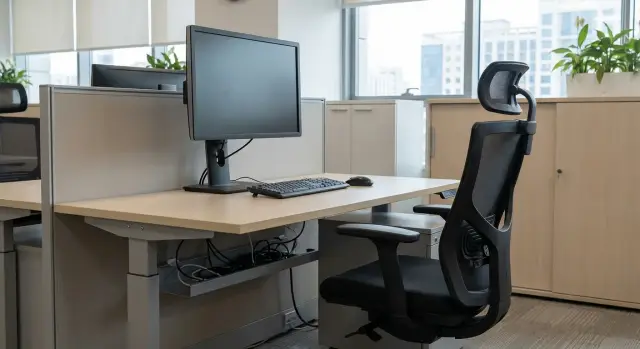
Why ergonomics matters for government agencies when there are many workstations
When there are hundreds of workstations, a single standard configuration is often applied to everyone. After a few months that leads to the same complaints: neck pain from monitors that are too low or too high, numb wrists from an uncomfortable keyboard, eye strain from reflections, and chairs that are either too low or don’t support the back. Comfort drops, visits to the medical office and IT requests increase. Employees start propping monitors on boxes or stacks of paper and bringing personal mice.
In practice, ergonomics for government workstations usually isn’t about expensive solutions but about proper adjustability. One fixed option only fits some people. Adjustments let you tailor the same station to different heights, postures and habits without changing furniture.
What is usually feasible to implement at scale and without large costs:
- a monitor with height and tilt adjustment (or a standard mount so it can be put on an arm)
- a chair with seat height adjustment and lumbar support
- separate full-size keyboard and mouse (not “mini” versions)
- a matte screen or anti-glare coating
- sufficient cable length so nothing is taut
Link requirements straight to acceptance and daily use. In the specification, avoid vague words like “ergonomic” and instead list verifiable features: which adjustments must exist, their ranges, what must lock and not wobble. For example: during acceptance a committee member raises the monitor to the required height, tilts it, locks it and checks after a minute that the position hasn’t “slid.” Small detail, but it’s what separates a working solution from a formal delivery.
How to phrase requirements so they get accepted and implemented
A good ergonomic spec follows a simple rule: everything you require must be measurable and checkable at acceptance. Words like “comfortable,” “modern,” or “ergonomic” usually lead to disputes. But “height adjustment of at least 120 mm” or “left-right rotation of at least 45 degrees” can be verified in a minute.
Immediately separate requirements into mandatory and desirable. Mandatory items are needed for safe and normal typical work—without them the fleet can’t be properly set up. Desirable features are useful for managers or heavy users but can be omitted if the budget is tight.
To prevent requirements from breaking during delivery and operation, build in compatibility and interchangeability. For a large fleet this is critical: common mounts, standard interfaces, unified cable and power approaches. That way replacements are quick without searching for rare parts.
A practical outline for the “Requirements” section:
- numeric parameters (adjustment ranges, sizes, interfaces) plus how to check them
- separate blocks “Mandatory” and “Desirable”
- role-based requirements: operator, back-office, manager
- compatibility: standard monitor mount, port types, unified cables and accessories
- service: response times, spare parts, replacement procedure during warranty
Example without extra theory: “For operator workstations: monitor with height and tilt adjustment; full-size keyboard; mouse with at least 1000 DPI; guaranteed replacement during repair.” This makes ergonomics part of the tender, not a wish at the end of the document.
Monitor: adjustments, mounts and small details that matter
In mass procurement monitors are often described by one line: diagonal and resolution. But for government workstation ergonomics the important question is whether you can quickly adapt the screen to a person without “workarounds.”
The minimum to lock into the spec: height and tilt adjustment with reliable fixation. Left-right rotation and portrait (pivot) mode are better set as "as needed"—for staff who often work with long documents or tables.
To avoid being tied to one stand, require VESA support. That allows adding an arm later, replacing the stand, or standardizing mounts in a department without swapping monitors.
Example tender formulations:
- height adjustment: range of at least 120 mm, fixation without spontaneous lowering
- screen tilt: at least -5/+20 degrees (or equivalent range)
- VESA: 100x100 mm (or compatible), access to fasteners without disassembling the housing
- anti-glare (matte) coating and brightness sufficient for office lighting (e.g., not less than 250 cd/m²)
- cables included: specify types (HDMI/DisplayPort/power) and length at least 1.8 m
Why this matters: one office may have desks by windows, another under ceiling lights. Without anti-glare and proper height adjustment employees start propping monitors on whatever is at hand, and the purchaser then has to chase arms and long cables in separate orders. Right requirements up front reduce complaints and simplify acceptance.
Chair and sitting posture: what to require in a spec without extra theory
For mass workstations the goal isn’t a perfect model but a clear set of adjustments that fit most people and can be checked at acceptance. This is especially important where ergonomics must be consistent across rooms.
Start with adjustments that give quick results. Feet should rest on the floor, knees roughly at a right angle, lumbar area supported. This is achieved not by training but by chair settings.
Phrase requirements so the supplier doesn’t bring a “similar” chair missing key adjustments:
- seat height adjustment (gas lift) with sufficient range for different heights
- backrest tilt and height adjustment plus lumbar support (adjustable or fixed but noticeable)
- seat depth adjustment or size range so both short and tall users sit without pressure behind the knees
- armrests with height adjustment so forearms rest and shoulders stay relaxed
- casters and base suitable for the floor type (tile, linoleum, carpet), stable five-star base
Describe materials by behavior in use. For 6–8 hour seating choose durable fabric or mesh that breathes and is easy to clean. Add a requirement for maintenance: the surface must withstand regular damp cleaning with mild agents without losing appearance.
A practical example: in busy departments people often slide up to the desk, pushing armrests into the tabletop and slouching. Height-adjustable armrests solve this in a minute rather than with repeated remarks.
To simplify acceptance add a hands-on test: the committee selects two staff of different heights and verifies the chair can be set so feet are flat on the floor, lumbar support is present, and forearms rest on the armrests without raised shoulders.
Desk and layout: simple norms for a typical station
With many workstations everything starts from basic desk geometry and a clear layout. In the tender specify measurable parameters rather than vague terms like “comfortable desk.”
For a typical station set norms that are easy to check:
- tabletop height: 720–760 mm (if not adjustable)
- depth: at least 700 mm so the monitor isn’t on the edge
- width: from 1200 mm (minimum), preferably 1400–1600 mm for document-heavy departments
- leg clearance: height from floor at least 600 mm, width at least 500 mm, depth at least 450 mm
- ban crossbars and pedestals that press into knees or prevent sliding the chair in
Next describe layout. The keyboard should be directly in front of the user, with 80–120 mm in front for palm support. Provide space for A4 documents and a phone so the worker doesn’t hold them or twist their torso.
Place the monitor centered, not off to the side of the keyboard. Require a cable and rear access area behind the monitor. Otherwise mass setups quickly collect cable bundles underfoot.
Specify cable management: grommets with caps, a tray or channel under the desk, a mount for the power strip so cords don’t trail on the floor.
For shared zones (operators, front-office, call centers) simple options improve order and quiet: 300–450 mm partitions between stations, a rear screen for cables and monitor backs facing the aisle, system unit holder, and VESA arms for dense seating.
Peripherals: where not to save and how to describe it
Peripherals may seem minor next to PCs and monitors, but they often cause hand and neck fatigue and subsequent support tickets. For ergonomics to work, keyboard, mouse and headset must be predictably comfortable.
Bind keyboard choice to role. Heavy text and numeric input needs a full-size keyboard with numeric pad. Where desks are cramped or tasks are mainly email and documents, a compact keyboard is acceptable. Specify parameters: RU/EN layout, readable legends, adjustable tilt, low-profile keys, rubber feet so the keyboard doesn’t slide.
Mouse is similar: a tiny universal mouse tires users. Set a minimum: medium size, ambidextrous or right-handed per purchaser’s choice, a scroll wheel with distinct steps, non-slip surface. For mass procurement include a spare pool of 3–5% of mice and keyboards for replacements.
If there’s a mixed fleet with laptops, set a baseline: the laptop shouldn’t be the main screen—use a dock/hub or stand. Requirements become simple: external monitor output, external keyboard and mouse for laptop setups, and cables of sufficient length included.
For call-center and reception staff headsets are critical: adjustable headband, swivel mic, passive noise reduction, replaceable ear pads and ability to sanitize. A practical formulation: “headset is rated for continuous wear during a shift, with a spare set of ear pads per station.”
Inexpensive add-ons that often save posture are a document holder (to avoid turning the neck between desk and screen) and a footrest for shorter staff. These items are easy to accept in a tender: they are understandable and verifiable at acceptance.
Step by step: how to roll out ergonomic standards across the institution
When there are hundreds of stations you need a repeatable standard, not an ad-hoc comfort project. Work in small steps: identify typical problems, test solutions, then scale.
5 realistic steps you can take:
-
Short audit by department. Spend 30–60 minutes per department: where people complain about neck, eyes, wrists; where desks and monitors are “as they fell into place”; where simple items are missing.
-
Pilot on 10–20 stations. Choose 1–2 different departments (e.g., records and accounting) to see varied workflows.
-
Fix the standard. The document should list items, parameters and tolerances: which monitor and chair adjustments are mandatory, acceptable workstation dimensions, and what peripherals are included.
-
On-site setup. Five minutes is enough for a person to set seat height, lumbar support, monitor height and keyboard position.
-
Acceptance with a checklist and a rule for new hires: the station is configured and recorded when issued.
After the pilot gather quick feedback. Ask about specifics, not just liking:
- does the neck or eyes get tired by the end of the day?
- can they rest their wrists on the keyboard and mouse without strain?
- are adjustments sufficient to adapt to their height?
- what causes the most problems: monitor height, desk depth, uncomfortable mouse?
- how long does setup take in the morning?
For roles that work with both screen and paper, add a simple requirement for a document zone and phone space. This reduces torso twisting and unnecessary movement.
Common mistakes in workstation tenders
In mass procurement small things become hundreds of hours lost. One bad spec item makes ergonomics a formality: equipment is delivered, acceptance signed, but usage is uncomfortable and costly to support.
Mistakes in tender wording
The most common mistake is writing “ergonomic monitor” or “comfortable keyboard” without measurable parameters and an acceptance method. Then the committee can’t reject a bid even if adjustments are minimal. Better to specify adjustment ranges, mounting standard, minimum coating and basic display settings.
The opposite mistake is overloading the spec with rare features “just in case”: exotic ports, expensive built-in speakers, or unusual modes. That narrows competition and raises cost but rarely improves posture or reduces eye strain.
Mistakes in compatibility and kit completeness
If multiple batches or workstation types are bought, you can end up with a zoo of incompatible solutions: different monitor mounts (VESA vs non-VESA), different cable lengths and types, different power bricks, forgotten items (fixings, zip ties, extension cords, spare cables), and no clear rules for spare parts.
Service is another pain. In a large delivery failures are inevitable. If the contract lacks replacement timelines and procedures for batch failures, the institution risks staff being left without workstations for weeks. Require clear service rules and replacement times, especially for nationwide support.
Quick acceptance checklist for one workstation
Acceptance often becomes “it turns on.” For ergonomics that isn’t enough: the employee must be able to quickly adjust the station to themselves, not endure discomfort for months. Below is a checklist for spot-checking a batch (e.g., 5–10%) and accepting the first sample.
Check adjustments physically: every claimed adjustment must work smoothly, without excessive force or play.
- Monitor stands solidly and doesn’t wobble from a light touch. Verify adjustments (tilt, swivel, height, pivot) and VESA compliance if required.
- Chair adjusts to the user: raise/lower works, backrest locks, armrests (if present) change height. No creaks, warping or noticeable play at extremes.
- Desk allows correct seating: enough legroom, nothing presses into knees, cables aren’t dangling and the power strip is secured.
- Peripherals match roles: keyboard doesn’t slide, mouse tracks steadily, headset delivers clear sound without crackle.
- Quick setup: an employee should be able to set chair height, monitor position and keyboard distance in 3–5 minutes using a short guide.
Simple test: seat a medium-height person and ask them to adjust the chair and monitor. If they can’t do it without help or hit their knees on a pedestal, the requirements were only met on paper.
Example: how to describe a mass workstation for a government department
Imagine a 200-seat department: 40 are high-throughput operator positions, 160 are regular office staff. Trying to make an “ideal” station for everyone bloats the spec and makes delivery uneven. It’s more practical to set clear standards and limit the number of variants.
Usually two base kits plus one enhanced kit for managers are enough. That simplifies training, acceptance and spare inventory.
Sample kit options (suggested phrasing):
- Kit A (office): 23–24" monitor with height and tilt adjustment; full-size keyboard; standard-size mouse; wired headset.
- Kit B (operator): 23–24" monitor with height, tilt and swivel; quiet-click mouse; noise-reducing headset; mouse pad.
- Kit C (manager): 27" monitor with height and swivel; docking station or extra video output as needed; higher-quality headset.
Avoid medical wording. For mass ergonomics focus on daily-used adjustments and consistent layouts.
What to write in the spec and how to accept on delivery
Acceptance should be short and repeatable. It’s convenient to specify random checks by batch (e.g., 5–10%) and record results.
- Monitor: all adjustments work, mount is stable, cables of required length included.
- Chair: height and back adjustment work, casters don’t damage the floor.
- Peripherals: keyboard layout consistent, mouse without play, headset free of background noise.
- Layout: cable lengths suffice without extensions, nothing is taut.
- Documents: manuals, serial numbers, warranty cards.
To avoid work disruption over small items, set spare rules: for every 50 workstations keep 2–3 mice, 2 headsets and a set of common cables. Store them with a responsible person and issue via a simple log.
A pilot of 10–15 stations in a real office helps catch small problems: glare, cable length, headset noise. Record pilot results in one sheet: which parameters stayed, which changed and why. Then carry those formulations into the mass procurement unchanged.
If you buy from a local manufacturer and integrator, pre-agree a unified kit and service replacement scheme so the standard holds across the whole delivery. For example, GSE.kz as a Kazakh manufacturer and system integrator can supply unified PCs and all-in-ones and support the project during pilot and maintenance.
Next steps: how to prepare the spec and choose a contractor
To make ergonomic requirements stick, don’t make a single “one-size-fits-all” station. Different roles work differently, and that’s what often breaks deployment.
First list typical roles (operator, document specialist, accountant, manager). Prepare one page of requirements per role: monitor and its adjustments, seating and chair, baseline peripherals, minimum desk and layout.
Then prepare documents that help accept and maintain the standard:
- a unified acceptance checklist for one workstation
- a short setup guide for users (monitor height, chair position, distances)
- a table of acceptable equivalents (what can be swapped without loss)
- packaging, labeling and kit completeness requirements
Before a large purchase ask suppliers for pilot samples and parameter confirmation: 2–3 kits for different departments and a measurement report (monitor adjustment ranges, presence of needed mounts, actual dimensions, comfort of keyboard and mouse). A pilot quickly shows what “fits on paper” but not people.
Plan service in advance. Specify response times, replacement procedure, nationwide support and spare parts availability. In a fleet of many identical stations, speed of replacing one monitor or chair matters more than rare premium features.
Frequently asked questions
Why spend time on ergonomics when you just need to equip many workstations?
Ergonomics reduces the number of complaints and the “DIY” adjustments that later become IT requests and separate small procurement orders. With hundreds of workstations even a small share of uncomfortable setups quickly leads to noticeable time losses and more visits to the medical office.
How to phrase ergonomic requirements in the tender so they actually get implemented?
Write only what can be measured and checked at acceptance: ranges of adjustment, presence of standard mounts, cable lengths, and firmness of fixation. Terms like “comfortable” and “ergonomic” should be replaced with concrete parameters and a simple hands-on acceptance method.
Which monitor adjustments should be required first?
Set the minimum mandatory items for each station: height and tilt adjustment with secure fixation so the screen can be positioned for a person’s height without propping. For different roles add optional rotation and pivot, but don’t make them mandatory for every workstation unless really needed.
Why require VESA in the tender if monitors come with stands?
Specify VESA support so monitors can later be mounted on arms or have their stands replaced without swapping the whole display. It’s useful to add that access to the mount must not require disassembling the housing, otherwise surprises occur during installation.
Which chair features give the quickest effect in a large fleet?
Describe a testable set: seat height adjustment, lumbar support, and a backrest that can be adjusted and fixed without wobble. Adding adjustable armrests helps employees keep their shoulders relaxed instead of raising them to reach the desk.
Which table parameters are most important to specify to avoid seating problems?
Fix basic table geometry so people can sit properly and not hit their knees: a clear tabletop height, sufficient depth, and free space for legs. Also ban crossbars or pedestals that prevent sliding the chair in and block a normal seating position.
What not to skimp on in peripherals to avoid more complaints about hands and neck?
Require a full-size keyboard and a standard-size mouse rather than mini variants, because compact devices tire hands faster during long work. For mice, a simple minimum like reasonable sensitivity and stable tracking on a typical surface prevents chasing the cursor all day.
What to do if some staff work on laptops: how to account for that in requirements?
Specify a basic scenario: a laptop shouldn’t be the only screen for regular work. A practical requirement is an external monitor plus external keyboard and mouse, with docking station or hub allowed to provide a single set of cables and quick workstation setup.
How to roll out ergonomic standards across the institution without disrupting work?
Split requirements into mandatory and desirable, run a pilot on 10–20 stations and lock one standard with a clear checklist for acceptance. Ensure compatibility and interchangeability so replacements are quick and don’t require hunting for rare cables or mounts.
How to conduct acceptance so ergonomics don’t remain just “on paper”?
Use a repeatable check: adjustments must work without play, fix and not “slip” after a minute. A useful check is a simple on-person test: an employee should be able to set the monitor and chair for themselves in 3–5 minutes; if not, the requirements were only met on paper.
