6 min read
Equipment for Remote Sites: How to Choose a Configuration
Equipment for remote sites requires margins for power, cooling and support. We explain how to choose PCs and servers for challenging conditions.
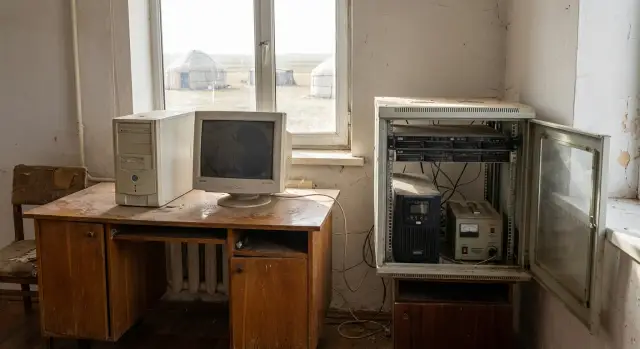
Why remote sites need a different approach
A computer in a city office and a computer in a rural branch operate in very different conditions. In an office there is usually stable power, decent connectivity, a clean room and someone nearby who can quickly help. At a remote site things are often different: more dust, noticeable power fluctuations, unstable internet, and service visits that take time.
Because of this, even good office equipment often starts failing earlier than expected. The problem is not always the device itself. Often it’s just placed in an environment it wasn’t designed for.
Most downtime at a branch isn’t caused by rare catastrophic failures, but by ordinary issues: overheating from dust, sudden power cuts, data damage after power loss, loss of access to services with weak internet, or a small fault that no one can fix quickly on site.
So when choosing equipment it’s important to look beyond CPU, RAM and disk size. Equally important is understanding where the hardware will be located, how often the power goes out, whether there is air conditioning, and who can check cables or replace a simple part. The same configuration in a regular office and at a remote site will give different results.
Simple solutions can be more expensive in the long run. While equipment is down, employees lose time, services are delayed, and the service team still needs to travel to the site. For such locations a practical approach works better: less focus on theoretical peak performance and more on reliability, resilience and easy maintenance.
What to find out about the site in advance
Selection starts not with a model, but with the on-site conditions. The same device may work for years at a district office and quickly fail in a room next to a warehouse, boiler room or production area.
First assess the environment. It’s important not just whether it’s hot or cold, but exactly where the equipment will stand: by the entrance, by a window, next to a radiator, in a passageway, in a dusty room or in a poorly heated unit. If the space is rarely serviced, that affects cooling and cleaning schedules.
Power is a separate issue. At remote sites the problem is often not a total blackout, but short dips, spikes and an unstable supply throughout the day. If staff say the computer reboots or freezes when a pump, kettle or other equipment is turned on, that’s a clear warning.
Check connectivity by testing it, not by the tariff. Find out the real speed, channel stability and how long the site can operate without internet. If connectivity is weak, some tasks should run locally without constant dependence on cloud services and heavy updates.
Another important point is the actual workload. How many people work at the site, are there shifts and peak hours, which programs run daily, are video calls, scanning, printing, work with large files required, and how many years should the equipment last without frequent replacement. Answers to these questions help pick the right configuration better than any generic spec.
It’s useful to know who on site can do a basic check. Sometimes an employee who can restart equipment, check cables, photograph indicators and briefly describe the problem is enough. For remote support that often suffices.
For small sites it’s handy to prepare a simple site passport in advance: room, power, connectivity, tasks, risks and the on-site responsible person. Such a document saves money and time during procurement.
How to decide what type of equipment is needed
First define the device’s role. One thing is a workstation for an accountant, operator or receptionist. Another is a point where a shared database lives, documents are stored or a local service for the branch runs.
For a regular workstation a desktop PC is often sufficient. This is a good choice where simple repairs matter: you can replace the power supply, RAM or drive separately without swapping the whole system. For remote sites this is especially convenient because modular replacement is usually faster and cheaper.
An all-in-one PC works better when desk space is limited, there are many cables, or a neat, simple setup is required. It has fewer separate parts that can be accidentally bumped or unplugged. But when choosing it’s important to understand how easy it will be to service in your specific conditions.
A server is not needed “just in case” but when it’s truly required. It’s usually justified in three cases:
- the site runs a shared database for several employees;
- local services need to keep running despite poor internet;
- local storage of files, archives or logs is required.
If these needs aren’t present, a server often becomes an unnecessary expense and another single point of failure.
For critical points plan redundancy from the start. If the failure of one workstation stops citizen intake, accounting, sales or printing, a spare device is often more useful than an expensive upgrade of the whole fleet.
How to pick a configuration without overspending
Base the selection on the site’s daily work. For remote locations predictability and easy maintenance usually matter more than maximum performance. First outline a few common scenarios: accounting system, documents, email, printing, video calls, industry software, work with a local database.
If equipment is used only for browsing, office apps and peripherals, don’t overpay for extra headroom. But if heavy spreadsheets, medical or industrial applications, cameras, local databases or large files are used, build in enough power from the start.
A practical horizon is 2–3 years. The processor should handle normal load without constantly running at full capacity. For memory, choose slightly more than the minimum to allow for updates and multiple concurrent tasks. For storage, SSDs are usually much more practical in these scenarios: faster boot, fewer everyday delays, and better resilience in harsh conditions.
Decide which functions must keep running when connectivity is poor. This can include printing, local file work, POS operations, access to saved forms or a local database. If the link is unstable, keep some data and services available on-site.
Don’t forget the accessories around the computer. For remote sites UPS units, power protection, spare power supplies, cables, keyboards, mice and other simple consumables often matter more than you’d think. They’re inexpensive but frequently prevent downtime.
Before purchasing, agree how support will be organized: what can be handled remotely, who does initial checks on site, which spare parts are kept in reserve and how long service visits take.
How to reduce risk from dust and temperature
At remote sites equipment often fails not from weak specs but from the environment. Dust, daytime heat, cold nights and rare maintenance affect even well-specified hardware.
A simple rule — don’t place the PC tower or UPS directly on the floor. The floor usually has more dust, dirt and accidental moisture near the entrance. Raise equipment onto a cabinet, shelf or rack.
Ventilation is equally important. If vents are blocked by a wall, boxes or papers, internal temperature quickly rises. Leave some free space around the case, especially at the back and sides. This is critical in summer.
Where there is a lot of dust, vibration or shaking, SSDs are generally safer than traditional hard drives. SSDs have no moving parts, so they cope better with tough conditions and are less likely to become the weak link.
Make cleaning realistic. If the plan requires disassembling the case and calling a technician monthly, it won’t work. It’s better to agree on a simple schedule: external inspection, dry cleaning, checking grilles and a quick alert to the responsible person if the machine gets noisier or hotter.
Check the room both in winter and summer before installation. The same office can be cool in January and very hot in July, especially if a window faces the sun, there’s a radiator nearby or the air conditioning is unreliable.
What to do about power fluctuations
Power issues are as dangerous as dust. One big spike can fry a power supply, while frequent short outages lead to file corruption and long recovery times.
Basic protection is a must. Workstations and especially local servers need a UPS with some spare capacity so the device can shut down cleanly during a power cut. Check sockets, extension cords, grounding and the wiring itself. Often the issue is old wiring or a poor-quality extension cord, not the equipment.
Consider not only total power loss but voltage sags. In those cases a computer may not shut down immediately but freeze, reboot or behave erratically. Such failures seem random and are especially frustrating.
After installation, enable automatic power-on after power returns where possible. For remote sites this is important: if the power goes out at night, the equipment should try to come back online in the morning without a technician.
How to work with weak connectivity and infrequent visits
If the internet is unstable, the site must keep functioning without constant network access. Programs should save data locally when possible and sync later.
A practical workflow is simple: staff work with documents or requests during the day, and synchronization with the central office runs in the evening when the connection is usually better. This keeps work from stopping because of every outage.
The main rule is clear: save data reliably first, then send it. This can be a local database, a shared folder or an app cache — the specific setup depends on the task, but the principle stays the same.
To avoid traveling to the site for every incident, prepare a few things in advance: remote device monitoring, alerts for disk issues and low free space, a ready system image for quick reinstall, backups of important settings and a very short instruction for the on-site employee.
That instruction must be as simple as possible: how to restart the device, how to check a cable, what to do if connection is lost, who to call and what information to report. The shorter the text, the more likely it will be used.
If equipment is purchased in batches, try to standardize configurations for typical workstations. This simplifies replacement, training and remote support.
Example for a rural branch
Imagine a site with 5 workstations, one network printer and a shared document or request accounting system. Internet is unstable and the service team visits rarely. In this case choose equipment not by “most powerful” but by “won’t fail on an ordinary day.”
Key operations should not rely solely on the external connection. If printing, basic documents and some accounting tasks can run locally, the branch won’t stop because of a provider outage. Sync with the central office can be scheduled.
Usually reliable office PCs for staff, one spare machine or a dedicated computer for shared local tasks, a UPS for key nodes and local storage of critical data until it’s transmitted are sufficient.
If the budget is tight, a spare computer often brings more value than an expensive upgrade of every workstation. When one machine fails, work doesn’t stop completely.
For projects in Kazakhstan delivery times and clear regional service are especially important. So it makes sense to consider not only specs but who will support the solution after rollout. For example, GSE.kz manufactures desktop PCs, all-in-one PCs and servers in Kazakhstan and also acts as a system integrator with countrywide service. For distributed sites this simplifies planning of deliveries, replacements and maintenance.
Common mistakes when choosing
The most common mistake is looking only at the device price and not considering the working conditions. A cheap office PC at a remote site quickly becomes an expensive purchase if it can’t handle dust, heat, cold or unstable power.
Another issue is the “one-size-fits-all” approach. An accountant, operator, cashier, engineer and warehouse worker have different needs. A single configuration for everyone usually means overspending in some places and lack of power where it’s needed.
People often forget UPS units, installation location, spare parts and the support process. Another frequent mistake is postponing remote administration setup and local instructions until after deployment. For remote sites this must be resolved before launch, not afterward.
A simpler oversight is putting a good PC in a dusty room by an exterior door, without power protection and with poor ventilation. Failures in that case come not from “bad equipment” but from poor site preparation.
Short checklist before ordering
Before procurement, run through a few questions:
- are the tasks of each workstation clear?
- are real data on dust, temperature, power and connectivity collected?
- is it decided which functions must work without internet?
- are UPS units, cables, spare power supplies and backup devices for critical points included?
- is the remote support and service visit procedure clear?
If any answer is “we’ll figure it out later,” don’t rush the order. At a remote site those small items often turn into long downtime.
What to do next
Don’t start with a product catalog. First make a short table for each site: where the equipment will be, what tasks it performs, what risks exist and what redundancy is needed in case of failure. Only after that is it easier to choose device types, configurations and a support plan.
When the picture is clear, ask vendors not only for specs but also for a maintenance plan. Who accepts requests, what can be replaced on site, which parts are kept in reserve, how problems are handled with infrequent visits — for remote sites this is as important as the specs.
For large projects it’s useful to pick 2–3 standard configurations and test them at the toughest site. If the solution runs there, it can be scaled to other branches.
For projects in Kazakhstan it makes sense to compare not only imported options but also local manufacturers and integrators. GSE has L200, M200 and S200 lines, as well as its own production and service network. This is convenient when you need not just devices but a bundle of hardware, deployment and ongoing support.
A good choice is simple: equipment matches real working conditions, not just a spec sheet. That’s what reduces downtime risk at remote sites.
Frequently asked questions
What should you check at a remote site before purchasing equipment?
First, assess dust, temperature, power supply, internet access, and employees’ tasks. These conditions often have more impact on the choice than differences in processor specifications.
What should you choose for a branch office: a PC, an all-in-one, or a server?
A desktop PC suits most employees: it is easier to maintain and replace individual components. Choose an all-in-one when space is limited and you need a compact setup, while a server is only needed for shared local services, a database, or data storage.
How can you avoid overpaying for a configuration?
Documents, browsing, email, and printing do not require maximum performance. Allow a small margin for memory and SSD capacity, and choose a more powerful configuration for local databases, large files, cameras, and industry-specific software.
How can you protect equipment from dust and overheating?
Do not place a computer or UPS on the floor, near a radiator, or by the entrance door. Leave clearance around ventilation openings and regularly check whether dust has built up on the grilles.
Do you need a UPS at a remote site?
Install a UPS with enough power capacity for workstations, especially for a local server. Also check outlets, grounding, and extension cords, and configure automatic startup after power is restored.
How can you keep working with a weak internet connection?
Keep access at the site to the required data and operations: local documents, printing, point-of-sale tasks, or the database. You can synchronize data with the head office later, once the connection is restored.
What should the on-site employee be able to do?
Assign an employee who can restart the device, check cables, and send photos of indicator lights to support. Give them a short guide with contacts and a clear sequence of steps.
Do you need a backup computer in a small branch office?
For a critical site, a spare computer is often more useful than an equally expensive upgrade for every workstation. It lets you quickly replace a failed device and keep working.
What mistakes are most often made when choosing equipment?
Do not buy identical devices for everyone without considering their tasks, and do not postpone power protection, installation location, and support until later. These decisions usually lead to downtime and unnecessary service visits.
Where should you start when preparing a project for remote branches?
Create a site profile that covers the premises, tasks, power supply, connectivity, risks, responsible employee, and required backup equipment. Then ask the supplier for more than just a specification: request the procedure for replacement, remote support, and on-site service visits.
