7 min read
Enterprise SSDs: TLC vs QLC, TBW/DWPD and wear management
Enterprise SSDs: how to compare TLC and QLC, interpret TBW and DWPD, set SMART wear alerts and decide when hardware encryption is needed.
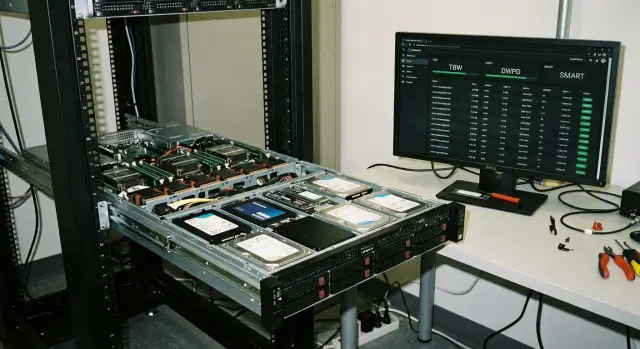
Why track SSD endurance in enterprise environments
On a desktop PC an SSD usually lives calmly: OS boot, documents, some browser use. In a server or workstation the load is different: lots of small writes, constant updates, logs, caches, virtual machines and backups. The drive can consume its write endurance much faster, even if performance still looks fine.
For enterprise SSDs, not only IOPS and latency matter, but also how many writes they can endure without surprises. write endurance directly affects how long a drive will retain stable performance and how predictably it will behave under continuous load.
Degradation rarely looks like “worked yesterday, dead today.” More often latency increases first, intermittent errors appear, the database response time grows, and VMs start to stutter. If a drive fails abruptly, business risks escalate quickly: service downtime, complex recovery, missed deadlines and SLA breaches.
If endurance is calculated in advance, you can make a clear plan: how much daily write is acceptable, when to monitor closely, and when to replace drives before they become a bottleneck.
It’s useful to document where constant writes occur (logs, caches, swap/temp, databases), the write-to-read ratio, acceptable downtime, and who gets notified when wear increases. Also decide an acceptable planned replacement interval from a budgeting perspective.
A simple example: in a virtualization rack one noisy service that writes active logs can accelerate SSD wear for the whole storage pool. For public institutions or banks it’s often easier to replace drives on schedule than to chase incidents at night. In system-integration projects this approach is typically built in from the start — for example, when assembling servers and storage based on GSE.kz solutions, endurance and wear monitoring are planned as carefully as power redundancy and backups.
TLC and QLC in plain words: what changes in practice
TLC and QLC refer to how many bits are stored per memory cell. TLC stores 3 bits, QLC 4. The more bits per cell, the higher the density and usually the lower the price per gigabyte. The trade-off is write speed and endurance.
The difference becomes noticeable not in office use but where a lot of sustained writing occurs: logs, databases, virtualization, backups, video processing and caching. For those tasks enterprises typically prefer TLC: it is more stable under writes and has more predictable endurance.
QLC is usually fine where reads dominate and writes are infrequent: archives, file shares where you "write once, read often", repositories and cold data. Problems arise when QLC is constantly overwritten in small chunks or when there are long continuous writes.
Most SSDs have an SLC buffer: a portion of the flash operates in a faster mode. While writes fit in that buffer, speeds look impressive. When the buffer fills, the drive writes directly to TLC/QLC and throughput can drop sharply. QLC usually suffers a deeper and longer drop, especially under large continuous writes.
In practice this means: short bursts of writes look fast on both TLC and QLC, but sustained writes (e.g. a nightly backup of hundreds of GB) degrade more gently on TLC. On QLC, after the SLC buffer is exhausted the sustained speed can be many times lower than the advertised peak.
Example: you run virtualization for a school or clinic and perform full VM copies at night. On QLC the backup may unexpectedly extend and delay morning tasks. TLC typically delivers steadier completion times — in infrastructure that consistency is often more valuable than marketing peak numbers.
TBW and DWPD: how to read specs and compare models
TBW (Total Bytes Written) indicates how much data can be written to the SSD over the warranty period before the manufacturer considers wear to be “beyond normal.” This is not a death point but a planning metric to assess risk.
Convert TBW to expected lifetime using your real daily writes:
Lifetime (days) = TBW (TB) / daily writes (TB).
For example, if TBW = 3000 TB and the server writes 2 TB/day, that’s about 1500 days (~4.1 years). If it writes 5 TB/day, it’s about 1.6 years.
DWPD (Drive Writes Per Day) is often more convenient for comparing enterprise SSDs: it shows how many full-disk writes per day are allowed under the warranty. The metric is already normalized to capacity and warranty period.
How TBW and DWPD relate
The formulas are straightforward:
- TBW = DWPD × capacity (TB) × 365 × warranty years
- DWPD = TBW / (capacity (TB) × 365 × warranty years)
Because of normalization, two SSDs with the same capacity can differ by multiples in endurance: one might be 0.3 DWPD (for read-light workloads), another 1 DWPD or 3 DWPD (for databases and virtualization). Differences usually stem from flash type (TLC vs QLC), overprovisioning, firmware and the controller’s write distribution algorithms.
What to check when comparing
Always look at TBW or DWPD together with capacity and warranty length. “4000 TBW” sounds large, but for 7.68 TB over 5 years it’s ~0.29 DWPD, whereas for 1.92 TB over 5 years it’s ~1.14 DWPD.
Practical rule: for some workloads capacity and price are the priority; for others a high DWPD matters. In enterprise settings it’s usually more convenient to compare models by DWPD and ensure it matches your write profile.
Other parameters to consider besides TBW and DWPD
TBW and DWPD show how much write workload a drive can handle, but in real deployments enterprise SSDs often fail because of power issues, overheating or incompatibility. So read other spec lines carefully.
Data protection and reliability
For servers and critical services look first for PLP (Power Loss Protection). This protects against power loss: the drive can flush cache to flash on sudden power drop. Without PLP the risk of filesystem corruption, database damage or VM corruption is higher even if TBW remains large.
Reliability metrics are helpful but should be interpreted cautiously. MTBF is a statistical model rather than a promise of life expectancy. UBER (Uncorrectable Bit Error Rate) matters for large arrays and backups: it shows the risk of read errors over huge data volumes. Warranty terms sometimes clarify more — check whether warranty is tied to write volume, time, or both.
Interface, temperature and compatibility
Interface and form-factor determine not only speed but also physical fit: SATA, M.2, U.2, PCIe/NVMe. A fast NVMe drive won’t help if the server backplane or controller expects SATA.
Pay attention to operating temperatures. NVMe drives in dense servers run hotter and may throttle. Check if a heatsink or directed airflow is required, whether temperature sensors are present and how throttling is handled.
Before buying, verify compatibility with your server and RAID. For arrays it’s important to have stable firmware, predictable failure behavior and support for required controller modes.
Quick pre-check list:
- PLP and the scenarios it covers
- UBER and warranty conditions
- interface and form-factor (do they match the backplane and controller?)
- temperature range and cooling requirements
- compatibility with RAID/HBA (especially for servers and storage systems)
Simple example: for a server running a database it’s better to choose an SSD with PLP and predictable RAID behaviour, even if a consumer drive’s TBW looks similar.
Choosing SSDs by workload: from archives to databases
Selection starts with the write profile, not the brand. Two drives with the same capacity can last years in an archive but fail in months on a journal disk. Therefore enterprise SSDs are matched to workload type and expected daily writes.
If you map tasks roughly to flash type: QLC suits read-heavy, infrequently updated scenarios (archives, repositories, cold data). TLC is safer for mixed workloads (virtualization, VDI, mail) and almost always preferable where writes are frequent (databases, transaction logs, cache, telemetry). QLC can be used for backups, but check behaviour under long sequential writes.
To estimate daily writes (GB/day) without complex tools, start at the server or pool level:
- Take the average volume written per day from the hypervisor, storage or OS.
- Multiply by 1.2–2.0 to account for “invisible” writes (journals, metadata, rebuilds, temp files).
- Divide by the number of SSDs that actually accept the writes (consider RAID and hot spares).
- Compare with endurance: DWPD (for the warranty period) or TBW (over the warranty).
Rule of thumb: QLC is fine where writes are rare and predictable and the main value is price-per-terabyte. If the workload is "nervous" (many small writes, peaks, constant logs), plan for TLC and don’t skimp on spare endurance.
Example: in a virtualization rack a surge in snapshots or logs can easily double writes. If calculations show you’re tight on DWPD, choose a higher endurance class or larger capacity: that is often cheaper than downtime and emergency replacements.
How to enable and read SMART: step-by-step setup
SMART is a set of counters that show drive health: how much data has been written, whether errors exist, and how wear is progressing. For enterprise SSDs it’s one of the simplest ways to spot issues early.
First, check that the system can see SMART at all. On some servers the drive is behind a RAID/HBA controller and SMART is only available through the controller’s utility, not directly from the OS.
Linux: smartctl and nvme-cli
On Linux the two common tools are smartctl (for SATA/SAS and sometimes drives behind HBAs) and nvme-cli (for NVMe).
Steps:
- Identify the drive type and device name (e.g. /dev/sda or /dev/nvme0n1).
- Pull a SMART report and ensure SMART is enabled.
- For NVMe get the SMART/health log.
- Save the output to a file and compare changes at least weekly.
- If the drive is behind a RAID controller, use the physical-disk access mode (often requires the -d option) or the controller’s utility.
Example commands:
sudo smartctl -a /dev/sda
sudo smartctl -s on /dev/sda
sudo nvme smart-log /dev/nvme0
sudo nvme id-ctrl /dev/nvme0 | head
What to watch in reports: wear percentage (Media Wearout Indicator, Percentage Used), written data (Total LBAs Written/Read or Data Units Written/Read), reallocated blocks, interface errors and counts of improper shutdowns.
Windows: PowerShell and vendor utilities
In Windows it’s convenient to start with PowerShell for basic diagnostics. It shows overall status but may not expose all attributes, especially for NVMe or drives behind controllers. Vendor tools often provide full information.
Practical approach: check overall status, then capture detailed attributes and record wear and total bytes written. If the SSD is in an array, know whether data comes from the OS layer, driver or controller console — otherwise you may miss degradation of a physical disk inside RAID.
One report is useful, but trend is more important. If wear and errors grow faster than normal or new critical events appear, plan replacement while the system still runs stably.
SMART alerts: thresholds, notifications and response
SMART alerts exist to replace drives before database errors or unexpected host reboots occur. For enterprise drives the most useful metrics are usually: Percentage Used (or Wear Leveling/Media Wearout Indicator), Media Errors (on NVMe often Media and Data Integrity Errors) and Critical Warning.
Divide thresholds by response level:
- 70% wear: preparation. Check warranty, spare stock and backups.
- 80%: schedule replacement in the next maintenance window. If needed, move hot workloads and update firmware per policy.
- 90%: urgent replacement. Minimize writes, move the drive out of critical roles, have rollback plans ready.
Send notifications to places where they will be seen: email for reports, messaging apps for on-call staff, and a ticket or event in the monitoring system. In integration projects agree in advance who receives alerts and who decides on replacement — otherwise even good monitoring won’t help.
To distinguish a single failure from ongoing degradation, watch trends. Worrisome patterns include Media Errors growing daily or after heavy writes, repeated Critical Warnings, or sudden performance drops without load changes.
After replacement keep a simple log: date, model, serial number, runtime, Percentage Used, reason for replacement. After 2–3 cycles you’ll have a procurement forecast and a real spare stock instead of emergency buys.
When hardware encryption in SSDs is justified
Self-Encrypting Drives (SEDs) perform encryption inside the drive controller. Data is encrypted and decrypted on the fly with negligible CPU overhead. Software encryption does the same using the OS or an agent.
Hardware encryption is appropriate when the risk of lost media or unauthorized access is higher than the need for flexibility. Typical cases: laptops and mobile workstations, servers in remote branches, drives that can go for repair or disposal. In finance and government sectors this is often driven by compliance and auditability; in healthcare protecting patient data is an additional factor.
SEDs have an operational side: compatibility and key management. Look for support of TCG Opal (often for workstations) or IEEE 1667/eDrive (commonly in Windows ecosystems), check how to enable it in BIOS/UEFI, and whether your RAID/HBA controller supports it. If encryption can be enabled but not managed, you get a checkbox with no real control.
Agree in advance who manages keys and what happens during drive replacement: where keys are stored, who can recover access, how warranty replacements are handled and how secure disposal or return is verified.
Opt for software encryption when you need unified policies across different drive models, frequent migrations between servers, virtualization with varying guest OSes, or centralized reporting without dependency on a specific controller.
Example calculation: estimating endurance under a real workload
Consider a virtualization host with several VMs and a small database. The workload is predictable because most writes come from DB logs, application logs and intra-day backups.
Suppose you plan to deploy an SSD of 3.84 TB for the datastore and a dedicated DB VM. Over a week you measure average writes of 1.2 TB/day, peaks up to 1.8 TB but rare. For safety, calculate using a near-worst day, e.g. 1.5 TB/day.
DWPD is simple: daily writes / usable drive capacity. 1.5 TB / 3.84 TB = 0.39 DWPD. If the drive is rated for 1 DWPD, it has endurance headroom. If the spec lists TBW instead of DWPD, compute allowed daily writes: TBW / warranty days and compare with your 1.5 TB.
With this profile enterprise TLC SSDs are usually appropriate: they tolerate regular writes better and maintain steadier performance. QLC makes sense when writes are low and stable (mostly reads) or when capacity is prioritized over endurance.
To avoid unexpected failures:
- monitor SMART (Percentage Used, Total Data Written, critical events)
- set alerts at 70–80% and plan replacement at 90–95% (or earlier if errors increase)
- check monthly actual daily writes and recompute DWPD if load grows
And don’t provision capacity with no spare: leave 20–30% free space (and don’t disable manufacturer overprovisioning) — this reduces unnecessary rewrites and keeps endurance closer to estimates.
Common mistakes when selecting and operating SSDs
The costliest mistake is treating SSDs as “just a fast disk.” In servers or storage systems details like flash type, write endurance and behavior when full quickly become causes of downtime.
Typical issues: installing consumer drives instead of enterprise SSDs in production; comparing only speed and IOPS while ignoring TBW/DWPD and warranty; overlooking that cache, DB logs, hypervisor logs and temp files consume endurance faster than user data; leaving drives unmonitored until the first failure; filling drives to 95–100%, which reduces performance and increases wear.
A common scenario: in a virtualization or 1C rack logs and temp files are stored on the same SSD as important data. Reports may look normal, but continuous writes deplete endurance faster than expected.
What helps:
- check write endurance and workload class before purchase
- move “noisy” writes (logs, cache) to separate drives or at least separate pools/volumes
- keep free space (10–20%) and monitor temperatures
- set SMART alerts for wear and error growth and plan replacements by thresholds
If these basics are in place, SSDs behave predictably and replacements become planned rather than emergency.
Quick checklist and next steps
To choose enterprise SSDs without surprises, follow a short order: verify model suitability for endurance and PLP, then enable monitoring and schedule replacements in advance.
Before purchase
Check key points: flash type and intended use (TLC is usually better for steady writes, QLC for read-heavy infrequently updated data), TBW/DWPD for the target warranty period with margin for peaks, presence of PLP, warranty terms (including ties to write volume), and compatibility by form-factor and interface (2.5", U.2, M.2; SATA or NVMe) with your server/controller.
Decide whether hardware encryption is needed: it’s justified when there are clear requirements for protecting data on media and a defined key-management process.
Immediately after installation
Make the drive observable: enable SMART collection, ensure wear, errors and temperature are visible, set alerts for wear, error growth and overheating. Run basic read/write checks and record baseline values (installation date, firmware, wear, typical temps).
For replacement planning use both TBW/DWPD specs and measured daily writes. A practical tactic is to plan replacement when a drive reaches 70–80% wear or when forecasts show little time left under current write rates.
If you need precise selection for your write profile (servers, storage arrays and monitoring), it’s usually best to work with system integration and GSE.kz support: that ties endurance, compatibility and observability requirements together from the start.
Frequently asked questions
When in a company is it really necessary to calculate SSD endurance, and when can you skip it?
Calculate endurance if the drive receives constant writes: logs, databases, caches, virtualization, backups. In these cases an SSD can consume its write endurance much faster than free space or peak speed would suggest. If you know average daily writes and the TBW/DWPD rating, you can plan replacements and avoid increased latency and service incidents.
Which is better for enterprise tasks: TLC or QLC?
As a rule, TLC is safer for mixed and write-heavy workloads: virtualization, VDI, mail, databases, and logs. It generally keeps steady performance under prolonged writes and provides more predictable endurance. QLC fits scenarios with a lot of reads and few updates: archives, repositories, cold data. If QLC is constantly overwritten in small chunks or by long continuous streams, you’ll see deeper slowdowns and faster wear.
Why does an SSD suddenly start writing much slower even though its specs are fast?
Advertised speeds are often measured while writing into the SLC cache. When that buffer fills, the drive moves data into its TLC/QLC layers and sustained speed can drop significantly. This is noticeable during long operations like overnight backups or mass VM updates: QLC typically shows a deeper and longer dip, TLC’s drop is usually milder.
What is TBW and how should it be interpreted?
TBW (Total Bytes Written) indicates the total amount of data that may be written over the warranty period before the manufacturer considers the drive 'worn'. It’s a planning reference, not an instant "death" point. Convert TBW to your daily writes to get a realistic lifetime estimate: days or years the drive will last under your workload.
What is DWPD and why is it often more convenient than TBW when choosing?
DWPD (Drive Writes Per Day) shows how many full-disk writes per day are allowed within the warranty. It’s convenient for comparing enterprise drives because it’s normalized by capacity and warranty period. If you evaluate drives of different capacities for the same server, DWPD helps you quickly see whether a model fits your write profile.
How to quickly estimate daily writes if there are no advanced tools?
Start with the actual writes per day reported by the hypervisor, OS, or storage. Add a safety factor for ‘invisible’ writes (journals, metadata, temporary files). Divide by the number of drives that actually accept the writes (consider RAID/hot spares) to get writes per drive. Compare the result with DWPD or recompute allowed daily writes from TBW over the warranty period. This rough method is usually enough to avoid buying drives with no margin.
Which characteristics besides TBW/DWPD matter for a server SSD?
For critical server scenarios, look first for PLP (Power Loss Protection). It reduces the risk of data corruption on sudden power loss, which is especially important for databases and virtualization. Also ensure form-factor and interface are compatible with your chassis and that cooling will handle NVMe heat — otherwise throttling or instability may occur.
Which SMART metrics are most important for SSD wear monitoring?
The most useful SMART attributes for wear monitoring are Percentage Used (or Media Wearout Indicator), total data written, and signs of errors. A single snapshot is of limited value — the trend matters: if wear or errors accelerate, schedule replacement. If a drive is behind a RAID/HBA controller, SMART may only be available via the controller’s utility. Check this in advance to avoid missing degradation of an individual physical disk inside an array.
What SMART alert thresholds should I set and how to react when they trigger?
A practical alerting strategy ties thresholds to action. For example: prepare replacement and verify backups around 70% wear; schedule replacement in the next maintenance window around 80%; replace urgently around 90% and reduce writes. Also correlate thresholds with error growth and critical warnings: sometimes a drive needs replacement earlier even if the wear percentage isn’t yet maximal.
When should I choose hardware-encrypted SSDs and when is software encryption enough?
Hardware (self-encrypting) drives are justified when the risk of device loss or unauthorized access outweighs the need for flexibility. Typical cases: laptops and mobile workstations, servers in remote sites, drives that may go into repair or disposal. Finance, government, and healthcare often have strict data protection requirements. Before deploying SEDs, check support for TCG Opal or IEEE 1667/eDrive, how to enable the mode in BIOS/UEFI, and whether your RAID/HBA supports managing keys. If you can’t manage keys, hardware encryption becomes a checkbox without real control. When you need consistent, centrally managed policies across varied hardware, software encryption is often simpler.
