8 min read
Energy-efficient PC settings in educational institutions: sleep
Energy-efficient PC settings in educational institutions cut electricity use without upsetting teachers: sleep modes, schedules and quick checks.
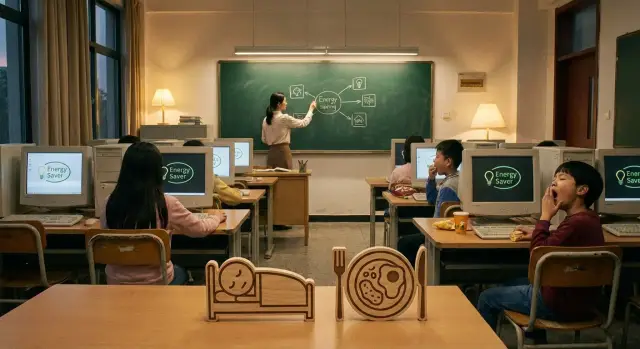
The problem: electricity is being wasted with little benefit
At school, computers rarely run strictly “only during lessons.” After the bell the classroom empties, but some devices keep consuming power: PCs stay on “just in case,” enter the wrong power state, or aren’t shut down due to haste.
Most losses happen in the evening and overnight. In a computer lab that’s dozens of workstations, in the library a few PCs and a printer, in the staff room machines that “must be ready in the morning.” Even if the tower is sleeping, many peripherals around it often remain powered.
Small things that add up are usually overlooked:
- monitors that don't go to sleep or are left on
- projectors and interactive panels idling while waiting for a signal
- chargers for tablets and laptops constantly plugged in
- power strips and UPS units that keep everything powered and don't switch off
- peripherals (printers, speakers) that stay in standby
The biggest gains almost always come from computer labs: many identical PCs, a clear schedule, and simple control. Next are the library and staff room, because equipment there is on for longer and more often "without an obvious task."
When a school starts saving, typical complaints appear. Teachers are unhappy if a PC “takes too long to wake,” if equipment isn’t ready for the first lesson, or if a screen goes dark or the network drops during a class. So energy-efficient PC settings in educational institutions must consider not only meter numbers but also the real rhythm of lessons: better slightly less savings than daily disruptions and lost startup minutes.
What matters to teachers and how to account for it in settings
The main teacher request is simple: the equipment must not interfere with the lesson. So start not with calculations but with the lesson scenario: how many minutes before the bell, what should open immediately, and what must not be lost.
The most critical thing is a quick start. If a computer wakes in 30–60 seconds, that’s usually tolerable. If startup turns into a wait and class-wide password entry, the habit of “never turning off” appears quickly.
What teachers usually consider essential
There are typically four priorities:
- Power up the PC quickly and start presenting materials.
- Not lose open presentations, tabs, or documents.
- Have access to the PC before the bell, during breaks, and for clubs.
- Reliable printing, interactive board, network access and sign-in.
To avoid losing materials, use a simple rule: store important files in a network folder or the institution’s cloud, not on the Desktop. Then sleep or reboot won’t turn one missing file into a disaster.
How to align power with the timetable
A practical scheme looks like this:
- Turn the screen off quickly (e.g., after 5–10 minutes), but put the PC to sleep later (15–30 minutes).
- Teacher PCs have a “softer” sleep policy than computer lab machines (the lab has more peripherals and higher load).
- PCs are ready before the first lesson: power-on by schedule or Wake-on-LAN.
- Prevent surprises during lessons: heavy updates and full scans shouldn’t run during the day.
Example: a teacher arrives 10 minutes before the bell, the PC is already on, the interactive board is detected, and the printer is available. During the break the screen goes dark, but the PC stays in a light sleep so it resumes work in 2–3 minutes.
If equipment was purchased centrally (identical desktops and all-in-ones), these settings are easier to standardize: the same drivers, identical power profiles, and fewer random differences between rooms.
Power modes: sleep, hibernation, shutdown
To reduce bills without getting teacher complaints, agree on clear rules: what happens between lessons, after the last lesson and during holidays. Energy-efficient PC settings in educational institutions usually come down not to complex tech but to choosing the right power mode.
Sleep is a pause: the computer does almost nothing but keeps RAM powered, so waking takes seconds. Hibernation is a deeper stop: the state is saved to disk, power use is minimal, and startup takes longer. Shutdown is a full stop: no power used, but the start takes longer and some tasks (updates, profile sign-in, app launches) will eat precious minutes at the start of class.
Why is “just shutting down” not always best? A teacher might arrive a minute before the bell. If the PC boots slowly, the class starts with irritation. Some machines may also run updates after shutdown that add delay.
A common practical choice is:
- Between lessons and during long breaks — sleep (quick resume).
- After the last lesson — hibernation (almost zero consumption but continue where you left off in the morning).
- For weekends and holidays — shutdown (minimal energy and less time exposed on the network).
About monitors: they often provide the fastest savings without affecting lessons. Even if the tower is still active, turning off the screen after 5–10 minutes of idle noticeably cuts consumption.
Step-by-step: basic sleep and screen-off settings
The goal is simple: energy-efficient PC settings in educational institutions should save energy without causing morning surprises. Start with basic timers that don’t interfere with lessons and go almost unnoticed.
Create two levels: screen-off (quick) and sleep (a bit later). The screen can turn off early — that doesn’t affect open programs. Sleep saves more but needs careful values so a teacher doesn’t encounter a “black screen” during instruction.
Recommended values for typical rooms:
- Turn off the screen after 10 minutes of inactivity.
- Put the PC to sleep after 30–45 minutes of inactivity.
- For teacher PCs in staff rooms or admin offices: sleep after 60 minutes.
- For laptops: on battery sleep after 15–20 minutes, on AC power follow desktop timings.
It's convenient to have two profiles: “computer lab” and “teacher’s room.” In the lab prioritize savings and discipline; in the staff room prioritize not interrupting a presentation or gradebook. Machines used for printing or as a login point often need longer sleep timers.
To reduce the risk of losing unsaved files, agree on simple habits: save before leaving the lesson, enable autosave in office apps, and avoid leaving drafts on shared PCs. Sleep usually doesn’t close documents, but updates or failures can lose data.
Verify sleep really works. After the set time the screen should go off, the computer should become quiet (fans almost silent), the power LED often blinks, and waking by keyboard or mouse should take a few seconds. If a PC wakes itself every 5–10 minutes, updates, the network adapter, or connected peripherals are often the cause.
Power-on and shutdown schedules: making it convenient
The idea of a schedule is simple: have machines ready for the first lesson and not wasting electricity late in the evening. This is especially noticeable where dozens of machines remain on until late.
Three workable ways to power on:
- schedule in BIOS/UEFI (auto power-on at a set time)
- Wake-on-LAN (remote network wake)
- manually (a duty person powers on as needed)
If the school timetable is stable, a simple solution often suffices: auto power-on 20–30 minutes before the first lesson and automatic sleep after classes. For computer labs this gives predictability: the teacher arrives and machines are already booted.
If the school has varying schedules (second shift, extracurriculars, olympiad prep), a hybrid approach is better: scheduled power-on for regular school days plus Wake-on-LAN so an admin can quickly wake a room on request.
For rooms with clubs, use “flex windows.” Instead of a single time put 2–3 weekly windows (e.g., afternoon and early evening). This prevents machines from being turned on every day unnecessarily but avoids a club starting while the equipment is asleep.
Before enabling schedules agree on a few things to avoid complaints from staff who lock the building:
- who has access to rooms before lessons
- which days machines may be powered on in the evening (clubs, meetings)
- what to do in alarms or unplanned inspections (is a full shutdown required?)
- who confirms a room is empty before nightly power-off
Example: a computer lab is set to auto power on at 7:40, and after 17:30 PCs go to sleep but are not fully shut down. If there’s a Wednesday club, the admin wakes the necessary machines via Wake-on-LAN so the teacher doesn’t lose the first 10 minutes. In practice this is easier to maintain than ad hoc manual instructions.
If you’re renewing equipment, check support for these scenarios in chosen PC models and in your Windows image. In procurement for schools this is usually discussed at project start.
Updates and maintenance without class disruptions
The main reason for morning complaints is simple: someone turns the PC on a minute before the bell and Windows decides it must “update now,” or antivirus starts a full scan. The teacher feels the equipment is always slow, while the issue is maintenance scheduling rather than performance.
The calmest approach is to allocate a nighttime maintenance window and plan how machines will be on then. For energy-efficient PC settings in educational institutions this matters: devices can sleep most of the day but wake on schedule for updates.
Night maintenance window: how to organize it
Usually 1–2 hours at night is enough, for example 02:00–04:00. During that time PCs can be woken (Wake-on-LAN or BIOS/UEFI schedule), receive internet, install updates and then be sent back to sleep.
To avoid morning surprises, follow simple rules:
- set active hours to cover lessons (e.g., 08:00–17:00) so reboots happen outside this window
- schedule maintenance 1–2 times a week rather than nightly
- put full antivirus scans in late evening or night and keep only quick checks and real-time protection during the day
- allow updates to download at night but block automatic daytime reboots
- after updates, reboot and return to sleep so machines don't stay on until morning
If the night internet is unstable
Some schools turn off or have weak internet at night. Then move downloads to times with better connectivity (e.g., after 16:00) and keep install/reboot for night. If possible, use local caching for updates so you don’t download the same files on every PC.
You can check success without heavy reporting: an admin looks weekly at 2–3 indicators — last update date, last reboot time, antivirus status. This takes a few minutes and quickly reveals problem rooms (machines not waking on schedule or manually powered off).
Monitors and peripherals: where a lot of energy is lost
Classrooms focus on towers but forget what actually “burns” all day: monitors, projectors, interactive panels, speakers, chargers and MFDs. Because of that energy-efficient PC settings in educational institutions often deliver less effect than they could: peripherals remain powered.
The fastest win is the screen. Set auto-off for monitors after 5–10 minutes (not never) and reduce brightness to a comfortable level. The logic is simple: screen off early, PC sleeps later.
Projectors and interactive panels need separate tuning. They often have their own sleep timers and lamp/illumination saving modes. Leaving a device idle during breaks wastes power and can overheat it.
A subtle problem: some USB devices prevent sleep or wake the PC. Typical culprits are wireless mouse/keyboard receivers, some webcams, USB speakers, hubs and older USB printers. Symptom: PC doesn’t sleep or wakes by itself. In that case restrict wake rights for some devices and remove unnecessary power via power strips.
End-of-day rules to avoid disputes:
- turn off the projector or panel with its power button (don’t rely on auto-sleep)
- turn off the monitor when the room is closed
- leave PCs in the school policy state: sleep, hibernation or shutdown
- unplug chargers and speakers if they are powered from the outlet
A short reminder in the room and identical settings across machines produce more effect than occasional admin “raids” and don’t break the lesson rhythm.
Common mistakes that upset teachers
The most common complaint: sleep timer set too short. During a lesson there can be pauses for discussion, board work, or workbook tasks, and if the screen sleeps after 5–10 minutes the teacher sees it as a fault even if savings exist.
A second problem appears later: after sleep network drives disconnect, printing fails or access to the gradebook drops. This depends on drivers, domain policies and PC models. So test Windows sleep in one classroom first: let it sleep, wake it, open a network folder, print a page, and launch required programs. If any step is unstable, move that room to softer settings (e.g., sleep only at the end of the day) or use hibernation.
A separate issue is wake permissions. Sometimes wake by mouse/keyboard is disabled and a teacher can’t quickly wake the PC. Conversely, a PC may constantly wake because of the network card, USB devices or scheduled tasks. Identify patterns: does it happen at night, after inserting a flash drive, or when a projector is connected?
Complaints grow when identical PCs follow different rules. For energy-efficient PC settings in educational institutions, consistency is important: one standard for teaching rooms and another for teacher rooms.
To reduce annoyance, agree on a clear rule and communicate it:
- the screen goes dark after X minutes of inactivity — this is normal
- during a lesson a mouse move or key press is enough to wake it
- if sleep disrupts printing or network folders, report the room number and time
- at the end of the day the PC goes to sleep or shuts down automatically
When teachers know what to expect and what to do, complaints drop.
Short 10-minute checklist for an administrator
So energy-efficient PC settings in educational institutions don’t provoke complaints, check not only “savings” but also that the room is ready for the first lesson. In the morning a quick 2–3 minute check works: enter the room 10–15 minutes before the bell and try turning on 2–3 random PCs as a teacher would.
If booting drags or the projector and network don’t connect right away, the cause is often small details. A five-point check catches them before you get a call:
- Screen: turns off after 5–10 minutes and wakes instantly from mouse/keyboard.
- Sleep: the PC enters sleep by timer after lessons and doesn’t hang in a partial state.
- Network: after waking there is access to shared folders, the electronic gradebook and Wi‑Fi without re‑authenticating.
- Printing: a test page enters the queue and prints on the first try.
- Sound and projector: the sound output isn’t accidentally set to the wrong device and the projector is detected immediately.
Keep night tasks under control. Schedule updates, antivirus scans and backups when rooms are definitely unused, and verify that machines return to sleep or shutdown rather than staying powered until morning.
A week after rollout, do a short teacher survey to catch annoyances:
- can you start the lesson without waiting for boot?
- did any PC fail to wake or lose network access?
- what do you most often have to fix manually (sound, projector, printer)?
You can see savings without complex systems. Compare "on at night" time for 2–3 PCs in each room, count how many hours screens are off after lessons, and note fewer morning support requests. When renewing equipment, identical models greatly simplify unified power policies and reduce surprises.
Case study: a computer lab with no morning complaints
One school started with its computer lab: 20 PCs, two-shift lessons and a club twice a week. Previously machines were often left on overnight and in the morning some rooms complained: "slow boot" or "won't wake."
They implemented energy-efficient PC settings in educational institutions so lessons weren’t affected. All PCs got the same settings and the two most problematic machines were tested thoroughly.
Settings implemented:
- screen off after 10 minutes of inactivity
- sleep after 30 minutes, wake allowed from keyboard and mouse
- night maintenance window for updates and checks
- scheduled power-on before the first shift and before the club via BIOS or Wake-on-LAN
Teachers were told: “If you step out during a break, just press any key. If you see an update, message the chat and we’ll move the window.” After two days they asked for feedback and adjusted sleep time: 20 minutes was too short for long board explanations.
In the first week a few issues appeared:
- two PCs didn't sleep correctly due to old drivers
- one printer disappeared after sleep
- several stations woke only from the power button
They fixed this by updating drivers, adjusting USB power settings, and checking BIOS options. The final standard settled: screen 10 minutes, sleep 30 minutes, auto power-on by schedule. For centrally managed rooms Wake-on-LAN remained the preferred option.
Next steps: standards, pilot and hardware renewal
For energy-efficient PC settings in educational institutions to stick, start with a small pilot rather than an order. Pick 1–2 rooms (e.g., the lab and the staff room), agree with 2–3 proactive teachers and verify that new modes don’t disrupt lessons.
In 1–2 weeks record the rules: when the screen turns off, when sleep begins, end-of-day actions, and who wakes machines in the morning. Document not just numbers but clear answers to teacher questions: "If I step out during the break?", "If a lesson starts early?", "If I need the projector?"
When the pilot passes without complaints, roll it out as the school standard. It’s easiest to describe the standard on one page and appoint a person responsible for changes so settings don’t drift between rooms.
Decide when the park needs renewal. Old PCs often sleep poorly, wake slowly, and may consume more idle power. Signs include regular hangs after sleep, noisy fans at low load, long boot times, and unreliable network cards (affecting scheduled power-on).
When choosing new machines look beyond speed to manageability and support:
- reliable sleep and wake behavior in your conditions
- ability to apply centralized power policies
- predictable drivers and updates
- clear service scheme
- capacity margin for 3–5 years
Example: the pilot showed it’s convenient to schedule power-on at 7:45 for an 8:00 first lesson, and put machines to sleep after 18:00 while keeping the option to wake them for after-school activities. This reduced morning "it didn't turn on" incidents.
If you plan an upgrade, discuss manageability, wake scenarios and unified power profiles with the supplier. For example, GSE.kz as a Kazakhstani manufacturer and systems integrator supplies desktop PCs, all-in-ones and servers for education and assists with deployment and support so maintenance doesn’t interrupt lessons.
Frequently asked questions
Which power settings are best to start with in a school so teachers don't complain?
Start with a clear scenario: turn off the screen quickly but don’t rush the PC into sleep. A comfortable setting is screen off after 5–10 minutes of inactivity and sleep after 30–45 minutes so the screen or apps don’t disappear during board explanations.
What to choose: sleep, hibernation, or shutdown?
For short breaks and between lessons, sleep is best: it wakes in seconds and preserves app state. Hibernation is suitable after the last lesson when you want almost zero consumption but keep the session for the morning. Full shutdown is sensible for weekends and holidays when minimal power draw and reduced time online is preferred.
Why do teachers often ask to “never turn off computers” and how to fix it?
Mostly it’s about predictability: teachers worry when PCs take long to boot, ask for passwords, or start updates. Solve this by powering machines on ahead of time with BIOS/UEFI scheduling or Wake-on-LAN and moving heavy updates to night windows. That way the desktop and peripherals are ready by the first lesson.
What actually saves the most energy: the PC case or the monitor?
The monitor often gives the quickest savings: turning it off early reduces consumption with little classroom impact. Also lower brightness and set timers for projectors and interactive boards. Many devices in standby still draw power, so ensure those devices also sleep or are turned off after lessons.
How to set Windows updates so they don't disrupt lessons?
Make maintenance happen outside lessons: set a night window, configure active hours to cover lessons, and prevent automatic daytime restarts. If machines spend most of the day asleep, wake them on schedule for updates and then return them to sleep to avoid morning slowdowns.
How to organize morning power-on by schedule?
The simplest is BIOS/UEFI auto-power on 20–30 minutes before the first lesson so classrooms aren't waiting. Wake-on-LAN is more flexible: an admin can wake a room on demand for clubs or second shifts. A hybrid — base schedule plus Wake-on-LAN — often works best.
Why do computers sometimes wake up by themselves at night?
Usually a network adapter, maintenance tasks, or USB devices that have permission to wake the PC cause it. Check if the wake-ups happen at the same time and remove wake rights from unnecessary devices, leaving only keyboard and mouse. If updates wake machines, move them to a night window and ensure PCs return to sleep afterward.
What to do if the network disappears or printing fails after sleep?
Often it's drivers, network policies, or specific printers: after sleep, network shares or printers may disconnect. Test sleep in a real scenario: sleep, wake, open a network folder, print a test page, and launch required apps. If issues repeat, move that classroom to gentler settings (e.g., sleep only after the school day) or use hibernation.
How to explain new rules to teachers so screen off and sleep don't annoy them?
Agree the rule in advance and make it consistent across classrooms. Teachers need to know that a dark screen is normal and returns with a mouse move or key press, and that any oddities after sleep should be reported with the room number and time. Once behavior is predictable, the habit of “never shutting down” usually fades.
When should you consider renewing the computer park for savings and stability?
If sleep or wake works unreliably, boots take too long, fans are noisy at idle, or drivers keep failing, settings can only help so much. Then plan a park upgrade and require manageability: uniform drivers, reliable sleep/wake, scheduled wake options and central policy application. Identical models and a single deployment approach simplify maintenance and reduce surprises; for example, GSE.kz supplies desktops, all-in-ones and servers for education and helps with deployment and support so maintenance doesn’t interrupt lessons.
