8 min read
Endpoint vulnerability scanning: agent or network?
Endpoint vulnerability scanning helps close holes in time. We compare agent and network approaches, schedules, exceptions, and handling false positives.
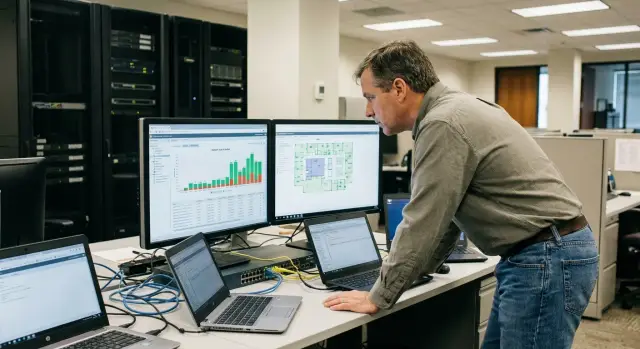
What problem is solved and why scanners often disrupt work
Endpoint vulnerability scanning answers two practical questions: where real risks exist, and what to fix first. Without regular checks, vulnerabilities accumulate unnoticed. New issues appear after updates, old ones remain unpatched, and "temporary" exceptions turn into permanent gaps.
Problems start when scans run chaotically. One admin scans the network during the day, another runs a full profile on workstations, and backups and updates run in parallel. Users see one thing: "everything is slow." IT gets flooded with complaints and quickly thinks, "let’s just turn the scanner off."
Slowdowns usually happen for three reasons:
- The scanner makes many simultaneous network requests (especially when scanning subnets).
- Devices experience high CPU and disk load (inventory, registry reads, version comparisons, component analysis).
- Scans overlap with updates, antivirus, backups, or business hours.
Managers rarely need "a million findings." They need a clear list: critical risks, affected devices, what a patch will fix, and where a different action is required (configuration change, service shutdown, segmentation).
A separate pain point is forgotten assets. Laptops that are in the office once a week, remote PCs outside the corporate network, test servers "for a couple of months," and isolated segments like training labs or medical equipment often fall out of coverage. The report looks calm, but coverage is patchy and an attack may succeed via a "no-man’s" host.
Agent approach: where it excels
An agent approach means a small component is installed on each device. It collects data locally and reports to a central console. An agent sees things that network scans often cannot: installed software versions, patch status, vulnerable libraries, local security settings, and sometimes running services. For endpoint vulnerability scanning this gives a more accurate picture, especially when some devices are offsite.
The agent is most valuable for laptops and remote workers. A device may be behind NAT, on a home network, or traveling, but the agent will still perform checks and report when connectivity is available. This is also convenient for branches: you don’t need wide channels to perform full network scans.
The cost of accuracy is device load. An agent can noticeably consume CPU and disk during inventory and analysis, and on laptops it will also drain battery faster. Decide in advance what the agent does continuously and what runs on a schedule, and choose modes that don’t disturb users.
Simple rules help:
- Run heavy checks during off-hours or when the device is plugged in.
- Limit CPU and disk priority for agent tasks.
- Separate frequent light checks (inventory) from infrequent deep scans (vulnerability search).
Another consideration is privileges. To see patches and vulnerable components, the agent usually needs elevated rights. That requires control over installation, integrity, and updates. Treat agent updates like any corporate software: test on a small group, then roll out gradually.
Network approach: when it fits and when it doesn’t
Network scanning works from the outside. It walks IP ranges, finds live hosts, and checks which ports and services are accessible. Based on responses, the scanner often identifies service types, versions, and basic settings (for example, supported TLS ciphers). Essentially, it sees what any network neighbor would see.
Without installing software on endpoints you can quickly get useful insight: which services are exposed, where unnecessary ports are open, where outdated protocols are used, and where there are clear service-level misconfigurations. For inventory and initial exposure control this is often the fastest start.
But network scanning has strict limitations. It poorly answers questions that require an inside view: which updates are really installed, which libraries are on disk, which policy settings are enabled, and which vulnerable components are used only locally. Even when a service is identified by a banner, that banner can be hidden, spoofed, or not reflect the actual version.
When network scanning is appropriate
Network scanning is suitable if you need a quick view of the attack surface and to monitor server roles:
- checking open ports and unexpected services;
- examining servers and network devices within a segment;
- finding outdated protocols and weak TLS settings;
- basic checks of exposed web services;
- routine rechecks after network changes.
When it provides little value and can cause issues
Coverage for laptops, remote users, and hosts that are often offline will be incomplete. Active scanning can create noise: increased LAN load, IDS/IPS alerts, firewall blocks, and some protection tools may temporarily block the scanner as suspicious activity.
To reduce risk, coordinate with network and security teams: limit request rates, scan by segments, choose low-load windows, and carefully use credentials. Otherwise you may face account lockouts from authentication failures.
Hybrid scheme: coverage without unnecessary noise
A hybrid approach usually yields the best result. The agent collects what is visible only from inside the device, and network scans verify what is actually reachable on the network and where service misconfigurations exist. This provides broad coverage without turning vulnerability scanning into a constant source of complaints.
Segment your infrastructure: different zones have different risks and constraints. In the office it’s important not to disturb users or overload the local network. In the data center accuracy and fast checks of exposed services are critical. In remote segments and branches avoid sending large traffic over narrow links.
A practical division of responsibilities looks like this:
- Agent: installed software, library versions, local settings, missing patches, vulnerabilities without network indicators.
- Network: available ports and protocols, weak service configurations, excessive external exposure, segmentation errors.
- Remote segments: prioritize agent scans; run network scans selectively and closer to the site (local scanner or rare windows).
To avoid duplicates and noisy alerts, agree in advance which finding is authoritative when both methods detect the same issue. For example, “missing patch” is authoritative from the agent, while “dangerous service open in the office network” is authoritative from the network scan.
Align reports to a common format so IT and security don’t argue about numbers. At minimum, fields that should match: unified device identifier, owner (department), severity, remediation deadline, and status (new, in progress, exception, confirmed false positive).
Example: in the office agents collect patch data weekly at night, while network scans run only on server subnets in the data center and on key office VLANs during short windows. Coverage stays broad, and noise is significantly reduced.
Scan schedules: frequency and conflict-free windows
A good schedule makes endpoint vulnerability scanning nearly invisible. A bad schedule turns a useful check into a source of complaints: slowing workstations, saturating channels, and interfering with backups and updates.
Set frequency based on risk and how quickly devices change. Practical guidance:
- Critical servers and perimeter (VPN, mail, web, DMZ): weekly and after significant changes.
- Other servers: every 2–4 weeks.
- Regular desktops and laptops: monthly, plus a quick rescan after major updates.
- Infrequent devices (kiosks, terminals, classrooms, rarely powered PCs): event-driven (power up, relocation, image change) and quarterly.
- New assets: immediately after joining the domain or issuing to a user.
Choose scan windows where there is less competition for resources. For office PCs, night or lunch hours often work; for servers, use weekend windows or separate nightly slots by service. If many employees work remotely, add a floating window (for example, 3–5 days) so laptops have time to be scanned when online.
Prioritize external-facing and critical segments first. This delivers value in the first weeks even if full coverage takes longer.
Consider "Patch Tuesday" and any mass changes: OS updates, antivirus updates, image changes, or hypervisor updates. The rule is simple: install patches first, wait 24–72 hours for stabilization, then run a full scan so you don’t capture transient noise from the update process.
To avoid overlaps with backups and maintenance windows, keep a shared calendar (security, infrastructure, service desk) that records:
- regular backups and restore tests;
- OS and business application update windows;
- high-load periods (month-end close, reporting);
- planned migrations and network work;
- exceptions for branches and slow links.
This turns scheduling into a predictable process: predictable for IT and safe for the business.
How to reduce load on the LAN and on devices
The main source of slowdowns is not the scan itself, but how it’s organized: how many tasks run concurrently, how fast polling is, and which network segments are targeted.
The first quick win is to limit parallelism and polling speed. If the scanner supports it, set limits on concurrent hosts and concurrent checks per host, and add pauses between requests. It’s better to scan longer but without spikes than to “blow up” the network in 20 minutes.
Simplify scan targets: group infrastructure. Common groupings are by subnet (offices, Wi‑Fi, server rooms), by device type (PCs, VDI, servers, POS), and by criticality. This makes it easier to run waves of checks instead of hitting everything at once.
Offload some work to the agent where possible. Local checks often remove heavy network steps (deep protocol probes) and are less dependent on link quality. In practice this reduces peak traffic and the number of simultaneous sessions.
Basic settings that usually help:
- lower parallelism and enable limits per host and requests per second;
- separate tasks by subnet and device role, running scans in waves;
- use agent scans for persistent assets and network scans only for presence and basic availability;
- exclude large ranges outside your responsibility (guest networks, unrelated VLANs, labs);
- schedule servers separately from user PCs.
Measure impact with simple metrics before and after changes. You don’t need perfect graphs—trend lines suffice:
- peak link utilization on inter-site and internet links;
- number of concurrent connections and increase in timeout errors;
- CPU, RAM, and disk usage on endpoints during scans;
- user complaints and increased response times for key services (mail, file shares, ERP).
Exceptions: how to configure them without making things worse
Exceptions prevent vulnerability scanning from breaking operations and creating noise. Each exception is a conscious visibility gap, so treat it as a temporary risk, not a convenience button.
Usually you don’t exclude a device entirely but a specific object that causes issues. For example, a backup process times out during network scanning, so it’s simpler to temporarily exclude a specific port or service during backup windows.
Typical exception types:
- hosts or subnets (rare, only for special zones);
- ports or services (targeted and justified);
- directories and files (relevant for agent scans);
- processes and applications (to avoid impacting critical operations);
- specific checks or vulnerabilities (by identifier, if confirmed).
The main criterion is “why exclude and for how long.” Almost every exception should have an expiration (e.g., 30–90 days) and an owner responsible for resolving the cause. Without a deadline, exceptions become permanent blind spots.
To prevent too many exceptions, formalize them as small change requests. The request should record:
- precisely what is excluded (object and exact parameters);
- reason and business impact (what breaks without the exception);
- compensating controls (e.g., manual monthly checks);
- duration and removal conditions (patch, update, migration);
- who approves (security) and who owns the system (IT or the business).
A useful practice is monthly or quarterly reviews: which exceptions are expired, which are no longer needed, where the scope can be narrowed (from host to port), or which exceptions can be replaced by a proper schedule.
False positives: verification, confirmation, and tracking
False positives are inevitable in both agent and network modes. If you treat each as an incident, the team will burn out and the business will ignore reports. The goal is to separate real vulnerabilities from scanner errors quickly and record the result.
Quick triage
First, verify the scanner saw the correct version and host. Often the issue is not a vulnerability but an inaccessible port, a timeout, a proxy, NAT, or an out-of-date agent inventory.
Practical steps:
- repeat the check using the same method at a different time and compare results;
- compare reported software versions and patch levels with what is actually installed;
- check for CPU or disk overloads, or network interruptions during the scan;
- map the finding to its source: CVE and trigger condition (version, component, enabled feature);
- if only one indicator differs (for example, the port is visible but the version is unreadable), mark it as “needs confirmation.”
A false positive usually repeats consistently, while a transient error changes symptoms (host sometimes unreachable, banner unreadable, or authentication failing).
Recording and resolution
Manual confirmation is typically required for critical services, disputed server findings, and cases where network detection relies on indirect signs (banners, open ports) but access is limited.
Record the outcome in a single registry so you don’t revisit the same item every week: “confirmed,” “not confirmed,” or “accepted as risk” (with a review date). Use exceptions for technical measures (e.g., known false detection of a specific version), not as a way to hide problems. Every exception must have an owner, a reason, and an expiry.
How to set up the process step by step
For scanning to be useful, every finding needs an owner and a clear action. Otherwise reports quickly become noise.
Start by building an inventory. A basic list is enough: which devices are scanned (PCs, laptops, servers), where they are (office, branch, VPN), who owns the asset (IT, accounting, contractor), and how critical an outage would be. This step often uncovers forgotten machines in meeting rooms or test servers.
Then choose the approach by groups. Agents are convenient for laptops and remote staff; network scanning fits where devices are in one segment and windows are stable. A mixed scheme is usually most practical: agents on mobile PCs, network scans for data-center servers.
To avoid access problems, determine where credentials and admin rights are needed. Prefer separate service accounts with minimal required rights and clear expiry rather than a long-lived domain admin account.
Workflow:
- split assets into 3–5 groups by type and importance and pick agent, network, or hybrid for each;
- configure access only where necessary (for example, to check installed patches);
- set schedules and limits (speed, parallelism), then run a pilot on 10–20 devices;
- agree on report format: what is critical, how tasks are created, who confirms risk;
- turn the process into a cycle: scan, triage, remediate, recheck.
A good pilot is one department and one server segment. If users complain about slowdowns or the network degrades, don’t expand coverage. Reduce parallelism, move windows, and refine exceptions first.
The final touch is a playbook for handling findings. Decide which vulnerabilities are fixed by patches, which by configuration changes, and which are accepted as risk with a review date. Then results become manageable instead of "just another report."
Short checklist before launch and after
Even a good vulnerability scan creates extra noise if you start unprepared.
Before launch
Have a rules call. One meeting with IT, security, and the service desk often saves hours of follow-up.
- Agree on windows and frequency: when the network and endpoints may be loaded and when not (month-end close, class hours, nightly backups).
- Set load limits: how many concurrent checks per segment and thresholds for CPU or network usage.
- Verify asset inventory: which subnets and device groups are in scope and who owns each group.
- Review exceptions: mark temporaries with expiry, justify permanents.
- Define contacts and actions if scanning causes issues: who to call if a weak Wi‑Fi, old printer, or narrow link is affected.
After launch
Treat the first 1–2 cycles as test runs. Watch not only vulnerability reports but how scanning behaves in the real network.
- Measure actual duration: how long a cycle takes per group and where delays occur.
- Assess load: user complaints, traffic spikes, load on domain controllers, firewalls, and VPN gateways.
- Triage false positives: take the top 10 by frequency, recheck versions and patch presence, then decide—confirm, suppress, or fix the detection.
- Record changes: which exceptions were added, which rules tightened, and who approved them.
- Revisit schedules after changes: new subnets, mass OS updates, or server moves usually require adjustments.
A simple guideline: if tickets about “internet slowness” increase after launch and one product dominates the findings, start by lowering parallelism and validating detections rather than expanding coverage.
Example: a company with 300 PCs and 20 servers without network overload
Scenario: 300 PCs (80 laptops) and 20 servers. Head office plus 4 branches connected by limited-bandwidth VPNs. PCs are grouped by function: accounting, call center, engineering. Goal: regular endpoint vulnerability scanning without complaints or saturated links.
They chose a hybrid model. Agents were installed on laptops because they often leave the office; agents check devices even on home Wi‑Fi. Network scans run in server subnets: servers are always available and it’s important to see open ports and configurations from the segment’s edge.
Schedules were separated to avoid peak loads:
- Call center: short checks at night on weekdays, full check on Sundays.
- Accounting: full checks twice a week after business close.
- Engineers: light profile at lunch, full check on Saturday.
- Servers: network scans by role (AD, mail, apps) on different nights to avoid impacting disks and backups.
To protect branch links, agent update and results upload limits were set: no more than 10 concurrent agents per branch, rate limits per host, and a randomized start jitter of 30–60 minutes. Network scans for branches had dedicated windows and reduced parallelism so VPNs weren’t saturated.
After the first week they had 10 findings. Three were false positives: the scanner flagged an old component version although a patch was installed—the file had a different build number. Two findings required 30‑day exceptions: a legacy app in accounting broke when a library was updated. These exceptions were logged as temporary with a review date, an owner, and compensating controls (restricted network access and enhanced monitoring).
Next steps: make the process regular and manageable
A one-off scan gives a useful snapshot. Value appears when scanning becomes a habitual cycle: find, verify, fix, confirm. Start simple: assign process owners and agree rules for decisions.
Define roles and rules
When responsibilities are vague, exceptions increase and fixes are delayed. Typically three roles suffice:
- Scan owner: manages schedules, coverage, and load control.
- Remediation owner: applies patches, settings, and software updates on devices.
- Exception owner: approves exceptions, sets duration, and reviews them.
Treat exceptions as temporary measures. Each exception must have a reason, a review date, and compensating controls (segmentation, restricted access, enhanced monitoring).
Metrics without which the process is unmanaged
You don’t need dozens of charts. Track 3–4 indicators weekly:
- coverage: what share of PCs and servers are actually scanned;
- time to close: days from finding to remediation;
- recurring findings: what keeps coming back;
- false positive rate: share of unconfirmed results.
Then plan quarterly: expand coverage (start with critical servers and special segments) while reducing noise. Maintain a small registry of recurring false positives, checks that need manual confirmation, and exceptions to cancel.
If you engage a vendor, it often makes sense to outsource implementation (scheduling, agent and network configuration, incident integration) and ongoing maintenance (reviewing exceptions, triaging false positives, executive reporting). GSE.kz (gse.kz) can help build and maintain this process in your environment.
Frequently asked questions
When is an agent approach better, and when is network scanning preferable?
If you have many laptops, remote workers, or devices that rarely come to the office, an agent will almost always provide better coverage and more accurate information about patches and installed software. Network scanning is more convenient for servers and network equipment in stable segments, where it’s important to see open ports and service settings “from the outside”.
Why use a hybrid scheme instead of a single method?
For endpoints the optimal approach is a combination: the agent shows what’s visible only from inside the device, while network scans reveal actual service exposure and configuration errors. This reduces blind spots and lowers the risk of overloading the office network with active scans.
What most often causes slowdowns during scanning?
Agents usually spike CPU and disk usage during inventory and analysis, and on laptops they also drain the battery. Network scans stress the network due to parallel requests and can trigger IDS/IPS and firewalls.
How to quickly reduce network load from network scanning?
Start by limiting parallelism and query rate, then move heavy checks to low-load windows. It’s better to scan longer but steadily than to cause a short spike that degrades user and service responsiveness.
What scanning schedule typically works without conflicts?
A practical option is to run heavy agent checks outside working hours and set a floating window of several days so laptops can be scanned when they come online. After mass updates, wait 24–72 hours to avoid collecting noise from transitional states.
What to do with laptops and remote PCs that rarely join the corporate network?
For laptops and remote PCs, an agent is the baseline because devices may be behind NAT and outside the corporate network. Ensure results are uploaded to the console when the device reconnects, and avoid running heavy tasks during active user work.
How to make exceptions without weakening security?
Don’t exclude an entire device by default: prefer excluding a specific port, process, folder, or check that truly interferes with operations. Every exception needs an owner and an expiration date, otherwise it becomes a permanent blind spot and is forgotten.
How to distinguish a false positive from a real vulnerability?
Re-run the check at a different time and verify the scanner identified the host and component version correctly. If results diverge or there are timeouts and access errors, mark the item as “requires confirmation” and validate directly on the device.
Are credentials and admin rights needed for scanning, and how to do it more safely?
Internal checks often require elevated privileges, so use dedicated service accounts with minimally necessary permissions and clear expiration. Test behavior on authentication failures before widespread rollout to avoid account lockouts and alert storms.
Where to start implementation so the process survives the first month?
Start with a small pilot of 10–20 devices and one server segment, measure load and false positive rates, then expand coverage. Keep the process manageable using a few metrics: actual coverage, time to remediation, recurring findings, and share of unconfirmed results.
