6 min read
Edge rack in a branch: mini-DC project without an on-site admin
Edge rack in a branch without an on-site admin: how to design the composition, remote management, monitoring, power and physical protection to reduce downtime.
Where to start: branch requirements and constraints
If there is no resident administrator in a branch, the problem is usually not "configuration" but availability. Any small issue can become downtime: reboot a stuck switch, replace a disk, press the UPS button, open the rack door.
A typical scenario: a small office, admins centralized at head office, contractors come only on request, and on site remains a cashier, accountant or receptionist. Therefore an edge rack at a branch must be designed to operate without a "person nearby".
Start by listing services that cannot be stopped even briefly. Most often these are cash registers and terminals, client or patient records, accounting (1C and equivalents), VPN and head office connectivity, and local printing/scanning.
Next, honestly describe the room constraints. They affect the design more than the brand of equipment: where the rack can actually be placed (storage room, server corner, reception), how critical are noise and heat, is there dust or humidity, how cleaning is done and whether there's a risk of water ingress. Also assess access by outsiders (visitors, tenants, security) and the power quality (frequent outages, sags, “noisy” mains).
Last initial step — determine allowable downtime and recovery speed. Two questions clarify everything quickly: "How many minutes can the service be down?" and "How long should it take to restore service if everything goes wrong?" If cash registers must work continuously and an engineer's visit takes 6 hours, focus on remote access, monitoring and power reserve rather than raw performance.
Basic composition of a mini infrastructure in the rack
If nobody is on duty at the edge rack, simplicity and predictability matter most. Better to have fewer devices, each easy to check and quick to replace.
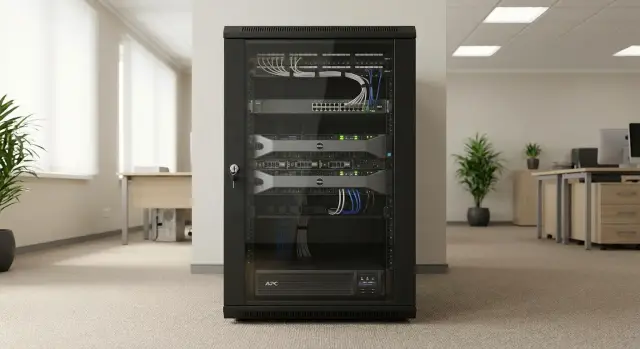
A basic set usually suffices: one or two servers (one for simple tasks, two if downtime is critical and redundancy is needed), a managed switch for segmentation, a UPS of suitable capacity and a PDU for tidy power distribution. If possible, bring two independent power feeds to the rack. For access and diagnostics, plan a separate remote channel (at least LTE/a second ISP) and centralized log collection.
The choice between "local drives in the server" and "a small SAN" often comes down to maintenance. A SAN is convenient when data volume is large and flexibility is required. But for a branch without an admin, a server with reliable disks and RAID usually wins: fewer settings, fewer updates and fewer unexpected failures.
Remote access is not a "nice to have" but part of the design. Plan hardware remote management, console access even when the OS fails, and centralized log collection. If a service drops at night, you must be able to determine the cause (power, network, disk) without a site visit.
On hardware this often looks simple: one–two rack servers like GSE S200 Series, a switch, UPS and clearly labeled power lines so a local employee can follow a short instruction over the phone.
Design plan step by step
To make the branch rack work without surprises, start not with the server model but with the answer to two questions: which services must run locally, and what happens if the link to the head office is lost.
5 steps that produce a clear design
-
List services and dependencies: cash registers, 1C and database, files, printing, video surveillance, local authentication. Mark what depends on what.
-
Estimate growth for 2–3 years. Users, camera count and storage needs usually grow. Sometimes VDI appears or a database becomes heavier. Plan headroom for CPU, RAM and disks, not only for physical space.
-
Choose the reliability level according to the cost of downtime. For a small office one server and a clear recovery plan is often enough. For critical sites use two nodes or a cluster to survive hardware failure without a visit.
-
Design remote access and access rights. Provide an out-of-band management channel, roles for support staff and clear procedures if access is lost.
-
Plan maintenance: who replaces disks, how often UPS batteries are checked, who cleans filters and monitors temperature.
After this create a "rack passport": connection diagram, device list with serial numbers, responsible contacts, and a minimal spare parts kit. In the practice of system integrators like GSE.kz such a document saves hours during an incident when only a branch employee is on site.
Remote management: how not to lose access
For an edge rack, remote access is insurance. The most common mistake is assuming VPN solves everything. VPN depends on the router, the internet and its settings — the very things that fail most often.
Separate management channel and remote console
Separate the production network from the management network. Ideally management interfaces of servers and network gear live on a separate VLAN and are accessed via a distinct entry point.
For remote console you need not only OS access but visibility before the OS boots: BIOS/UEFI, bootloader, RAID errors. Verify you can perform a remote hard reboot, power on after complete power loss, and use virtual keyboard and screen (KVM/remote console). Otherwise any small issue becomes a site visit.
Minimum to plan: separate management interfaces on server and switch, console access before OS boot, remote power cycling (PDU or managed outlet) and a backup login method (secondary account or emergency access).
Contractor access and logging
Do not distribute shared passwords. Give contractors named accounts, limit rights by task and enable second factor where possible. After work, revoke access without changing passwords on every device.
Enable logs: who connected, from where, what changed and when a reboot occurred. This helps in incident analysis and disputes.
If the main internet fails, prepare plan B: a backup channel (e.g., LTE router), management access via a whitelist of addresses and a short instruction for the local employee — what to press, what to photograph on screen, who to call. In branch projects integrators like GSE.kz usually include these scenarios at the design stage so you don’t need an admin at every site.
Monitoring and alerts without extra noise
In a branch without an admin monitoring should answer one question: what exactly failed and what to do right now. If the system sends dozens of yellow alerts daily, people stop reading them.
Practical metrics for the rack: cabinet and server temperature, disk health (SMART, SSD wear), power (input voltage, UPS charge and runtime), load (CPU/RAM and disk usage), and connectivity (availability of main and backup internet, packet loss). If temperature rises with fan speed, often a clogged filter or closed rack door is to blame.
Build alerts with simple rules: two levels (warning and critical), a 3–5 minute delay for brief glitches, grouping similar events into one message and alerts only for actions (replace disk, check fan, switch to backup link).
Where to send notifications: email is good for history and reports, messenger for quick reaction, and for critical events (total power loss, array failure) have an on-call phone number. Each alert must have a primary and secondary responsible person.
Once a month run a short check: send test alerts, ensure contacts are current and messages are understandable to the person on site. Branch managers usually want a mini report: rack uptime, number of critical incidents, average response time and 2–3 risk notes (for example, "UPS holds 7 minutes instead of 15").
Power and UPS: so the rack survives outages
Power is often the main source of problems for a branch rack. In practice you'll see voltage sags, spikes, 1–5 minute outages and weak or unstable grounding. This damages disks and PSUs and, more importantly, causes corrupted databases and long recovery.
Start by assessing the local mains quality. If power "flickers" regularly, plan a double-conversion UPS: it better maintains output voltage. If the mains are generally steady but have short outages, a line-interactive model with headroom often suffices.
Choose UPS by power and runtime. For power allow 20–30% headroom over actual load so the UPS isn't at the limit and can handle inrush currents. For runtime decide whether you need to survive short outages or guarantee a graceful shutdown.
To avoid power being a single point of failure, spread dual PSUs across different circuits (if two independent breakers exist), power network gear (switch, router, modem) from the UPS separately or at least on a separate outlet group, use PDUs with load monitoring, and where possible provide bypass so the UPS can be serviced without outage. Prefer user-replaceable batteries and plan replacements (typically every 3–5 years, adjusted for temperature and usage).
For prolonged outages have a clear procedure: record the incident, wait until a defined battery threshold (for example 30–40%), then gracefully stop services and power off servers. If multiple nodes exist, turn off network gear last so remote access remains as long as possible.
Physical protection and operating conditions
Installation location solves half the problems. A storage room seems convenient but is often dusty, hot and used to store boxes. An office is easier to control but has a higher risk someone will accidentally hit the rack. A small server room is best if available: door, ventilation and a ban on storing items nearby.
Even with full remote administration, physical access should be boring and predictable. Simple rules work: locked door, rack door lock, key tracking, seals on the rack or critical covers, work only by request (even in chat) and photos after work so you can see what changed.
Maintain stable temperature and clean air. Intake filters, ventilation gaps and a strict rule: no paper, boxes or chemicals near the rack.
Simple sensors give the biggest effect: temperature, smoke, leak (especially under the AC or near restrooms) and rack door open.
Fix and label cables. Minimum — velcro/ties, slack without tension and separate power and data routing. Then a cleaner or employee won't pull out a cable and take down the whole site with one move.
Backup and disaster recovery
If there's no admin on site, backups must be arranged so recovery is possible amid partial failures: lost internet, dead disk, power outage or lost access.
A clear base rule is 3‑2‑1: three copies, on two different media, one off‑site. For a branch this commonly looks like: primary system in the rack, local copy on separate storage (or another server/NAS) and a remote copy at head office or secure remote storage.
Decide in advance what must be backed up and what can be reinstalled from standard images. The critical minimum usually includes data and databases, configs (hypervisor, network, VPN, firewall, services), keys and secrets (certificates, tokens, access passwords), images of critical VMs and change logs.
Backup verification is not just a "successful" status but a regular restore test. Once a month pick one scenario (for example restore one VM or database in a test environment) and measure time to operational state. This reveals gaps in space, permissions or channel speed.
If the main link is unstable, a backup LTE/5G link often helps, but access via it must be tightly restricted: only VPN, from trusted addresses, with separate accounts and logging.
Keep a one-page recovery plan for the on-call person: what counts as an incident, who decides on recovery, steps (power, network, access, service start order), where backups are stored and how to restore them, responsible contacts and a final verification checklist.
Typical failures in an edge rack and quick actions
At a branch most failures fall into five groups: disks, temperature, network, power and human factor. It's important not only to "fix" but to ensure remote visibility of what happened and give the local employee a simple script to follow.
Disk failure
Usually a degradation rather than sudden death. With monitoring you will see pre-fail signs: errors, RAID warnings, slowdowns. Without monitoring red flags are a red array, freezes or sudden speed drops.
Quick actions: record which disk failed (slot/serial), confirm a current backup exists, and replace following instructions. It's useful to keep 1–2 compatible spare disks on site and labels on trays to avoid mix-ups.
Overheating
Causes are often mundane: rack pushed against a wall, door closed "to reduce noise", clogged filters, fans at max. Symptoms — sudden reboots, throttling and constant fan noise.
Quick actions: ask the local person to check airflow, ensure vents are clear and nothing is blocking intake. If AC is present, check mode and temperature. Often removing dust and restoring airflow is enough.
Network failure
Typical causes: a loop from incorrect patching, a dead switch port, a pulled cable, or ISP issues. Symptoms — partial service loss, flaky connectivity or full offline.
Quick actions: separate provider issues from local ones (is internet reachable on a normal PC?). Check port LEDs and have the employee reseat a specifically labeled cable into the matching labeled port. Labels at both ends solve many incidents.
UPS alarming and shutting down
Usually batteries, overload or wrong operating mode. Symptoms — constant beeping, rapid discharge, switching to bypass or dropping load when switching.
Quick actions: check current load (maybe something was temporarily plugged in), record error codes, move critical devices to the correct outlets and schedule battery replacement. A simple cheat sheet at the site — which outlets are critical and which are not — helps.
Human factor
Most common: someone accidentally turned off the server or PDU, unplugged power "to plug in a kettle", changed a password and forgot it, pressed "reset" on network gear. Symptoms mimic hardware failures but often resolve quickly.
Quick actions: ask to check power chain (socket → UPS → PDU → PSU), photograph front panels and indicators, and do not press anything without instruction. To reduce such incidents limit physical access, label breakers and outlets, and keep passwords and procedures in one place with rules for who can change them.
Example: a rack for a branch without an on-site admin
Branch with 30–50 employees: accounting and cash, local files, video surveillance and persistent VPN to head office. No system administrator on site. There is a responsible employee (office manager) who can press a button and report what they see on indicators.
Choices usually narrow to two options.
If load is moderate and downtime tolerable, deploy one server (virtualization; roles: accounting, domain controller, file service, small services) and replicate or regularly back up to head office. It’s cheaper and simpler, but when hardware fails you rely on replacement timelines.
If downtime is costly (cash registers, cameras, access control), go for two nodes. This can be a two-server cluster with automatic VM failover. More expensive, but many failures are survived without a visit.
Remote support truly works when rules are defined in advance: who is responsible for network, who for servers, who for apps and cash; maintenance windows; branch contact (primary and backup) and a short instruction what to press and what to photograph.
Automate what is frequently forgotten: OS and firmware update plan, weekly monitoring report to email, regular backup checks with at least one test restore. If the rack runs on UPS, configure graceful shutdown of servers on prolonged outages.
Leave a paper "survival kit" on site: rack diagram with port and outlet labels, serial numbers, support contacts and a short emergency procedure (what can be rebooted and what must not). If the vendor and integrator supply and support the equipment (for example GSE.kz), ask them to include these documents with remote access and monitoring settings.
Frequently asked questions
Where to start when planning an edge rack in a branch without an administrator?
Start with a list of services and their acceptable downtime: cash registers/terminals, accounting (1C and equivalents), VPN, printing, cameras. Then record the room constraints (noise, dust, public access, power quality) and the engineer response time. If a site visit takes hours, prioritize remote management, monitoring and power over raw performance.
What basic equipment should be in the rack?
A minimal practical set: - 1–2 rack servers (one for non‑critical branches, two if downtime is expensive) - managed switch (VLANs for production and management) - UPS with suitable capacity and autonomy - PDU for tidy power distribution (preferably with monitoring) - backup management link (e.g., LTE) and log collection The fewer standalone boxes, the easier the support and the quicker the phone diagnosis.
What to choose for storage: server drives or a small SAN?
Default choice — one server with reliable disks in RAID: fewer failure points and less maintenance. A small SAN/NAS makes sense when: - data volume is large and growing fast - you need flexibility with volumes/snapshots - you have discipline for updates and monitoring For a branch without an admin, a simple server + RAID + clear recovery plan usually wins.
How to organize remote management so you don't depend only on VPN?
Provide management outside of the OS so you can see the machine even if the system fails: - hardware console (KVM/remote console that works before OS boots) - remote power on/off and hard reboot - separate VLAN/subnet for management - managed power (PDU/outlet) to reboot stuck devices Test it: remotely reboot the server and enter BIOS/UEFI. If you can’t, an incident will require a site visit.
How to safely grant access to contractors and support?
Use named, least-privilege access: - individual accounts for contractors, no shared passwords - role-based rights (network/server/apps) - 2FA where possible - logging of logins and actions Revoke contractor access after work without changing all passwords on every device.
What monitoring is needed so alerts don't become noise?
Keep only what answers "what failed and what to do" quickly: - power: input voltage, UPS status, runtime - disks: RAID/SMART, SSD wear - temperature: cabinet and server sensors - connectivity: main and backup links availability - resources: CPU/RAM and disk usage Use two alert levels (warning/critical), a 3–5 minute delay for short blips, and alerts that map to actions (replace disk, check fan, switch to backup link).
How to pick a UPS and autonomy time for a branch?
Choose UPS by two parameters: - power: 20–30% headroom over real load - autonomy: either survive short outages or allow graceful shutdown If the mains "flicker" often, double-conversion UPS is preferable. If outages are short and voltage is steady, a line-interactive model can suffice—but not sized exactly to the load. Also ensure network gear runs on UPS; otherwise remote access can disappear before servers.
What physical protection and room conditions are essential?
Minimum effective measures: - lockable rack, key control, restricted access - sensors: temperature, smoke, leak, rack door open - cables labeled at both ends and secured (power separated from data) - ban on storing boxes/paper/chemicals near the rack, keep ventilation clear The goal is that a local employee can follow a short safe instruction and not accidentally unplug things.
How to organize backups if the internet is unstable and there's no admin?
Practical minimum = 3‑2‑1 rule: - 3 copies of data - on 2 different media/locations - 1 copy off‑site For a branch this often looks like: main system in the rack + local copy (NAS/second server) + copy in the head office. Always perform monthly restore tests (at least one VM or database). A "successful" backup without a restore test often won’t save you in a real incident.
What typical failures occur in an edge rack and what to do in the first 10 minutes?
Keep short, 1–2 page procedures and some spare parts on site. Common cases and first actions: - Disk/RAID: record slot/serial, confirm a recent backup, replace per instruction - Overheating: check airflow, dust and closed doors, verify AC mode and temperature - Network: separate provider vs local issue, check port LEDs, have the local employee reseat the signed cable into the labeled port - UPS alarms: check for overload, record error codes, ensure critical devices are on the correct outlets For GSE S200 Series servers it's useful to have hardware remote management and compatible spare disks so recovery doesn't stall waiting for a visit.
