7 min read
Dust protection for workstations: how to extend PC life
Dust protection for workstations reduces PC failures: choose cases and filters, adjust cleaning and placement, and avoid unnecessary costs.
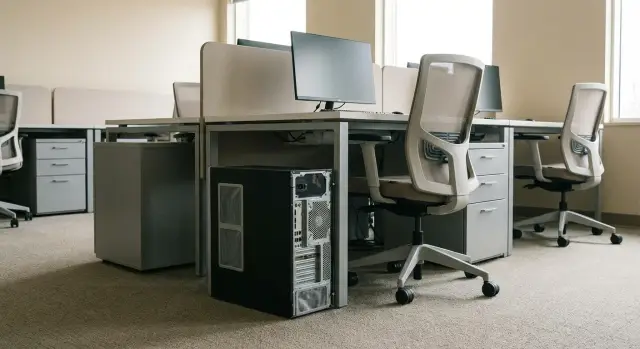
Why dust leads to failures and downtime
Dust protection for workstations is often underestimated: dust looks like a cosmetic issue. In reality it's one of the most common causes of failures. Equipment may run fine for years, and then because of dirt it starts overheating, getting noisy, freezing and failing exactly when it's needed most.
Dust is dangerous not only because it settles. It blocks the airflow and sometimes absorbs moisture, turning into a dense layer. Inside a PC the vulnerable spots are almost always the same: fans, the fins of CPU and GPU coolers, intake grills and the power supply. The PSU is the hardest to deal with: it heats on its own, and cleaning it without skills is risky.
Usually the problem gives warning signs. If you notice them, you can avoid sudden shutdowns and repairs:
- the computer becomes noticeably louder, fans often run at "max"
- the case feels hot, the exhaust air is very warm
- slowdowns under load, freezes, occasional reboots
- boot errors, unstable ports or storage devices
Regular floor cleaning doesn't solve the issue because dust gets stirred up again. It is carried by shoes, air flows from HVAC, and the computer itself constantly pulls air like a small vacuum. Even in a tidy room, a PC often stands under a desk: near carpet, by a wall or next to a radiator. Dust is heavier in such spots and reaches the grilles faster.
Quick assessment of conditions in your building
To avoid endless "scheduled cleaning", start with an assessment: where does dust come from and where does it really affect PCs. You can do this in 30–40 minutes per floor without instruments.
Walk the route of an employee and a visitor. Dust often "arrives" from entrances and corridors, from archives with paper files, and during small works like drilling, replacing ceilings or laying cables. Carpets and fabric partitions are a separate factor: they accumulate fine dust and release it when walked on or during cleaning.
Then evaluate the room mode. The higher the traffic, the more dust gets inside. Windows opened to air out bring street dust, especially near roads or construction. Air conditioners help, but only if their filters are maintained; otherwise they become dust sources themselves.
For each office quickly note:
- whether there is carpet, lots of textile or paper archives
- proximity to an entrance, busy corridor or stairs
- whether repair work or storage of boxes occurs
- how often windows are opened and whether there is AC
- where the system unit stands: on the floor, on a stand, in a niche
After that, mark the points where a PC outage is immediately noticed: reception desks, cash desks, service counters, security, offices where documents are constantly printed and signed. Even a "regular" PC in such a place can be under the toughest conditions.
It's useful to divide zones by risk and act by priority:
- Low risk: few people, windows rarely opened, no carpet.
- Medium risk: some traffic or carpet, windows opened occasionally.
- High risk: entrance areas, reception and cash desks, near repairs or archives, system units on the floor.
A simple rule: if there's a constant queue at the reception and the system unit is under the desk on the floor near the carpet, this is almost always "high risk", even with daily cleaning.
How to choose a case and cooling without overpaying
In dusty corridors and offices, "more powerful" does not mean "lasts longer". For dust protection it's more important how the case takes in air and how quickly you can return it to normal after it gets dusty.
First, look for filters on intakes. A filter must be exactly where the case draws air and be removable without a screwdriver. If cleaning requires removing a panel, unscrewing fasteners or pulling the PC out from under a desk, filters quickly stop being serviced.
Cases with a closed front are often more practical than mesh fronts: they have clear intake channels and fewer direct paths for dust. It's important that air comes in through slots and passes through a filter, not being drawn through random gaps.
What to check when choosing
Don't trust marketing—watch for simple signs:
- filters on the front intake and bottom that can be accessed in under a minute without tools
- minimal extra holes on the front and top
- 1–2 standard fans (easy to replace)
- fan mounts that don't require disassembling half the case
- power supply with a separate bottom air intake and a mesh/filter
Same logic for fans: fewer but decent fans are better. Quiet, non‑vibrating, and easy to replace. In institutions that means fewer complaints and fewer small service calls.
A small example
If the system unit stands under a desk near a radiator and a curtain, lint and fibers will clog the front filter in a couple of weeks. A case with an accessible filter saves time—2 minutes to clean. A case without good access makes maintenance a "sometime later" task, after which temperatures rise and freezes begin.
If you buy PCs from a manufacturer or integrator for typical workstations, ask them to show where the filters are and how to clean them. This simple question often saves months of problems.
Air filtration: what works in real conditions
Filtration is one of the cheapest ways to reduce overheating and strange failures. But it's important to understand the difference: a coarse mesh on a grill catches large debris (lint, threads, hair), while a dense material filter captures fine dust that clogs radiators and fans. For workstations a true filter works better, but only if it's installed correctly and actually maintained.
Where filters are most effective depends on where the case draws air. Most often it's the front panel and the bottom area. Practical filter points:
- front panel — the main intake in most office cases
- bottom intake for the power supply — mandatory if the PSU breathes from below
- top openings — needed if there's top intake or a nearby dust source
- side vents — useful if the case stands close to a wall or partition
A filter must not "strangle" cooling. After installation there should be no sharp rise in temperatures or noise. If fans constantly speed up, the material is too dense or the intake is blocked by furniture. Leave free space around the case and don't press it tight against a wall.
The main reason filters in institutions often fail is simple: they're inconvenient to remove. If cleaning requires screws and moving the system unit, the filter stops being maintained.
Before buying check three things:
- the filter can be removed and reinstalled in under a minute without tools
- it can be vacuumed or quickly rinsed
- spare parts are available or replacement is straightforward
Example: at a reception desk (people flow, paper, opening doors) the front filter clogs visibly faster. There it's best to have a front intake filter and one under the PSU, and a simple procedure on site: once a week remove the filter, vacuum it, and put it back. In practice this gives more effect than "take the PC apart once a year down to the last screw".
If you buy from a vendor that focuses on real operating conditions (for example, GSE.kz), ask not only about specs but also about filter serviceability. For uptime this is often more important than a 1–2 degree difference in benchmark tests.
Proper placement of system units
Even a good case and filters won't help if the system unit stands where dust is drawn straight into its intake. Placement is one of the cheapest and most visible steps: you change the environment, not the equipment.
The most common mistake is putting a PC on the floor. Near the floor there is more dust, sand and lint, especially by entrances and corridors. If there's a radiator or air curtain nearby, warm air flow lifts dust and pulls it into fans.
Give the system unit space to "breathe." When the rear panel is pressed against a wall and a side is blocked by furniture, hot air doesn't escape well. Fans spin harder and draw in more dirt. A simple rule: leave gaps around the case and keep grills free of folders, bags and cables.
Tight niches under desks with solid sides are a separate problem. They often form a "nest" of cables and power strips that block airflow and collect dust like a brush. If you can't remove the niche, provide front and side intake and avoid placing the unit flush against the partition.
You can fix placement in one walkthrough:
- raise the system unit on a stand or small cabinet 10–20 cm from the floor
- move it away from doors and radiators by 1–2 meters if possible
- leave 5–10 cm at the back and sides for proper exhaust
- ensure grills are not blocked by furniture or paper
- bundle cables together and secure them so they are easy to wipe
Good cable management reduces how much dust sticks around: cleaning takes minutes and the equipment is easier to service without extra disassembly.
A step‑by‑step 30‑day dust protection rollout
To make dust protection more than a one‑off, start with a pilot. Choose 1–2 typical spots where equipment frequently "chokes": for example, a reception with high foot traffic and an office with carpeting.
4‑week plan
- Week 1. Placement. Do not put system units on the floor or pressed against a wall. Leave 10–15 cm for intake and exhaust, remove papers and bags from grills.
- Week 2. Filters. Install removable filters on main intake points, label them (room, installation date). Assign responsible people: IT and an on‑site staff member.
- Week 3. Cleaning frequency. Set frequency based on actual clogging. In "clean" offices once every 2–4 weeks is usually enough; in high‑traffic zones clean more often. Record the date on a sticker.
- Week 4. Monitoring. Watch for signs: rising noise, hot cases, sudden reboots. These trigger an unscheduled check of filters and grills.
Agree on one important rule: clean filters only from the outside (remove, vacuum or wash and dry). Do not push dust deeper into the case.
How to lock the result in
Quarterly perform selective internal cleaning on a simple schedule, for example 10–20% of workstations. A useful rule: if a filter clogs faster than expected two times in a row, change the cleaning frequency and review placement.
Minimum log for the pilot:
- date of filter cleaning and assessment "low/medium/high dust"
- notes on noise and heating
- record of any unscheduled check and fixes
After 30 days you'll have a clear service frequency and a list of places where failures will return unless placement or filtration is corrected.
Common mistakes that let dust return
Most efforts fade when measures are isolated: a filter is added but cleaning routines and placement stay the same. Dust protection only works as a combination: room air, staff habits and how the PC itself "breathes."
One harmful habit is dry cleaning near desks. Sweeping or wiping dust dry does not remove it — it lifts into the air. Minutes later it is drawn into fans and settles where it does the most harm: on heatsinks and inside the power supply.
Another mistake is using a vacuum without fine filtration. It looks cleaner, but some fine dust is blown back into the room and quickly returns to computers.
A common attempt to reduce noise is to close ventilation grilles or plug vents randomly. That usually raises temperatures, then leads to failed fans or storage devices.
Five frequent errors:
- dry cleaning during working hours near equipment
- vacuum cleaners without HEPA or equivalent, which blow fine dust back
- closed grills and random plugs to reduce noise
- system units in cabinets or niches without proper intake and exhaust
- infrequent replacement of HVAC and AC filters
A typical scenario: a PC is under the desk in a tight cabinet, cleaning stirs dust, and the AC is serviced once a year. From the outside everything looks fine, but inside a dense layer forms on heatsinks over 2–3 months. In such conditions even quality workstations, including units supplied by integrators like GSE.kz, begin to run louder and hotter.
If dust keeps returning, don't start by buying new cases. Remove one mistake at a time: change cleaning methods, ensure air circulation around PCs, fix room filters.
Cleaning regime: a simple staff procedure
Dust in offices usually comes not from "dirt" but from habitual actions: dry cloths, brooms, shaking mats, open stacks of paper. The procedure must be short and clear so people actually follow it.
Minimum schedule that works
Assign a responsible person (floor administrator or facilities manager) and keep a calendar. It's better to do small, frequent tasks than occasional deep cleans.
- Daily: wipe desks and cabinets near PCs with a damp cloth, avoid dry sweeping; floors around workstations — only wet cleaning.
- Weekly: remove and clean accessible dust elements on cases (if provided), wipe visible intake and exhaust grills.
- Monthly: inspect workstations for "dust magnets" (archives under desks, carpet mats, open boxes) and move them away.
- As per building schedule: service ventilation and AC filters.
Organising supplies and space
Provide a separate area for paper and printing. If an MFP sits next to a system unit, paper dust and toner will clog grills and radiators faster and raise internal temperatures.
Give staff access to proper supplies. Often a small kit for the responsible person is enough: microfiber, odorless damp wipes, a soft brush for grills and spare filters (if available). If everything is kept "in a storeroom on another floor" the procedure quickly becomes just paperwork.
If workstations are standard (for example, from GSE.kz), specify in advance what can be cleaned by users and what only IT should touch. This protects equipment and staff.
Short checklist: when to clean and what to check
Dust accumulates unnoticed, so it's easier to act on simple signals than "when someone remembers."
Signs that a PC needs inspection and possibly cleaning:
- the PC is noticeably louder, fans ramp up without reason
- the case feels hotter on the side or rear, especially after an hour of work
- slowdowns, freezes, errors when launching programs
- the cooler makes wailing noises or there's rattling
- a smell of heated dust near the system unit
If time is short, do a 5‑minute check without opening the case:
- look at filters and grills: if they are grey and clogged, air barely passes
- check the gap to the wall or cabinet: leave space at the back and sides for exhaust
- peek through the grill: visible dust on fan blades already worsens cooling
- ensure the intake isn't facing carpet, curtains or stacks of paper
- check cables: if they block grills, airflow is reduced
On site, avoid two actions: don't blow dust without protection (it spreads and clogs other areas) and don't disassemble a PC without skills. Such attempts often break fasteners, pull out connectors and cause extra downtime.
Call IT or a service if overheating repeats a few days after cleaning, there is a burning smell, or the PC powers off or reboots by itself.
Practical example: a workstation in an institution
A clinic reception. People come from outside, doors open, paper dust, floors are mopped several times a day. The computer is under the counter, almost on the floor, next to a radiator. Every couple of months "strange" issues start: noisy fan, slow record entry, occasional reboots during the busiest hour.
The first steps required no purchases. The system unit was lifted from the floor onto a stand (10–15 cm clearance). Cables were routed so they don't block grills. The counter was moved slightly so exhaust doesn't butt up against a panel.
They also changed cleaning order. Previously wet cleaning was done right next to the counter and stirred dust toward the intake. Now they clean further from workstations first, let dust settle, then do wet cleaning closer to counters. This simple change often works faster than hardware replacements.
Small investments added predictability:
- fitted removable dust filters on main intakes
- replaced two worn fans with quieter, more stable ones
- labelled service dates and started a short inspection schedule
Expected result in these conditions is not "perfect cleanliness" but fewer overheating events and emergency calls. Within weeks noise drops, temperatures rise less often, and maintenance becomes planned instead of emergency.
Next steps: lock the approach and plan upgrades
To keep dust protection from relying on one person’s enthusiasm, make it a standard part of operations. Identify the highest‑risk spots (ground floors, entrances, archives, repair areas, carpeted rooms with high traffic) and agree on unified rules.
A short standard that both IT and facilities understand helps:
- list of high‑risk workstations and responsible persons
- unified placement rules for system units (not on the floor, not pressed to walls, not near heaters)
- 1–2 typical case options and compatible dust filters for computers
- filter maintenance requirements when accepting new PCs
After that, consistency is key. A one‑off deep clean helps for a short time, then the problem returns. Make inspection and cleaning part of duties and schedules: who removes and washes filters, who cleans around the workstation, who records dates. A practical guideline: a quick check once a month in dusty zones and once a quarter in normal areas.
If part of your fleet is already aged (noisy fans, overheating, frequent freezes), plan upgrades so maintenance is uniform and predictable. Look for models with easy access to filters and fans, sensible internal layout and clear service support.
For institutions in Kazakhstan it can be easier to include these requirements at procurement: from GSE.kz, as a manufacturer and integrator, you can predefine standard workstation options and support so filter, case and maintenance requirements are consistent across the fleet.
Frequently asked questions
Why does dust cause freezes and shutdowns, not just dirt inside the case?
Dust clogs radiators and grills, which reduces airflow and raises temperatures. As a result, fans speed up and get noisy, and under load you may see freezes, throttling and unexpected reboots.
Which parts of a PC get dusty fastest and which are most at risk?
Front intake filters and grills are usually the first to get dirty, then the CPU heatsink and fans. The power supply is especially dangerous: it heats up on its own and when dusty it overheats faster. Cleaning a PSU without proper skills and disconnecting power is unsafe.
What are the first signs that it's time to deal with dust protection instead of waiting for failure?
Look at behavior: the PC has become noticeably louder, the case feels hotter, you see slowdowns under load or occasional restarts. If there is a smell of heated dust nearby, check filters and grills the same day.
Is it true that in a "clean office" filters aren't needed?
Not necessarily. Even in a tidy office, if a PC stands on the floor near carpet, an entrance, a heater or in a busy area, dust accumulates quickly. A computer constantly pulls in air and acts like a small vacuum cleaner.
What should I look for when choosing a case so I don't overpay and really reduce dust?
Focus on maintainability: the intake filter must be accessible and removable in under a minute without tools. Also check the power supply has a separate bottom intake with a mesh or filter; otherwise it will draw dust from the case and overheat faster.
How should a system unit be placed so it draws in less dust?
Basic steps: raise the system unit 10–20 cm off the floor and move it at least 1–2 meters away from doors and heaters. Ensure free exhaust: don't push the case against a wall or enclose it in a tight niche so hot air doesn't recirculate inside the case.
How often should filters and grills be cleaned for this to actually work?
Rule of thumb — clean often and quickly from the outside rather than rarely and by fully disassembling. In ordinary offices, cleaning once every 2–4 weeks is usually enough; in high‑traffic areas a filter may need attention weekly. Adjust frequency based on how fast filters clog.
Can you use compressed air to clean a PC and what should not be done on site?
Better remove the filter and vacuum it or wash and dry it before reinstalling. Don't blow dust into the case without protection and don't disassemble the power supply or dig deep inside without skills — that often causes broken fasteners, disconnected plugs and extra downtime.
How to roll out dust protection in an institution if there are many computers and little time?
Start with 1–2 problem spots where downtime is clearly visible, for example a reception desk or a carpeted office. In 30 days you can improve placement, install removable filters, assign responsible people and set a real cleaning frequency based on how fast things get dirty.
What to clarify with the manufacturer or integrator when buying PCs for dusty environments?
Ask to see where the filters are, how they are removed and what can be serviced without tools versus what requires IT or service. Ease of maintenance is often more important than a small difference in test temperatures — with manufacturers and integrators like GSE.kz this can be standardized across the fleet.
