8 min read
Duplicating a workstation with two PCs: switching and synchronization
Duplicating a workstation with two PCs: peripheral switching scheme, profile and data synchronization, and regular testing so a failure won’t stop work.
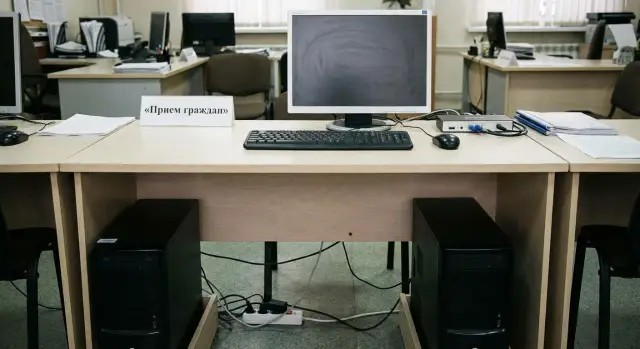
Problem: the PC fails, work must not stop
A critical workstation is not the "most powerful computer", but a place where a 10–15 minute stop becomes a queue, disrupted process, or a safety risk. Usually it’s a single desk with one operator and a clear function that must be performed without pauses.
Most often, critical points are service windows and posts with continuous flow: public service centers, city administration counters, clinic registries, cash desks and payment processing, dispatch and monitoring centers, security posts and access control.
The issue is that a failure is not always a broken system unit. In practice, small but annoying faults are more common: the PC won’t boot, the PSU died, the account is locked, network access disappeared, the monitor stopped working or a USB device isn’t detected. When e-signature tokens, a scanner, printing and access to internal systems are tied to that desk, any of these causes stops work just as surely as a hardware failure.
So answer this simple question in advance: what exactly must continue working during a failure. The usual minimal set is:
- login to required systems and services with the same account;
- access to shared folders or a database where documents and requests are stored;
- printing to the same printer (or the nearest replacable one);
- e-signature (token) and signing of documents;
- scanner or MFP for accepting and issuing documents.
The goal of the "duplicate workstation with two PCs" scheme is that an employee can move to the spare computer in minutes and continue with the same files and rights without reconfiguring from scratch.
Example: during a service session the operator’s PC freezes and the system won’t open. If the spare PC is already connected, access is configured, and documents are in the shared storage, the operator switches peripherals, logs in and continues serving. The main PC can be repaired later. That is the desired result: a technical failure does not turn into a stop in the process.
Basic idea: two PCs and one clear procedure
The idea is simple: you have two computers with the same role, access rights and set of programs. One runs every day, the other sits nearby and is always ready to take over. Then hardware failure becomes a short switching pause, not a stoppage.
For this to work in practice, three things matter: shared peripherals, shared data, and a familiar sequence of actions for staff. Otherwise the spare PC becomes "almost ready" and at the moment of failure lacks necessary rights, up-to-date documents, or the right settings.
What should match on both PCs
Bring a few items to a single standard in advance:
- identical user accounts and rights (including access to network folders and services);
- identical applications and versions, especially e-signature software, departmental systems, CRM and office programs;
- identical drivers and device support if tokens, scanners or printers are used;
- clear storage rules: what may be kept locally and what only in the shared storage.
The key point is not the hardware but discipline. Employees must understand: documents go to the right place, not "on the desktop of the main PC."
One switching procedure
The procedure should take minutes and be understandable to someone without admin skills. A typical scenario: the operator sees the main PC is frozen or won’t start, switches peripherals to the spare, logs in with their account and continues working with the same files from the shared storage.
Formalize this as a rule and test it periodically. Once a month (or more often in high-traffic locations) run a short 5–10 minute switching test. It reveals small issues that become problems during a real failure: a forgotten password, an expired certificate, a non-working token or a missing driver.
If you buy hardware for this scheme, it’s easier when both PCs are from the same line with the same configuration. That makes it simpler to maintain a single image, spare parts stock and identical service intervals. In Kazakhstan this is often handled via local supply and service, for example GSE.kz.
Peripherals switching: KVM, USB switch or dual monitor inputs
The most vulnerable point in workstation redundancy is not the second PC but how quickly the operator can continue work: the monitor, keyboard, mouse, scanner and token. The fewer steps and the clearer the order, the less likely mistakes are in a stressful moment.
Option 1: KVM switch (easiest for the operator)
A KVM bundles monitor and USB devices and provides switching between two PCs with one button or hotkey. For a service window this is usually the best scenario: the operator sees the screen and peripherals immediately move to the spare.
Example: two identical PCs (main and spare) are at a service window. If the main PC freezes the operator presses the KVM button, logs in on the spare and continues printing and scanning without unplugging cables.
Option 2: USB switch + dual monitor inputs (cheaper but more steps)
Here a USB switch moves keyboard, mouse and, for example, the scanner. The monitor input is switched separately via its Input button (HDMI/DP). This works, but in an outage it’s easy to forget a step: USB switched but monitor still shows the old PC, or vice versa.
A dock or quality USB hub helps when many peripherals are used (scanner, webcam, headset, readers) and you need stable ports. But a hub does not switch between PCs by itself: it only simplifies connections and reduces connector wear.
A compromise is peripherals with two receivers or dual-mode connections. For non-critical places this is convenient, but for important posts avoid relying on batteries, radio links and manual device selection.
When choosing a switch, check in advance:
- support for the required monitor resolution and refresh rate (especially 2K/4K);
- enough USB ports and types (USB-A/USB-C) for tokens and scanners;
- hot switching (button/hotkeys) and clear indicators of the active PC;
- compatibility with HID and USB devices that can be picky;
- power and cable quality to avoid intermittent disconnections.
A good setup lets one simple action switch the maximum number of devices and spares the operator from reaching behind the desk and remembering which cable goes where.
Connections around the PC: power, network, printing, tokens
Even with two identical PCs, what "fails" more often is what surrounds them: power, network, printer or token. So plan redundancy as a small piece of infrastructure.
Power: one UPS and a clear layout
The most practical option is one UPS for the workstation that powers the PC, monitor and network equipment (for example, a small switch or media converter if nearby). Both PCs should have independent power cables and different outlets (or different groups on a power strip) so you don’t accidentally power off both.
A good rule: everything needed to serve the public should run at least 5–10 minutes on the UPS so you can switch to the second PC and correctly finish operations.
Network: two ports, labeling and no "temporary" cables
Network should be connected to both PCs all the time: two patch cords, two different switch ports, identical access settings. Label the cables (PC-1, PC-2) and secure them so they won’t be yanked or unplugged during cleaning.
Avoid "temporary" patch cords from another room. That almost always ends with the spare PC unexpectedly having no network during a failure.
Printing and scanning: prefer network over USB
If the MFP supports network mode, set up printing and scanning over the network. Both PCs will work with the same device without physical reconnection and without surprises after switching.
If the device is USB-only, connect it via a USB switch or a KVM with USB 2.0/3.0 support and be sure to test scanning (it’s usually pickier than printing). Installing the same driver and using the same printer name on both PCs often helps.
Tokens, smart cards, e-signature: verify rights and compatibility
For tokens, not only drivers matter but also user rights and security policies. A common situation: the token is "visible" on the spare PC but signing is blocked due to missing certificates or lack of access to the key store.
Prepare in advance:
- identical drivers and crypto providers on both PCs;
- identical certificates and trust chains installed;
- verified user rights to work with the key container on both PCs;
- a test that the token is reliably read via the chosen switching method;
- a spare front USB port for quick re-plugging if something is not detected.
If webcam or headset are used, check that after switching audio and camera don’t freeze in the application. A quick test — switch, make a test call, switch back — will catch this.
Data synchronization: keep documents identical
The scheme fails if the spare PC lacks current files. So first decide what data can be lost without pain and what must never be lost.
It’s useful to split files into two categories:
- must not lose: applications, document scans, registers, report files, templates, key work spreadsheets;
- disposable: temporary exports, drafts, personal notes, files in "Downloads", app caches.
Then follow the rule: keep local storage to a minimum and store work files centrally. If one PC fails you just switch to the second and continue in the same folders.
Where to keep the central data
The choice depends on organizational practice and security constraints.
Common solutions are network folders on a server, corporate cloud, sync client (desktop folder automatically copies to server/cloud), or a NAS on the local network. The criterion: files must have a single source of truth, not two independent copies.
Example: at a service desk all scans and requests are saved immediately to a network folder like "Service/2026/January" instead of the Desktop. If the main PC freezes the operator sits at the spare, opens the same folder and keeps working.
Rules for Desktop, Documents, templates and scans
Most losses come from the habit of saving files "in plain sight." Create rules and put a short instruction by the workstation:
- keep only shortcuts on the desktop; if a temporary buffer is needed — one folder "Temporary" that is cleaned on schedule;
- redirect "Documents" to centralized storage or a sync folder;
- store templates in a shared folder with change rights granted only to a responsible person;
- save scans immediately to a centralized date- and service-structured location, not to C:;
- save email and messenger attachments immediately with "Save as..." into a work folder.
How to avoid version conflicts if both PCs are on
Conflicts happen when the same file is edited in two places. This is especially risky if both PCs are routinely on.
A basic measure is the rule "one active PC"; the second stays on standby. If both are on for maintenance, agree that editing is done on one machine only. For important folders use version control and a server recycle bin: even if a conflict copy appears, you can quickly roll back.
If employees frequently create files named "Report (1)", "Report_final_final", that’s a signal: simplify folder structure and introduce consistent naming rules.
Profile and settings sync: avoid reconfiguring from scratch
If the spare PC boots but the user spends half an hour restoring access, printers and shortcuts, the scheme loses meaning. For critical service desks you need not only documents but the same working environment: account, rights, familiar settings, connected devices and program set.
A "same environment" usually means the same login method, same rights (to folders and systems), same printers and scanners, the same shortcuts and basic application settings. Then duplicating the workstation works as a one-to-one replacement.
Two approaches to user accounts
The easiest option for an office is a domain account (AD). Policies can apply settings and rights uniformly and access is identical on both PCs.
If there’s no domain, use local accounts with a prepared standard: identical usernames, groups and rights, identical security policies and shortcut structure.
To avoid manual settings transfers, decide where the profile lives and what is saved:
- redirecting common folders (e.g., "Documents") to network storage;
- unified policies and basic security settings;
- preset configuration templates for common apps (for example, a preconfigured browser profile);
- a single list of printers and standard drivers;
- identical OS version and key applications.
Which applications are critical
Criticality is defined by what’s needed to serve the public or complete the operation "right now." Typically this includes the accounting system (CRM, medical or document management), a browser with required settings, printing and scanning drivers, the crypto provider and e-signature components, and service clients used by procedure.
Agree in advance who owns the golden image. Practically, it’s easiest to maintain a standard: identical build and policies for both PCs.
Avoid automatic sync for everything. Often it’s enough to exclude junk that bloats storage and breaks profiles: browser cache, Downloads, recycle bin, logs and temp files.
Step-by-step setup of a duplicated workstation
Start not with buying a second PC but by clearly answering: what exactly must keep working during a failure. For a service window this is usually printing, scanning, working in the departmental system and signing documents with e-signature.
1) Identify what is critical and what devices participate
Create a short list of operations (for example: find an application, print, scan, sign, send) and list equipment next to each: printer, scanner, token or smart card, webcam, headset, badge reader. Often the token or scanner is the reason the spare doesn’t work.
2) Choose a switching scheme and check compatibility
Decide how the operator will switch: KVM, USB switch + monitor input change, or separate devices. Before final purchase test that USB devices (especially e-signature tokens and scanners) are correctly visible through the chosen scheme and that the image doesn’t flicker or drop resolution.
3) Prepare two equally ready PCs
Both PCs must match OS, versions of key programs, drivers, updates, access rights, network and printer settings. It’s simpler when machines are the same model and configuration: fewer driver surprises and port differences.
4) Set where files live and how to work with them
Set the rule immediately: work documents live in a shared place (network resource, corporate cloud or file server), and Desktop/local folders are temporary. When switching, the operator opens the same folder and file on the spare.
5) Do a dry run and leave a one-page cheat sheet
Test the whole scenario: during a mock service session turn off the main PC and switch to the spare. Verify login, opening the system, printing, scanning and e-signature.
After the test leave a short cheat sheet by the monitor: which switch to press, which PC is main and which is spare, where files are located and who to call if the token or printer is not detected. This reduces panic when a failure happens with a real queue.
Common errors and pitfalls when provisioning a spare PC
People often buy the spare PC correctly but leave surrounding details for "later." These small details break everything when time is short and customers are waiting.
The most frequent mistake is focusing only on the system unit. In reality the workstation depends on peripherals, access rights and the user environment.
What usually fails on the day of outage
Typical failures repeat:
- printing and scanning: the printer is not found on the spare, the driver is missing, the scanner doesn’t work or output goes to the wrong tray;
- important files stored locally: the spare PC lacks recent templates, applications and scans;
- slow switching: passwords unavailable, token not detected after switching, no access to email or internal systems;
- different software versions: one PC has an updated office suite or crypto provider while the other does not;
- token incompatibility with KVM/USB switches: the device disconnects and only works after re-plugging or reboot.
How to catch these problems in advance
Before declaring the scheme ready, check five things:
- printing and scanning: print and scan a real document on both PCs;
- data: create a file and save it "as usual" and verify it is available on the spare;
- access: login to email, portal, accounting system, e-signature and required roles;
- updates: identical versions of key programs and security policies;
- tokens via KVM/USB switch: switch 3–4 times in a row and test signing.
If you set up workstations for a government organization or registry, ask the integrator to run tests with your actual peripherals and tokens. It’s usually cheaper than discovering incompatibility during an outage. When procuring and integrating (including PCs and servers from GSE.kz) include this run in acceptance: hardware without a verified scenario does not provide resilience.
A good sign of readiness: an employee can move to the spare PC and continue within 1–2 minutes without calls like "what’s the password?" and without printer fights.
Regular test: how to be sure the scheme really works
Any redundancy scheme looks reliable until the first real failure. So it must be configured and regularly checked — quickly, on schedule and with recorded results.
Test not just "it turns on" but the entire user path: login, access to necessary systems, printing, scanning, token and e-signature.
Minimal test schedule
A typical regime is:
- daily: power on the spare PC, log into the account, check network and that monitor/keyboard/mouse switch;
- weekly: test printing and scanning, login to key systems, check token/smart card and signing;
- monthly: simulate "main PC failure" measuring recovery time and run 15–30 minutes of real work on the spare.
Daily checks take 1–2 minutes and catch common problems: passwords not updated, VPN not starting, a USB port failed, KVM or USB switch not working. Weekly tests show that the spare is fit for work, not just able to power on.
Who is responsible and where to record
The test must have an owner. In a small office it can be the shift lead; in a larger org — a workstation owner plus IT for troubleshooting. The key is the check must not be "optional."
Record results in a simple log (spreadsheet or paper). Note date, test type, who performed it, time to readiness on the spare PC, what was checked (printing, scanner, e-signature, access) and the outcome.
If a test fails, act immediately: fix (cable, driver, port, battery) or file an IT ticket with a clear deadline. Until it’s fixed keep temporary measures: spare cable, second token, alternative printer.
Checklist and real scenario: failure during public service
At a critical point the most important thing is clear readiness: any employee should switch to the spare PC in a couple of minutes and continue without panic.
Readiness checklist (before shift)
A short check takes 1–2 minutes:
- power: both PCs start, UPS (if used) works, cables labeled;
- network: key services open on the spare PC;
- login: credentials and rights work, two-factor enabled if required;
- data: templates and work folders available;
- printing and e-signature: printing goes to the right printer, token/smart card is visible and signing passes a test.
Real scenario: the main PC won’t start
Service window with a queue. The staff member presses power and the main PC doesn’t boot. The goal is not to repair it on the spot but to switch quickly.
Approximate 3–5 minute procedure:
-
Calmly tell the visitor: "The system is restarting, this will take a few minutes. We will keep your place in queue and your request will not be lost."
-
Switch peripherals to the spare PC (KVM/USB switch or second monitor input) and power it on.
-
Log in with the work account, open the required system and verify data access.
-
If a request was already being entered, record minimum details (queue number, full name, time) in a log. This protects against disputes.
-
Continue serving. After the shift file an incident report: what failed, how long switching took, what interfered.
To avoid losing queue positions and requests, agree on a simple rule in advance: "if a failure happens while entering data, first record minimal details and the queue number, then continue entering into the system."
One-page micro-procedure and 15-minute training
The procedure can be short but mandatory:
- where the spare token or cable is kept and who can access it;
- three steps to switch peripherals and sign in;
- how to record the queue during a failure;
- where to report the incident and what to log (time, symptom, result).
The next organizational step is to standardize workstation kits: same PC models, same cables, labels and a clear port map. For critical points in Kazakhstan local-made equipment is often chosen to simplify service and replacement: for example, GSE models L200 or M200 with agreed maintenance and 24/7 support.
Frequently asked questions
How to tell if a workstation is truly critical?
A workstation is considered critical if even 10–15 minutes of downtime immediately creates a queue, disrupts procedures, or increases the risk of errors. Typically these are service desks, registries, cash desks, dispatch centers, and security posts — where continuity matters more than raw processing power.
What does "duplicating a workstation with two PCs" mean in practice?
Two identically prepared PCs sit side by side: one is active, the other is a ready spare. When the main PC fails, the operator quickly switches the monitor and USB peripherals to the spare, logs in with their account and continues working with the same files and permissions. The faulty PC is repaired later.
What should keep working first after a failure?
First, decide the minimal set that must keep working: login to required systems under the same account, access to work folders/databases, printing, scanning and e-signature. If these functions are verified on the spare PC, switching takes minutes rather than hours of reconfiguration.
Which is better for switching: KVM or a USB switch?
KVM is usually easier for the operator: monitor, keyboard/mouse and often other USB devices switch with one button. A USB switch combined with changing the monitor input is cheaper but requires more steps and is easier to forget under stress.
How to make a token/e-signature work on the spare PC without surprises?
Compatibility is the main risk. Tokens and some scanners can disconnect during switching, so test actual signing and scanning, not just whether the device appears in the OS. Having the same crypto provider, certificates and user rights installed on both PCs helps avoid surprises.
How to organize printing and scanning so nothing breaks after switching?
The most reliable option is a network-capable MFP: both PCs print and scan over the network without re-plugging. If the device is USB-only, connect it via a KVM/USB switch and test scanning on both PCs, because scanning is usually pickier than printing.
Where to store files so the spare PC always has the latest documents?
Simple rule: work documents must not live only on C: or the Desktop. Store applications, scans, templates and registers in a single central location (network folders, corporate storage, or a file server) so the spare PC always opens the same files.
How to ensure the spare PC is "just like the main one"?
A consistent environment matters more than the hardware: same account and rights, same software versions, drivers, printers, shortcuts and basic settings. In a domain this is handled by policies; without a domain, prepare a standard reference setup and identical local accounts.
What mistakes most often break the idea of a spare PC?
Small details are usually the killer: missing drivers on the spare, printer not added, mismatched software versions, no access to folders, forgotten passwords, or a token that won’t sign through the switch. These issues show up only when you run real scenarios: print, scan and sign as in everyday work.
How often should the scheme be tested so it doesn't fail on the day of an outage?
Keep a short, regular test and record the results. Minimum: run a full "main PC failure" drill at least once a month measuring time to readiness, plus periodic checks of login, network, printing, scanning and e-signature. Assign an owner for the test — otherwise the spare becomes "almost ready" very quickly.
