7 min read
Workstation for two 4K monitors: ports, cables, settings
Workstation for two 4K monitors: which video outputs and cables to choose, and how to set refresh rate and color to avoid flicker and dropouts.
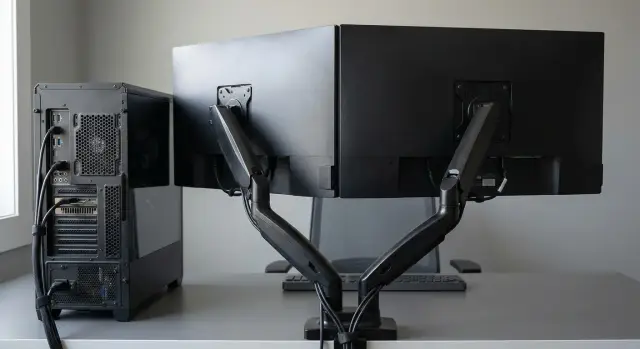
Common issues with two 4K monitors
A pair of 4K monitors usually fails not because of the panels themselves but because of surrounding details: which port on the PC is used, which cable is connected, whether there’s an adapter, and which modes are enabled in Windows and the monitor OSD. With a single 4K this can sometimes be "tolerable", but when you add a second screen bandwidth and compatibility limits quickly surface.
Typical symptoms are easy to recognize: flicker, brief blackouts, 30 Hz instead of 60 Hz, or video on only one monitor. Sometimes both screens turn on, but when you play a video, start a call, or enable HDR the signal begins to drop.
Two 4K displays are harder than one because the GPU and outputs must carry twice the data. If one monitor is connected correctly and the second uses a weak port, an old adapter, or a random cable, the system will often reduce refresh rate, cut color depth or make the image unstable.
Where to look first:
- 30 Hz and no higher option — usually the port, cable or adapter (e.g., an old HDMI output).\
- Flicker and brief signal loss — often caused by the cable, a bad contact, an overly long run or a USB-C connection without the right video mode.\
- Black screen after sleep or reboot — often settings, the driver or an HDR conflict.\
- Different color/brightness on identical monitors — usually image mode in the monitor menu or color format.
Some problems are fixed in settings: set 60 Hz, check the extend mode, temporarily disable HDR, update the driver. But if the port physically does not support the desired mode, or the cable can’t carry 4K 60 Hz, you won’t get stable operation without replacing the cable or hardware.
The essentials: 4K, refresh rate, color and HDR without extra theory
What matters is not just the "4K" label on the box, but how the signal is transmitted: how many frames per second, what color depth, and whether HDR is enabled. Those parameters are related, and sometimes one will “consume” the others.
4K (3840×2160) is simply many pixels. Refresh rate (commonly 60 or 120 Hz) controls smoothness: scrolling, window motion, video work. 8-bit color is sufficient for most tasks. 10-bit is useful for photo and video work because it reduces banding. HDR expands brightness range but often increases demands on the transmission channel.
What DSC is and why it’s sometimes needed
DSC (Display Stream Compression) is a compression of the video stream that helps “push” 4K at high refresh and/or 10-bit HDR through a limited port bandwidth. On the eye it’s usually imperceptible, but DSC must be supported by both the GPU and the monitor. If it isn’t, the system will lower the refresh rate or simplify the color.
Why 30 Hz appears suddenly
30 Hz usually appears because of a limitation in the port, cable or adapter. It’s easy to miss: the cursor feels “heavy”, scrolling stutters, and your eyes tire faster. Often 30 Hz occurs on only one of two monitors, especially if they’re connected in different ways.
To avoid loss of quality, decide priorities in advance:
- Need maximum smoothness — keep 60–120 Hz, HDR optional.\
- Need accurate color — 10-bit is usually more important than HDR.\
- Need HDR — plan headroom for ports and cables, otherwise refresh rate may drop without DSC.
Simple takeaway: 4K + high refresh + 10-bit + HDR are not always possible all at once, especially on two screens. Know what you must have and what you can sacrifice.
Video outputs: DisplayPort, HDMI and USB-C — what to choose
For two 4K displays the important thing is not connector shape but the combo of port + cable + monitor. If that chain can’t handle the mode, you’ll get 30 Hz, flicker or dropouts.
DisplayPort: the most reliable choice for PCs
DisplayPort is often the easiest option for a two-4K setup.
- DP 1.2 is usually enough for 4K 60 Hz on one monitor in basic settings, but has little margin.\
- DP 1.4 gives more headroom if you enable 10-bit color, HDR or need reliability on long cables.\
- DP 2.0 and above are useful for very high refresh rates and heavy modes, but are not essential for typical office tasks.
HDMI: fine if you watch the version
HDMI 2.0 is generally enough for 4K 60 Hz on one screen if you don’t enable all the maximums at once. HDMI 2.1 gives a larger margin but is not necessary for everyone.
A common trap: the PC’s HDMI and the monitor’s HDMI support different versions, and you rely on the “maximum” listed. The chain will run at the minimum supported version.
USB-C (DisplayPort Alt Mode): convenient but not always honest
USB-C works only if the laptop and dock actually support DisplayPort Alt Mode and the required DP version. Many docks split bandwidth across outputs, leaving the second monitor at 4K 30 Hz.
Before buying, check:
- which DP/HDMI versions the GPU and each monitor actually support;\
- whether the USB-C port supports video (Alt Mode) and not just charging;\
- how many simultaneous 4K 60 Hz outputs the dock promises;\
- whether there are unnecessary adapters of questionable quality in the chain.
DVI/VGA and “universal” adapters are almost always a bad idea for 4K: they reduce refresh, worsen image or introduce instability.
Check the hardware: what your PC and monitor can do
Before tweaking settings, answer the main question: can your hardware output two 4K displays as you need (for example 60 Hz and proper color)? Many 30 Hz and flicker stories start here.
First, look at which video outputs you actually have on the PC or GPU and which inputs each monitor has. Don’t rely on connector shape alone: the same HDMI or USB-C can support different modes.
How to identify port versions without guessing
The most reliable sources are documentation and device menus:
- the PC or GPU model specification and supported modes for each port;\
- markings near the connector (if present);\
- the monitor OSD, which often shows the current signal (3840×2160, 60 Hz) and modes like DP 1.2/1.4;\
- in Windows — “Advanced display settings” shows current refresh rate and sometimes color depth.
If a monitor supports 4K 60 Hz only over DisplayPort but is connected via HDMI, you can be limited to 30 Hz even with a good cable.
Integrated graphics and office PCs: where the limit lies
Integrated GPUs and compact office PCs often have two limits: few full-featured outputs and lower aggregate bandwidth. The result is typical: one 4K runs at 60 Hz and the second drops to 30 Hz, or both turn on but become unstable.
A discrete GPU is usually required if you want two 4K at 60 Hz with headroom, especially with HDR or 10-bit color. In the spec look not just at “how many monitors are supported” but at per-port capabilities and features like DSC.
If you buy a PC through an integrator, it helps to fix in the specification: “2 x 4K @ 60 Hz simultaneously,” including ports and cables. That saves time during acceptance.
Cables and adapters: a common cause of flicker and 30 Hz
Many two-4K problems start with the cable. A single cable carrying 4K 60 Hz is a dense data stream. If the cable or connector has errors, the image may flicker, disappear briefly, show “snow,” or the system may roll back to a simpler mode.
Adapters are even trickier. A cheap HDMI adapter or a “USB-C to HDMI” without the required mode can limit bandwidth. The monitor may show 4K but only at 30 Hz, while 60 Hz is available only if you disable HDR, reduce color depth or make other compromises.
“Certified” matters not as marketing but as proof of tests at the required speeds. For HDMI look for Premium High Speed (for 4K 60) or Ultra High Speed (for HDMI 2.1). For DisplayPort use cables specified for the mode and tested for stability.
Most common failures:
- cable length too long (the longer, the higher the chance of errors);\
- adapters without clear specs and cheap docks;\
- kinks at the plug, tension, poor contact;\
- the included cable rated only for 4K 30.
As a rule of thumb: 1–2 m cables are more reliable for 4K 60. For 3–5 m use proven models or active cables for long runs. Diagnose by replacing elements: first the cable, then adapters, then settings and hardware.
Windows settings: refresh rate, scaling and display modes
Even with correct ports and cables, Windows settings can quietly enable 30 Hz or the “wrong” mode.
Where to set refresh rate per monitor
Refresh rate is set separately per display. Open Settings -> System -> Display, select the monitor (1 or 2), then go to “Advanced display settings” and find “Refresh rate.”
Quick checks:
- make sure both monitors are set to the maximum available refresh for the chosen mode;\
- confirm resolution is actually 3840×2160 (sometimes one screen falls to 2560×1440);\
- enable HDR only where needed, not “just in case.”
Extend vs Duplicate and why Duplicate limits refresh
“Duplicate these displays” often limits refresh and color because the system picks common parameters based on the weakest link (port, cable, monitor, adapter). If one monitor can only do 4K 30 Hz, both may drop to 30 Hz in duplication. For work it’s almost always better to use Extend.
Scaling and sharpness are set separately. For 4K 125–150% is comfortable, and enabling ClearType often improves font readability, especially with different-sized monitors.
If things got worse after a driver update (flicker, missing refresh rates), try rolling back the driver in Device Manager or reinstalling it cleanly. Also check that Windows didn’t auto-install a generic driver after reboot.
Refresh, color and HDR: how to keep 60 Hz
Some issues are not hardware but chosen signal parameters: color depth, color format and HDR. These settings can easily “eat” bandwidth and cause the system to switch to 30 Hz.
8-bit vs 10-bit: why refresh may drop
10-bit color carries more shades but requires more data. If the channel is at its limit, 4K 60 Hz may become unavailable and you’ll see 4K 30 Hz or instability.
Practical approach: first get stable 60 Hz at 8-bit, then try 10-bit. If 10-bit causes rare flickers, “snow” or black screens after sleep, return to 8-bit and re-check cable and port.
RGB and YCbCr: when to switch (especially over HDMI)
RGB gives the usual “computer” look: sharp text and normal colors. Over HDMI it can be easier to hold 4K 60 Hz by switching to YCbCr (for example, 4:2:2). This is a compromise: video looks fine but tiny text may be less crisp.
If 60 Hz is available only with YCbCr, it’s nearly always a sign of bandwidth or compatibility limits.
A recommended check order:
- set 4K 60 Hz and test stability on both monitors;\
- lock in 8-bit and RGB and assess text clarity;\
- enable HDR on one monitor and work for 10–15 minutes;\
- if flicker or odd colors appear, turn off HDR and test 10-bit and YCbCr one at a time;\
- only then try HDR on the second monitor.
If HDR causes brightness jumps or weird colors, it’s better to keep SDR at 60 Hz than to accept HDR at the cost of stability.
Typical mistakes and compatibility traps
Most two-4K problems are small details: the wrong input selected on the monitor, an unsuitable cable, an extra device in the chain.
Common cases:
- The monitor has several HDMI inputs but one of them limits modes. Sometimes an enhanced mode must be enabled in the OSD (labels like "HDMI Enhanced", "DP 1.4", "Input Compatibility").\
- Connection through a dock, KVM or a chain of adapters — capabilities are often reduced to the simplest mode.\
- Mixing ports and cables without regard to versions and length: a long questionable cable and an adapter easily cause signal loss.
Another important point: don’t try to make two different monitors identical in settings. One may be stable at 8-bit SDR while the other only works with HDR with compromises.
Step-by-step checks: how to find the root cause
If you have flicker, suddenly 30 Hz, or one screen periodically disconnects, go from simple to complex. The goal is to find which element limits the signal.
-
Test monitors one at a time. Connect the first monitor directly and achieve stable 4K 60 Hz (both in Windows and in the monitor menu). Then repeat with the second.
-
If a screen drops or shows “snow”, replace the cable and try another port: a different DisplayPort or HDMI on the PC, and a different input on the monitor.
-
Update the GPU driver and check color and HDR. For diagnosis temporarily disable HDR and use standard color settings.
-
Remove docks, USB-C hubs and adapters from the chain. Rebuild a direct PC -> cable -> monitor connection.
-
Separate “no signal” from “slow performance”. Two 4K displays plus heavy apps can cause stutters due to GPU load even when signal transmission is fine.
If issues persist, record the result of each change (port, cable, HDR). This helps identify the exact node that needs replacement or adjustment.
Quick checklist before purchase and before deployment
Stability isn’t just “the image appeared”; it’s both screens holding the required refresh without flicker and surviving sleep and reboot correctly.
Before buying
Check the chain “PC port - monitor input - cable”:
- on both monitors the chosen input truly supports 4K 60 Hz;\
- the PC has two independent video outputs of the required type without mandatory adapters;\
- quality cables of the right version and length are planned;\
- decide in advance whether HDR and 10-bit are really needed.
Before handover to users
A 10–15 minute test saves hours of trouble later:
- verify 60 Hz on both monitors;\
- run sleep/wake 2–3 times and then reboot;\
- scroll text and play video, lower brightness below 50% and check for flicker;\
- enable HDR and 10-bit only when necessary and watch for any drop in refresh.
After testing, note the best combination “PC port - cable - monitor input”. That’s especially helpful if the same setup must be repeated across several workstations.
A simple real-world example: two 4K monitors in an office
An employee got two 27" 4K monitors. One was connected via HDMI, the other via DisplayPort. Soon one screen looked “off”: the cursor stuttered, scrolling was jerky and eyes tired.
Settings showed the problematic monitor running at 30 Hz while the other ran at 60 Hz. The cause is usually the chain “port - cable - input”: a cable that can’t handle the mode, the wrong HDMI input on the monitor, or an old HDMI output on the PC.
Fixing it took minutes: replace the cable with a 4K 60 Hz rated one, select the correct input, and manually set 60 Hz for each monitor in Windows. Then test sleep/wake to ensure the refresh doesn’t revert.
Next steps: how to choose a configuration without overpaying
A reliable configuration starts from clear requirements, not from the GPU brand. This helps avoid overpaying and avoid skimping on components that will cause flicker or 30 Hz.
Summarize requirements briefly: two 4K, desired refresh (usually 60 Hz), whether HDR and 10-bit are needed, which ports without adapters, cable lengths and versions, extend or duplicate, portrait orientation.
For office procurement and predictability, request confirmation of the mode “2 x 4K @ 60 Hz simultaneously” on specific ports and cables. In Kazakhstan such configurations are often coordinated with the manufacturer or system integrator — for example, GSE.kz — to request a PC or workstation configured for two 4K displays with ports and cables and 24/7 service support.
Frequently asked questions
Why does one of two 4K monitors run only at 30 Hz?
Most often that’s a limitation of the port, cable or adapter. For diagnosis, first connect each monitor individually and make sure it can run 3840×2160 at 60 Hz, then connect the second one. If only one screen gets 60 Hz, swap cables and ports — this quickly shows which element can’t handle the required mode.
Which ports are better for two 4K monitors: DisplayPort or HDMI?
For a PC, DisplayPort is usually the simplest and most reliable choice for two 4K monitors because it more often supports the needed modes without surprises. HDMI also works, but you must ensure that every link in the chain (PC, cable, monitor) supports a version that truly allows 4K at 60 Hz. Don’t judge by connector shape — check specific port versions and supported modes in the specifications.
Why does the second 4K often become 30 Hz through a USB-C dock?
With USB-C it depends on whether your laptop/PC and the dock support DisplayPort Alt Mode and which DP version they implement. Many docks split bandwidth between outputs, so the second monitor often drops to 4K 30 Hz. For stability, confirm the advertised capability “two 4K @ 60 Hz simultaneously” and, if possible, test the dock with your laptop model before buying.
Can a cable cause flicker and signal loss on two 4K monitors?
Yes. A cable may be rated below what’s needed for 4K 60 Hz, especially if it’s long or unbranded. Transmission errors appear as flicker, brief blackouts, “snow” or the system falling back to a lower mode. The fastest check is to replace the cable with a short, good-quality one and remove adapters so the monitor is connected directly.
Why does 60 Hz disappear when enabling HDR or 10-bit color?
This is a common scenario: HDR and 10-bit color raise bandwidth demands, and if there’s little margin the system may quietly switch to 30 Hz or an unstable mode. Practical approach: first get stable 4K 60 Hz in SDR and 8-bit, then enable HDR and 10-bit one at a time. If HDR causes dropouts or brightness jumps, it’s better to keep SDR at 60 Hz and only use HDR when you’re sure the port and cable can handle it.
Why do refresh rate and quality drop in “Duplicate displays” mode?
In duplicate mode Windows must pick common parameters for both displays, and it often defaults to the weakest link (port, cable, monitor, or adapter). So a limited monitor can pull down refresh rate and color for both. For work it’s almost always better to use Extend: each screen can then run at its own best stable mode.
Where in Windows can I check and set 60 Hz for each 4K monitor?
Set the refresh rate separately for each display in Settings -> System -> Display -> Advanced display settings — Windows can default to 30 Hz without you noticing. Also open the monitor OSD and check the current input signal and port mode, because some models require enabling an enhanced mode for HDMI/DP. If 60 Hz isn’t listed in Windows, the limit is almost always a port, cable or adapter, not a setting.
What to do if one monitor goes black or disconnects after sleep?
This is often a driver conflict, HDR issue or unlucky reinitialization after sleep. Start by disabling HDR, updating or reinstalling the GPU driver, and see if the problem persists. If a black screen repeats, simplify the setup: remove docks/hubs and connect monitors directly, then test sleep/wake 2–3 times on a stable 4K 60 Hz mode.
What is DSC and do I need it for two 4K monitors?
DSC (Display Stream Compression) helps transmit heavy modes (for example, 4K at high refresh, 10-bit and HDR) over limited bandwidth. Visually there’s usually no noticeable difference, but both the GPU and the monitor must support DSC. If DSC is missing on one side, the system will typically reduce refresh rate or color depth so the connection fits its limits.
Can integrated graphics drive two 4K monitors at 60 Hz and what to specify when buying a PC?
Integrated graphics and compact office PCs often have limited ports and aggregate bandwidth, so one monitor may run 4K 60 Hz while the second drops to 4K 30 Hz or experiences dropouts. For two 4K at 60 Hz with headroom, a discrete GPU with two suitable independent outputs is usually easier. When procuring workstations, specify “2 × 4K @ 60 Hz simultaneously” with ports and cables to avoid surprises; in Kazakhstan this is often coordinated with the manufacturer or integrator such as GSE.kz to verify delivery.
