7 min read
Document Access Model: Groups and Exceptions
Document access model for an internal portal: groups, inheritance, exceptions, access matrix and checks to avoid accidentally locking everyone out.
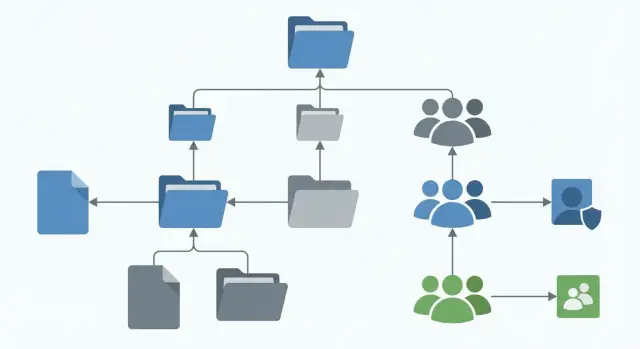
Why you need an access model and where it usually breaks
Without a clear access model, document access quickly becomes a collection of ad‑hoc decisions. Today someone grants access "for a minute", tomorrow a new folder "Misc" appears, and the day after employees write in chat: "Open it, it's urgent." Security drops and work slows.
An access model exists not for rigidity but for three simple goals: to prevent leaks of critical information, to make needed content available without endless messaging, and to allow controlled changes. When rules are clear, new hires start faster and document owners know what they're responsible for.
Most failures happen in two places: structure and manual grants. If folders grow chaotically, rights are fixed piecemeal: gave Ivan access, then Petrovа, then "everyone from the department." Exceptions accumulate, nobody remembers why they were made, and after a couple of months the portal becomes scary to touch.
The "closed to everyone" scenario often comes from fear and exhaustion. After a leak or an audit, it's hard to quickly see who has access, so the simplest step is to remove access for everyone and reissue it. On paper this looks safe, but it paralyzes work.
The worst is solutions that are "per person" when there are no rules or owners: rights are issued to specific names, nobody owns the folder, inheritance is unclear, and exceptions are made quietly and permanently.
If you agree on principles in advance, access "fires" happen much less often.
Basic concepts: documents, folders, actions and visibility
To prevent rights from turning into chaos, first agree on terms. A common problem is that different teams mean different things by "document", and rights are set "by eye."
A document isn't just a file (PDF, DOCX, spreadsheet); it can be a portal card: an application, contract, memo, or policy. Separate the object from the container. The container is usually a folder, section, project space or case: any logical level that groups documents and provides default rules.
Next, define the actions that matter in practice. Usually a basic set is enough: read, create, edit, delete (including restore if there's a trash), and publish (mark as official or visible to a wider audience).
Separately decide if you need rights to download, print, or share. When a document contains personal data or trade secrets, these actions can be more sensitive than simple reading: someone may be allowed to view in the portal but not to take a copy outside.
One more important layer: visibility is not the same as access. A user may see a section in the menu (to understand the structure) but not its contents. For example, an employee sees "Legal Department" in the menu but only sees common templates inside; contracts are hidden. This separation reduces confusion and helps avoid the situation where "everything is hidden" and people don't know where to go or whom to contact.
People roles: owners, admins and approvers
Rights break not because of settings but because it's unclear who makes decisions. If roles aren't separated, an admin starts deciding for the business, managers give verbal access, and InfoSec learns about risks after the fact.
Who is responsible for what
The data owner (section or folder owner) is responsible for the meaning and security of the content. They decide who needs access and what should be closed by default. This is often a process owner: the HR head for personnel documents, the chief accountant for financial folders, the head of legal for contracts.
The portal administrator should not be a "grantor of rights." Their job is to technically apply approved changes, maintain correct group structures, inheritance and logs.
InfoSec defines rules: which documents are sensitive, retention periods, whether download should be forbidden, and how often access should be reviewed.
Team leads or managers usually act as first approvers. They confirm that an employee truly needs access to perform their job. This reduces the owner's load and protects against "just in case" requests.
Who approves access and who executes it
A simple rule: the data owner (or an assigned approver) approves; the portal admin executes. If one person both approves and applies, the risk of quiet exceptions and accidental "closed to everyone" increases.
To avoid losing decisions in chat, a light record is enough:
- each section lists an owner and a backup owner;
- access requests state purpose, duration (if needed) and the employee's role;
- decisions are recorded briefly: "grant group X read until date" or "deny: no business need";
- once a quarter the owner confirms the list of groups with access;
- emergency accesses are flagged and automatically reviewed.
Example: in the "Contracts" folder, a sales employee gets read via the "Sales - contracts (read)" group for the probation period, while edit rights remain with legal and the section owner.
Groups instead of individual rights: how to organize correctly
Individual grants feel fast: you give Ivan and Petrovа access and it works. But in a month someone leaves, someone moves teams, someone goes on leave, and suddenly it's unclear who sees what. The rights model becomes a collection of exceptions and the risk of "closed to everyone" grows.
It's more practical to grant access to groups and add/remove people inside groups. Changes in team composition won't break folder settings; responsibility moves to group membership management where it belongs.
A few group types usually cover real work: organizational (department, branch, function), project (team with a lifecycle), process-based ("contract approvers", "purchase approvers") and technical (portal admins, auditors, security).
To keep clarity a year later, agree on simple naming. A useful template: who + where/what + level. For example: "HR Almaty - read", "Legal - template editing", "Project DC-2026 - approval." The name should make the group's purpose and intended rights obvious.
External contractors and temporary staff deserve separate groups marked "EXT" or "TEMP", with limited rights and a mandatory review date. For example, a contractor for implementation may get read access to technical specs in the project folder but no access to general HR documents.
A good habit: each group should have an owner (usually a department head or process owner) and a clear rule for membership review (quarterly or on project change). That keeps rights manageable and predictable.
Inheritance: how it works and how not to break it
Inheritance is simple: set access at a top level (section, folder) and it applies automatically to nested folders and documents. It's convenient because you control access in one place instead of granting rights on every file.
Inheritance is most useful when structure is logical. For example, the "HR" folder is available to the "HR" group and contains "Templates", "Policies", "Procedures"—all accessible to the appropriate audience automatically.
Confusion starts when people try to "fix" inheritance with many point exceptions. One document is opened to two extra people, another closed to one department, a third is removed from rules entirely. After a month nobody remembers why, and a classic "closed to everyone" appears: someone changes a top-level right without noticing bottom-level custom settings.
A practical rule: minimize exceptions. You can measure it: if more than 10–15% of objects in a section have unique rights (different from the parent), the structure or groups are wrong. In that case it's easier to create a separate folder with its own rights than to maintain dozens of "special" documents.
To make inheritance work for you, design folder structure around access, not just a "pretty" navigation. Check that:
- each top section corresponds to a clear audience (department, project, role);
- documents inside a section follow the same access logic;
- sensitive items are in separate folders, not hidden by bans inside a general folder;
- folder names hint at access (e.g., "Finance only", "Contracts: legal + sales").
If you build the model this way, inheritance becomes a safe standard and exceptions are rare, understandable cases that are easy to explain and audit.
Exceptions and denies: how to handle them carefully and transparently
Exceptions are needed when "group-based" access isn't feasible temporarily. But exceptions are the thing that most often breaks the model: after a couple of months nobody remembers why a deny exists and people start accidentally locking everyone out.
In practice there are three types: a point deny (hide one document from a broad group), a point allow (grant access beyond inheritance), and moving content to a separate folder with its own rights. The latter is usually the clearest when content is large or sensitive.
Exceptions are justified if the reason is honest and verifiable: temporary work with personal data, contract negotiations before signing, an internal investigation, staff changes, or a short pilot. If an exception is "just because it's calmer that way," it usually means groups are missing or folder structure is wrong.
Make exceptions transparent by recording them as a small decision card:
- reason (what we protect and from whom);
- expiration (review date);
- owner (who is responsible for the content);
- approver (role or named manager);
- what happens after the date (remove restriction, move to another folder, rebuild groups).
The main way to avoid a layered mess is not to put exceptions deep in the tree where they mix with inheritance. If more than 2–3 exceptions appear in a branch, move the solution up: create a separate "Restricted" folder, set folder-level rights and restore clean inheritance below.
Simple example: HR has a common "Templates" folder and a "Personnel files" folder. Instead of dozens of per-file denies, set strict rights on "Personnel files" and keep templates available for the needed groups.
Step by step: how to design an access model for the internal portal
Design rights starting from how people work, not from admin buttons. A good model answers: who needs to do what with a document day-to-day, and what happens if someone makes a mistake.
5 steps that work in most companies
-
Gather typical access scenarios by department and process. Not "who can do what," but "how a task flows": e.g., HR publishes a contract template, legal edits it, accounting sees the final version.
-
Draw the level tree: portal -> section -> folder -> document. For each level define base groups (e.g., "HR-editors", "Legal-read") and where inheritance should apply.
-
Describe roles and base rights in plain terms: read, edit, approve, own. The owner should maintain order, not have unlimited power over everything.
-
Add exceptions only when necessary and record them. If "Personnel checks" is closed even for parts of HR, note why, for how long, and who approved it.
-
Pilot with a small group. Give people real tasks and ask them to mark two problem types: "I can't do what's needed" and "I see too much."
To avoid "closed to everyone", agree on a minimum set of artifacts kept with settings: group descriptions, folder owners, and a list of exceptions with review dates.
Example: in a company like GSE.kz you can start with three top sections—"Production", "Procurement", "IT & Support." Initially keep inheritance on everywhere except specific folders like "Contracts & claims" and verify that new employees get into groups via their department, not via one-off manual grants.
Example scenario: a company with HR, accounting and legal teams
Imagine a portal storing personnel orders and files, invoices and reports, contracts and claims, plus common templates: forms, letters, instructions. Without a defined model you usually end up with two extremes: "everyone sees everything" or "closed to everyone."
Build groups around stable roles, not people. For example: HR, Accounting, Legal, Managers (as a separate group for extended view), All employees (for general materials). Moving an employee changes group membership, not dozens of folder settings.
Use inheritance where structure is stable. The "Common templates" section can be open to "All employees" and rights inherited down without file-level exceptions.
For sensitive data, create closed sections with minimal groups and no inheritance from the root. Examples:
- "HR: Personnel files" — access for HR and selected managers only;
- "Finance: Payroll & taxes" — only Accounting and the CFO;
- "Legal: Contracts & disputes" — only Legal and designated managers.
Make exceptions visible and time-limited. If an external auditor arrives, give them access only to "Finance: Audit 2025" with an end date (e.g., 14 days) and deny access to other financial folders.
To avoid accidental "closed to everyone" during restructuring, create top sections with correct groups first, test access with sample accounts (HR, accountant, lawyer, regular employee), and only then move documents. If unsure, leave broader access temporarily in "Common templates" rather than accidentally blocking critical orders or contracts.
Common mistakes and traps that cause lockouts
Access problems usually start with small decisions that compound. At some point someone sees "no access" and you discover nobody understands where the model failed.
Typical traps:
- rights are granted to individuals instead of groups and then remain "as memory" or disappear with the person who granted them;
- general and confidential materials live in the same branch and you end up patching with exceptions;
- too many exceptions and denies lead to conflicting rules and nobody can quickly answer "who sees this file and why";
- a section has no owner, so rights are changed "on request", structure unravels and new files are saved anywhere;
- rights are changed during working hours without checks and one wrong action stops several departments.
Typical scenario: accounting asked to close the contracts folder, the admin denied access at the parent folder level, and inside were templates HR uses. Because of inheritance HR lost access to both contracts and their working files.
What helps in practice:
- keep general and restricted documents in separate branches with clear inheritance rules;
- use groups (by department and by role) and keep personal rights as rare exceptions;
- before changes record the expected result: who should lose access and who should keep it;
- assign a section owner responsible for order and regular access reviews.
Quick checklist before launch and after changes
Check rights as if you've already forgotten them a month later. A working model relies on clear owners, a minimum of exceptions and a simple rollback path if something goes wrong.
Short checklist before release and after any significant change (new folder, reorg, migration):
- each section and large folder has an owner and access is granted via clear groups, not individual names;
- exceptions are counted and visible; many exceptions or clustered exceptions are a sign to rebuild groups or structure;
- test users from key roles ran a "day route": they found needed documents and can do exactly what they should (minimum: regular employee, manager, accounting, HR, legal, admin);
- a rollback plan exists: who and how restores previous settings if dozens of people suddenly lose access;
- a change log of rights is kept and regular reviews are scheduled.
Practical test: create 2–3 test accounts and check access from the user's view. If at least one account hits an unexpected block, pause and fix it now.
Audit and maintenance: how to keep the model alive
Even a well-designed model drifts over time: people change roles, projects end, temporary exceptions appear. Rights must not only be set but regularly reviewed.
Minimum reports to keep (even as a monthly export): who has access (groups and individual users), why access exists (inheritance, group assignment, point exception), which actions are allowed, what is abnormal (personal rights, denies), and when/who last changed a right.
Tie reviews to events, not only the calendar. Good triggers: dismissal, transfer, project start/close, change of folder owner. Practical approach: quarterly reviews for key sections (HR, finance, legal) and project-level reviews on project closure.
Access requests should be simple but bounded. A basic form should capture: which resource, duration, task, and approver. To avoid overloading admins, set rules in advance: standard processing times, approval criteria (role, project involvement, task necessity), mandatory expiry for temporary access, and a principle of "only via groups" with personal rights only by exception.
Migrating documents often surfaces "legacy": old folders with manual rights, forgotten groups, broken inheritance. Don't migrate that blindly. First mark "reference" folders with correct rights and freeze the rest: read-only until an owner and clear rules are assigned.
To keep control without heavy bureaucracy, assign section owners (not admins) and a simple rule: every non-standard access must have a reason and a review date. Then exceptions won't turn into permanent holes.
Next steps: how to implement with minimal pain and who can help
Start with a simple inventory. List sections and folders, who owns them, which groups exist, and where restricted documents live (personal data, finance, contracts). This quickly shows gaps and reduces the risk of accidentally "closing everyone" during changes.
Move forward in small steps and validate each change with real scenarios. A working model usually emerges after a short pilot, not a single overnight migration.
Safe sequence:
- assign owners for key sections and record their responsibility for access;
- convert individual rights into groups and verify group names are clear;
- enable inheritance at top levels and limit manual edits where they break the logic;
- run a pilot in 1–2 departments with prepared test cases (who should see what, who approves, who exports);
- prepare a rollback plan for quickly restoring access if something goes wrong.
To prevent decay after six months, three things are usually enough: an access matrix (who can do what), group naming rules, and a short exception procedure (who requests, who approves, term, reason, how to remove).
Involve an integrator when the portal is complex, many systems are involved, or InfoSec/audit requirements are strict: for example, when you need to link roles and groups to HR data, set up logs, request workflows, and routine checks.
If you prefer a turnkey approach, GSE.kz (gse.kz) as a systems integrator can help design the role model, configure infrastructure and organize support, including 24/7 maintenance so rights changes don't become constant blockages.
Frequently asked questions
Why do we need an access model if we can just open items on request?
A decent access model ensures access is granted predictably: important things don't leak, necessary items open without back-and-forth messages, and changes can be made without risking business disruption. It reduces urgent requests and makes audits and investigations easier.
Where do access problems on the portal most often come from?
Problems usually start when folder structure grows without access logic and rights are granted manually to individual people. Exceptions accumulate, nobody reviews them, and a change at the top-level unexpectedly blocks many users.
Which actions should be included in document rights from the start?
Typically you need: read, create, edit, delete (including restore if there's a recycle bin), and publish (make an official or broadly visible version). For sensitive data, also consider download and print rights separately—taking a copy out can be riskier than viewing it in the portal.
How is visibility of a section different from access to its contents?
Visibility means a section appears in the menu and the user knows it exists; access means they can open and work with its contents. Separating these reduces confusion when many items are hidden and people don't know where to go or who to ask.
Who should be the folder owner and who is responsible for rights?
The data owner (section or folder owner) decides who needs access and is responsible for content order and security. The portal admin technically applies approved changes and monitors group structure, inheritance and logs. InfoSec sets rules about what is sensitive, retention periods, download bans and review frequency.
Why is it better to grant access to groups rather than individual people?
Grant rights to groups and manage membership inside groups. When someone leaves or moves, group membership changes—there's no need to edit dozens of folders. This makes it clear why a person has access: because they belong to a particular role.
How should groups be named to avoid confusion later?
Use a simple naming template so a group's purpose and typical rights are clear from the name. A good name answers: why the group exists and what rights it usually gives, which makes maintenance months later much easier.
How does permission inheritance work and why can it cause "closed to everyone" situations?
Inheritance lets you set access at a section or folder level and have it apply automatically below, reducing manual settings. It becomes risky when many exceptions exist at lower levels: a change above can unexpectedly close or open access to many items.
When are exceptions justified and how not to turn them into chaos?
Use exceptions rarely, with a clear reason and a review date—otherwise they become permanent "secret rules." If many exceptions appear in one branch, it's usually better to move sensitive content into a separate folder with its own rights than to patch each file individually.
How can I quickly verify that the access model works before launch and after changes?
Create test accounts for key roles and check access as a regular user, not from the admin console. Before changes, record the expected result and have a simple rollback plan so you can restore previous settings quickly if many people lose access.
