8 min read
Protecting Against DMA Attacks: Kernel DMA Protection, BIOS and Thunderbolt
Protection against DMA attacks: when you need Kernel DMA Protection, correct BIOS settings and Thunderbolt/PCIe restrictions, and how to verify this across a batch of PCs.
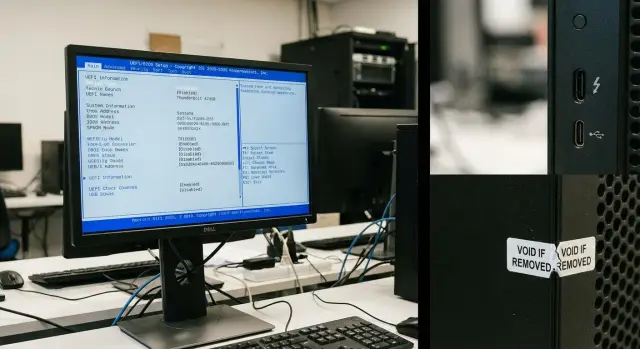
What DMA attacks are and why they come up when buying PCs
DMA (Direct Memory Access) is a mode where a device can read and write data directly to RAM without involving the CPU. In normal operation this speeds up disks, network cards, GPUs, docking stations and other peripherals. The problem appears when direct memory access is possible without sufficient restrictions from hardware and firmware.
A DMA attack is not a “Windows hack” in the usual sense. The attacker does not crack a password or attack services over the network. They plug in a device that looks like legitimate peripheral (often via Thunderbolt or other PCIe-like interfaces) and try to read memory before the OS applies protections. Therefore protection against DMA attacks depends not only on Windows settings but also on the platform, BIOS/UEFI and port policies.
The main risk factor is physical access. These are “quick” attacks: sometimes a few minutes next to someone else's computer are enough to try to extract encryption keys, session tokens or bypass the lock screen. The easier it is to approach a PC and plug in a device, the higher the risk.
Common places and scenarios where the risk is discussed:
- meeting rooms with shared docking stations and monitors
- server rooms and racks accessible to contractors or various staff groups
- service areas (repair, receiving, storage) where PCs are left unsupervised
- reception desks and open offices where ports are easy to reach
- mobile workstations on business trips
At the procurement and acceptance stage it is cheaper and easier to close this class of risks: choose compatible hardware, record BIOS/UEFI and port requirements, and then verify that protection is enabled across the batch. Reworking configurations after deployment to hundreds of machines is much harder.
Where the risk most often appears: Thunderbolt, PCIe and peripherals
DMA attacks usually rely not on “malware” but on the existence of a path to direct memory access via a fast interface. So the discussion almost always starts with ports and slots where you can plug in a device and ask the system to read or write RAM.
Thunderbolt and “external PCIe”
Thunderbolt essentially exposes PCIe externally. A docking station, external adapter or eGPU can act like a very fast controller that communicates with the system at a low level. If the attacker has physical access, the risk is higher where a device connects “as if it were local” and gains many privileges before the user logs in.
Attention usually focuses on categories of peripherals that have many functions and are frequently shared:
- docking stations and multi-adapters
- external network adapters and capture devices
- eGPUs and external PCIe enclosures
- adapters and cables from common pools (unknown origin)
- peripherals that are easy to swap (temporary issue, shared storage)
Do not confuse “regular USB” and Thunderbolt: the socket may look similar, but security implications differ. At acceptance and in operation it is useful to record which ports a model has and how they are configured.
Internal PCIe and temporary access
Classic PCIe risk is lower for an ordinary office workstation because the case must be opened. But it rises quickly where workstations are out of control: transport, storage, repair, contractor work, demonstrations at events.
A typical scenario: a batch of PCs is delivered, boxes sit in a corridor for a day, then some machines go to a contractor for software installation. Even without account compromises, a few minutes with access to ports and devices can be enough to try to bypass memory-level restrictions.
When the risk is really low
Risk is usually low if three conditions are met at once: PCs are kept in locked rooms, access to workstations is controlled, and docking stations and adapters are tracked as separate assets. In such an environment the goal is not to "ban everything" but to enforce clear rules: which devices can be connected, where adapters are stored, and who is responsible for repair and acceptance after service.
Kernel DMA Protection: what it is and its limitations
Kernel DMA Protection in Windows is a mechanism that uses the IOMMU (VT-d on Intel or AMD‑Vi on AMD) to restrict devices' direct memory access via DMA. The idea is simple: even if someone connects a "malicious" device over Thunderbolt or another PCIe-like interface, it should not get access to memory before the system recognizes it and applies restrictions.
This is a useful protection layer where physical access to workstations is possible: meeting rooms, racks at contractors, laptops on business trips. But it does not replace other measures.
Kernel DMA Protection only works when platform-side conditions are met. Typically required are: a supported CPU and chipset, IOMMU enabled, booting in UEFI mode (no Legacy/CSM), and correct Thunderbolt controller settings (if present). If any link in the chain is disabled or set "for compatibility," Windows may show partial or no protection.
Another important point: kernel protection starts after Windows boots. Pre-boot scenarios can remain vulnerable if firmware allows DMA devices to operate before isolation is activated. Additionally, internal PCIe devices present at power-on are often considered trusted, while the main focus is on hot-plugged devices (for example Thunderbolt).
Common signs of missing or partial support:
- Kernel DMA Protection listed as Off/Not supported in the system
- IOMMU/VT-d/AMD‑Vi disabled or hidden by UEFI settings
- Legacy/CSM boot in use
- Thunderbolt configured without device verification
- Identical PC models showing different status due to BIOS/UEFI versions or configuration templates
Kernel DMA Protection is useful, but only as part of the "firmware + hardware + port policy" chain. At batch acceptance you should verify that entire chain, not just a single Windows line.
BIOS/UEFI settings that actually affect DMA protection
If an attacker has physical access to a PC, some protection is implemented not in Windows but at the BIOS/UEFI level. Parameters that control PCIe/Thunderbolt device isolation and what is allowed before the OS boots are important for DMA protection.
1) IOMMU: VT-d / AMD‑Vi
The basis for DMA protection is an enabled IOMMU. On Intel this is usually VT-d, on AMD — AMD‑Vi (sometimes simply IOMMU). In BIOS this may be named differently: "Intel VT for Directed I/O", "IOMMU Controller", "PCIe Device Isolation".
Check two things: that IOMMU itself is enabled and that it isn't implicitly disabled (for example by a compatibility mode or profile settings).
2) UEFI and Secure Boot
UEFI and Secure Boot are important for the chain of trust. If the system can be easily booted from external media or early boot components can be swapped, some device restrictions lose meaning.
Practical rule: enable UEFI, disable Legacy/CSM and keep Secure Boot enabled unless there is a specific reason not to.
3) Thunderbolt: Security Level and pre-boot prohibition
Thunderbolt is convenient but a common attack vector to memory. BIOS/UEFI usually offers a Security Level (SL0–SL4) option and separate toggles for device operation before OS boot.
From a risk perspective it's better to:
- choose a mode that requires device authorization (User Authorization) or higher
- block Thunderbolt/PCIe devices before OS boot if not needed
- disable "Thunderbolt Boot Support" if it's not required
4) Port policy: enabled, restricted or disabled
If workstations are in public areas (reception, meeting rooms, classrooms), it may be wiser to disable Thunderbolt entirely or allow only power/DisplayPort without PCIe tunneling (if the platform supports it).
Example: for acceptance of workstations in an office with frequent visitors, you can fix a BIOS profile: enable VT-d/AMD‑Vi, enable UEFI and Secure Boot, configure Thunderbolt to require authorization and disable pre-boot. This profile can be applied to all PCs so settings are consistent and verifiable.
Thunderbolt restrictions and physical access: how to decide
Thunderbolt and any external PCIe devices provide convenience, but security often depends on whether someone can access the port. If someone can be alone at a workstation for a minute (meeting rooms, reception, open offices, classrooms, field laptops), the risk of a DMA attack increases significantly.
The simplest question: "Can someone plug their device into the port without supervision?" If yes, restrictions are usually justified even with Kernel DMA Protection enabled.
What to restrict and how
There are typically three levels, from soft to strict:
- allow only authorized devices
- prohibit Thunderbolt/PCIe devices before OS login
- fully disable the port (via BIOS/UEFI or physically) if it's not needed for the role
A pragmatic approach is to split the fleet by profiles. Office users usually only need "authorized devices" and pre-boot prohibition. Engineer workstations, where docks and fast external devices are part of the workflow, may not tolerate port disabling. There it's better to manage an allowlist of peripherals and enforce configuration control.
Physical measures that actually work
Good settings help little if ports are accessible to everyone. Minimum measures:
- port blockers or locks at high-risk desks
- seals on cases and lids to prevent adding internal PCIe cards
- asset tracking for docking stations, cables and adapters (where placed, who issued them, serial numbers)
- a rule to never leave a powered-on PC unattended in public areas
Example: an organization kept Thunderbolt active at reception because of docking stations. The solution was simple: assign each docking station to a specific desk, allow only those, and seal other ports. For engineering desks Thunderbolt remained enabled but with asset tracking and pre-boot prohibition.
How to check a single PC quickly in Windows
The quickest way to see if DMA protection works on a workstation is to check Kernel DMA Protection status in Windows. Perform the check as an administrator on a system with drivers installed.
Open Windows Security and go to: Device security -> Core isolation (or "Core isolation details"). On compatible platforms it shows a line about Kernel DMA Protection and its state.
Another option is System Information. Press Win+R, enter msinfo32 and open "System Summary." Relevant fields include:
- Kernel DMA Protection (enabled/disabled/not supported)
- Virtualization-based security (VBS) and whether it is running
- Device Guard (if listed) and supported features
If the GUI gives little hint, you can check a registry key via PowerShell (run as administrator):
Get-ItemProperty -Path "HKLM:\SYSTEM\CurrentControlSet\Control\DeviceGuard\Scenarios\KernelDmaProtection" | Select-Object Enabled
How to read common statuses:
- "Enabled" or
Enabled = 1— protection is active and DMA risk via external buses is reduced. - "Not supported" or the key/parameter missing — usually due to platform, BIOS/UEFI or connection type.
- "Disabled" or
Enabled = 0— the feature is available but turned off (often due to IOMMU/VT-d, boot mode or policies).
If you see "disabled," don't rush to declare the PC insecure: first check BIOS/UEFI and firmware updates, then recheck.
Checking a batch of PCs: a simple inventory and reporting plan
Mass verification of DMA protection usually fails because of heterogeneity: different BIOS/UEFI versions, different configuration profiles, different OS images. So first lock a golden configuration, then collect facts.
A practical verification plan
Start with a reference: pick 1–2 sample PCs from the batch, manually verify BIOS/UEFI version and key parameters (for example IOMMU/VT-d enabled), then apply the same settings to the whole batch using vendor tools or your acceptance procedures.
Then collect status remotely by usual means (domain startup, MDM scripts, management tools). Export results to a single CSV to attach to the acceptance certificate.
Example PowerShell script that extracts computer name, BIOS serial, BIOS version and the Kernel DMA Protection line from an msinfo32 report:
$msi = "$env:TEMP\msinfo.txt"
Start-Process msinfo32.exe -ArgumentList "/report `"$msi`"" -Wait
$bios = Get-CimInstance Win32_BIOS
$line = (Select-String -Path $msi -Pattern "Kernel DMA Protection|Защита ядра DMA" -ErrorAction SilentlyContinue | Select-Object -First 1).Line
$status = if ($line) { ($line -split ":",2)[1].Trim() } else { "Unknown" }
[pscustomobject]@{
  ComputerName = $env:COMPUTERNAME
  BiosSerial   = $bios.SerialNumber
  BiosVersion  = $bios.SMBIOSBIOSVersion
  DmaStatus    = $status
}
Unified report and acceptance threshold
The report should include at minimum: computer name, serial number, BIOS/UEFI version, DMA status (On/Off/Unknown) and date of check. Define an acceptance threshold in advance: "pass" only if DMA protection is enabled and BIOS version matches the approved one. Anything Off or Unknown should go for reconfiguration (BIOS, drivers, OS updates) rather than into operation.
This approach is especially important for areas with physical access risk (classrooms, shared racks, field laptops) where peripherals can be swapped or ports accessed in reality.
Common mistakes that cause protection to fail
The problem is often not "missing feature" but that one of the required conditions is not met. As a result documentation claims protection from DMA attacks, but in practice a device can still access memory via an external bus.
The most common trap is enabling VT-d/IOMMU while leaving Legacy/CSM enabled. Kernel DMA Protection in Windows typically requires UEFI boot. If the system boots in Legacy mode, protection may not activate even if BIOS seems to show the options enabled.
Another risk is allowing Thunderbolt before OS login (pre-boot). That is convenient in some scenarios but dangerous where physical access is possible: before Windows starts, security policies have not been applied.
After a BIOS/UEFI update settings are often reset to defaults. This "silent" problem: the pilot passed, then a new batch arrives with a different BIOS version and some parameters reverted to Auto or off.
Finally, batches rarely stay homogeneous. Mixed board revisions, different Thunderbolt controllers, different Windows images and driver sets produce varying DMA protection results even if the model name is the same.
What to check first:
- UEFI boot mode enabled, Legacy/CSM disabled
- VT-d/IOMMU explicitly enabled, not left in Auto
- Thunderbolt/PCIe hot-plug before OS boot disabled if not needed
- re-check parameters after firmware updates
- test not on a single docking station but on 2–3 device types
Example: during acceptance for office workstations with a shared zone they tested only one dock and everything looked fine. Later another Thunderbolt adapter worked in pre-boot and effectively bypassed protection. Such cases are caught only if you identify "risky" scenarios in advance and test them specifically.
Short checklist before acceptance and commissioning
Before signing off acceptance and handing workstations to users, check several things that commonly break DMA protection. It's best to do this at incoming inspection while PCs are still together.
Quick checklist for each model
- Device boots in UEFI mode (no Legacy/CSM), Secure Boot enabled.
- IOMMU is enabled in BIOS/UEFI: Intel VT-d or AMD‑Vi.
- Kernel DMA Protection is shown as "Enabled" in Windows where supported.
- Thunderbolt/PCIe policy matches the workstation role: where physical risk exists, new devices are restricted and pre-boot is disabled.
- BIOS/UEFI versions and firmware dates are recorded (for repeatability and future updates).
If a PC is for a public area (reception, classrooms, shared meeting rooms), don’t rely solely on Windows settings. Where someone can approach the system and plug in a device, the combination of UEFI + Secure Boot + IOMMU + correct port policy determines safety.
What to collect in the batch report
To align procurement, security and IT, a simple template is enough:
- model/serial number, department and role (office, rack, shared access)
- BIOS/UEFI version and key flags (UEFI, Secure Boot, VT-d/AMD‑Vi)
- Kernel DMA Protection status in Windows
- Thunderbolt status and mode (allowed/restricted/disabled)
- date of check and responsible person
Practical example: acceptance of workstations in an organization with physical risk
An organization refreshed workstations for a department with frequent visitors, cleaning staff and contractors. Employees had no admin rights, but outsiders sometimes had a minute of physical access to desks, docks and front-panel ports. So acceptance requirements included DMA protection in addition to antivirus and disk encryption.
Before commissioning the security team took three steps.
First, they disabled boot from external devices in BIOS/UEFI and protected firmware settings with a password so policies could not be bypassed via pre-boot.
Second, they restricted Thunderbolt and other high-speed ports: new devices required authorization and modes that allow peripherals to operate before login were disabled.
Third, they added physical measures: seals on cases and port blockers at reception-area desks.
Verification was organized in two phases: they first spot-checked 5–10% of machines to quickly detect systemic image or configuration issues, then performed a full inventory across all PCs.
The acceptance report recorded:
- whether VT-d/IOMMU was enabled in BIOS/UEFI
- whether Kernel DMA Protection in Windows was enabled (where supported)
- whether Thunderbolt and external boot were restricted
- list of deviations and reasons (model, BIOS version)
If some workstations did not support the required level of protection they were not immediately decommissioned. They were segregated by role: less critical places (no visitor access) and tasks without sensitive data. As compensations they used organizational measures: locked docking stations, storage in cabinets after shifts, stricter port control and strict tracking of connected devices.
Next steps: how to embed protection into standards and procurement
If DMA protection matters for your risk model, make it a standard rather than a one-time configuration. That way when PCs are replaced, repaired or firmware is updated you don't start from scratch each time.
1) Fix a baseline configuration
Create short BIOS/UEFI and port configuration profiles for different user groups. For finance and HR it makes sense to restrict external ports more and allow only approved docking stations. For engineers you can allow more peripherals but require verification of DMA status.
Minimum items to document:
- which VT-d/IOMMU and related options must be enabled
- the Thunderbolt policy (allowed, authorized-only, or disabled)
- what to do with PCIe slots (seals, port blockers, prohibition on self-installing cards)
- requirement: Kernel DMA Protection must be available and enabled where supported
2) Include checks in acceptance and audits
Add DMA status verification to the acceptance checklist and to regular audits (for example quarterly or after major updates). Check both Windows and BIOS settings to ensure parameters haven't been reset.
To avoid manual work, define how proof is stored: exported status, computer name, serial number, date and executor.
3) Manage BIOS updates
Firmware updates improve security but may reset settings. Have a simple plan: who updates, how to verify configuration persistence and what to do when a board is replaced.
4) Lock requirements into procurement
In the tender and contract, prefer measurable requirements to vague phrases:
- support for Kernel DMA Protection and the agreed Thunderbolt policy
- a single BIOS/UEFI profile across the batch
- status checks across the batch by serial number
If procurement goes through a vendor or integrator, pre-agree platform, firmware and BIOS/UEFI profile requirements. For example, GSE.kz as a local manufacturer and integrator can be a convenient point of responsibility for platform uniformity and ongoing support.
Frequently asked questions
What is a DMA attack in simple terms?
A DMA attack is an attempt to access data in RAM through a device that can perform DMA (for example via Thunderbolt/PCIe-like interfaces). Unlike a network attack, the attacker usually needs physical access to the machine and the ability to plug in their own peripheral.
Why should DMA protection be considered during PC procurement?
Because it's a risk that's cheaper to mitigate before mass deployment. At procurement you can choose platforms that support IOMMU and Kernel DMA Protection, fix a unified BIOS/UEFI profile and verify the batch; after distributing hundreds of PCs it becomes much harder to fix inconsistent BIOS settings and port policies.
What does Kernel DMA Protection do and what does it protect against?
Kernel DMA Protection in Windows uses the IOMMU (VT-d on Intel or AMD‑Vi on AMD) to restrict direct memory access by devices. The idea is that a connected suspicious peripheral shouldn't be able to read RAM before the system applies security policies. It reduces the risk of attacks over Thunderbolt and similar buses but does not replace proper BIOS/UEFI settings and physical access control.
Why is Kernel DMA Protection enabled on some PCs but shown as “Not supported” or “Off” on others?
Most often because platform conditions are not met: IOMMU (VT-d/AMD‑Vi) is disabled, the system is booting in Legacy/CSM instead of pure UEFI, or Thunderbolt is configured too permissively. BIOS/UEFI version differences or different configuration templates on otherwise identical models can also cause this.
Which BIOS/UEFI settings most affect DMA protection?
Enable UEFI boot (no Legacy/CSM), keep Secure Boot on, and explicitly enable IOMMU: VT-d on Intel or AMD‑Vi/IOMMU on AMD. If the platform has Thunderbolt, choose a mode that requires device authorization and disable Thunderbolt/PCIe device access before OS boot (pre-boot) unless it's needed.
How can I quickly check on a single computer whether DMA protection is enabled?
Check Windows "System Information" (msinfo32) or the Device Security -> Core isolation section in Windows Security where Kernel DMA Protection status is shown. If it shows “Off,” first check BIOS/UEFI for UEFI vs Legacy, VT-d/AMD‑Vi and Thunderbolt settings, then recheck after firmware and driver updates.
How dangerous is Thunderbolt and should it be disabled?
If a port exposes an "external PCIe" capability, the risk is higher, especially when docking stations are shared or of unknown origin. If Thunderbolt is required, prefer device authorization and pre-boot prohibition, and treat docking stations as managed assets to reduce the risk of substitution.
In which scenarios are DMA attacks realistically plausible?
For a typical office PC the risk is often low if physical access is controlled and peripherals are not moved between desks. Risk increases in meeting rooms with shared docks, at reception desks, in service areas, for mobile laptops on business trips, and anywhere an outsider can briefly access ports.
What typical errors cause DMA protection to fail?
Common causes are inconsistent BIOS/UEFI versions and settings across a batch, leaving the system in Legacy/CSM mode, allowing Thunderbolt pre-boot access, and settings being reset after firmware updates. Another common mistake is relying solely on a Windows indicator without verifying BIOS/UEFI configuration and port policies.
What requirements should be included in the specification and acceptance to avoid a batch with mixed DMA protection?
Document measurable requirements: IOMMU and Kernel DMA Protection support, a unified BIOS/UEFI profile across the batch, and a clear Thunderbolt policy (authorized-only, disabled pre-boot, or fully disabled). Require the supplier to deliver uniform firmware and repeatable settings, and collect verification by serial number and status at acceptance to avoid receiving identical models with differing security.
