8 min read
Display Technologies for Laptops and Monitors: Which to Choose
Display technologies for laptops and monitors: IPS, VA, TN, OLED, Mini-LED and more. How they affect power consumption and how to choose.
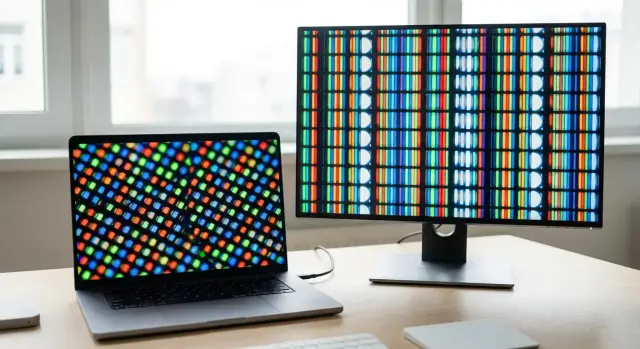
Practical problems with screens
The screen often feels like a minor detail until you use it every day. Common complaints repeat: not bright enough in sunlight, reflections are distracting, eyes get tired by evening, and a laptop’s battery drains faster than expected. This can happen even with a “new” model: one good display won’t save you if it doesn’t fit your conditions.
A frequent surprise: two similar laptops can have different battery life because of the screen. The reason is simple: the display is one of the hungriest components. The higher the brightness and the heavier the modes (for example, HDR and high refresh rates), the more power is used not only for backlight but also for image processing.
Marketing adds confusion. Specs can sound impressive but mean little in practice. For example, “1 billion colors” doesn’t guarantee accurate color reproduction without calibration. A high refresh rate is great for games but can simply drain battery in office work.
What affects feel the most are brightness and anti-glare coating, panel type (TN, IPS, VA, OLED) and backlight uniformity, plus refresh rate and resolution (as processing load). If you work with photos, video, or design, accuracy of color reproduction becomes another key point.
What matters most depends on your tasks. Designers and people preparing print or presentations need color and stable viewing angles. Those who work on the road usually value battery life, readability in bright light, and comfort for the eyes at moderate brightness.
What a modern display is made of and what consumes power
A modern screen is not just the “panel” but a stack of layers and electronics. That’s why two displays of the same size can behave differently: one might be brighter and thirstier, the other dimmer but more efficient. In short, the biggest factors for power consumption are panel type, backlight, brightness and operating modes.
The panel (TN/IPS/VA/OLED) defines how the image is formed: colors, viewing angles, contrast. In LCD panels (TN/IPS/VA) pixels don’t emit light themselves — they only filter the backlight. Therefore, most power goes to the backlight rather than the panel type itself. In OLED, each pixel emits its own light, so consumption depends heavily on what’s shown on screen. Dark themes usually save power, white pages do the opposite.
Backlights can be standard LED or Mini-LED. Mini-LED supports local dimming: in dark scenes parts of the backlight can be dimmed. However, Mini-LED displays often have higher peak brightness (especially for HDR) and at maximum brightness they can draw more power.
Other details matter too but are rarely considered in advance: coating and optical layers (a matte screen in a bright room may force you to raise brightness), the display controller and modes (120–240 Hz usually use more than 60 Hz), and factory profiles. "Demo" modes are almost always the most power-hungry.
Example: two 15.6" laptops. One is IPS 60 Hz with moderate brightness, the other is Mini-LED 165 Hz with a high brightness headroom. Same diagonal, but the second will often drain the battery faster. So when choosing display technologies for laptops and monitors, look beyond inches to backlight type, refresh rate and actual brightness.
TN: cheap and fast, with compromises
TN (Twisted Nematic) is one of the oldest and simplest LCD technologies. Liquid crystals rotate under voltage and modulate light from the backlight. The backlight (usually LED) is always on, and the panel only controls how much light passes per pixel. TN is still common in inexpensive laptops, office monitors and some gaming models where speed matters.
Main advantages of TN are price and response time. TN pixel transitions are usually fast, so motion blur is reduced. For basic tasks, it’s often the most affordable way to get a high refresh rate.
Drawbacks are obvious off-center. TN has poorer viewing angles: tilt the laptop lid or sit higher/lower and colors and brightness can shift. Color reproduction is often simpler: TN is less suitable for photo, design and color-critical work.
TN makes sense for basic workstations (email, spreadsheets, accounting), budget purchases, esports and games (where response matters more than color), or as a secondary monitor for auxiliary windows.
In terms of power, TN rarely gives a significant advantage by itself. In display technologies for laptops and monitors, battery life is usually driven by backlight brightness, refresh rate and diagonal. Practically TN can be slightly more efficient if the panel is less bright and lacks premium backlighting, but settings decide the outcome.
Before buying, check brightness in nits, refresh rate and how the screen behaves at an angle. If you work mostly with text and keep the same posture, TN can be an acceptable compromise. For comfortable all-day use, IPS or OLED are usually better choices.
IPS: the all-round choice for most tasks
IPS has long been the workhorse among laptop and monitor displays. It’s commonly chosen for study, office work, documents and photo tasks because the image looks even and predictable from almost any angle.
The main advantage of IPS is stable colors and wide viewing angles. That matters when you change your posture, show the screen to a colleague, or need consistent readability and tones across the surface.
Downsides: IPS usually lags behind VA and especially OLED in contrast — blacks look more like dark gray, particularly in dark rooms. You may also see backlight bleed and IPS glow (a subtle glow on dark scenes at an angle). It’s not always a defect, but for nighttime movies and dark games it can be annoying.
Power-wise IPS is straightforward: it’s an LCD, and most energy is used by the backlight. The higher the brightness, the faster the battery drains, regardless of whether the screen shows white or dark content.
In practice the biggest influences are brightness (often the main battery eater), screen size and resolution (area and pixel count), backlight quality and efficiency, and anti-glare coating (reflections can push you to increase brightness).
If you need a laptop for everyday use, IPS is usually the safest choice: predictable colors, reliable quality, and energy savings mainly achieved by sensible brightness and power settings.
VA: higher contrast, but not always faster
VA (Vertical Alignment) is valued for high contrast: dark scenes look deeper and blacks are usually noticeably darker than on a typical IPS. For movies, dark games and evening use VA often feels more "cinematic."
Where VA can beat IPS: in a dim room and tasks where shadow depth matters (movies, graphics with dark backgrounds, dark UI). Where IPS often wins: viewing angles and color stability, especially when watching from the side or changing position — this is particularly noticeable on laptops.
A key VA nuance is dynamic behavior. Many VA panels have slower transitions in dark tones, causing trails and smearing on blacks and grays. On paper two panels may have the same response time, but VA often feels less "fast" in dark scenes.
Before buying VA check simple things: how dark-to-light scrolling looks, whether you see trails in dark game or video scenes, whether viewing angles are comfortable for your setup, and whether brightness is sufficient without running at max.
Power-wise VA and IPS are usually similar at equal brightness and refresh rate. In LCDs the backlight is the biggest power draw and panel type matters less. Sometimes VA’s better contrast allows comfortable use at lower brightness, extending battery life. But if you crank brightness for the “wow” factor, any advantage disappears.
In the wider context of display technologies for laptops and monitors, VA is a good choice for contrast and cinema-like viewing, but for esports and the sharpest motion performance people often prefer fast IPS or a carefully selected VA panel without noticeable smearing.
OLED: superb blacks, but know the limits
OLED differs from LCDs (IPS, VA, TN) by having no separate backlight. Each pixel emits its own light and can be turned off completely. That’s why black is truly black and contrast looks very natural.
Advantages are immediate: vivid image, better shadow detail, and usually wide viewing angles. Panels can be thinner, which in laptops often results in slimmer lids and smaller bezels.
But there are important caveats. The main risk is burn-in, where static elements (taskbars, logos, point-of-sale UI) can leave permanent marks over time. Another common issue is PWM (flicker) at low brightness on some models, which can cause eye fatigue for some people. OLED screens are also often glossier, so reflections can be bothersome in bright offices.
Power behavior is nuanced. OLED saves power with dark interfaces because pixels are off. But white pages and spreadsheets may consume more than an LCD because most of the panel is lit. Practically this means: in a browser or with documents you may see worse battery life, while movies and dark themes can be more efficient.
OLED is great if you watch films, edit photos and care about deep shadows; if you use dark themes frequently and don’t keep static UI elements on screen for 8–10 hours straight; and if you’re willing to pay more for superior image quality.
For fleet purchases and office parks where mail and spreadsheets are open all day, consider OLED selectively rather than by default.
Mini-LED: brightness and HDR, with trade-offs
Mini-LED is not a separate panel type but a more advanced backlight for LCDs (often IPS). Instead of large LEDs it uses many tiny LEDs divided into zones, so the backlight can be stronger on bright parts and dimmer on dark parts of the image.
The core idea is local dimming. In practice this delivers much better contrast and black depth than ordinary IPS without zones. The image looks closer to OLED, especially in movies and games with dark scenes. And burn-in risk is lower because the backlight, not individual pixels, provides brightness.
Mini-LED benefits are clear: high peak brightness (useful near windows), impressive HDR, and better detail in highlights. Downsides: because dimming works by zones, you may see halos (blooming) around bright objects on dark backgrounds. Mini-LED panels are also more complex and therefore more expensive.
Power rule of thumb: the higher the brightness and the more you use HDR, the more power is consumed. A Mini-LED laptop can drain noticeably faster on battery if kept at maximum brightness.
Choose Mini-LED if you work in bright environments, watch HDR content or edit video, want high contrast without OLED risks, or play games and value bright effects.
A simple example: for text and email at 40–60% brightness, battery life differences can be small; but an HDR movie at max brightness will almost always increase power draw more than standard SDR content.
Parameters that most affect power consumption
When comparing display technologies for laptops and monitors, it’s easy to fixate on panel type. In reality battery drain is usually caused by a few concrete settings and characteristics.
Brightness is almost always the main factor. A screen at 80–100% brightness can deplete a laptop much faster than the same screen at 40–60%. For indoor use moderate brightness is usually enough; headroom is needed only for sun or very bright offices.
Resolution matters too. FHD (1920x1080) is usually more efficient than QHD and especially 4K: the system has to drive more pixels, and the panel often needs stronger backlight to keep text readable. 4K makes sense if you truly benefit from it: graphics work, lots of fine detail, or a close external monitor.
Refresh rate 120–144 Hz makes motion smoother but usually increases power draw. If you don’t game or work with fast motion, 60 Hz often strikes a better balance. It’s useful when a device can lower its refresh rate when idle.
Coating affects power indirectly. A glossy screen looks brighter and more contrasty but reflects more, so you raise brightness more often. Matte hides reflections and often lets you keep brightness lower.
PWM/flicker is more about comfort than battery. Quick checks:
- at low brightness look at the screen through a smartphone camera: bands or rolling lines can hint at PWM;
- notice how you feel after 20–30 minutes reading at 20–30% brightness;
- try increasing brightness and then lowering it via software (if available) to see changes.
Example: choosing a screen for different tasks
When picking among display technologies for laptops and monitors, start with what you do every day. The same screen can be great for an office and annoying on the road or in games.
For study and office work prioritize eye comfort and predictable images. IPS is usually a safe choice (wide viewing angles), or VA if you often work with dark text/backgrounds and appreciate contrast. Energy-wise it’s not just panel type but brightness: running at 100% is almost always unnecessary.
For design and photography prioritize color stability and brightness headroom. Look for panels with a claimed wide gamut (for example, near 100% sRGB), even backlight, and fine brightness control. OLED gives excellent blacks and visual impact, but beware of burn-in with static UI and manage brightness carefully.
For gaming look at refresh rate and response. High Hz smooths motion but may increase battery drain, especially with high brightness.
For travel choose what’s readable at lower brightness: matte coating, enough peak brightness for window use, and a sensible resolution so you don’t waste battery on unnecessary pixels.
Quick ways to gain battery without losing convenience:
- reduce brightness to the lowest comfortable level and enable auto-brightness if it works well;
- use a dark theme (very effective on OLED);
- disable higher refresh rates when not gaming;
- avoid 4K on 13–14" unless you need it for your work.
If you’re buying for an organization, ask the supplier for exact screen specs (brightness, gamut, refresh rate) and, if possible, test them with typical tasks. That matters more than just seeing IPS or OLED on the spec sheet.
Common mistakes when choosing a display
The most frequent mistake is choosing a screen by a single spec. A display’s final impression comes from many small things: backlight uniformity, coating, flicker, brightness profiles. So pick display technologies for laptops and monitors based on use case, not peak numbers.
Common errors:
- buying 4K on a small diagonal (13–14") without need. Text becomes tiny, you enable scaling, and the clarity gain is often negligible while power use and GPU load rise;
- overpaying for 144 Hz if the laptop is mostly on battery. High refresh rates increase power draw, and many users don’t notice the difference for office tasks;
- confusing brightness with quality. High nits help in sunlight, but uneven backlighting causes blotches; in movies you may see edge glow;
- ignoring coating and lighting. A glossy screen may look great at home but will reflect in bright offices or classrooms; matte helps with reflections but can look slightly less contrasty;
- not checking eye comfort: PWM and flicker. Some screens flicker at low brightness, causing faster fatigue and headaches for some people.
Simple example: for a travel laptop used for documents, choose a moderate resolution, a good matte panel and stable backlight rather than chasing 4K and 144 Hz, which look great in a showroom but drain battery faster without daily benefit.
Quick pre-purchase checklist
Five minutes in the store or with the device at home often tells you more than a specs table. Look at the screen in your conditions and estimate its power draw.
- Brightness: don’t chase the peak
Set a level comfortable for your lighting (office, home by a window, evening). If comfort requires very high brightness, battery life will suffer.
- Black and contrast: test on dark backgrounds
Open a dark image or menu and see whether black is truly black or gray. For evening work this affects comfort and whether you’ll raise brightness.
Quick checks:
- dark background with white text: look for halos or muddy gray;
- dark scene: see shadow detail without raising brightness;
- HDR: turn it off initially and evaluate the normal picture.
- Viewing angles and uniformity: gray reveals the truth
Open a solid gray image at medium brightness and view it head-on and at angles. Watch for spots, edge light, bands or color shifts. This sort of non-uniformity often bothers users more than differences between IPS, VA or TN on paper.
- Battery: two simple levers
For a laptop estimate how to cut power without losing comfort. Lower brightness a couple of steps and, if possible, cap refresh rate (for example from 120/144 Hz to 60 Hz). If smoothness isn’t critical, battery will notice.
- Modes: dark theme, auto-brightness, HDR
Test a few minutes in different modes: dark theme, auto-brightness, HDR off. If brightness jumps or colors shift strangely, better to spot it early.
Next steps: how to choose and who to trust for rollout
Start by listing how you’ll actually use the screen every day. Home users often have a single scenario, while organizations need different profiles per team.
When defining requirements focus on parameters that deliver real benefit: diagonal (so windows fit), brightness (if near windows), matte or glossy coating (reflections), refresh rate (if smoothness matters), and connection types (HDMI, DisplayPort, USB-C).
Overpayment often hides in unused "maximum" specs. For example, extreme refresh rates rarely matter in offices, while comfortable brightness and the right coating help every day. For laptops also evaluate the screen’s power behavior: aggressive HDR and very high brightness will shorten battery life.
For organization purchases, consider not only specs but support: consistent configurations, predictable lead times, compatibility (resolution, ports, docks, mounts) and help with image setup. It’s convenient when the supplier can match PCs and workstations to chosen monitors and tasks. At GSE.kz (gse.kz) they usually base choices on use cases and support needs rather than the "most expensive model."
Before buying ask the supplier some direct questions:
- How is warranty handled and what does on-site replacement look like?
- Which PCs, laptops and docking stations have been tested for compatibility?
- What operating conditions are acceptable (temperature, dust, 24/7 usage)?
- Who configures image settings and scaling for your applications?
- Will the same production batch and panels be supplied so images don’t vary across workplaces?
Frequently asked questions
Where to start when choosing a laptop or monitor display?
Start from your tasks: office/studies, design, gaming, or travel. Then focus on the parameters that you actually notice every day: - brightness (so you don’t need to run it at max); - coating (matte vs glossy — because of reflections); - refresh rate (60 vs 120–144 Hz); - resolution (FHD/QHD/4K); - eye comfort (flicker/PWM). Panel type (IPS/VA/TN/OLED) is important, but often brightness, coating and settings are the deciding factors.
Why does the screen affect laptop battery life so much?
Because the screen is one of the main power consumers. The biggest drains are: - high brightness; - higher refresh rates (120–240 Hz); - HDR and "demo" profiles; - high resolution (especially 4K). Two otherwise similar laptops can have very different battery life if one has a brighter screen, higher refresh rate, or aggressive modes enabled.
How to quickly reduce screen-related battery drain without losing comfort?
The simplest and most effective lever is **brightness**. Set the lowest comfortable level (often 40–60% indoors). Then: - switch 120/144 Hz to 60 Hz when not gaming; - turn off HDR if you don’t need it; - use auto-brightness if it behaves predictably; - avoid "showroom" display profiles. These steps usually save more battery than choosing the "most efficient" panel type alone.
When is IPS the better choice and what to expect from it?
**IPS** is the most versatile option: wide viewing angles and predictable colors. Choose IPS if you: - work a lot with documents and the web; - show the screen to colleagues; - need a stable image when you change posture. Drawbacks: blacks often look dark gray, and you may see backlight bleed or IPS glow. Power-wise IPS is an LCD, so brightness of the backlight is the main power factor.
What’s good about VA panels and what are their typical downsides?
**VA** usually delivers higher contrast: dark scenes look deeper than on typical IPS. Good if: - you work in the evening or prefer dark themes; - you watch movies and value deep blacks. Check dynamics before buying: many VA panels show trailing or smearing in dark tones. Power consumption vs IPS is usually similar at equal brightness, but better perceived contrast can let you use lower brightness.
Is a TN screen worth buying and for which tasks is it suitable?
**TN** is chosen when price and fast response matter and color accuracy is less important. Pros: - generally cheaper; - often fast pixel response. Cons: - poor viewing angles (colors and brightness shift off-center); - simpler color reproduction, not ideal for photo/design work. TN rarely delivers dramatic power savings — brightness, diagonal and refresh rate matter more.
Is OLED always better? What are its limitations?
**OLED** provides true blacks and very high contrast because each pixel emits its own light. Keep in mind: - risk of burn-in on static UI elements (taskbars, POS interfaces, CRM); - some models use PWM at low brightness, which can cause eye strain for sensitive users; - screens are often more reflective, so reflections can bother in bright environments. Power depends on content: dark themes save energy, while white pages and spreadsheets can use more power than LCD.
What does Mini-LED offer and why can it reduce battery life?
**Mini-LED** is an advanced backlight for LCD (often IPS) that uses many small LEDs and zonal dimming. Pros: - high peak brightness (useful near windows); - strong HDR performance; - better contrast than ordinary IPS without OLED risks. Cons: - blooming/halos around bright objects on dark backgrounds; - higher cost; - at maximum brightness and with HDR active, it can drain a laptop battery noticeably faster. For text at moderate brightness the battery difference can be small, but HDR at peak brightness usually increases power draw significantly.
Do I need 4K on a small laptop screen?
Usually not. Without a specific need (graphics work, lots of tiny detail, or using an external monitor very close) 4K on 13–14" adds downsides: - higher system load; - more energy use; - you’ll likely use scaling because text becomes too small. For most office tasks FHD is a sensible default; QHD can make sense on larger screens.
How to quickly judge a screen in a store: brightness, uniformity, flicker?
A quick 5-minute shop check: - **Gray screen at medium brightness**: look for blotches, bands, edge bleed, or color shifts. - **Viewing angles**: tilt and view from the side — colors/brightness shouldn’t collapse. - **Dark scene**: check blacks and whether halos are distracting. - **Low brightness**: view through a phone camera — moving bands can indicate flicker. - **Refresh rate/HDR**: test 60 Hz and turn HDR off to see how smoothness and brightness change. If these basics fail, impressive spec numbers won’t help you in daily use.
