8 min read
Digital signage management: features for video walls and zones
Digital signage management for control rooms and public areas: schedules, roles, player monitoring, emergency scenarios and practical criteria to choose Scala, Xibo, Screenly.
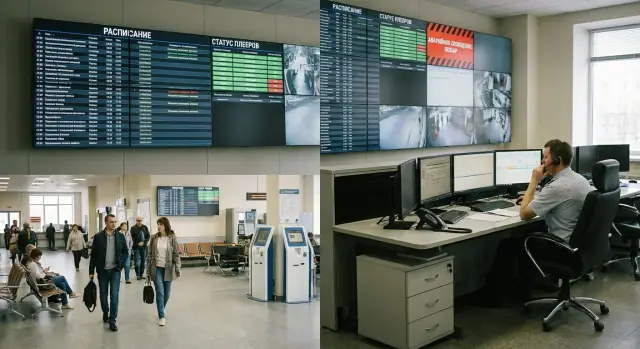
What problem does screen management solve
When screens and video walls run without clear rules, they quickly start acting on their own. One screen shows an old clip, another goes black after an update, a third plays the wrong playlist because someone accidentally replaced a file. Eventually people stop trusting the displays and the team spends time on manual fixes and calls of "why is it not working again?".
Control rooms and public areas operate under different needs. In a control room you need consistency, data accuracy and the ability to quickly bring up the right view on command. In a lobby, corridor or service desk the priority is schedule adherence, a unified look and protection against accidental publications. There it’s critical that content updates on time and does not change without reason.
The most painful failures typically boil down to a few things: a black screen or frozen player, stale data (for example, an old queue number), the wrong message displayed at the wrong time, and no quick way to notify people during an incident.
So managing digital signage is not just about "making content look good" but about responsibility and control. Before choosing Scala, Xibo or Screenly, agree on basics: who owns each type of content, which operating modes by time, and who can trigger emergency messages. For example, at a service center customers see the queue and announcements, while an operator can at any moment display a network-failure warning on all screens. These scenarios are often worked out with the integrator during video wall and infrastructure design, as typically done at GSE.kz.
Brief terms: CMS, players and video walls
To avoid turning signage management into a set of manual tricks, it's useful to share a common understanding of basic terms. That makes it easier to compare Scala, Xibo and Screenly and to form requirements for contractors.
Digital signage is a system where content (video, slides, news, queue, KPIs) is shown on screens according to rules: where, when and to whom. A video wall is one large visual canvas made of multiple panels. It can operate as a single image or as a set of independent zones.
The CMS (content management system) is the control center. In it you assemble playlists, set schedules, assign screens, configure roles and rights, and view device status. Specific features differ between Scala CMS, Xibo CMS and Screenly, but the logic is similar.
A player is the device that receives content and outputs it to the screen. It can be a standalone media player, a mini-PC or a regular computer. For control rooms and enterprise projects teams often choose reliable PCs and servers because stability and predictable support matter.
There are usually two modes: online and offline. Online the CMS distributes updates and collects monitoring. Offline the player continues to show pre-downloaded content according to schedule. But if caching isn’t planned, losing internet can cause a screen to freeze, show stale content or go black.
Centralized management differs from the “USB stick in the TV” approach in that you manage the process and reduce errors. You don’t need to physically visit locations, and changes roll out in minutes to dozens of screens.
A typical ecosystem consists of a CMS (on-premises or cloud), players at each display point, panels or a video wall controller, network and access (internet, VPN, segmentation), plus monitoring and an event log. When these elements are aligned, it becomes easier to discuss schedules, roles, observability and emergency scenarios.
Zone requirements: control room vs public screens
The same type of screen in different places requires different approaches. In a control room accuracy and predictable display behavior matter most. In public zones clarity, neat appearance and protection from accidental publications are priorities. So design signage management by zones rather than as a single playlist.
A control room is usually a working tool: stability, quick updates, access control and the ability to prove that the screen displayed the required information at a specific time are critical.
In short, differences include:
- Control room: real-time priority, high availability, event logs, manual switching to a needed screen or scene.
- Public zones: simple templates, material approvals, branding, schedule- and season-based operation.
- Common needs: uniform resolution standards, sound control, protection from black screens and freezes.
Content types differ too, which affects CMS features and player setup: dashboards and maps, electronic queues and window statuses, announcements and regulations, building navigation, videos and branding spots.
A common question is whether to separate circuits. If a control room has critical screens, it’s better to place them in a separate group (and sometimes a separate circuit) with distinct rights and stricter update rules. For public zones groups by location (lobby, corridors, floors) and simple roles like "create", "approve", "publish" usually suffice.
Practical example: in a government office the control room shows dashboards and incident status, while the lobby displays the queue and announcements. If access is shared, one wrong clip can overwrite operational information. Group and rights separation solves this without complicating infrastructure.
If you build zones on domestic hardware and integrate them into the IT environment, agree in advance on roles, network and availability requirements for each zone. Such projects often use PCs, workstations and servers plus integration and support services available from GSE.kz.
Schedules and display rules: the foundation of stable operation
Without schedules screens quickly turn into chaos: important messages appear at the wrong time, night content plays in an empty hall and the video wall suddenly shows the wrong window. So signage management starts with a simple question: what, where and when should be shown.
A good system can set time and calendar rules: business hours, weekends, night mode and holiday exceptions. This matters for both control rooms and public zones. In a control room night sources and brightness are often different. In a lobby during off-hours it’s better to show a reference splash and mute audio.
Playlists, campaigns and templates
Think in terms of playlists and campaigns rather than single clips. A playlist controls order and duration; a campaign defines on which screens and which days it runs.
Templates with zones prevent redesigns for every small change. For example: a top bar for urgent text, a side zone for the queue, a center area for video. The operator then only updates text or numbers while the layout stays the same.
Set sensible limits in advance to avoid surprises: maximum clip duration and repeat frequency, volume limits (and a "no sound after 20:00" rule), allowed formats and codecs, resolution requirements so text stays legible.
About video walls
For video walls synchronization and layout are crucial. A typical task: show a single map across the wall in the morning, split into 2–4 windows with different sources during the day, and switch one segment to an alert widget during an incident. Predefined scenes (layouts) and rules for switching save minutes when they really matter.
Example: weekdays 09:00–18:00 the lobby shows navigation and company news, at lunch the queue is displayed, and on holidays the playlist automatically changes to a standby mode with contacts and opening hours.
Roles and access rights: prevent accidental publications
The main risk in screen management is rarely technical. More often it’s human: someone edits a template, changes text and clicks "publish" to the wrong group. Define roles and permissions before full operation begins.
A few clear roles usually suffice; the names matter less than actual capabilities:
- Administrator: configures sites, players, network, users and policies.
- Editor: prepares content and assembles playlists but may not have publish rights.
- Operator: launches approved materials and manages schedules in their zone.
- Viewer: checks status and reports but cannot change anything.
- Contractor: gets access only to their templates or a single screen group for a limited time.
Next step — separate by sites and screen groups. Control room, service lobby and meeting rooms have different tasks and risks. A good rule: users see only the screens they are responsible for and cannot accidentally select "all devices".
A simple approval process reduces errors:
- Draft content
- Review (brand, legal texts, contacts)
- Publish to the correct screen group
- Quick rollback to the previous version if needed
Configure action logs separately. For incident analysis it's important to record who changed a schedule, who renamed a screen group, who sent a restart command to a player and when.
Emergency messages should live in a separate permission "safe". For example, an operator can trigger an alert but the system requires confirmation and records the reason. In government and large enterprise projects this often becomes an acceptance requirement: access to alerts exists but cannot be triggered accidentally.
Player monitoring and system health
When screens operate 24/7 the main risk is not design but that a player quietly stops showing the right content. Monitoring lets you catch issues before complaints and restore displays without site visits.
What to show in the dashboard
The minimal telemetry set should be clear and uniform across sites:
- Online/offline, time of last heartbeat, software version
- Temperature, CPU/RAM load, free disk space, storage health
- Network availability and content download speed
- Playback confirmation: playlist reports and evidence that schedules were applied
- Screenshots or a "frame now" view to quickly check the real image
One of the most useful features is not just "player online" but confirmation that it is showing the expected content at this moment.
Alerts and remote actions
Configure notifications for events that genuinely require action, not everything. Examples: heartbeat lost for 3–5 minutes, overheating, critically low disk space, playlist not applied on time. Assign recipients: shift operator, IT on-call, support contractor.
Remote actions are next: restart player, force content sync, switch to backup channel or template, roll back an update. Simple example: a public-area player is online but stuck on an old clip — remote reboot and content refresh fix this in minutes.
Video walls deserve separate attention: monitor sync issues such as frame drift, panel latency differences and audio desync. It’s good when the system shows which nodes lag and lets you realign playback without manual tuning on each screen.
Emergency scenarios: how to quickly display the right message
An emergency scenario in digital signage is a mode that instantly replaces normal playlists with a predefined message. It’s not for aesthetics but so control rooms and public spaces show the same information without delays or debates about who switched what.
Prepare several types: evacuation (routes and exits), alarm and staff muster, entrance closure (works or incidents), local emergencies (fire, leak, threats) and visitor information alerts. Control rooms need short statuses and instructions; lobbies require large, simple commands.
Priority is key. Emergency content must override regular schedules, ads and news. In a proper setup it’s the highest priority: when emergency mode is on, all screens show it until it is explicitly turned off.
Triggers should include manual (operator pressed a button), scheduled (drills) and signals from security systems (fire alarm, access control, monitoring). Scala CMS, Xibo CMS and Screenly implement this differently, but the goal is the same: start quickly and predictably.
Plan fallbacks to avoid black screens: what to show during network loss, source failure or player crash. Usually a locally stored placeholder with instructions and contacts is shown automatically.
Also log and confirm emergency actions. Two questions always appear after an emergency: who started it and when, and who cleared it. Add a two-step rule for critical commands (confirmation or a second operator) to prevent accidental activations.
How to choose and implement: a step-by-step plan without excess theory
Start not with Scala, Xibo or Screenly but with a map of your screens. Different zones have different rules: control rooms and video walls require reliability and control; public screens need easy publishing and clear templates.
Collect basics in one working call: number of screens, locations, content owners, network and power at each site. This will quickly rule out solutions that don’t fit your management model or player requirements.
Then follow this plan:
- Divide screens into zones: control room, public, meeting rooms, video walls, etc.
- Document critical features: schedules, roles and rights, player monitoring, emergency scenarios.
- Run a pilot on 1–2 sites and define success criteria in advance.
- Compare Scala CMS, Xibo CMS and Screenly against your needs and constraints without expecting "magic".
- Assign owners: content, hardware, incident response.
A pilot should focus on real risks. For a control room it’s vital that an operator can’t accidentally replace a critical screen with an ad. For public areas it’s important schedules work without daily manual edits.
For pilot validation choose 4–5 tests and run them repeatedly:
- Scheduled publication and automatic return to normal playlist
- Roles: who can edit, who can only launch, who approves
- Monitoring: can you see when a player dropped or froze and how quickly it is noticed
- Emergency display: one message on all screens within minutes
- Rollback: return to a previous content version
After the pilot document short procedures: how to publish content, pre-release checks, how to trigger emergency mode and how to maintain players. This order becomes the foundation of signage management, especially as screen counts grow.
Example scenario: single office with control room and service lobby
Imagine an office with a small control room (a 6-panel video wall) and a service lobby with two screens: an electronic queue and a general announcements screen. The control room runs dashboards on requests, engineering status and cameras. In the lobby people wait for their turn and read important notices.
To avoid manual chaos, divide content by zones and rules. In the control room set a strict set of sources and layouts that rarely change. For the lobby create several templates: queue, announcements, maintenance notices, greetings. In Scala, Xibo or Screenly logic is similar: playlists, schedules and access rules.
Schedules reduce unnecessary actions. Example: weekdays 08:00–19:00 the lobby shows queue and announcements, night mode shows clock, duty contacts and minimal brightness, and weekends use a different playlist with hours and occasional notices. Urgent messages get a separate layer or priority window that appears over the queue.
Roles split risks. A call-center operator changes only announcement texts in a prepared template and launches a prebuilt banner. The administrator manages devices, adds new screens, sets permissions and approves changes for the control room.
Midday one lobby screen goes offline. The on-duty person sees in the monitoring panel that the player stopped responding and when it was last online. Typical steps:
- verify schedule (ensure the screen isn’t in night mode)
- check power and network on site (often a socket or cable issue)
- remotely restart the player or instruct a local reboot
- if unresolved, switch content to a backup screen and open a support ticket
Emergency scenario is most important: with one action an evacuation message is displayed on all screens, including the video wall and lobby. After clearing the alarm the system automatically returns to scheduled playlists without manual reassembly.
Common mistakes and pitfalls in operation
The most frequent problem is no clear content owner. News, announcements and templates get edited by different people. When an error appears it’s unclear who should fix it and who approved the publication.
Another trap is overly complex schedules. They are created ad hoc, not documented and not checked for holidays or shifted working days. This leads to blank screens or a message playing for weeks.
Many teams skip monitoring until things fail. While everything works it seems unnecessary. Then a player freezes, the network drops or disk space runs out and the failure is noticed only by user complaints.
Emergency mode is often configured once and never tested. During a real incident it turns out there are no publish rights, priorities fail or the template is in the wrong folder.
Mixing control-room and public screens in one group without strict limits is risky. One mistake can send an operational summary to the lobby or an ad to the control room video wall.
Practices that noticeably reduce risk:
- Assign a content owner and a system owner with clear responsibilities.
- Keep schedules simple and document display rules.
- Enable player monitoring and failure alerts.
- Regularly test the emergency scenario as a drill.
- Plan player and OS updates on a schedule, not "when it breaks".
Example: some players had an OS update while others did not. A month later video started stuttering only on the old devices and it was mistaken for a network issue. With a rollout plan and standard, the cause would have been found in hours instead of weeks.
Quick checks before launch and acceptance
Before launch you need the system to behave predictably on normal and bad days. Acceptance for signage management is a set of repeatable checks you can run again in a month without disputes.
Start with a screen map: address and installation point, zone (control room, lobby, corridor), owner, player type and connection method. On acceptance it clearly shows what to verify and who signs off.
Then test three basics: access, schedules and observability. If control room and public zones have different tasks, their rights must differ. For emergency messages allocate separate roles and permissions to prevent accidental publication.
A checklist to run with your contractor and security team:
- All screens are on the map, names, zones and player bindings match.
- Roles are configured; a test user cannot publish emergency content.
- Schedules exist for workdays, weekends and holidays and switch correctly by calendar.
- Monitoring shows online/offline, available telemetry and notifications with at least a daily report.
- A plan B is worked out: what shows on screen when network or source fails and how quickly normal mode returns.
Run a short drill: trigger an emergency message, hold for 1–2 minutes, then rollback. Record response time, who triggered it, which screens responded and steps taken if one player didn’t respond.
If you have 24/7 support, agree in advance who takes the call and what the night procedure is.
Next steps: pilot, infrastructure and support
To avoid endless manual edits and "why is the screen black" calls, start with a short pilot. It quickly shows whether the CMS has the needed features, how editors work with it and how players behave on the real network.
First gather zone requirements and assign content owners. Control rooms usually need stability and emergency priorities. Public zones need schedules, templates and fast approvals. If you don’t decide who owns news, urgent notices and branding in advance, the system will idle.
Pilot: what to define beforehand
Pick 3–5 screens in different conditions (e.g., a control-room video wall, a lobby screen and one remote site) and agree success criteria:
- playback stability (no freezes or skips)
- publishing speed (from request to screen)
- access control (roles and action logs)
- monitoring (visibility of player online status and what it displays)
- emergency scenario (time to display the message)
After the pilot you can decide on on-premises, cloud or hybrid CMS deployment and who will support daily operations.
Infrastructure and operation
Before procurement answer: is the network sufficient (VLAN, Wi‑Fi or wired), where will the CMS server be hosted, is redundancy needed, how are players updated and who can touch cables and power. For control rooms redundancy often makes sense: a second player for critical screens, spare power units and a clear plan for connectivity loss.
Create a simple operations document: who is on duty, how incidents are handled, update cadence, where templates and media are stored, and who approves publications outside business hours. A one- to two-page procedure often reduces chaos more than extra features.
If you prefer a single contractor, GSE.kz can deliver parts of the project turnkey: supply of PCs, servers and workstations for the CMS and players, system integration and ongoing support for distributed screen networks.
Frequently asked questions
Why do I need a screen management system if I can just play a video from a USB stick?
A management system is needed so screens show up-to-date information according to rules and don’t ‘do their own thing’. A centralized CMS reduces errors, speeds up updates and gives control over who changed what, on which screens and when. Without it you will quickly face black screens, outdated data and accidental publications in the wrong zones.
What is the difference between a CMS and a player in digital signage?
The CMS is where you build playlists, set schedules, assign content to groups of screens, configure roles and view device status. The player is the device at the display that receives content and shows it on the screen. Put simply: the CMS manages, the player displays. Problems often come from confusing these roles and expecting TV sets to perform CMS functions.
Why do control room and public screens require different settings?
Control rooms need stability, accurate data and the ability to switch scenes or sources quickly on command. Public screens need neat design, simple templates, content approval and reliable scheduling so messages appear on time. In practice this means different screen groups, different access rights and sometimes stricter update rules so one action does not affect critical screens.
How to set up schedules correctly to avoid chaos on screens?
Start with a basic calendar: working hours, weekends, night mode and holiday exceptions. Then ensure every playlist has a clear target zone and active time, not ‘all screens always’. Keep schedules simple: fewer, well-documented rules are better. Complex schemes fail more often around day shifts, holiday moves and unexpected exceptions.
Which roles and permissions are needed to prevent accidental publications?
A minimal set that covers most risks: an Administrator for infrastructure and users, an Editor to prepare content, an Operator to publish in their zone and a Viewer for status checks. The important thing is not the role name but the limits: who sees which screens and who can publish to ‘all’. If you use contractors, grant limited, scoped access and only for the necessary time to avoid accidental changes in other zones.
Can screens work without internet and what is needed for that?
Yes. This is one of the most useful technical modes. The player must be able to continue playback from a local cache according to schedule, rather than showing a black screen when connection is lost. Verify in advance what is cached, how long content is kept and what will be shown if the network drops during an update.
What should be monitored on players to avoid missing failures?
Monitor not only online/offline status but also confirmation of actual playback: whether the schedule was applied and what is shown right now. Useful telemetry includes free disk space, temperature, CPU/RAM load and time of the last heartbeat — these indicators reveal issues before they become failures. If monitoring doesn’t tell you “what a person sees in front of the screen”, you will still learn about problems from user complaints.
How to configure alerts so they help instead of annoy?
First define events that require a response: heartbeat lost for several minutes, overheating, low disk space, or content not updated on time. Then assign owners and response times so alerts don’t become noise. A good approach is to alarm only on meaningful events and provide a clear next step: restart, sync, switch to a backup template or open a support ticket.
How to organize emergency messages so they trigger instantly?
Make emergency mode the highest priority so it overrides normal playlists and schedules and stays active until explicitly cleared. Prepare short, clear messages separately for the control room and for visitors, and check readability on real screens. Regularly test the scenario: who triggers it, who clears it, how it is recorded in logs, and what shows if the network or source fails.
What must be checked before launching and accepting a screen management system?
Ensure you have a screen map with addresses, zones, owners and player bindings and that names match what the operator sees in the CMS. Then verify three blocks: access (including prevention of accidental emergency triggers), schedules (workdays/weekends/holidays) and observability (can you see what’s being shown?). Finally, run a short drill: trigger an emergency message on all screens, hold it, clear it and confirm the system returns to normal playlists automatically.
