8 min read
Digital Quality Checklists for Service Teams
A practical guide to implementing digital quality checklists for service teams: required photos, measurements, on-site checks and common mistakes.
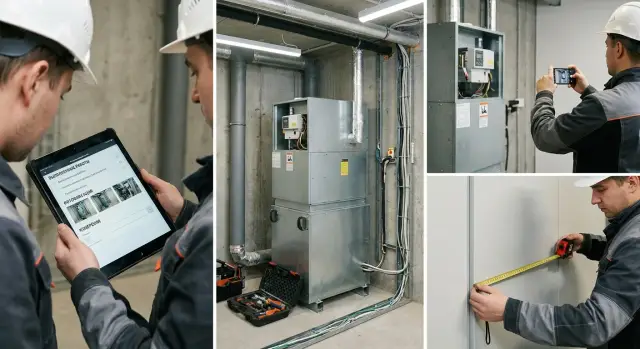
Why a checklist matters for a crew — and why paper isn’t enough
A crew often does the job fine, and the dispute starts later: what exactly was done, to what extent, and following which rules. Paper forms and handwritten notes rarely give the same answer. Handwriting, missing items, different wording and lost pages turn acceptance into messages and calls.
On paper each technician records results differently. One writes “fixed the fault,” another — “checked, works,” a third leaves half the field blank. In the end there may be a service standard, but no evidence or details. Comparing visits is almost impossible.
Common problems with paper are simple:
- no unified list of items, so important steps get forgotten, especially at the end of a shift;
- it’s hard to verify on site: a checkbox isn’t proof of performance;
- storage and search cost time: archives grow and the needed report can take hours to find;
- resolving disputes becomes guessing: who, when and what exactly confirmed.
Facts matter more than vague phrases. Photo reports and measurements in checklists are better than “done” because they show before-and-after conditions, serial numbers, seals, instrument readings, network parameters or temperatures. If a form requires a photo from a specific angle and a concrete value entry, it’s much harder to close the job without actually performing it.
A single digital format reduces risk: fewer reworks from misunderstandings, fewer penalties for procedural violations, and fewer conflicts with clients. For example, when servicing a server room or workstations at a government site the crew records a photo of the labeling, cable condition and the actual rack temperature. That’s easier to accept and verify than a long text in an act.
Digital quality checklists are especially useful when there are many recurring visits, fast acceptance and closure matter, and evidence (photos, parameters, signatures) is required.
A checklist disciplines not people but the process. It makes results equally clear to the technician, dispatcher and client.
Preparing the service standard before digitizing
Before moving service standards into a form, tidy up the standard itself. If the document is contradictory or “about everything at once,” the crew will skip items and managers won’t get a reliable quality control of service work.
First separate two things: what we check and what we do. “Check” is the result that can be confirmed: works, secured, within norm. “Do” are the process steps that help achieve that. In the form keep the focus on the checkable result; add process steps only where omissions commonly occur.
Next decide which items are non-skippable. Not “everything important,” but items that directly affect safety, warranty, repeat visits and complaints. For those items decide in advance what proof is needed: photo, measurement, client or senior signature.
Record tolerances separately. Without them any measurements in checklists become a debate about “acceptable or not.” Write ranges, units and the action scenario for deviations: redo immediately, agree, or stop work.
To keep the standard stable, assign roles: who approves the document and who can change it. Changes should be rare, clear and have an effective date.
Use plain, unambiguous wording. A good test: two different technicians read a point and do the same thing.
Quick checklist before moving to a form:
- each item answers one question and has a clear outcome;
- critical items require mandatory proof;
- measurements have tolerances and a deviation plan;
- it’s clear who owns the standard and how edits are made;
- terminology is consistent throughout the document.
Practical example: when servicing a server rack (a typical case for system integrators, including GSE.kz) replace the generic item “cable management is done correctly” with a check: “cables are secured, do not block ventilation, and labels are legible.” Also define which photos and which measurements are mandatory.
How to design form fields so people actually use the form
A form shouldn’t look like an instruction pasted into a phone. If a technician reads long paragraphs on site they will either skip important things or start marking “somehow.” Short questions that clearly state what is checked and how to answer work better.
Use simple field types for their purpose: yes/no (or “normal/not normal”) for quick checks, lists for repeated options, number for measurements, short text for rare comments. Date and time fields are needed only where it’s essential to record the moment of work or downtime.
To make control effective, set required fields and logic. Make basic questions mandatory and show details only on deviations. For example, answering “not normal” opens fields for “reason,” “error code,” “comment” and requires proof (photo, measurement, signature).
Choose error and cause codes from a directory rather than free text. Then reports can be built without manual cleanup: which problems repeat, on which sites, which crews, which spare parts are needed most.
Minimize manual entry. Templates for typical jobs, auto-fill of object, address and crew from the ticket, short hints under a question (what counts as normal), default values where most answers are the same, and format checks (so a number isn’t typed as words) help.
Small example: when checking a panel the technician marks “not normal,” selects code “overheating,” enters temperature and the form requires a reason and supporting evidence. There are fewer “I did it” disputes and the data is usable for analysis and training.
Mandatory photos: which ones and how to set rules
Photos in a checklist solve a simple problem: they remove arguments. When there are shots before, during and after, quality control becomes about facts, not words. Build this in so the crew doesn’t have to remember what to photograph.
Which photos to make mandatory
Start with a minimal set by stages. It usually covers most quality questions:
- before start: an overall view of the object and the problem area to show “how it was”;
- during work: the key step (connection, installation, sealing) to prove the work was actually done;
- after: overall result and a close-up of the critical node;
- identification: nameplate, serial number or equipment marking;
- confirmation: a shot of the measuring instrument or indicator when the standard requires measurements.
A useful practice: label each photo field with the photo’s purpose. Not “Photo 1,” but “After: overall view of the cabinet with the door closed.”
Rules that prevent useless photos
To avoid blurred or irrelevant shots, set short requirements directly in the form. For example: hold the camera still for 2 seconds and take two frames (wide and close), include a scale reference in the frame, don’t shoot into strong backlight. If it’s dark — use flashlight/flash and take a control shot that is legible. If access is difficult — add a general plan and a shot showing how the technician reached the place (removed hatch/panel).
Agree on naming for storage and search: object, stage, date/time. It’s even better if the system saves metadata automatically (executor, time, and geoposition if needed). Then during incident analysis the right photos are found in minutes, not “somewhere in the phone gallery.”
Measurements in checklists: values, tolerances and proof
Measurements make a report “ironclad”: the dispute is about numbers, not impressions. Include in the form only parameters that actually affect safety, functionality or warranty. Typical examples: pressure, temperature, clearances, levels, voltage, current, resistance, vibration, thrust, flow.
To avoid free-text measurements, provide dedicated fields: numeric input, units and an acceptable range. Then the technician sees what’s required and managers get comparable data.
Practical rules for a measurement field:
- unit is fixed (°C, bar, mm, V), no “as used to”;
- range and tolerance are visible next to the field, not hidden in another document;
- the step cannot be closed if the value is outside the range;
- a comment is required for borderline values;
- there is a separate “Decision” field (accept, rework, escalate to engineer).
Sometimes instrument traceability is needed. For critical objects or audits add instrument model, serial number and calibration date (if applicable). This matters when results affect operation permits or warranty cases.
Handle borderline values by rules, not “feelings.” For example: if temperature is at the upper tolerance, the crew records a repeat measurement after 10 minutes and notes who authorized acceptance.
Photo evidence of a measurement is justified when a value can be disputed: a gauge, tester display, probe or thermometer reading. But don’t require photos for every measurement, or the crew will start photographing for the sake of it. Usually include photos for critical points or deviations.
When forms are processed on office PCs or servers, fast storage and retrieval matter. Enterprise projects often use local IT infrastructure and integration provided by a system integrator like GSE.kz, but the measurement rules are still defined in the checklist.
Step by step: turning a service standard into a digital form
Start not with the regulation text but with actual work. Sit with 2–3 technicians and go through a typical ticket: what they do, in what order, what they check, and where disputes arise. Those spots usually need documentation.
Break the standard into clear blocks so the crew doesn’t hunt for the right item. Often four parts suffice: preparation (what to take and check before start), safety, execution, final check and handover.
Mark the key points where evidence is needed. There shouldn’t be many: 3–6 mandatory proofs per ticket is better than 25 items filled “for show.”
Add logic for deviations. If a parameter is out of range or a photo fails the rule, the form should suggest the next step: what to fix, what additional measurement to take, whether client approval or a repeat check is needed. This turns the checklist from a report into a quality control tool.
Test the form in practice and cut the excess: run 2–3 typical tickets end to end, measure actual fill time, remove fields that don’t affect decisions or acceptance, and adapt wording to the crew’s language. After that freeze the version and forbid ad-hoc field edits.
Example: a crew replaces a unit in a rack. The form first checks safety and power shutdown, then photos before work, one measurement (e.g., voltage if required by your standard), and only then opens the “assembly and test” block. If the test fails, a branch appears with a recheck and mandatory photo of the result.
Think about devices used to fill the form. If you have a corporate fleet of computers and workstations, for example from local manufacturer GSE.kz, pre-check the camera, network access and ease of input so the process doesn’t break in the field.
On-site control: locks, signatures and confirmations
Strong on-site control is not “more checks” but clear rules that protect both the crew and the client. Put strict controls only where disputes most often arise: what was done, is it safe, and who accepted the result.
The rule “can’t close until completed” works well for critical items but is annoying if applied everywhere. Make mandatory only what makes acceptance meaningful: key photos, final measurements, safety checks and acceptance signatures. For secondary items use soft reminders or a reason for skipping (e.g., “no access to premises”).
Separate signatures by role. The technician confirms tasks are done. The client representative confirms acceptance or records remarks. A dispatcher signature is useful when the dispatcher actually checks the report before closing the ticket.
Record time and location accurately. Date and duration are often collected automatically. A geo-tag is appropriate if allowed by company policy and contract terms. If geolocation is not allowed, use the ticket address and arrival/departure marks.
The safety block should be short but mandatory: work permit and PPE noted, equipment powered down if required, work area marked, risks and measures recorded, and incidents either absent or described.
Write findings so acceptance doesn’t become a conflict. A practical format: “what’s wrong” + “where” + “photo” + “deadline” + “responsible person.” For example, “three ports are missing cable labels” becomes a task for correction, not an argument about quality.
Common mistakes during rollout and how to avoid them
Mistakes when launching digital checklists are almost always the same. Crews quickly find workarounds, so build rules in from the start.
When a form turns into mindless clicking
A common failure is a form that’s too long and identical for all visits. After a week people start checking boxes to close their shift.
Keep the form fill time to 3–7 minutes for a typical task. Group items logically (preparation, execution, check, handover), make only critical items mandatory, and leave others conditional. Hints and examples should be inline and concise. One field “problem/deviation” is almost always better than ten similar clarifications.
Photos and measurements: data present but no evidence
The second mistake is mandatory photos without clear rules. The photo is uploaded but it doesn’t show the object, scale, nameplate or it’s unclear what is being proved. Set minimums: what to photograph (overall or close), angle, number of frames, and what must appear in the image (label, unit number, seal, indicator).
Third mistake — measurements without tolerances. If the form has “pressure” or “resistance” but no norm, a dispute is inevitable. Specify units, acceptable range and actions for out-of-range values: mark the item as failed, require a comment and a confirming photo of the instrument.
Two more issues appear at scale. When different crews use different form versions reports become inconsistent. You need a single source of truth, clear version numbering and update rules. Also plan for offline work: local saving, duplicate protection (unique ticket number, time), and reliable sync. In practice this depends on IT: stable devices, servers and support so data isn’t lost in the field.
Quick checklist before launching with crews
Before launch check not only the form but how it lives in a real shift: with dirty gloves, poor connectivity and limited time. Good digital quality checklists should help the crew, not hinder them.
Check a few things.
The form should reflect actual on-site work: “preparation,” “assembly,” “check,” “handover,” not abstract “done/not done.” For each mandatory photo have a clear rule: what must be in frame, from which distance, whether wide and close shots are needed, and how to record unit numbers or nameplates. Measurements must be unambiguous: units (mm, V, bar), acceptable range and what to do when values are out of tolerance.
Deviations shouldn’t become disputes. The form should offer a choice “there’s a deviation,” a comment field and a clear resolution route: who gives permission, who confirms correction, and what must be recorded. Also include an acceptance check: who and when verifies the report, which fields must be filled, and what counts as “accepted” (client signature, control engineer mark, system status).
Also check storage and search. Reports should be found within 10 seconds by object, date and crew, and photos and measurements should open alongside the specific work item.
A mini-test: have a crew perform a typical ticket end to end and let a manager accept the work without calling the performers. If calls are required, the photo, measurement or deviation rules still have gaps.
Example scenario: a field crew and a dispute-free report
Planned maintenance: a crew arrives at a branch where a rack of servers and several workstations are in the server room. The client has a typical scope: inspection, cleaning, power and network checks, temperature control, testing and recording replacements.
The technician opens the checklist on a phone or tablet and follows the steps. The form is designed so important items can’t be skipped and evidence is collected during the work.
- Step 1: identify the object (rack number, serial number, on-site responsible) and start work.
- Step 2: photos before work (overall rack, close-up of nameplate/label, cable condition).
- Step 3: measurements (inlet air temperature, voltage on PDU/outlet, UPS load) with tolerance checks.
- Step 4: operations (clean filters, check fans, test ports) and after photos.
- Step 5: technician signature and client representative signature.
Example deviation: inlet rack temperature 30°C with acceptable 18–27°C. The field highlights, a mandatory block “Reason” and “Actions” appears: the technician adds a photo of the thermometer, records that ventilation was off, and chooses a decision (stop work temporarily, call engineer, recommend HVAC fixes). The form cannot be closed until those fields are filled.
The final report is generated immediately. For the client it’s a clear document with before/after photos, a list of measurements, and what was done or needs attention. Internal control fields include who worked, how long it took, which deviations occurred and how they were resolved.
After the first 10 visits the form is usually adjusted based on feedback: remove unnecessary fields, add photo hints (angle, what must be visible), clarify tolerances and units, replace free-text deviation causes with quick templates, and add a short “recommendations for the client” block.
Next steps: pilot, training and reliable IT foundation
Start with a small pilot, not a company-wide rollout. Choose one service (for example, AC maintenance) or one type of site (same-format stores). That reveals which fields hinder work, which photos are missing, and which measurements are entered incorrectly.
Run the pilot for 2–4 weeks with clear KPIs: percent of completed forms, share of tickets with correct photos, number of quality returns. After the first week tweak the form: remove extras, clarify hints, and make 1–2 critical steps mandatory instead of ten secondary ones.
Training technicians works best with real examples. Collect good photos (correct angle, visible serial number, wide and close shots) and bad ones (dark, blurred, wrong object). Do the same for measurements: show common mistakes like unit confusion or values without tolerances.
A short launch plan usually looks like this: pick one process and 5–10 performers for the pilot, prepare photo examples and measurement standards, set a feedback channel and the rule “record remarks directly in the form,” decide who checks the first 50 reports, and agree on where photo and measurement files are stored.
To keep the system stable you need owners. Usually one person owns the standard (what to check) and one owns quality control (how to check and what counts as a defect).
Plan the IT foundation: where photos are stored, how backups are made, who has access, and what happens with poor internet on site. If photos and measurements are numerous you quickly hit limits in disk space and search speed.
If you need infrastructure for these processes, GSE.kz (gse.kz) as a manufacturer and system integrator can cover part of the hardware and support: servers, workstations and storage organization for photo reports and measurement data in your IT environment.
Frequently asked questions
Why is a digital checklist better than a paper acceptance form?
Paper holds up poorly to verification: different wording, gaps and lost pages turn acceptance into an argument. A digital checklist gives everyone the same items, and mandatory photos and measurements provide clear “before/after” evidence that reduces rework and disputes.
How many items should a checklist have so people actually use it?
Keep the form short: it should help close a typical ticket in a few minutes, not become a survey. Make only critical items mandatory and show details conditionally — for example, "if not normal — clarify and attach evidence."
Where to start preparing service standards before digitizing?
Separate “what we check” from “what we do” and prioritize result checks that can be confirmed. For critical items decide immediately what evidence is required — photo, measurement, signature — so work can’t be closed without proof.
Which form fields work best for a field service team?
Use simple field types by default: yes/no for quick checks, number for measurements, list for common causes, short text for occasional comments. Less manual entry means fewer mistakes and easier reporting on causes and sites.
Which photos should be mandatory in the checklist?
A minimal required set usually works best: photo before work, photo of key step (if it often causes disputes), photo after work, identification photo (nameplate/marking), and a photo of instrument readings where relevant. Label each photo field with its purpose so it’s clear what to capture.
How to avoid useless photos and “tick-box” pictures?
Define simple rules in the checklist: what must be visible in the frame, which angle is needed, when both wide and close shots are required, and what to do in low light. Without rules you’ll get formally uploaded but useless photos that don’t help investigations.
How to properly set up measurements and tolerances in a digital checklist?
Include only parameters that affect safety, operation or warranty. For each measurement fix units and an acceptable range; when values are out of range require an action: redo, escalate, or stop work and record the reason.
How should a checklist handle deviations and findings?
Use branching: when the answer is “not normal,” automatically open fields for “reason,” “what was done,” “what remains,” and require supporting evidence (photo/measurement/signature). This turns deviations into a tracked task with an owner and deadline, not a back-and-forth.
Which signatures are needed in the report and who should confirm the result?
Usually two signatures are enough: the technician (confirming tasks are done) and the client representative (acceptance or recorded remarks). A dispatcher or control engineer’s signature is useful when they actually verify the report before closing the ticket.
What to do if there’s no connectivity on site and data must be sent later?
Plan for offline use: save on the device, use a unique ticket number, prevent duplicates, and sync reliably when connection returns. Also keep a single source of the form and version control, otherwise different teams will use different form versions and data won’t be comparable.
