8 min read
Dell PowerEdge T550 for an office server room: power, noise, upgrades and support
Dell PowerEdge T550 for an office server room: how to assess power, noise, upgrade headroom and support so you don’t hit limits in a year.
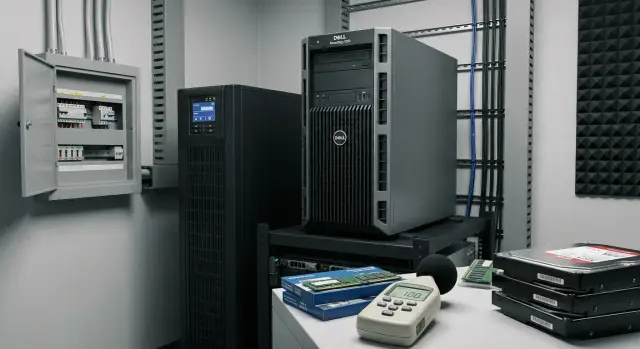
Where problems in an office server room usually begin
Problems usually don’t start with “not enough compute”; they begin with small practical issues that quickly lead to downtime. Someone puts the server in a closet, plugs it in “wherever,” and after a couple of months you discover it’s hard to access, the room is hot and noisy, and the UPS only holds 5 minutes instead of the needed 20.
An office server room differs from a data center because it lives close to people and the office infrastructure. There’s rarely extra capacity for power and cooling, a rack is not always available, and almost never is there a dedicated ventilation system “done right.” Access to the server is often restricted too: one person has the keys, there’s a “don’t enter, that’s accounting” rule, or renovation is happening next door.
After 6–12 months resources typically run out in these areas:
- Virtualization: someone adds 2–3 more VMs (1C, file server, domain, a small SQL) and you hit memory limits.
- Disks: databases and shared folders grow, and there’s a need to keep backups nearby.
- Network and roles: cameras were added, RDP for a branch was enabled, extra services were started, and load becomes bursty.
The most often underestimated constraints are power, noise, space and access.
Power: how much the server actually draws under load and whether the circuit and UPS can handle it.
Noise: a tower server may be acceptable in a separate room but annoying if it’s next to an office.
Space: you need room for airflow and maintenance, not an installation pressed up against boxes.
Access: how quickly you can safely power down the server, replace a drive, or reach the ports.
The phrase “don’t outgrow the platform” in practice means this: a year from now you should be able to expand without moving to a different server. Add RAM, install extra drives, strengthen power redundancy — without replacing the entire Dell PowerEdge T550 and without days of downtime.
Power and UPS: what to check before buying
Many choose the Dell PowerEdge T550 for office use with a “set and forget” mindset. Problems usually start with electricity: a breaker trips, the UPS can’t handle startup current, or suddenly there aren’t enough outlets.
First, assess the installation site. Is there a dedicated circuit from the panel, what breaker is installed, and what else is on that circuit (kettle, AC, printers)? The server needs headroom. If the line is already “on the edge,” any spike or nearby device switching on can cause a reboot.
Before purchase, run through this short checklist:
- What is the real available power on the circuit (is there at least 20–30% reserve)?
- Is there proper grounding and surge protection?
- How many outlets are needed: server, UPS, switch, internet gear, sometimes a KVM or monitor?
- Where will the UPS physically be located: space, weight, access to change batteries, ventilation?
- Who is responsible for power in the office and how fast can they respond?
Choose a UPS not just by advertised minutes but by matching power (watts) to your scenario. Look at watts (not only VA), load margin and battery type. Standard VRLA batteries are cheaper but replaced more often. Lithium is more expensive, lighter and often lasts longer. If the goal is safe shutdown and not to run for hours, 5–15 minutes is often sufficient.
Plan in advance how shutdown will happen:
- who gets notified of a power loss;
- which services should be shut down first (VMs, database, file services);
- whether shutdown is manual or automatic via UPS software;
- where a simple one-page instruction will be stored.
A typical mistake: the server and switch are on the UPS but the router is not. The lights flicker, the internet drops, the server stays up but users can’t reach systems. If internet access is critical, the whole chain must be powered: server, network and external access.
Noise: how to judge whether it will be comfortable
Noise from a tower server becomes an issue not because of the model itself but because of placement. If the server is in an open space, people will hear not only constant background hum but also sudden spikes when fans speed up. In a separate room (even a small one) noise requirements are usually easier to meet.
Noise varies for a clear reason: under load CPU and disk temperatures rise and cooling fans increase speed. In a hot room or a closed niche this happens more often even if tasks are the same. So a one-minute listening test is insufficient — it’s better to test under a load resembling your workday.
A practical option before buying a Dell PowerEdge T550 is to agree on a short test. Ask to run typical loads (backups, updates, mass user logins) and listen to the server in the room where it will be placed. You can also measure noise with a smartphone app — the key is to compare options under the same conditions.
Simple measures often help:
- place the server farther from workspaces and not pressed against a wall;
- have a closing door and perimeter seals;
- remove airflow obstacles so fans don’t “ramp up”;
- don’t put it near a printer, kitchen or radiator.
Agree in advance about a “quiet mode”: what is acceptable noise, when noisy operations are allowed (for example, backups at night), and who monitors temperature. If you throttle cooling just to reduce noise, you risk overheating, louder spikes and stability problems.
Cooling and microclimate without complex calculations
For an office server room stability is more important than “perfect” specs. If you place a Dell PowerEdge T550 in a separate room, the basic goal is simple: cool, dry, with an intake and exhaust for air.
Simple room checks
Human comfort is usually close to comfortable conditions for hardware: not stuffy and no sharp swings. Bad signs: noticeably warm air at the door, a stale smell, a constantly fully sealed door, or a persistent smell of heated dust.
Check three things: where the server takes in air, where it exhausts, and whether that air has somewhere to go. Even a single tower can heat a small room if the air doesn’t circulate.
If there’s no dedicated AC (or it’s shared)
If there’s no AC, simple arrangements for ventilation and operating schedules often help without expensive changes:
- don’t put the server in a sealed closet without ventilation or gaps;
- avoid making the room hermetic — air exchange is necessary;
- move the server away from radiators, sunny windows and printers;
- schedule heavy tasks for mornings or evenings on hot days;
- put a low-cost thermometer and monitor temperature trends.
If the AC is shared for a floor, the issue is often that it’s turned off at night or doesn’t deliver enough air to the server room. What matters is not the spec on paper but the fact: temperature should not rise for hours with the door closed.
Leave gaps: free space in front (intake) and behind (exhaust). Don’t push the chassis against a cabinet or wall. Don’t block grilles with boxes or cables.
Check monthly: dust on grills, clogged filters (if present), fans spinning freely, nothing blocking airflow. These simple actions often prevent overheating and increasing noise.
Upgrades after a year: what is realistically upgraded and why
After 10–14 months a server usually hits one constrained resource. If you understand in advance what you’ll grow, you won’t overpay now or get stuck later.
Memory: the most common and straightforward upgrade
RAM is expanded most often: databases, caches, user counts and new roles increase. A simple rule: if the server already uses more than half of its RAM during working hours in month one, you’ll almost certainly add memory within a year.
Plan headroom for growth: 30 employees could become 50, plus a new service. Consider not only total capacity but free DIMM slots so you don’t have to replace modules in all slots later.
CPUs: upgrade possible but rarely cost-effective
CPU upgrades are possible but less common due to cost, availability of compatible models and required downtime. Processors are usually changed when the initial configuration was minimal and virtualization load grows sharply. If you expect a different class of workload in a year, sometimes it’s better to buy extra cores up front.
Slots and expansions: network, storage, controllers
Typical upgrades by year one look like this: a second 10/25GbE port, an HBA for an external shelf, a more capable RAID controller, a remote management card, or an NVMe adapter. Check how many free expansion slots will remain after the base build and whether large cards or cable routing will block them.
Physical constraints: space, access, cables
A tower server is often placed in a corner or small cabinet, and that directly affects upgrades. Check for free space around the chassis, whether the lid can be removed easily, and if power and cables can be routed cleanly. If it’s hard to reach the server, even a RAM upgrade becomes risky: someone might tug a cable, block ventilation, or forget to replace a cover.
If you operate in Kazakhstan and predictable support matters, agree the service scenario in advance: who performs upgrades, how quickly an engineer can arrive, and which spare parts are available locally. This is often more important than the “perfect” spec on paper.
Disks and data reliability: don’t overestimate RAID or underinvest in backups
In office setups disks and recovery expectations fail far more often than CPU or RAM. For the Dell PowerEdge T550 plan how much data you’ll have in 6–12 months and how you’ll recover after a failure.
Capacity should account for more than just user files. Backups, database growth, logs, temp files and hidden increases from new departments all consume space. Quick questions to estimate growth:
- How much data is added monthly and how will staff or services grow?
- How many backup versions do you keep and where (on the server or offsite)?
- Do you have databases, mail, cameras, 1C, VDI?
- How much space do logs, updates and temp files take?
- What headroom is needed to avoid hitting limits during peak season?
RAID in plain terms: it helps survive a disk failure without stopping (depending on RAID level) but doesn’t protect against deletion, malware or admin mistakes. RAID and backups solve different problems.
Hot-swap drives are useful if even 30–60 minutes of downtime is painful: accounting day, a call center, or patient records. If the server can be stopped overnight or on weekends, hot-swap is helpful but not mandatory.
A separate storage system or a second server makes sense when data is critical and growing fast, when roles should be separated (files apart from virtualization), or when a clear disaster recovery plan is needed. Often it’s cheaper to plan this step in advance than to hit the limit in a single chassis after a year.
Service and support: how to avoid long outages
In an office, downtime hits people more than hardware: 1C, mail, files, printing and CRM stop working. Support is therefore as important as the Dell PowerEdge T550 specs.
When evaluating warranty look beyond “how many years.” Four details matter: where repairs happen (on-site or in a service center), response time, availability of engineer visits, and spare-part delivery times. “Repair within 5–10 days” often means the server is shipped to a service center and the office runs on temporary solutions for a week.
Plan spare parts and compatibility ahead. Tower servers commonly fail fans, PSUs and disks. If the model isn’t recent, parts may take long to arrive and a “similar” part may not fit due to revisions or firmware. For critical components decide in advance whether you keep spares (for example a replacement drive and a spare PSU) or rely on a supplier with clear logistics.
Another question is who performs diagnostics. A single admin may not have time to collect logs, update firmware and coordinate windows. A contractor or integrator can handle initial analysis, vendor communication and replacing failed components. In Kazakhstan it’s convenient when support is available 24/7 and service engineers are distributed across the country.
Define recovery requirements in advance to avoid arguments during an incident:
- acceptable downtime (e.g., 4 hours for files and 24 hours for noncritical services);
- response time and recovery time (RTO);
- maintenance windows for updates and reboots;
- how incidents are reported (phone, email, ticket);
- access rules for the server room and responsibility for spare parts.
Example: if accounting starts at 9:00 and an incident happens at 8:30, a fast on-site replacement matters more than “repair under warranty at the service center.” This should be written into the support conditions.
Step-by-step: how to decide if the T550 fits your needs
To pick a Dell PowerEdge T550 without surprises in a year, run a five-point check. It takes an evening and saves weeks after purchase.
1) Describe the load in simple numbers
No need for complex calculations. Write down how many users will access 1C/CRM, current database sizes, how many VMs you plan and expected growth in 12 months. If you plan 3–6 VMs (AD, file server, 1C/SQL, backup, monitoring), add headroom for RAM and storage.
2) Match power and UPS to the office reality
Confirm a dedicated line, a proper outlet and space for a UPS. It’s important not only how many watts but how many minutes the server must run to shut down cleanly.
3) Space, noise and maintenance access
Decide where the tower will stand: near desks or in a storeroom. Ensure you can open the case, remove drives, clean filters and provide airflow without moving furniture.
4) A 12-month upgrade plan
Decide what you’ll add first:
- RAM (most common under virtualization)
- disks and controller (if databases and backups grow)
- network card (for faster NAS or a second switch)
- second PSU (for redundancy)
5) Support model and responsibilities
Fix who makes decisions during a failure, who holds access, where spares are kept and what SLA is needed. If more than 4 hours of downtime is unacceptable, set procedures and pre-agree a service. If you lack an on-call IT team, outsourcing to an integrator with 24/7 support is often easier.
Common mistakes when choosing an office server
The main mistake with a Dell PowerEdge T550 (and similar tower servers) is to choose a configuration as if it were a “stronger PC.” Servers run 3–5 years while office needs often change faster.
People often buy minimal RAM and storage because it’s enough today. After 6–12 months new databases, backups and an extra VM appear and you hit RAM or storage limits. The upgrade becomes urgent and costly, and downtime is imminent.
Another trap is expecting desktop-level silence. Servers use different cooling. Under load or in a hot room fans ramp up noticeably. If the server sits near staff, noise quickly becomes a constant annoyance.
Choosing the cheapest UPS is a common error. The UPS must handle the server’s real load and provide needed uptime for graceful shutdown; otherwise it creates risk rather than protection.
A typical scenario: the server is placed in a cabinet “so it won’t get in the way” without proper intake and exhaust. Temperature rises, fans get louder and component life shortens.
Finally, don’t assume fast repairs without written agreements. If support timelines and spare-part availability aren’t settled beforehand, downtime can stretch for days.
Quick self-check before purchase:
- Expansion plan: how much RAM and storage you may need in a year.
- Realistic expectations for noise and installation location.
- UPS: power, runtime and shutdown scenario.
- Ventilation: where the server will be and how heat will leave the room.
- Service: who repairs, where parts come from, and expected wait times.
If these points are covered, the risk of outgrowing the platform in a year is much lower and deployment goes smoothly.
Short checklist before buying and installing
Before ordering a Dell PowerEdge T550 for an office server room, walk through a simple checklist. It helps catch issues early while they’re cheap and easy to fix.
Start with power. The server should have a dedicated circuit and a clear plan for outages: who is responsible, how fast a safe shutdown can occur, and what remains on the UPS. A common mistake is plugging the server into the same outlet as a kettle or heater and then hunting for the cause of random reboots.
Next, check the UPS: is its capacity sufficient with margin, how many minutes does it actually support the load, and is there space for it? The UPS should not block a passage or sit next to heat sources. Buttons and displays must be accessible.
Basic room checks: ventilation, low dust and temperature control. If the server sits in a small closet, place a simple thermometer with an alarm and agree in advance what to do if it overheats (open the door, start a fan, call an engineer).
Estimate upgrades for a year: will there be spare DIMM slots and drive bays, can you add disks or a network card without complications? The typical growth path is more users, more VMs and more disks for files and backups.
And service: decide who repairs the server, where spares are stored, how long downtime is acceptable and how on-site work is arranged. For an office even a single workday of downtime often costs more than prearranged support.
What to check before installation:
- Dedicated power circuit and a plan for outages.
- UPS sized with margin and space for installation.
- Room with ventilation and temperature control.
- Headroom for memory and expansion slots.
- Agreed support: who repairs, where parts come from, and expected wait times.
If these are addressed, the chance of outgrowing the platform in a year is much lower and the rollout is smoother.
Example: an office planning 12 months of growth without changing platform
An office with 70 people plans to grow to 95 in a year. Two to three key services run: domain and policies (AD), a shared file resource and accounting/CRM on a separate database. The server sits in a small server room near offices, so power and noise are important.
A sensible starting Dell PowerEdge T550 configuration includes modest reserves: more RAM than needed today and the ability to add drives later. The CPU is often left as a single socket initially but chosen so it can be upgraded if necessary.
Plan to include immediately:
- a UPS with power and runtime margin (at least enough for graceful shutdown) and preferably a dedicated power line;
- RAM headroom for new roles and cache (a common reason to hit limits in six months);
- a controller and drive bays so you can add storage without long downtime;
- a clear backup plan: where, how often and who verifies restores;
- support: who will come and how fast if the server won’t power on.
At 6–12 months RAM and disks are typically purchased: new folders, more users, busier databases, a test environment or another VM appear. If power, placement and support are prepared in advance the growth happens without rework or stress.
Next steps: how to decide and avoid regret
To prevent the Dell PowerEdge T550 purchase from becoming a surprise in 6–12 months, document requirements and agree them with the people responsible for the office and IT. Failures usually come from practical limits: outlets, UPS, space, noise and access for maintenance.
Write a short requirements brief first, then pick a configuration
Collect initial data in one file and ask a vendor to propose a configuration with room for growth and a clear explanation of what can be added later. Aim for a 12–18 month horizon so you don’t hit limits in RAM, disks or expansion slots.
Check these points:
- which services will run and how critical downtime is (hour, day, can wait);
- office constraints: UPS, dedicated power, installation location, acceptable noise;
- growth scenario: +users, +VMs, +data volume;
- upgrade plan: what you’ll add in a year (RAM, disks, network ports) and what should be bought now;
- who supports: in-house admin or contractor, and who decides during an incident.
Support is part of the configuration
Discuss service: response times, spare-part availability, diagnostic process and what “recovery” means (powering the server back on vs full restoration of services). In offices downtime usually costs more than slightly pricier support.
If local assembly, transparent supply chains and on-site support matter, consider proposals from system integrators. For example, GSE.kz (gse.kz) produces the S200 server line and offers 24/7 support with a national service network — useful when you need predictable recovery times and logistics.
Final step: approve the brief, get 2–3 comparable offers (hardware + service), confirm that growth headroom is included, then place the order.
Frequently asked questions
What do problems in an office server room usually start with?
Usually issues start with everyday things: shared power outlets, a UPS that doesn’t provide enough runtime, cramped space with poor air intake and awkward access for maintenance. Later it becomes obvious that RAM or storage isn’t enough, because new virtual machines were added and data grew.
What should I check about electrical supply before buying a T550?
Check whether there’s a dedicated circuit from the distribution board and if there’s a real power margin so the server isn’t sharing the line with a kettle, AC or printers. Also confirm proper grounding, surge protection and a clear place for the UPS with adequate ventilation.
How to pick a UPS for an office server?
Choose a UPS based on actual power consumption in watts and your shutdown scenario, not only on the advertised minutes. For many office setups 5–15 minutes is enough if during that time services can be shut down cleanly and the server powered off automatically.
Why is it wrong to plug only the server and switch into the UPS while leaving the router out?
You need to power the entire path that provides user access: server, switch and router. If the router is outside the UPS, the server may stay running but users will lose access — from their point of view it’s a full outage.
How to know if the T550 will be noisy in the office?
Don’t judge noise by a quick listen. Test in scenarios similar to your workday: backups, updates, mass user logins. Fans get louder when components heat up or the chassis is cramped, so placement often matters more than the model itself.
How to organize cooling in a server room without complex calculations?
Focus on steady conditions: the room shouldn’t accumulate heat or have sharp temperature swings. Check where the server draws air from and where it exhausts it, and make sure that exhausted air has a path out — otherwise even one tower can heat a small room.
Which upgrades are most common after a year and why?
The most common upgrades are additional RAM and disks because VMs, databases and backups grow. If you leave free RAM slots and space for drives, upgrades are simpler and you avoid having to replace the whole platform.
Is RAID a replacement for backups?
RAID helps survive a disk failure without downtime (depending on RAID level), but it does not protect against accidental deletion, malware or admin errors. Backups are a separate requirement — decide where backups are stored and how often you test restores.
How to pick support so a failure doesn’t stop the office for days?
If even an hour of downtime is critical, choose support with on-site engineer visits, fast response times and available spare parts. The length of a warranty is less important than how quickly you can get the service restored.
How to quickly decide whether the T550 suits my needs and avoid regrets after a year?
Start with a simple brief: which services will run on the server, how many users, expected growth in 12 months, noise and space limits, power constraints, and acceptable downtime. Ask for a configuration that allows straightforward expansion and decide who will have access to the server room and who acts in an emergency. In Kazakhstan many customers prefer a local manufacturer/integrator such as GSE.kz (gse.kz) for predictable timelines and 24/7 support.
