6 min read
DDR5 RAM: history, types, and how to choose for your needs
DDR5 RAM: history from SDRAM to today, main memory types for PCs and servers, and how to choose capacity, speed and module type for your needs.
Why bother understanding RAM
RAM is the computer’s workspace. The system keeps what you’re actively using here: browser tabs, documents, parts of applications, data for calculations. When RAM is low, the computer starts moving data to storage. The result feels “heavy”: windows open with pauses and switching between tasks stutters.
It’s useful to be able to tell “not enough memory” apart from disk or CPU problems. Symptoms can look similar but require different fixes: sometimes adding RAM gives an instant improvement, other times you’re limited by the CPU or a slow drive.
Signs the bottleneck is memory:
- after opening several programs everything noticeably slows down
- the browser constantly reloads tabs
- large files (spreadsheets, photos, projects) open with pauses even though the disk isn’t full
- games or applications show warnings about low memory
Server and desktop requirements differ. For an office PC, comfort in multitasking and predictable operation without freezes is important. For a server, 24/7 stability and protection against errors come first, so ECC and server module types are often chosen. A memory error on a server isn’t just “slowness” — it can be a service outage or data corruption.
It’s also worth understanding because packaging often mixes facts and marketing. What really matters is the memory generation (DDR4, DDR5, etc.), capacity, platform compatibility, form factor (DIMM/SO‑DIMM) and, for servers, ECC support and module type (UDIMM/RDIMM). Promises of “X× speedup” mean little without context: gains depend on the workload and the rest of the hardware.
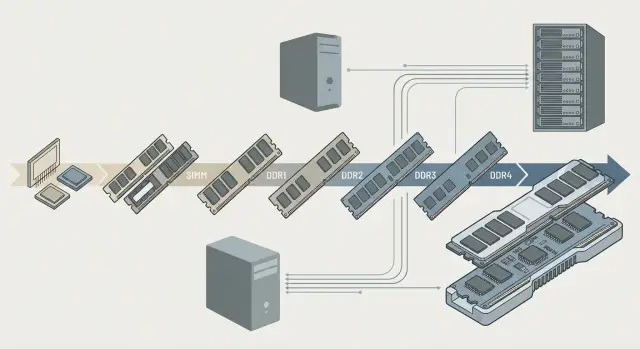
A brief history: from SDRAM to DDR4
Early DRAM worked simply: the CPU requested data, memory responded, and overall throughput depended on the shared bus speed. CPUs sped up and memory increasingly became the bottleneck.
SDRAM (Synchronous DRAM) was an important step because it worked in sync with the system clock. That made data transfer more predictable and reduced pauses, especially for workloads with many small memory accesses.
Then DDR (Double Data Rate) arrived: data is transferred twice per clock (on the rising and falling edges), increasing bandwidth without a huge frequency jump. In practice this meant snappier application response and fewer freezes under multitasking.
Each generation then increased speed and improved power efficiency:
- DDR2 raised frequencies and reduced voltage, improving heat and stability.
- DDR3 became more energy-efficient and widespread for PCs and laptops.
- DDR4 offered higher frequencies, greater module density and better power management.
Generations are incompatible for practical reasons: the module notch (key) differs so you can’t physically insert the wrong type. Voltage, signaling and memory controller requirements change. If a motherboard supports DDR4, it won’t recognize DDR3 even if a module somehow fits.
This evolution set the stage for DDR5.
How DDR5 appeared and what changed
DDR5 was designed to provide more bandwidth for modern CPUs and to simplify working with very large modules. It’s not just slightly higher frequency but a set of architectural changes.
Architecture and power changes
The most noticeable change is that a DDR5 module is internally divided into two independent 32-bit subchannels (instead of one 64-bit channel in DDR4). This helps service multiple requests concurrently: fewer stalls and better responsiveness in multithreaded workloads.
Chip density has increased, making it easier to create high-capacity RAM configurations — important for workstations and servers.
Power management has also changed: DDR5 moves some power control onto the module via an onboard PMIC (power management IC). It regulates voltages more precisely and reduces power noise, helping stability at high frequencies and large capacities.
On-die ECC: helpful but not the same as server ECC
DDR5 introduced on-die ECC, which corrects certain internal storage errors inside the chips and improves module reliability.
Important: on-die ECC does not replace full ECC memory used in servers. If a platform needs protection at the system level (for databases, virtualization, critical services), you should choose ECC modules and a compatible server platform.
DDR5 delivers noticeable gains when the platform can utilize its bandwidth and when many parallel tasks are running: rendering, analytics, virtual machines. It’s also useful when you need a large RAM pool.
In office tasks, browsing and typical bookkeeping, the difference between DDR4 and DDR5 is often small. There, SSDs, system configuration and overall capacity usually matter more.
Memory types: form factors, module types, ECC
RAM differs not only by generation (for example, DDR5) but also by form factor and module type. Physically not all sticks fit every board, and logically not all options are compatible with server platforms.
DIMM and SO‑DIMM differ in size. DIMM is the standard for desktops and most servers: long modules with many contacts. SO‑DIMM is shorter and found in laptops, mini‑PCs and some compact workstations.
Module types include UDIMM, RDIMM and LRDIMM. UDIMM is common in regular PCs. RDIMM and LRDIMM are used in servers: buffering helps stability when many modules and high total capacity are required. UDIMM and RDIMM are usually not mixable, and platform support matters.
ECC vs non‑ECC is about reliability. ECC detects and corrects single‑bit memory errors. In a home or office PC such errors are rare, but on a server with databases, VMs or critical services, even rare faults can cause real problems.
Another parameter is ranks: single‑rank vs dual‑rank. Dual‑rank modules can sometimes deliver slightly better performance and density but may limit achievable frequencies or the number of modules per channel. This becomes relevant when you build for large capacity while trying to keep high memory speeds.
A simple rule of thumb: laptops usually need SO‑DIMM non‑ECC, office desktops typically use DIMM UDIMM, and 24/7 servers require DIMM RDIMM/LRDIMM with ECC.
In system projects these details are verified against the motherboard and CPU to avoid incompatibility and degraded memory modes. For example, when building workstations and servers this is done at configuration time, as practiced at GSE.kz.
Parameters that affect performance: plain language
When choosing DDR5 RAM, it’s easy to get lost in numbers. What actually affects speed and stability for your workloads is more important than chasing specs.
Frequency is usually listed in MT/s (e.g., 5600 MT/s). It denotes transfer rate rather than raw megahertz. Higher frequency means higher potential bandwidth, but gains are most visible in workloads that constantly move data between CPU and RAM: integrated graphics, large spreadsheets, and certain engineering calculations. In ordinary office use, differences between nearby frequencies are often negligible.
Timings are shown as a set of numbers (for example, CL40). They indicate access latency. Lower is better, but the effect depends on frequency, CPU and workload. Often, a kit with slightly looser timings but much higher frequency is faster in practice.
Don’t forget memory channels. Most platforms perform noticeably better when modules are installed in pairs and dual‑channel mode is enabled. One 16 GB stick is often slower than two 8 GB sticks, even at the same frequency.
Before buying, check basic things: the platform‑supported frequency, required capacity and number of modules (for dual‑channel), timings as a secondary criterion after compatibility, and voltage and cooling needs.
Voltage and heat matter when memory runs in elevated modes (e.g., overclocking) or inside a compact case. Heatspreaders help dissipate heat but aren’t always necessary: they rarely make a difference in office PCs but can be useful in workstations or dense server racks.
If in doubt, choose a compatible kit with the needed capacity in two modules rather than chasing maximum specs. That gives a more noticeable improvement than obsessing over minimal CL values.
Needs matter more than “the fastest”: usage scenarios
Memory should match what the PC does daily. Too little RAM will slow you down, while the “fastest” RAM often won’t matter if you’re limited by CPU, GPU or storage. Even DDR5 performs differently across tasks.
For office and study, capacity matters more than record frequencies, especially if you constantly keep many tabs and messengers open. For gaming, a balance of capacity and reasonable speed is usually better than chasing minimal timings, particularly when the GPU is the limiting factor. In professional work (editing, 3D, CAD, analytics) capacity quickly becomes the main issue: when RAM runs out the system swaps to disk, and even a fast SSD can’t prevent pauses. For server loads (virtualization, databases, VDI) stability and predictability are paramount, so ECC memory and strict compatibility are commonly chosen.
A simple self‑check: imagine a “peak day.” How many programs open at once? Will you run a call, upload files, and work with heavy spreadsheets or renders simultaneously? If yes, choose extra capacity and think about reliability.
How to choose RAM for yourself: a step‑by‑step algorithm
Correct choice starts with where the memory will work. The same module kit can be great for a home PC and wrong for a server.
Steps to choose
-
Define the tasks and system type: home PC, workstation or 24/7 server. Office needs prioritize capacity; heavy projects require capacity and proper channel configuration; servers demand reliability and compatibility.
-
Check platform support: DDR4 or DDR5, maximum per slot and total, required voltage, ECC support. These limits are set by the CPU and motherboard.
-
Choose capacity and channel layout. Usually it’s better to use 2 identical modules rather than one of the same total capacity so dual channels work.
-
Decide on ECC and module type. Regular PCs typically use UDIMM non‑ECC. Servers usually need ECC and the correct module format: UDIMM, RDIMM or LRDIMM depending on platform. RDIMM and UDIMM are not interchangeable.
-
Plan for growth in 1–3 years. Leave free slots for upgrades so you don’t have to replace the whole kit.
If selecting memory for an organization, verify compatibility with the hardware supplier. System integrators like GSE.kz typically handle this during configuration to avoid ECC and module type issues.
Common mistakes when choosing and installing memory
The most frequent problem is buying DDR5 only to discover the motherboard and CPU support DDR4. These standards are physically different.
Another common mistake is assembling a kit from mixed modules: different capacities, frequencies, chips or timings. Even if the system boots, you may see rare crashes, blue screens or errors under heavy load. For stability it’s better to use a matched kit from the same series.
Installing a single stick and losing dual‑channel mode is another typical oversight. This is especially noticeable with integrated graphics, gaming and some professional workloads.
Confusion around ECC is also common: DDR5’s on‑die ECC works inside chips and does not replace system‑level ECC that catches and corrects module/system errors. For servers it’s important to verify whether the platform supports ECC UDIMM or ECC RDIMM.
Other typical errors easily avoided:
- choosing the wrong generation (DDR4 vs DDR5)
- mixing different modules and expecting perfect stability
- installing only one module and losing dual‑channel bandwidth
- treating on‑die ECC as full ECC
- buying UDIMM instead of RDIMM for a server (or vice versa)
During installation mistakes include: the module not fully clicked in, picking the wrong slot per the motherboard manual, enabling an overly aggressive frequency profile, or running an outdated BIOS. For servers running 1C/ERP or databases, a wrong UDIMM/RDIMM or ECC choice often leads to long troubleshooting. Integrators usually start by checking platform compatibility, then pick frequency and capacity.
Quick pre‑purchase check: mini checklist
People often buy memory “by eye” and later find the module doesn’t fit or speeds don’t increase. A short check takes minutes and saves time and money.
Mini‑checklist before paying:
- Type: DDR4 or DDR5 must strictly match what the motherboard and CPU support.
- Form factor: desktop uses DIMM, laptops and mini‑PCs use SO‑DIMM.
- Capacity: enough for current tasks with headroom to grow.
- Channel configuration: if dual‑channel is supported, prefer 2 identical modules to one large stick.
- For servers: do you need ECC memory for servers, and which module type is required — UDIMM, RDIMM or LRDIMM?
Then verify the configuration will assemble without surprises. If you have 4 slots and plan future expansion, starting with a pair leaves room for upgrades.
For servers, don’t guess: platforms often require a specific module type (e.g., only RDIMM) and may limit maximum capacity per slot. In infrastructure projects these nuances are clarified in advance so memory matches platform and reliability needs.
A realistic example: office PCs and one company server
Imagine a 30‑person department. Typical office tasks: email, browser with a dozen tabs, Excel, video calls, and some employees using 1C/ERP via terminal or web. In the server room there’s one server running 1C/ERP and the database plus shared file access.
For office PCs, predictability and identical configurations matter more than the “fastest” DDR5. When the fleet has mixed modules and capacities, support spends time troubleshooting what’s installed where. A practical approach is to use identical modules across PCs and include some capacity headroom.
The server is different: reliability and compatibility are critical. ECC memory and the correct module type (RDIMM vs UDIMM) are essential. A wrong choice may prevent the system from booting or make it unstable under load — especially painful when 1C/ERP stops: sales, warehousing and accounting halt.
To reduce downtime risk, adopt simple rules:
- a single specification for office PC memory
- for servers — only modules supported by the platform, always with ECC
- quick testing after installation before production use
- a replacement plan and minimal spare modules
If a company buys PCs and servers from a single vendor and integrator, it’s easier to maintain uniform configurations and get quick support when expanding memory or replacing a module.
Next steps: how to formalize the choice and avoid mistakes
To avoid debates about “the fastest” start with a short list of tasks and constraints. Define budget, desired service life and whether you’ll upgrade in a year or two. If planning future expansion, leave free slots and check which module types the platform supports.
Then put requirements into a simple procurement spec: capacity (and number of modules), generation (DDR4 or DDR5), form factor, module type (UDIMM/RDIMM/LRDIMM), ECC need, and the platform‑supported operating frequency.
If you don’t have time to verify compatibility and you’re buying dozens of PCs and one or two servers, it’s often wiser to choose a ready solution with preselected configuration. For example, at GSE.kz as a manufacturer and systems integrator they usually help align memory requirements for workstations and servers, including ECC and module types, to avoid compatibility issues during deployment.
Frequently asked questions
Why bother understanding RAM if the computer just “feels slow”?
RAM holds what you’re actively using right now: programs, tabs, documents and data for calculations. When RAM is insufficient, the system starts using storage as a substitute, which causes pauses, stuttering when switching tasks and generally sluggish response. If tasks lag specifically after opening several programs or the browser often reloads tabs — that’s a typical sign the bottleneck is memory.
How can I tell the bottleneck is RAM and not the CPU or disk?
Common signs include: - noticeable slowdowns after opening several applications - browser tabs being unloaded and reloaded - large spreadsheets/photos/projects opening with a delay - games or apps warning about insufficient memory For confidence, check whether the system is heavily using the swap/page file: if so, adding RAM usually gives a quick improvement.
Can I put DDR5 into a motherboard for DDR4 (or the other way round)?
No. Generations are physically and electrically incompatible. Modules have different notches (keys), different power and controller requirements. If the motherboard and CPU are designed for DDR4, DDR5 won’t work even if it seems to fit, and vice versa.
Where does DDR5 give a real performance boost, and where is it barely noticeable?
DDR5 is most beneficial in workloads with parallel processing and high data throughput: rendering, analytics, virtual machines, heavy multitasking and workstations. In a typical office (email, browser, 1C client, documents) the difference between DDR4 and DDR5 is often small — capacity and a good SSD matter more there.
What’s new in DDR5 compared to DDR4 in simple terms?
The main practical difference is that a DDR5 module is split into two independent 32-bit subchannels, so it handles multiple requests more efficiently. DDR5 also scales to larger capacities thanks to higher chip densities. Another important change: part of the power management is moved onto the module (PMIC), which helps stability at high speeds and in large configurations.
Is on-die ECC in DDR5 the same as ECC memory for servers?
On-die ECC in DDR5 corrects some internal errors inside the memory chips. It improves module reliability but does not provide the same protection as full ECC memory used in servers. For servers and critical systems you normally choose full ECC memory and a platform that supports it, so errors can be detected and corrected at the module/system level.
How do UDIMM, RDIMM and LRDIMM differ, and why does it matter?
UDIMM is common in regular PCs and some workstations. RDIMM and LRDIMM are typically used in servers: buffering and different module designs help maintain stability with many modules and large total capacity. Important: UDIMM and RDIMM are generally not interchangeable, and the required type depends on the CPU and motherboard. Server platforms often require specific ECC RDIMM/LRDIMM modules.
What matters most for speed: frequency, timings, or dual-channel mode?
Install two identical modules in the correct slots so dual-channel mode is active — on many systems that yields a more noticeable improvement than small differences in frequency. Example: 2×8 GB is often faster and more stable than 1×16 GB, all else equal.
How much RAM is needed for office work, gaming and professional tasks?
Comfortable minimum for most office tasks is 16 GB; if you keep many tabs, run calls and several apps at once, 32 GB is often safer. For heavy work (editing, 3D, large projects, analytics) capacity quickly becomes the main factor: when RAM is insufficient, the system pages to disk and pauses appear even with a fast SSD.
What are the most common mistakes when choosing and installing memory, especially for a server?
Main mistakes: - buying DDR5 when the platform supports only DDR4 (or vice versa) - mixing different modules by capacity/frequency/timings and then seeing rare crashes - installing a single stick and losing dual-channel mode - confusing on-die ECC with full ECC - buying UDIMM instead of RDIMM for a server (or vice versa) For organizations it’s useful to check platform compatibility in advance and fix a single specification. In system projects this is verified during configuration to avoid problems in 24/7 operation.
