7 min read
DCAP for file servers: excess permissions and access auditing
DCAP for file servers helps find overly broad permissions, see who and when reads files, and implement access changes without stopping work.
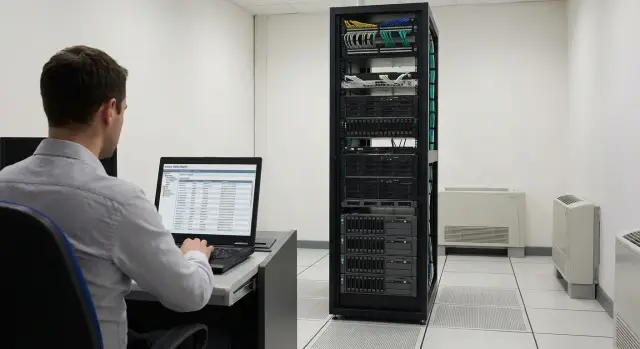
Why DCAP on a file server and what problems it solves
DCAP on file servers is needed where data is kept for years and access rights grow faster than they are managed. Shared folders, network shares, project directories, accounting archives and HR documents often remain “inherited” from old processes, employees and contractors.
Common pains
A typical situation is “everyone has access to everything” because it’s easier than breaking workflows. A folder was opened for a department, then another group was added, then an exception was made “for a week,” and a year later no one remembers why.
Another pain is there’s no simple answer to who opened, copied or deleted a file. When an incident or dispute occurs, manual searches through Windows logs quickly turn into a multi-day story and doubts remain.
A third problem is fear of changing permissions. One wrong denial or accidentally removed group can make documents “disappear,” halt approvals, stop accounting or production. So permissions often aren’t cleaned at all.
What DCAP should solve first
A good DCAP doesn’t try to fix everything at once but focuses on quick wins:
- where sensitive data sits and who is responsible for it;
- where permissions are too broad (for example, available to the whole domain or large groups);
- who actually used the data in recent weeks and months versus who has access “just in case”;
- what actions occurred on files (read, copy, delete, mass changes);
- how to change access safely: first show risk and impact, then apply changes in stages.
Manual permission checks don’t scale. Inheritance, groups, nested groups and exceptions quickly make the picture unreadable. DCAP gives visibility and order to reduce leak risk, pass audits calmly and avoid stopping work due to accidental mistakes.
Briefly about permissions and data: what we control
For DCAP on file servers to be useful, separate two things: where the data is stored and who can realistically reach it. In practice issues usually start with SMB shares and NTFS permissions that have accumulated exceptions over the years.
Permissions on a file server almost always combine two layers: share-level access and NTFS on folders and files. Add inheritance and access granted “for convenience” at the top can silently propagate into dozens of nested folders, including confidential ones.
A separate topic is roles in Active Directory. Direct user permissions are rare and that’s correct. But due to groups, nested groups and “permissions via group” the real picture becomes unclear: an employee may get access through an old project group, a department role or temporary membership no one remembers.
Service accounts and applications also break the logic. They are often given broad rights “so it definitely works,” and then it’s hard to know who is actually reading data: a person, a service, a scheduled job or an integration. So you need to monitor users, service accounts and their typical scenarios.
Sensitive data on file shares typically looks like: contracts and invoices, commercial proposals and correspondence, HR documents, finances (payroll, budgets, reports), medical data (in clinics and labs), internal investigations, keys and backup dumps.
A practical way to agree on “what to control” is to pick 5–10 highest-risk folders and describe for each: data owner, allowed groups and actions considered normal (read, modify, delete, mass copy). For example, “HR\Personal files” is available only to the HR group and one deputy; any service account access there should trigger review.
Preparation: boundaries, data owners and basic rules
Before starting DCAP, agree on three things: where you will tidy up, which data you consider sensitive, and who can say “yes” or “no” to permission changes. Without this, the audit becomes an endless list of findings with no actions.
First set the scope. A common mistake is to start with “the whole file estate” and then drown in details. Better to choose a clear scope and document it: which servers and shares are included and what you exclude (temporary folders, test shares, decommissioned archives).
It’s useful to describe the area simply: which file servers and key shares you take, which business processes they support (accounting, HR, contracts), whether there is data outside classic shares (NAS, DFS, cluster, separate storage), and who is responsible for infrastructure (IT) and content (the business).
Next agree on what counts as “sensitive data.” Don’t try to build a perfect classification at once. Start with easy checks: folders with obvious names (HR, Payroll, Contracts, Finance), file types and recognizable templates in documents (scanned IDs, contracts with personal numbers, medical records). Rules are refined during the pilot.
A key point is data owners. This is not IT but business reps who understand who truly needs access and what will break if it’s wrong. Assign owners for large zones (HR, Legal, Finance) and agree response times for access-change requests.
Finally, capture the current state: take a snapshot of permissions (NTFS and Share) and collect a baseline of activity. This helps distinguish real need from historically granted rights and plan changes without surprises.
How to find overly broad permissions and “hanging” accesses
Overly broad permissions usually hide in two places: at the Share level and in NTFS. DCAP’s job is to quickly show where access was given “just in case” and who actually uses it.
Start by collecting common “red flags” that almost always repeat: large groups (Everyone, Authenticated Users, Domain Users) at the share root, Full Control where only viewing is needed, write/delete rights in template and archive folders, inheritance that pushes access deeper than intended, and “foreign” groups that no one can explain.
Then separate “broad” access from “unnecessary.” Broad access is sometimes justified (for example, a company-wide regulations library). Unnecessary rights are when the permission level is higher than required by the work. A practical approach: compare “what is allowed” with “what should be by data type.” For folders with personal data, finance and contracts, a common norm is read for a wider circle and write only for specific roles.
“Hanging” accesses are found by combining permissions with actual activity. If a group has access but none of its members accessed the folder in recent months, it’s a candidate for cleanup. A frequent example: a department moved to another system long ago, but rights on the old archive remain and keep inheriting.
To avoid disruption, prioritize by risk and likelihood of process breakage: first sensitive data with broad access and active use, then delete/modify rights, then unused folders and “just in case” accesses. Cosmetic issues like duplicate groups and messy names can be addressed later.
How to monitor access to sensitive data without noise
Audit in DCAP is not just “who opened a file.” Useful auditing records actions that change risk: reading and copying, renaming, mass deletion, permission changes, and access-denied attempts.
To give events context, each fact needs metadata: who (user and their groups), when (including out-of-hours), where from (PC, IP, network segment, VPN), and how (regular application, script, service account, admin console). Flag admin and service actions separately: they create noise but often hide significant incidents.
There are events to catch with dedicated rules: read spikes (hundreds of files in a short time), mass changes (renames, moves, deletes), access to “not-your” areas (e.g., finance reading HR), activity at night or weekends, and repeated access failures.
To separate normal from suspicious without complex analytics, set simple baseline levels. For example: “for Procurement, up to 200 reads per hour in their folder is normal,” while “over 500 reads or access to Contracts outside working hours” should trigger review.
The “value zones” approach reduces noise: start with folders that would really hurt if misused — personal data, finance, contracts, medical records. Then scenarios are clear: opening templates is not an alert; a user suddenly copying a payroll archive to their laptop over VPN is a signal you need to see immediately.
Varonis, Netwrix, Stealthbits: compare by tasks, not names
Begin tool selection from the task you want to solve first: find unnecessary permissions, understand real data usage or carefully apply changes with an audit trail.
Varonis is often chosen when deep visibility into data and user behavior is needed: where sensitive information is, who accesses it, which folders are active and which are stale. Its strength is analytics and supporting the workflow with data owners — not just reports but a clear path to decisions on who to keep and who to remove.
Netwrix and Stealthbits are commonly selected when audit and reporting are priorities: quick answers to “who opened, changed, deleted,” regular compliance reports and careful permission-change management. Practically, they reduce manual work: fewer exports, fewer disputed interpretations, more repeatable procedures.
What to compare before choosing
Before a pilot, build a short matrix and run 2–3 typical cases on your data. Check source coverage (only file servers or also NAS, SharePoint, cloud), analytics depth (events only or anomalies), ease of approvals with folder owners, change management (including rollback), and time to first useful result.
Also evaluate signal quality: one tool may show 10,000 events a day, another may surface 20 actions that truly require response.
Practical questions for the vendor
To avoid surprises after purchase, clarify in advance: server, agent and permission requirements for deployment; where and how logs are stored and the archive policy for 6–12 months; role separation (security, admins, data owners, auditors); noise reduction (exceptions, baseline rules, training); and what happens if you disable or move a file resource.
A simple practical test: if Finance has a shared folder open to "all employees", you need a tool that shows the real users of that folder and provides a clear approval scenario so month-end closing won’t break.
Step-by-step DCAP implementation without downtime
You can deploy DCAP while users keep working as usual. The main rule — don’t start with mass cleanup; first gather facts: who actually uses what, where sensitive data sits and which accesses are meaningless.
A practical rollout looks like this:
-
Limited pilot. One share or one server (e.g., Finance or HR). Enable observation mode: permissions, groups, real accesses, access errors.
-
Baseline and priorities. After a few days identify a short list of problematic folders: “everyone” access, chaotic inheritance, many unknown groups, no owner.
-
Agree with the data owner. In plain language record who reads, who modifies, who approves access and what is sensitive.
-
Make changes in small batches. One folder or one permission type at a time. Keep a rollback plan (for example, export current ACLs). After each step monitor for access denials and actual support requests.
-
Regular reports and deviation control. Reports on overly broad permissions, new public folders, read spikes, and group changes keep order after the initial cleanup.
Example: on Contracts, access was granted through an old department group that accidentally included interns. The pilot shows interns never opened those files. Permissions are removed first on one subfolder, observed for a week, then the decision is rolled out to the whole structure.
Typical mistakes and traps when cleaning permissions and setting up audit
The most common mistake is to abruptly “close everything extra” and expect users to adapt. Processes break: a contract template won’t open, scans disappear, IT gets flooded with tickets. It’s safer to assign a data owner, agree criteria and have a short test window with a clear rollback.
Another trap is underestimating groups and inheritance. A person “shouldn’t have access,” but they get it via a nested AD group, an old role or top-level inheritance. You remove one entry and access remains, so it seems the tool is wrong. Before cleanup, understand where permissions come from.
When “service” accounts get in the way
Chaos worsens when service accounts and user permissions follow the same scheme. An application account may have full access “just in case” and will always appear as a critical risk in any analysis. Better separate them: service accounts into distinct groups, separate rules and a clear justification for each access.
Audit is also often done “just in case”: collect everything but don’t decide who reviews reports, where to store data, or how long to keep it. As a result either storage fills up, analytics becomes noise, or reports themselves become a leakage source.
Before changes, a short checklist works well: pilot one department, check nested groups and inheritance several levels up, separate service accounts, decide report readers and log retention, prepare rollback and a channel for quick complaints.
Quick checklist: what to check before changing permissions
Spend 15 minutes on basic checks before changing ACLs. This saves hours of investigation when templates stop opening or a shared resource “breaks”.
Make sure you have: a list of critical shares and folders (usually 3–10), data owners ready to confirm decisions, clear rules for “too broad” permissions (large groups with write, Full Control for big groups, inheritance in folders with personal data), auditing of key actions and a clear retention period, a temporary access request and revocation process, and a rollback plan.
Rollback planning is more important than it seems. A simple option: export current ACLs, change permissions in small portions and keep a control group of users to test 2–3 typical scenarios immediately.
Example: you remove Modify from a common group on Contracts and leave Read; write permission remains only for the Legal group. The data owner confirms the group list before changes. After applying, test opening, saving a new version, search, print and automated applications that write files. If any scenario fails, roll back and refine the access model rather than forcing rights blindfolded.
Real-world example: removing unnecessary access without breaking processes
A department has a shared "Department" folder and it was once opened to all employees for convenience. Over time confidential subfolders appeared: HR orders, applications, ID scans, payroll reports.
After DCAP is connected the picture is usually calmer than expected. Reports show 80–90% of employees never opened those files, and real work happens in a few subfolders. Problems also surface: direct user assignments, “hanging” access for ex-employees and folders without a clear owner.
Fixes can be done without downtime by acting in stages. Public documents stay in the general area; HR files are moved to a separate subfolder with limited access. Access is moved to groups (HR, HR-backup), personal assignments and accidental inheritance are removed. Before making changes look at recent activity and agree roles with the data owner. Then apply changes starting from the most sensitive subfolders and keep a short observation window to catch errors.
To keep the result, run regular reports: new folders with “everyone” rights, appearance of direct assignments, access by inactive accounts. These signals prevent reverting to old habits.
Next steps: pilot and requirements
To avoid DCAP becoming an endless project, start with a short 30-day pilot. Choose 1–2 most problematic resources (for example a department share and a contracts archive) and define clear success criteria for the results.
The first-month goal is simple: get clear reports, confirm actual overly broad permissions and make a few fixes without downtime. For example, remove “all employees” access to a folder with personal data, leave access only to required groups and verify via audit logs that processes weren’t affected.
At the same time, formulate requirements not by brand but by daily needs: which sources you cover (file servers, NAS, SharePoint, cloud if present), which reports the business and security teams need, log retention and access, how changes are approved (data owner, security, IT), and what’s needed for deployment (timelines, training, documentation, support).
Also plan infrastructure: where to place DCAP components, how much space for indexing and logs, retention length and backups. A common mistake is underestimating log growth and then cutting audit.
If local support and a single partner for infrastructure and deployment are important, GSE.kz can help as a systems integrator: design the pilot, prepare server infrastructure for DCAP and log storage (including on S200 Series servers) and provide ongoing 24/7 support.
Frequently asked questions
Why do I need DCAP on a file server at all?
DCAP is needed when file shares have accumulated years of inheritance, groups and exceptions and you no longer understand who actually has access. It quickly shows where sensitive data lives, where permissions are too broad and which folders are actively used, so you can clean permissions without stopping work.
Which folders are best to start a DCAP rollout with?
Start with 1–2 highest-risk shares: HR, Finance, Contracts, or archives with personal data. It is important that each selected folder has a business data owner who can quickly confirm who should and shouldn't have access.
What data should be prepared before a DCAP pilot?
At minimum — a data owner, a list of allowed groups and clear rules about what counts as normal for reads and changes. Without that, you'll get a long list of findings but won’t be able to safely make decisions and lock things down.
How to quickly find overly broad permissions on SMB/NTFS?
Look for large groups applied at the share root and in NTFS permissions, Full Control where only view is needed, and delete rights in important directories. Also check inheritance — it often pushes access deep into confidential subfolders.
Why shouldn't I clean permissions based only on ACLs without activity analysis?
Because “who has access” and “who used it” are different. DCAP maps permissions to activity so you can find access that exists “just in case”: a group may technically have read rights, but none of its members have opened the folder for months.
Which file-audit events matter most to avoid drowning in noise?
A good audit records not just “opened file” but actions that change risk: mass reads, copying, deletions, permission changes, and repeated access failures. Collecting everything creates noise, so start with high-value zones and clear activity thresholds.
How to handle service accounts and applications so they don't break analytics?
Segregate them into separate groups and give service accounts the minimal rights needed for their tasks, not full access “just in case.” Mark service activity separately in reports, otherwise it will constantly distort analytics and hide user actions.
How to change permissions safely so I don't break a department's work?
Work in small batches: one folder or one type of permission at a time, and export the current ACLs for rollback. After each change, monitor access failures and support requests for several days rather than relying on assumptions.
How to choose between Varonis, Netwrix and Stealthbits without lengthy research?
Compare tools on your data across three things: how clearly they show real users of folders, how easy it is to approve changes with data owners, and how quickly they answer “who did what with a file.” A pilot on typical cases will tell you more than marketing materials.
What mistakes most often derail a DCAP project?
Projects most often fail because teams start with the entire estate, lack data owners, or abruptly close access without a monitoring window. Another common fail is enabling audit for everything without rules and retention, then turning it off because of noise and storage growth.
