8 min read
Equipment for a Cyber Training Lab: Isolation and Rollback
Equipment for a cyber training lab: how to separate networks, isolate benches, set up fast VM rollback and prevent access to the admin segment.
What we protect: training attacks without risk to the organization
A cyber training lab must be isolated. It’s an environment where malicious scenarios are intentionally run, services are “broken” and protection bypasses are tested. If such activity gains access to the administrative network, you train not only students but also a future incident.
Typical risks are almost always the same: infection via a shared internet gateway, credential leakage from test machines, "jumping" between segments because of incorrect rules, and sometimes simple confusion when a training PC ends up on the same network as accounting or the domain controllers.
You must not mix training tasks and admin services in one network for a simple reason: training attacks intentionally violate normal security rules. Even a “harmless” assignment can end with a student bringing a tool that starts scanning everything. One misconfigured DHCP or a shared DNS—and the lab is already touching real services.
The success of an “equipment for a cyber training lab” project is measured not by the "coolness" of attacks but by practical things:
- safety: training activity does not affect the organization
- repeatability: the same lesson can be run again
- quick return to a clean state after an error or infection
- instructor convenience: fewer manual steps, more time for teaching
If a phishing bench is deployed during a class, it must live in its own zone and use only training accounts. Then even if the “victim” is compromised, the consequences remain inside the lab.
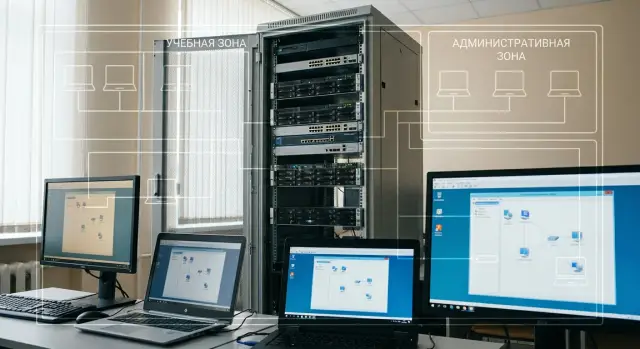
Simple zone scheme: training network separated from administrative
A common design mistake is to build everything “in one network” and rely on students’ care. It’s safer to layout infrastructure by zones from the start and agree in advance where the trust boundary runs. That way the lab equipment can scale without a constant fear of a breach into the office.
A basic scheme usually fits into three zones:
- Administrative zone: employee workstations, accounting, internal services. There should be no direct routes from the training zone here.
- Training zone: benches, virtual machines, “victim” and “attacker” systems. Risky actions and malicious samples are allowed here.
- Infrastructure management zone: hypervisors, management consoles, the lab domain controller, backups. Access here is for instructors and admins only, preferably from a separate “clean” workstation.
Internet egress and filtering are most convenient at the edge of the training zone: via a separate gateway with rules that block incoming connections and limit “dangerous” directions. It’s important that training traffic does not go out through the same exit as office traffic; otherwise incident investigation and compliance become harder.
It’s useful to have a small separate zone for updates and image downloads: template repositories, OS patches, offline packages. It should have internet access but not be directly reachable by students.
Trust boundaries can be defined simply: students — only the training zone and strictly by assignment; instructors — training plus limited management access; admins — all zones, but with action logging.
How to isolate benches: physically and logically
The goal of isolation is single: training attacks and malicious samples must not reach the administrative network. Treat isolation in lab equipment as seriously as fire safety: it must work even in case of human error.
Physical isolation gives the most reliable baseline. Dedicate a separate switch for training benches (or ports on a separate stack), separate patch panels and clear labeling. This reduces the chance someone accidentally plugs a “training” cable into a production port.
Logical isolation is almost always needed, even with separate hardware. Create dedicated VLANs and subnets for roles: “students”, “bench servers”, “monitoring/logging”, “internet egress”. Then cut routing: by default training VLANs cannot go anywhere except explicitly allowed destinations.
A minimal set of rules that usually prevents trouble:
- No route between training subnets and the admin segment at the router/firewall level.
- Strictly defined default gateways and banning of unauthorized DHCP servers.
- DNS control: students use only your DNS (or a resolver in a dedicated zone); external DNS is blocked.
- Internet access only via a dedicated NAT/proxy, with logging and limits.
- Separate management network for hypervisor and IPMI/iDRAC, unreachable from training VLANs.
A full air-gap is appropriate when you run highly dangerous samples or simulate attacks with zero risk tolerance. In that mode internet is unnecessary: updates and packages are brought offline, and repositories and documentation are kept on local servers.
A simple test scenario: a student launches a malicious test image and starts scanning. They should see only training subnets and bench services. Administrative addresses are not routed, DNS won’t resolve to external resolvers, and infrastructure management is hidden on a separate network. This provides realistic practice without surprises for the organization.
Bench platform: virtualization or dedicated training PCs
The platform choice determines how safe and convenient the lab will be. In practice there are three options: virtual machines on one or multiple servers, containers, or separate physical training PCs. Often a hybrid works best.
VMs usually win for teaching: a bench is brought up from a template in minutes, configurations are repeatable across lessons, and instructors can more easily control network and resources. Containers are fast and resource-efficient but don’t fit every scenario. For full Windows domain training, drivers, different OS kernels or complex network topologies, VMs are more convenient.
Physical PCs are valuable where hardware skills matter: working with BIOS/UEFI, distinct NICs, boot experiments, peripherals, and when a student needs a fully dedicated machine without shared resources. The downside is that updates and state recovery are harder and bench behavior may vary between machines.
When selecting equipment for a cyber training lab, start by calculating capacity: how many students concurrently, how many VMs per person (e.g., 2–4), VM profiles needed (light Linux, mid-weight Windows, heavy servers/databases), and peak CPU and memory load.
A virtualization server often proves cheaper in time and nerves than a fleet of scattered training PCs. A single host for VMs gives unified control, shared templates and a single maintenance point. In an on-prem server setup (for example, rack systems like GSE S200 Series) it’s easier to keep the lab separate from the administrative network and maintain benches centrally.
Fast rollback: snapshots, templates and golden images
In a training lab machines will be purposefully broken: malicious utilities installed, policies changed, services disabled. Rollback must be part of the lesson, not an occasional task.
Keep three levels in mind:
- Snapshot: a quick “frame” of a VM’s state. Good for lessons, but too many snapshots causes confusion.
- Template: a baseline used to clone new machines. Good for mass provisioning of identical benches.
- Golden image: a tested OS with updates, drivers and basic settings. It’s rarely changed, well-tested and protected; other variants are built from it.
A practical approach is to separate the base layer and the task layer. The base OS comes from the golden image, while task-specific content (vulnerable web service, logs, tools) is added on a separate disk or clone. After a lesson you only update the task layer while the OS stays clean and identical.
Implement rollback in two modes: an instructor-triggered button and an automatic nightly reset. For group lessons a simple rule helps: “when the last student leaves, benches return to the initial state.”
To limit changes ahead of time, use immutable disks for the base layer, prevent installing software without admin rights, and separate user profiles and policies that are reset at login. This saves hours: even if a student “breaks” a machine, you don’t investigate what they did—you revert the bench to the desired state in minutes.
If the lab runs on local servers, ensure compute and storage can handle simultaneous rollback of dozens of VMs. For example, on high-performance racks like GSE S200 it’s easier to keep multiple image variants and distribute them quickly for different lessons.
Storage and network for images: making rollback truly fast
Rollback bottlenecks are usually storage and network, not the hypervisor. If storage is slow, snapshots copy slowly, clones take minutes, and mass VM startup at the lesson start becomes waiting time. That’s critical for a training lab.
Storage options that fit
Common approaches are: local NVMe/SSD in the host (maximum speed and simplicity), network storage NAS/SAN (convenient for multiple hosts and redundancy, but requires fast ports and careful tuning), or hybrid (frequent operations on fast local SSDs, archives and backups on network storage).
The network matters too. Mass start of 20–40 VMs may read the same base image concurrently. Solve this with bandwidth and low latency: 10GbE or higher between hosts and storage, short paths free of bottleneck switches, and stable low latency.
Where to keep images and where to keep data
Separate “what we roll back” from “what we can’t lose”:
- golden images and templates — the fastest pool
- differential disks/snapshots of lab VMs — in the same fast pool for quick rollback
- student data (reports, logs, results) — separate datastore with backups
- ISOs, distributions, large datasets — a content store so the fast pool isn’t filled
If you choose servers and storage as part of lab equipment, budget extra IOPS and network capacity: labs almost always grow faster than expected.
Access and roles: so students don’t see more than they should
Even the best equipment can be ruined by access settings. If a student accidentally gets hypervisor admin rights or sees neighboring networks, the training sandbox stops being safe.
Start with role separation and least privilege. Training benches should use separate accounts and not accept admin group logins, even “for five minutes.”
Roles and permissions: the minimal set
Three levels are usually enough. A student needs access only to their VMs (or assigned PCs) and, if needed, a single training dashboard. An instructor needs console access to VMs, restart, rollback and distribution abilities. An administrator manages the virtualization platform, network and storage, but does not perform daily work inside training OSes.
Check basic settings:
- separate accounts for students, instructors and admins — no shared group password
- prohibit admin accounts from logging into training VMs and benches
- virtualization management and hypervisor console access limited to instructors and admins
- different access groups for network segments: training segment visible to students, administrative not visible
- login and management action logs enabled and reviewed regularly
Personal devices and guest Wi‑Fi
If student laptops are allowed, connect them only to guest Wi‑Fi: internet access (if needed) and access to training resources, but no access to administrative services. A good practice is to issue temporary accounts for the lesson and disable them afterward.
For example, in a phishing lesson a student gets access to one “victim” and one “attacker” VM. They can reboot their machines but cannot open a neighbor’s console or view network settings. The instructor sees all benches, helps and rolls back scenarios without risking the rest of the infrastructure.
Logging and observability: control without excessive noise
In a training lab logs are needed for two tasks: to review what happened during practice and to quickly verify if a task was completed. If a student claims an exploit worked, gateway and target machine records show the facts.
Start with a small set of mandatory sources. For “equipment for a cyber training lab” this is often more important than expensive analysis tools: without basic logs any error looks the same.
Usually the following are enough:
- training network gateway: inbound/outbound connections, blocks, NAT
- DNS: queries and responses
- bench management servers: logins and configuration changes
- key target hosts and the instructor’s jump machine: security events and errors
- hypervisor or virtualization platform: start, stop, rollback, who and when
For packet-analysis exercises mirror traffic (SPAN) to a dedicated switch port connected to a sensor or an analysis station. Mirror only the training segment and only during the lesson to avoid noise and extra risk.
To avoid drowning in data, set simple rules: keep detailed network logs for 7–14 days, record only training segments (not administrative), provide log access by roles and configure 2–3 clear alerts (DNS spike, port scan, mass failed logins).
Step-by-step plan to deploy a lab from scratch
Start on paper: agreeing on boundaries and goals is easier than fixing the network after the first lesson.
Define training modules and, for each, sketch required benches: “phishing + mail”, “vulnerable web service”, “AD lab”, “SIEM for log analysis”. Note where materials are stored, who grades results and what data must not enter the training zone.
Then choose a deployment model. For small groups separate training PCs may suffice. For regular lessons centralized virtualization on servers is more convenient: rollbacks and resource control are easier. Hosts can be servers or workstations, including locally manufactured systems if local supply and support matter.
Next fix network rules. The training network must be separate and the path to the administrative network closed by default. This is usually solved with segmentation (VLAN) and strict routing: allow only what the lesson needs (internet, image repository, instructor access), block everything else.
Then prepare a fast recovery foundation. Create golden images for typical roles (attacker, victim, service server) and decide how benches will be restored: snapshot, reinstall from template or auto-script. It’s important that the instructor can run recovery without manual hassle.
Before launch run a short pilot:
- deploy 2–3 benches from different modules
- perform key student tasks as a student
- measure rollback time after an intentional break
- adjust images and network rules
After the pilot you can see bottlenecks. If recovery fits lesson breaks and the training zone cannot reach the admin network, scale up.
Common mistakes that make a lab dangerous
A training lab is safe until the “training” starts living next to “production.” Problems usually stem not from advanced attacks but from small one-off decisions that were forgotten.
Common mistakes in lab equipment and network design:
- One shared switch and “we’ll separate it later.” Someone connects the wrong port, an extra uplink appears and training machines gain a path to the admin network. Even with VLANs, accidental bridges occur: a port moved to another VLAN or a trunk enabled without need.
- Students are given management access: hypervisor panel, switch console, Wi‑Fi controller. One curious student can break the network for everyone and you won’t know what changed.
- VM images live “as-is.” Without versioning and a clear golden image you end up in “it worked yesterday, now it doesn’t.”
- No separate channel for updates. The lab either stays unpatched or pulls updates through the admin network, again creating unwanted routes and exceptions.
- Shared accounts and simple passwords “for the group.” Later you can’t identify who changed settings and can’t quickly revoke access after a course.
A typical scenario: an instructor asks to “quickly give internet to the benches,” someone places a temporary patch cable. On the next lesson students run a scan that accidentally goes into the admin segment. The tool is blamed, but the real issue was the lack of a strict boundary.
Minimum protections are straightforward: separate management network for hypervisor and hardware, role-based accounts, fixed VM templates with version control, regular fast rollback and a dedicated channel or repository for updates that doesn’t create holes to the admin network.
Short checklist before a lesson
10–15 minutes before start, run quick checks. They save class time and protect the organization from accidental leaks. This is crucial when lab equipment sits near regular IT infrastructure.
Check five things:
- Network separation works: no route from training to admin, and gateway/firewall rules match the plan.
- VM rollback behaves predictably: a test reset of 1–2 benches fits your time window (e.g., 2–5 minutes) and services recover.
- Students have no platform management access: no hypervisor console, switch or storage rights; accounts verified.
- There is a clean restore point: golden images updated and a control snapshot or backup made before the lesson.
- Observability is ready: logs from key nodes are collected and time is synchronized on hosts and VMs.
If something fails, simplify the lesson rather than fixing infrastructure in front of the group.
Example: running a lesson and restoring benches quickly
Imagine a practical session for 20 students and 2 instructors: one module on phishing (mail and web) and one on malware analysis (sandbox and debugging). To keep them safe and separate, build the lab around isolation and simple reset.
Divide groups into two training zones of 10 people. Each zone has its own VLAN, address pool and set of bench templates. Instructors connect via a separate instructor VLAN with console access to virtualization and logs, but no access to the administrative network.
Internet is provided only through a training gateway with domain whitelists for updates (e.g., mail, sandbox, signature repositories). Do not allow direct internet from bench VLANs so a malicious sample can’t start sending mail outside unchecked.
The lesson workflow: before start bring benches up from templates and verify DHCP/DNS are served only by training services; after the first module roll back VMs to snapshots, clean temporary files and reset passwords; for the malware module issue separate restricted VMs; at night return everything to the golden image on schedule.
Most failures come from infrastructure: mass rollbacks overload storage (solve with distributing images on fast disks and limiting parallel operations), an unauthorized DHCP appears in the VLAN (fix by blocking unauthorized ports and binding services), or students retain elevated rights (solve with template roles and access checks before each lesson).
Next steps: choosing equipment and planning lab growth
Once zones and rollback work, the next priority is growth planning. Growth usually follows three axes: more concurrent groups, heavier images (AD, SIEM, containers, multiple OSes) and more parallel VMs per attendee. Choose equipment with that future growth in mind.
Estimate needs for the next 6–12 months. If you have one group and light benches, start with training PCs or workstations. When you need 2–3 parallel streams or scenarios requiring 3–6 VMs per person, move to a server-based centralized approach: easier distribution, faster recovery and simpler resource control.
Before purchase answer: how many VMs must run simultaneously; how much memory per participant (RAM usually runs out first); how fast SSDs and how much space for images, snapshots and logs; what is the network between hosts and storage and whether it will be a bottleneck during mass rollback; who takes care of the service and repair SLAs.
If local supply and nationwide service matter, the kit can be built on GSE.kz (gse.kz): training PCs L200, all-in-ones M200 for classrooms and S200 servers for centralized virtualization. As the lab becomes part of the curriculum, system integration services and 24/7 support are useful: fewer outages, more teaching time.
Example: you started with one 12-seat room and two scenarios. After a semester you add a second group and a heavy bench with multiple domains. That’s when moving to servers and centralized images usually pays off: rollbacks and distribution take minutes instead of half a class.
Frequently asked questions
What is the simplest way to prevent training attacks from reaching the administrative network?
Minimum — fully separate the training network from the administrative network so there is no route between them. In practice this means a dedicated gateway/firewall for the training zone, separate VLANs/subnets and a default-deny rule set that only allows explicitly permitted traffic. Even if someone misconfigures a training machine, its traffic should have no physical or logical path to the office segment.
Which zones should be included in a cyber training lab design?
Usually three zones are enough: administrative (office and organization services), training (student benches) and management (hypervisors, consoles, backups). The trust boundary should be clear: students operate only inside the training zone, instructors manage benches via restricted access, and administrators maintain infrastructure from the management network with auditing.
Is physical isolation necessary if we already use VLANs?
Physical separation reduces the chance of human error: separate switches/ports, clear labeling, separate patch panels. Logical separation is almost always required: VLANs, distinct subnets and strict routing rules. The most practical approach is to combine both, so the lab remains safe even if someone plugs a cable into the wrong port.
How should internet access be organized for the training zone?
Provide internet through a dedicated training gateway with NAT/proxy and logging so lab traffic doesn’t mix with office traffic. By default block inbound connections and restrict only the directions needed for the lesson. This makes incident investigation easier and reduces the chance that a malicious bench will contact external resources uncontrolled.
When is a full air-gap from the internet necessary?
Air-gapping is warranted when you run dangerous samples or simulate scenarios where any external leak is unacceptable. In this mode updates, packages and materials are brought in offline and repositories and documentation are hosted on local servers. This increases operational effort but dramatically reduces risk to the rest of the infrastructure.
What should we choose for benches: virtual machines or dedicated training PCs?
Virtualization is usually more convenient: benches are deployed from templates in minutes, configurations are repeatable and rollbacks are easier. Physical training PCs make sense when you need hardware-level skills: BIOS/UEFI, separate NICs, boot experiments, peripherals, or when each student requires a totally dedicated machine. In practice a hybrid—servers for VMs plus some physical stations—works well.
How to estimate how many server resources a lab needs?
Start by calculating peak concurrent load: how many students will work at the same time and how many VMs per person at peak. Then define VM profiles for memory and disk, because RAM and IOPS typically run out before CPU. After a pilot with a small group, measure the time for mass startup and rollback—those numbers reveal how much extra capacity you need.
What is the difference between snapshots, templates and a "golden image", and which to use?
A snapshot is a quick ‘state capture’ of a VM—handy during a lesson, but many snapshots can cause confusion. Templates are used to clone many identical benches. A golden image is a tested, updated baseline OS from which other variants are built. Practically, separate the base OS layer and the task layer so you only update the module-specific content while keeping the OS consistent for everyone.
Why do VM rollbacks take so long and how to speed them up?
Slow rollback is usually caused by the storage subsystem and the network: mass starts and rollbacks read and write a lot of data concurrently. Keep a fast pool for images and snapshots and store student results and archives separately so they don’t degrade bench performance. As the lab grows, plan extra IOPS and network throughput between hosts and storage.
How to set up accesses so students don’t get excessive privileges?
Segment roles and grant least privilege: students only to their benches, instructors to rollback/start and distribute tasks, admins for platform maintenance. Avoid shared group passwords and do not give students access to the hypervisor, switches or Wi‑Fi controllers. Enable login and management action logs so you can quickly trace who changed what.
